
TSL Monitoring
The TSL Monitoring screen allows you to start, stop, or restart automated polling for individual registered TSLs without affecting the polling of other TSLs.
When the polling settings of an existing TSL are updated or a new TSL is registered, TSL Monitor needs to apply the updated configuration. Instead of restarting polling for all registered TSLs, you can use the TSL Monitoring screen to control polling for a specific TSL.
The screen also displays the current monitoring and polling status of each registered TSL.
To access this screen, click TSL Monitoring under TSL Monitor.
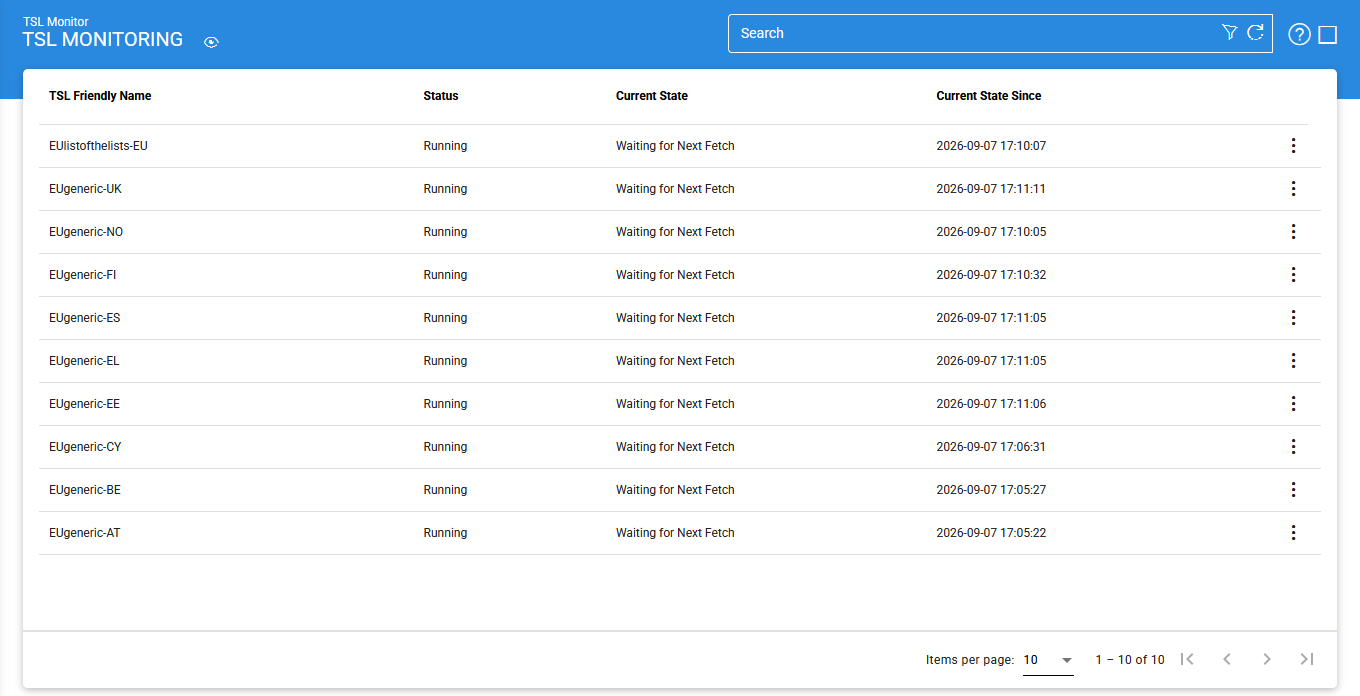
The following table describes the available options:
|
Items |
Description |
|
Clear Search |
Clears the applied search criteria and displays all registered TSLs. |
|
Search |
Opens the search screen, where you can specify criteria to filter the registered TSLs. |
|
Stop |
Stops monitoring and automated polling for the selected TSL. |
|
Start |
Starts monitoring and automated polling for the selected TSL. |
|
Restart |
Stops and then starts monitoring and automated polling for the selected TSL. |
|
Refresh |
Refreshes the screen and displays the latest monitoring and polling status. |
The registered TSLs can be sorted in ascending or descending order using the following columns:
- TSL Friendly Name
- Status
- Current State
- Current State Since
Advanced Search
Click the Advanced Search icon to open the search screen.
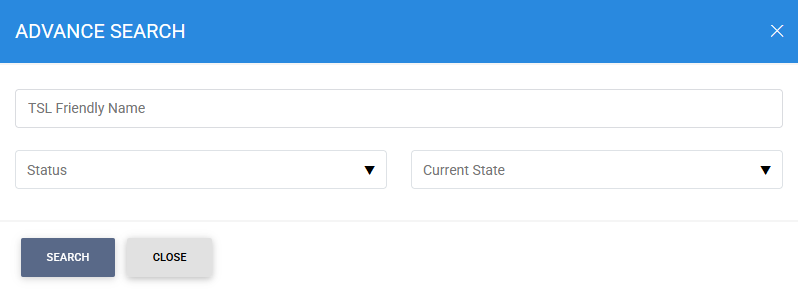
You can search TSL Monitoring records using the following criteria:
- TSL Friendly Name
- Status — 'Running' or 'Stopped'
- Current State — 'Stopped', 'Waiting for Next Fetch', 'Waiting for Next Fetch After Failure', 'Downloading TSL', or 'Verifying/Validating and Updating TSL'
Enter the required search criteria and click Search to display the matching TSL monitoring records.
See also