
TSL Details
The TSL Details sub-module allows administrators to configure and manage the List of Trusted Lists (LOTL) and the Trusted Service Lists (TSLs) associated with it.
For example, the European Union maintains an LOTL that references the TSLs published by individual EU Member States. Each country maintains its own TSL containing information about its trusted service providers and trusted services. ADSS Server uses the information in the LOTL and TSLs when validating digital signatures and determining the trust status of the associated services.
|
|
Important: Before importing an LOTL or TSL, make sure that the certificates required to establish trust in the LOTL/TSL are registered in Trust Manager. Importing an LOTL or TSL into ADSS Server automatically imports certain certificates. However, some certificates may still need to be imported manually into Trust Manager |

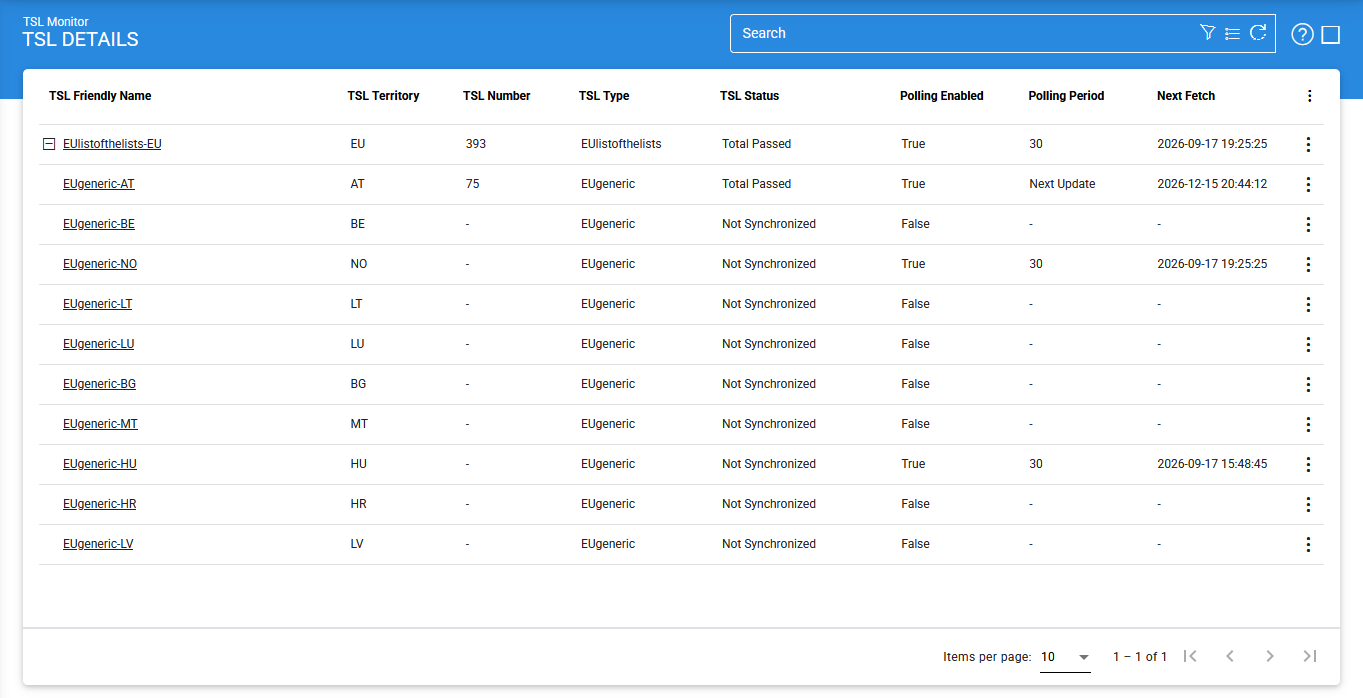
The TSL Details screen provides an overview of the configured LOTLs and TSLs and allows administrators to perform actions such as searching, viewing, importing, editing, deleting, and retrieving TSL data.
The following table describes the items available on the screen:
|
Items |
Description |
|
Pagination (`<`, `<<`, `>`, `>>`) |
Use these buttons to navigate between pages of TSL records. The number of records displayed per page can be configured from Global Settings. This setting applies to all grids throughout ADSS Server. |
|
Clear Search |
Clears the applied search criteria and displays all available TSL records. |
|
Search |
Opens the search screen where you can specify search criteria for the available TSL fields. |
|
View LOTL |
Displays the TSLs downloaded by TSL Monitor for the selected LOTL. |
|
TSL Friendly Name |
Displays the unique friendly name assigned to the TSL when the LOTL was added. |
|
TSL Territory |
Displays the territory or country associated with the selected LOTL/TSL, including its country code. |
|
TSL Number |
Displays the TSL number retrieved from the TSL XML file. |
|
TSL Type |
Displays the TSL type retrieved from the TSL XML file. |
|
Polling Enabled |
Indicates whether automatic polling is enabled or disabled for the TSL. Enable polling if TSL Monitor should automatically retrieve updates from the TSL repository. |
|
Polling Period |
Displays the configured polling information and the time when TSL Monitor is scheduled to retrieve the TSL from its repository. |
|
Auto Retrieve Selected TL |
Retrieves valid TSL data from the corresponding XML file and stores the retrieved information in the ADSS Server database. This option is available only for TSLs for which polling is disabled. |
|
Add LOTL |
Opens the configuration screens for adding a new LOTL to TSL Monitor. |
|
Edit |
Allows you to edit the selected LOTL or TSL configuration. |
|
Delete |
Deletes the selected LOTL or TSL from TSL Monitor. |
|
View TSPs |
Displays the Trust Service Providers (TSPs) associated with the selected TSL. |
The TSL Status indicates the current state of the selected TSL. The following statuses are available:
|
Status |
Description |
|
Total Passed |
Indicates that the TSL is valid and has passed validation successfully. |
|
Intermediate |
Indicates that the TSL signature could not be validated successfully and the TSL is therefore in an indeterminate state. |
|
Not Synchronized |
Indicates that the TSL is not currently available in the ADSS Server database and only its reference URL is available. This status may also occur when a TSL exists in the database but cannot be updated during a subsequent polling cycle because an exception occurs while processing it. |
|
Total Failed |
Indicates that an error occurred while parsing the TSL during retrieval. |
Viewing LOTL/TSL Details
Click on the vertical ellipsis (⋮) at the end of the row and select View LOTL or View TSL to display detailed information for the selected LOTL or TSL.
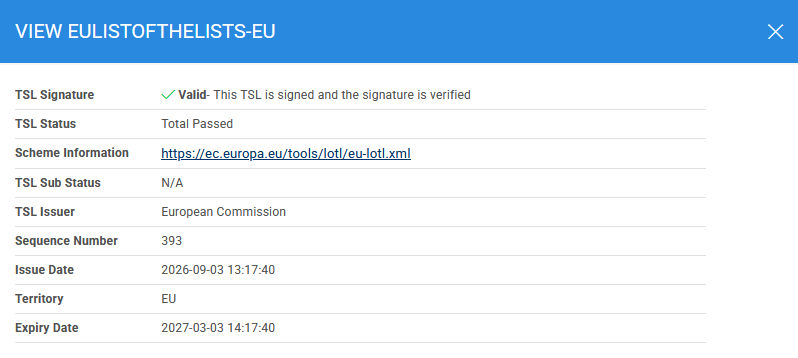
The details screen provides information about the selected LOTL/TSL and allows you to perform supported management operations.
Importing an LOTL/TSL
The Import Type drop-down allows you to select the type of LOTL/TSL to import from the file system.
Before importing an LOTL/TSL, make sure that the certificates required to establish trust in the imported list are registered in Trust Manager.
Automatically Retrieving a TSL
The Auto Retrieve Selected TL option allows you to retrieve the latest valid data for a selected TSL from its XML repository and store the retrieved data in the ADSS Server database.
|
|
Note: The Auto Retrieve Selected TL option is available only for TSLs for which Polling Settings are disabled. |
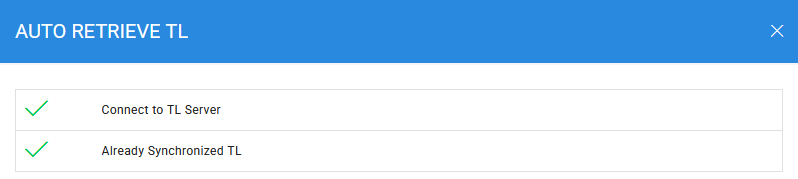
Clicking Auto Retrieve Selected TL displays the following screen:
|
|
Important: When a TSL is automatically retrieved, ADSS Server verifies whether the certificates of its issuers are trusted in Trust Manager. If the required issuer certificates are not trusted, the retrieval operation fails and an error message is displayed. |
Adding, Editing, and Deleting an LOTL
Click Add LOTL to add a new LOTL to TSL Monitor. The trust anchor certificates required for the LOTL must already be registered in Trust Manager.
To modify an existing LOTL, select it and click Edit.
To remove an existing LOTL or TSL, select it and click Delete.
Advanced Search
Click the Advanced Search icon on the TSL Details screen to open the advanced search screen.
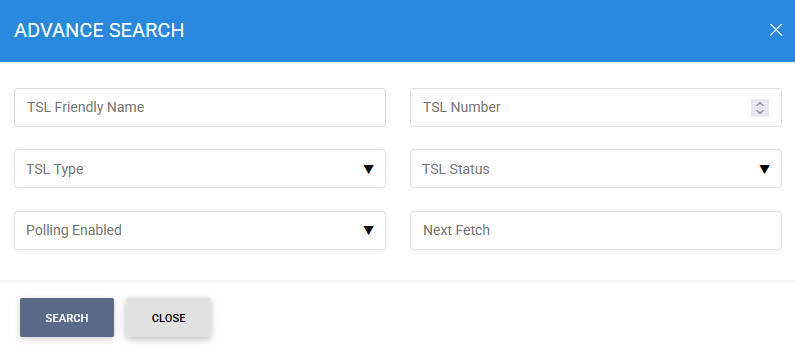
You can search for a TSL using one or more of the following criteria:
- TSL Friendly Name
- TSL Number
- TSL Type
- TSL Status
- Polling Enabled
- Next Fetch
Enter the required search criteria and click Search to display the matching records.
Trust Service Providers (TSPs)
Each country maintains its own TSL, which contains information about the Trust Service Providers (TSPs) operating in that territory and the trust services they provide.
Click View TSPs for a TSL to view the TSPs registered in that TSL.
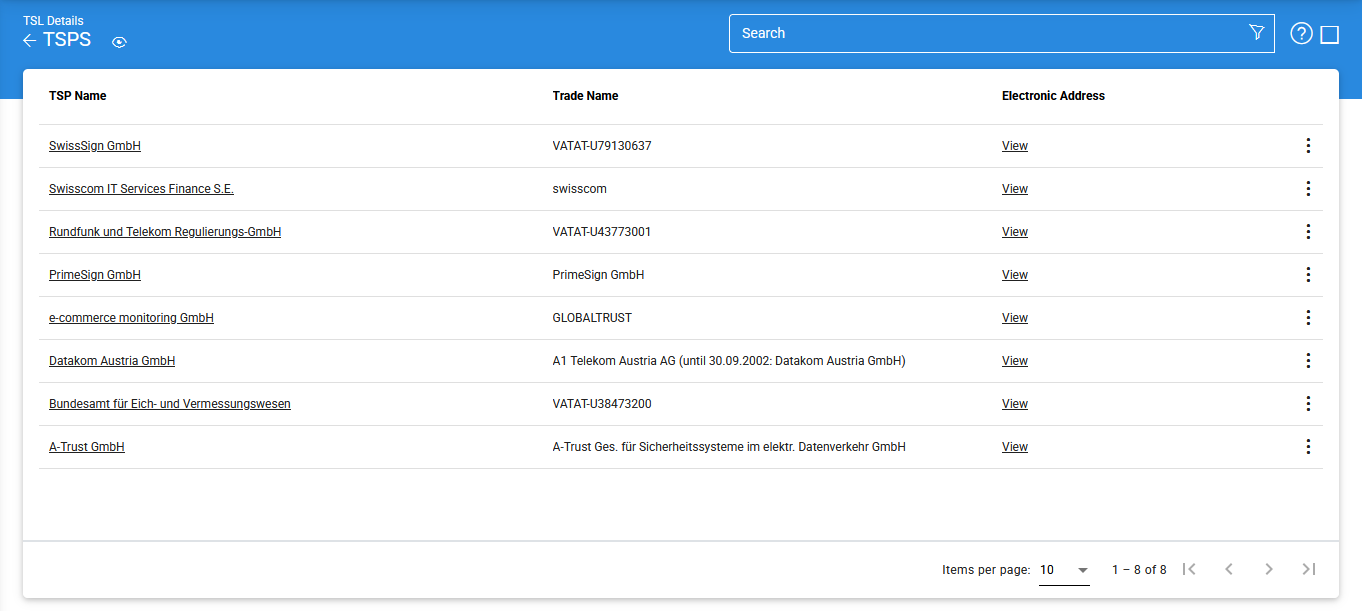
The TSP screen displays the TSP Name and Trade Name defined in the TSL XML file in accordance with Regulation (EU) No 910/2014.
To view the Electronic Address for the selected TSP, click on the View button under the Electronic Address column:

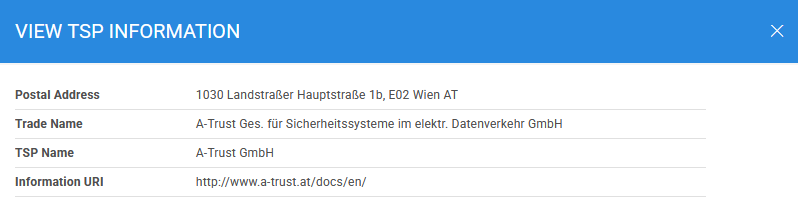
To view detailed information about a TSP, click the vertical ellipsis (⋮) and select View.
Searching for TSPs
Click the Advanced Search icon on the TSP screen to open the search screen.
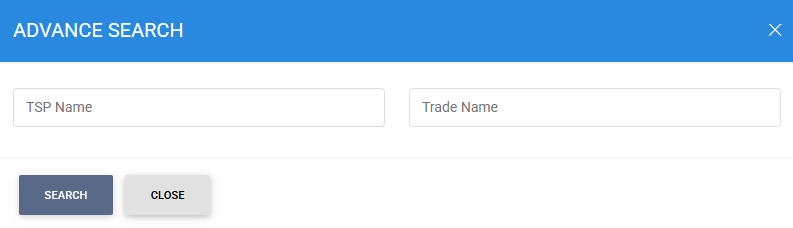
You can search for a TSP using the following criteria:
- TSP Name
- Trade Name
Enter the required values and click Search to display the matching TSPs.
Trust Services
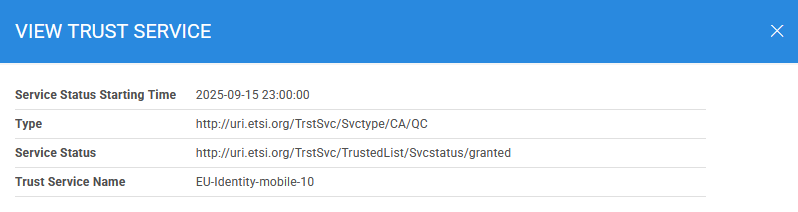
The Trust Services screen displays the trust services registered under a selected Trust Service Provider for the selected TSL.
Click Trust Services to view the available trust services.
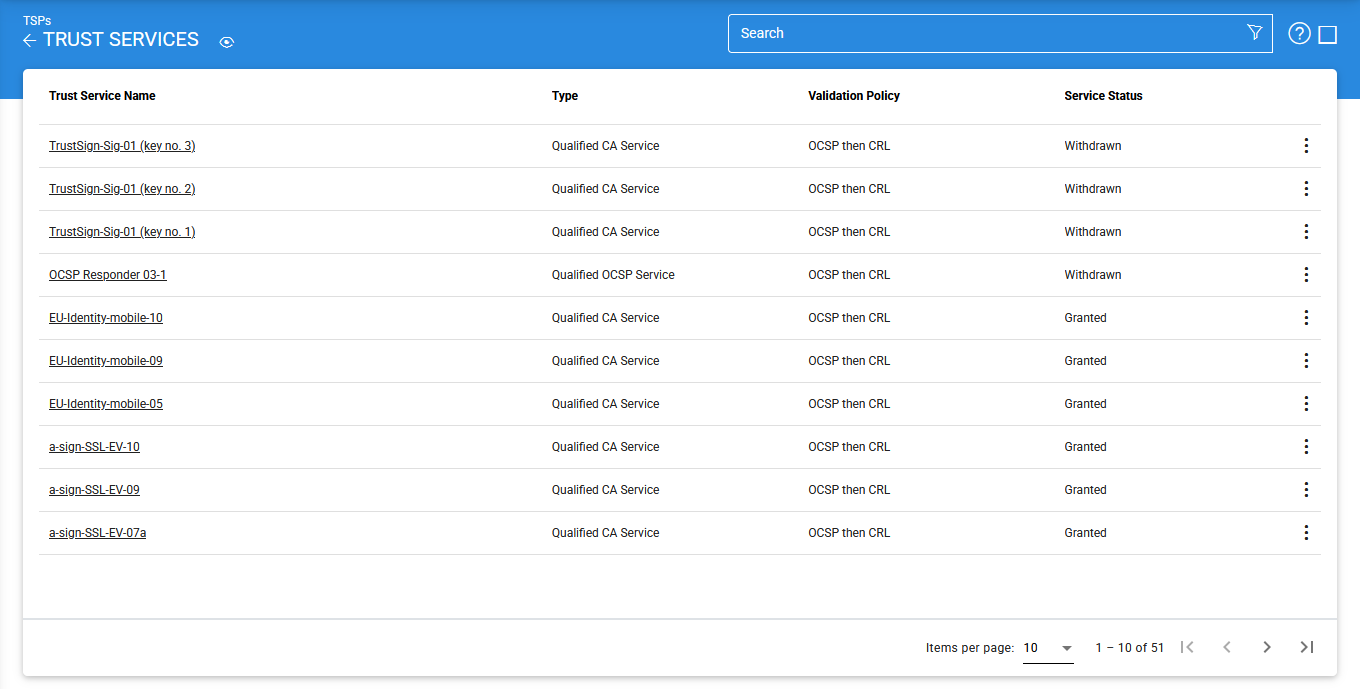
The displayed trust service information is derived from the TSL XML file and is processed according to the requirements of Regulation (EU) No 910/2014.
To view detailed information about a Trust Service, click the vertical ellipsis (⋮) and select View option:
Viewing the Trust Service Certificate
Click View Certificate to view the certificate associated with the selected trust service.
To view detailed information about a Trust Service Certificate, click the vertical ellipsis (⋮) and select View Certificate option, it diplays the following screen:
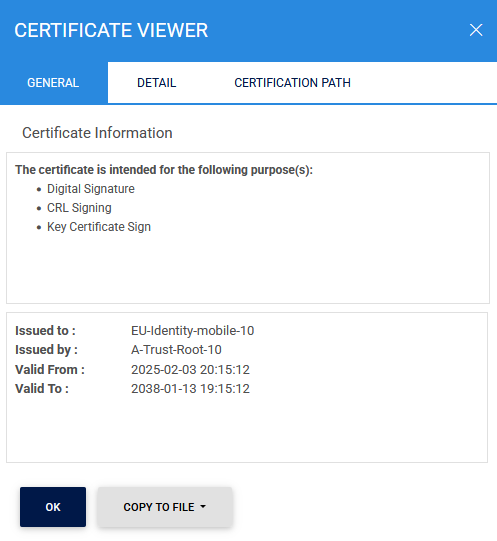
By default, General tab screen is displayed. Click on the Detail tab to display the following screen:
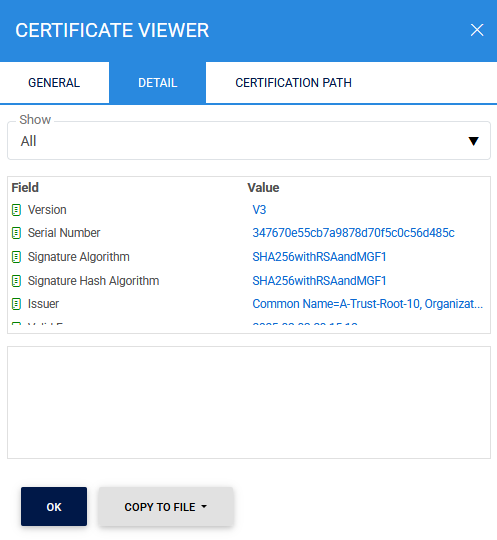
Click on the Certificate Path tab to display the following screen:
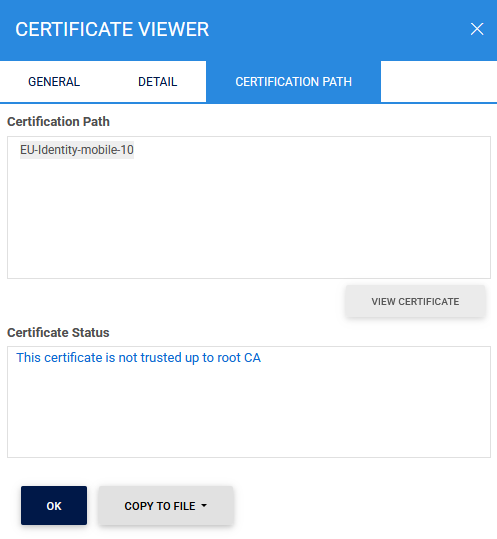
Click Copy To File to export the certificate to the file system. You can select one of the following supported formats:
- Base64 Encoded (.cer)
- DER Binary (.cer)
- PEM (.pem)
- PKCS#7 (.p7b)
Searching for Trust Services
Click the Advanced Search icon on the Trust Services screen to open the search screen:
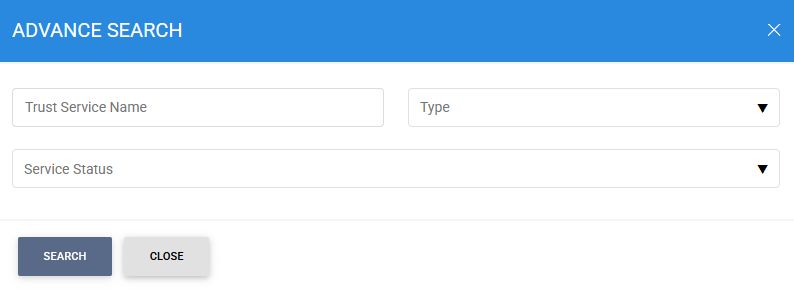
You can search for a Trust Service using the following criteria:
- Trust Service Name
- Type
- Service Status
Enter the required values and click Search to display the matching Trust Service.
Service History
The Service History option displays the historical information associated with the selected trust service in a list.
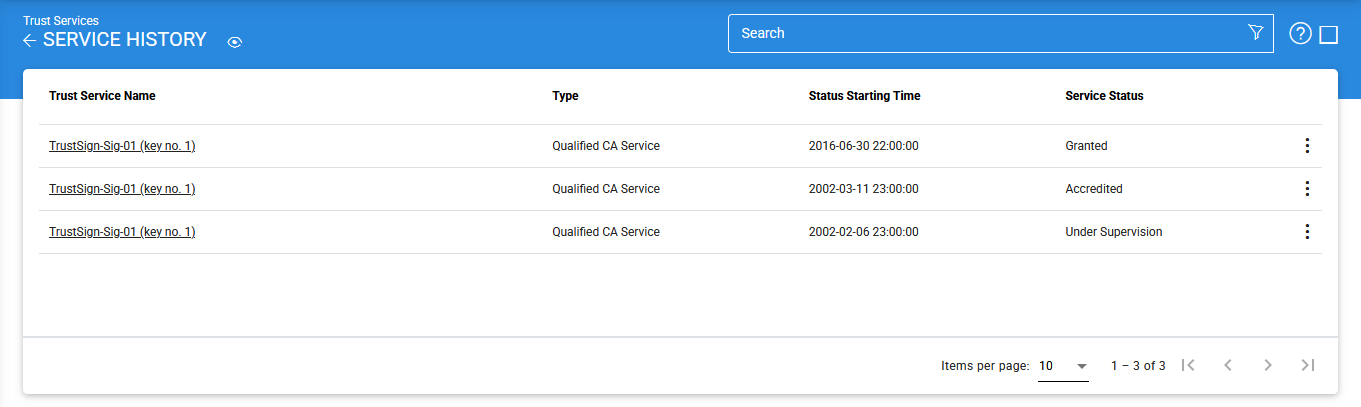
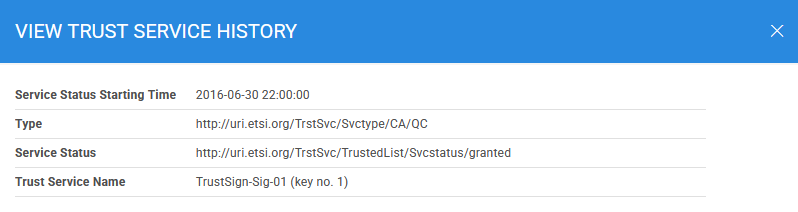
To view detailed information about a Service History, click the vertical ellipsis (⋮) and select View option:
Searching for Service History
Click the Advanced Search icon on the Service History screen to open the search screen:
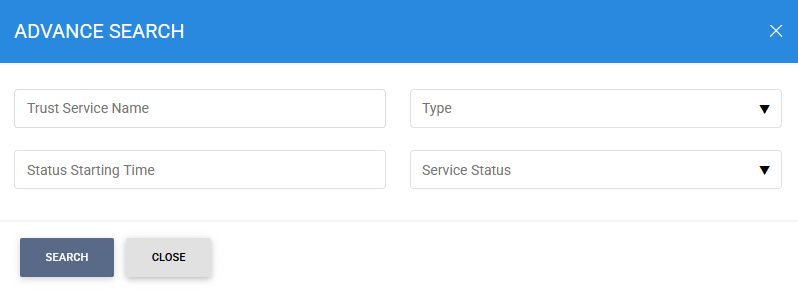
You can search for search history using the following criteria:
- Trust Service Name
- Type
- Status Starting Time
- Service Status
Enter the required search criteria and click Search to display the matching search history.
See also