
TSL Logs
The TSL Logs screen records system events related to the polling, retrieval, processing, and verification of registered TSLs. Regularly reviewing these logs helps administrators verify that TSL polling and processing are operating as expected and identify any errors or failures.
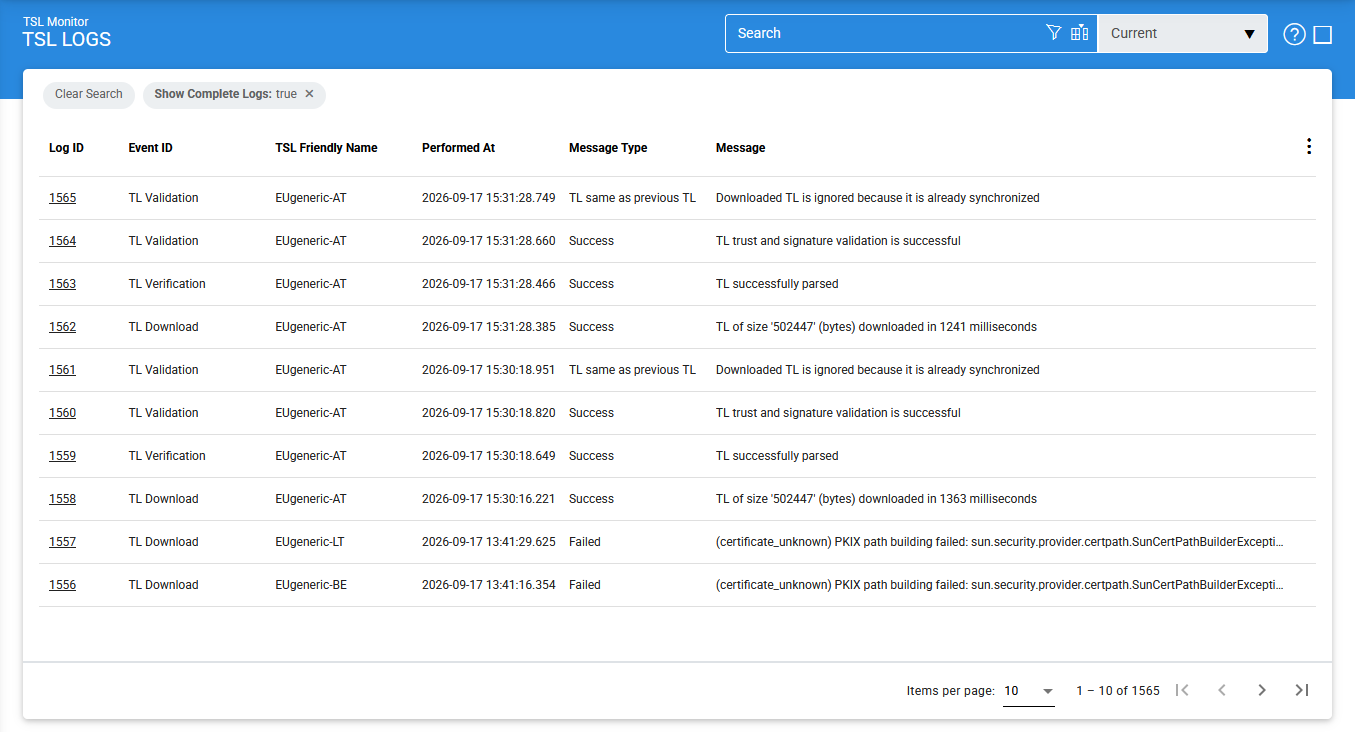
The following table describes the options and fields available on the TSL Logs screen:
|
Items |
Description |
|
Clear Search |
Clears the applied search criteria and displays the complete set of log records. |
|
Search |
Opens the search screen, where you can specify criteria to filter the log records. |
|
Customise Columns |
Opens the column configuration screen, where you can select which columns are displayed or hidden in the log grid. |
|
Pagination (`<`, `<<`, `>`, `>>`) |
Use these buttons to navigate between pages of log records. The number of records displayed per page can be configured from Global Settings. |
|
Export Logs |
Exports the selected transaction log records as a ZIP file containing CSV data. Each column in the CSV file is separated by the literal delimiter `~&~`. The exported file can be opened using Microsoft Excel. To import and analyse archived transaction logs in ADSS Server, use the Import Archived option. |
|
Verify Integrity |
Verifies the integrity of TSL Monitor transaction log records. The operation can detect modified or deleted records and generates a report that can be exported to a local or network location. |
|
Show Archived |
Opens the archived log interface, where previously archived or exported transaction log files can be imported and viewed. |
|
Log ID |
Displays the unique, system-generated serial number assigned to the log record. This identifier is not part of the request or response messages. |
|
Event ID |
Identifies the TSL Monitor event that generated the log record. |
|
TSL Friendly Name |
Identifies the TSL associated with the log record using its configured friendly name. |
|
Performed At |
Displays the date and time when the corresponding system action was performed. |
|
Message Type |
Indicates the type of message recorded, such as a system action, informational message, or error message. |
|
Message |
Displays the message generated by the system. |
|
Show Complete Logs |
By default, this option is disabled and only the main, conclusive message for each TSL polling operation is displayed. This message indicates whether the TSL was successfully updated in the database, ignored, or failed. Enable this option to display the complete sequence of messages generated during TSL processing. |
The TSL Monitor transaction logs can be sorted in ascending or descending order by selecting the required column from the sorting drop-down list.
Importing Archived Logs
To import previously archived TSL Monitor transaction logs, select Import Archived from the drop-down menu and click Go.
The following screen is displayed:
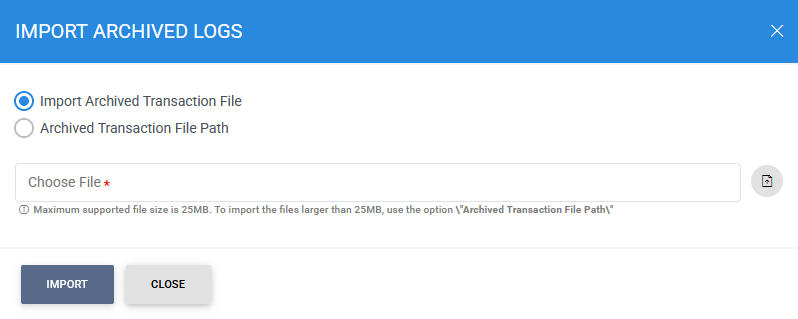
The following table describes the available options:
|
Items |
Description |
|
Import archived transaction file |
Allows you to browse and select an archived log file in ZIP format from the local machine. The selected file is uploaded to the ADSS Server before it is imported. Because uploading large files can take significant time and resources, the maximum supported file size for this option is 25 MB. For files larger than 25 MB, use Archived transaction file path instead. |
|
Archived transaction file path |
Allows you to specify the path of an archived log file that is larger than 25 MB. The file is not uploaded to the server. Instead, ADSS Server reads the file directly from the specified path before importing it, which is generally faster for large files. You can specify either a local file system path or a network path. Make sure to include the archived log file name in the specified path.. |
|
|
Important: Before ADSS Server v4.7.6, archived transaction files were stored in CSV format. Starting with v4.7.6, archived files are stored in ZIP format to reduce disk space usage. If you need to import an archived file created by a deployment earlier than v4.7.6 into ADSS Server v4.7.6 or later, first compress the CSV file into a ZIP archive. Otherwise, ADSS Server will not recognise it as a valid archived file. |

Advanced Search
Click the Advanced Search icon to open the search screen.
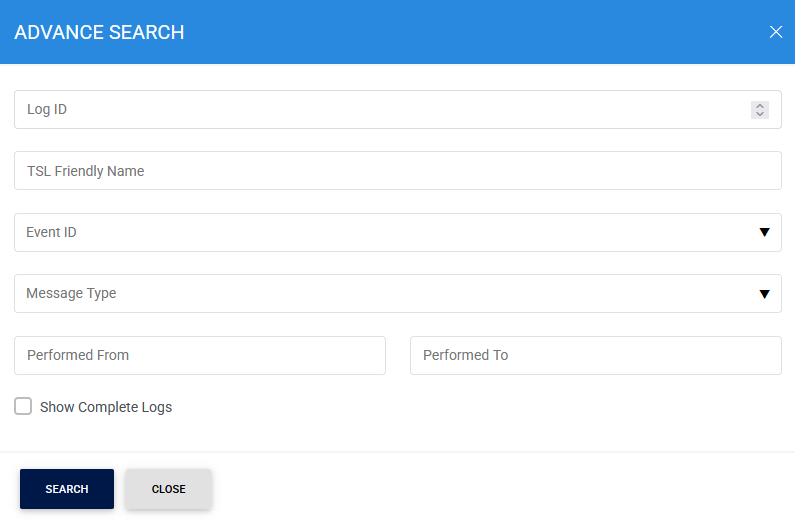
Use the Search button to filter TSL log records based on the specified criteria. You can combine multiple filters to create more specific searches.
For example, you can search for:
- All error messages generated while downloading TSLs.
- All errors generated while verifying TSLs.
- Log records generated within a specific date range.
- Specific events associated with a particular TSL.
Customising Log Columns
To customise the columns displayed in the TSL Logs grid, click the vertical ellipsis (⋮) and select Customise Columns.
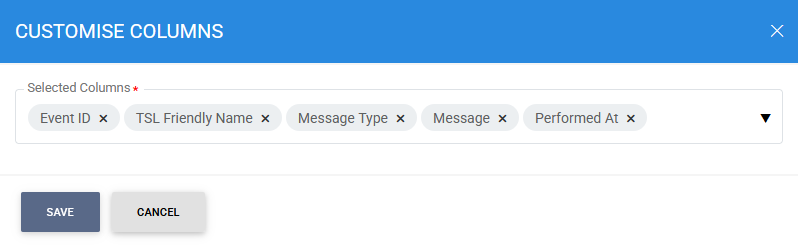
By default, all available columns are included in the Selected Columns list.
To hide a column, move it from Selected Columns to Available Columns.
Verifying Log Integrity
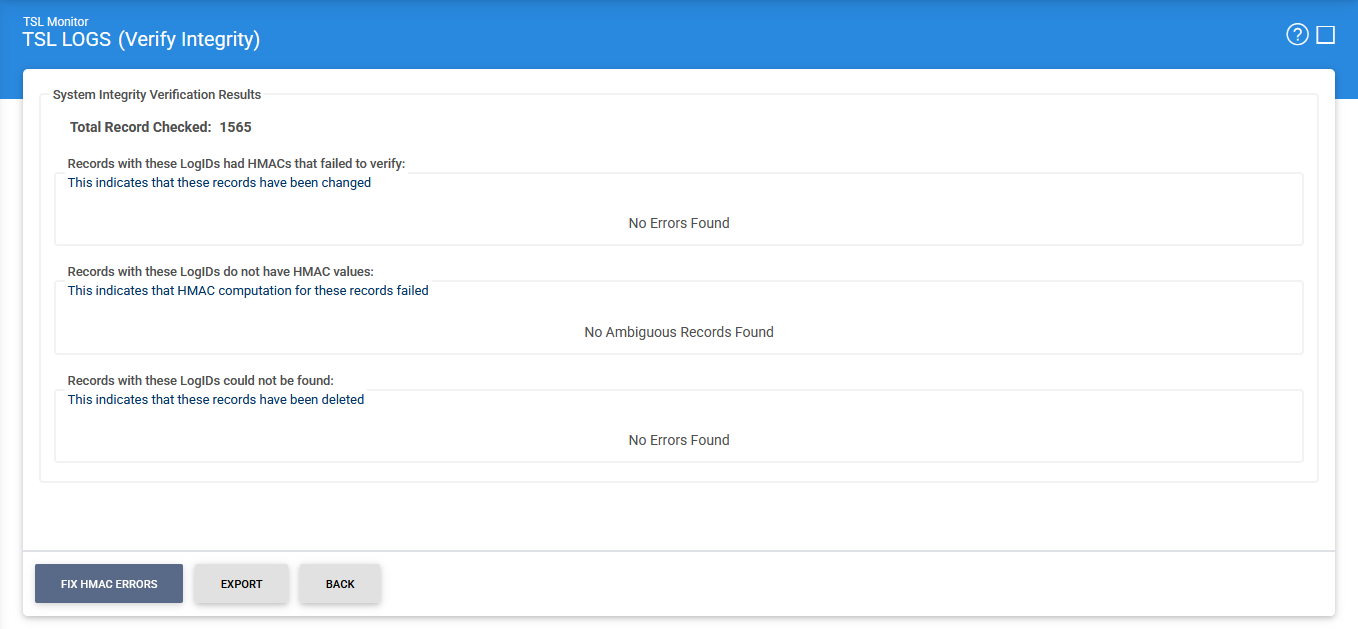
Each TSL Monitor transaction log record stored in the database is protected using a cryptographic HMAC checksum. This checksum helps detect unauthorised or accidental modifications to log records.
Click Verify Integrity to verify the integrity of the transaction logs. ADSS Server checks the HMAC checksum of each record and generates an integrity verification report.
Fixing HMAC Errors
The integrity verification report may identify transaction records whose HMAC values have been modified, are incorrect, or are missing.
To recalculate the HMAC value for affected records, click the vertical ellipsis (⋮) and select Fix HMAC Errors.
|
|
Note: Fix HMAC Errors only corrects unauthorised modifications or records with missing or incorrect HMAC values. It does not detect or recover records that have been unauthorisedly deleted. |
|
|
Important: The Verify Integrity feature is available for the transaction logs of all services in ADSS Server. |
See also