
Transaction Logs
The SPOC Service Transaction Logs module maintains a complete audit trail of all requests received by the ADSS SPOC Service and the corresponding responses generated by the service. These logs provide detailed transaction records for monitoring, troubleshooting, compliance, and auditing purposes.
To view the transaction logs, navigate to the following screen:
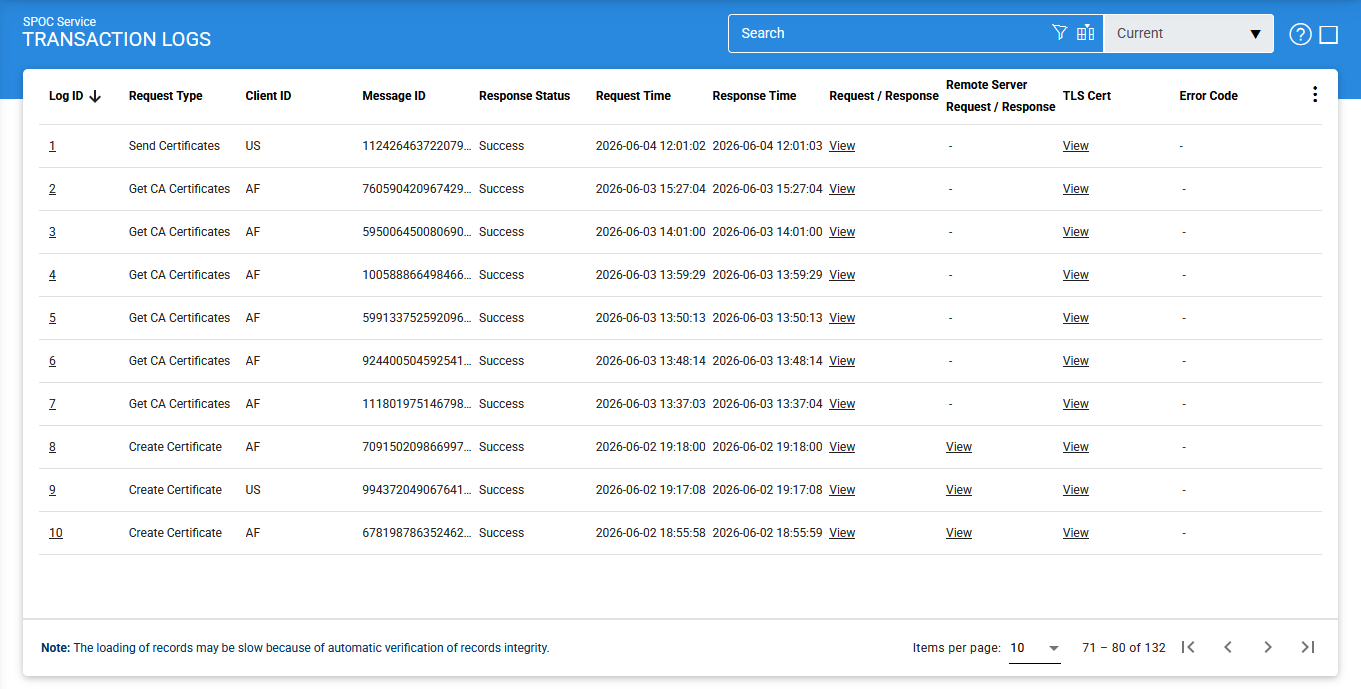
The configuration items are as follows:
|
Items |
Description |
|
Clear Search |
Clears any active search criteria and displays the complete set of transaction records. |
|
Search |
Opens the search window, allowing transaction records to be filtered using specific search criteria. |
|
Customise Columns |
Opens a configuration window that allows operators to choose which columns are displayed or hidden in the transaction grid. |
|
|< < > >| |
Used to navigate between pages of transaction records. The number of records displayed per page can be configured in Global Settings. |
|
Export Logs |
Exports transaction log records to a compressed ZIP archive containing CSV files. The exported files use ~&~ as the column delimiter and can be viewed in spreadsheet applications such as Microsoft Excel. For detailed analysis and viewing of archived transactions within ADSS Server, the exported file can be imported using the Import Archived feature. |
|
Verify Integrity |
Verifies the integrity of transaction log records by validating the cryptographic HMAC checksum associated with each record. Any modified or deleted records are identified and reported. The generated report can be exported for audit purposes. |
|
Log ID |
A system-generated unique identifier assigned to each transaction log record. |
|
Request Type |
Indicates the type of request processed by the SPOC Service. The acceptable requests are:
|
|
Caller ID |
Displays the identifier of the requesting entity. For foreign requests, this is typically the two-letter country code of the Foreign SPOC. For domestic requests, this is the Client ID configured in the Client Manager. |
|
Message ID |
Displays the unique identifier associated with the request. |
|
Response Status |
Displays the outcome of the transaction. Possible values are:
|
|
Request Time |
Records the date and time when the request was received. |
|
Response Time |
Records the date and time when the response was generated or returned. |
|
Request/Response |
Provides access to the request and response messages associated with the transaction. |
|
Remote Server Request/Response |
Displays requests sent to, or responses received from, external entities such as Domestic CVCAs or Foreign SPOCs. |
|
IP Address |
Records the IP address of the requesting client. |
|
Error Code |
Displays any error associated with the transaction. Hover over the View link to display the complete error description. |
Transaction records can be sorted in either ascending or descending order by selecting the required column from the available sorting options.
Importing Archived
To import previously archived transaction logs:
- Click the vertical ellipsis (⋮) in the upper-right corner of the screen.
- Select Import Archived.
The following screen is displayed:
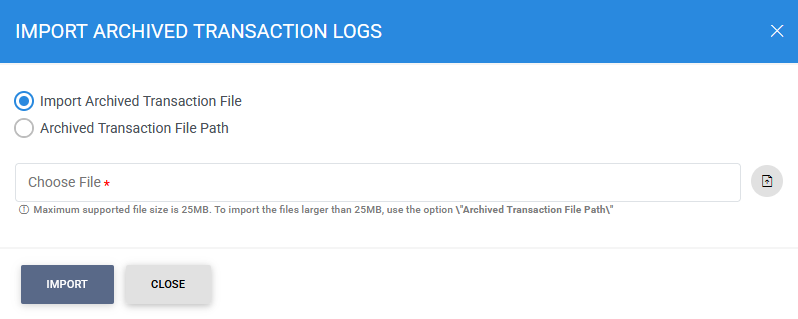
The configuration items are as follows:
|
Items |
Description |
|
Import Archived Transaction File |
Allows the operator to browse and upload an archived transaction ZIP file from the local workstation. Uploaded files must not exceed 25 MB in size. |
|
Archived Transaction File Path |
Allows the operator to specify a local or network file path for larger archive files. The server reads the archive directly from the specified location without uploading it, providing improved performance for large files. |
|
|
Note: When using the Archived Transaction File Path option, ensure that the complete archive file name is included in the specified path. |

|
|
Note:
|
Searching Transaction Logs
To search for specific transaction records, click Search.
The following screen is displayed:
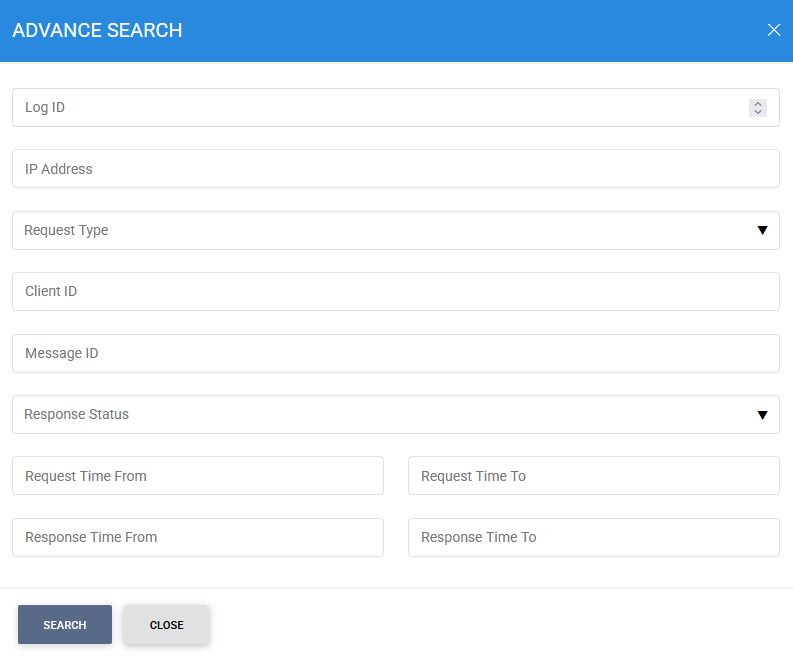
The search functionality allows transaction records to be filtered using the following criteria:
- Log ID
- IP Address
- Request Type
- Caller ID
- Message ID
- Response Status
- Request Time From
- Request Time To
- Response Time From
- Response Time To
This feature helps administrators quickly locate specific transactions for troubleshooting and auditing purposes.
Customising Displayed Columns
To customize the columns displayed within the transaction log grid, click Customise Columns.
The following screen is displayed:
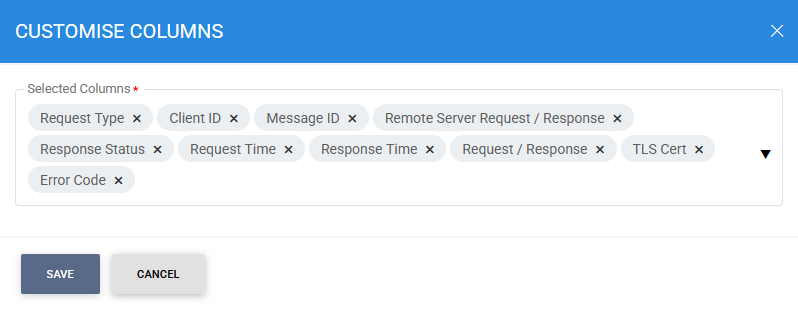
By default, a predefined set of columns is displayed in the transaction grid.
To hide a column, remove it from the Selected Columns list. .To display a hidden column, select it from the Selected Column drop-down list.
Verifying Integrity
Each transaction record stored within the database is protected using a cryptographic HMAC checksum. This mechanism helps detect unauthorized modifications and ensures the integrity of audit records.
To verify log integrity:
- Click the vertical ellipsis (⋮) in the upper-right corner of the screen.
- Select Verify Integrity.
The following report is generated:
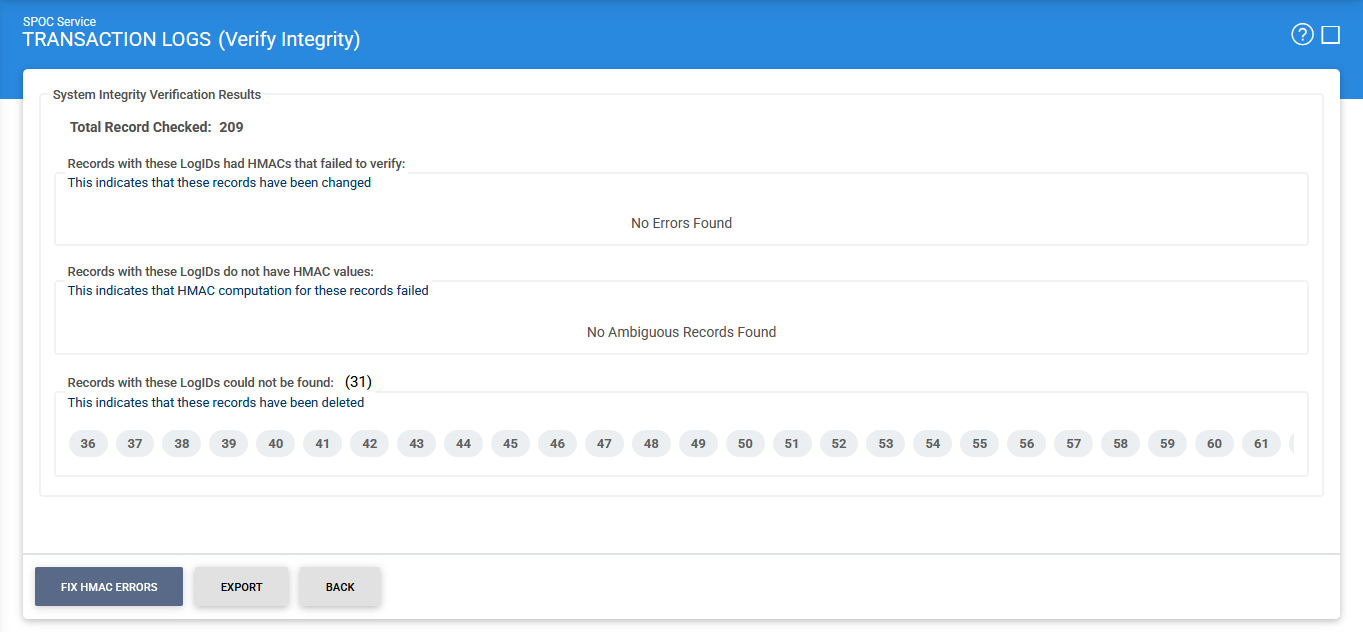
The integrity verification process validates the HMAC checksum of every transaction record and identifies:
- Modified records
- Missing records
- Records with invalid or missing HMAC values
|
|
Note: The Verify Integrity feature is available for transaction logs across all ADSS Server services. |
When exporting HMAC verification reports, it is recommended to save the report with an .html extension so that it can be viewed directly in a web browser.
Exporting Transaction Logs
To export transaction logs:
- Click the vertical ellipsis (⋮) in the upper-right corner of the screen.
- Select Export Logs.
The selected transaction logs are exported as a compressed ZIP archive.
|
|
Note: Transaction logs are exported as a complete archive and are not limited by any currently applied search filters or sorting criteria. |
Fixing HMAC Errors
The Fix HMAC Errors option recalculates and updates HMAC values for transaction records that have been modified or contain invalid HMAC values.
|
|
Note:
|
Viewing Transaction Details
To view detailed information for a transaction, click the corresponding Log ID.
The following screen is displayed:
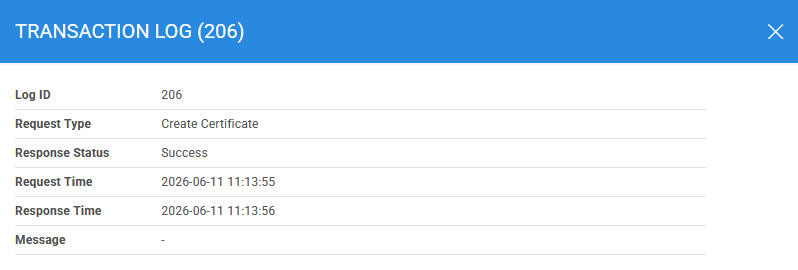
This screen provides comprehensive information about the selected transaction, including request details, response information, timestamps, status information, and audit-related metadata.
Viewing Request and Response Messages
To view the request and response associated with a transaction, click the View link in the Request/Response column.
For XML-based transactions, the request is displayed on the Request tab.
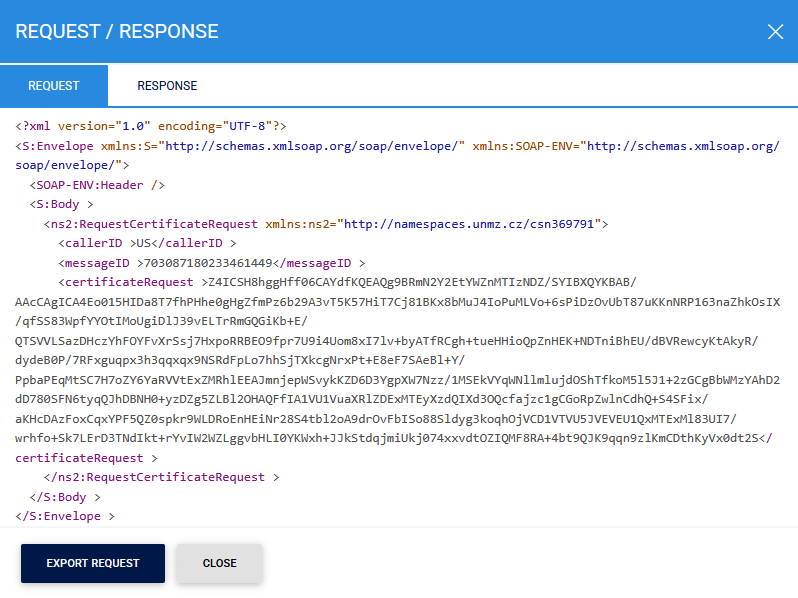
To view the corresponding response, click the Response tab.
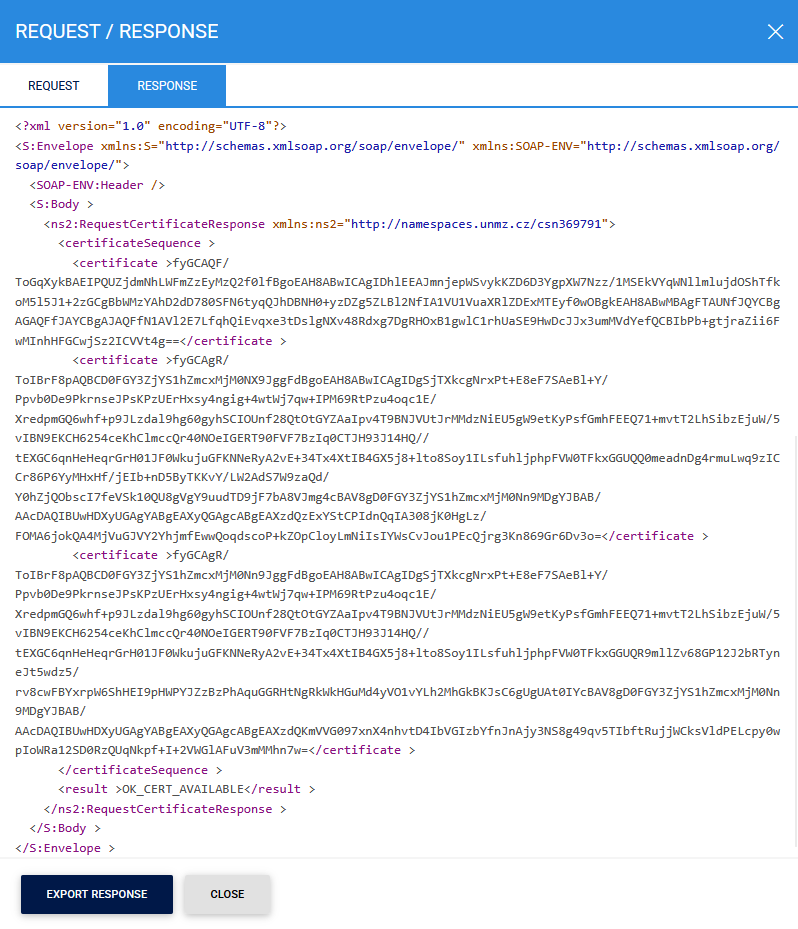
Operators can export the request and response XML files to a local or network drive by clicking the appropriate Export button.
See also
Configuring the SPOC Service
Manage Requests
Manage Certificates
General Messages