
Transaction Logs
The ADSS Inspection System Service keeps record of every request and corresponding response made to the service in the transactions log for auditing purpose, depending on the configuration done in Service Manager screen.
Navigate to Inspection System Service 🡪 Transaction Logs, it displays the following screen:
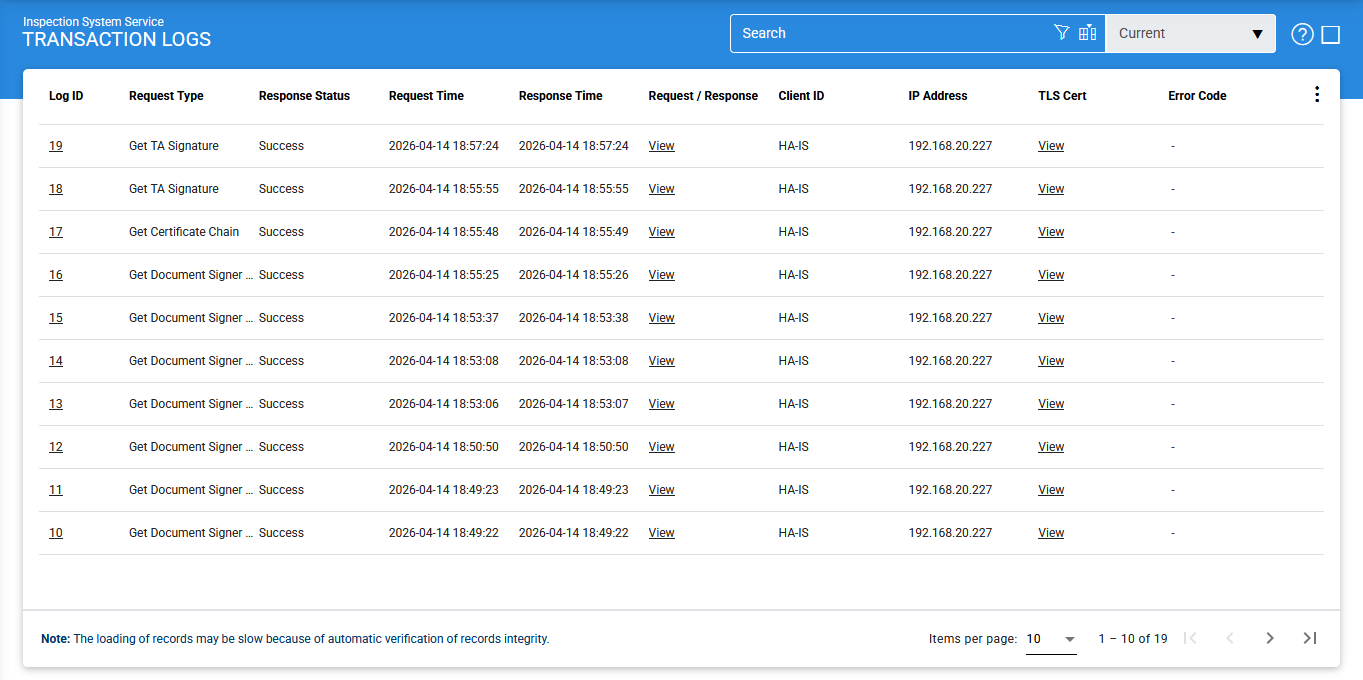
Each item in the screenshot is described below:
|
Items |
Description |
||
|
Advance Search |
This opens a new window where search criteria can be entered based on each column of the transaction grid. |
||
|
Customise Columns |
This opens a pop up window to configure which columns to show/ hide in the grid. See below for more details. |
||
|
|< < > >| |
These buttons are for navigating the different pages of the transaction log.
|
||
|
Export Logs |
This button is used to export the selected transactions log into a zipped CSV file in which each column is separated by literal '~&~'. The file can be viewed using Microsoft Excel. However, in order to view and analyze the contents of the file in detail (all the archived transactions etc.), the user needs to import the file into ADSS using the Import Archived option. |
||
|
Verify Integrity |
This button verifies the integrity of the Inspection System Service transaction log records. It detects tampered or deleted records and generates a report that can be exported to a physical drive. |
||
|
Log ID |
Shows a unique serial number for each log record, it is system-defined and not a part of the request/response messages. |
||
|
Request Type |
Identifies the type of each request that was received. It includes:
|
||
|
Response Status |
This shows which response was returned. Possible values are:
|
||
|
Request Time |
Shows the date/time when each request was received. |
||
|
Response Time |
Shows the date/time when the response was sent. |
||
|
Request/Response |
Shows the link to view each Request/Response message. |
||
|
User ID |
Shows the User ID found in the request message. Inspection System Service verifies if this is a registered User ID before granting access. |
||
|
Client ID |
Shows the client ID found in the request message. Inspection System Service verifies that this is a registered Client ID within the Client Manager module before granting access to this service. |
||
|
TLS Cert |
Clicking on View link under this column displays the TLS client authentication certificate. The View link is only present when TLS client authentication was used to send requests to the Inspection System service. |
||
|
Error Code |
Hover the mouse over the "View" link shows the error message (if any) for each request, e.g. internal error, Inspection System Service disabled etc. |

Records are sorted in Descending order by default. We can filter records based on the value selected in the ‘Order by’ drop down. By default, records are filtered based on Log ID value.
From the drop down menu in above screen, choose Import Archived and click on Go button. This will show the following screen:
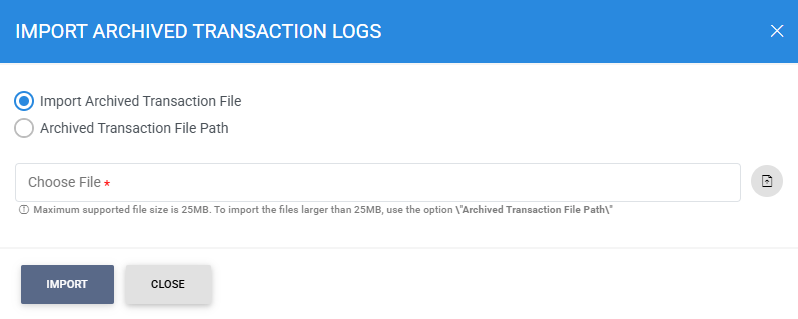
Each item in the screenshot is described below:
|
Items |
Description |
|
Import archived transaction file |
Use this option to browse the archived log file in zip format from the operator machine. By using this option the archived log file is uploaded on the ADSS Server. It can be an expensive operation if the file is of large size so the operator is allowed to upload a file with maximum size up to 25 MB. Use the archived file path option for files bigger than 25 MB. |
|
Archived transaction file path |
Use this option if the file size is greater than 25 MB. This option does not upload the archived file to the server. Rather the server reads the file from given file path before importing which is faster than the above option. You can either specify the local file system path or a network path. Note: Do specify the archived log file name in the file path. |
|
|
The archived files were created in the CSV format till ADSS Server v4.7.5 but from v4.7.6 and onward the archived files are zipped to save the disk space when archiving. If you are importing the archived files created using a pre-v4.7.6 deployment to ADSS Server v4.7.6 or later then first zip them before importing otherwise ADSS Server will not recognize them as correct archived files. |
As explained above, clicking on the Advance Search icon on Inspection System Service Transactions Log displays following screen:
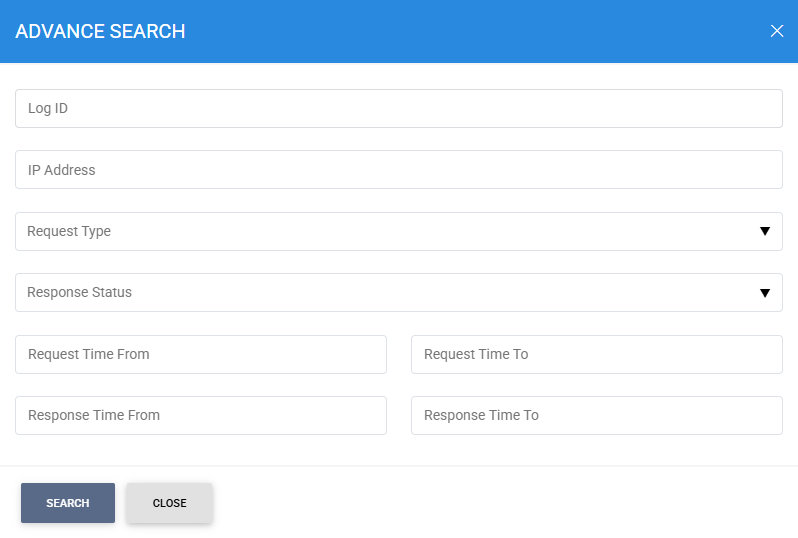
This helps to locate a particular type of CSP Service transaction. The transaction can be searched based on "Log ID", "User ID", "Client ID", "IP Address", "Request Type", "Response Status", "Request Time From", "Request Time To", "Response Time From" and "Response Time To".
Clicking on the Customise Columns button on Inspection System Service Transactions Log displays the following screen:
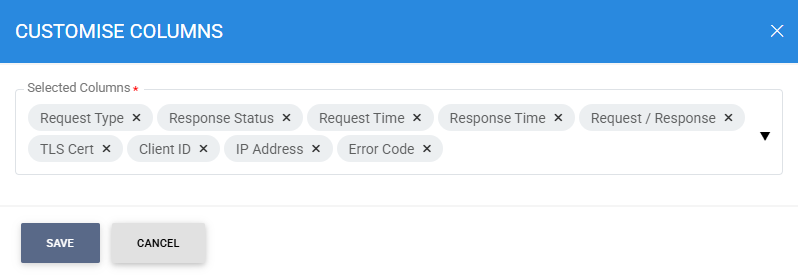
By default few columns are in the "Selected Columns" list. In order to hide a column move the required column to "Available Columns" list.
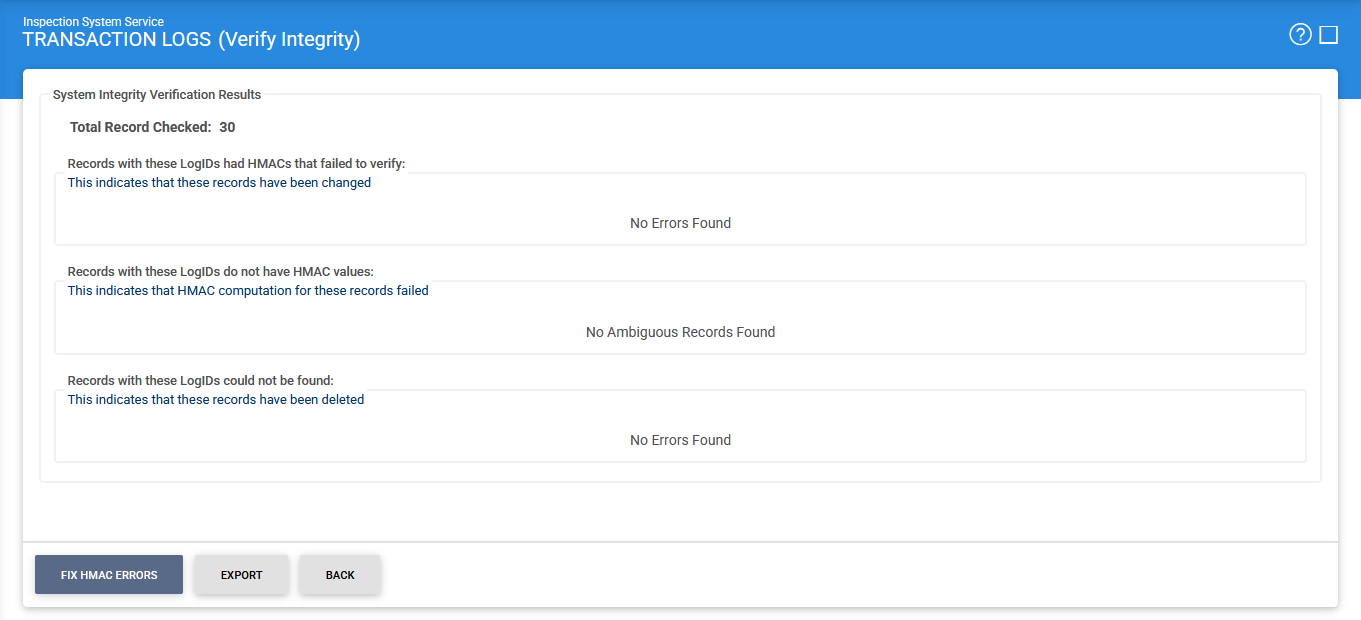
Each log record within the database is protected with a cryptographic HMAC checksum to detect any intentional or accidental modification of records.
Clicking the Verify Integrity button verifies the log integrity by checking each checksum and generates a report as shown below:
Click on the Export logs button to export the request/response to a network file.
|
|
The transaction logs are not exported according to the applied filter/search, they are exported as a complete zip file. |
Clicking the Fix HMAC Errors button will re-calculate the HMAC for tampered transaction logs records for this module.
|
|
This option will not detect the unauthorized deleted records but it will only fix the unauthorized modifications and/or ambiguous records for which HMAC value is not present/incorrect. Verify Integrity feature is available for the transactions log of all services within ADSS Server. |
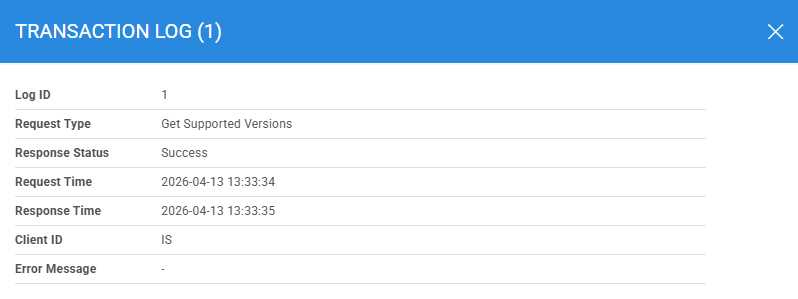
Clicking on the link for Log ID shows detail of the selected transaction as shown below:
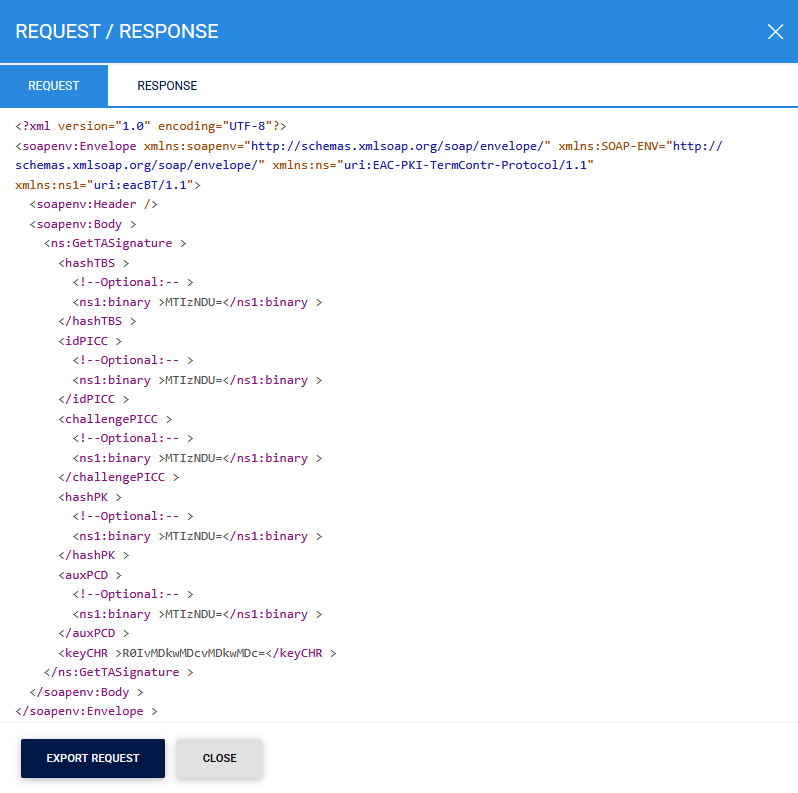
Clicking on View link under the request/response column shows the JSON request and response for the selected CSP transaction record in different tabs:
Clicking on the Response tab shows the JSON response as below:
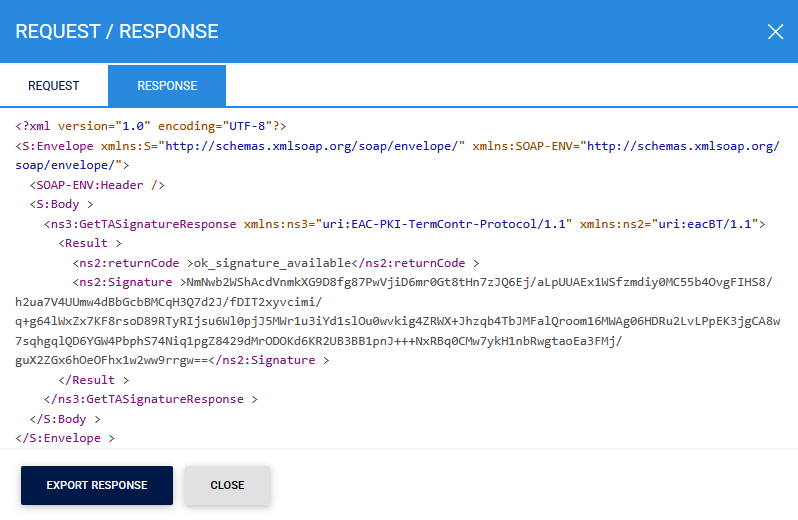
You can export the request/response JSON files on to a physical drive by clicking the relevant Export Response button.
See also
Configuring the Inspection System Service
Manage Master Lists
HA Configuration
Manage CRLs
PKD Data Polling Monitor
Transaction Logs
Logs Archiving
Alerts