Step 4 - Create Inspection System Certificate via Key Manager
After configuring the DVCA Server, creating the Inspection System client, and setting up the CVCA and DVCA certificates in the Trust Manager, the next step is to generate an Inspection System key and its corresponding certificate in the Key Manager.
In this step, the administrator creates a new key with the purpose set to Inspection System, ensuring it meets ePassport requirements. Once the key is generated, it is used to create a CV certificate for the Inspection System. The certificate is generated using the Default Inspection System Template, where the administrator selects the appropriate Certificate Type (Domestic or Foreign), chooses the relevant Certification Authority (CVCA or DVCA already configured in the Trust Manager), and specifies the External CA (DVCA Server configured in the CA Manager).
During this process, a certificate request is sent to the selected DVCA Server, which issues the certificate either immediately or asynchronously. Once received, the certificate is stored and activated in the system.
Navigate to Key Manager 🡪 Service Keys. Click on the vertical ellipsis (⋮) in the first row and then click on the 'Add New' button, it displays the following screen:
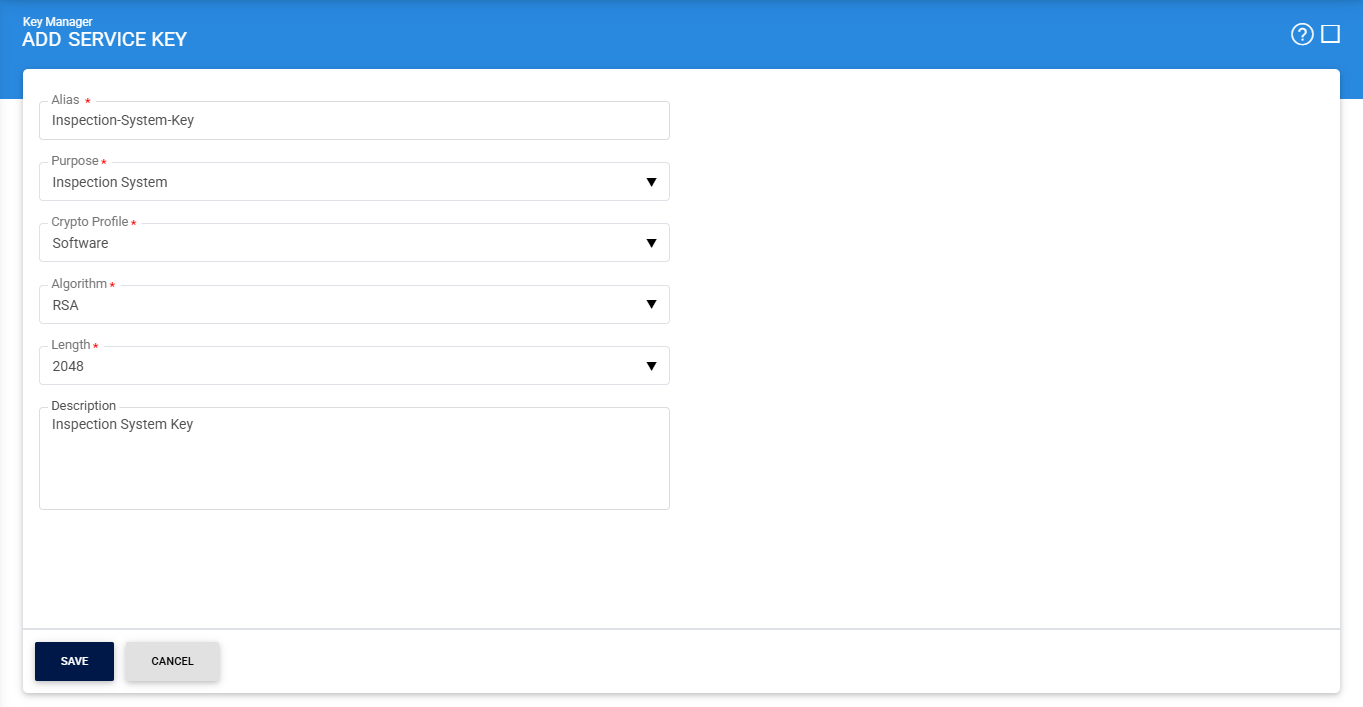
Once the key is created, click on the Key Alias of the newly generated key, it displays the following screen:
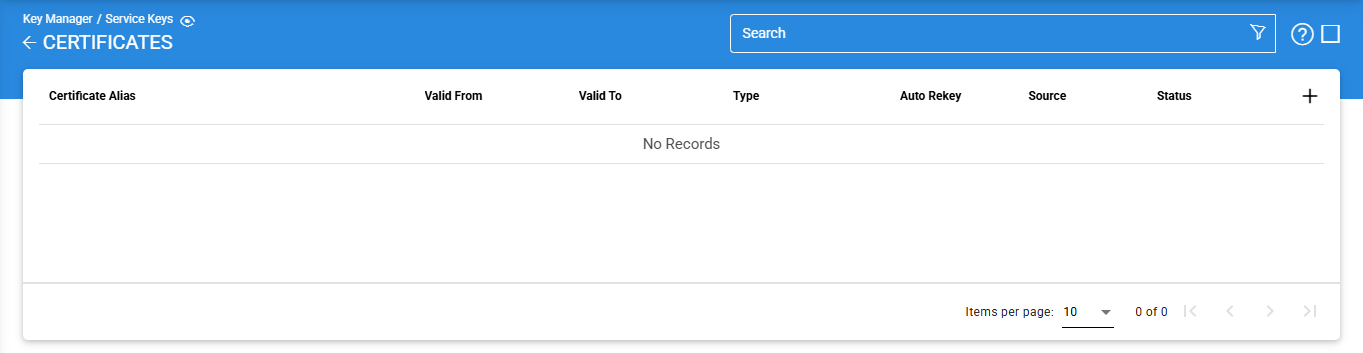
Click on the '+' to generate certificate. Ensure that 'Default Inspection System Template' is selected in the Certificate Template field as shown below:
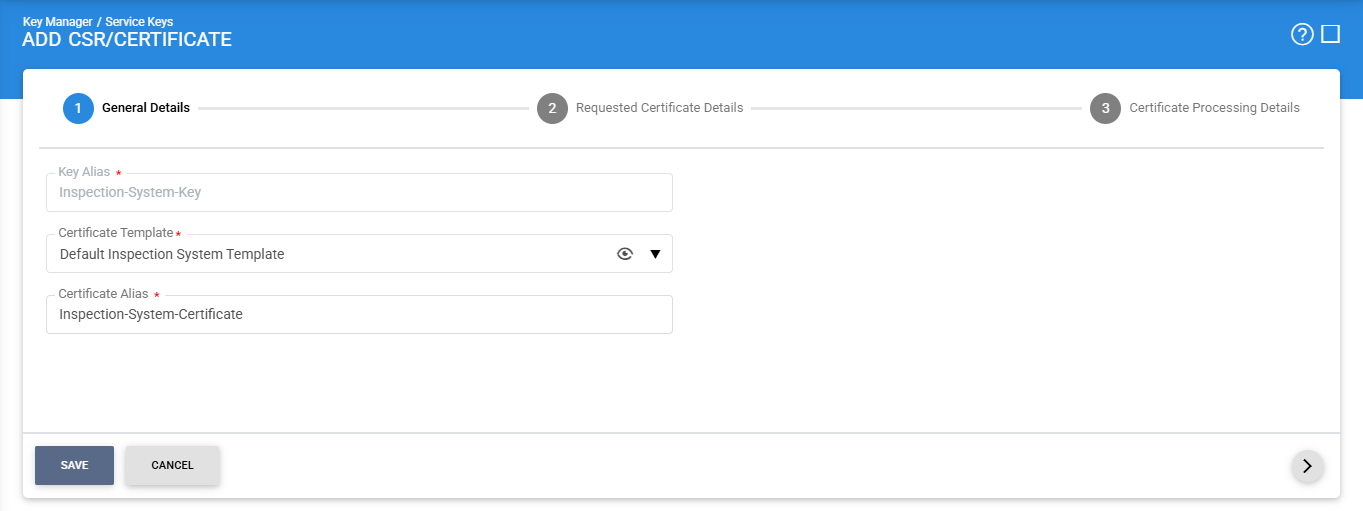
Once done, click on the (>) icon for the next screen.
Here, make sure to select the appropriate Certificate Type (Domestic or Foreign) and choose the Certification Authority from the drop-down list configured in the Trust Manager:
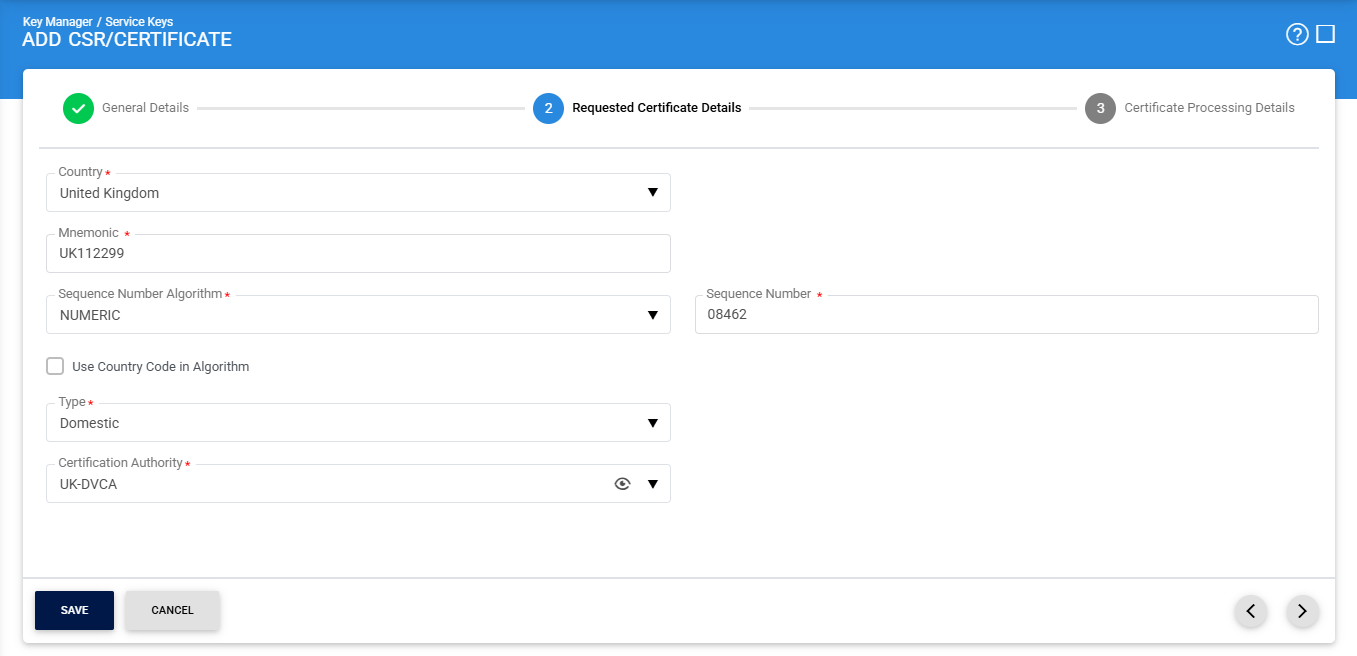
Fill in the required configuration fields and then click on the (>) icon for the next screen.
Here, select the External DVCA configured in the CA Manager:
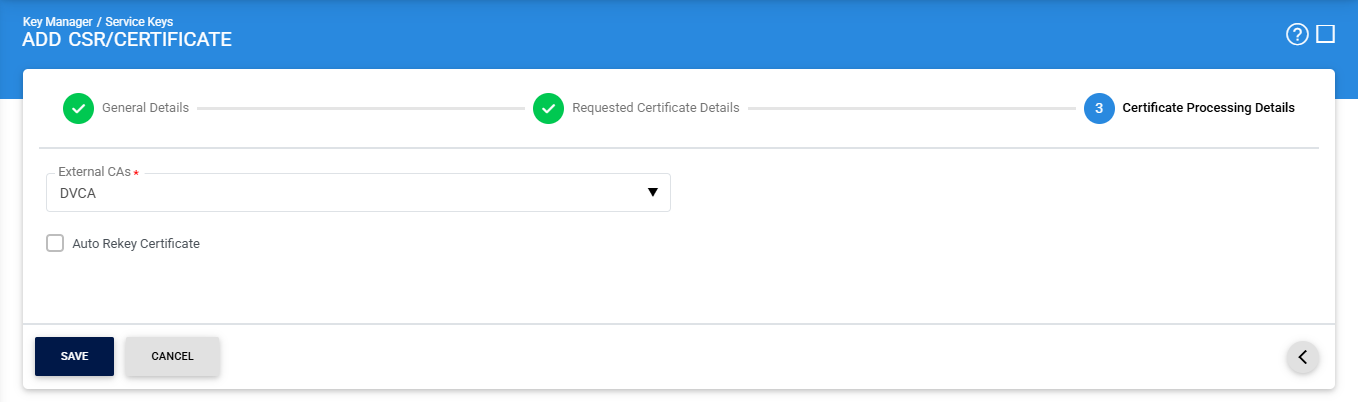
Click on the Save button, the newly created Inspection System certificate will be displayed:
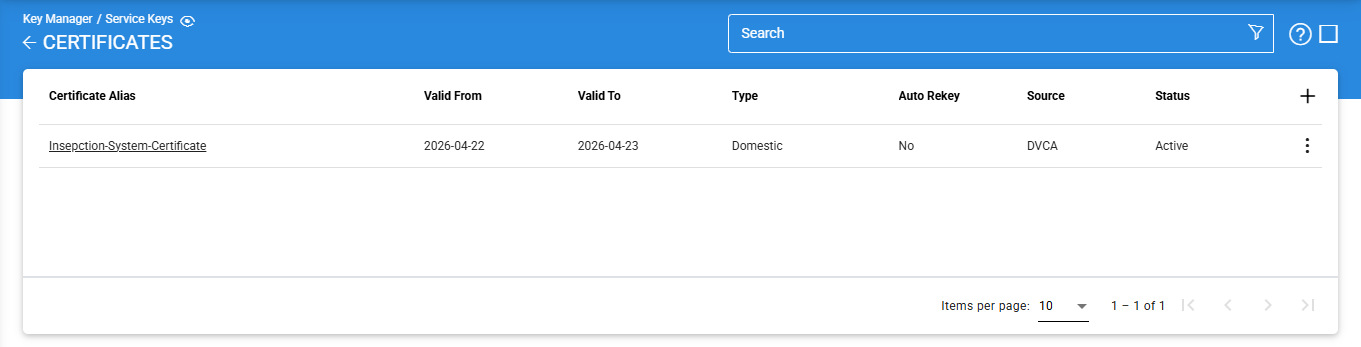
Click the vertical ellipsis (⋮) at the end of the row and select 'View' button, the following screen will be displayed:
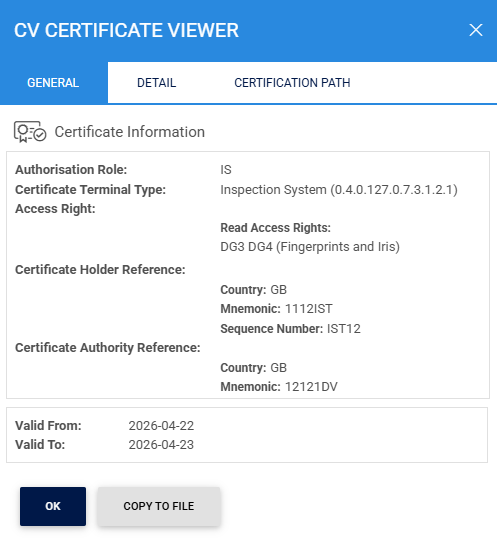
Clicking on the Display tab shows the following screen:
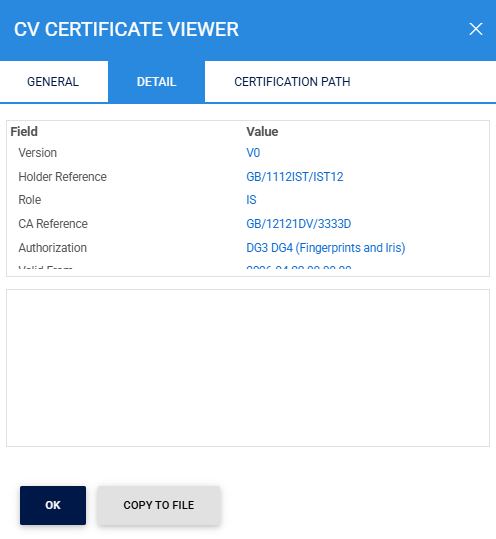
Clicking on the Certificate Path tab displays the following screen:
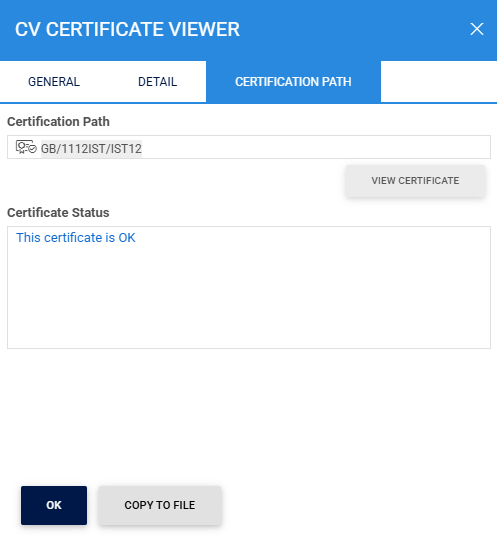
This Inspection System certificate is a critical component and will be used in the next step to create and configure the Inspection System Profile, enabling secure Terminal Authentication and overall service operations.
Clicking on the Advanced Search icon on the Certificates page displays the following screen:
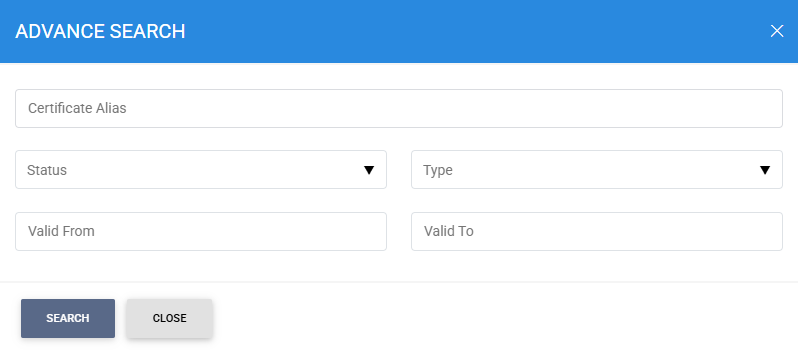
Enter the search criteria based on Certificate Alias, Status, Type, Valid From and Valid To.
For more details regarding the details of configuration fields, refer to the link here.
See also
Step 1 - Configure DVCA as an External CA
Step 2 - Create Client Manager for Inspection Systems
Step 3 - Configure the External DVCA in the Trust Manager
Step 4 - Create Inspection System Certificate via Key Manager
Step 5 - Using the Service Manager
Step 6 - Creating the Inspection System Profile
Step 7 - Registering Business Application