Step 2 - Create Client Manager for Inspection Systems
After configuring the DVCA Server as an External CA, the next step is to create an Inspection System client in the Client Manager module. This step is required to establish secure communication between the ADSS Server and the DVCA Server using mutual TLS authentication.
In this configuration, the administrator defines a client that represents the Inspection System Service and assigns it the required access. TLS client authentication must be configured to ensure that both systems trust each other during communication. This involves setting up and associating valid client certificates for both the Document Verifier (DV) and the Inspection System.
Navigate to Client Manager 🡪 Inspection System Profile, it displays the following screen:
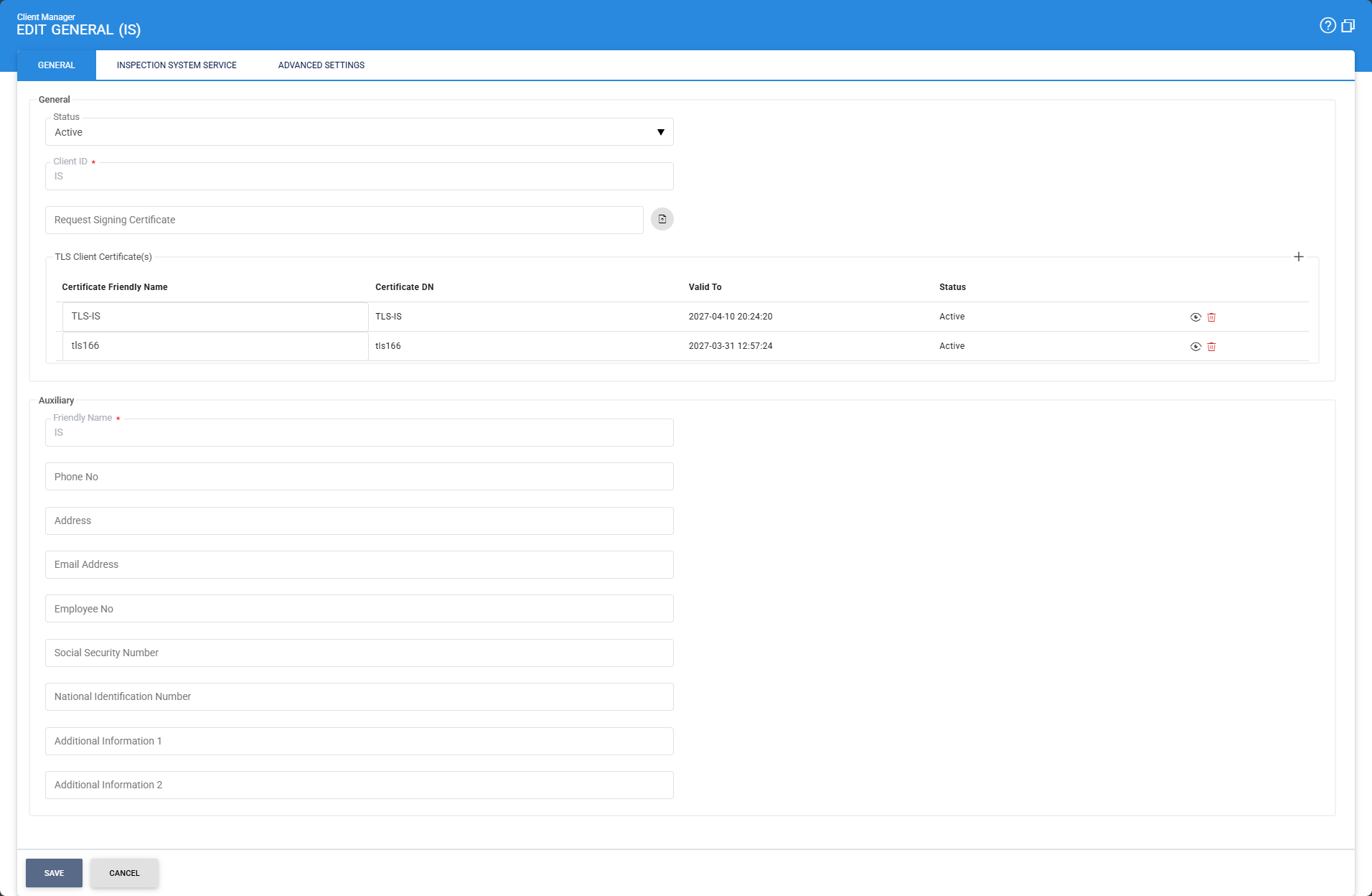
Once configured, this client enables secure and authenticated communication with the DVCA Server. It allows the Inspection System Service to request certificates, receive responses (including asynchronous callbacks), and retrieve trust data such as Master Lists and CRLs. This step is essential to ensure secure integration and smooth operation of certificate and trust management processes.
See also
Step 1 - Configure DVCA as an External CA
Step 2 - Create Client Manager for Inspection Systems
Step 3 - Configure the External DVCA in the Trust Manager
Step 4 - Create Inspection System Certificate via Key Manager
Step 5 - Using the Service Manager
Step 6 - Creating the Inspection System Profile
Step 7 - Registering Business Application