Step 1 - Configure DVCA as an External CA
The first step in setting up the Inspection System Service is to configure the Document Verifier Certification Authority (DVCA) Server as an External CA in the CA Manager module. This configuration allows the ADSS Server to establish a trusted connection with the DVCA Server, which is responsible for issuing and managing the certificates required for ePassport inspection.
Navigate to CA Manager 🡪 External CAs, it displays the following screen:
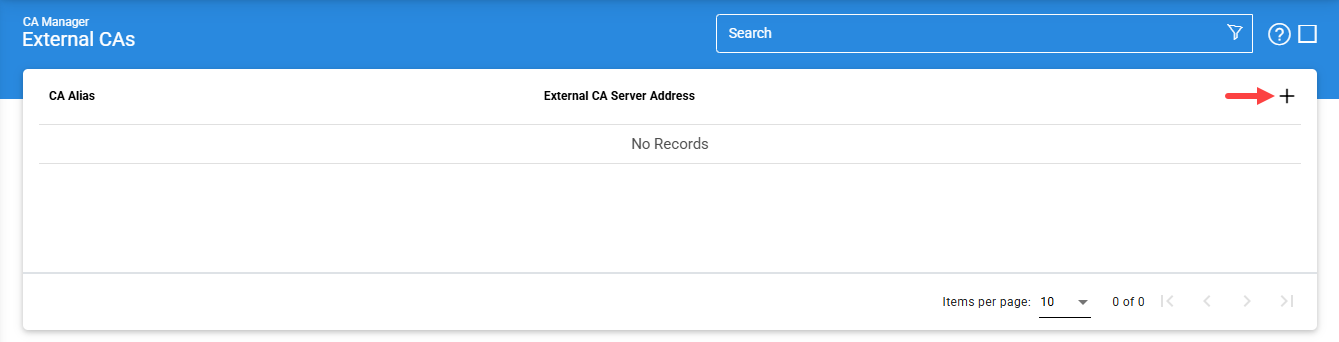
Click on the '+' icon to add a new External CA, it will display the following screen:
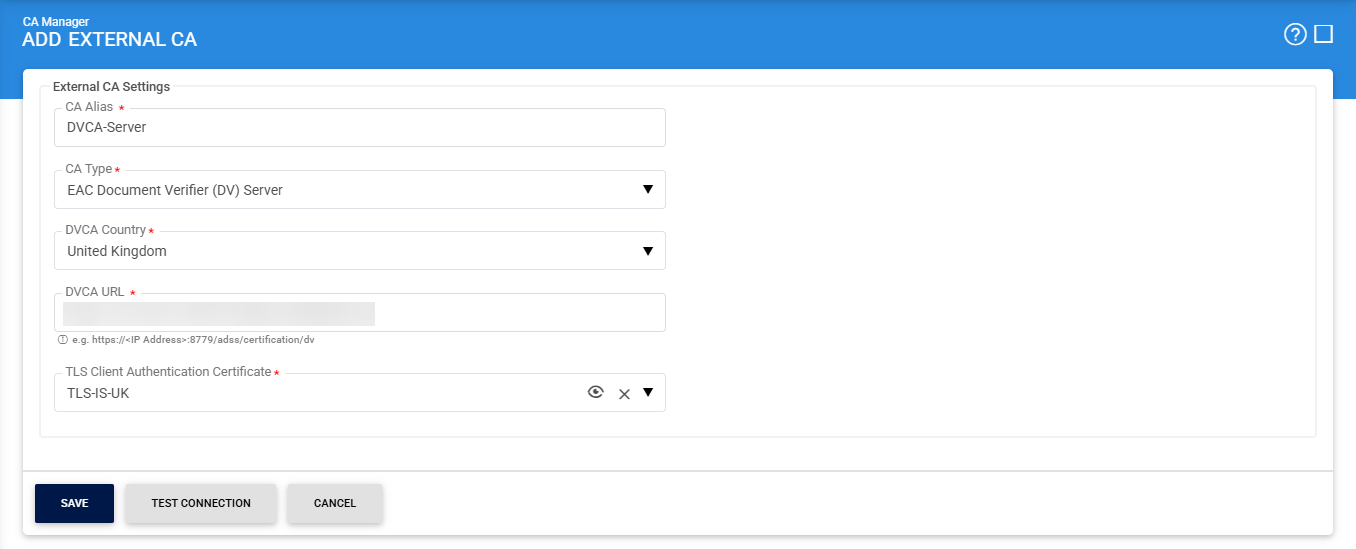
Now, select 'EAC Document Verifier (DV) Server' as the CA Type. Then, configure the TLS client authentication to be used for communication with the Inspection System through the Client Manager. Enter all the required configuration details and click the Save button, it displays the below screen:
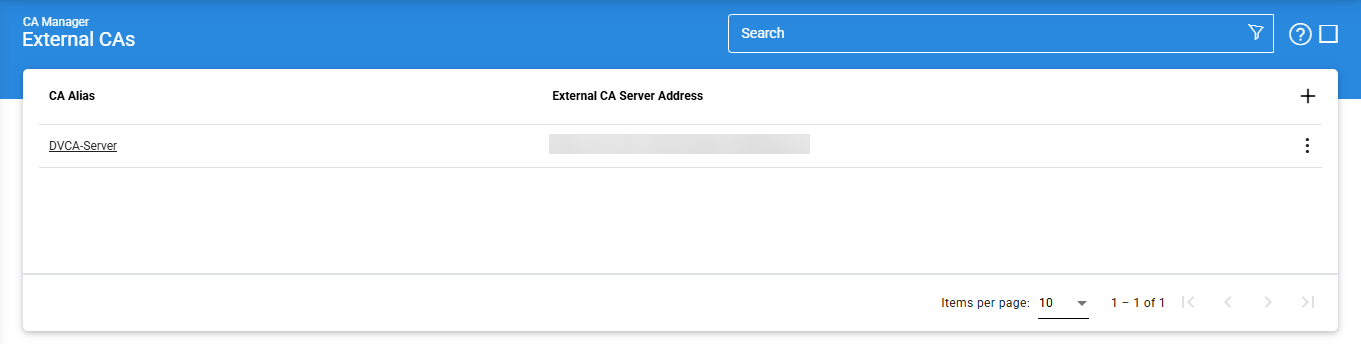
By adding the DVCA Server as an External CA, the system can request Inspection System certificates, retrieve certificate chains, and download trust data such as Master Lists and CRLs. This integration ensures that the Inspection System Service always uses up-to-date and trusted information for validating ePassports.
Once configured successfully, the DVCA Server becomes available for use in key and certificate operations within the Inspection System Service.
See also
Step 1 - Configure DVCA as an External CA
Step 2 - Create Client Manager for Inspection Systems
Step 3 - Configure the External DVCA in the Trust Manager
Step 4 - Create Inspection System Certificate via Key Manager
Step 5 - Using the Service Manager
Step 6 - Creating the Inspection System Profile
Step 7 - Registering Business Application