
Step 4 - Using LTANS Service Manager
The LTANS Service Manager allows administrators to manage the ADSS LTANS Service and configure service-specific settings. You can use this module to start, stop, or restart the service, as well as configure options related to request authentication and transaction logging.
To access the LTANS Service Manager, navigate to the relevant service management section in the ADSS Server Console.
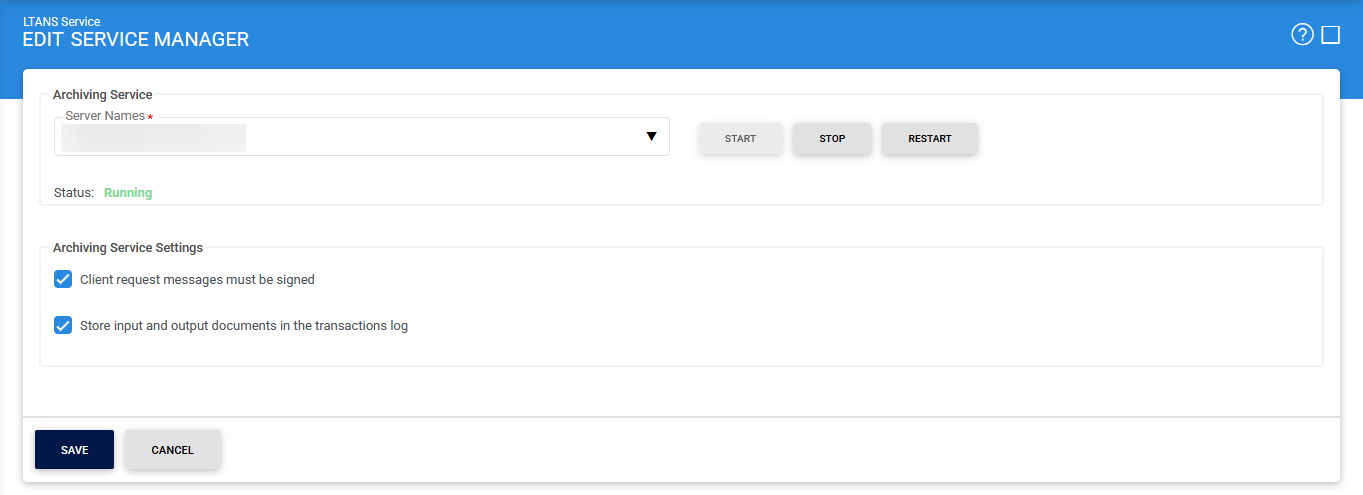
The following table describes the available configuration options:
|
Items |
Description |
||
|
Service Address |
Specifies the address of the LTANS Service. Ensure that the configured address points to the correct service URL. In a load-balanced environment where the service is deployed on multiple machines, verify that the address corresponds to the specific service instance that you want to start, stop, or restart. |
||
|
Start |
Starts the LTANS Service. After the service starts successfully, its status changes to Running. |
||
|
Stop |
Stops the LTANS Service. After the service stops successfully, its status changes to Stopped. |
||
|
Restart |
Stops and then starts the LTANS Service in a single operation. After the service restarts successfully, its status changes to Running. |
||
|
Client request messages must be signed |
Requires business applications to digitally sign their service request messages. When enabled, the LTANS Service verifies the signature using the client's certificate registered in the Client Manager. If the signature cannot be verified, the client application cannot be authenticated and the request is rejected. |
||
|
Store documents in transaction log |
Stores the documents submitted with ARCHIVE, VERIFY, EXPORT, and RENEW requests in the ADSS Server transaction logs.
|

|
|
After making any changes, click Save to save the configuration. Restart the LTANS Service for the changes to take effect. |
See also
Step 1 - Registering Timestamping Authorities
Step 2 - Configuring LTANS Profile
Step 3 - Registering Business Applications
Step 4 - Using LTANS Service Manager