
Received Messages
The Received Messages sub-module displays all messages received from registered Foreign SPOCs. In addition to viewing incoming messages, operators can compose new messages, send them to one or more Foreign SPOCs, and reply to previously received messages.
To view the list of received messages, navigate to the following screen:
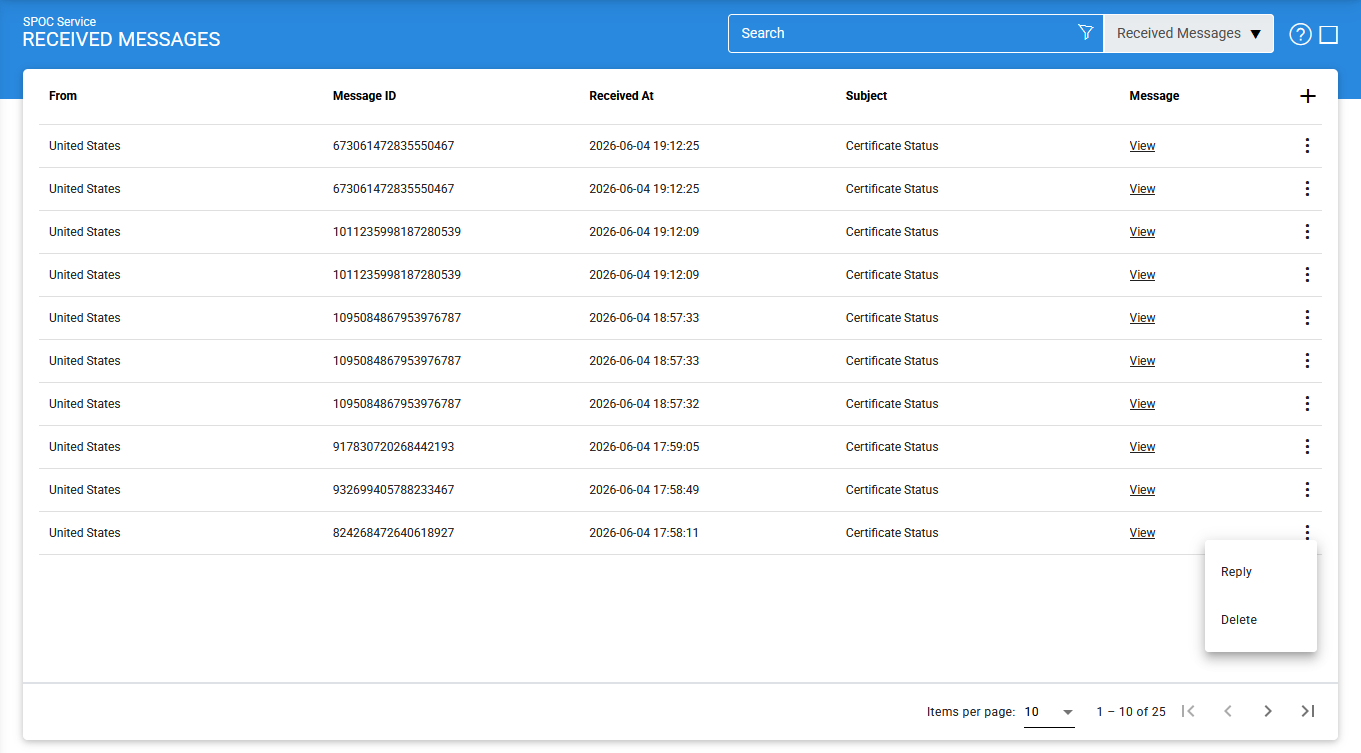
The configuration items are as follows:
|
Items |
Description |
|
From |
Displays the country of the Foreign SPOC from which the message was received. |
|
Message ID |
Displays the unique identifier assigned to the message by the Foreign SPOC. |
|
Received At |
Displays the date and time when the message was received by the SPOC Service. |
|
Subject |
Displays the subject of the message, providing a brief summary of its content. |
|
Message |
Displays the message content. Click View in this column to open and review the complete message body. |
|
Compose |
Opens the message composition screen, allowing the operator to create and send a new message to one or more Foreign SPOCs. |
|
Reply |
Opens the reply screen, allowing the operator to respond to the selected received message. |
|
Delete |
Permanently removes the selected message from the Sent Messages list. |
Composing a New Message
To create a new message:
- Click the + (Add) icon in the upper-right corner of the screen.
- Select Compose.
The following screen is displayed:
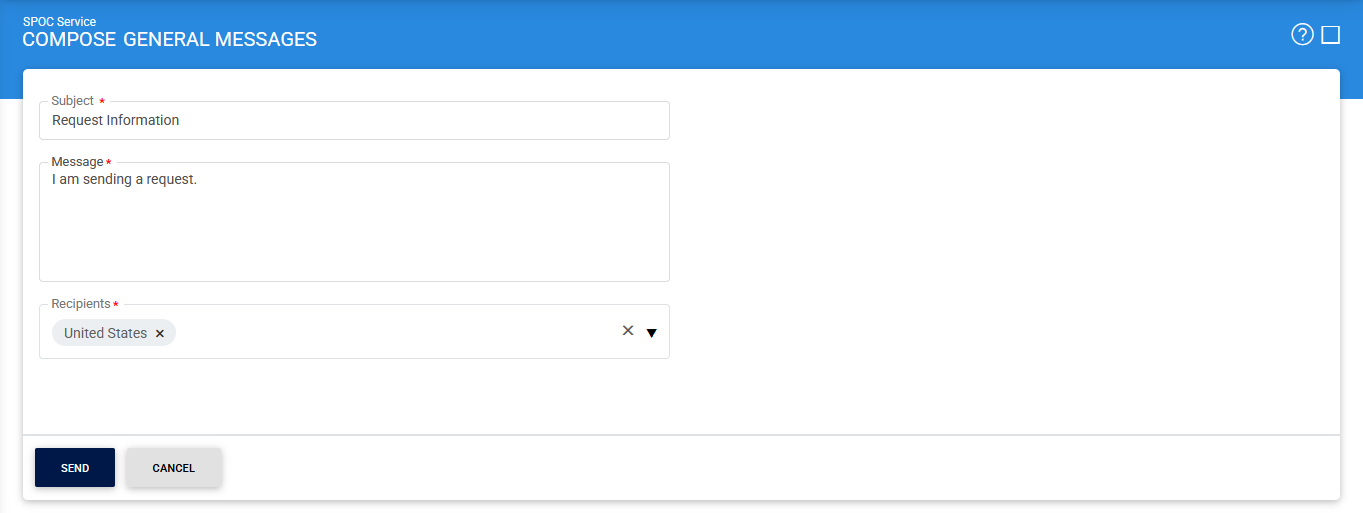
Using this screen, the operator can:
- Enter a message subject
- Enter the message body
- Select one or more registered Foreign SPOCs as message recipients.
After the required information has been provided, the message can be sent to the selected Foreign SPOCs.
Replying to a Message
To reply to a received message:
- Click the vertical ellipsis (⋮) at the end of the corresponding message row.
- Select Reply.
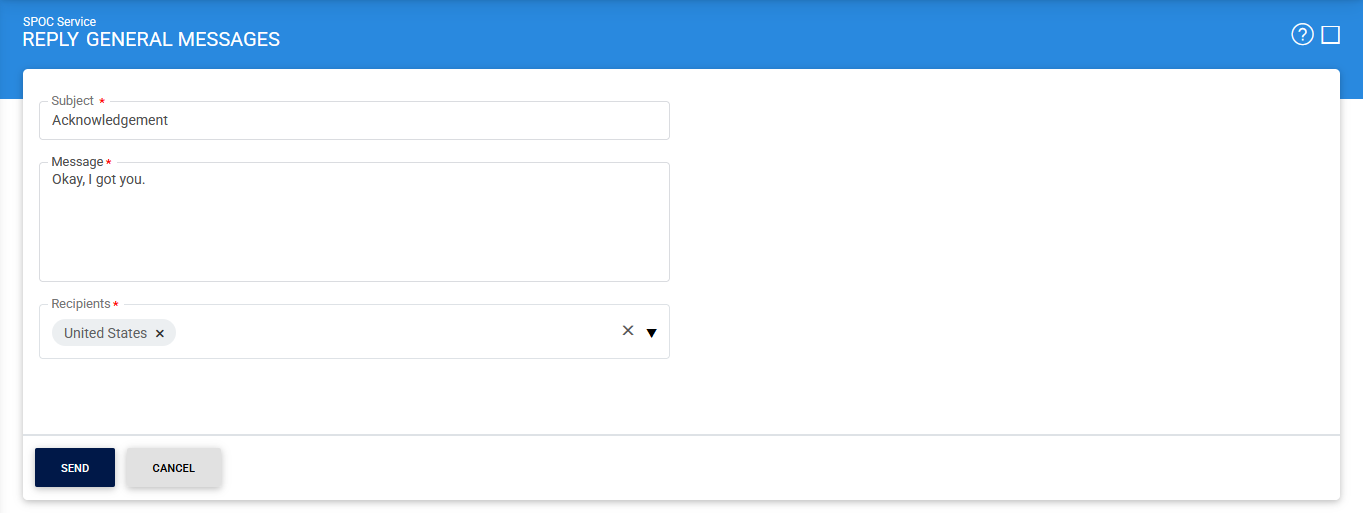
The following screen is displayed:
|
|
Notes:
|

Viewing Message Content
To view the complete contents of a received message, click View in the Message column for the required message.
The following screen is displayed:
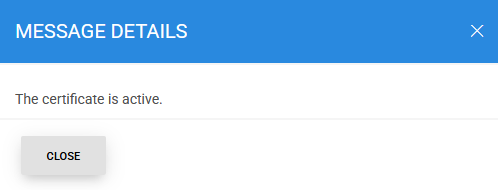
This screen displays the complete message body and related message details.
Deleting a Received Message
To remove a sent message from the list:
- Click the vertical ellipsis (⋮) at the end of the corresponding row.
- Select Delete.
|
|
Note: Deleting a message removes it from the Received Messages list. Ensure that the message is no longer required for operational or audit purposes before performing this action. |
Searching for Received Messages
To locate a specific received message, click the Advanced Search icon on the Received Messages page:
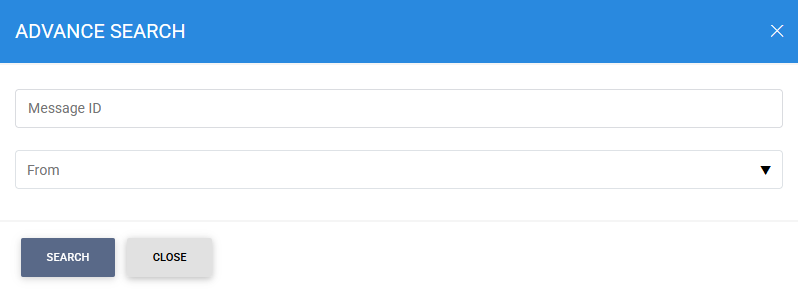
The Advanced Search feature allows messages to be filtered using one or more of the following criteria:
- Message ID
- From Country
This functionality enables administrators and operators to quickly locate received messages based on their unique identifier or the originating Foreign SPOC country.
See also