Domestic Requests
The Domestic Requests tab displays all certificate requests received from domestic DVCAs that are currently awaiting operator review and approval. Requests appear in this section when the associated SPOC profile is configured to use Manual Request Processing Mode.
To view the list of pending domestic requests, navigate to the following screen:
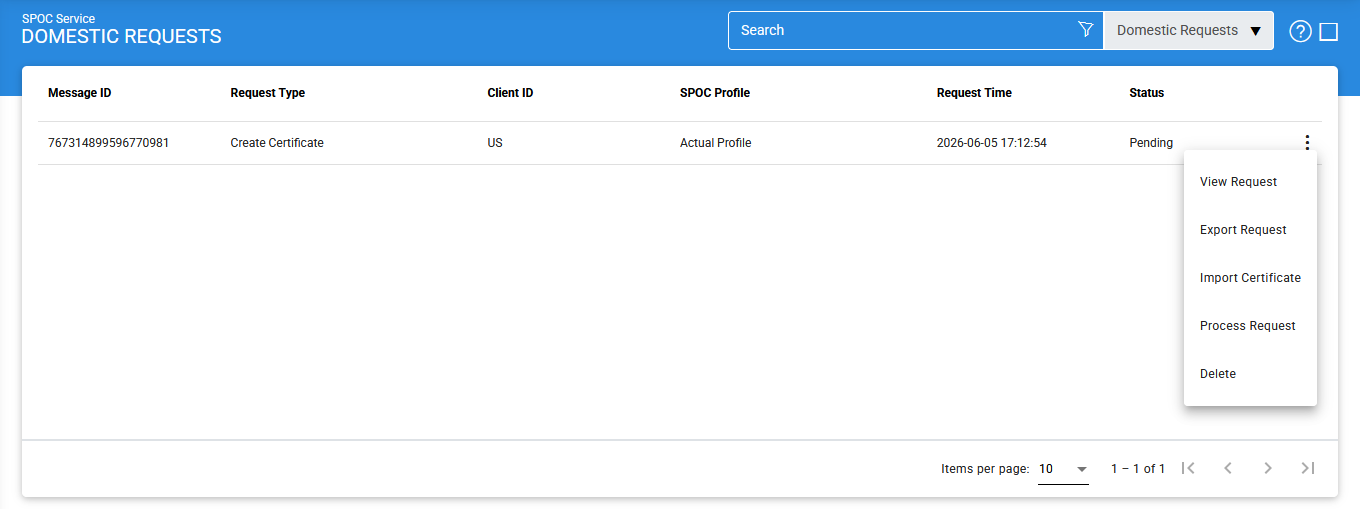
The configuration items are as follows:
|
Items |
Description |
|
Message ID |
A unique identifier assigned to the request for tracking and audit |
|
Request Type |
Indicates the type of operation requested. Supported request types include:
|
|
Client ID |
Displays the identifier of the client application that submitted the request. The client must be registered in the Client Manager module. |
|
SPOC Profile |
Displays the SPOC profile that will be used to process the request. |
|
Request Time |
Displays the date and time when the request was received by the SPOC Service. |
|
Status |
Displays the current status of the request. The possible values are Pending and Not Sent. |
|
Response URL |
Specifies the callback URL provided by the client application. After the request has been processed, the response is sent to this URL. |
|
View Request |
Opens the selected CV request and displays its contents for review. |
|
Export Request |
Exports the selected CV request to the file system. |
|
Import Certificate |
Imports a manually generated certificate against the selected request. Once imported, the certificate is automatically delivered to the requesting entity. |
|
Process Request |
Opens the request details and allows the operator to approve or decline the request. |
|
Delete |
Permanently removes the selected request from the system. |
Viewing Request Details
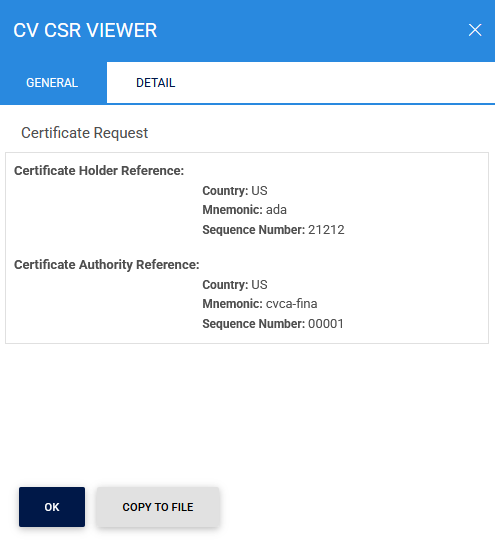
To view the contents of a request, click the vertical ellipsis (⋮) at the end of the corresponding row and select View Request.
The following screen is displayed:
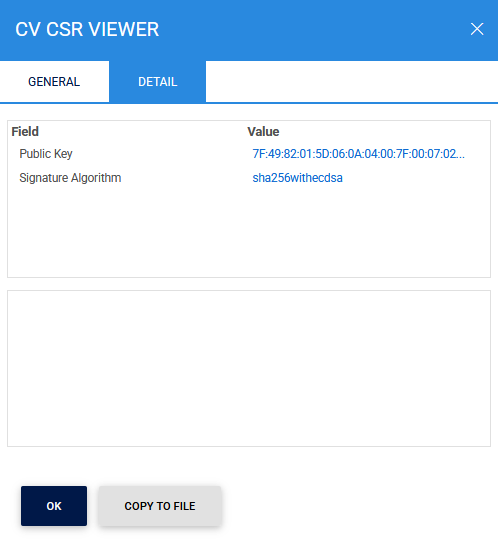
The Details tab provides additional information about the selected request.
Exporting Requests for Offline Processing
To export a request, click the vertical ellipsis (⋮) and select Export Request.
This functionality is primarily used when the national CVCA is operating in an offline mode and cannot receive requests directly from the SPOC Service.
In this scenario:
- The SPOC operator exports the request to the file system.
- The exported request is transferred to the CVCA using an approved out-of-band mechanism.
- The request is imported into the CVCA using the Manual Certification functionality within the Manage CAs module.
- The CVCA processes the request and generates the required certificate.
- The generated certificate is exported from the CVCA and provided to the SPOC operator for import back into the SPOC Service.
This workflow enables certificate requests to be processed securely even when online communication between the SPOC Service and the CVCA is unavailable.
Importing Certificates
After a certificate has been generated by the CVCA, it can be imported into the SPOC Service and distributed to the requesting entity.
To import a certificate:
- Click the vertical ellipsis (⋮) for the corresponding request.
- Select Import Certificate.
The following screen is displayed:
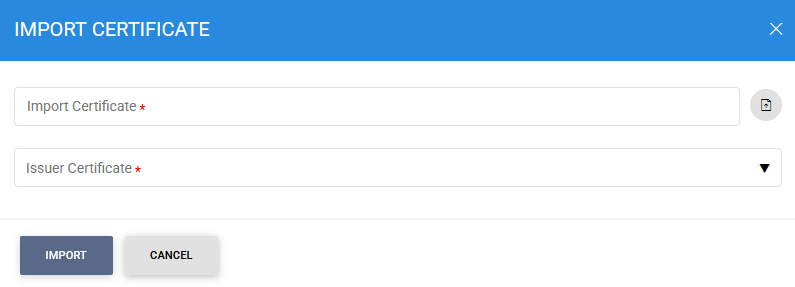
Using the Import Certificate feature, the operator can associate the generated certificate with the original request.
The Issuer Certificate drop-down list displays all trusted domestic CVCA certificates configured in the Trust Manager.
Once the certificate is successfully imported, the SPOC Service automatically delivers it to the entity that originally submitted the request, such as a Domestic DV or a Foreign SPOC.
Importing Authenticated Requests
In certain scenarios, a Domestic DV may request a CV certificate from a foreign country. Before the request can be forwarded to a Foreign SPOC, it must first be authenticated by the Domestic CVCA.
If the Domestic CVCA operates in offline mode, the authentication request must be processed manually:
- The authentication request is exported from the SPOC Service.
- The request is transferred to the Domestic CVCA using an approved offline mechanism.
- The Domestic CVCA authenticates the request using the Manual Certification sub-module within Manage CAs.
- The authenticated request is exported and returned to the SPOC operator.
- The authenticated request is then imported back into the SPOC Service.
An example of an authenticated request is shown below:
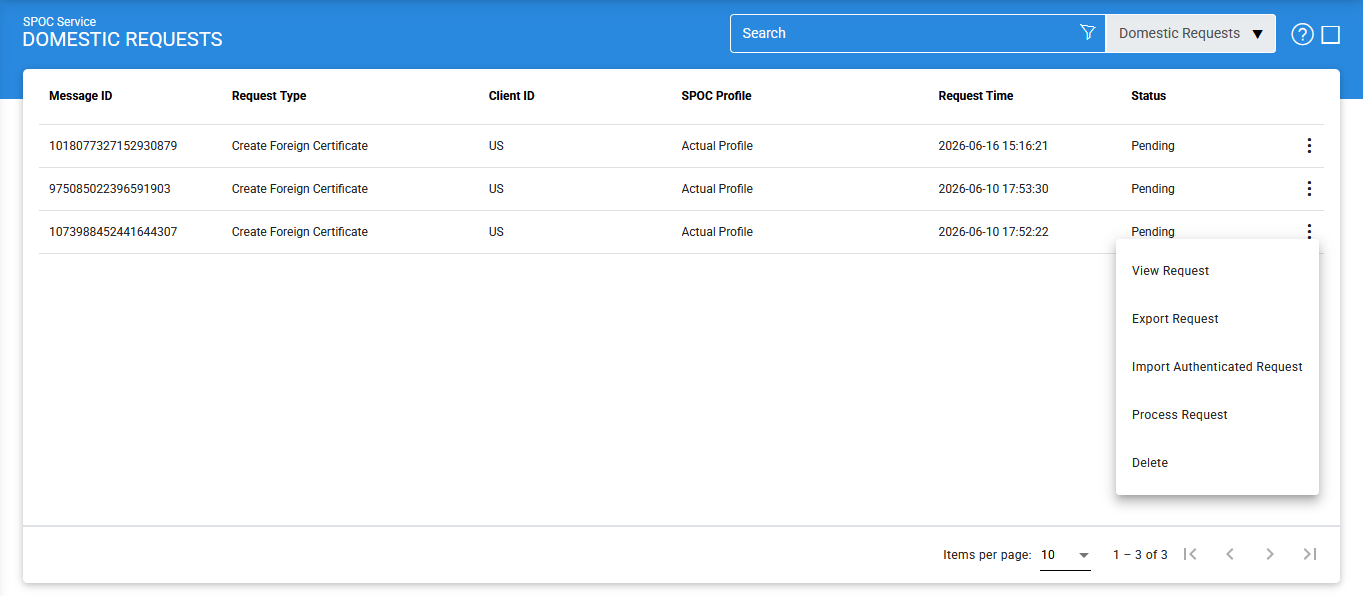
To import an authenticated request, click the vertical ellipsis (⋮) and select Import Authenticated Request.
The following screen is displayed:
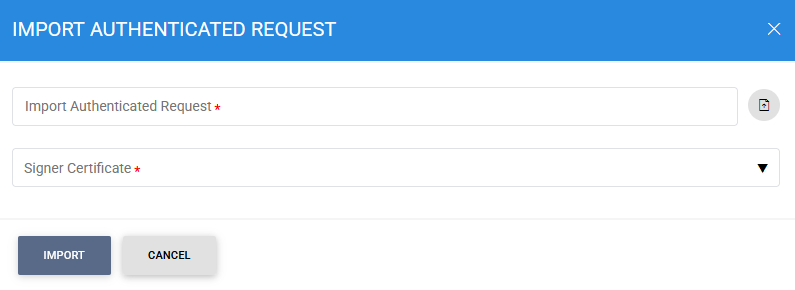
The operator can browse to the authenticated request file and select the Domestic CVCA that performed the authentication. Once imported, the SPOC Service forwards the authenticated request to the appropriate Foreign SPOC for further processing.
Processing Requests
To review and process a request:
- Click the vertical ellipsis (⋮) at the end of the request row.
- Select Process Request.
The following screen is displayed:
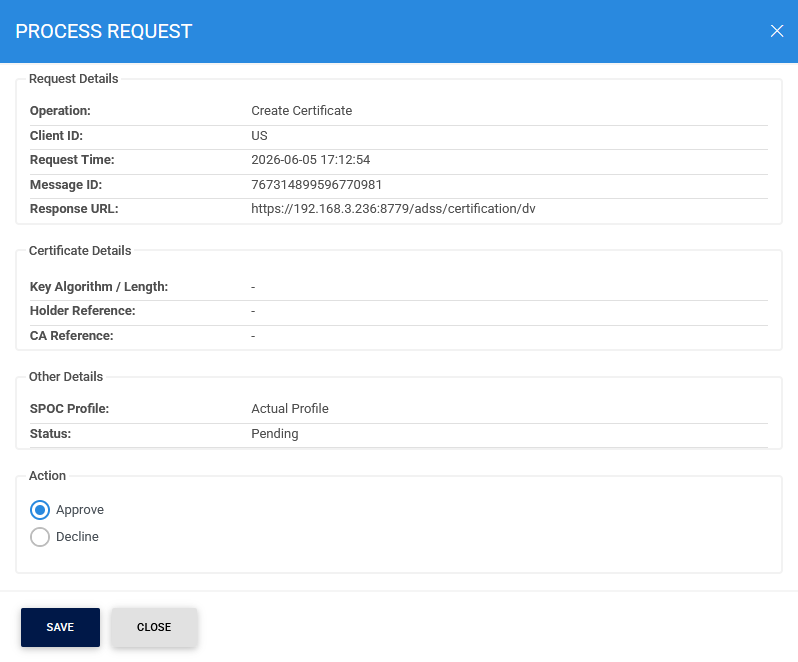
The information displayed on this screen varies depending on the request type. After reviewing the request details, the operator can:
- Approve the request and continue processing.
- Decline the request if it does not meet the required validation criteria.
Searching for Domestic Requests
To locate a specific request, click the Advanced Search icon on the Domestic Requests page.
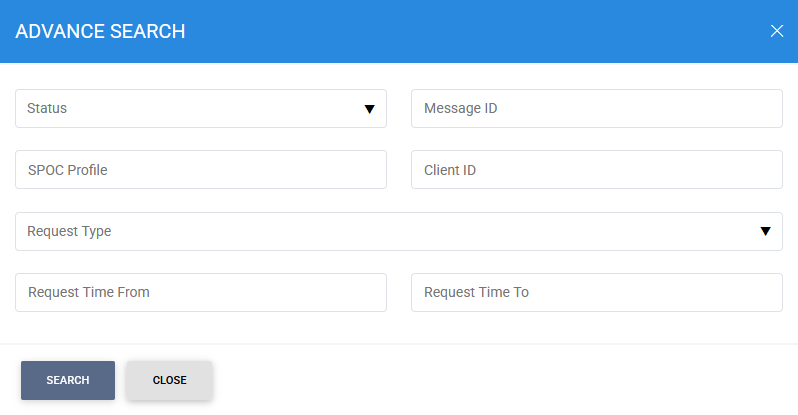
The Advanced Search feature allows requests to be filtered using one or more of the following criteria:
- Message ID
- SPOC Profile
- Client ID
- Operation
- Request Type
- Request Time
This functionality enables administrators and operators to quickly locate and manage domestic requests within the SPOC Service.
See also