
Transactions Log
The LTANS Service Transactions Log records all request and response messages processed by the LTANS Service. Administrators can use the transaction log to monitor service activity, troubleshoot failed requests, review transaction details, and verify the integrity of transaction records.
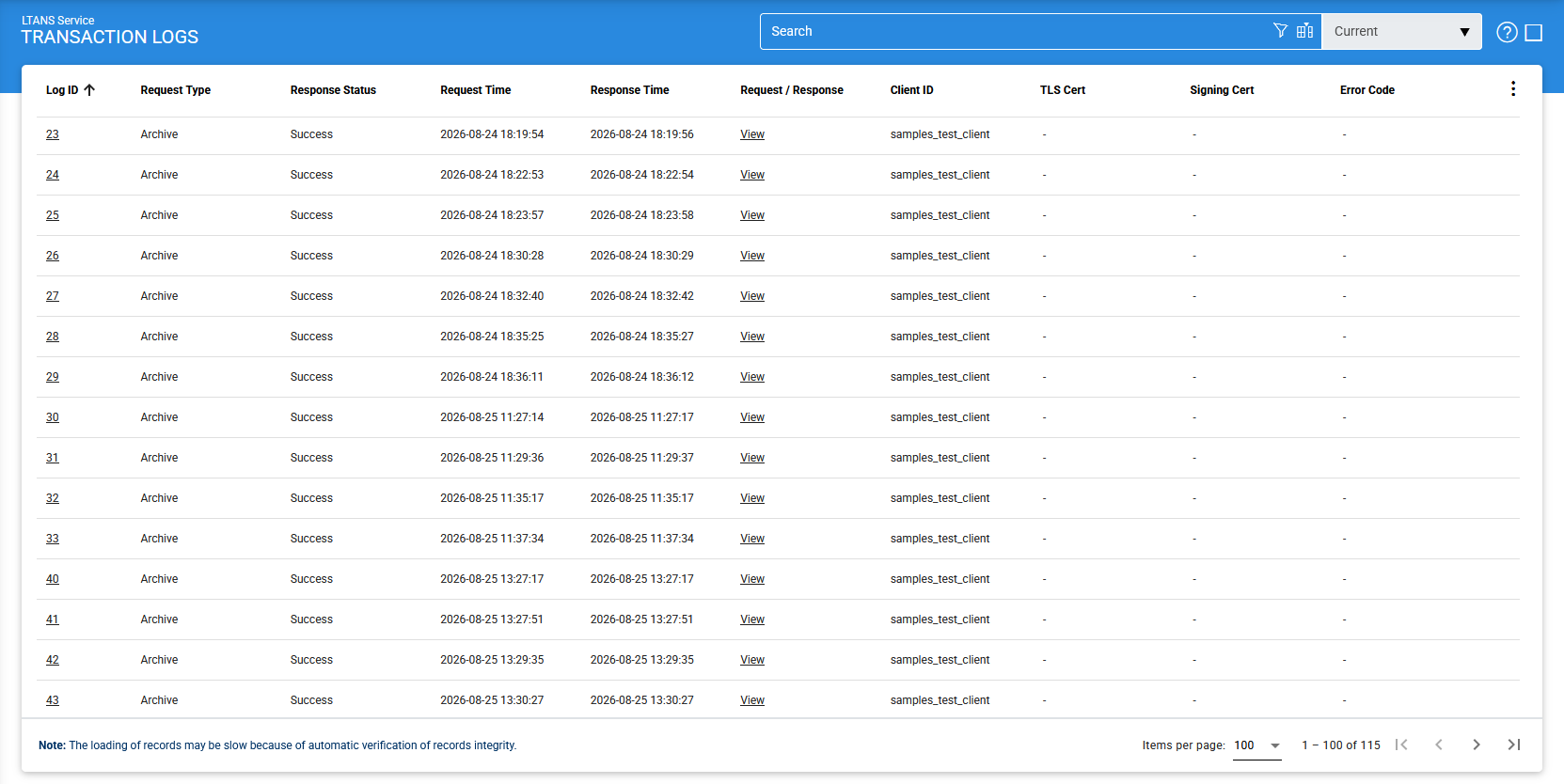
Each item in the screenshot is described below:
|
Items |
Description |
|
Clear Search |
Clears the applied search criteria and displays the complete list of transaction records. |
|
Search |
Opens the search window, where you can specify criteria based on the available transaction fields. For more information, see [Searching Transactions](#). |
|
Customise Columns |
Opens a window where you can select which columns are displayed in the transaction grid and which columns are hidden. |
|
|< < > >| |
Allows you to navigate between pages of transaction records. The number of records displayed per page can be configured under Global Settings. |
|
Export Logs |
Exports the transaction logs displayed in the Transactions Log Viewer to a tab-separated file at the configured location. Exporting the logs does not remove them from the ADSS Server database. |
|
Verify Integrity |
Verifies the integrity of transaction log records and detects records that have been modified or deleted. The verification process generates a report that can be exported to a local or network location. For HMAC verification reports, it is recommended to save the file with an `.html` extension so that it can be viewed in a web browser. |
|
Log ID |
Displays the unique, system-generated identifier of the transaction log record. The Log ID is displayed as a link. Click the link to view detailed information about the selected transaction |
|
Response Status |
Displays the status of the transaction response: SUCCESS or FAILED. |
|
Response Status |
Displays the LTANS operation requested for the transaction. The possible values are:
|
|
Request Time |
Displays the date and time when the request was received by the LTANS Service. |
|
Response Time |
Displays the date and time when the response was sent by the LTANS Service. |
|
Request/Response |
Provides a View link to open the request and response messages associated with the transaction |
|
Client ID |
Displays the Client ID of the client application that submitted the request. |
|
TLS Cert |
Provides a link to view the client's authentication certificate when the request was submitted over a TLS channel with client authentication. |
|
Signing Cert |
Provides a link to view the request-signing certificate when the request was digitally signed. |
|
Error Code |
Provides a View link for failed transactions. Hover over the link to view the error code and identify the reason for the failure, such as an unsigned request or a disabled archiving service. |
You can sort transaction records in ascending or descending order. Select the required column from the sorting drop-down list to arrange the records based on that column.
Importing Archived
Transaction logs can be archived and imported when you need to review historical transaction records.
To import an archived transaction log:
- Click the vertical ellipsis (⋮) in the upper-right corner of the Transactions Log screen.
- Select Import Archived.
The Import Archived screen is displayed.
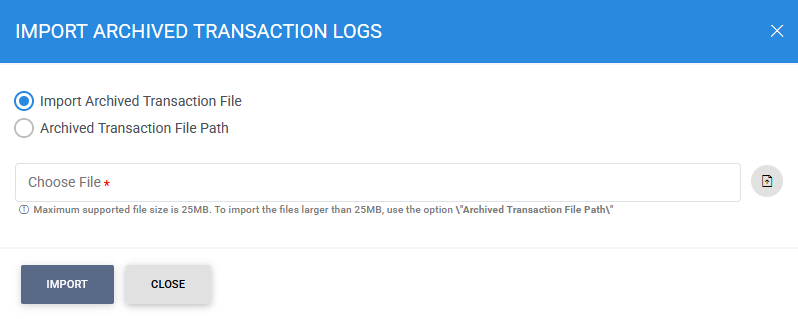
The following table describes the available options:
|
Items |
Description |
|
Import archived transaction file |
Allows you to browse for and select an archived transaction log file in ZIP format from the operator's machine. The selected file is uploaded to the ADSS Server before it is imported. To prevent excessive resource usage, the maximum supported file size for this option is 25 MB. |
|
Archived transaction file path |
Allows you to specify the path of an archived transaction log file that is larger than 25 MB. The file is not uploaded to the ADSS Server. Instead, the server reads the file directly from the specified location, which is more efficient for large files. You can specify either a local file system path or a network path. Include the archived log file name in the specified path. |
|
|
It is important to note that archiving is a highly intensive operation and it may impact the performance of the system. Hence it is important to schedule archiving at off-peak hours when end-users are not utilizing the services heavily. Alternatively a dedicated load balanced ADSS Server instance should be set-up for such housekeeping tasks by deploying ADSS Server Core and Service instances on different machines. |

Advanced Search
The Advanced Search option allows you to locate specific LTANS transactions based on detailed search criteria. For example, you can search for transactions performed within a specific time period or submitted by a particular client using the Originator ID.
Click the Advanced Search icon on the Transactions Log page to open the advanced search window.
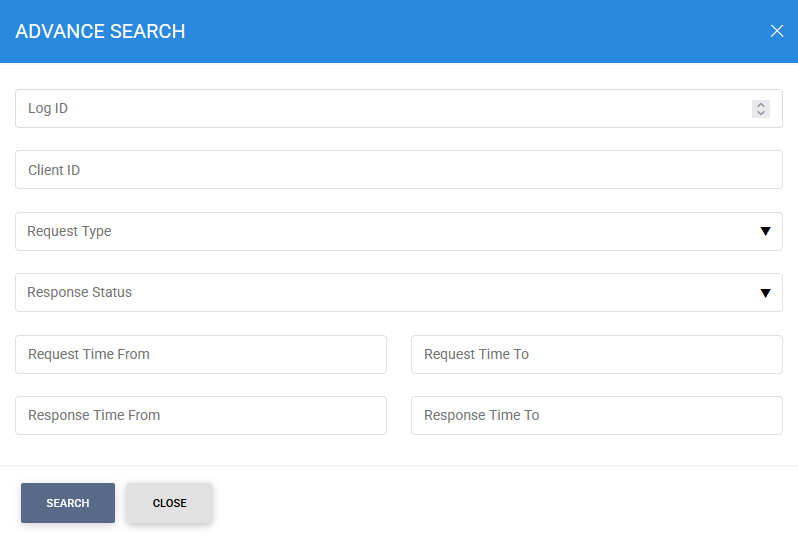
Specify the required search criteria and run the search to display the matching transaction records.
Customising Columns
The Customise Columns option allows you to control which fields are displayed in the Transactions Log grid.
Click Customise Columns to open the column configuration window.
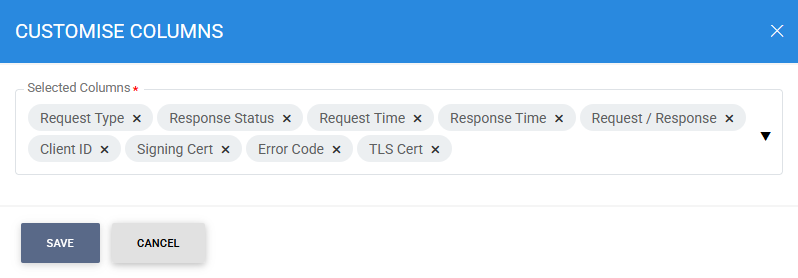
By default, commonly used columns are included in the Selected Columns list. To hide a column, move it from Selected Columns to Available Columns.
Verifying Integrity
Each transaction log record stored in the database is protected with an LTANS checksum. This checksum helps detect unauthorised or accidental modifications to transaction records.
Click Verify Integrity to verify the integrity of the transaction log records.
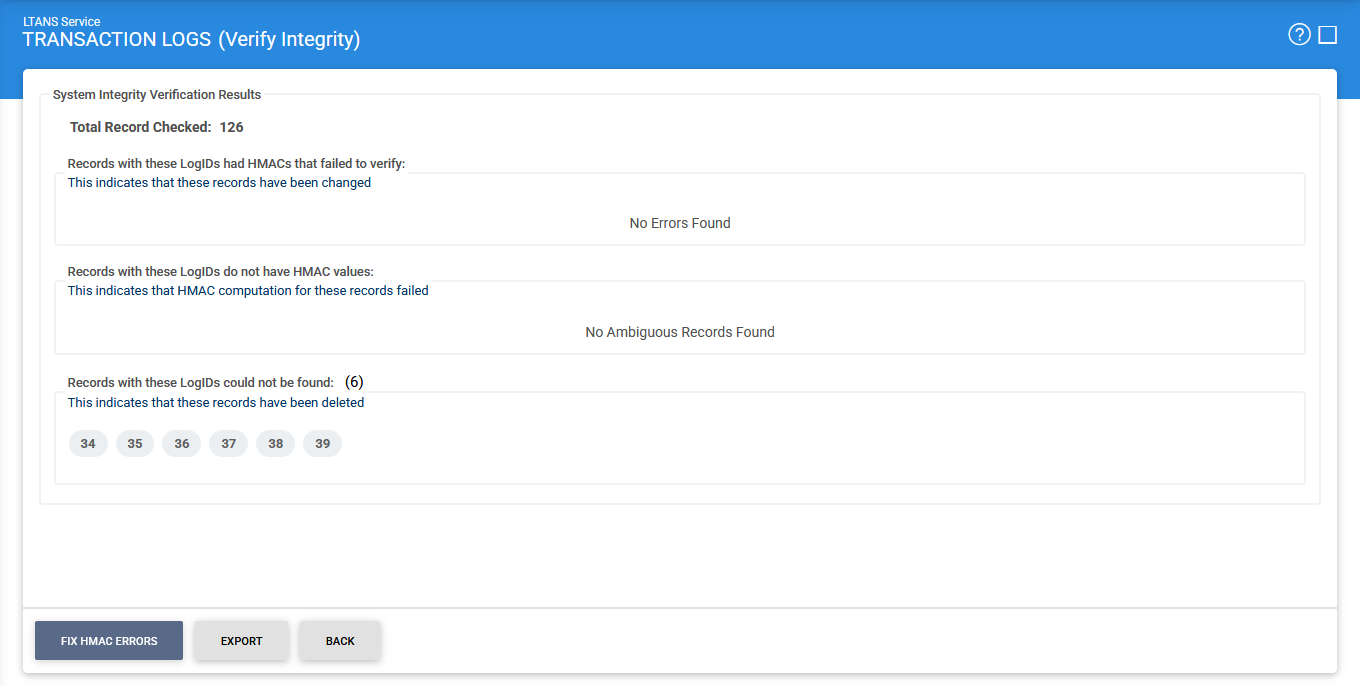
The verification process checks the integrity of the records and generates a report identifying any integrity issues.
You can export the verification report for further analysis or record keeping.
|
|
Note: The Verify Integrity feature is available for the transaction logs of all services in ADSS Server. |
Fixing HMAC Errors
If HMAC errors are detected, click Fix HMAC Errors to recalculate the HMAC values for affected transaction log records.
|
|
Note: This option only fixes unauthorised modifications and ambiguous records where the HMAC value is missing or incorrect. It does not detect or recover transaction records that have been deleted without authorisation. |
Exporting Transaction Logs
Click Export Logs to export transaction log records to a file at the configured location.
|
|
Important: The export operation exports the complete transaction log as a ZIP file. It does not export only the records displayed after applying a search or filter. |
The exported records remain available in the ADSS Server database after the export operation.
Viewing Transaction Details
To view detailed information about a transaction, click the Log ID link for the required transaction.
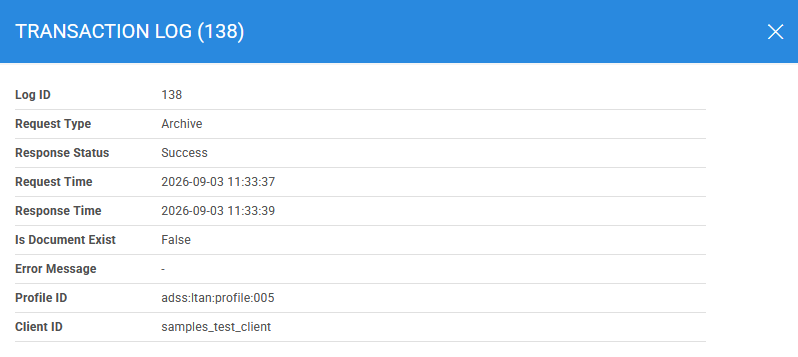
The transaction details provide information about the request, response, client, certificates, timestamps, and other transaction-specific information.
Viewing XML Request and Response
For transactions using the XML protocol, click the View link in the Request/Response column to view the LTANS request and response messages.
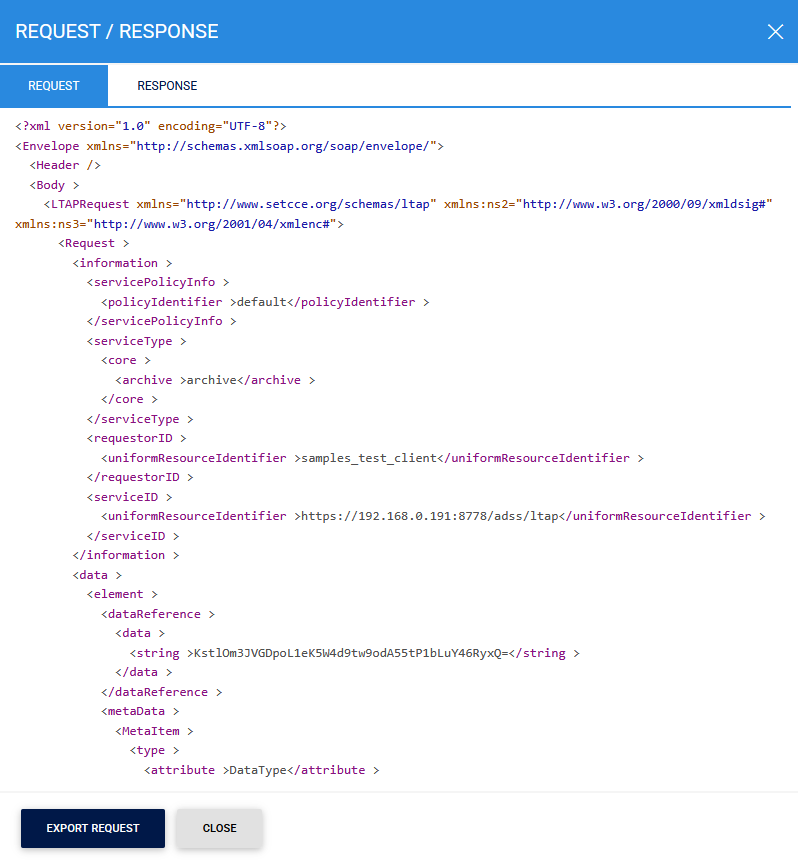
The Request tab displays the LTANS request received by the service.
Click the Response tab to view the response generated by the service.
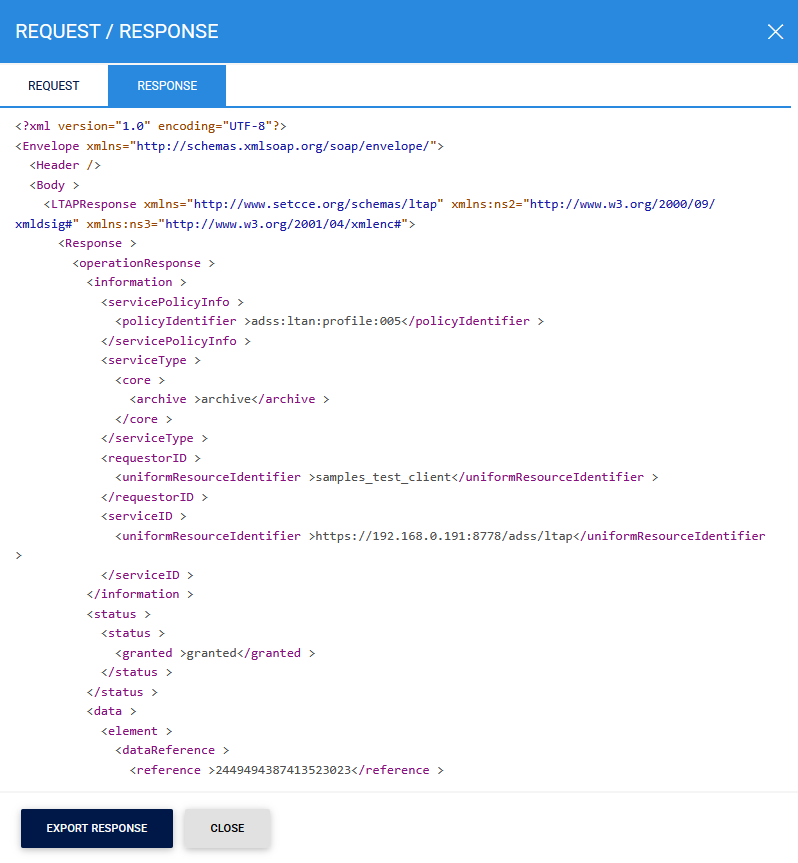
You can use the Export Request and Export Response options to save the respective LTANS messages to a local or network location.
Viewing HTTP Request and Response
For transactions using the HTTP protocol, click the View link in the Request/Response column to view the LTANS request and response.
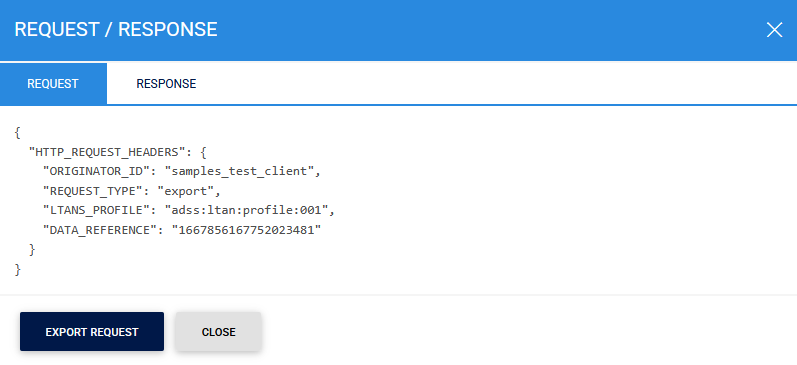
The request details are displayed in the Request tab.
Click the Response tab to view the response returned by the service.
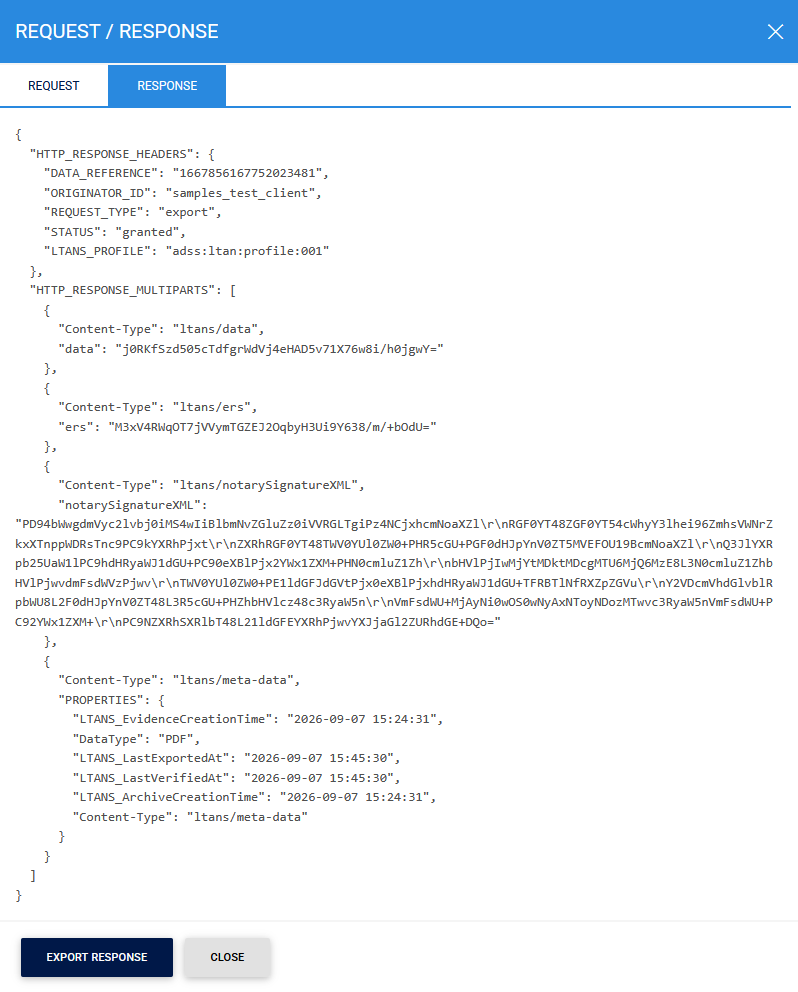
You can click Export Request or Export Response to save the respective LTANS message to a local or network location.
See also
Configuring the LTANS Service
Archive Data Log
Transactions Log
Logs Archiving
Alerts