
Logs Archiving
The Logs Archiving feature allows administrators to automatically archive older LTANS transaction records and reduce the amount of historical data stored in the ADSS Server database.
By default, log archiving is configured to:
- Auto-archive every: 30 days.
- Archive records older than: 90 days.
Each transaction record can consume several kilobytes of database storage. For systems with a low transaction volume, you can increase the retention period to 120 or 180 days, if required.
Automatic and Manual Archiving
The Logs Archiving module allows administrators to enable or disable automatic archiving and manually archive LTANS transaction logs.
When auto-archiving is enabled, transaction records that meet the configured criteria are periodically moved from the database to a ZIP file containing CSV data. You can also archive transaction logs immediately by clicking Archive All Records.
Archived transaction logs can later be imported back into ADSS Server for auditing and review. For more information, see Importing Archived Transaction Logs.
Archiving Performance Considerations
|
|
Important: Log archiving is a resource-intensive operation and may affect system performance. Schedule automatic archiving during off-peak hours, when the system is experiencing lower transaction volumes. |

For environments with high transaction volumes, consider deploying a dedicated, load-balanced ADSS Server instance for housekeeping operations. This can be achieved by deploying the ADSS Server Core and Service instances on separate machines.
Protecting Archived Log Integrity
The integrity of archived transaction logs can be protected by digitally signing the archived log files using a Log Signing Key.
The Log Signing Key can be configured under Global Settings > System Certificates.
Logs Archiving Configuration
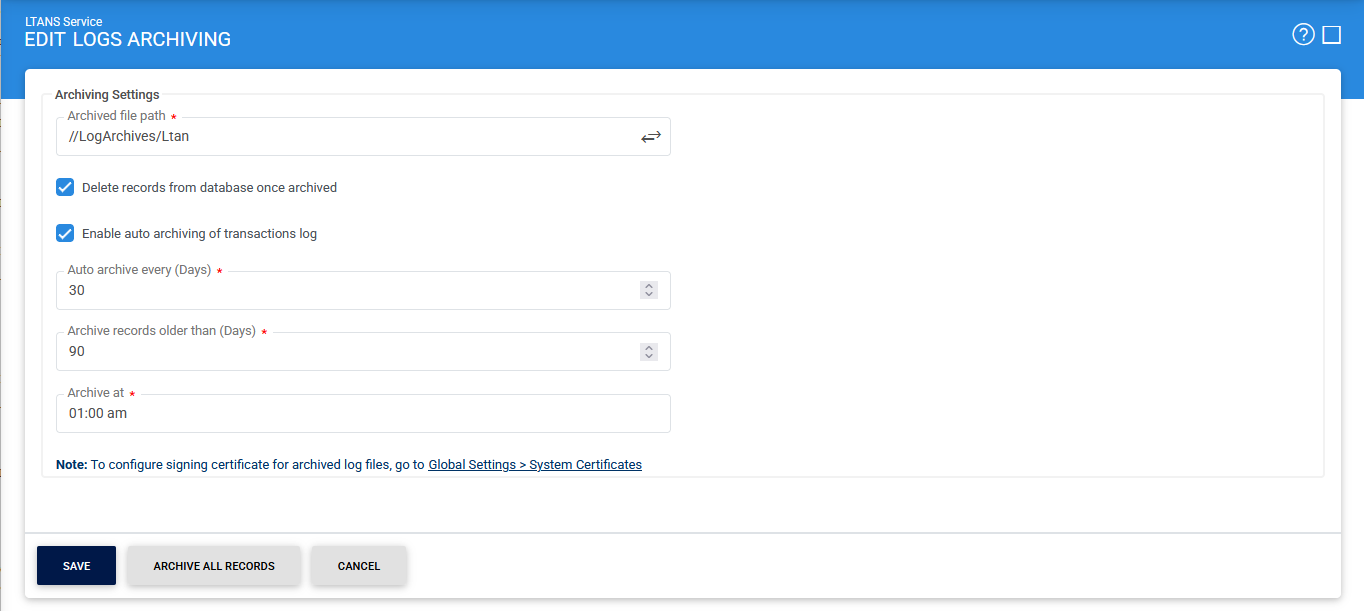
The following table describes the available configuration options:
|
Items |
Description |
|
Archived file path |
Specifies the location where archived transaction logs are stored as ZIP files containing CSV data. |
|
Delete records from database once archived |
Deletes transaction records from the database after they have been successfully archived. If this option is disabled, the archived records remain in the database. In this case, archiving creates a backup copy but does not reduce the database size. Enable this option only when removing archived records from the database is required. |
|
Enable auto-archiving |
Enables automatic archiving of transaction logs based on the configured schedule and retention period. |
|
Auto-archive every |
Specifies how frequently, in days, the system performs automatic log archiving. |
|
Archive records older than |
Specifies the age, in days, beyond which transaction records are eligible for automatic archiving. |
|
Archive at |
Specifies the time of day when automatic archiving is performed. Configure this time during off-peak hours to minimise the impact on system performance. |
|
Archive All Records |
Immediately archives all available transaction logs to the configured Archived file path, regardless of their age. |
After configuring the required settings, click Save to apply the changes.
|
|
Important: Do not open archived log files in Microsoft Excel. Excel may modify the contents of the file when it is opened, which can corrupt the archived log and prevent its integrity from being verified if the file is later imported into ADSS Server. If you need to inspect an archived log file directly, use a text editor such as Notepad instead. For a complete and reliable view of archived transaction records, import the archived log file back into the Transactions Log module. |
See also
Configuring the LTANS Service
Archive Data Log
Transactions Log
Logs Archiving
Alerts