
Usage Report
The Usage Report provides information about client activity within the LTANS Service. You can generate the report for a specific date range and view detailed activity for an individual client. To open the report, click the Usage Report tab at the top of the Management Reporting page.
The Usage Preference drop-down provides the following options:
- Client whose data stored in secure archive: Shows clients that have archived data stored in the secure archive.
- Client that made LTANS requests: Shows clients that have submitted requests to the LTANS Service.
Client Whose Data Is Stored in Secure Archive
Select Client whose data stored in secure archive from the Usage Preference drop-down to view archive usage by client.
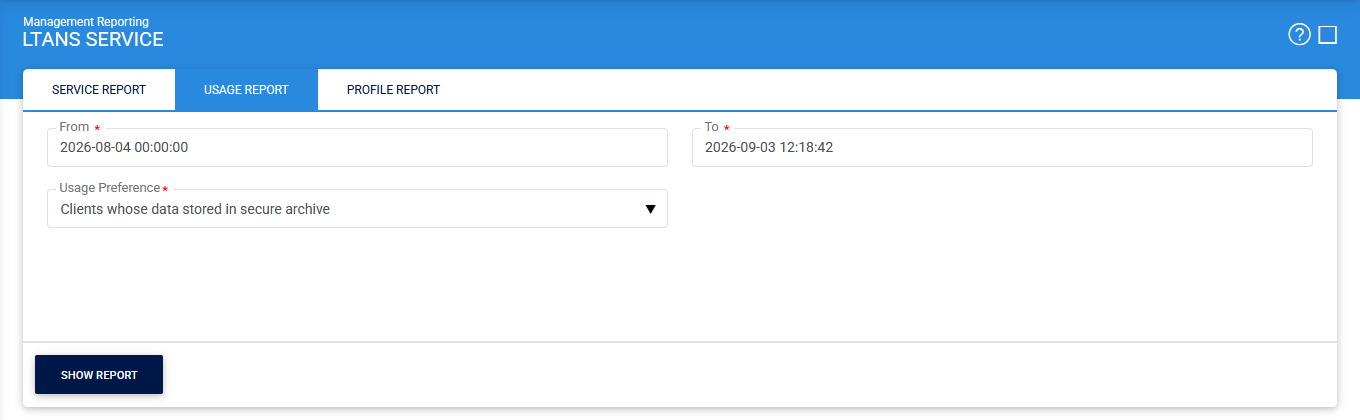
Select the required date range and click Show Report to generate the report.
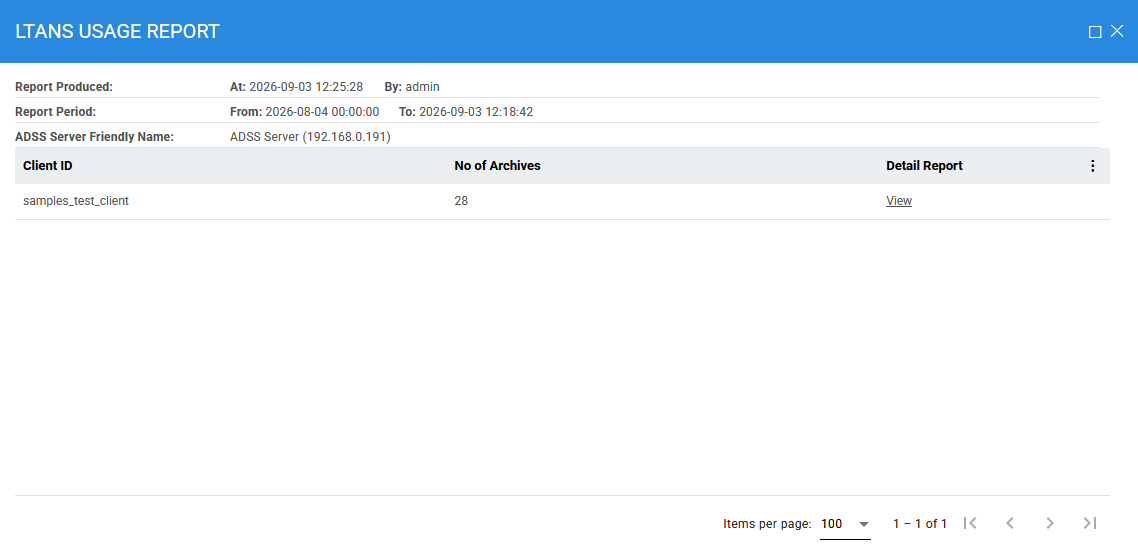
The configuration items are mentioned below:
|
Items |
Description |
|
Client ID |
Displays the identifier of the client that has stored archive data. |
|
No. of Archives |
Displays the total number of archives associated with the client. |
|
Detail Report |
Click View to display detailed archive information for the selected client. |
|
Export Report |
Click the vertical ellipsis (⋮) to export the report as a CSV file. |
Click View in the Detail Report column to view detailed information about the archives associated with the selected client.
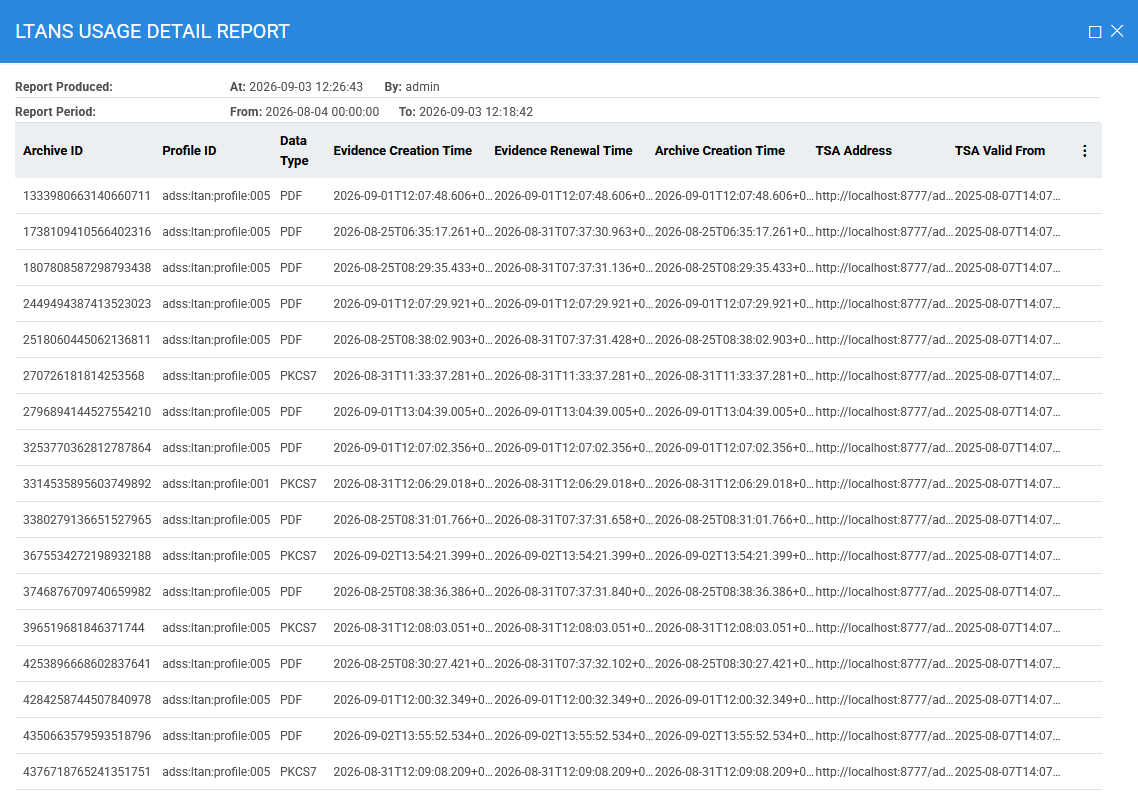
The following information is displayed:
|
Items |
Description |
|
Archive ID |
Displays the unique identifier assigned to the archive. |
|
Profile ID |
Displays the ID of the LTANS profile used to create the archive. |
|
Data Type |
Displays the type of data stored in the archive. |
|
Evidence Creation Time |
Displays the date and time when the Evidence Record was initially created. |
|
Evidence Renewal Time |
Displays the date and time when the Evidence Record was last renewed. |
|
Archive Creation Time |
Displays the date and time when the archive was created. |
|
TSA Address |
Displays the address of the Timestamping Authority used to timestamp the archive evidence. |
|
TSA Valid From |
Displays the date and time from which the TSA certificate used for timestamping is valid. |
|
|
Note: Click the vertical ellipsis (⋮) to export the detailed report as a CSV file. |

Client That Made LTANS Requests
To view client request activity, select Client that made LTANS requests from the Usage Preference drop-down.
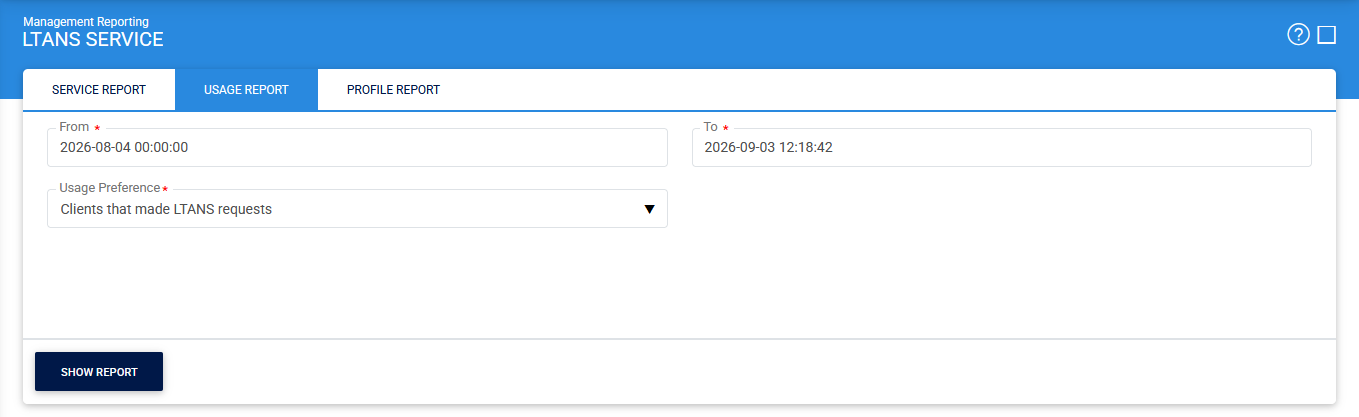
Select the required date range and click Show Report:
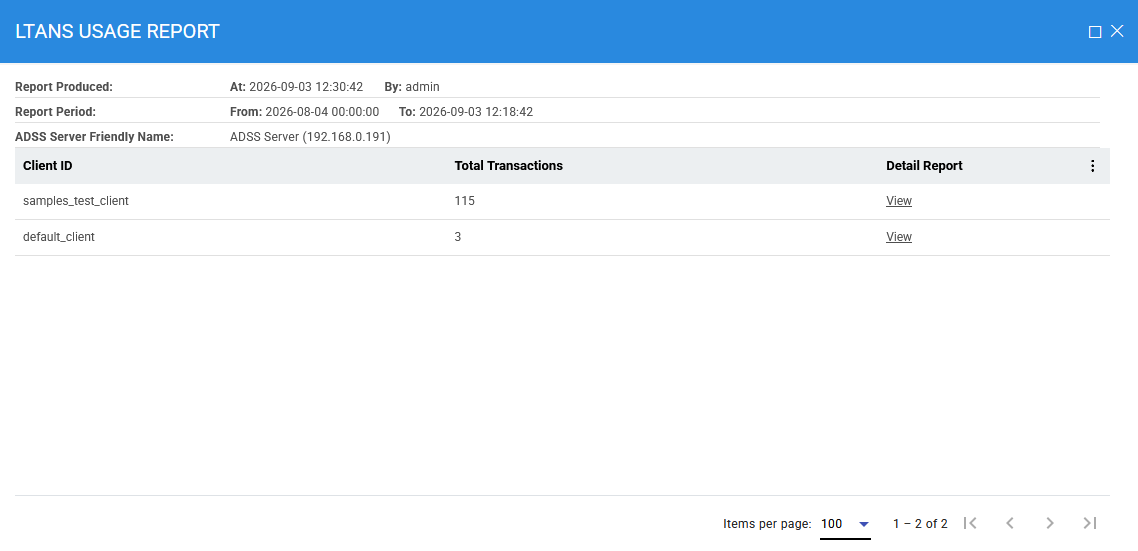
The configuration items are mentioned below:
|
Items |
Description |
|
Client ID |
Displays the identifier of the client that submitted LTANS requests. |
|
Total Transactions |
Displays the total number of LTANS transactions submitted by the client during the selected date range. |
|
Detail Report |
Click View to display detailed transaction information for the selected client. |
|
Export Report |
Click the vertical ellipsis (⋮) to export the report as a CSV file. |
Click View in the Detail Report column to view detailed transaction information for the selected client.
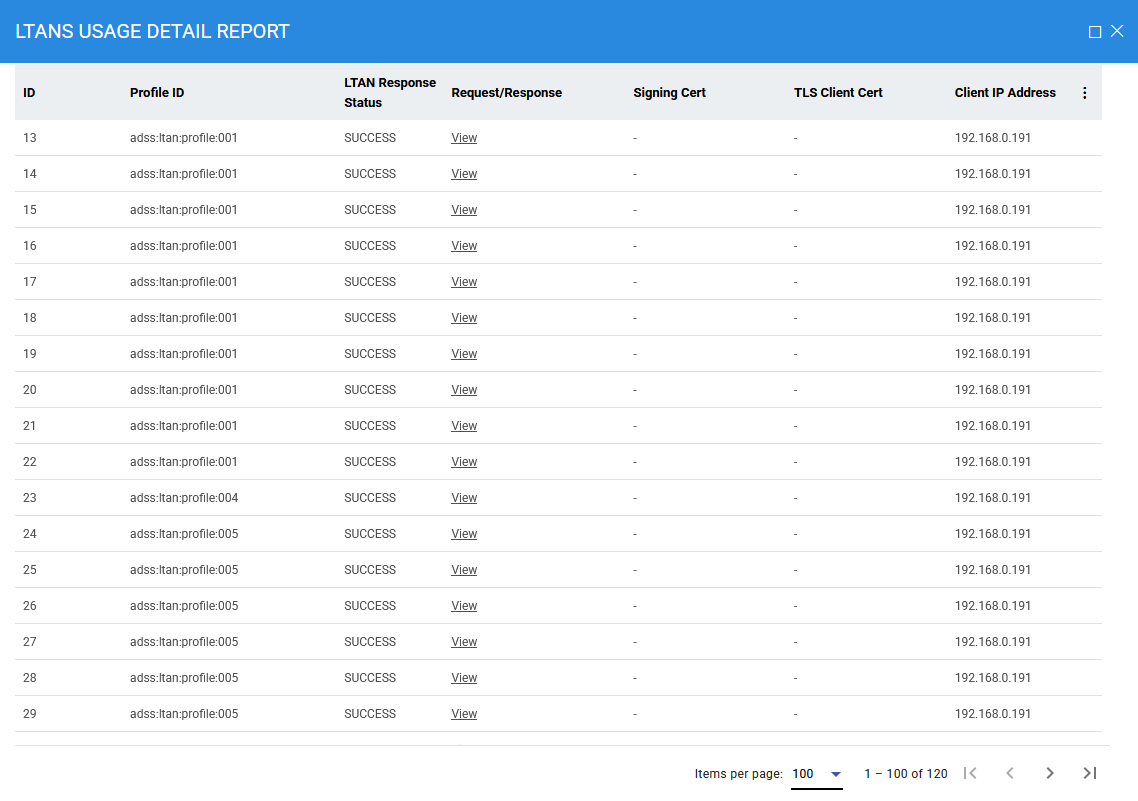
The following information is displayed:
|
Items |
Description |
|
ID |
Displays the unique identifier of the transaction. |
|
Profile ID |
Displays the ID of the LTANS profile used for the transaction. |
|
LTAN Response Status |
Displays the status of the LTANS response, such as SUCCESS or FAILED. |
|
Request/Response |
Provides a View link to view the LTANS request and response messages associated with the transaction. |
|
Signing Cert |
Provides a link to view the certificate used to sign the LTANS request. |
|
TLS Client Cert |
Provides a link to view the client certificate used for TLS authentication. |
|
Client IP Address |
Displays the IP address from which the client submitted the request. |
|
|
Note: Click the vertical ellipsis (⋮) to export the detailed report as a CSV file. |
The LTANS request and response messages for a transaction can be viewed by clicking View in the Request/Response column.
By default, the Request tab is displayed.
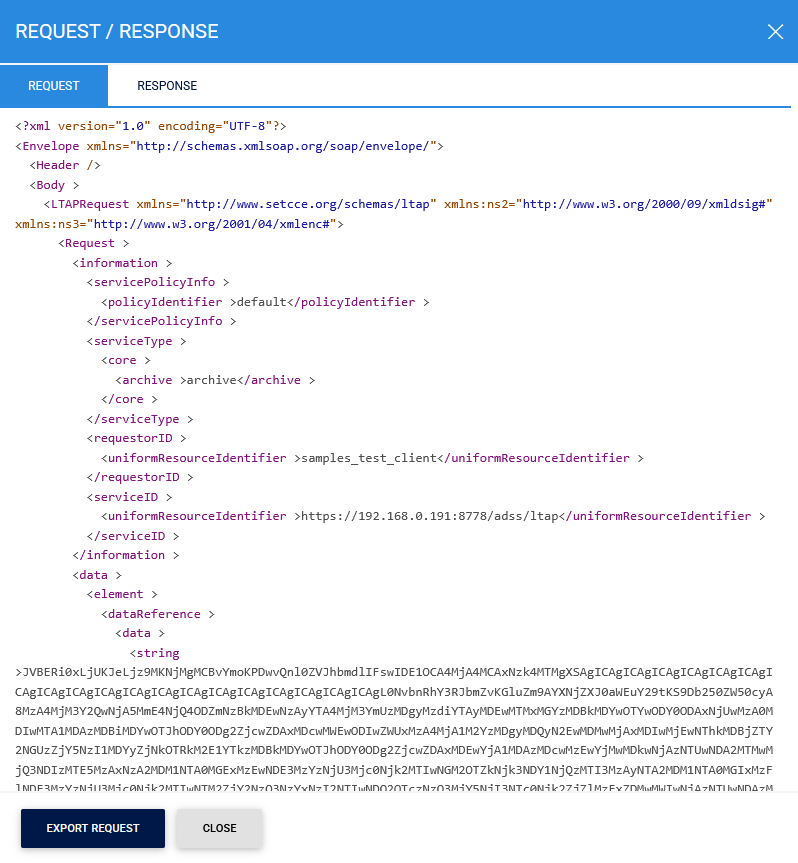
Click the Response tab to view the response returned by the LTANS Service.
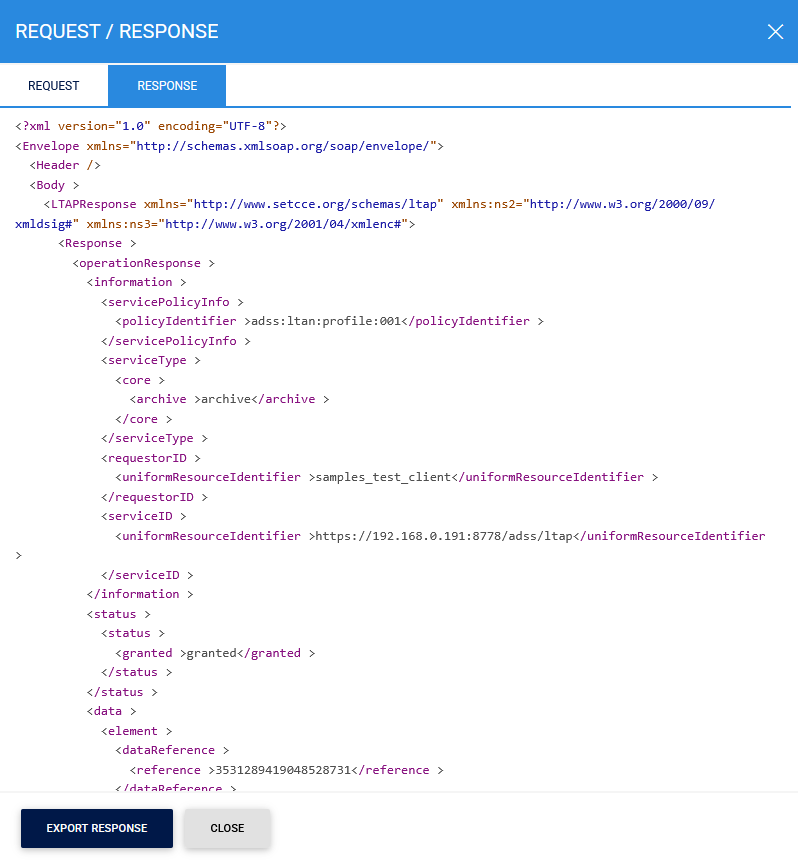
Clicking on the Export Response button will save the response to the file system.
See also