
Certificate Requests
This section of the ADSS Web RA admin portal lists down all types of certificate requests, including those pending approval, under review, or already approved.
To access the certificate requests listing page, expand Requests > Certificate Requests from the left menu pane. The certificate requests listing will appear as displayed in the screenshot below.
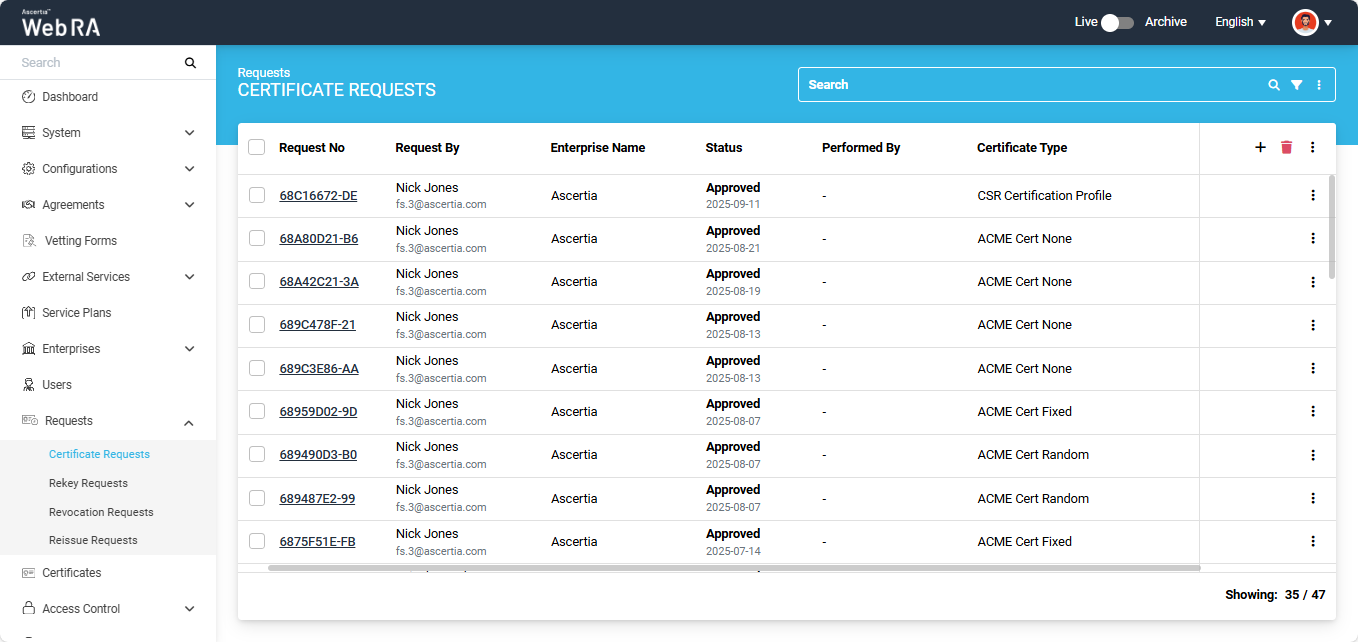
You can click on the '+' button to create a new certificate request for the following types:
Search and Advanced Search
Users can search for specific certificate(s) in the listing using the search bar. The "Advanced Search" feature is also available for more targeted searches.
It allows users to perform detailed and refined searches within the certificate requests section. By applying specific filters and criteria, users can quickly find the certificates they want to view.
To access the advanced search, click on the ‘Advanced Search’ icon next to the search box.
This will open the ‘Search’ dialog, which contains more than a dozen filters that allow users to refine their search results based on specific criteria.
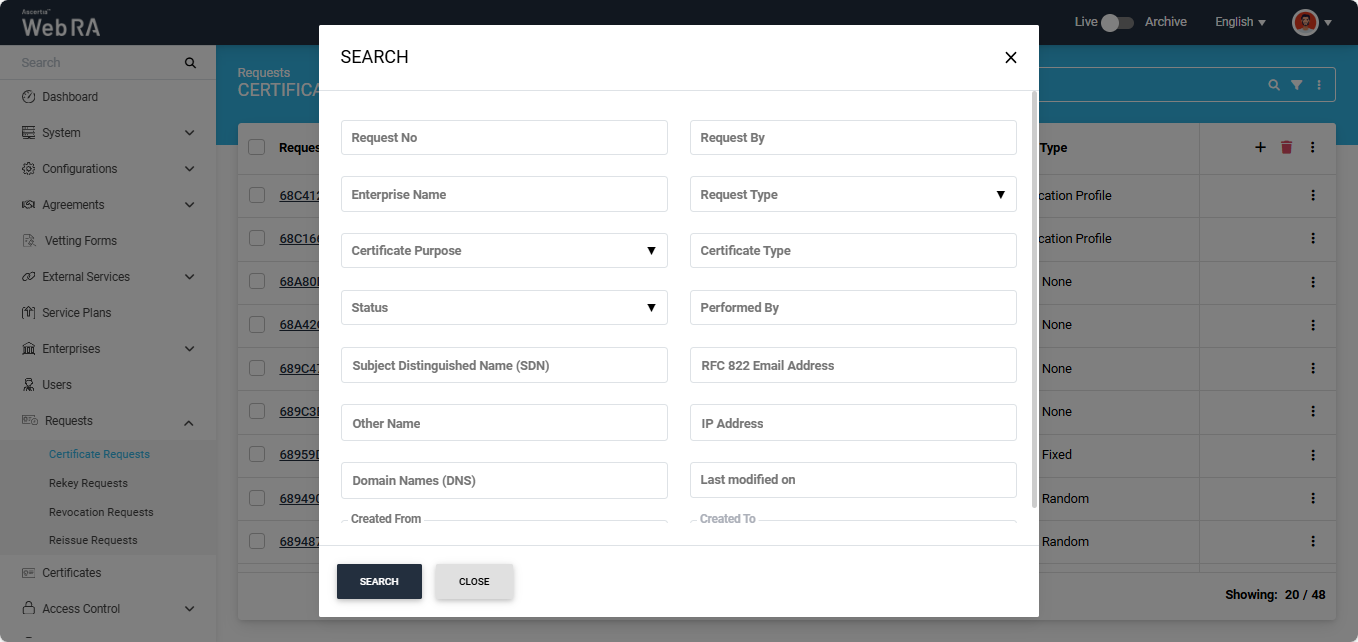
After applying the required filters, click the ‘Search’ button.
The listing section will display the certificates based on your applied filters.
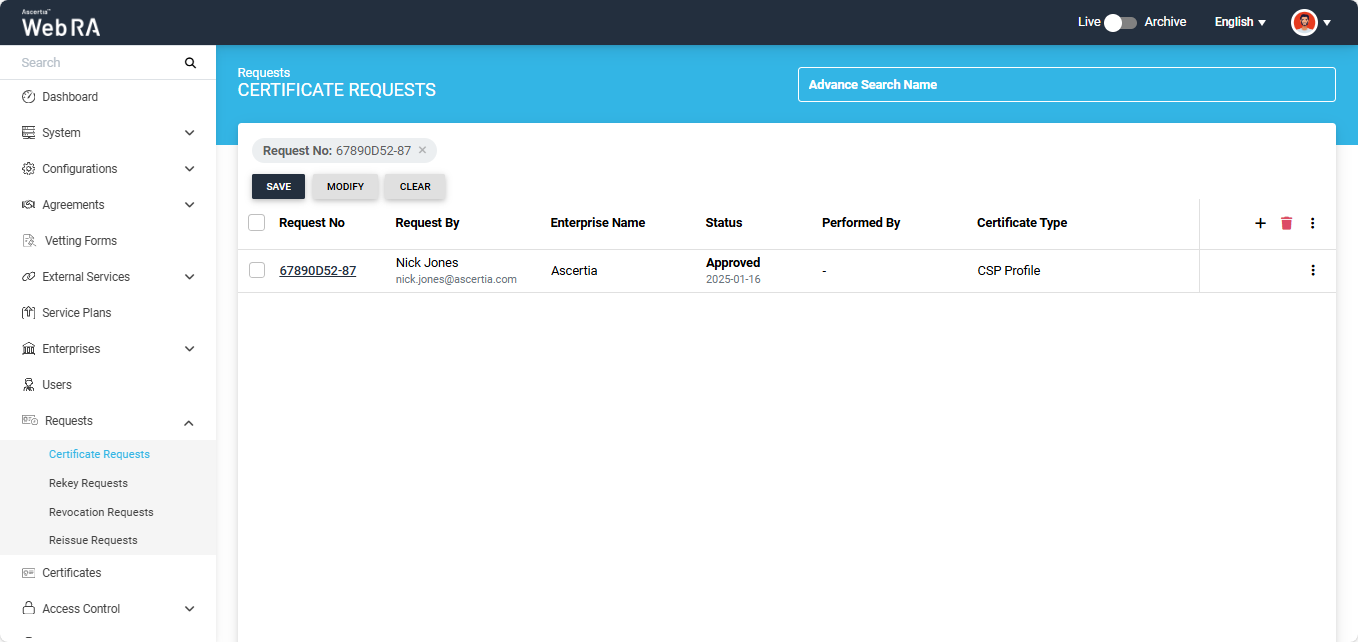
On this screen, users have the option to save the search criteria, modify it, or clear the criteria to view all certificates in the listing again.
Modify Columns
Users have the option to modify the columns in the listing. To do that, click the button present on the extreme right of the table header.
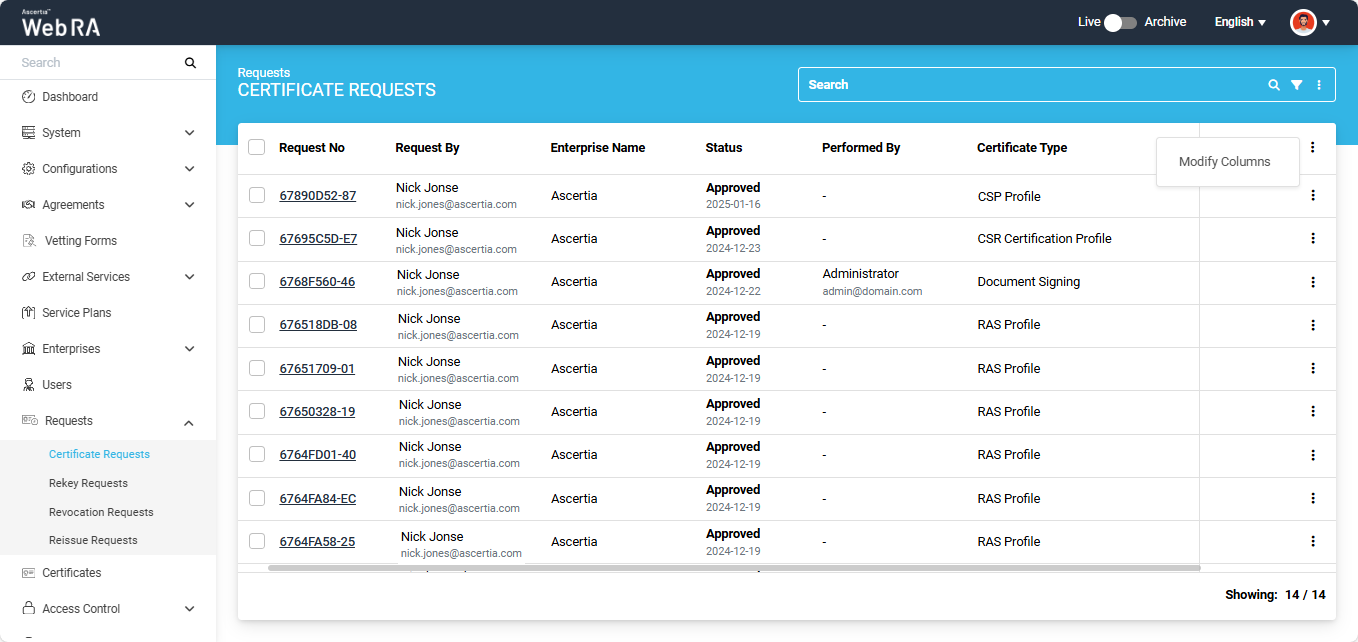
Click on the ‘Modify Columns’ option to edit the listing column entries. This will open a ‘Modify Columns’ dialog.
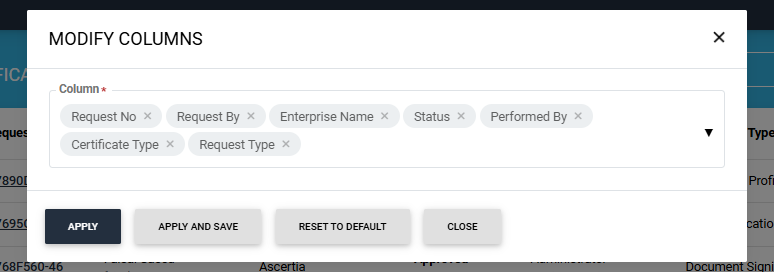
Click on the ‘Column’ dropdown to add more columns in the listing.
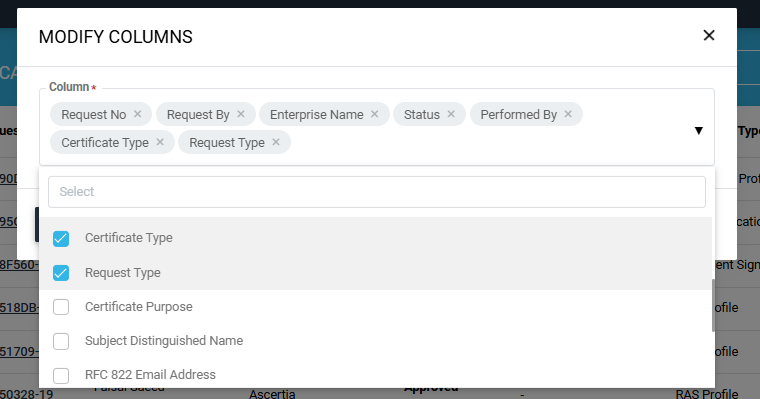
Scroll down the list to view the available options. Check the boxes for the options you want to view in the listing. The selected options will then appear in the ‘Column’ box.
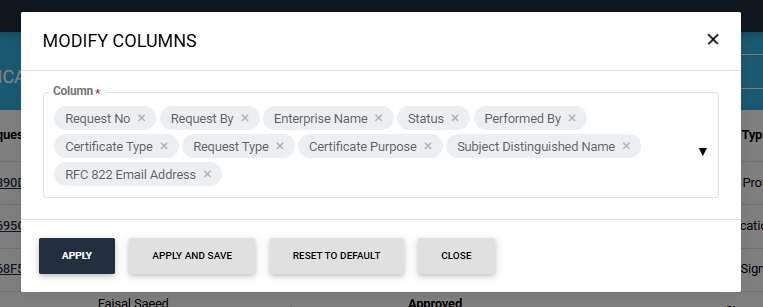
To remove any selected option, click on the cross present next to the column entry.
After selecting the required options, click the ‘Apply’ button to view the changes in the table listing. Click the ‘Apply and Save’ button to permanently save the changes in the table.
Users can also change the order in which columns appear in the listing table. To do this, first, remove all the selected options. Then, select the options from the dropdown one by one in the exact order you want them to appear in the listing table.
The 'Reset to Default' button will revert the column entries to their default settings.
Note: The 'Request By' section will display 'Citizen ID' below the username if it is enabled in the Configurations > Default Settings.
|
|
Important notes: 1) CSR Validation policies only validate when Enable CSR Validation is set under Configurations > Policy. |

Approve / Decline a Certificate Request (With Dual Control)
- Expand Requests > Certificate Requests from the left menu.
- Click the three-dot
 icon next to the certificate request you want to approve or decline. Then, click on the 'Vetting' option.
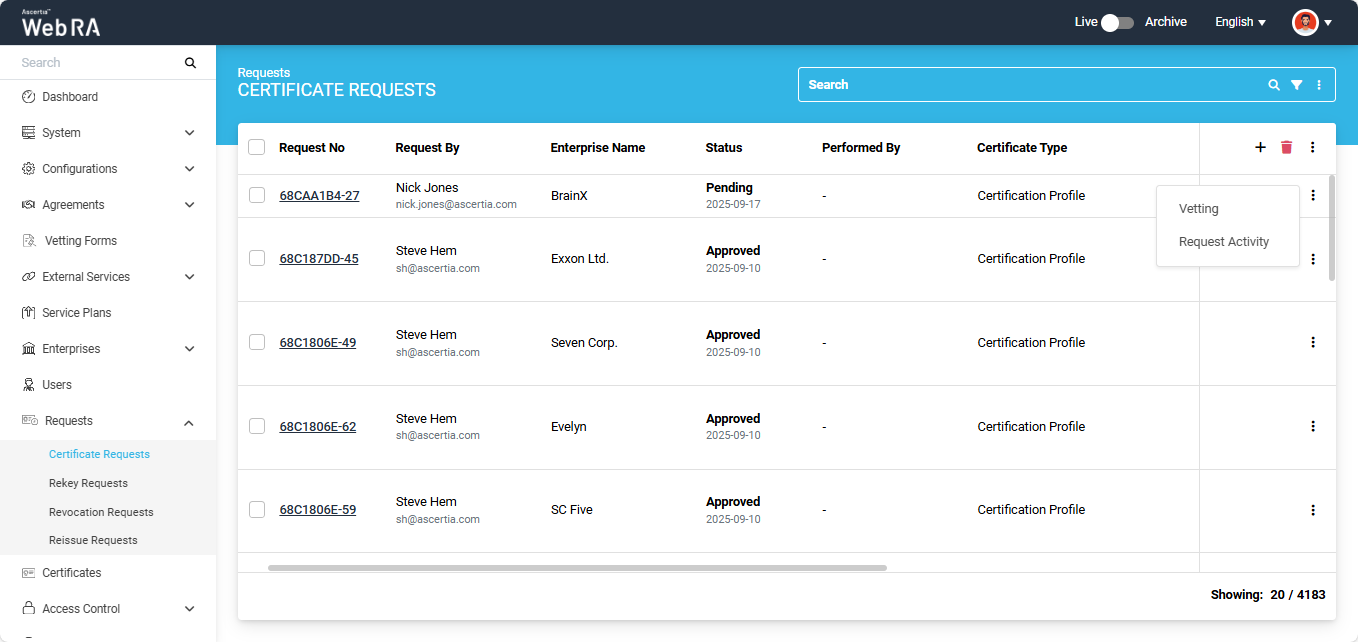
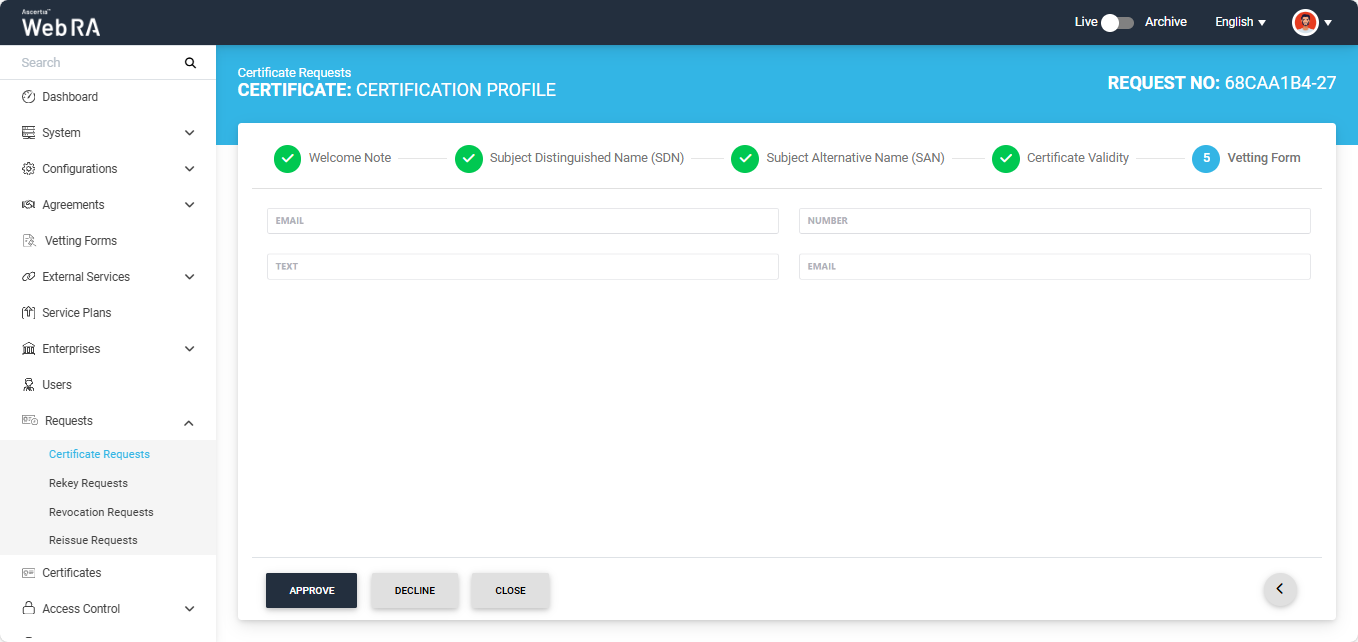
The system will open the certificate request screen. Inside the certificate request, navigate to the 'Vetting Form' tab. Here, you can choose to 'Approve' or 'Decline' a vetting form.
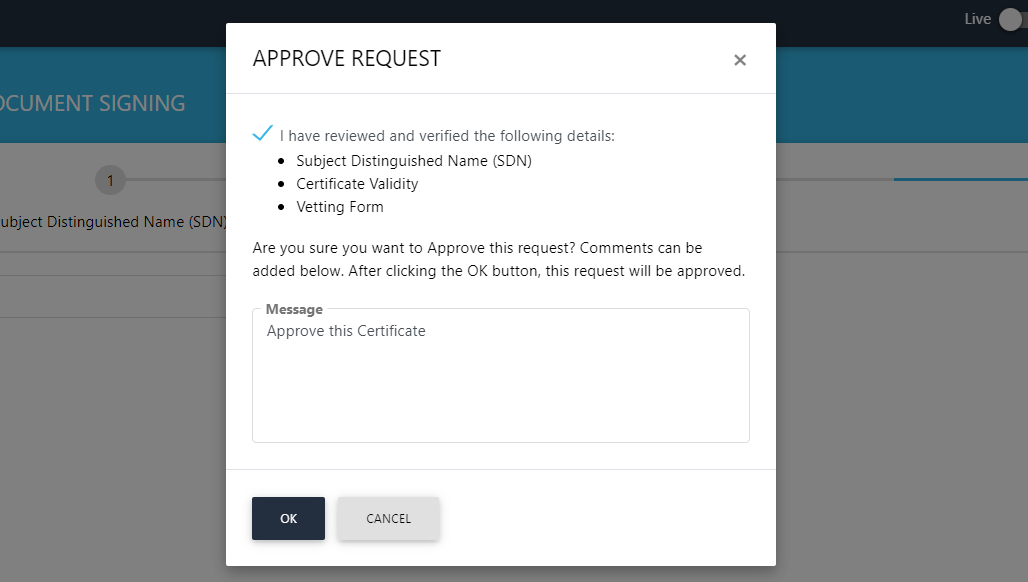
If you click the 'Approve' button, the following screen will appear where you need to enable the check-box 'I have reviewed and verified the following details', and add any information in the 'Message' box if you want.
Once done, click 'OK' to proceed. The certificate request will be approved and appear in the certificate request listing.
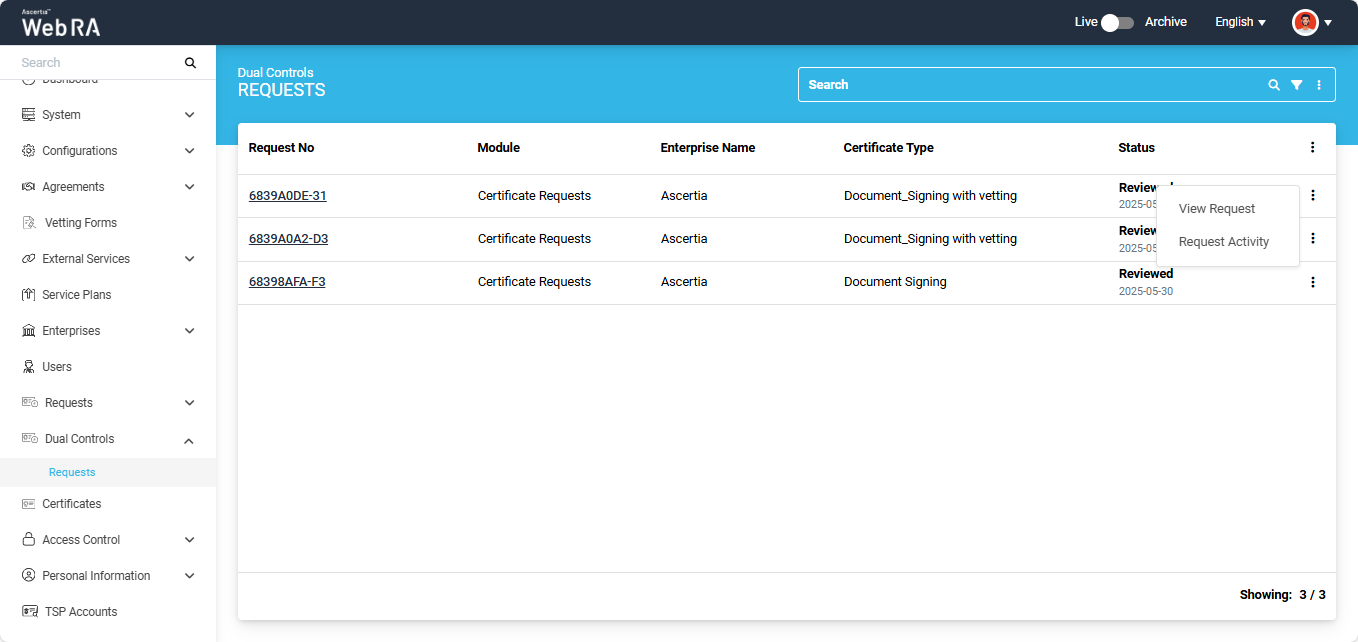
Next, Expand Dual Control > Requests > View Request (of the approved certificate request).
The status of this certificate request will appear as 'Reviewed' in the listing.
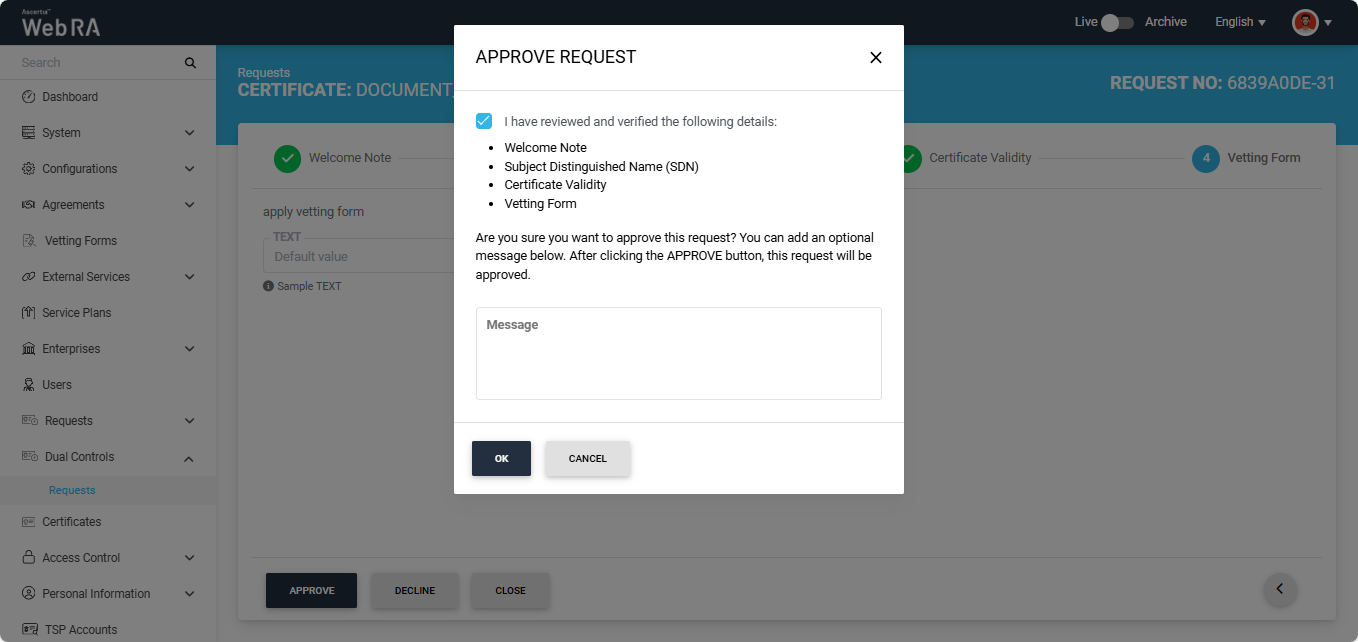
The system will open the 'Requests' screen.
Navigate to the 'Message' screen and click 'Approve'.
The system will display the 'Approve Request' dialog. Enable the given checkbox and click 'OK'. The certificate will be generated.
The certificate will then be listed under the Certificates listing.
Delete a Certificate Request
Permanent Deletion
An operator will only be able to delete a certificate request permanently if he has enabled permanent deletion from the Policy section.
If an operator wants to delete a certificate request from the Admin portal, follow the steps below:
- Expand Requests > Certificate Requests.
- A list of certificate requests will appear. Select the request number check box against the request you want to delete. Then click the
 button.
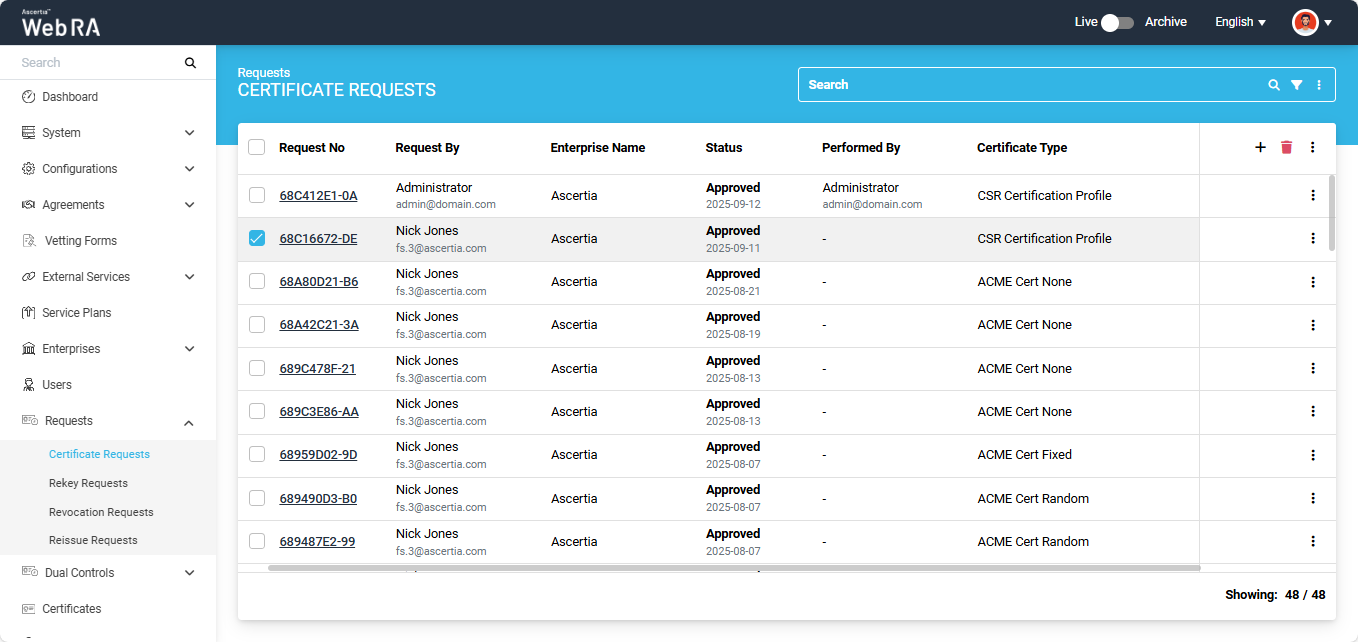
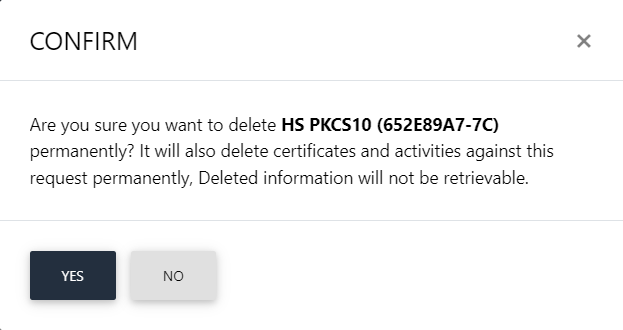
- A confirmation dialog will appear as displayed below. If you click 'Yes', the system will delete all certificates and activities against this request permanently. The deleted information will not be retrievable.
Temporary Deletion
An operator will only be able to delete a certificate request temporarily if he has disabled permanent deletion from the Policy section.
If an operator wants to delete a certificate request from the Admin portal, follow the steps given below:
- Expand Requests > Certificate Requests.
- A list of certificate requests will appear. Select the request number check box against the request to delete. Then click the button.
- A confirmation dialog will appear as displayed below. The dialog will notify you that if by clicking 'Yes', the certificate(s) against this request will also be deleted.
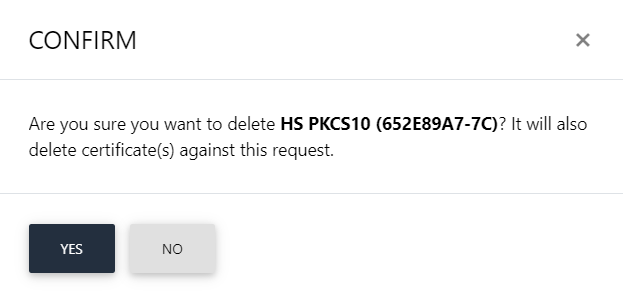
The text appearing on this dialog will be according to the configurations in the Policy section in the Admin portal.
Resubmit a Declined Request
The operator can resubmit a certificate request that has been declined. This allows them to modify the required details and submit the request again for approval.
The option to resubmit the declined certificate request will only appear if the policy for this option has been enabled from the Policies.
Expand Requests > Certificate Requests to access the requests listing section.
To do that, click the  button next to the certificate request that has been declined.
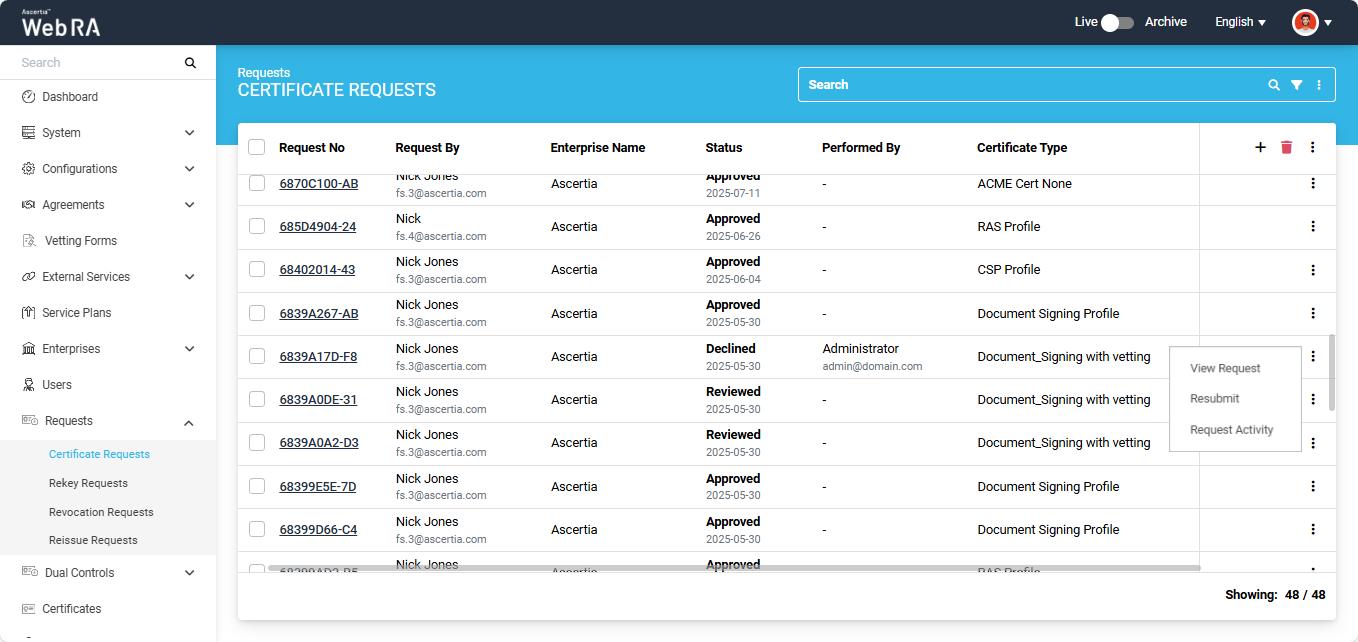
The system will display a ‘Resubmit’ option in the menu. Clicking the Resubmit option will open the request in create screen mode.
From that screen, the operator can modify the required details and click ‘Submit’ to send the request for approval again.
View Token Information
The operator can view the token information of a certificate from the Certificate Requests listing screen.
To do that, click the  button next to the certificate for which a token has been generated. The system will display the ‘Token Information’ option in the menu.
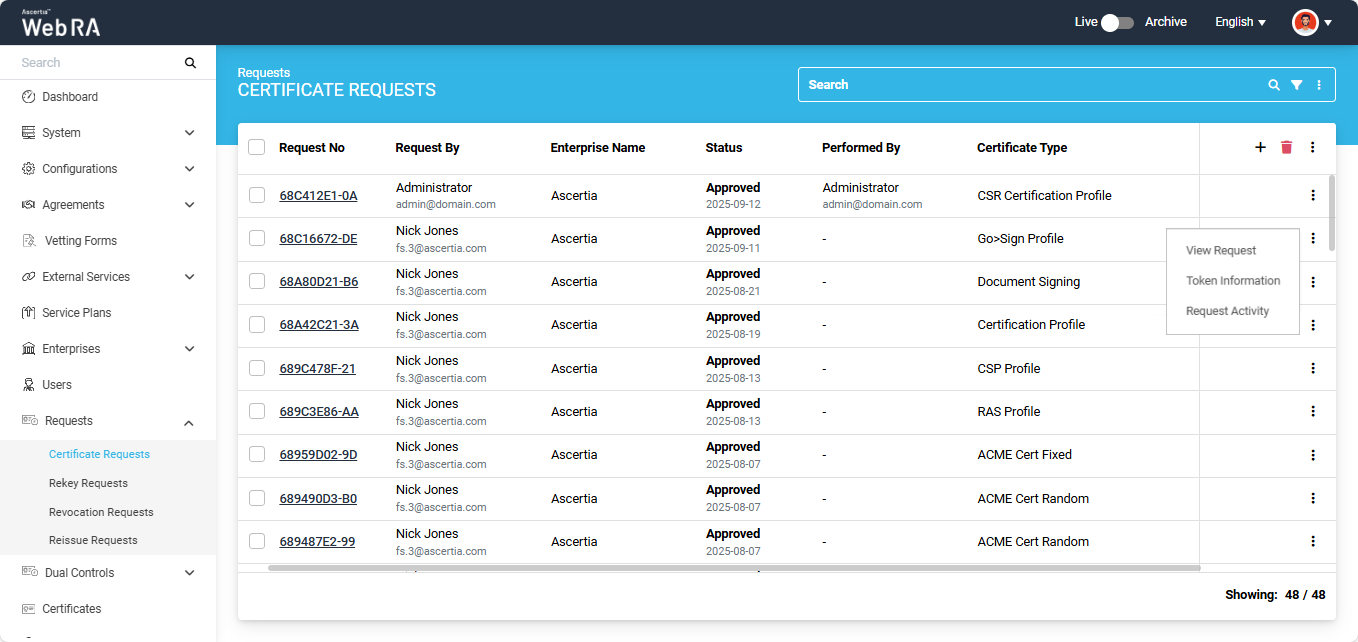
Click ‘Token Information’, and the system will open a dialog displaying the complete token details for that certificate.
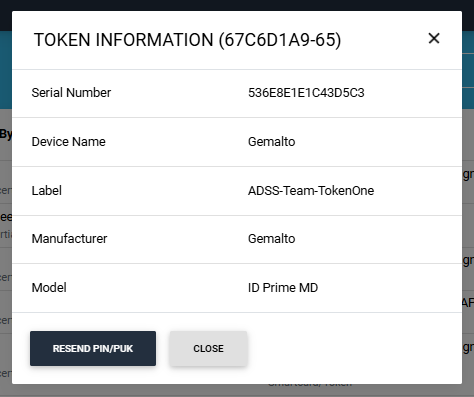
The system also provides an option in the 'Token Information' dialog to resend the values of PIN/PUK to the user.
If the operator clicks on the 'Resend PIN/PUK' button, the values will be shared with the user via Email or SMS or on both platforms. The mechanism to receive the PIN/PUK values is configured during the creation of certification profile. View Certification Profiles section for more details about how to select mechanisms.
Second Factor Authentication
If second factor authentication is enabled on certificate requests, the configured authentication mechanism will function accordingly. When a user clicks on the Generate button, the authentication window will appear, and once it accepts the selected method, it will generate a certificate.
The authentication mechanism can be one of the following:
- SMS OTP Authentication
- Email OTP Authentication
- Email & SMS Authentication
- SAML Authentication
- Active Directory Authentication
- Azure Active Directory Authentication
- OIDC Authentication