
CSR-based Requests
This section in the ADSS Web RA Admin portal lists down all CSR-based certificate requests.
Submit a Certificate Request (Client Authentication with CSR certificate type)
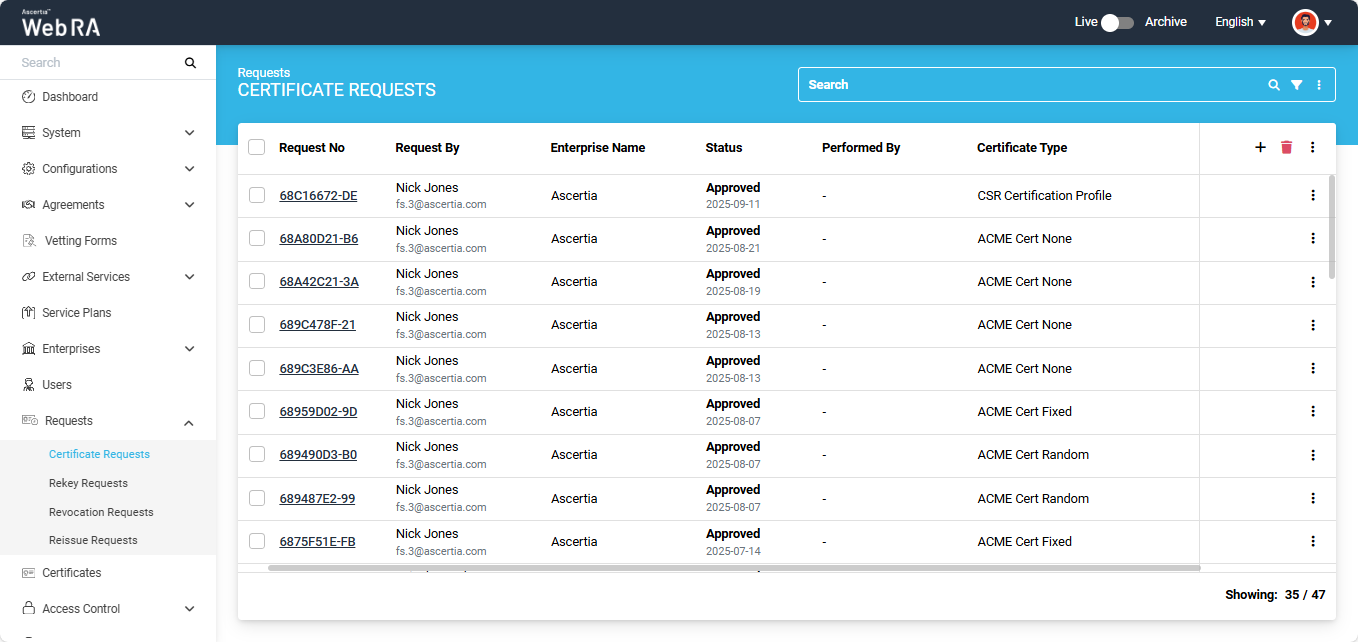
To create a new certificate request, expand Requests > Certificate Requests from the left menu pane in the admin portal. Then click the ‘+’ button from the grid header.
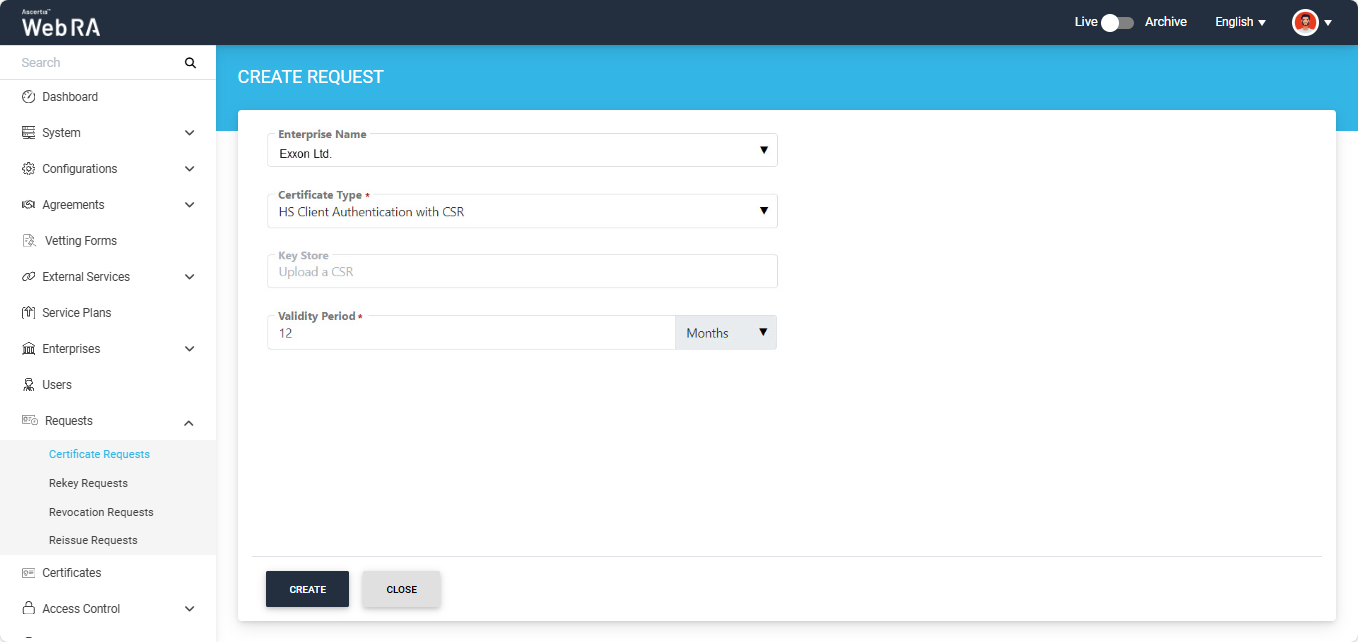
The system will display the ‘Create Request’ screen. Here, select your ‘Enterprise’ from the ‘Enterprise Name’ drop down, and select the ‘Certificate Type’.
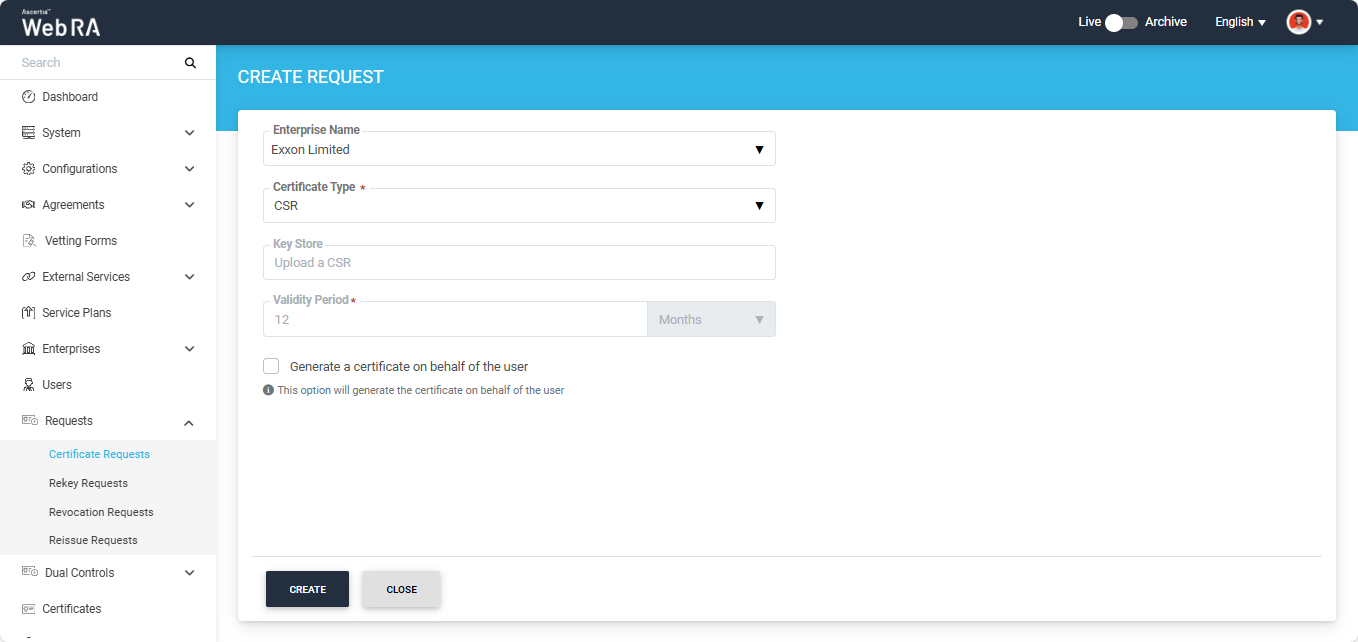
Note: A checkbox titled ‘Generate a certificate on behalf of the user’ will appear on this screen if the policy for this option is enabled in the Enterprise > Policies > Requests section.
Enabling this checkbox will allow the operator to generate a certificate on behalf of the user.
After making the required selections, click the ‘Create’ button. The system will display the ‘Welcome Note’ screen.
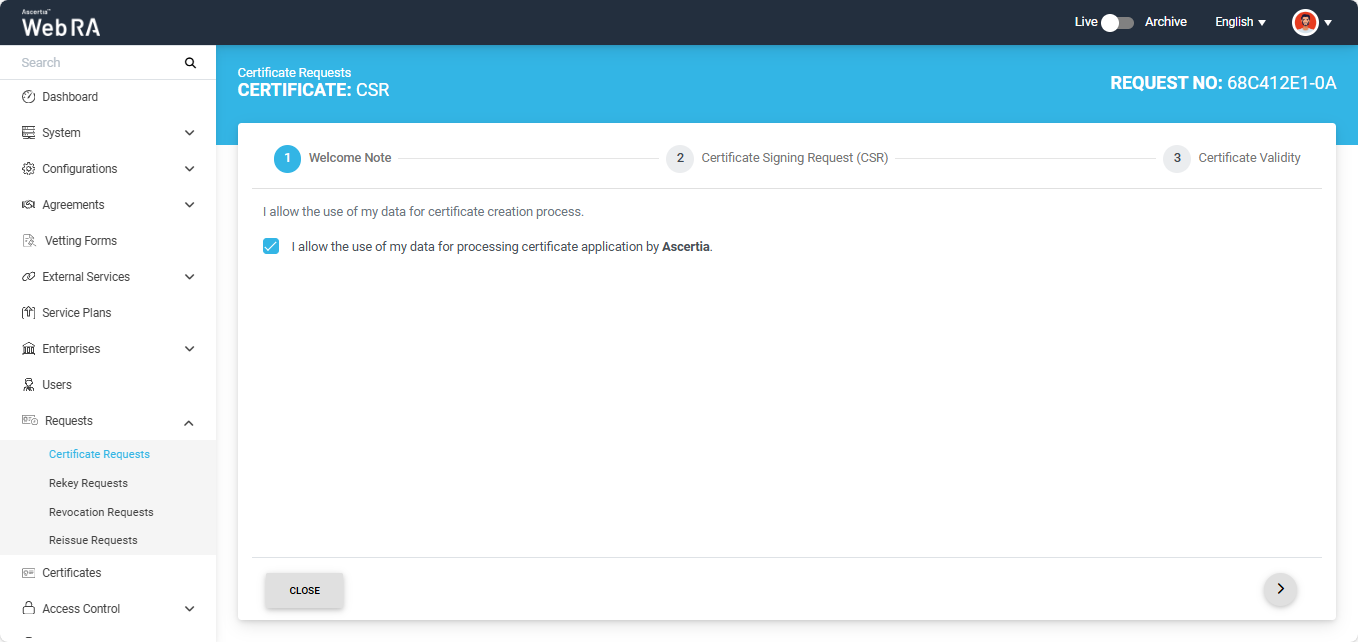
Enable the checkbox with the text ‘I allow the use of my data for processing certificate application by (Enterprise Name)’ and click the ‘>’ next button to continue.
Note: The Welcome Note screen will only appear if the operator has enabled customised Request Notes in the ‘Notification’ section of the Enterprise the user belongs to.
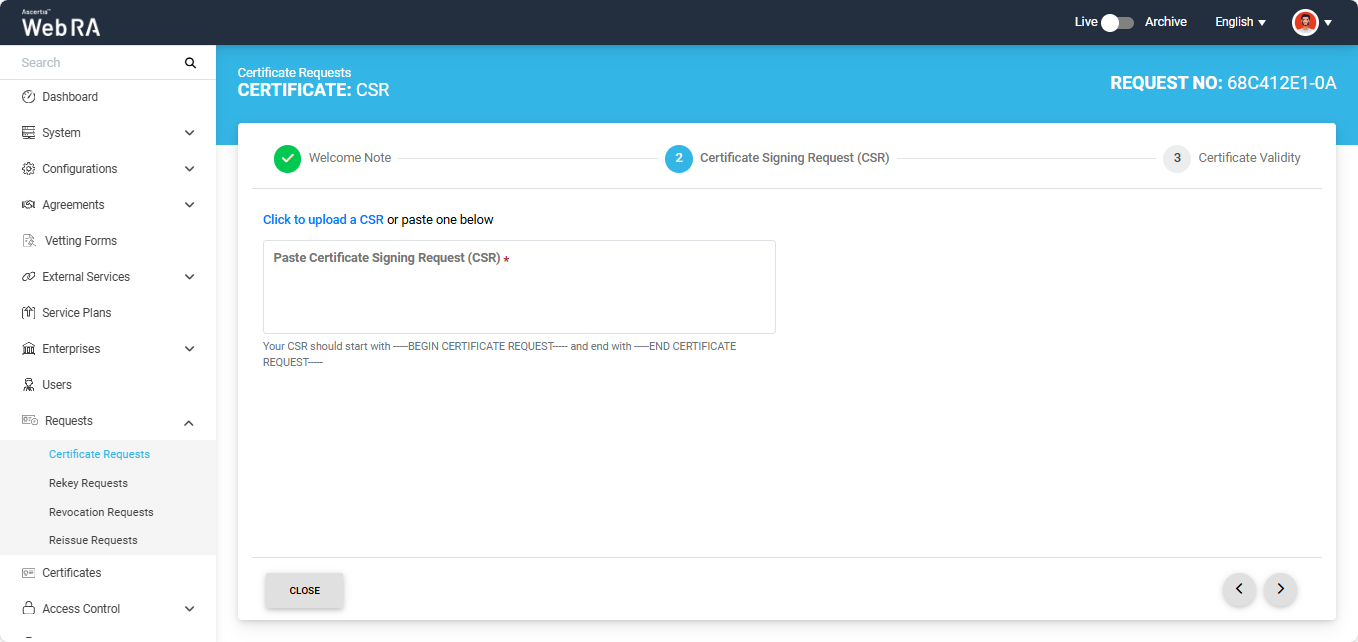
After you click ‘Next’, the system will display the ‘Certificate Signing Request (CSR)’ screen. Here, you will be required to either upload a CSR or paste the file in the given box.
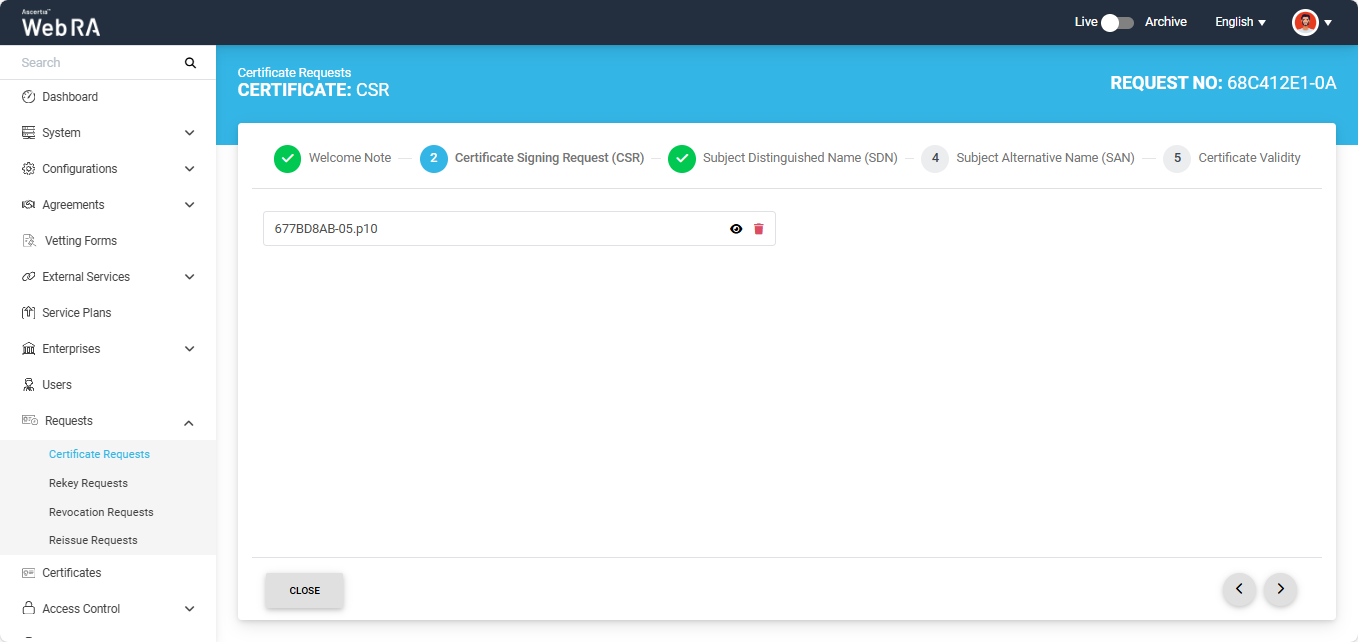
After uploading the CSR, the following screen will appear. You can also view the details of the CSR by clicking on the ‘Eye’ button.
ADSS Web RA Server supports the following attributes in a CSR:
- Common Name
- First Name
- Last Name
- Title
- Organisation Unit
- Organisation Identifier
- Locality
- Street Address
- State
- Postal Code
- Country
- Subject Serial Number
- Business Category
- DNS Name
- IP Address
- Email Address
- Other Name
- Public Key
- Public Key Algorithm
- Public Key Length
- Signature
- Signature Algorithm
- Version
- Key Size
- Fingerprint (SHA-1)
- Fingerprint (MD5)
- SANS
Meanwhile, the following attributes are not supported in a CSR by ADSS Web RA:
- Exponent
- Certificate Extensions
- Key Id Hash(rfc-sha1)
- Key Id Hash(sha1)
- Key Id Hash(bcrypt-sha1)
- Key Id Hash(bcrypt-sha256)
Once done, click the next ‘>’ button to proceed.
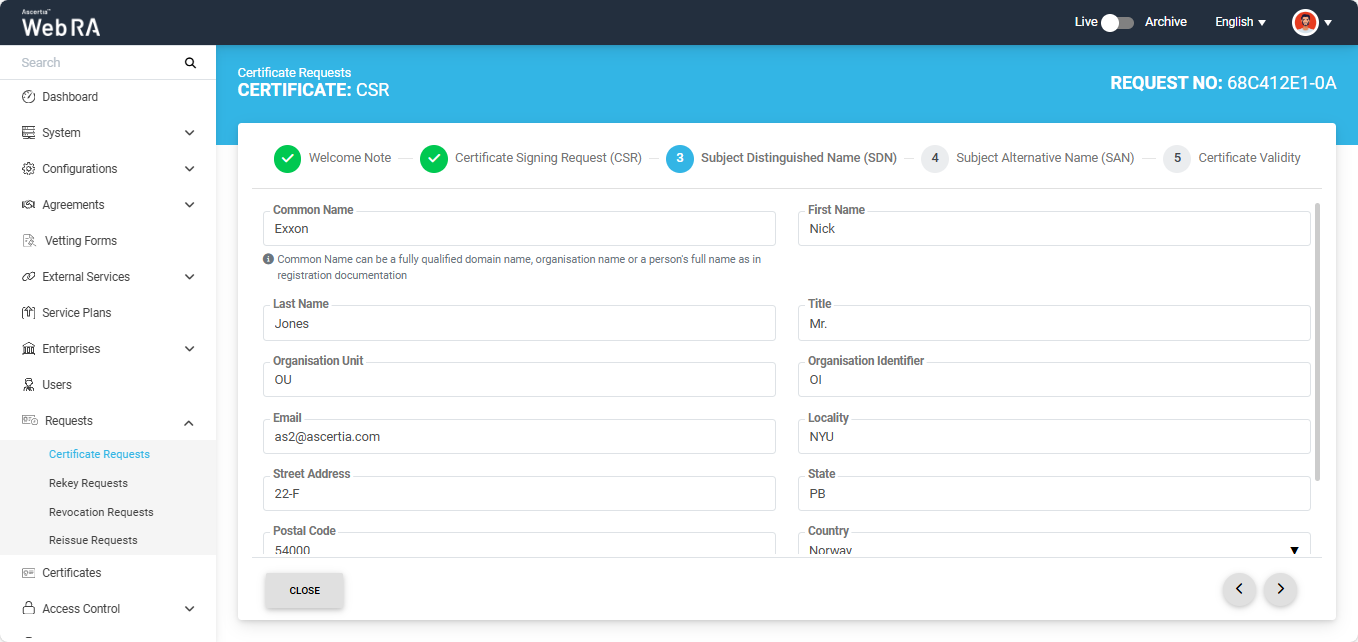
The system will display the ‘Subject Distinguished Name (SDN) screen. The fields in this screen will be auto-filled according to data available in the uploaded CSR.
After reviewing the information, click the next ‘>’ button to navigate to the ‘Subject Alternative Name (SAN)’ screen.
The SDN screen contains the following fields:
- DNS Name
- IP Address
- Email Address
- Other Name section
The ‘Other Name’ section contains the following fields:
- OID
- Value
- Encoding
- Other Name
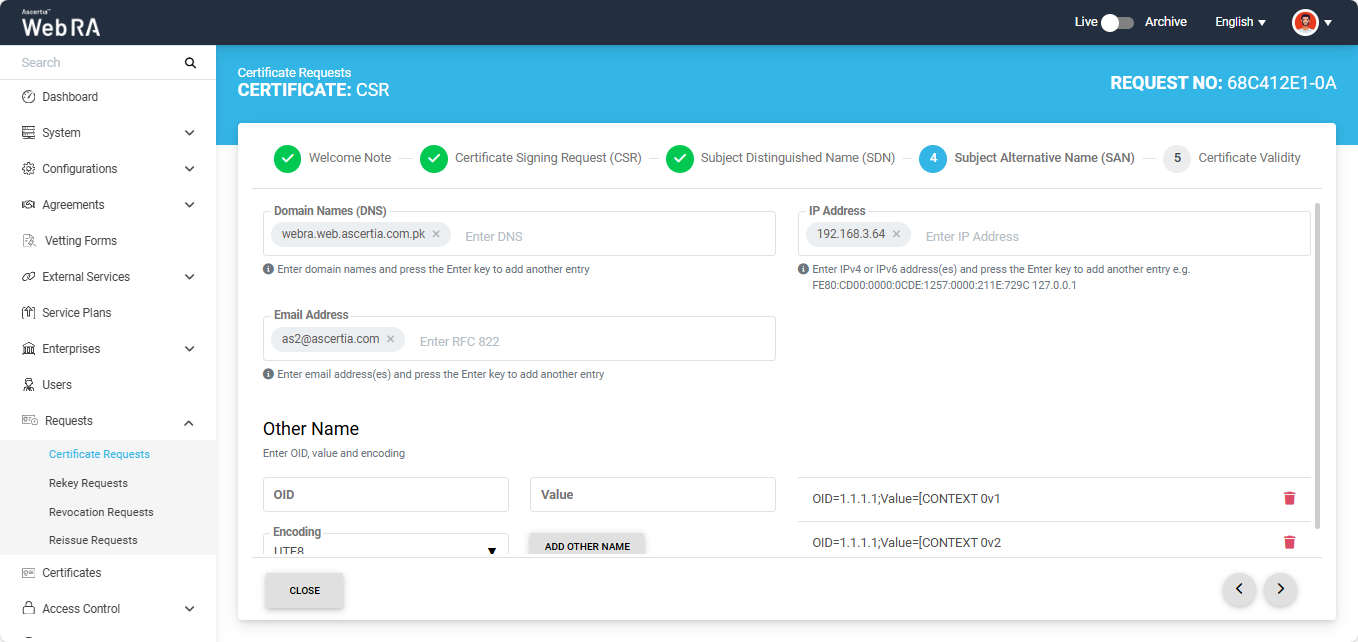
Note: If the CSR does not contain any SAN values, then the SAN screen will display the ‘No Subject Alternative Name (SAN)’ found’ text on the screen.
Click the next ‘>’ button to proceed to the ‘Certificate Validity’ screen. The validity period will appear in disabled form.
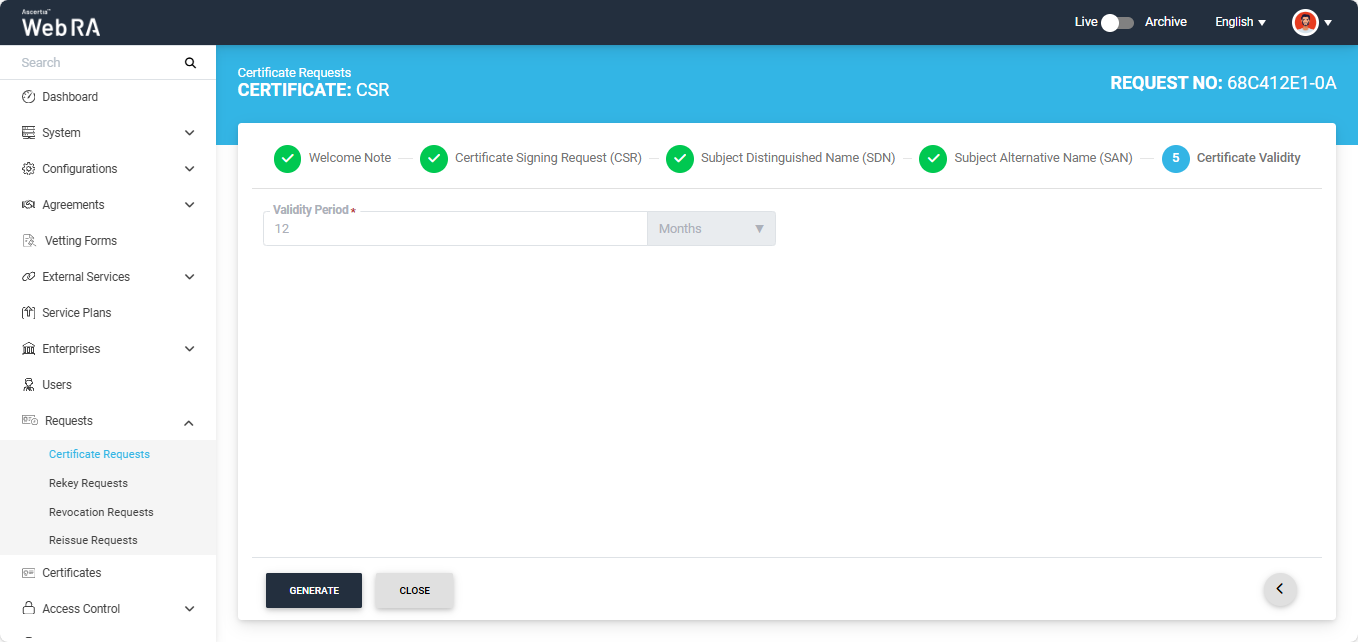
Click the ‘Generate’ button to create the certificate.
Note: A subscriber agreement dialog will appear on the screen after clicking the ‘Generate’ button if any such agreement is configured with the user’s profile. It will not appear if a subscriber agreement is not configured.
After clicking ‘Generate’, the certificate will be generated and the following screen will appear.
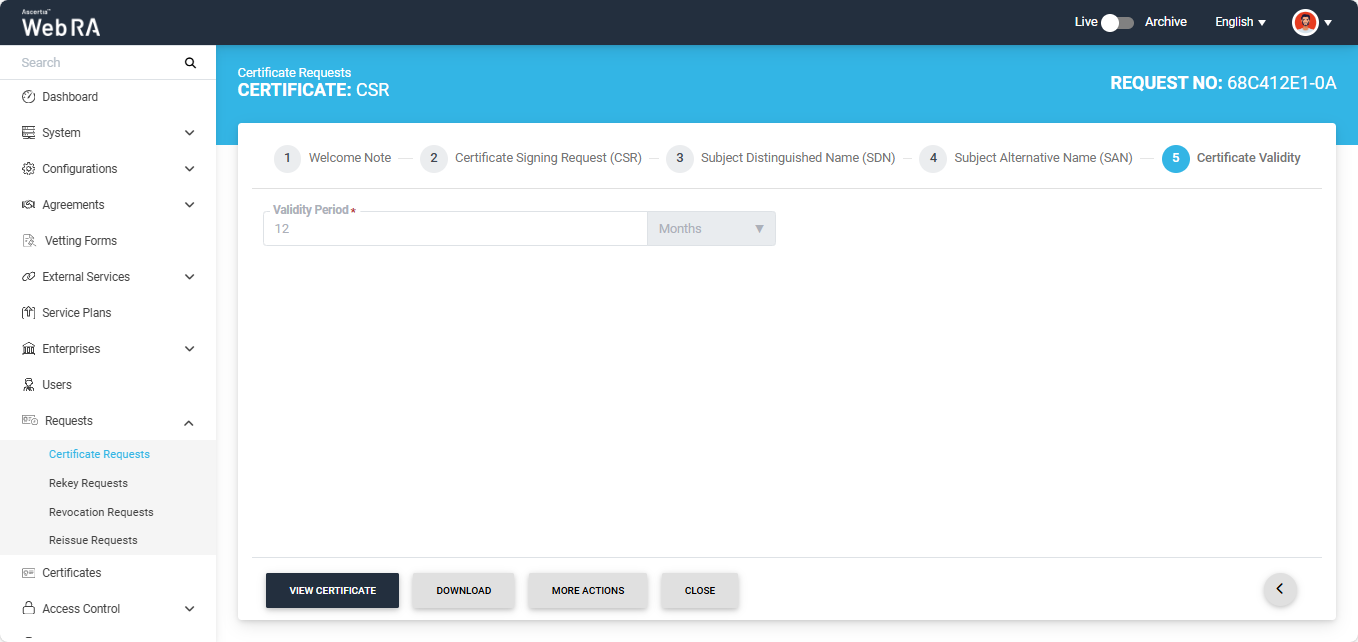
This certificate request will appear in the ‘Certificate Requests’ listing table as well.
Note: If the ‘Generate a certificate on behalf of the user’ checkbox is enabled, the system will display an additional screen titled ‘User Information’ next to the Certificate Validity screen.
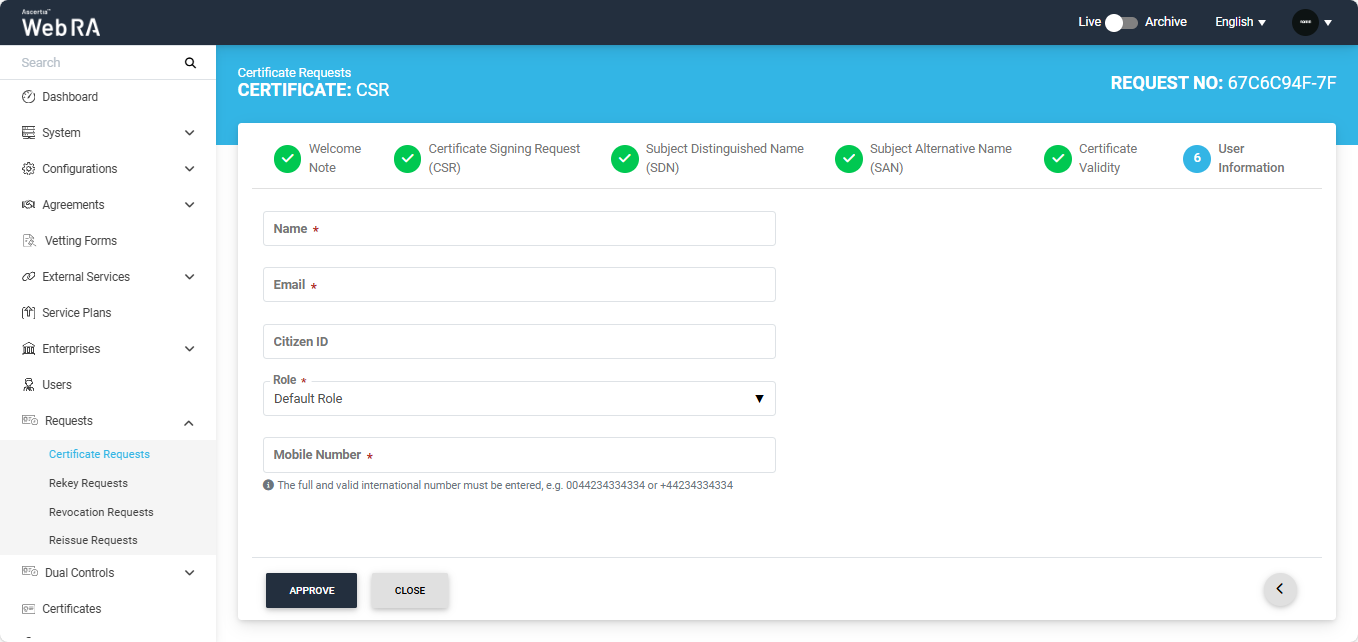
On this screen, you will be required to enter and select the Name, Email, Citizen ID, Mobile Number, and Role of the user for whom the certificate is being generated.
After entering the details, click ‘Approve’. The system will then display a subscriber agreement (if configured) for this user's profile.
When you agree to the subscriber agreement, the system will create an account for the user and generate the certificate. The user will receive an email regarding the account and certificate creation and is prompted to activate their account.
Note: If the certificate is being created for a user who does not exist in the system, a new account will be created for the user along with the certificate.
If the user already has a registered account in the Web RA system, only the certificate will be created. The user will be notified via email about the certificate generation.
Meanwhile, if the user exists in the system but is not part of the enterprise where the certificate is being created, the system will send an invitation for the user to join that enterprise and will generate the certificate as well.