
Registered Users
This section lists down all the users registered in an enterprise.
Update User Information
Once a user accepts the invitation, the operator can update the user's profile and certificate details. Navigate to the User Invitations page to see the complete workflow of how a user is invited in the system.
- Expand "Enterprises" from the left menu in the Admin portal, and click "Registered" from the dropdown.
- Click the
 icon adjacent to your enterprise entry, and select 'Manage' to navigate to the Enterprise dashboard.
 - From the Enterprise dashboard, expand Users > Registered Users to view the enterprise user listing, Then, click theicon against an enterprise user, and select "Edit".
From the Edit screen, the operator can update the user information as required. Operators can update the user profiles and certificate details if this is permitted by their Role.
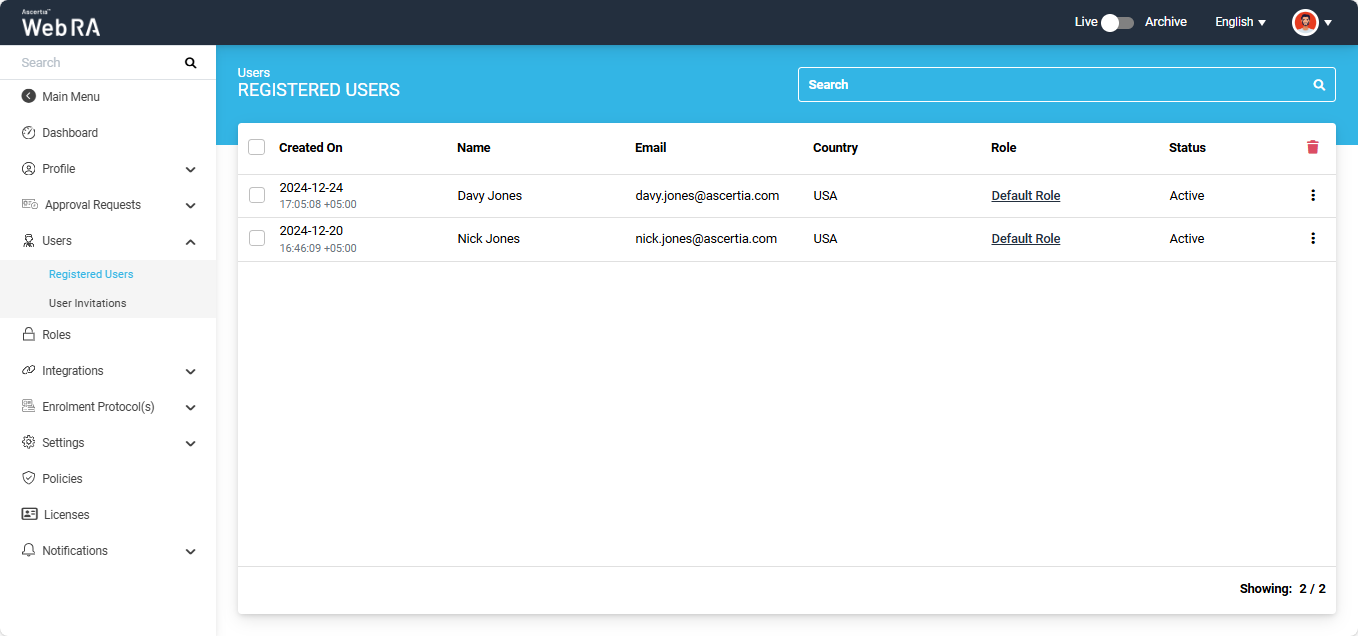
Once you click "Edit" the following screen appears. It consists of two tabs:
This section consists of the details of a user such as name, email, job title, country, status, mobile number and role. The red sterik indicate compulsory fields.
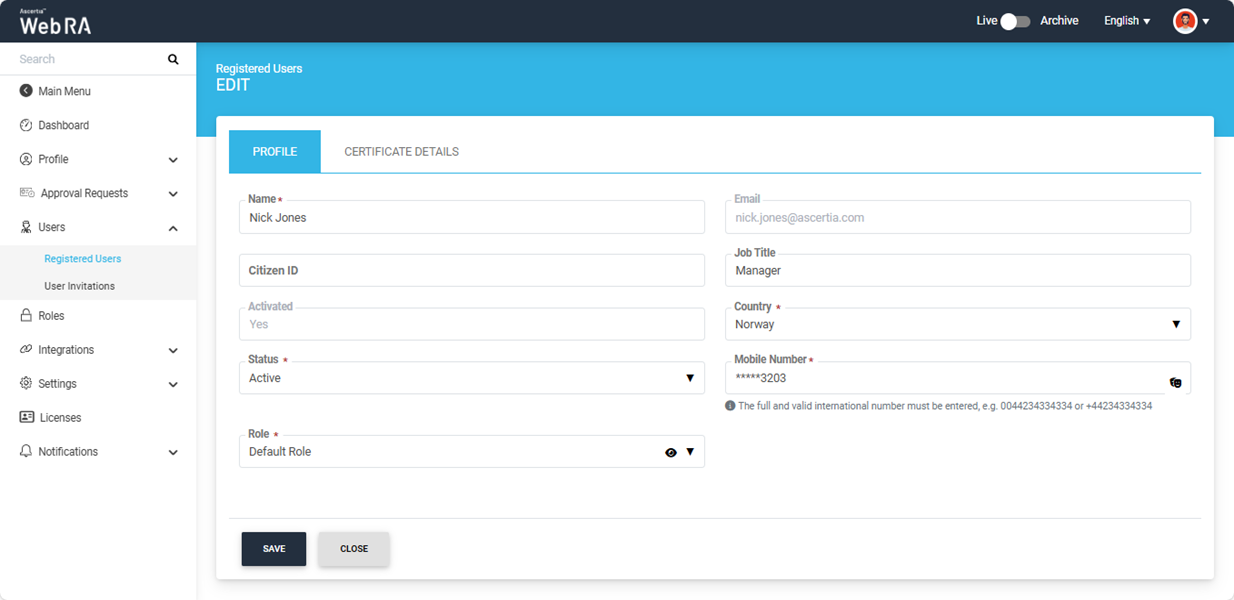
Status
The operators have the option to change the Status of the registered user (if allowed in the role). The following options are available in the Status dropdown:
|
Status |
Description |
|
Active |
Users with Active status can log in to the application and generate certificates according to their assigned certificate profiles. |
|
Suspended |
Suspended users can perform only limited operations. They are not allowed to create new certificate requests. |
|
Blocked |
A blocked user will not be able to access the application. For such users, all certificates need to be revoked manually before blocking the user. |
|
Restricted |
Restricted users are not allowed to log in to the application. |
Note: Users with the status ‘Restricted’ cannot log in to the application and do not receive any certificate-related notifications (for certificate creation, renewal, rekey, or revocation) at their assigned email address.
The operator can create, revoke, rekey, or renew certificates for Restricted users via the API; however, the users will not receive any notifications of these actions.
Furthermore, the operator can register a user in the application via the API with ‘Restricted’ status; however, the user will not receive the activation notification at their email address. A Restricted user will also not be able to authenticate using APIs.
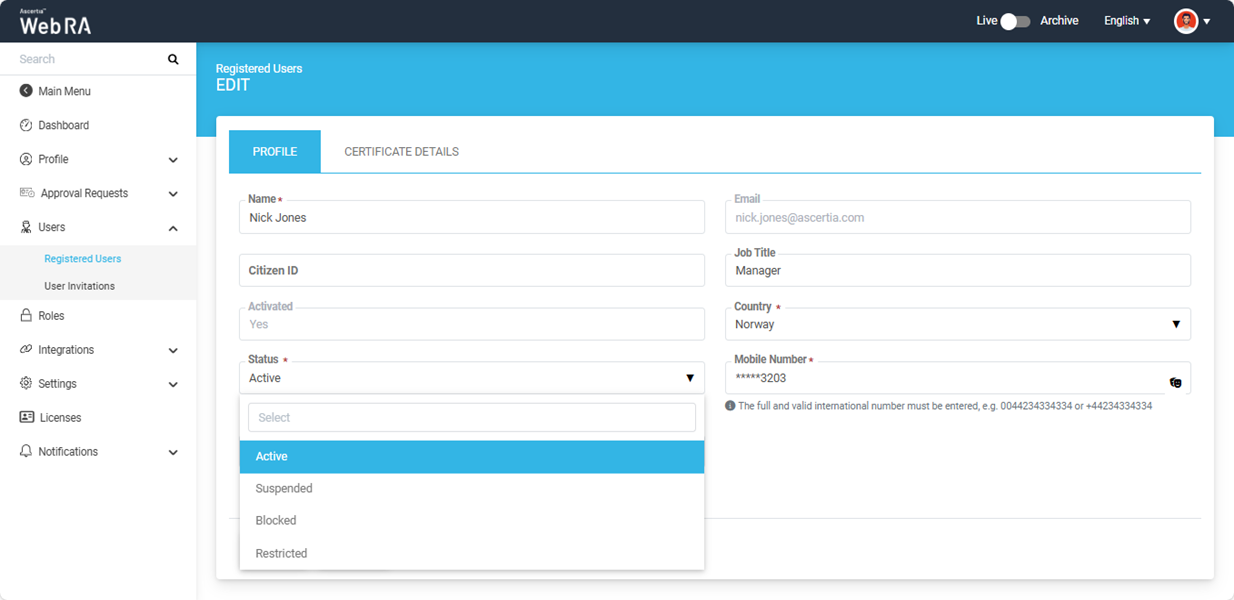
If the operator tries to change the status of an Active user to Suspended, Blocked, or Restricted, the system will display a confirmation dialog on the screen.
The dialog will display the limitations the user will face. The operator will be required to enter a reason to proceed with the status change. For example, if the status of a user is changed from Active to Restricted, the following dialog will appear when the 'Save' button is clicked:
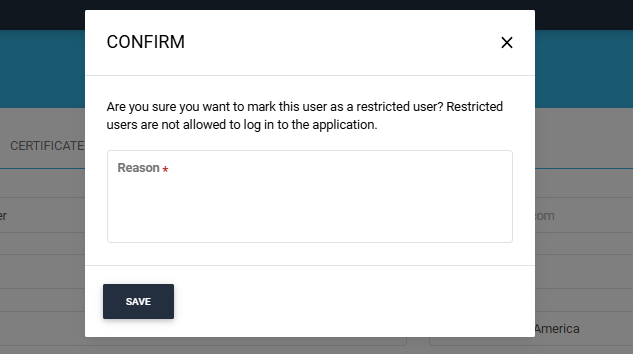
After entering the reason for status change, click 'Save'.
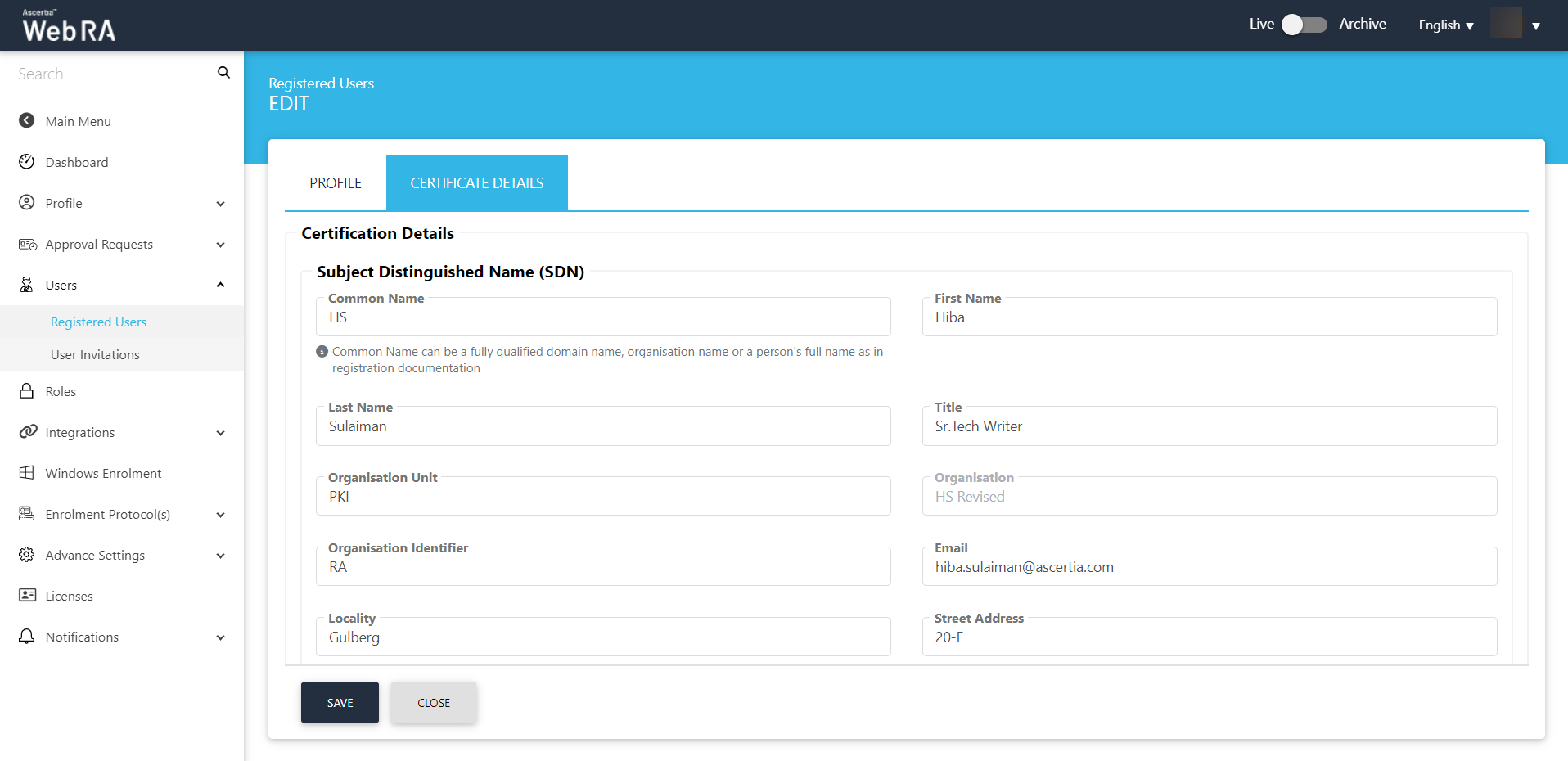
The Certificate Details screen consists of Subject Distinguished Name (SDN), Subject Alternative Name (SANs) and Other Name.
Certificate details as the name explains are the various attributes that will be included in a certificate request.
Subject Distinguished Name (SDN)
A Subject Distinguished Name is a unique identifier used in public key infrastructure (PKI) systems to specify the identity of an entity, typically in the context of SSL/TLS certificates. It is composed of several fields that provide information about the entity, such as its name, organizational unit, organization, location, and more.
The Subject DN is part of the X.509 standard, which defines the format of certificates used in a secure communication over the internet. It helps in uniquely identifying and authenticating entities in a digital certificate hierarchy.
For instance, in a typical SSL/TLS certificate, theSDN might contain information like:
- Common Name (CN): Usually the domain name of the entity (e.g., www.example.com).
- Organization (O): The legal entity or organization that owns the domain.
- Organizational Unit (OU): Subdivisions or departments within the organization.
- Country (C): The country where the entity is registered.
- State or Province (ST): The state or province within the country.
- Locality (L): The city or locality.
Each component of the SDN helps to uniquely identify the entity and is crucial for verification and validation processes when establishing secure connections or verifying the authenticity of a certificate.
An operator can configure the following SDNs for a specific user to appear in his certificate requests as listed below: (Screenshot attached)
- Common Name
- First Name
- Last Name
- Organisation Unit
- Organisation Identifier
- Locality
- Street Address
- State
- Postal Code
- Country
- Subject Serial Number
- Unique Identifier
- Business Category
Subject Alternative Name (SAN)
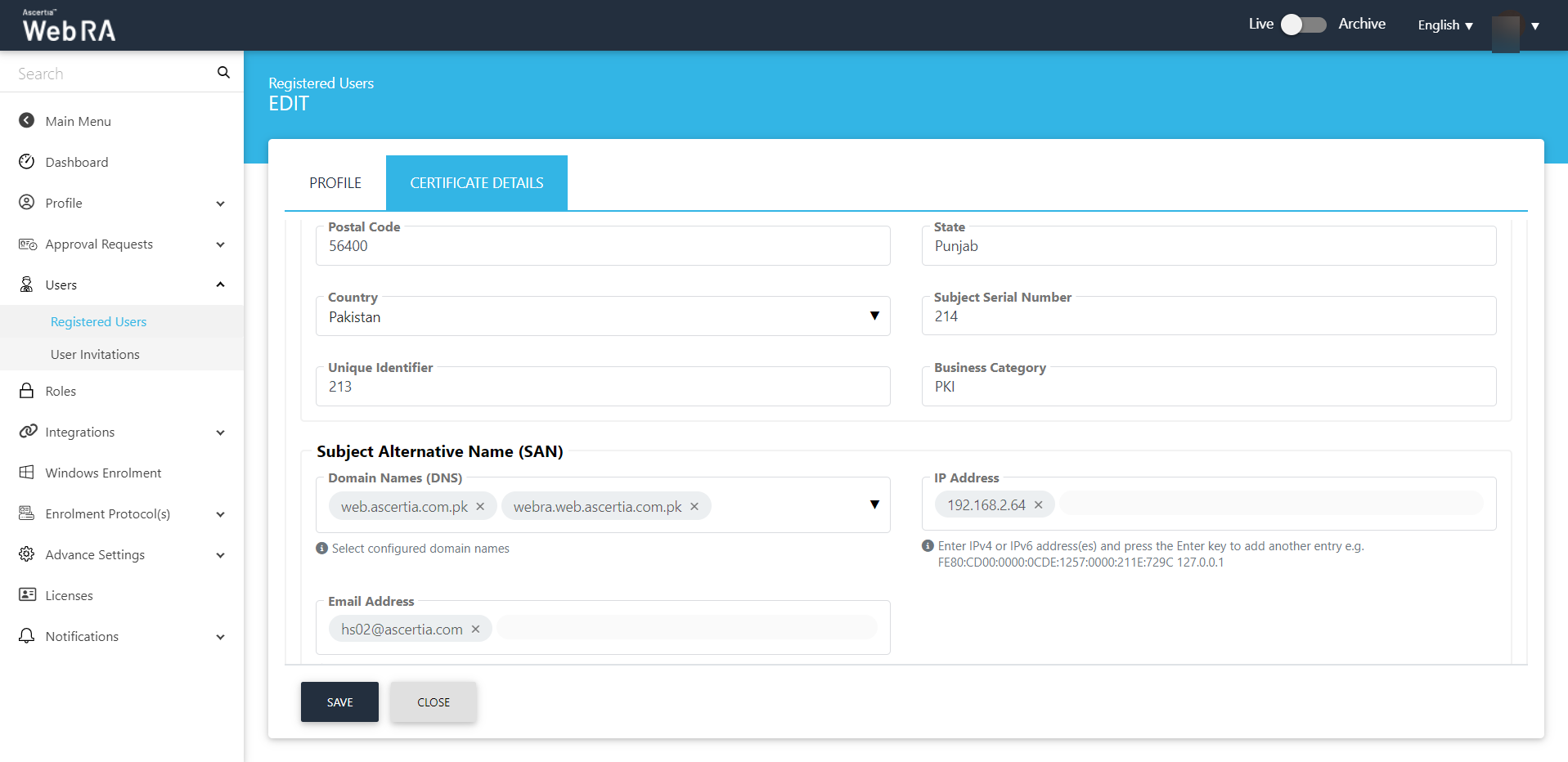
- Domain Name (DNS) - You can configure the domain and its sub domains from this drop down. ADSS Web RA supports the configuration of domain names on an enterprise level. The DNS name will be used in the certificate request form for its utilization while generating certificates exclusively from the domains pre-configured within their enterprise. These fields will only appear if they are configured in an Enterprise's role. Click here to learn more about Domain Name (DNS).
- IP Address
- Email Address
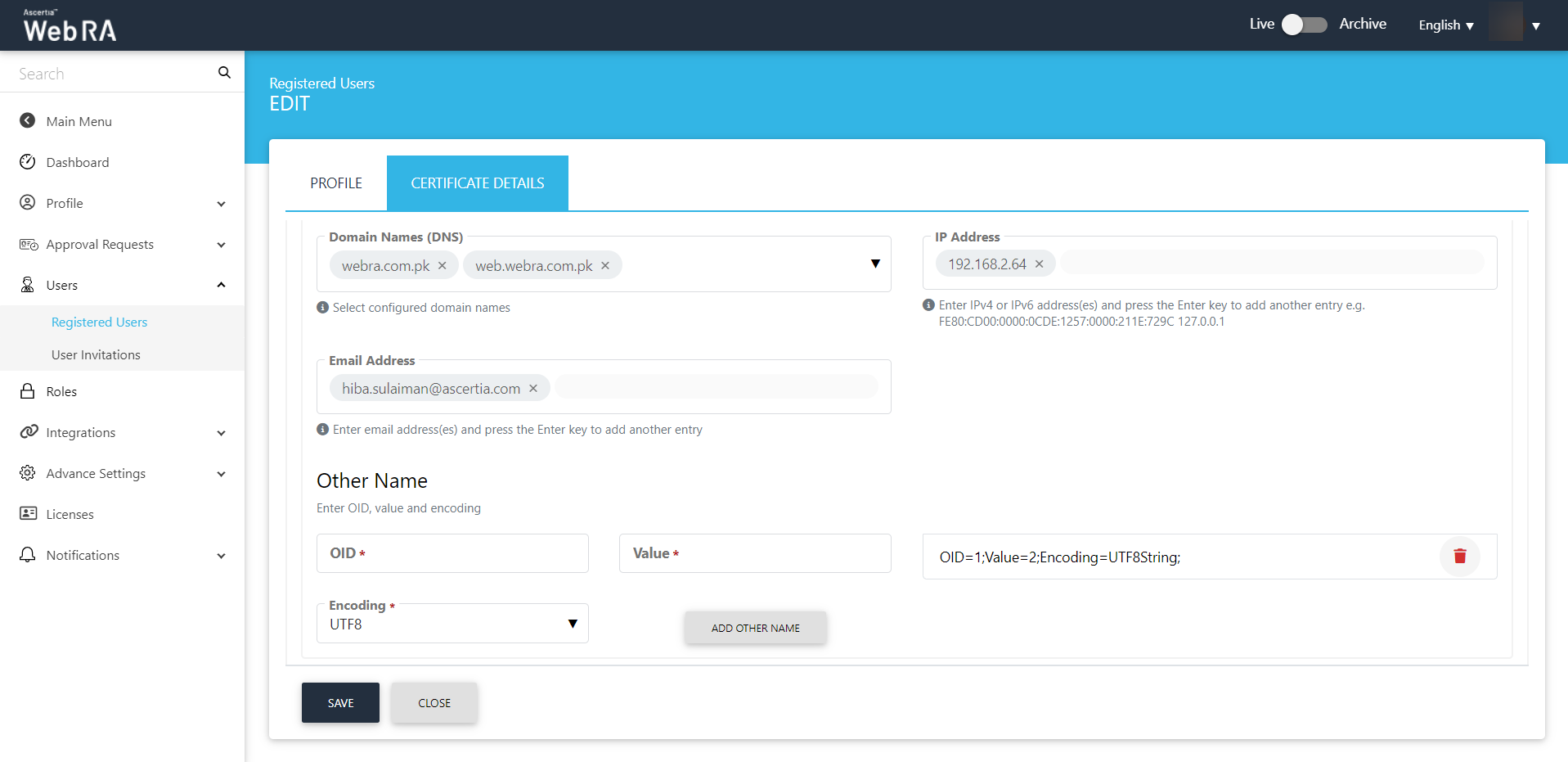
Other Name
- OID
- Value
- Encoding
Click Save to update user certificate details.
User Activity
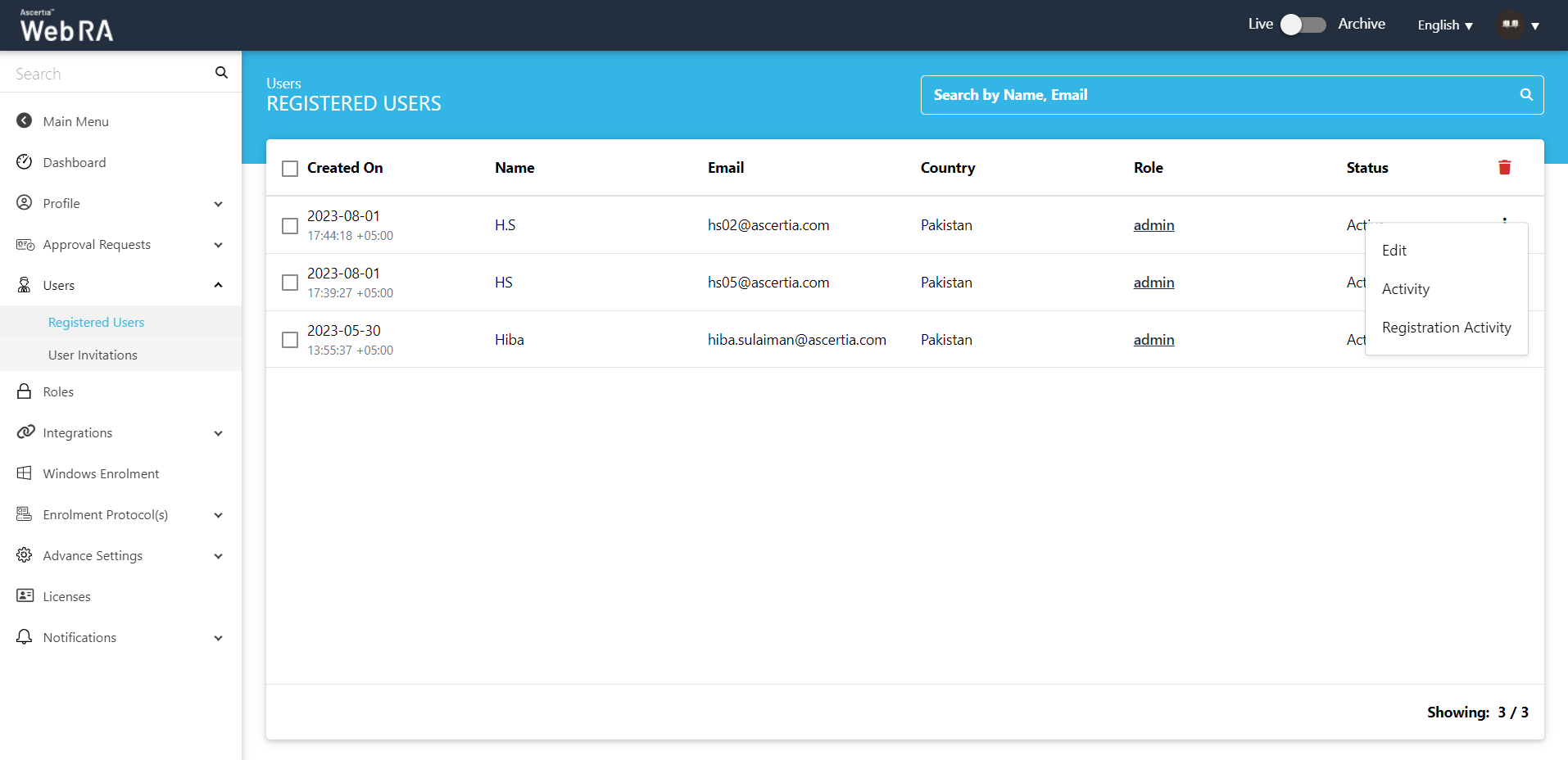
Click against a user and click Activity as shown below:
Then click Details.
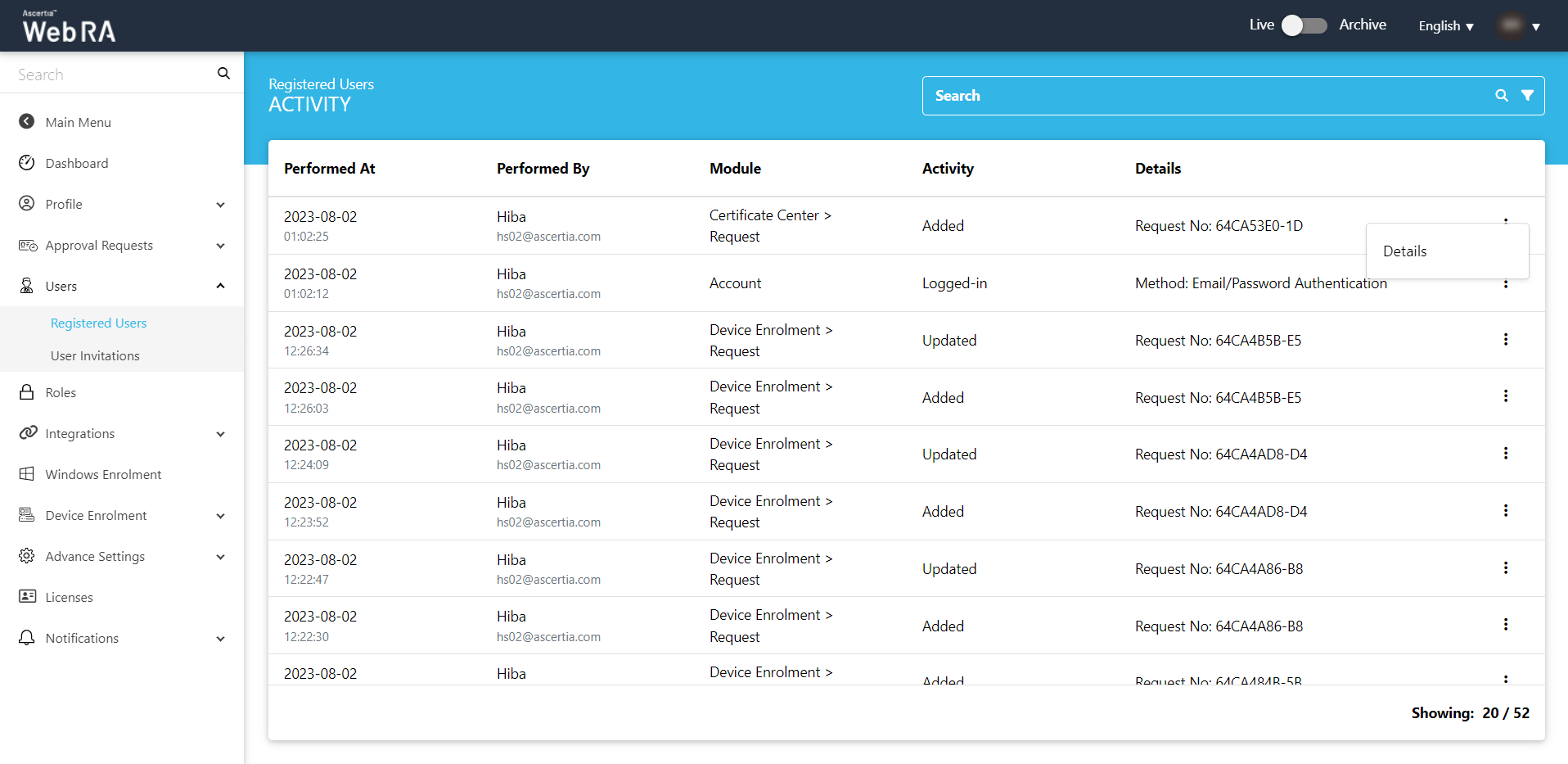
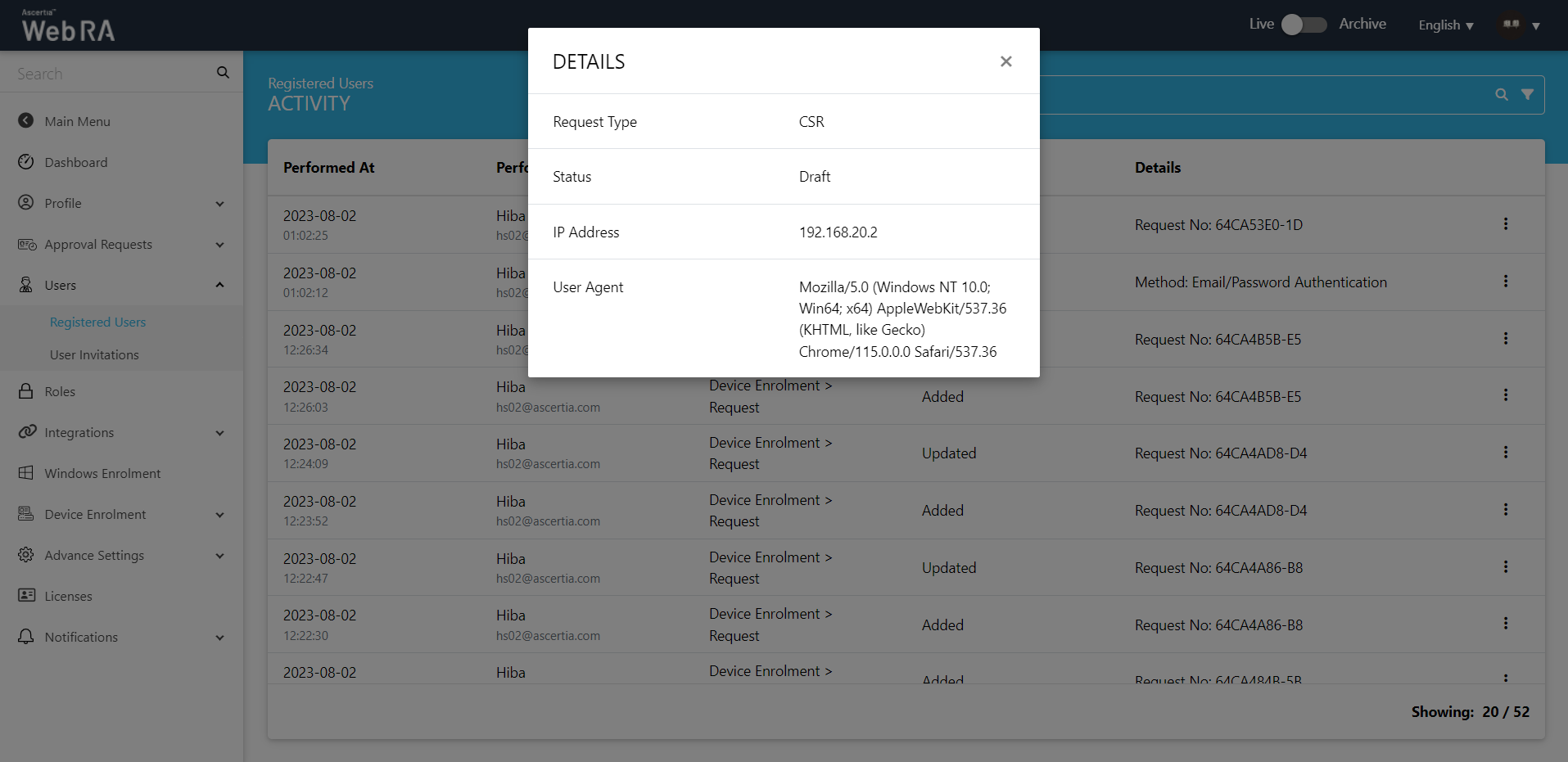
You can view the details of Activity. Click close.
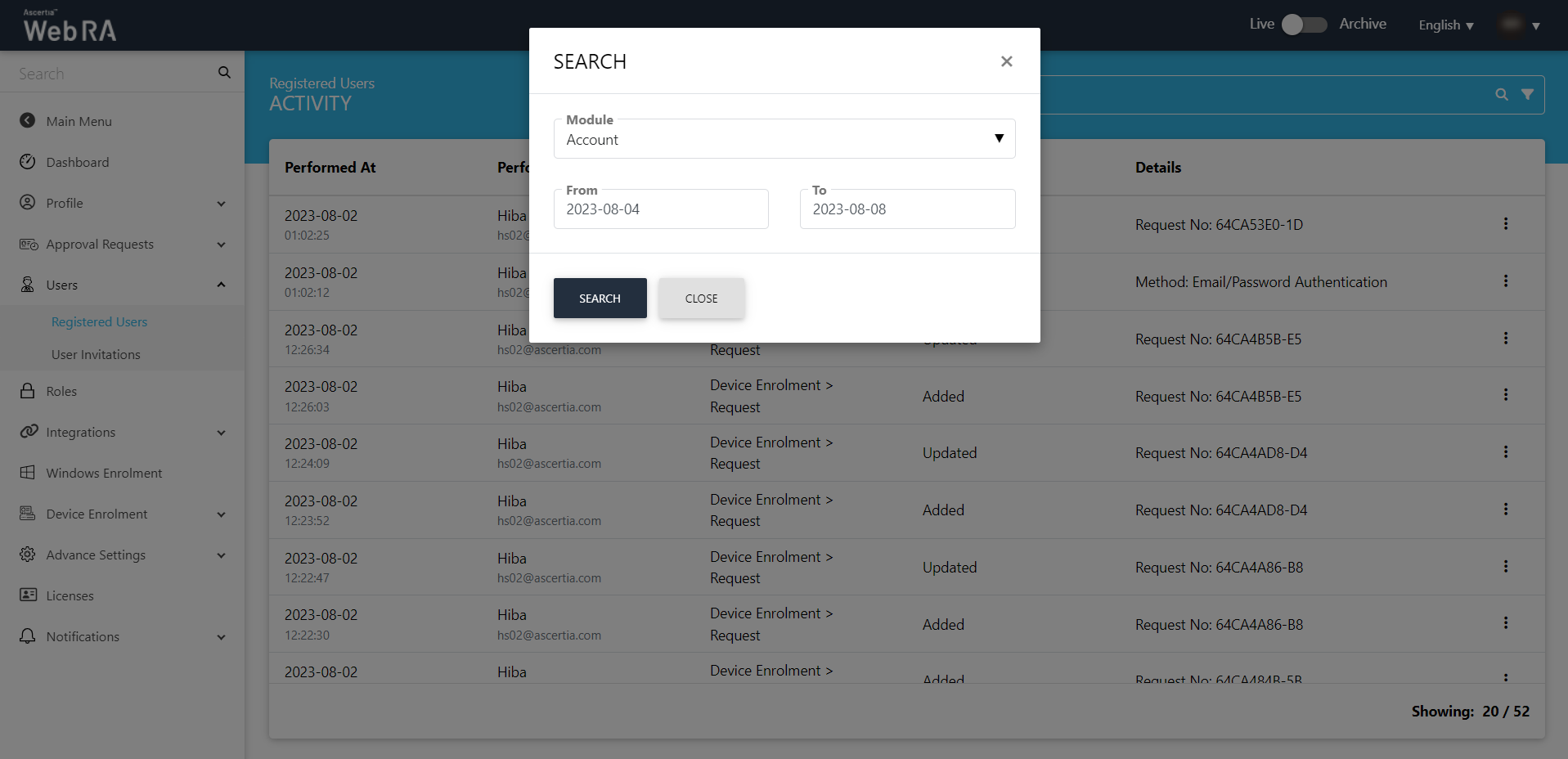
There is an "Advance Search" button in the User's section. You can select a specific module to view a user's activity against that module.
Registration Activity
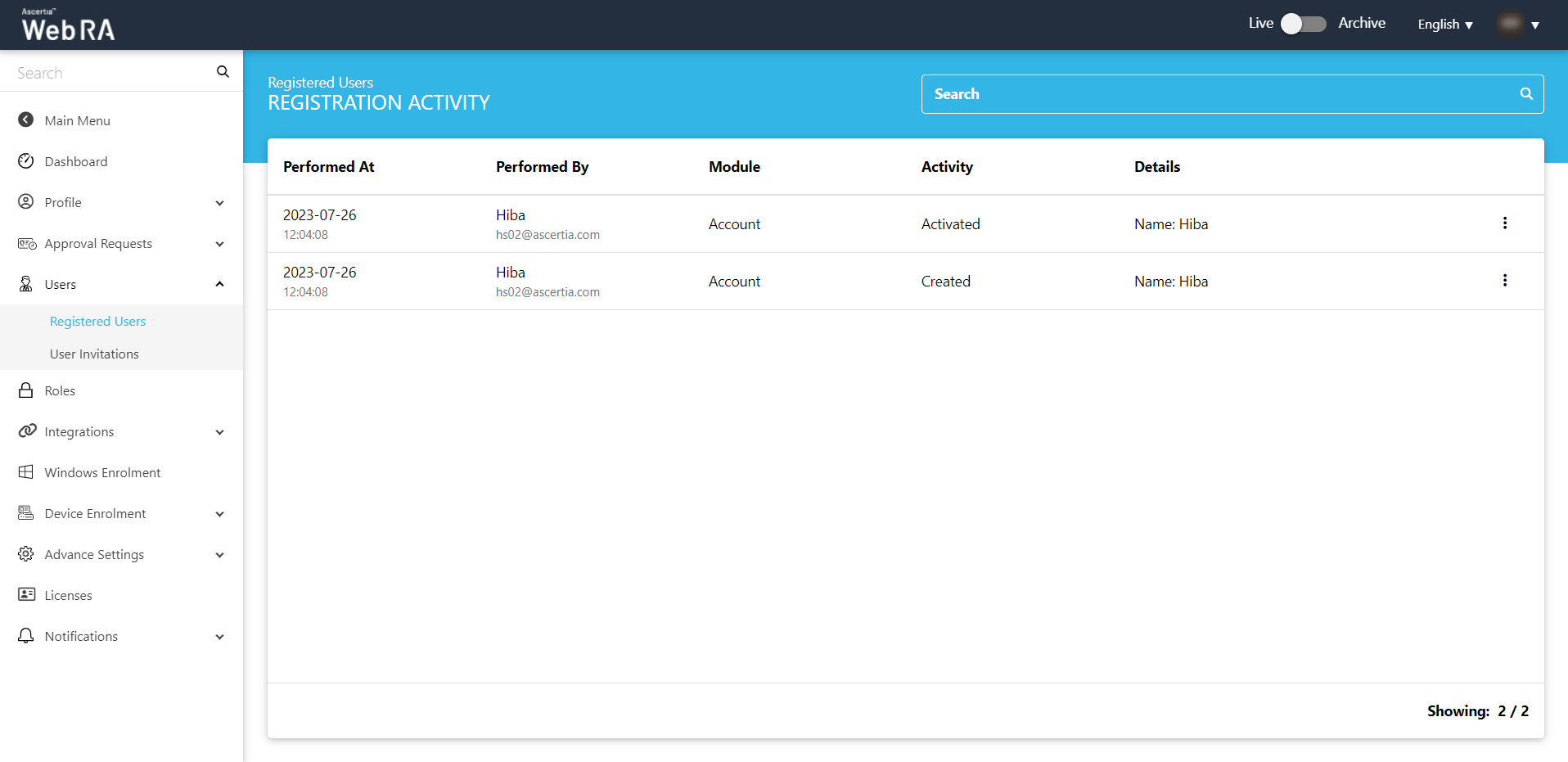
An operator can also view how a user is registered to ADSS Web RA Server. It displays which administrator has invited a user or approved his registration request. This section displays module and each activity that is performed against it.
Click against the respective user and then click Registration Activity.
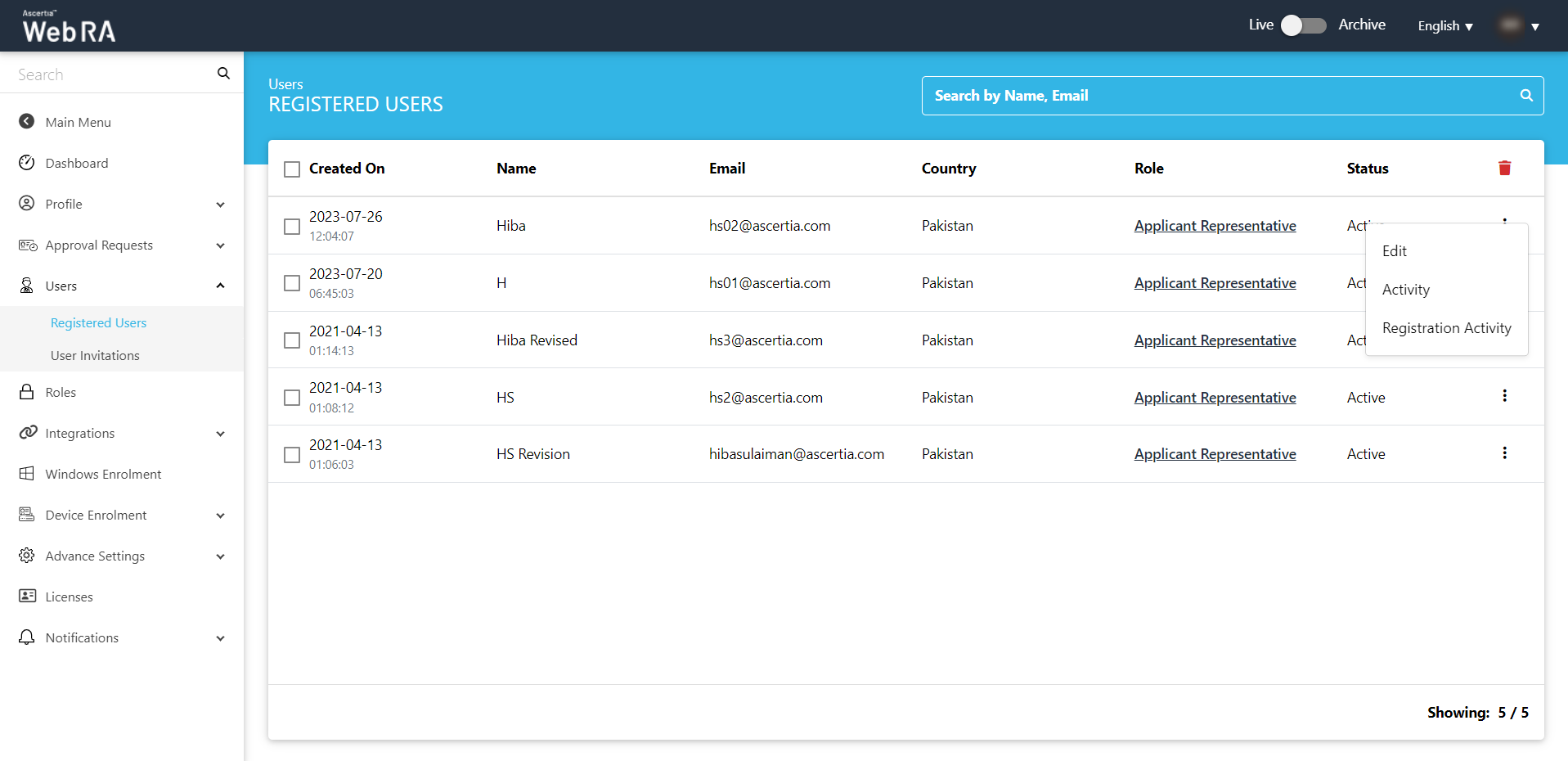
The Registration Activity screen will be displayed.
Multiple Enterprises
In case of multiple enterprises, if a user is invited by another enterprise and the user declines the invitation request. Operator will use the RDN values similar to the first invite, to resend the invitation.