
CSP Service Profile
Certification Profile for CSP Service
Expand External Services > Certification Profiles from the left menu. The system will display the certification profiles listing screen.
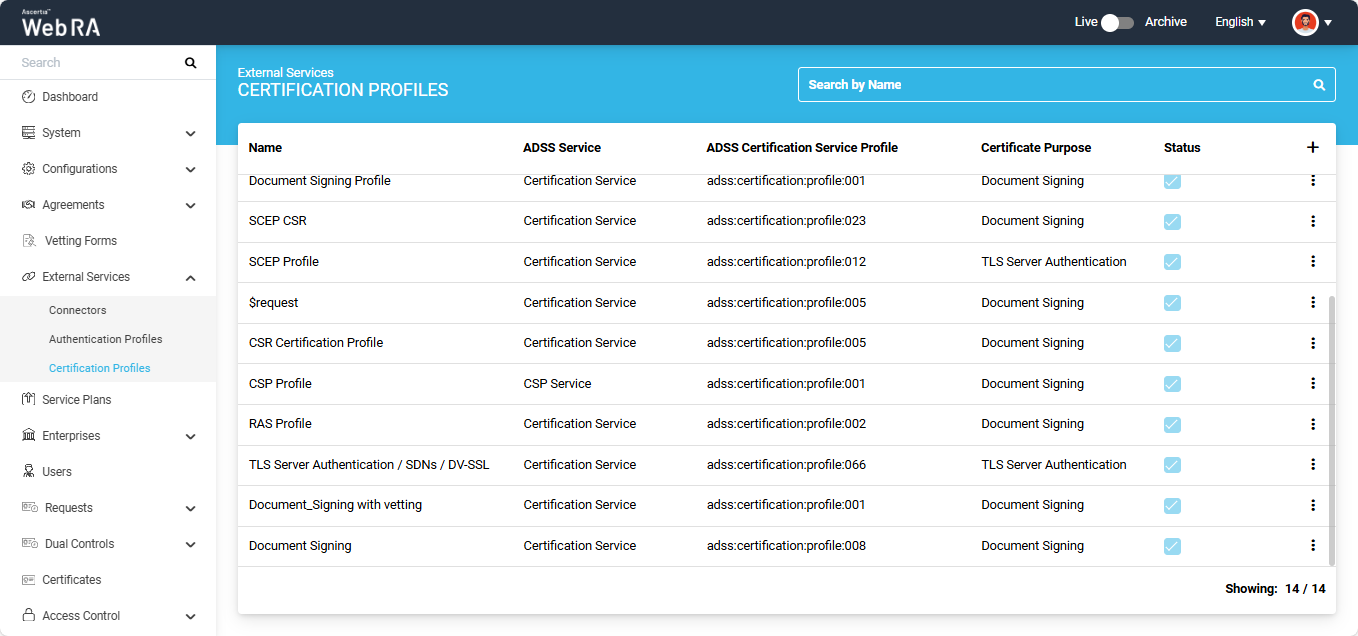
To add a new certification profile, click the ‘+’ button on the left side of the table header. The system displays the ‘Profile’ screen.
The Profile screen consists of the following sections:
- Basic Information
- Service
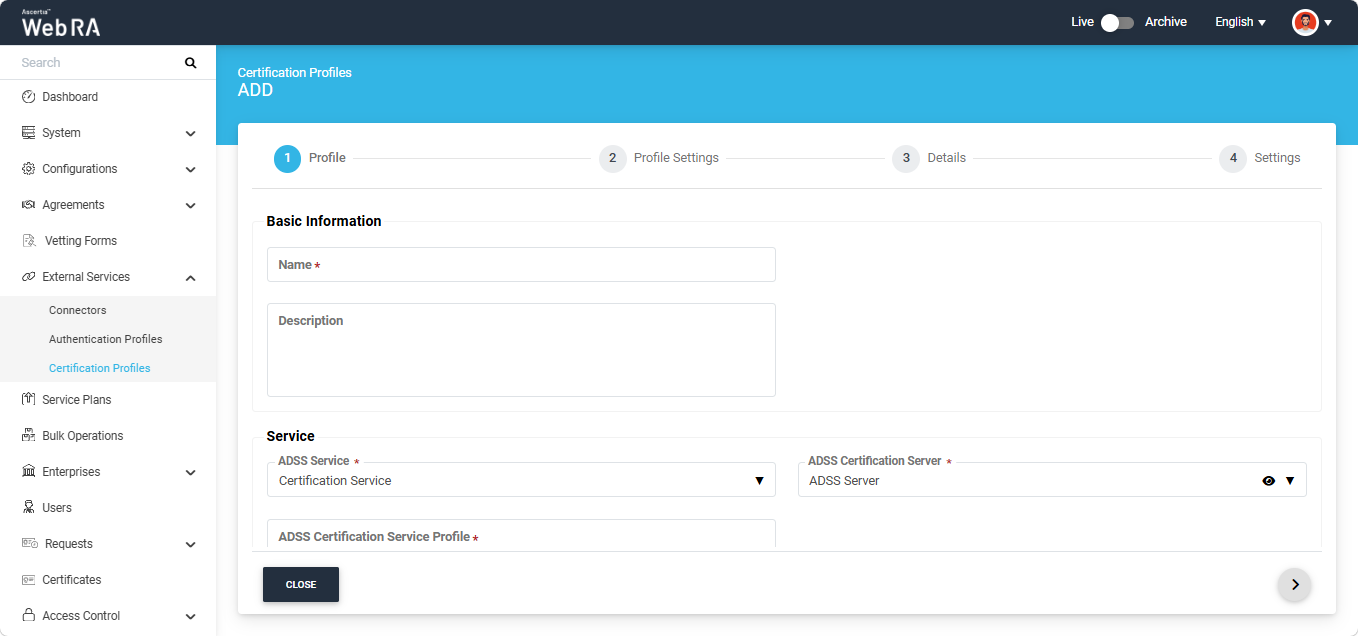
Basic Information
This section displays the following fields:
|
Field |
Description |
|
Name |
Specify a unique name for this profile. |
|
Description |
Specify any description related to this certification profile. (Optional) |
Service
This section displays the following fields:
|
Field |
Description |
|
ADSS Service |
This field will display the ADSS Services (i.e. Certification Service and CSP Service) that are available for ADSS Web RA. Select the ‘CSP Service’ option from the dropdown. |
|
ADSS Certification Server |
This field will display the list of active ADSS connectors in ADSS Web RA. Select the one to use for this CSP service profile, for example: Default ADSS Server. |
|
ADSS CSP Service Profile |
In this field, enter the CSP service profile that you created on the ADSS Sever, for example: adss:csp:profile:001. |
|
Active |
Select this checkbox to make the profile active. |
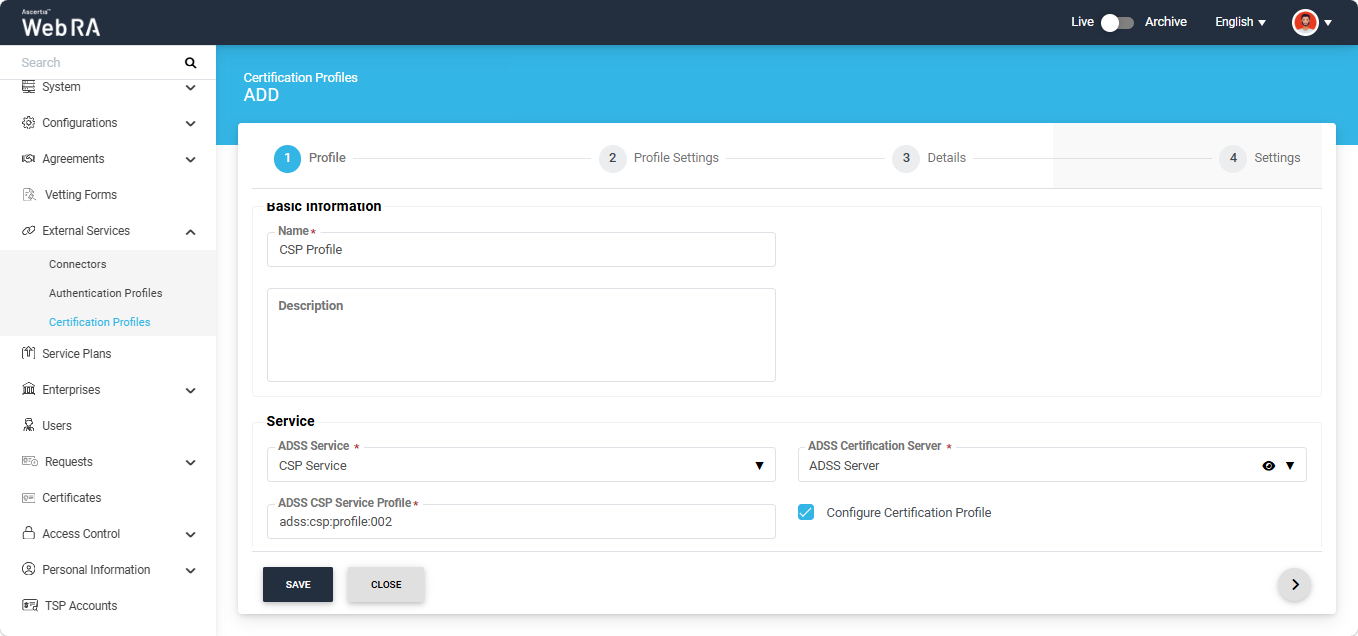
If you only want to create a CSP Service profile in Web RA, provide the required information on the Profile screen and click 'Create'. The CSP Service profile will be created.
However, if you also want to configure the certification profile, enable the checkbox described below.
Configure Certification Profile
If you enable the ‘Configure Certification Profile’ dropdown, the following two fields appear on the screen:
- ADSS Certification Server
- ADSS Certification Service Profile
Moreover, the system also displays three additional tabs in the certification profile configuration, including: Details, Authentications, and Settings.
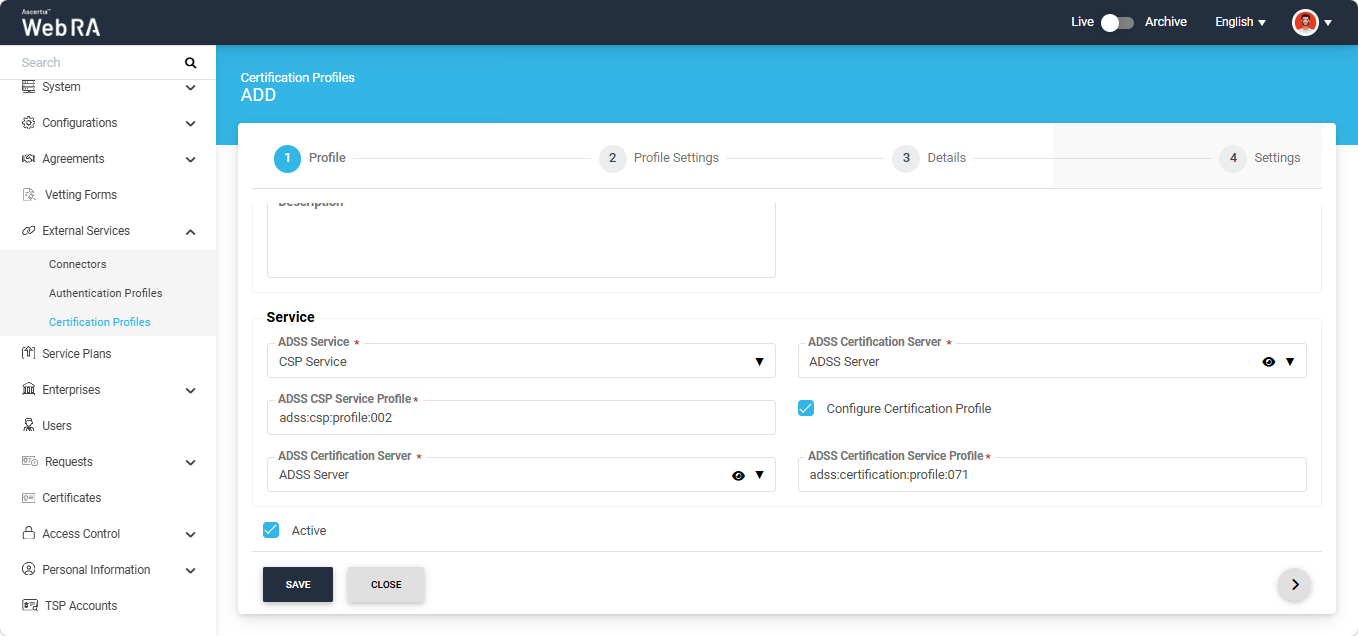
Select the ADSS connector from the ‘ADSS Certification Server’ dropdown and enter the ADSS certification service profile in the field below. Then, click the '>' 'Next' button to navigate to the 'Profile Settings' screen. Set the options in the 'Profile Settings', 'Details', and 'Settings' screens to their default values. The operator can also modify these configurations as needed.
For detailed information about the fields available on the 'Profile Settings', 'Details', and 'Settings' screens for configuring the Certification Service profile, refer to the 'Certification Service ProfileProfile' page.
If you want to continue with default values, then after completing the configuration in the Settings tab, click 'Create' to set up the certification profile.