
Reissue Requests
Certificate reissuance is the process of generating a new private key and Certificate Signing Request (CSR) for an existing certificate. A user may need to reissue a certificate if the existing private key is lost or deleted, if any certificate information needs to be changed, or if a different encryption level is required. Once the reissuance process is complete, a new digital certificate is issued.
|
|
Note: The Request By section will display Citizen ID below the user name if it is enabled in the Configurations > Default Settings. |

How to Approve Reissue Requests Submitted from Web Portal
Expand Requests > Reissue Requests from the left-tree menu in the Admin Portal. The system displays the ‘Reissue Requests’ listing screen.
|
|
Note: Reissue requests submitted through the Web Portal appear on this screen for approval only if vetting is enabled in the associated certification profile. |
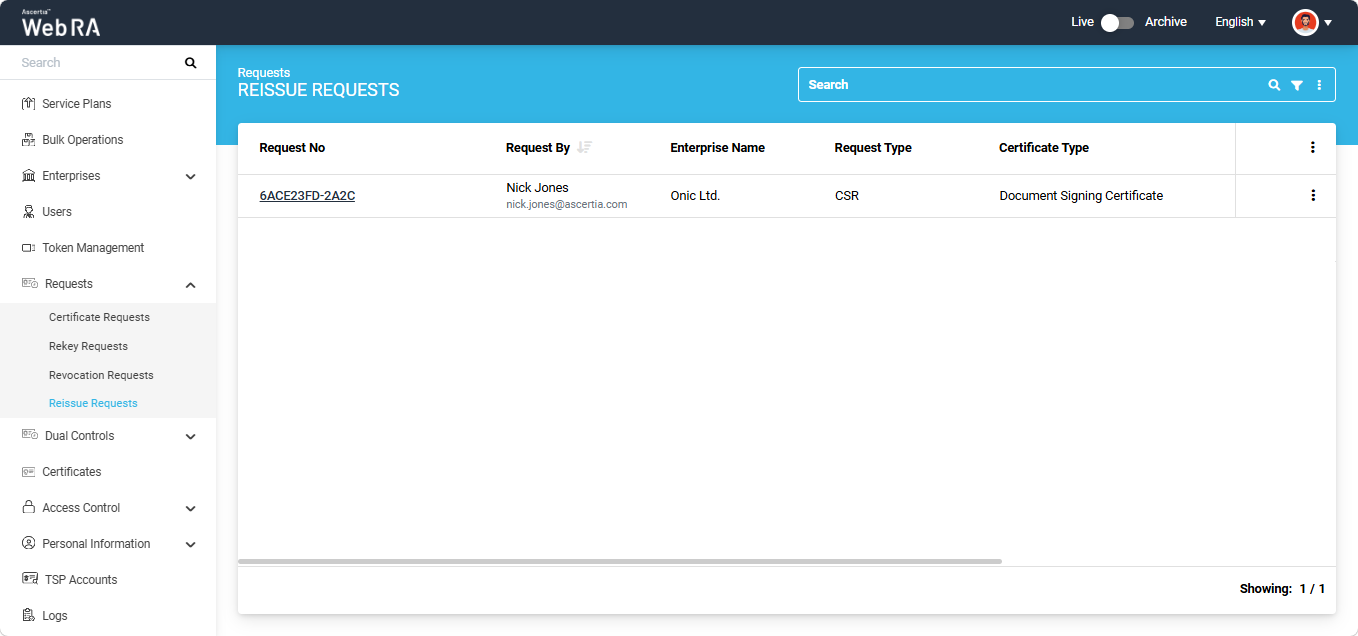
Click the three-dot  button next to the reissue request that you want to approve and select ‘View Request’. The system will open the Reissue Request. Alternatively, you can click the Request No. of the reissue request to access it.
|
|
Note: If the “Vertical Certificate Request Layout for Operators policy” is enabled in the Configurations > Policies > Requests section, the reissue request details will be displayed in a vertical layout to the operator. All sections will appear on a single page, allowing the operator to view the complete information by scrolling up and down. Once the operator approves the rekey request, the request continues to appear in the vertical layout on the current screen. However, if the operator closes the approved request and opens it again, the request is displayed using the default layout settings. |
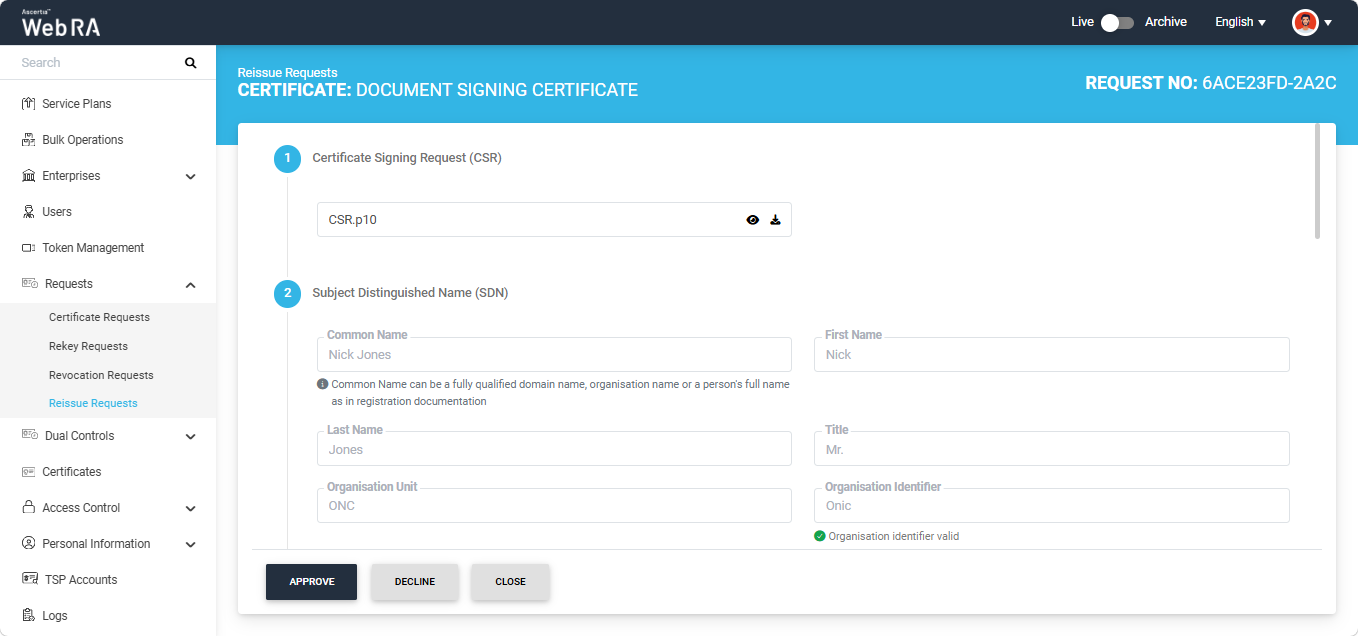
After reviewing the information, click ‘Approve’. The system will display the ‘Certificate Reissue’ dialog on the screen.
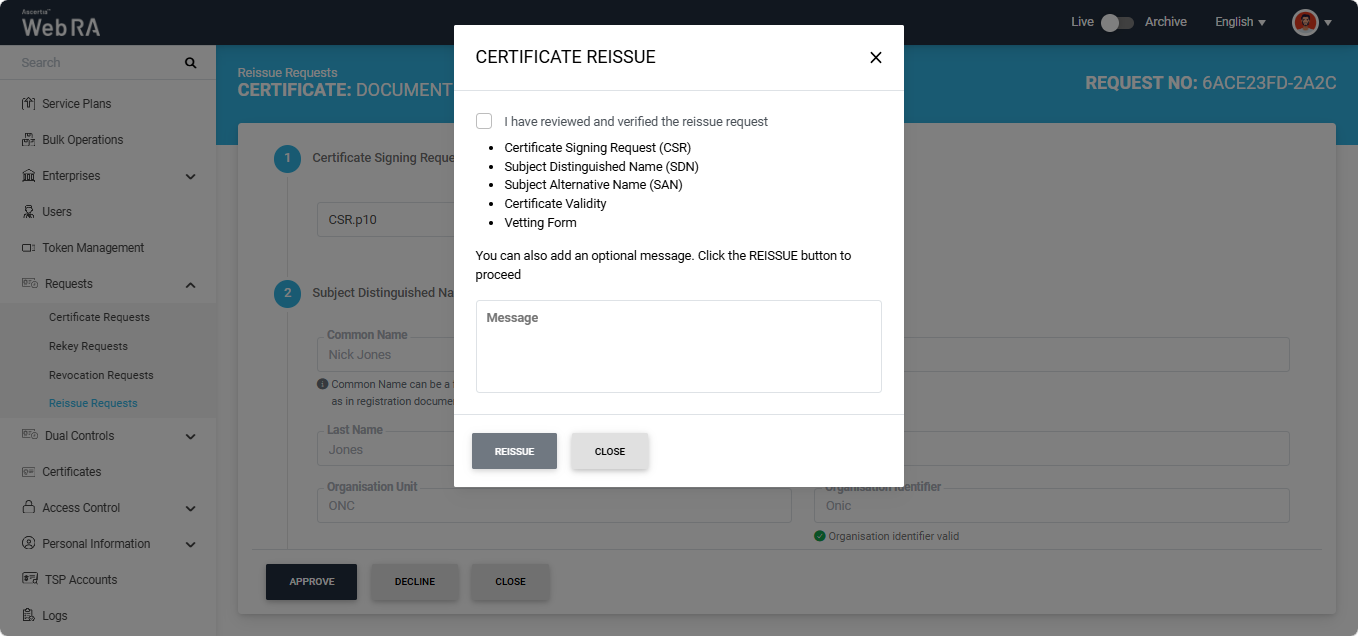
Select the ‘I have reviewed and verified the reissue request’ checkbox. You can also add an optional message related to the reissue request in the Message box.
After that, click the ‘Reissue’ button. The certificate will be reissued and a success alert will appear on the screen.
|
|
Note: If dual control is enabled for the Requests module, the reissue request is forwarded to the dual control operator for review after the operator approves it. |
Second Factor Authentication
If second factor authentication is enabled on certificate requests, the configured authentication mechanism will function accordingly. When a user clicks on the Generate button, the authentication window will appear, and once it accepts the selected method, it will generate a certificate.
The authentication mechanism can be one of the following:
- SMS OTP Authentication
- Email OTP Authentication
- Email & SMS Authentication
- SAML Authentication
- Active Directory Authentication
- Azure Active Directory Authentication
- OIDC Authentication