
Change Password
This section allows a user to change the password of their ADSS Web RA web portal.
Important Note: It is recommended to reset your password periodically, preferably every three months. However, if your password is compromised, reset it immediately using the ‘Change Password’ option.
Follow the steps given below to change the password of your web portal.
Expand Personal Information > Change Password from the left menu. The system will display the ‘Change Password’ screen.
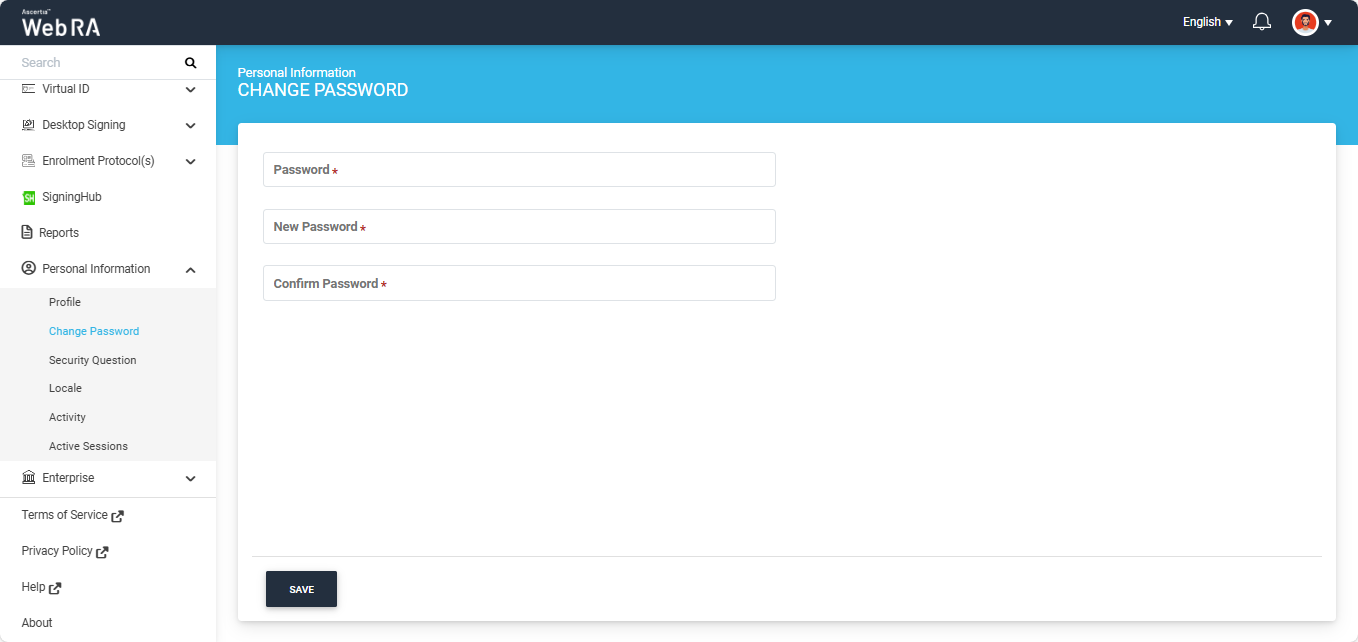
Enter your current password in the ‘Password’ field. Then enter and confirm the new password in the respective fields.
Click ‘Save’ to apply the new password.
Note:
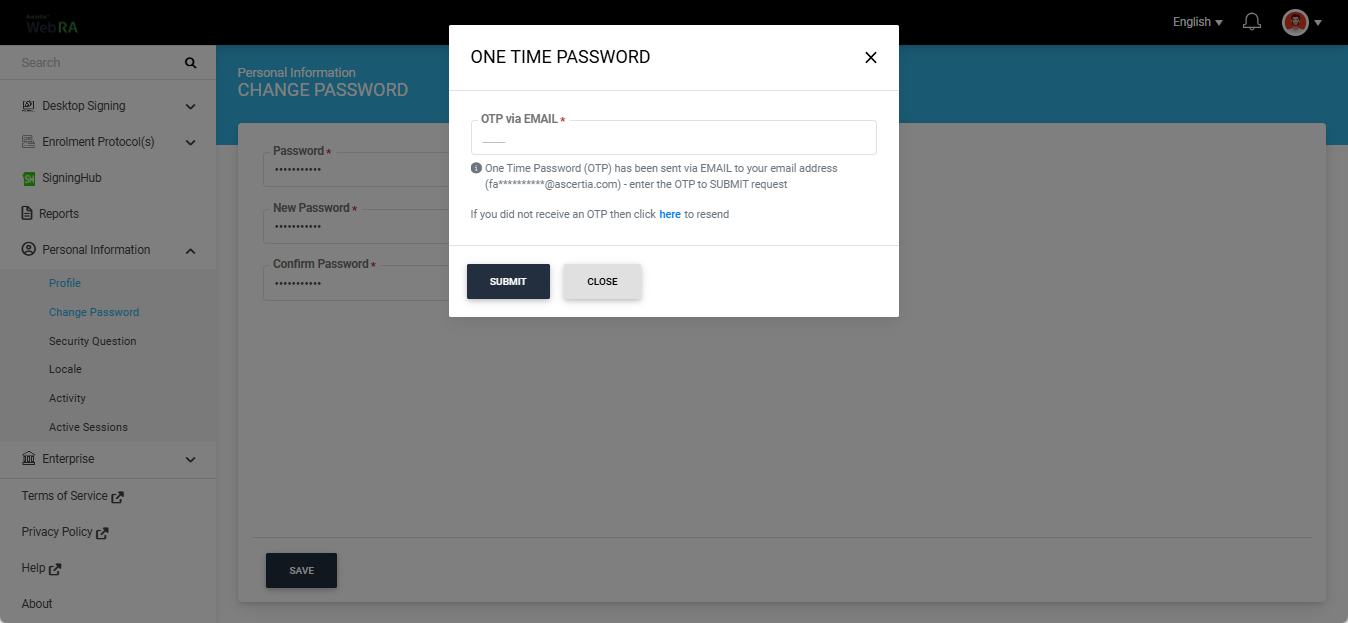
If second factor authentication is enabled for the ‘Change Password’ action in the Enterprise > Roles > More Setting, then after clicking the Save button, the system will prompt you to authenticate the change using the configured second factor authentication.
For example: if ‘Email OTP authentication’ is selected as the second factor authentication for the Change Password action, then after clicking save, the system will ask you to enter the OTP received via email to proceed with the request.
|
|
In case you are an enterprise user, your new password must comply with the password policy defined by your Admin RAO. |
