
Certificate Requests
To access the Certificate Requests listing screen, expand Certificate Center > Certificate Requests from the user portal.
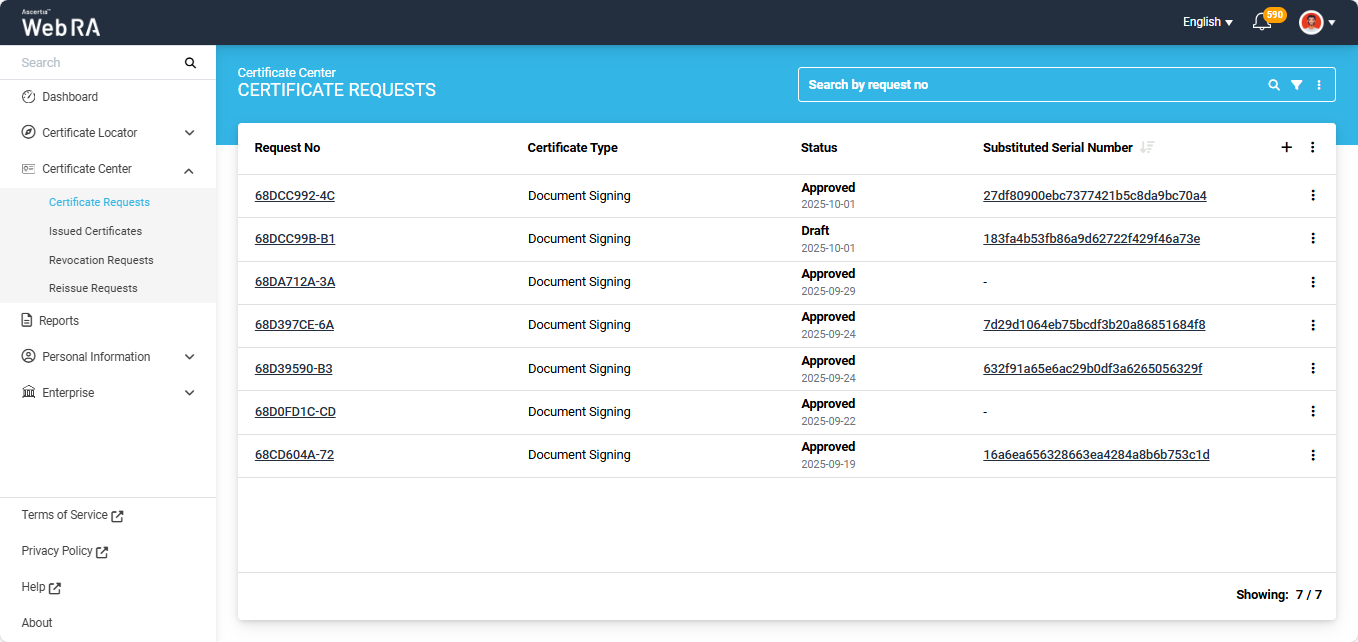
The Certificate Requests listing screen displays all the certificate requests that have been created by you from the user portal.
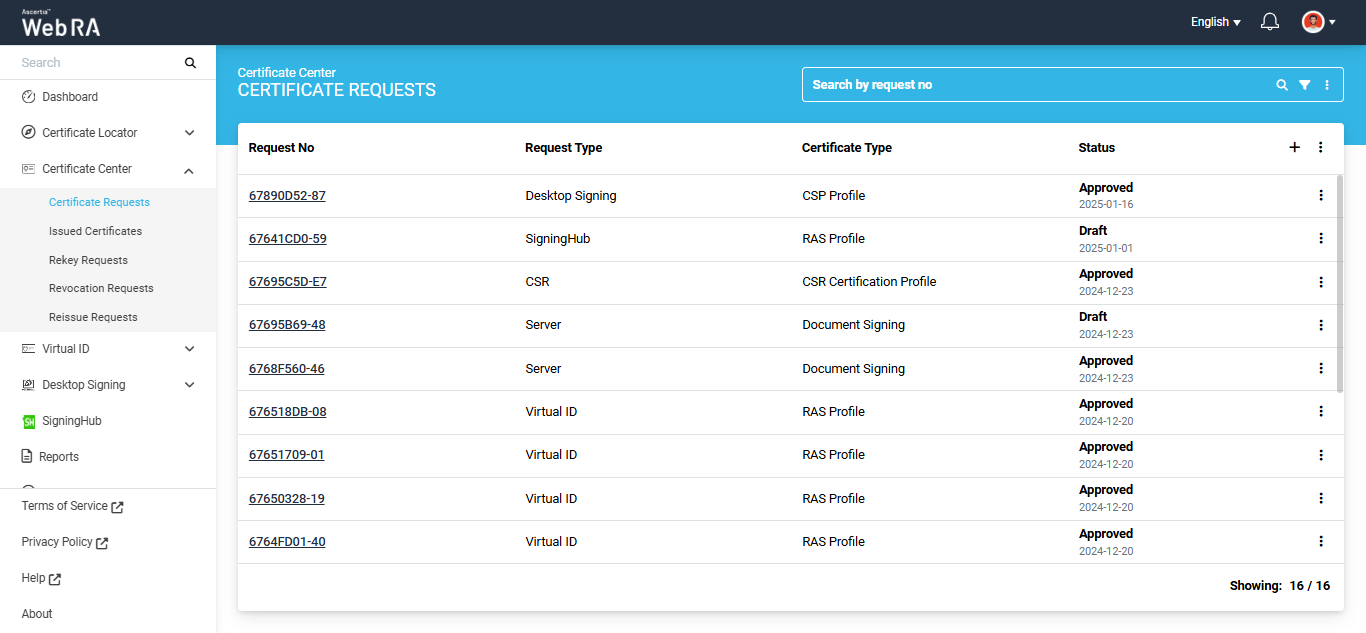
You can click on the '+' button to create a new certificate request for the following types:
- CSR-based requests
- TLS / Server based requests
- S/MIME (Email) certificate requests
- Go>Sign Desktop certificate requests
You can view the details of an existing certificate request by clicking on the "Request No' of that request.
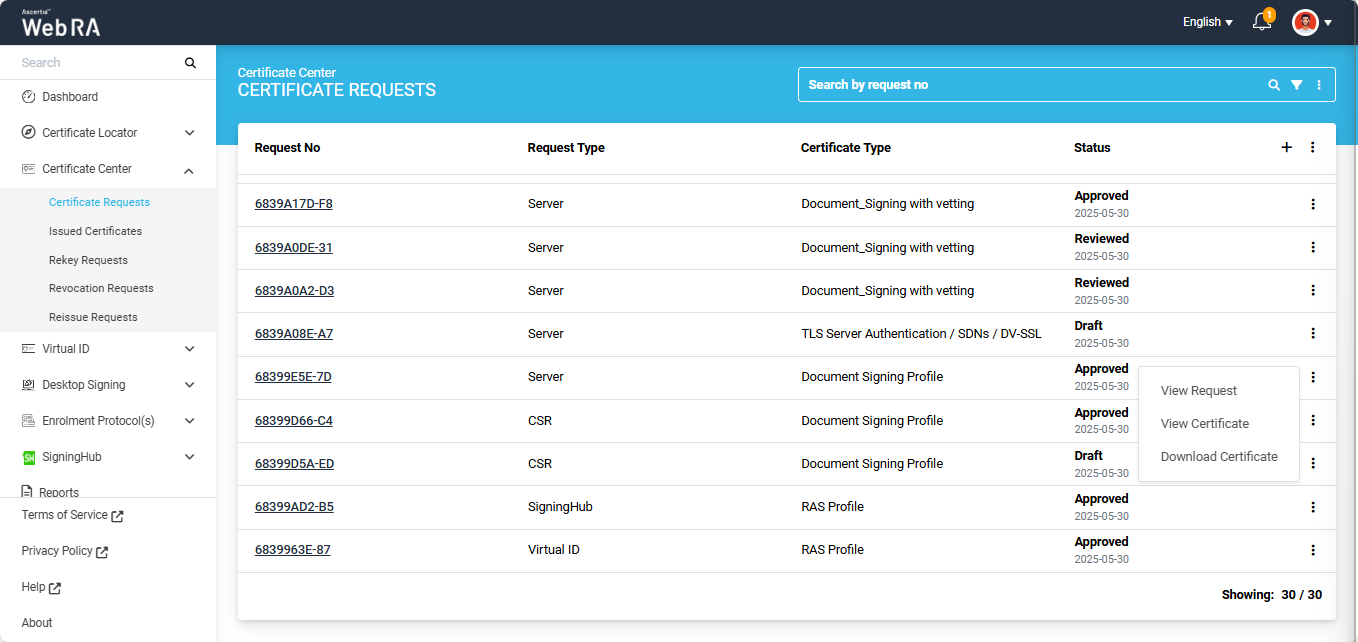
Moreover, if you click on the three-dot  button next to a request you can perform the below given operations:
|
Button |
Description |
|
View Request |
Click on this option if you want to view the details of the certificate request. |
|
View Certificate |
Click on this option if you want to view the 'Certificate Information'. |
|
Download Certificate |
Click on this option if you want to download the certificate on your computer. |
View a Certificate Request
To view a certificate request, click the three-dot button next to the request. A short menu will appear on the screen, click on the 'View Request' option to check the details of the request.
View Certificate Information
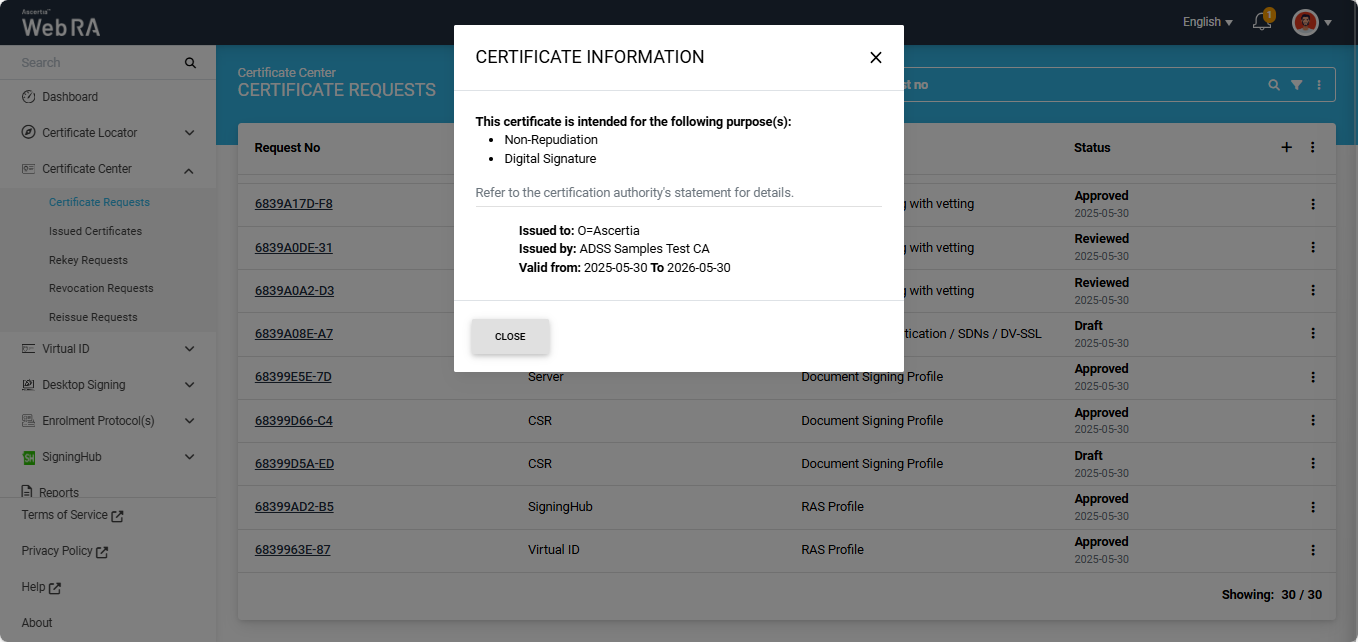
To view the certificate information, click the three-dot button next to the request. Then, click 'View Certificate' from the short menu that appears.
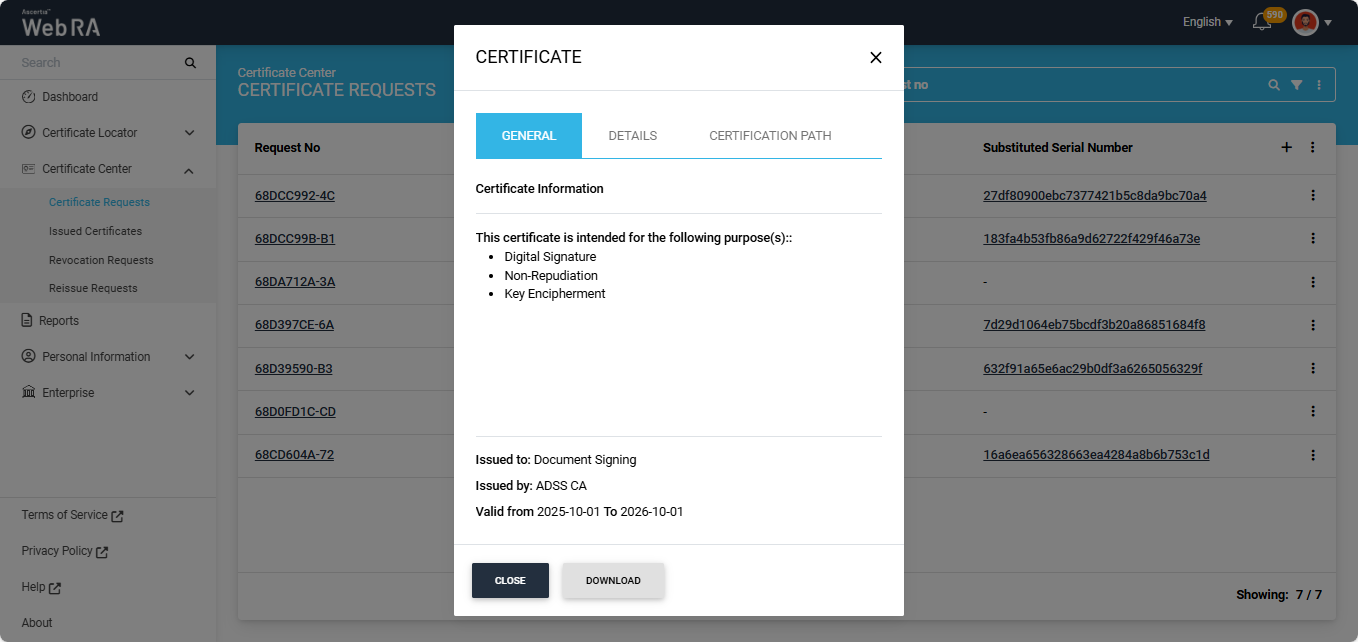
The 'Certificate Information' dialog will appear on the screen where you can view your required information.
Edit a Certificate Request
If a certificate request is created and remains incomplete, it will appear in 'Draft' state in the listing. Click the three-dot button and select 'Edit Request' to complete the certificate request.
Once the request is completed, it will appear in the certificate request listing with 'Approved' status.
Download a Certificate
To download a certificate, click the three-dot button and select the 'Download Certificate' option. The certificate will be downloaded in your system.
Resubmit a Declined Request
If a certificate request is declined by the administrator for a specific reason, the user can resubmit the request after modifying the required information.
Click the  button next to the certificate request that has been declined.
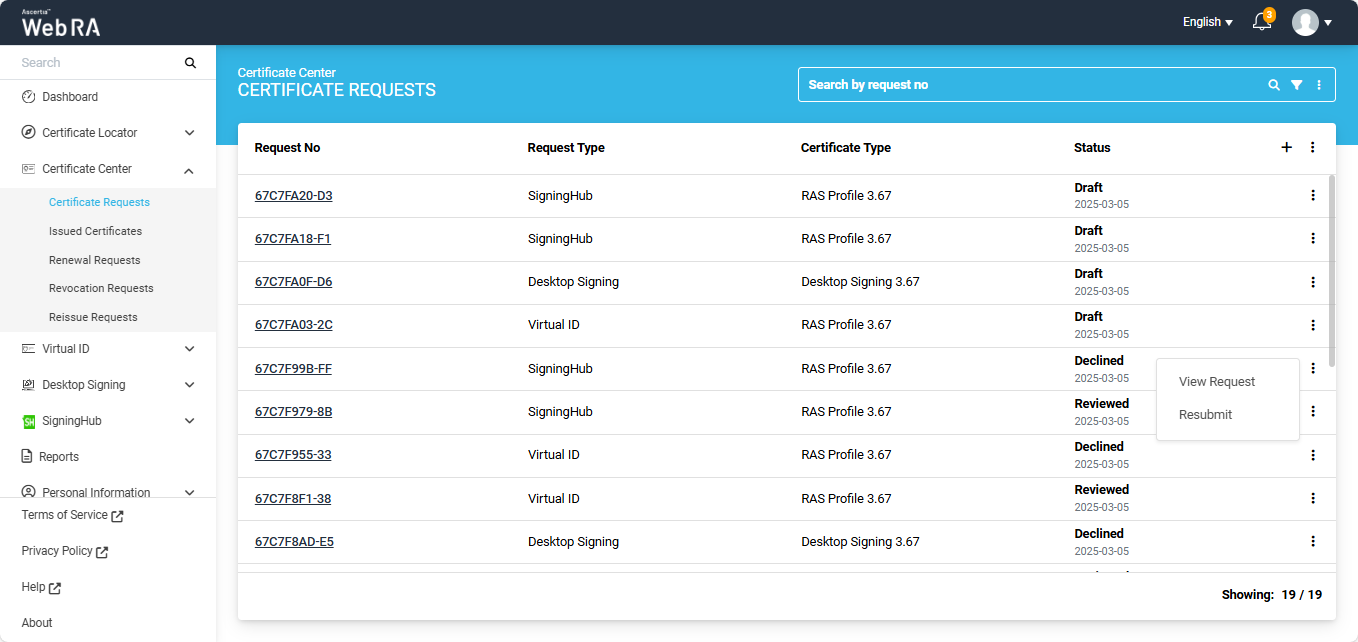
The system will display a ‘Resubmit’ option in the menu. Clicking the Resubmit option will open the request in create screen mode.
From that screen, the user can modify the required details and click ‘Submit’ to send the request for approval again.
Substituted Certificate Requests
All substituted certificates will appear in draft state in the 'Certificate Request' listing. Each entry will display a 'Substituted Serial Number'. You can click on the substituted serial number to view complete details related to the certificate.
Clicking the serial number will open a dialog titled ‘Certificate’. Use the General, Details, and Certification Path tabs to view the required information.
You can also download the certificate in your computer by clicking the ‘Download’ button.
Note: The substituted serial number can be used to verify the status of the substituted certificate in the ADSS Server.
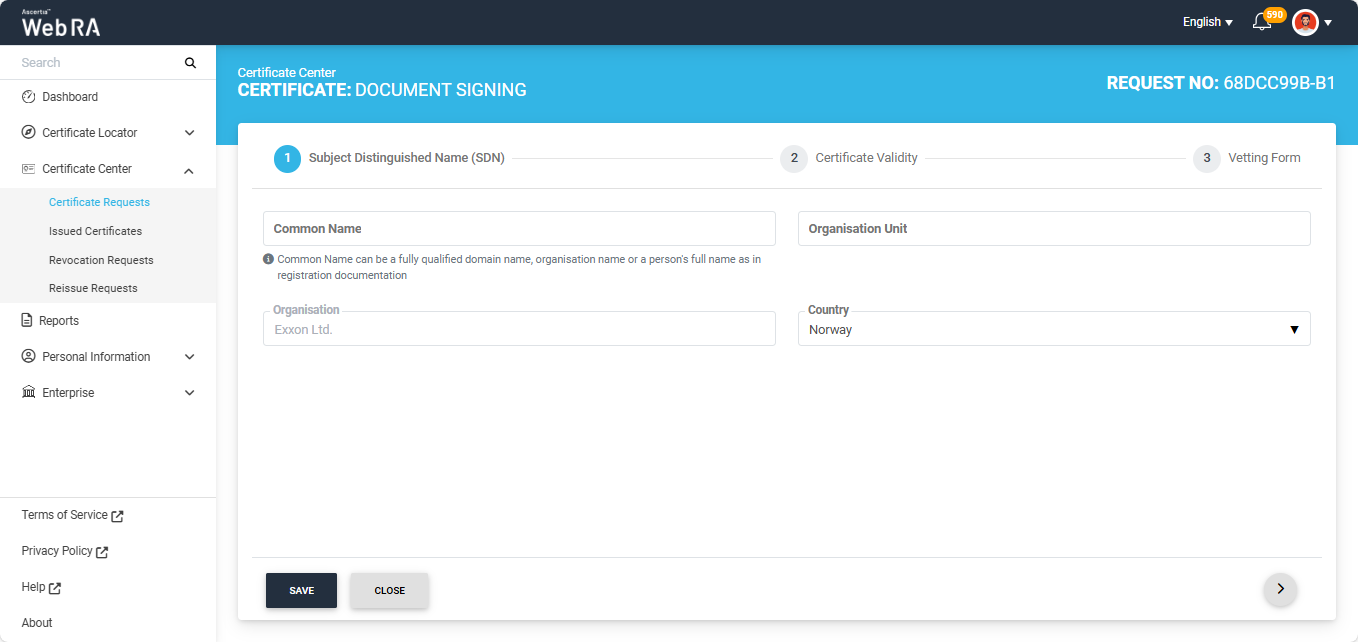
The user can generate the certificate by editing the draft certificate request.
To do this, click the three-dot  icon next to the certificate and select ‘Edit Request’. This will open the certificate request in ‘Edit’ mode.
Navigate to the ‘Vetting Form’ screen and click ‘Submit’.
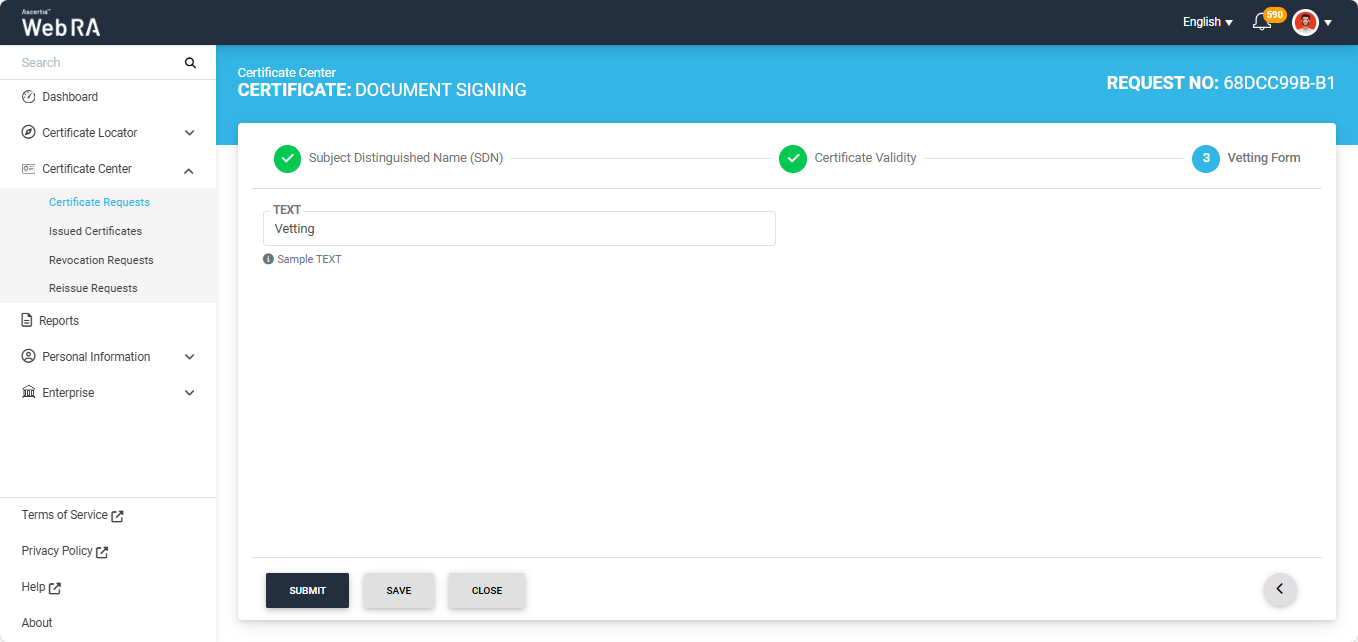
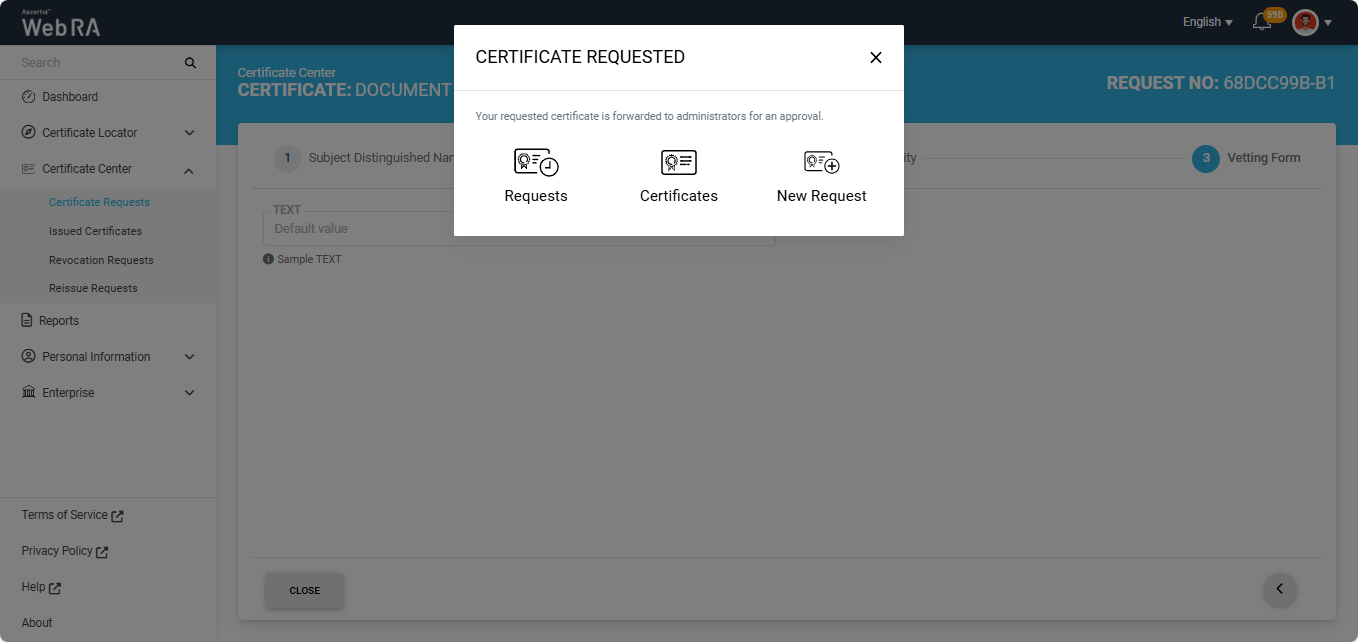
The certificate request will then be sent to the administrator for approval and the system will display the ‘Certificate Requested’ dialog on the screen.
If vetting is not enabled, the system will generate the certificate immediately and download it to the user’s computer.