
Certification Service Profile
Certification Profile for Certification Service
Expand External Services > Certification Profiles from the left menu. The system will display the certification profiles listing screen.
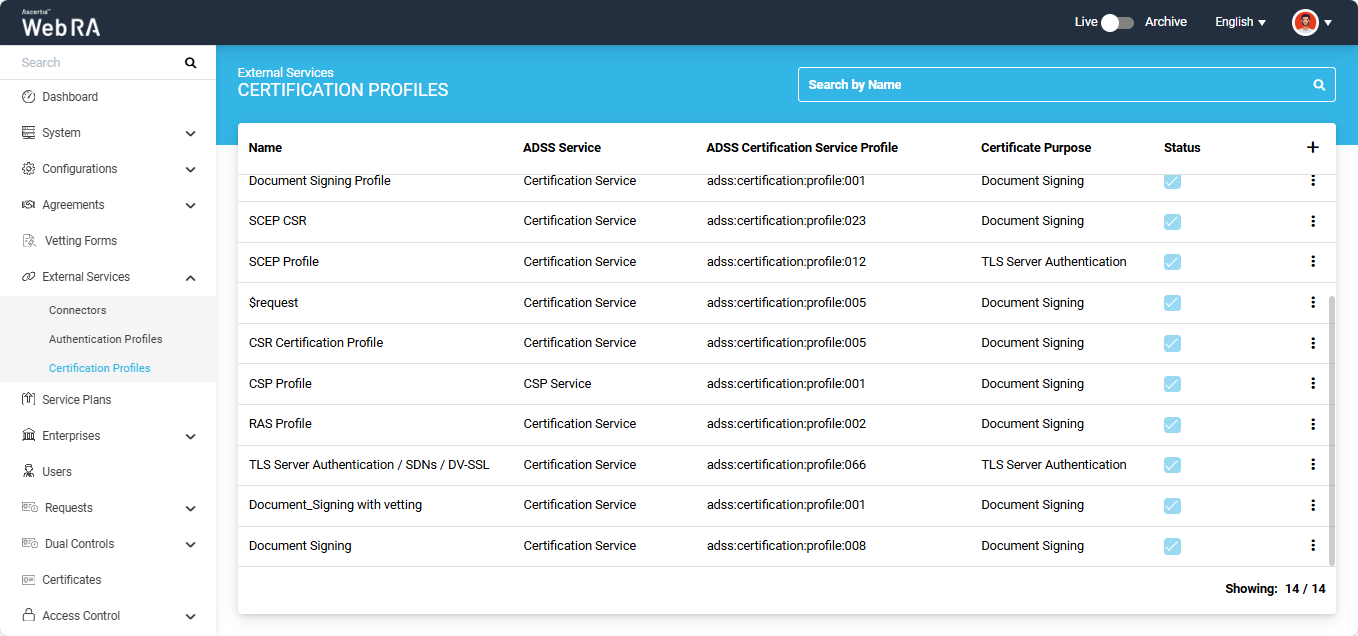
To add a new certification profile, click the ‘+’ button on the left side of the table header. The system will display the ‘Basic Information’ screen.
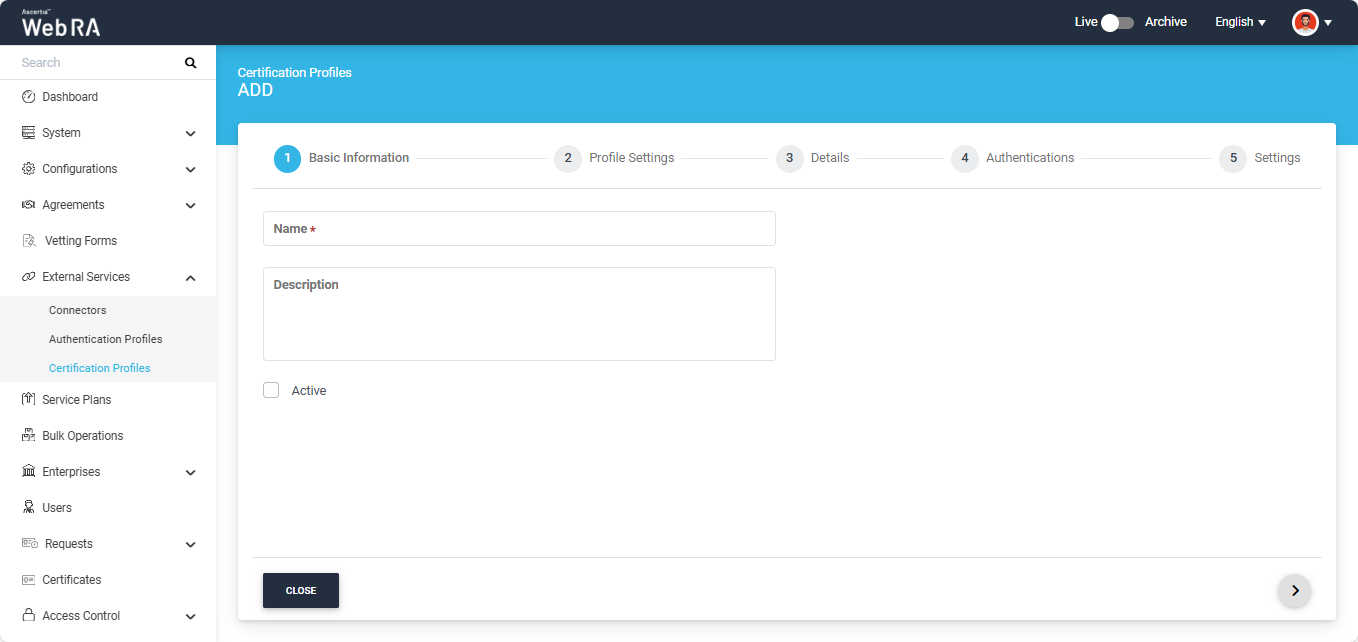
Basic Information
The basic information screen will display the following fields:
|
Field |
Description |
|
Name |
Specify a unique name for this profile. |
|
Description |
Specify any description related to this certification profile. (Optional) |
|
Active |
Select this checkbox to make the profile active. |
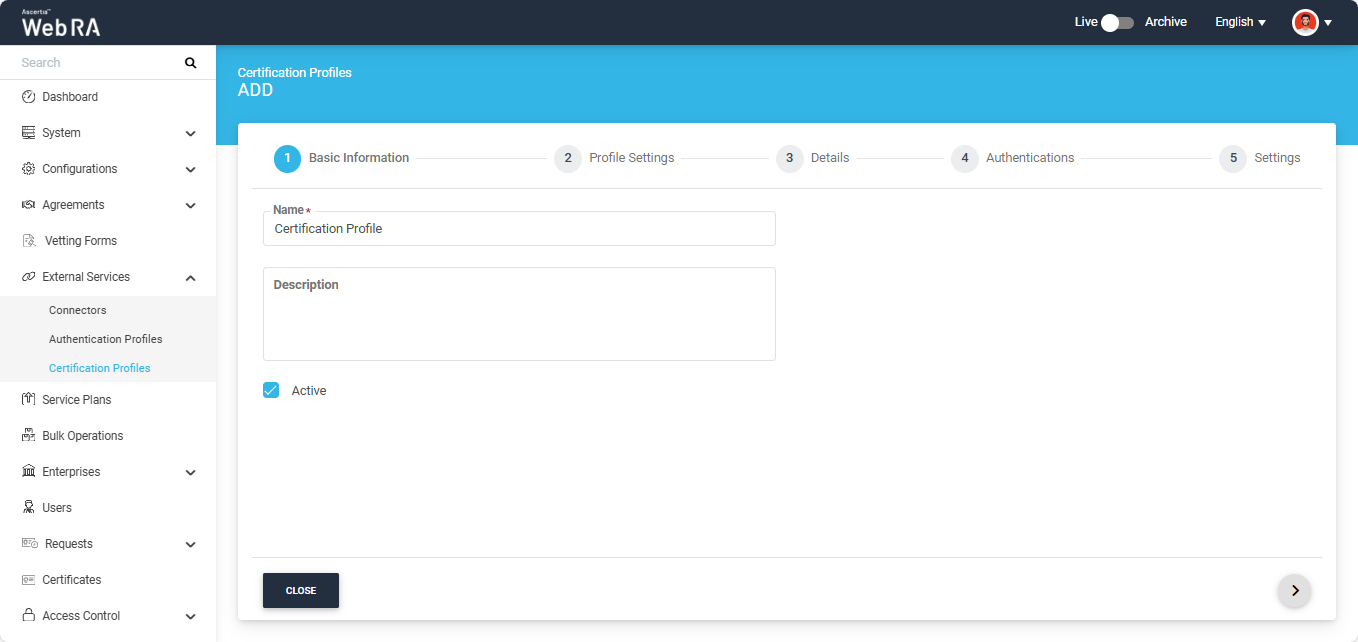
After entering the required details, click the next ‘>’ icon to proceed to the ‘Profile Settings’ screen.
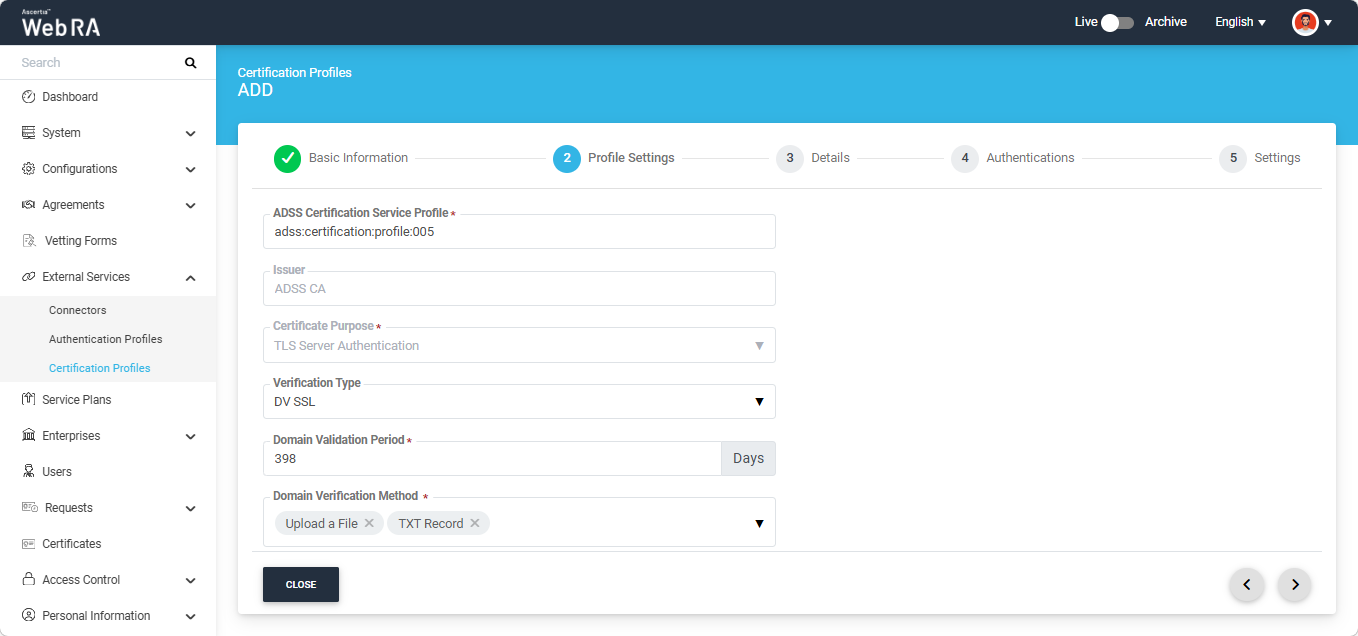
Profile Settings
|
Field |
Description |
|
ADSS Service |
This field will display the ADSS Services (i.e. Certification Service and CSP Service) that are available for ADSS Web RA. Select the ‘Certification Service’ option from the dropdown. |
|
ADSS Certification Server |
This field will display the list of active ADSS connectors in ADSS Web RA. Select the one to use for this certification service profile, for example: 192.168.2.64. |
|
ADSS Certification Service Profile |
In this field, enter the certification profile that you created on the ADSS Sever, for example: adss:certification:profile:001. |
|
Issuer Name |
It will display the issuer CA name. (This field will appear in disabled form) |
|
Certificate Purpose |
This field contains the list of standard certificate purposes, which come from ADSS based on the selected certification profile. A certificate is generated based on the provided certification profile ID, and it will be in a disabled form as it is configured in the ADSS Sever under that ADSS Certification Service Profile. Possible certificate purposes could be Document Signing, TLS Server Authentication, Code Signing etc. ADSS Web RA supports the following types of TLS certificates:
When an EV TLS Server authentication certificate is revoked, ADSS Web RA will support only the following six revocation reasons:
In case of external CA this field will be enabled and operator can select certificate purpose. |
|
Verification Type |
Select an option from the following:
If you select any option other than ‘None’, the system will display the ‘Domain Verification Method’ dropdown field on the screen. |
|
Domain Validation Period (Days) |
This field will appear if the selected Verification Type is DV SSL, EV SSL, or OV SSL. In this field, you can define the validity period of the domain verified during the creation of the certificate request. The default value of the validity period is 398 days and the configured value must not exceed 398 days. Note: If you set the domain validity period to 0 days, the user will be required to verify the domain each time a certificate request is generated.
Note: The domain validity period configured in the certification profile will only be applicable for new domains added and validated by the users while creating the certificate request. If the user has selected any enterprise-validated domain, the enterprise-level domain validation validity period will override the certificate profile validation period. |
|
Domain Verification Method |
From this dropdown, you can select the method that will be used to verify the domain. The available verification methods include:
You can either choose one option or select all options depending on your requirement. |
|
Enable Open MPIC Validation |
If this checkbox is enabled, Open MPIC will perform domain validation and CAA verification. Note: This option will only appear if the “Open MPIC Connector” is selected in the Configurations > Policies > Requests section. To learn more about this, navigate to the “Requests” section. Furthermore, the Open MPIC Validation option is only available when the certificate purpose is ‘TLS Server Authentication’ or ‘Email Signing’. |
|
Enable one-time PFX download |
If enabled, users can download the PFX file only once from the Web Portal. After that, the PFX download option will not be available. Additionally, when this option is enabled, the operator will not be able to download the PFX from the admin portal. |
|
Enable Client Keys |
Enabling the client keys option will require public key to generate the certificate. The Subject Distinguished Names (SDNs) in the certificate request will be populated based on what is configured in the ADSS certification profile and the data provided in the CSR (Certificate Signing Request). |
|
Certificate Enrolment |
This dropdown displays the following options:
|
|
Enrolment Protocol(s) |
This dropdown displays the following enrolment protocols:
You can choose an enrolment protocol according to your specific requirements. |
|
Active Directory Profile |
It allows a user to select an active directory profile which is required for Windows Enrolment. |
|
Certificate Template |
This drop down will fetch the list of certificate template fetched from the active directory selected above. |
|
Enable Device Enrolment / Windows Device Certificate |
By enabling this setting, user will not be required to upload an authentication certificate while creating an account. |
|
Enable Virtual ID Registration with Password |
Enable this checkbox if you want the user to provide a password during the process of registering a Virtual ID. This password will be used for credential authorization within business applications. |
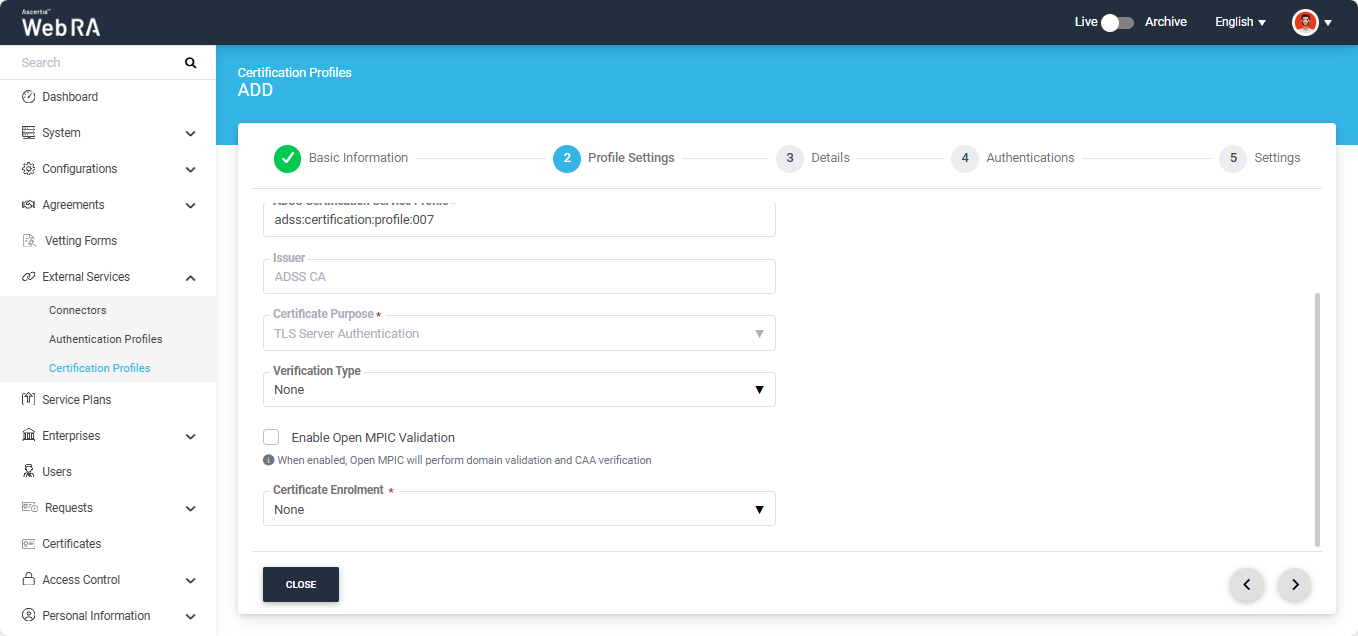
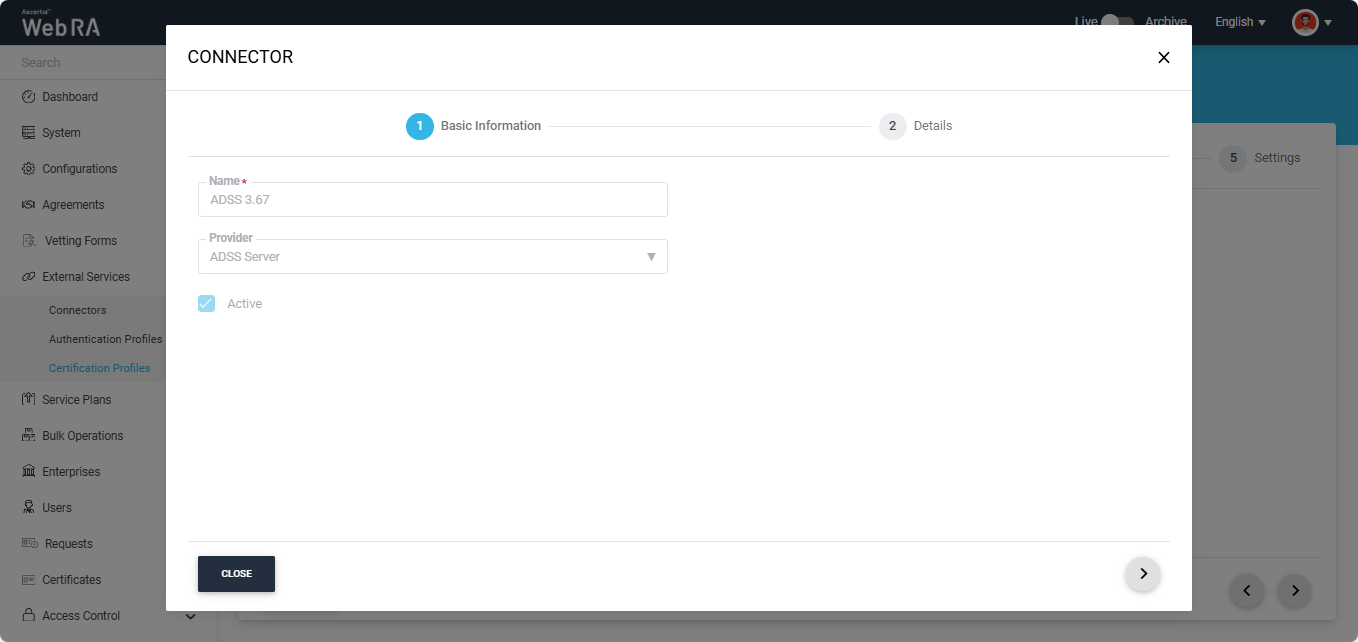
You can view the details of the selected ADSS connector by clicking the ‘Eye’ icon next to the connector name. When you click the icon, the system will open the ‘Connector’ dialog on the screen displaying the basic information.
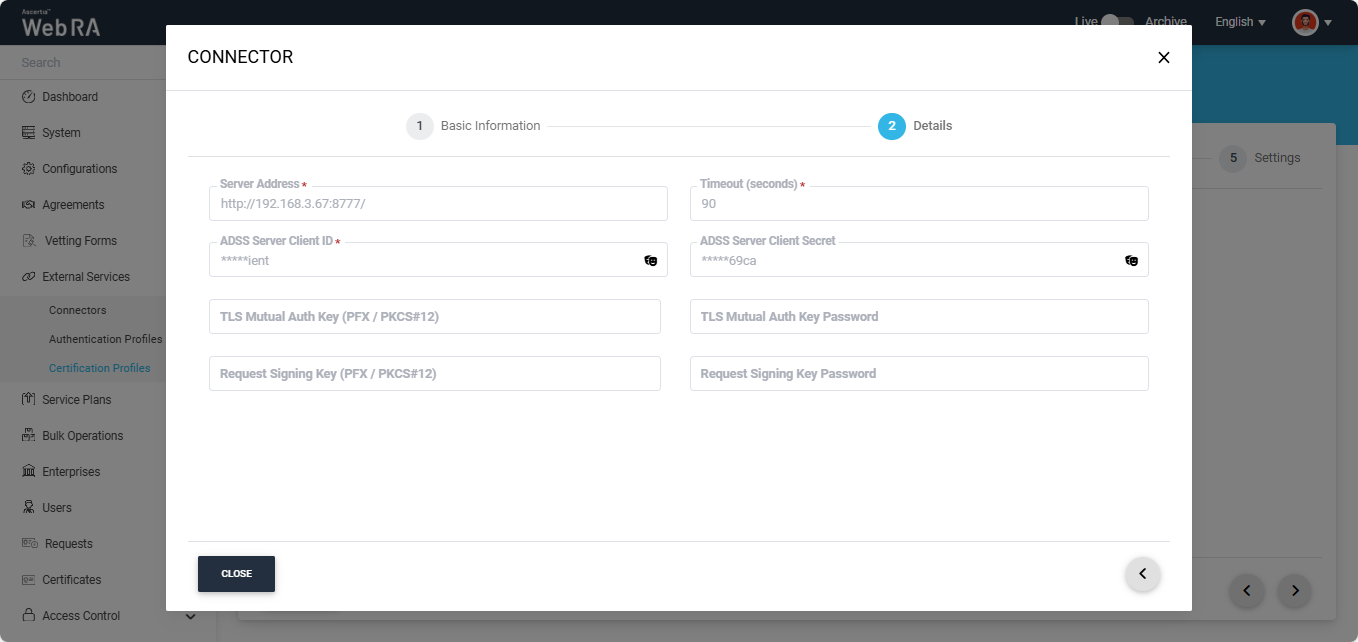
To view complete details of the connector, navigate to the ‘Details’ tab.
After selecting the required options in the Profile Settings section, click the next ‘>’ button to navigate to the ‘Details’ tab.
Details
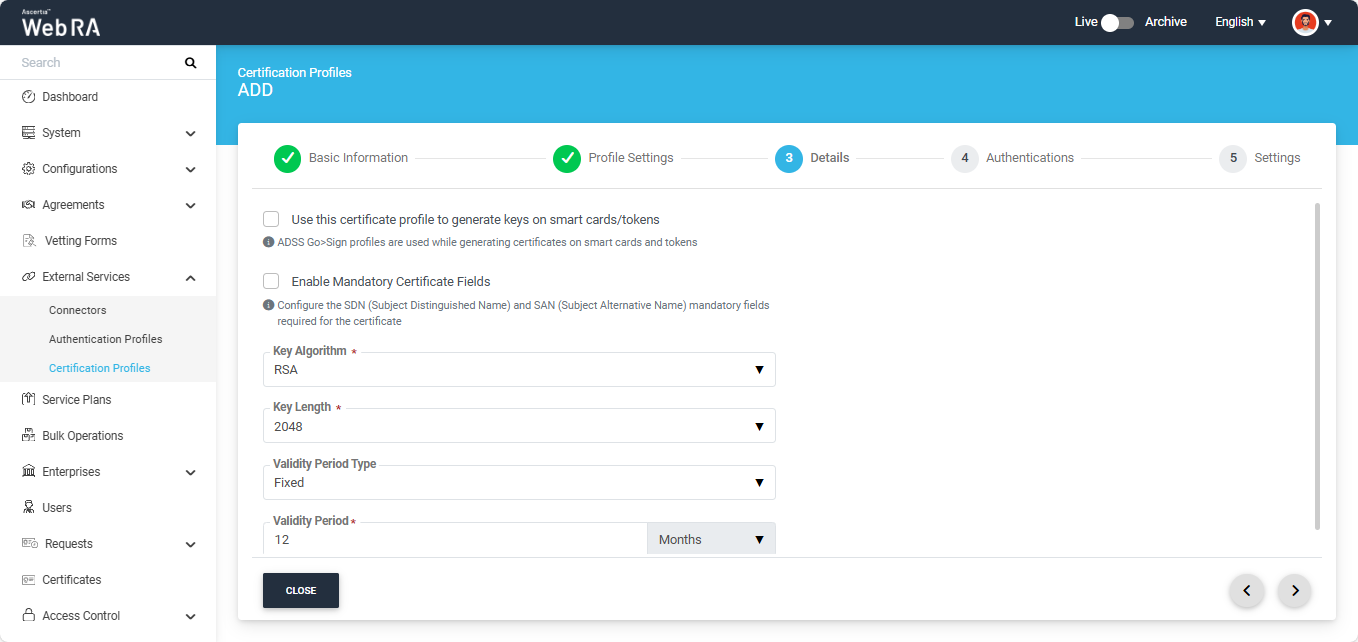
The information about the available fields is provided in the table below:
|
Field |
Description |
|
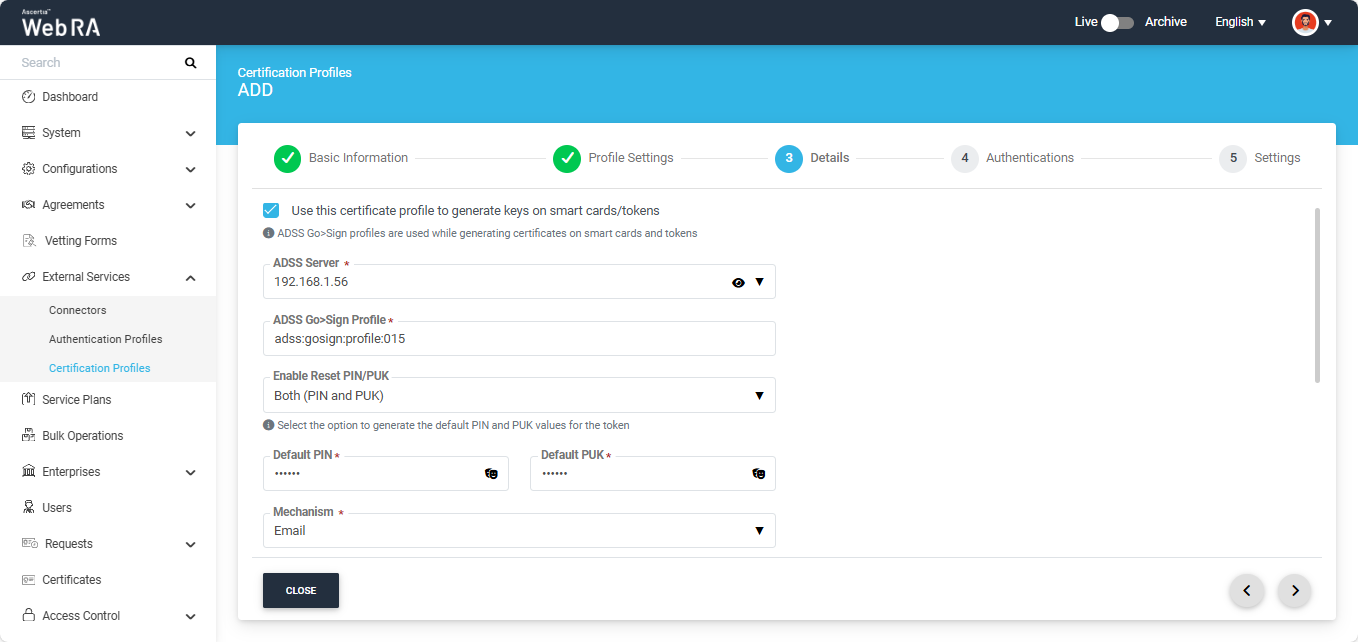
Use this certificate profile to generate keys on smart cards/tokens |
Enable this option if this profile will be used to generate the certificates in the smart card/ token. After enabling this checkbox, the administrator must provide the ADSS Server details along with the ADSS Go>Sign Profile. The system will also display the ‘Enable Reset PIN/PUK dropdown’, allowing the administrator to reset default PIN and PUK values for the token. The following options are available in the dropdown:
The operator has the option to reset default value for either PIN or PUK by selecting the respective option from the dropdown. If Both (PIN and PUK) option is selected, the system will display both fields for Default PIN and Default PUK, where the administrator can reset the default values. Note: By default, ‘None’ option will be selected for the From the “Mechanism” dropdown, the administrator can choose how the default PIN and PUK values will be shared. The available options are:
If Both (Email and SMS) is selected, the entered PIN and PUK values will be shared with the user via both email and SMS. |
|
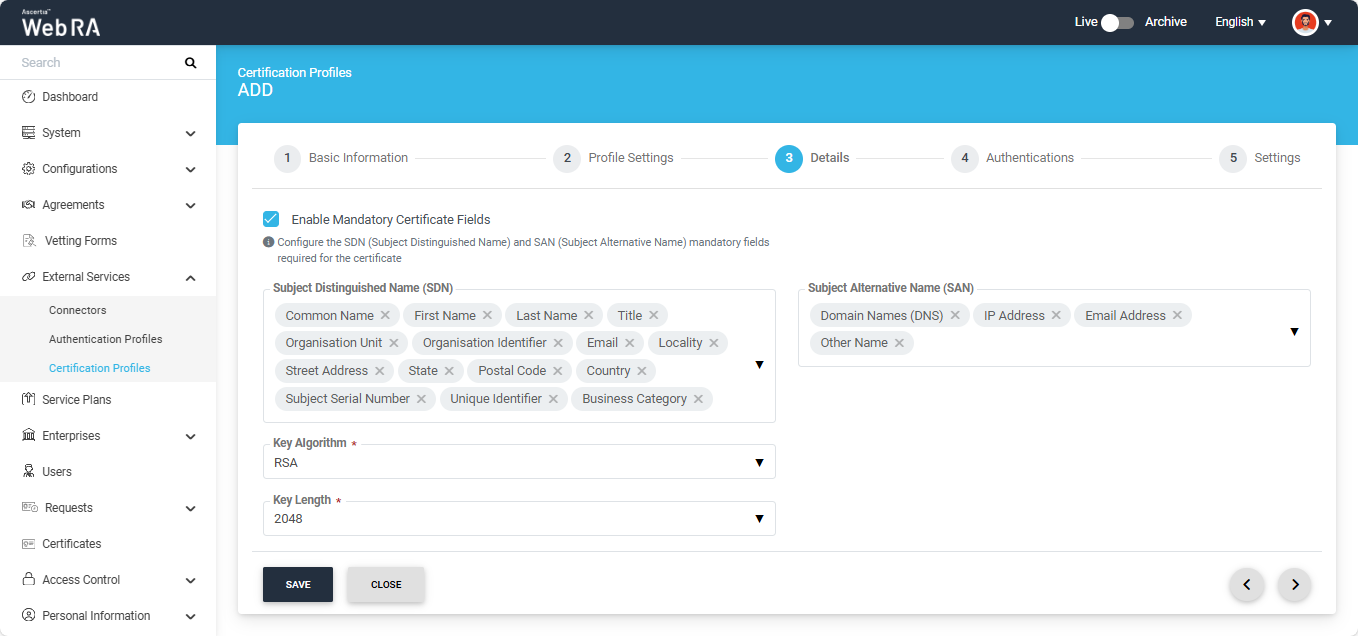
Enable Mandatory Certificate Fields |
If enabled, this option allows the administrator to define which Subject Distinguished Name (SDN) and Subject Alternative Name (SAN) fields must be mandatory when generating a certificate. Enabling this checkbox will display the SDN and SAN dropdowns, allowing the administrator to select the required mandatory fields while leaving the optional ones unchecked. |
|
Key Algorithm |
The Key Algorithm that will be used to generate the key pair in the smart card/token. |
|
Key Length |
The Key Length that will be used to generate the key pair in the smart card/token. |
|
Validity Period Type |
The validity period type can be configured as Fixed to prevent the enterprise user from changing the certificate validity period. Alternatively, it can be set to Custom to allow the enterprise user to define the validity period when creating a certificate request. The Fixed and Custom values can only be used in the ADSS Web RA Admin if the selected ADSS Certification Profile has the overridable option enabled for 'Certificate Validity' in the ADSS Server. Otherwise, the validity period type will be shown as Fixed. |
|
Validity Period |
In this field, you can specify a numeric value for the validity period. If the ADSS Certification Profile is configured to use its own time duration instead of taking the validity period from the certificate request, this value will be ignored by the CA server. |
|
Validity Duration |
The time unit of the validity period. It could be minutes, hours, days, months and years. |
After making all the required selections in the Details section, click the next ‘>’ button to navigate to the ‘Authentications’ tab.
From the Authentications tab, the operator has the option to enable second-factor authentication for new certificate requests, revocation requests, and rekey requests.
If you enable any checkbox, the system displays the ‘Authentication Profiles’ dropdown, from which the operator can select the required profile for second-factor authentication. The available authentication methods include OTP, SAML, Active Directory, Azure Active Directory, and OIDC.
Note: By default, the first authentication profile in the dropdown list appears as selected. You can change the profile by clicking the dropdown field and selecting an option from the list.
Note: Only those profiles for which secondary authentication has been configured during profile creation will appear in the Authentication Profiles dropdown.
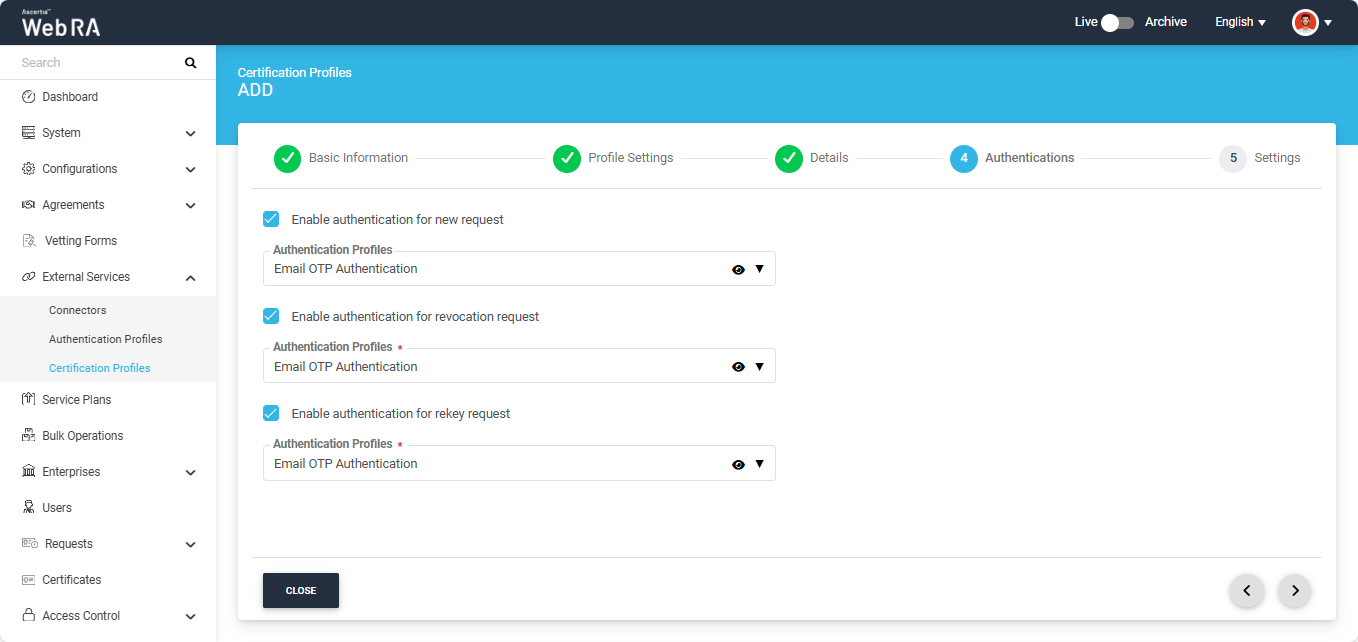
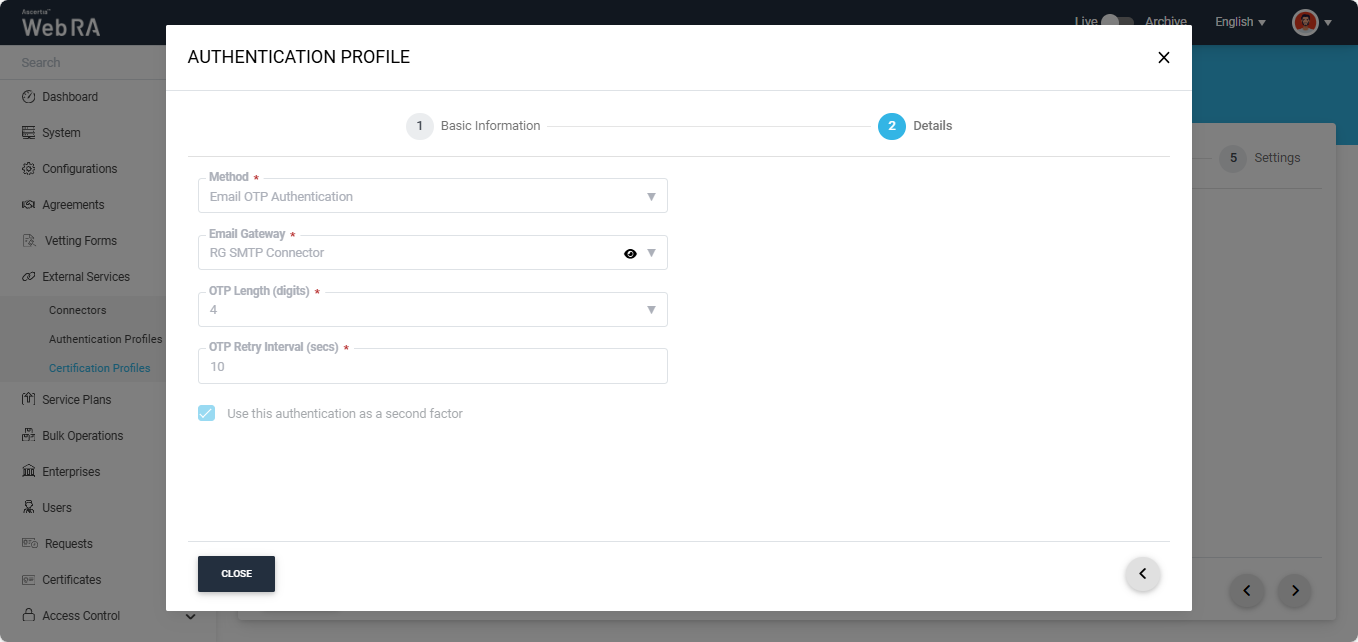
To view the details of an authentication profile, click the ‘Eye’ icon next to the profile name. The system will open the ‘Authentication Profile’ dialog, displaying the Basic Information.
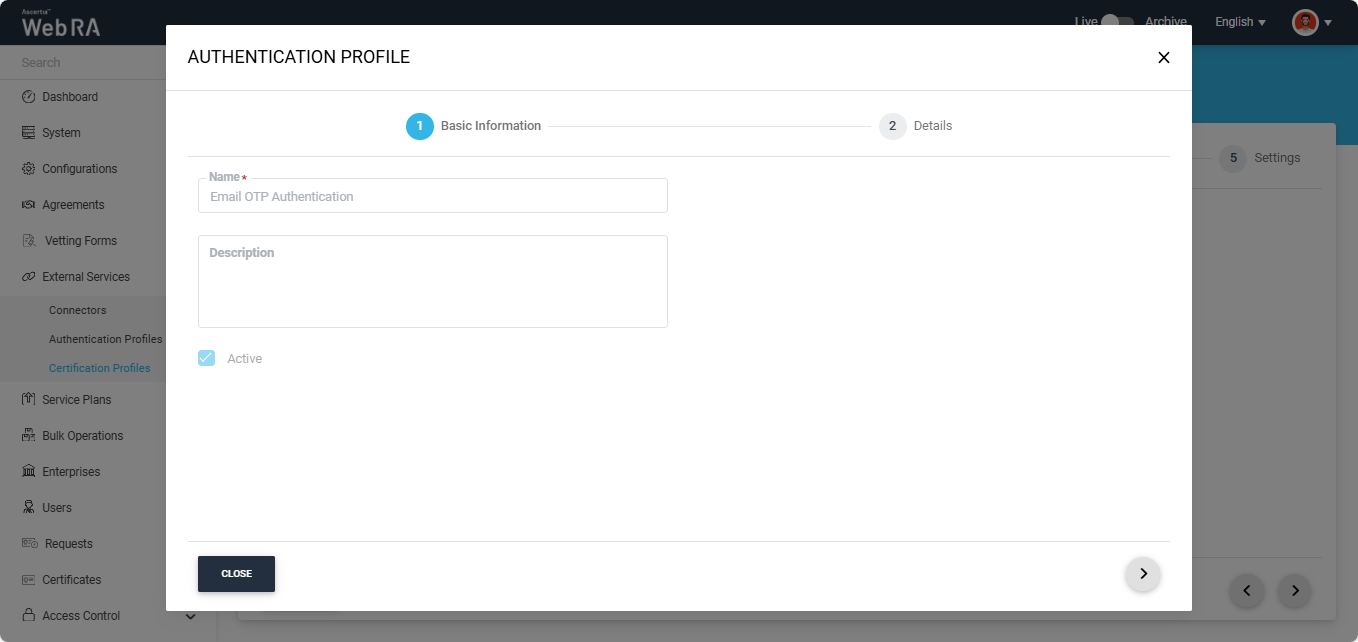
To view the details of the profile, click the ‘Details’ tab.
After making all the required selections in the ‘Authentication’ section, click the next ‘>’ button to navigate to the ‘Advanced Settings’ tab.
|
Field |
Description |
|
Subscriber Agreement |
From this dropdown the administrator can select a subscriber agreement. A subscriber agreement is selected in a certification profile if the admin wants the user to agree on certain terms before submitting a certificate request. |
|
Vetting Option |
This dropdown allows the admin to choose whether vetting is required for the certification profile. By default, the None option is selected. If you require vetting to be performed for a certificate request, select the ‘Manual Vetting’ option from the dropdown. |
|
Vetting Form |
This dropdown field appears only when ‘Manual Vetting’ option is selected. It displays a list of all active vetting forms. Select the required form from the list to configure it with the certification profile. |
|
Enable Revocation Vetting |
Select this checkbox to enable vetting for revocation. |
Special Permissions
ADSS Web RA allows an operator to configure the number of Admin RAOs and Enterprise RAOs required to approve the following types of requests submitted under this certification profile:
- Creation of a new certificate
- Renewal of a certificate
- Certificate rekeying
- Certificate reissuance
The permissions can be assigned to Admin RAOs, Enterprise RAOs, or both, depending on the approval requirements.
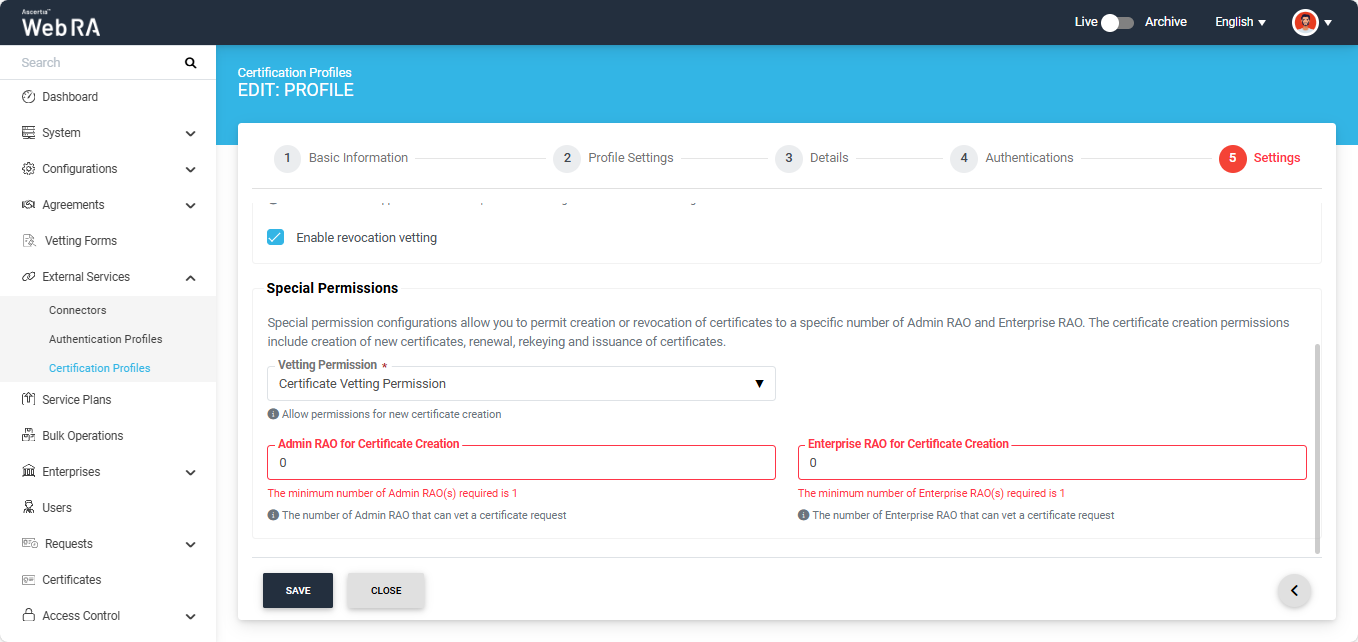
Minimum number of Admin RAO/Enterprise RAO required
The operator must permit at least one Admin RAO or Enterprise RAO for the special permissions. If both fields are set to 0, the following error message will appear on the screen:
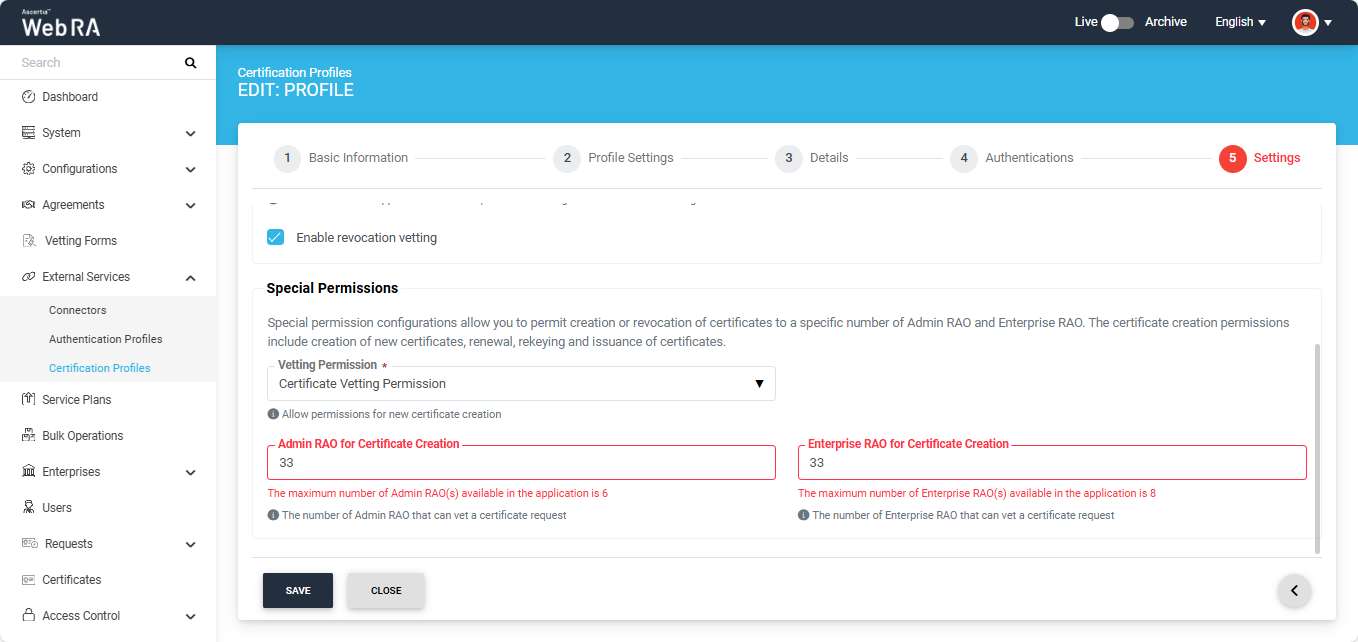
Maximum Limit on the Number of Admin RAOs / Enterprise RAOs
If the operator enters a number greater than the total number of available Admin RAOs or Enterprise RAOs in the application, the following error message will appear on the screen:
Certificate and Revocation Vetting Permission
If the operator has selected the ‘Certificate and Revocation Vetting Permission’ option in the Vetting Permission dropdown, the following two additional fields will appear on the screen:
- Admin RAO for Certificate Revocation
- Enterprise RAO for Certificate Revocation
The operator needs to specify the number of RAOs (Admin or Enterprise) that have permission for this action according to the system rules mentioned above.
After making all the required selections, click the ‘Create’ button to finalise the certification profile.