
CSP Service Profile
Certification Profile for CSP Service
Expand External Services > Certification Profiles from the left menu. The system will display the certification profiles listing screen.
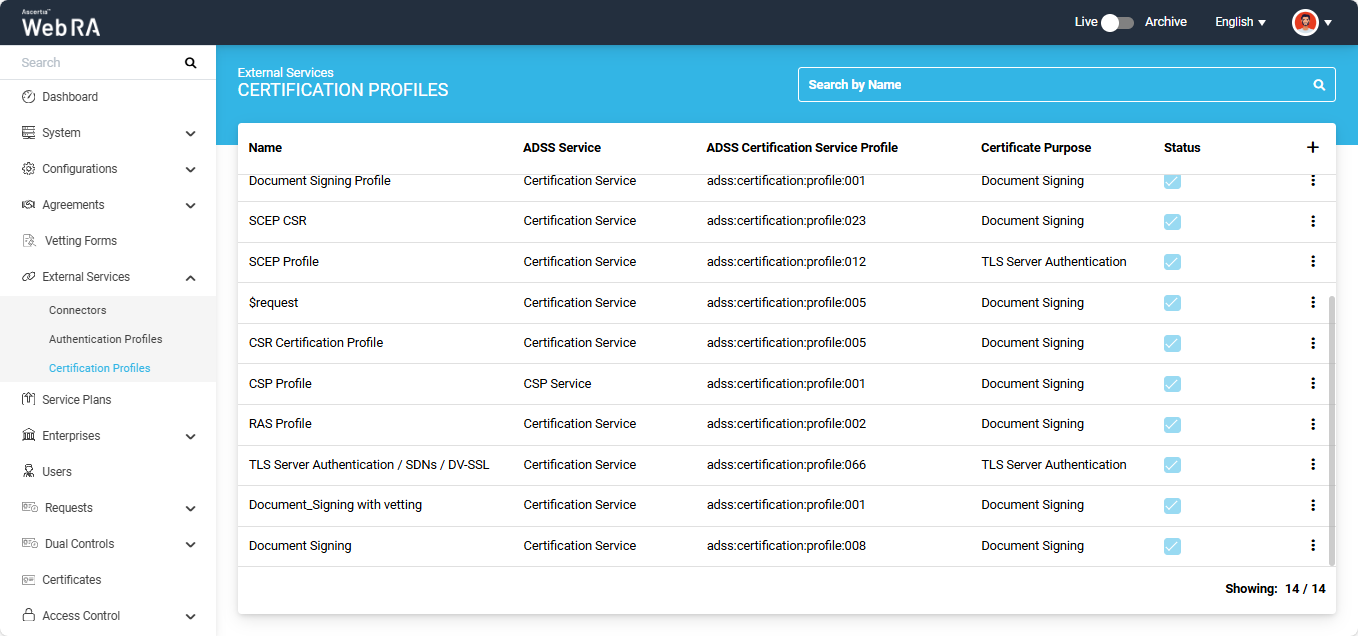
To add a new certification profile, click the ‘+’ button on the left side of the table header. The system will display the ‘Basic Information’ screen.
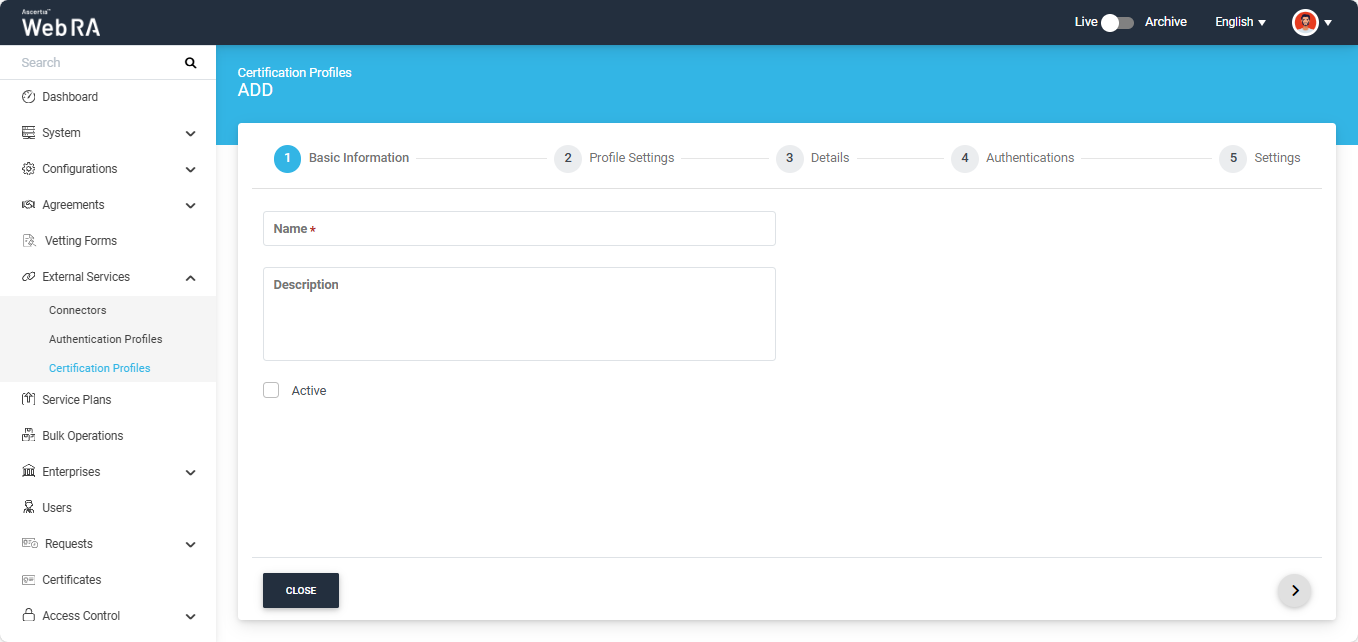
Basic Information
The basic information screen will display the following fields:
|
Field |
Description |
|
Name |
Specify a unique name for this profile. |
|
Description |
Specify any description related to this certification profile. (Optional) |
|
Active |
Select this checkbox to make the profile active. |
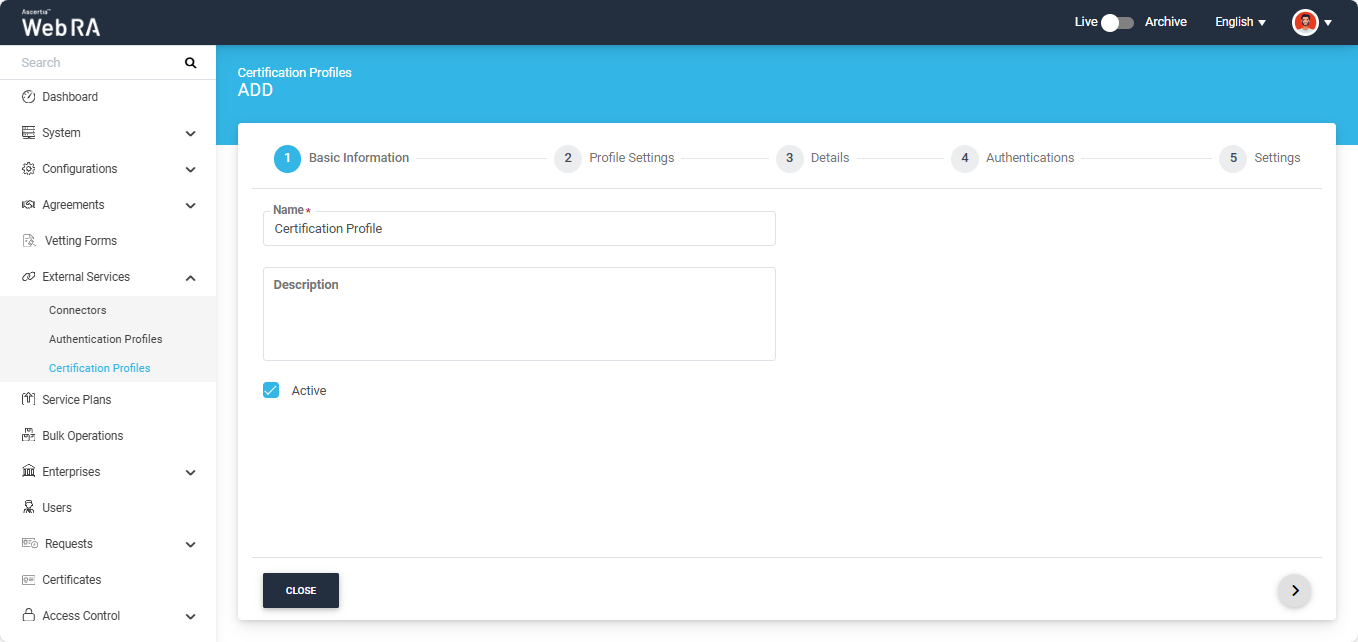
After entering the required details, click the next ‘>’ icon to proceed to the ‘Profile Settings’ screen.
Profile Settings
|
Field |
Description |
|
ADSS Service |
This field will display the ADSS Services (i.e. Certification Service and CSP Service) that are available for ADSS Web RA. Select the ‘CSP Service’ option from the dropdown. |
|
ADSS Certification Server |
This field will display the list of active ADSS connectors in ADSS Web RA. Select the one to use for this CSP service profile, for example: Default ADSS Server. |
|
ADSS CSP Service Profile |
In this field, enter the CSP service profile that you created on the ADSS Sever, for example: adss:csp:profile:001. |
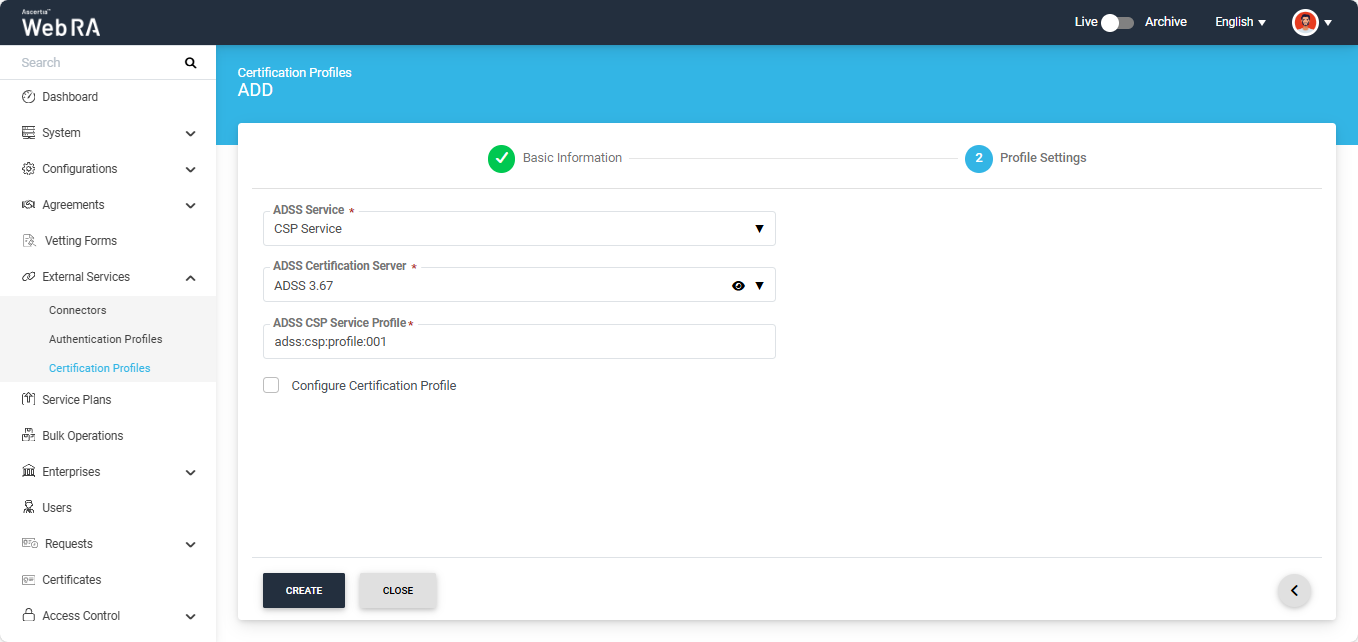
If you enable the ‘Configure Certification Profile’ dropdown, the following two fields appear:
- ADSS Certification Server
- ADSS Certification Service Profile
Moreover, the system also displays three additional tabs in the certification profile: Details, Authentications, and Settings.
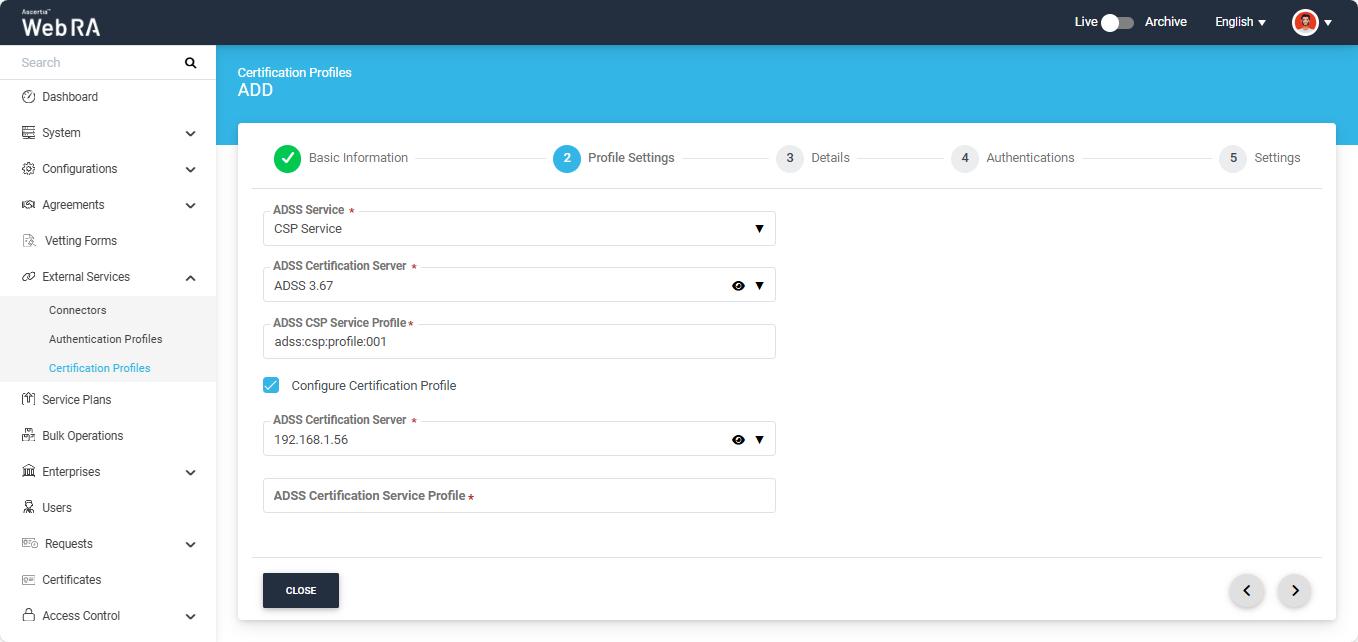
Select the ADSS connector from the ‘ADSS Certification Server’ dropdown and enter the ADSS certification service profile in the field below. Based on the entered profile, the system displays additional fields on the screen.
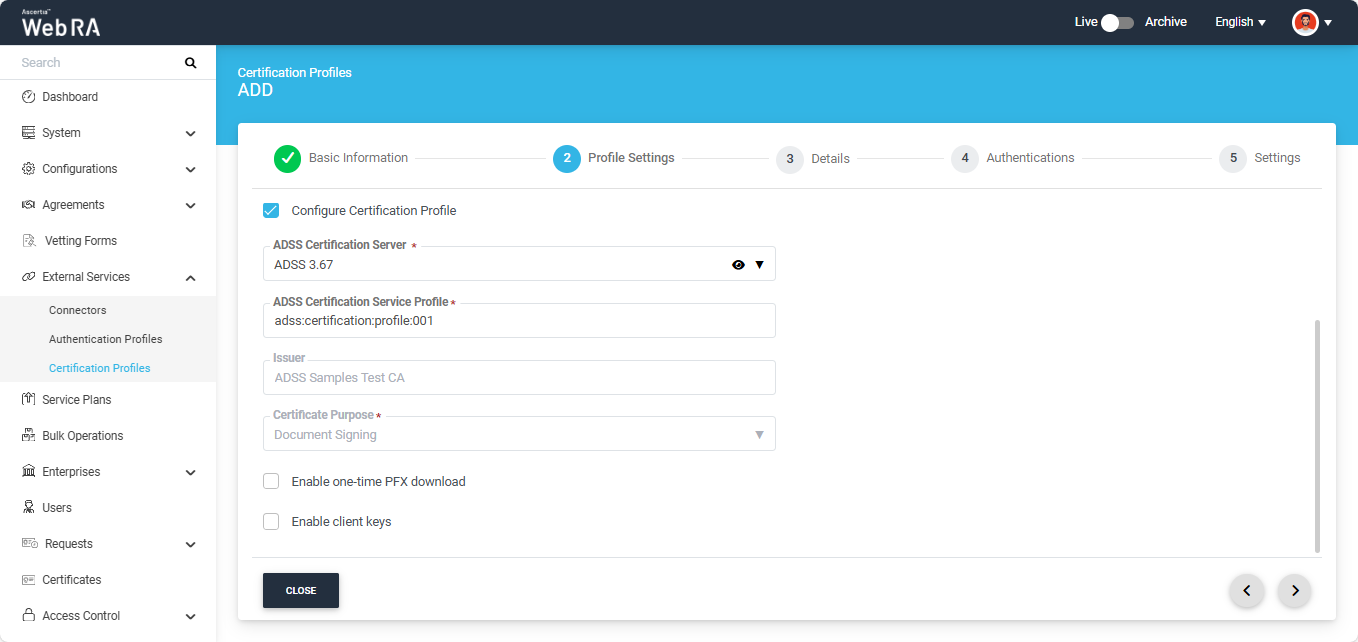
To learn more about the additional fields and how configure the options in Details, Authentications, and Settings tabs, refer to the ‘Certification Service Profile’ section.