Background Jobs
ADSS Web RA allows you to create jobs that run in the background, i.e. asynchronously and without blocking the main application.
Background jobs are used to reduce the manual effort and to automate the process. They can run in the background without any user input and can be scheduled to run when the system load is low.
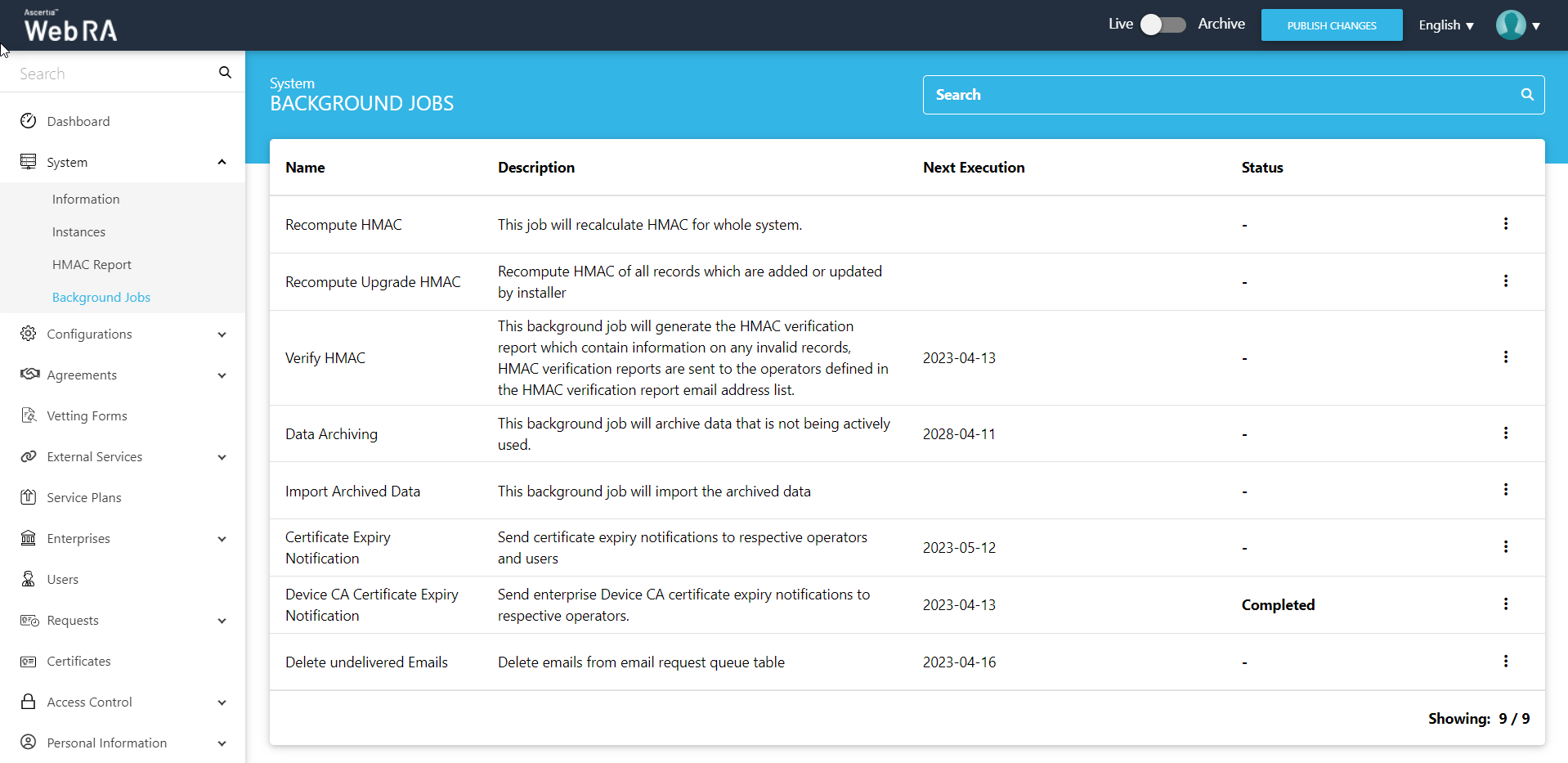
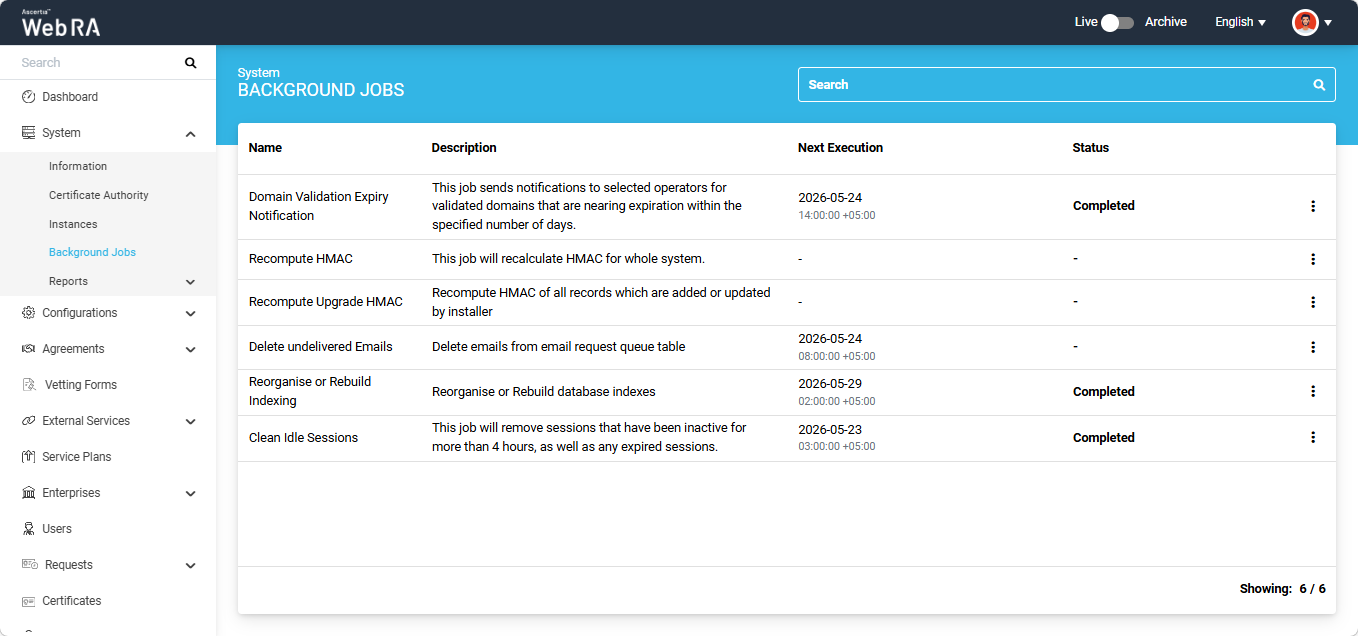
- Expand System > Background Jobs from the left menu.
|
Basic Information |
|
|
Field |
Description |
|
Name |
This is the name of the background job an operator can execute |
|
Description |
This field explains the description of the background job an operator can execute |
|
Next Execution |
The date when the next background job will start for each module |
|
Status |
The status of the background job can be pending, failed or completed |
|
Background Jobs |
|
|
Field |
Description |
|
Domain Validation Expiry Notification |
This background job will send notifications to selected operators for validated domains that are nearing expiration within the specified number of days. |
|
Recompute HMAC |
It recomputes HMAC for the entire system. |
|
Recompute Upgrade HMAC |
This job is run to recompute HMAC for all records that have been added or updated by the installer. |
|
Verify HMAC |
This job verifies if the HMAC in the system and the configurations match or not, and it generates a report. |
|
Data Archiving |
It is the process of moving data that is no longer active and moving it out of the application for long-term retention. |
|
Import Archived Data |
This job automatically imports the archived data. Once imported, can be viewed in the Archive Mode (with the help of the archival toggle button). |
|
Certificate Expiry Notification |
It allows to send notifications to respective operators and users for certificates that are about to expire. |
|
Device CA Certificate Expiry Notification |
This job sends enterprise Device CA certificate expiry notifications to respective operators |
|
Delete Undelivered Emails |
This job clears the data from the email request table when the emails are not delivered to the respective email addresses. |
|
Reorganise or Rebuild Indexing |
This job reorganises the structure of the indexes and also deletes data in the cache. It creates new indexes automatically. |
|
Import Certificates |
This job will import the certificates from the ADSS, and a report will be generated. The report will then be sent to the email address(es) specified when scheduling the Import Certificates background job. |
|
Clean Idle Sessions |
This job will remove sessions that have been inactive for more than 4 hours, as well as any expired sessions. |
All of these background jobs can be configured to perform the required tasks at specified intervals.
- Domain Validation Expiry Notification
- Recompute HMAC
- Recompute Upgrade HMAC
- Verify HMAC
- Data Archiving
- Import Archived Data
- Certificate Expiry Notification
- Device CA Certificate Expiry Notification
- Delete Undelivered Emails
- Reorganise or Rebuild Indexing
- Import Certificates
- Clean Idle Sessions
Domain Validation Expiry Notification
This background job will send notifications to selected operators for validated domains that are nearing expiration within the specified number of days.
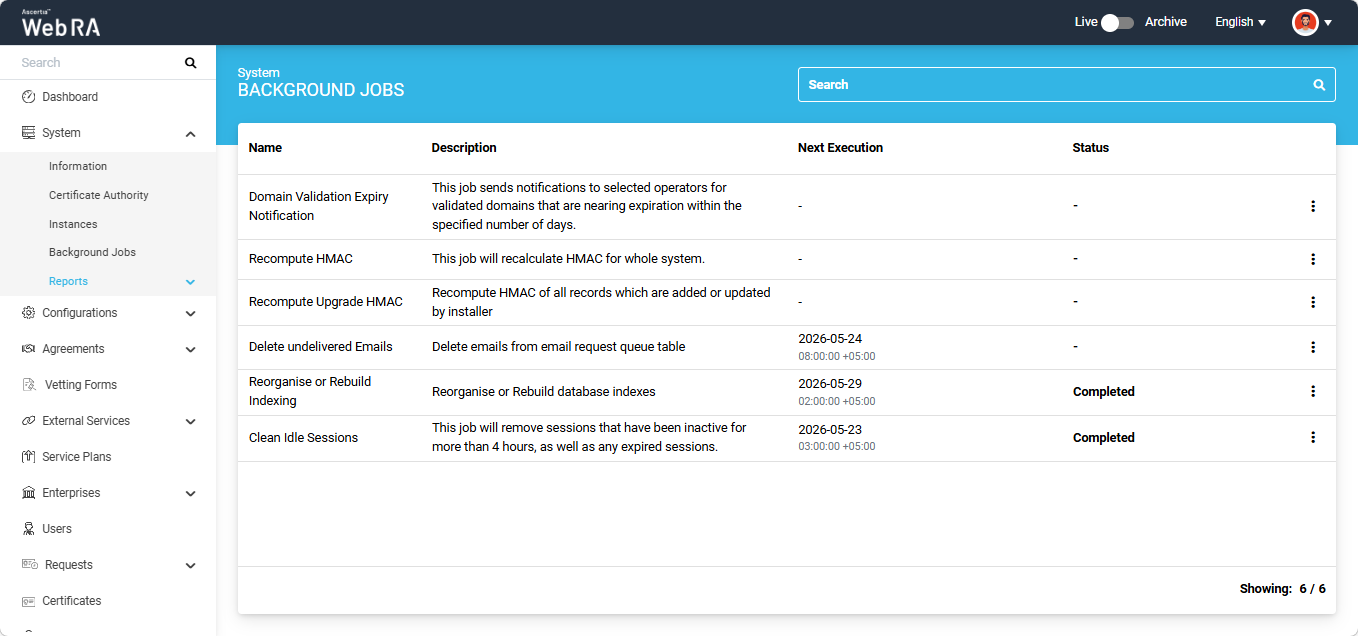
In the ‘Next Execution’ column you can view the time and date when the next scheduled background job will run.
The status column will display the status of the background job. During the time of execution, the status will change to ‘Running’. After the completion of the job the status will appear as ‘Completed.
The administrator has the option to manually start this background job.
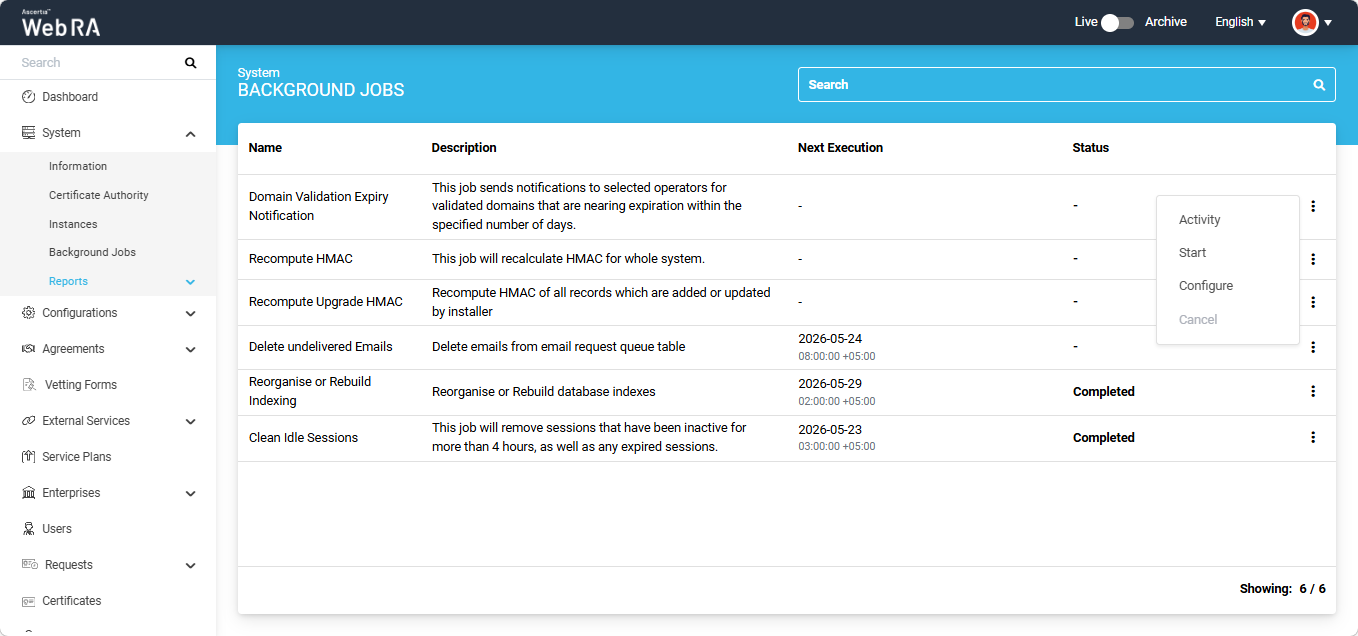
To do this, click the three-dot  icon next to the Domain Validation Expiry Notification entry, and then select the 'Start' option.
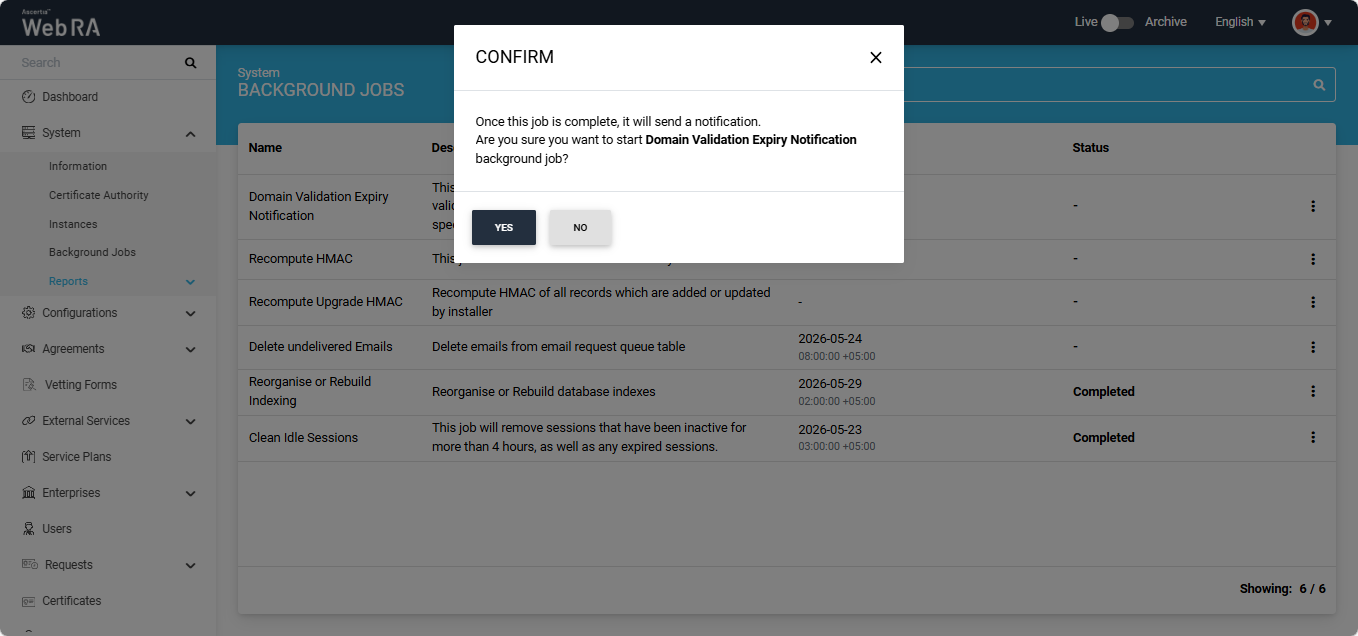
The system will display a confirmation dialog on the screen. Click ‘Yes’ to proceed.
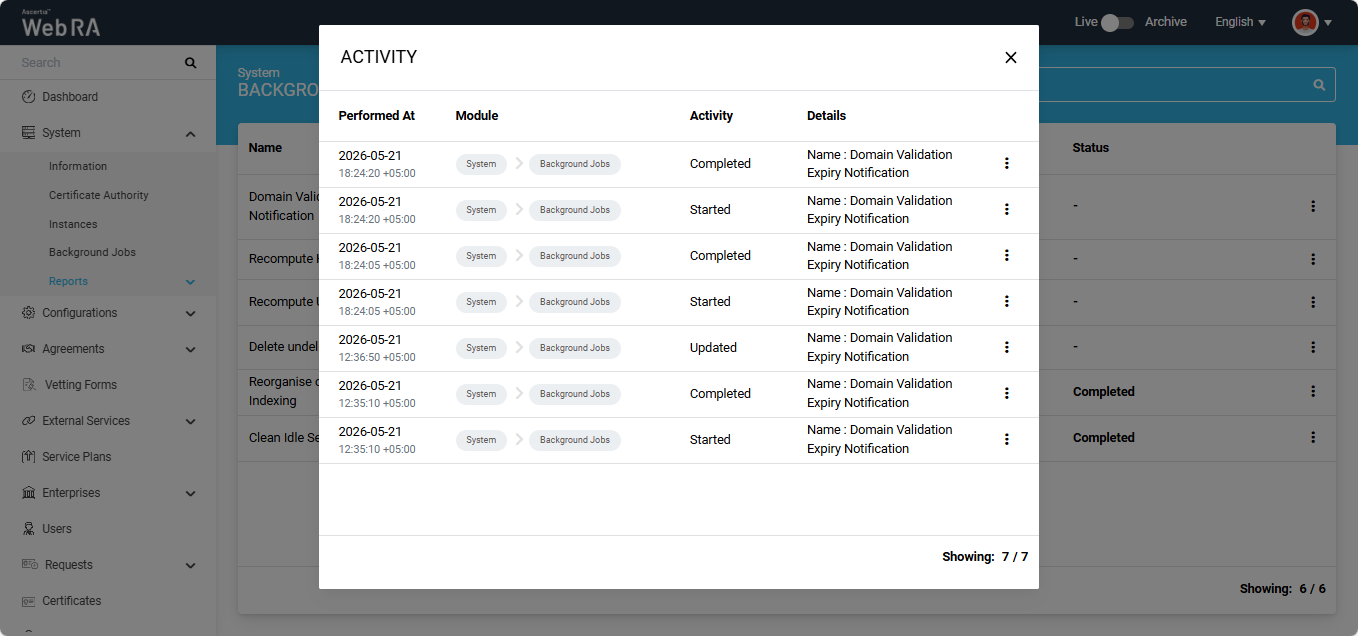
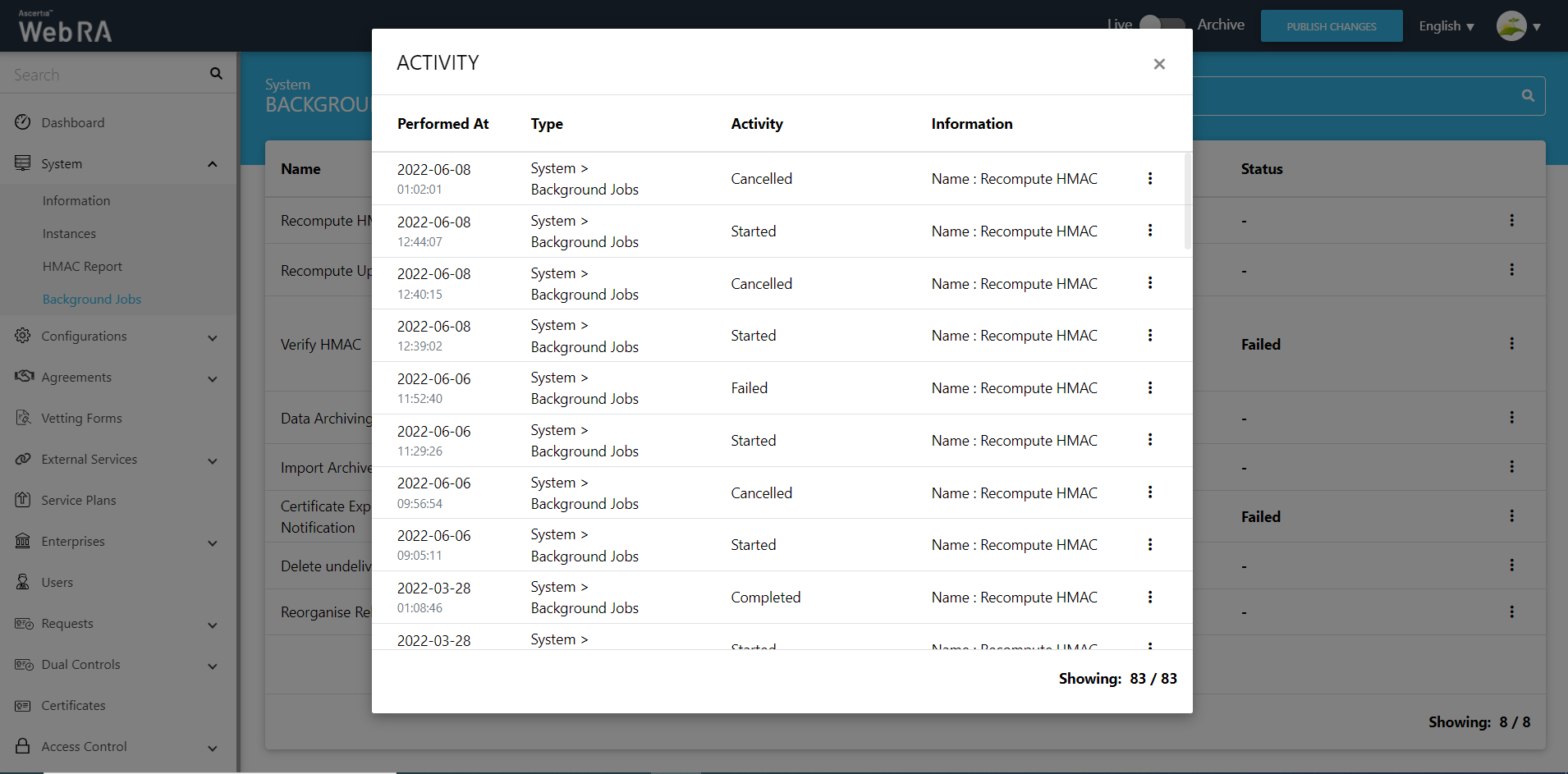
The system will create and save an activity entry whenever a background job is executed. All past activities can be seen from the ‘Activity’ dialog. To access the dialog, click the three-dot  icon and select the ‘Activity’ option.
The system will display the ‘Activity’ dialog on the screen.
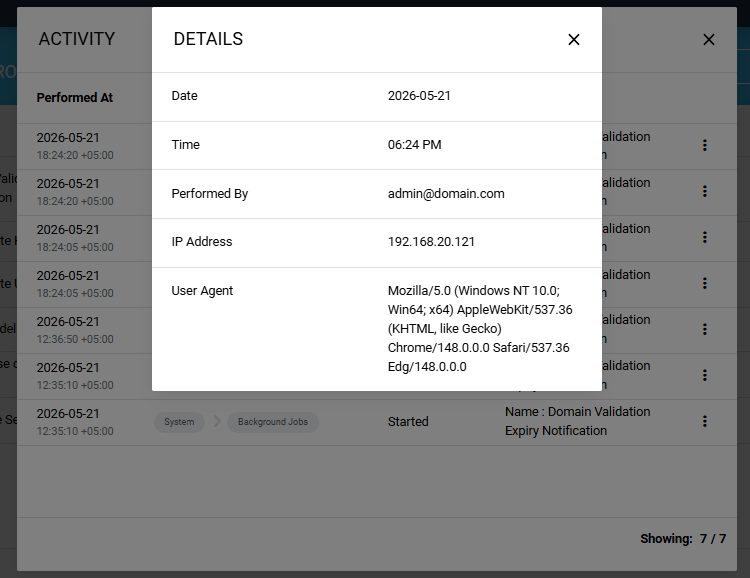
You can view complete details of the background job activity by clicking the three-dot  icon next to any entry and selecting the ‘Details’ option.
The system will display the ‘Details’ dialog containing the information about the activity.
Schedule Background Job
If you want to configure and schedule the background job for a later time, click the three-dot  icon and select the ‘Configure’ option.
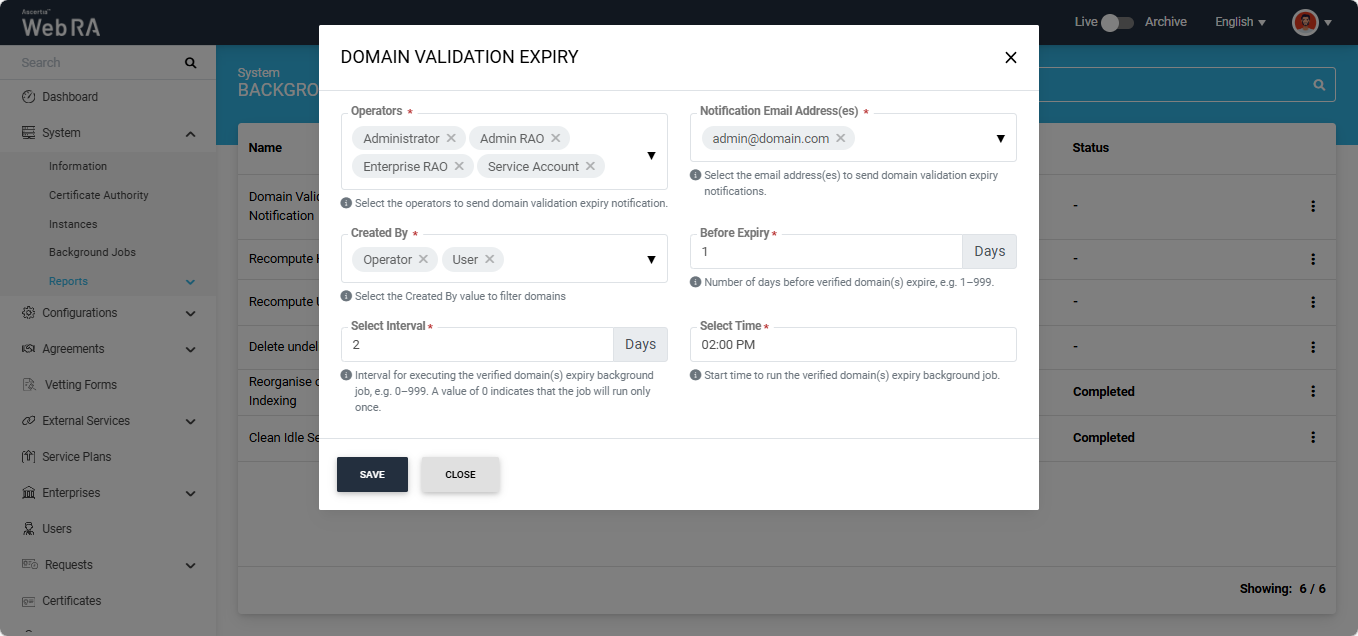
The system will display the Domain Validation Expiry dialog. The dialog displays the following fields:
|
Field |
Description |
|
Operators |
Select the operators from this dropdown who will receive the domain validation expiry notification. |
|
Notification Email Address(es) |
Select the email address(es) to which the domain validation expiry notification will be sent. |
|
Created By |
Use this dropdown to filter the domains for which expiry notifications will be sent. If you select Operator, the background job will include all domains added and validated by the operator. If you select User, the background job will include all domains added and validated by the user during certificate request creation. You can also select both options simultaneously. |
|
Before Expiry |
Enter the number of days before domain expiry when the notification should be sent. |
|
Select Interval |
Enter the number of times the background job should run. |
|
Select Time |
Select the time at which the background job will be executed. |
After making the required configurations, click the ‘Save’ button and the job time and date will appear in the Next execution column of the background jobs listing.
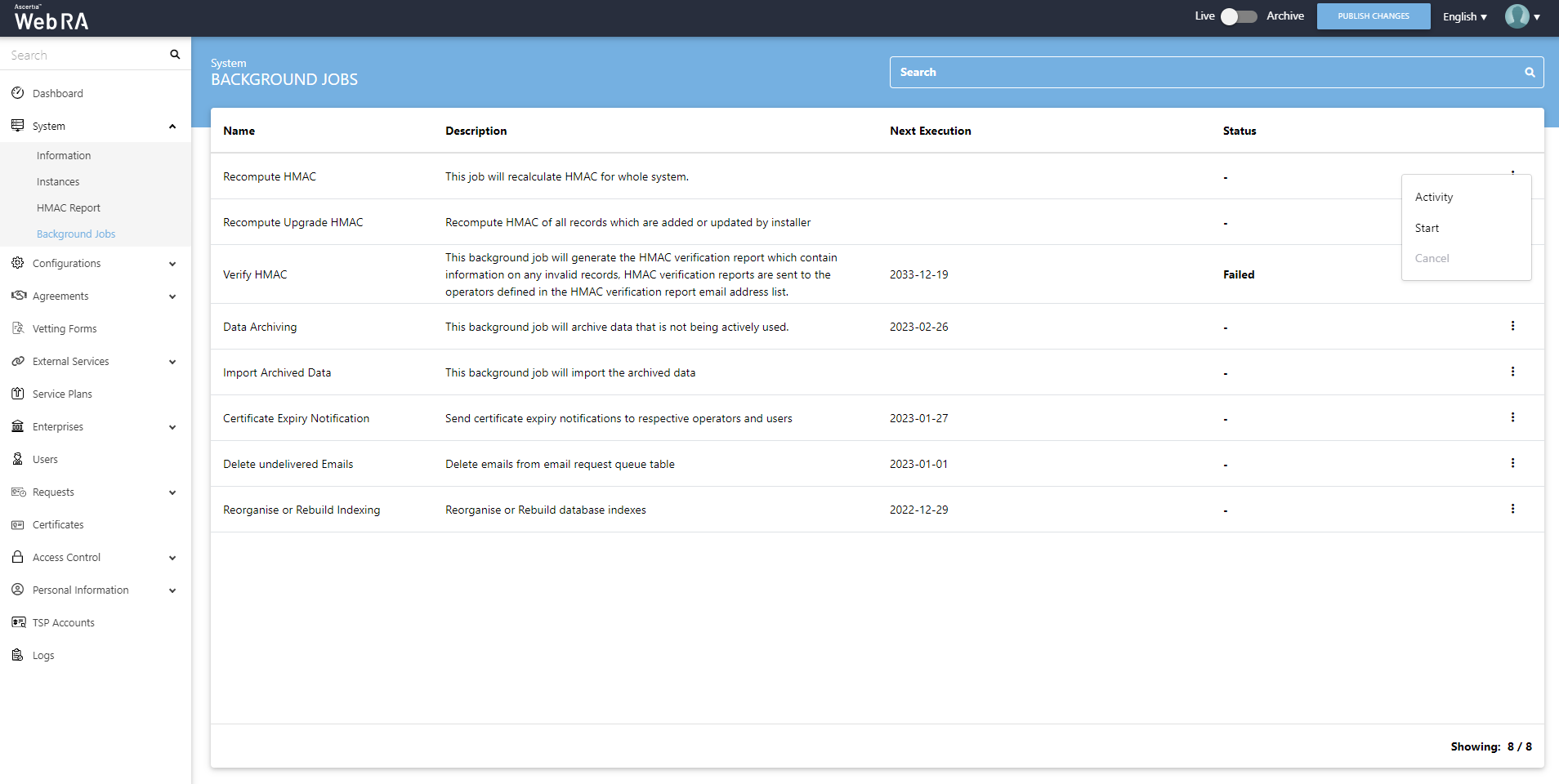
An administrator can start a recompute HMAC job simply by clicking on the  button.
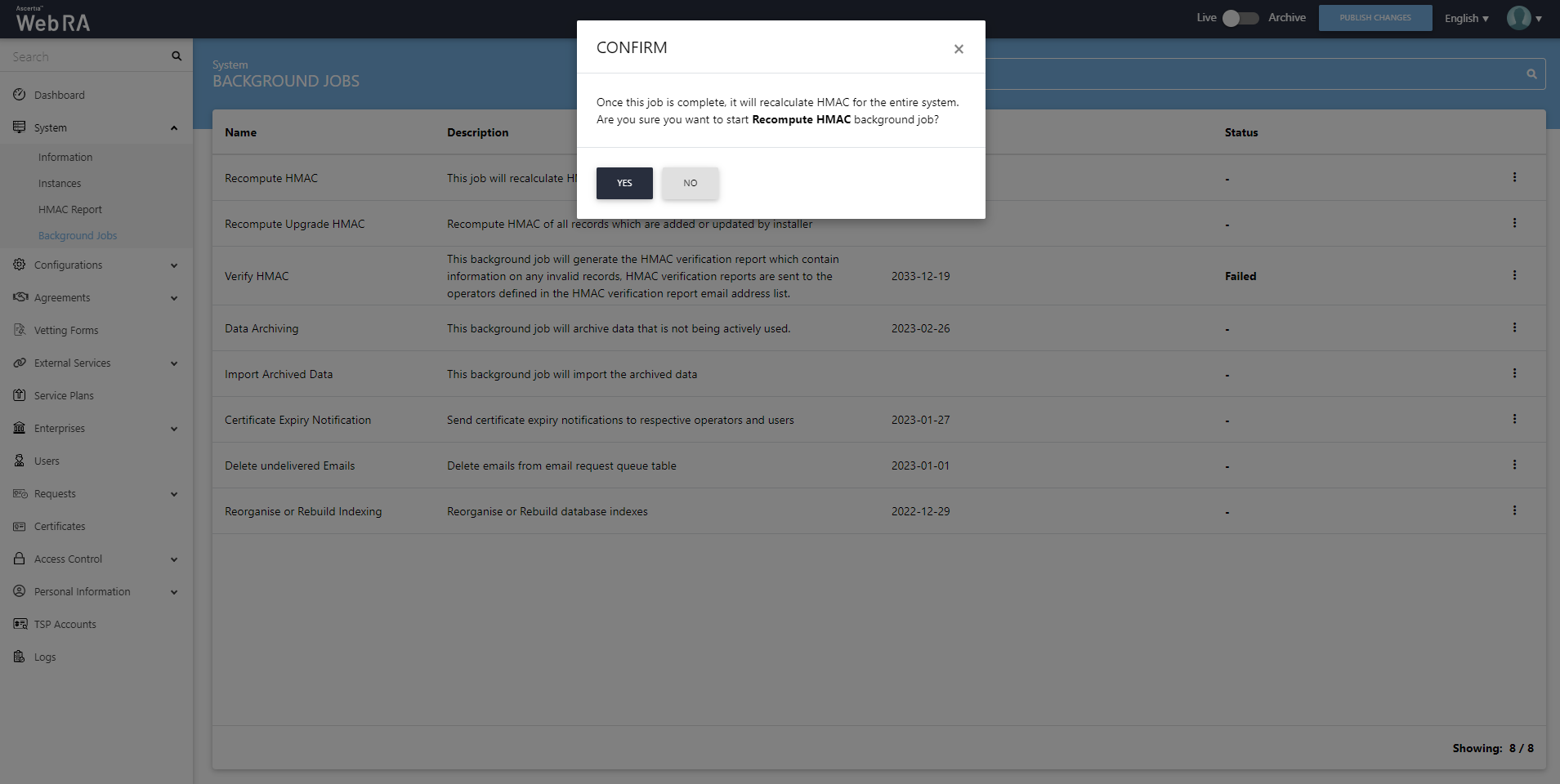
When you click the Start button, a confirmation message will appear. Click Yes to confirm.
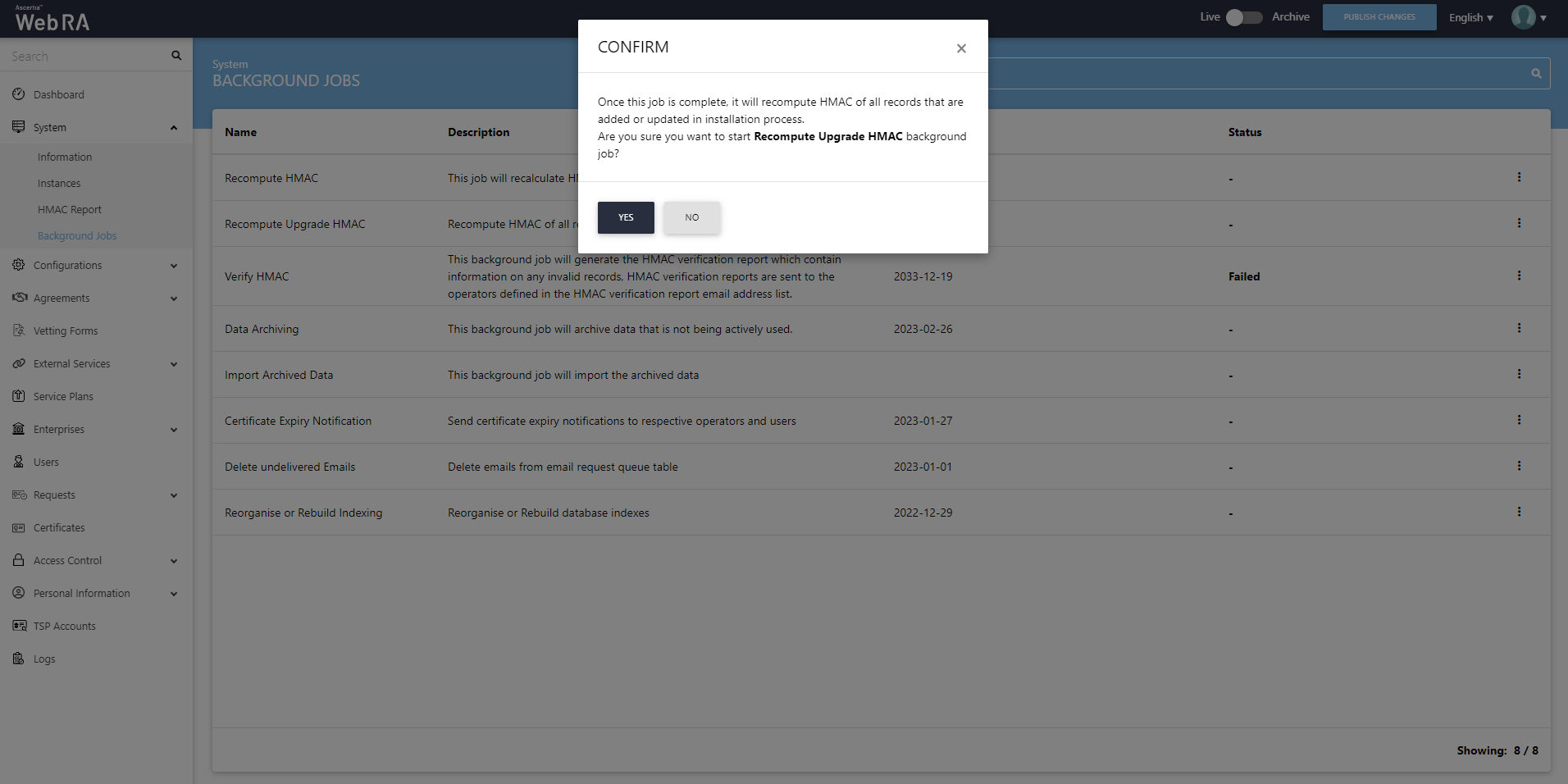
When an upgrade is made in the ADSS Web RA application, and new records are added in the database through the upgrade script, it requires running a recompute upgrade HMAC job. This job is required for computing HMAC for the newly added records only. An administrator can start a recompute upgrade HMAC job simply by clicking on the button.
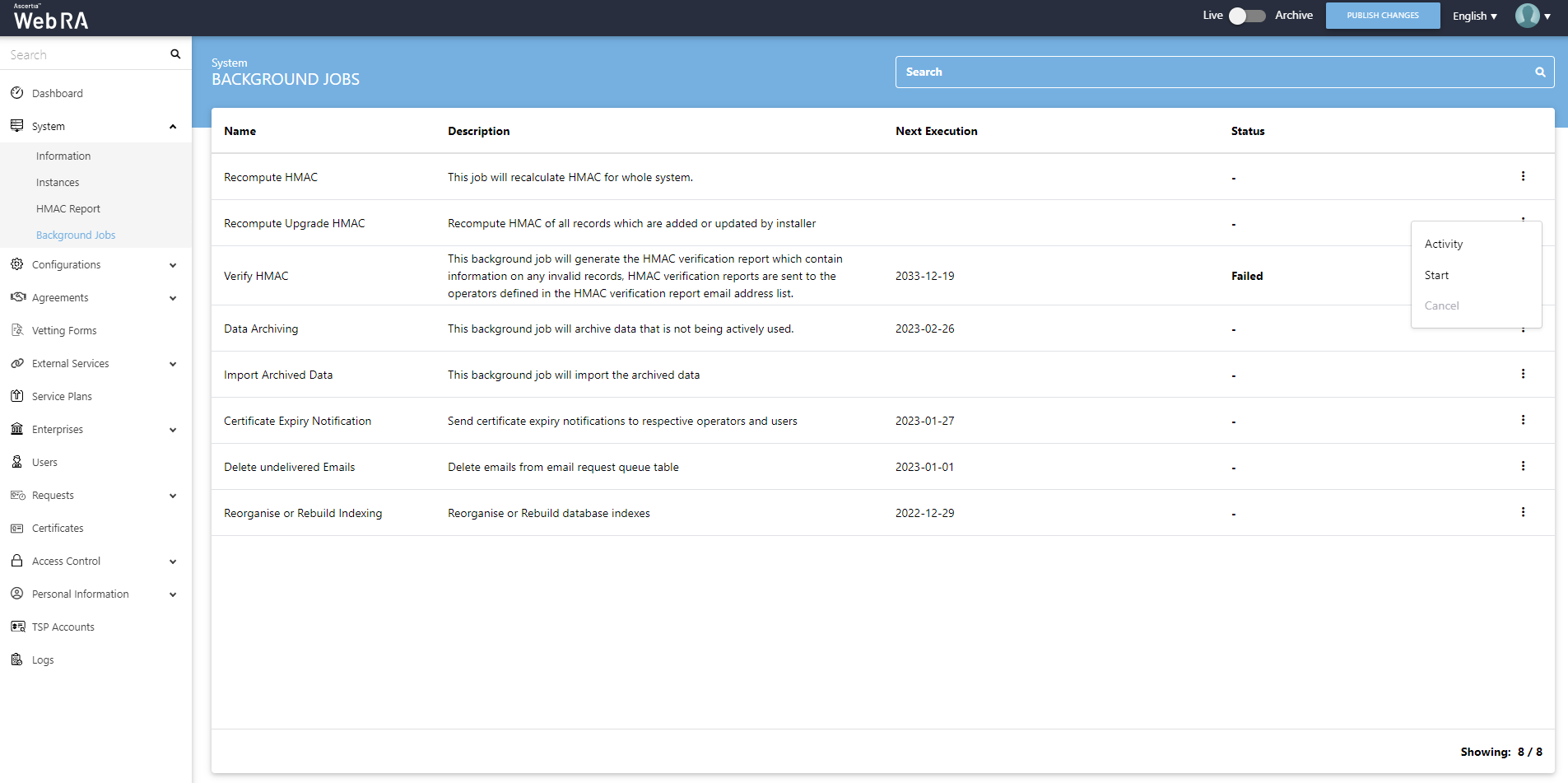
When you click the Start button, a confirmation message will appear. Click Yes to confirm.
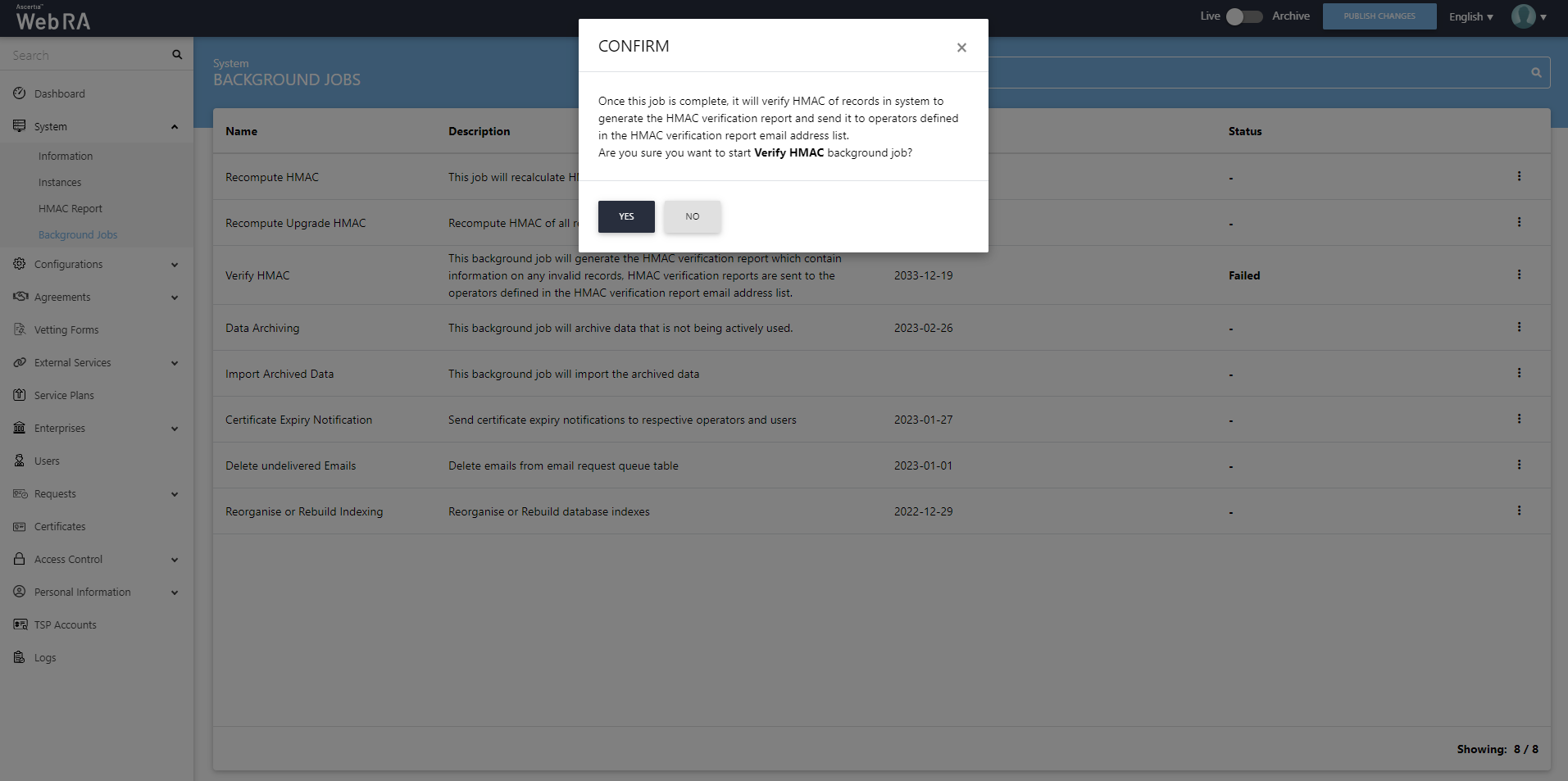
An administrator can verify if the HMAC in the system and the configurations match or not, for which it generates a report. He can do this by clicking on the Start button.
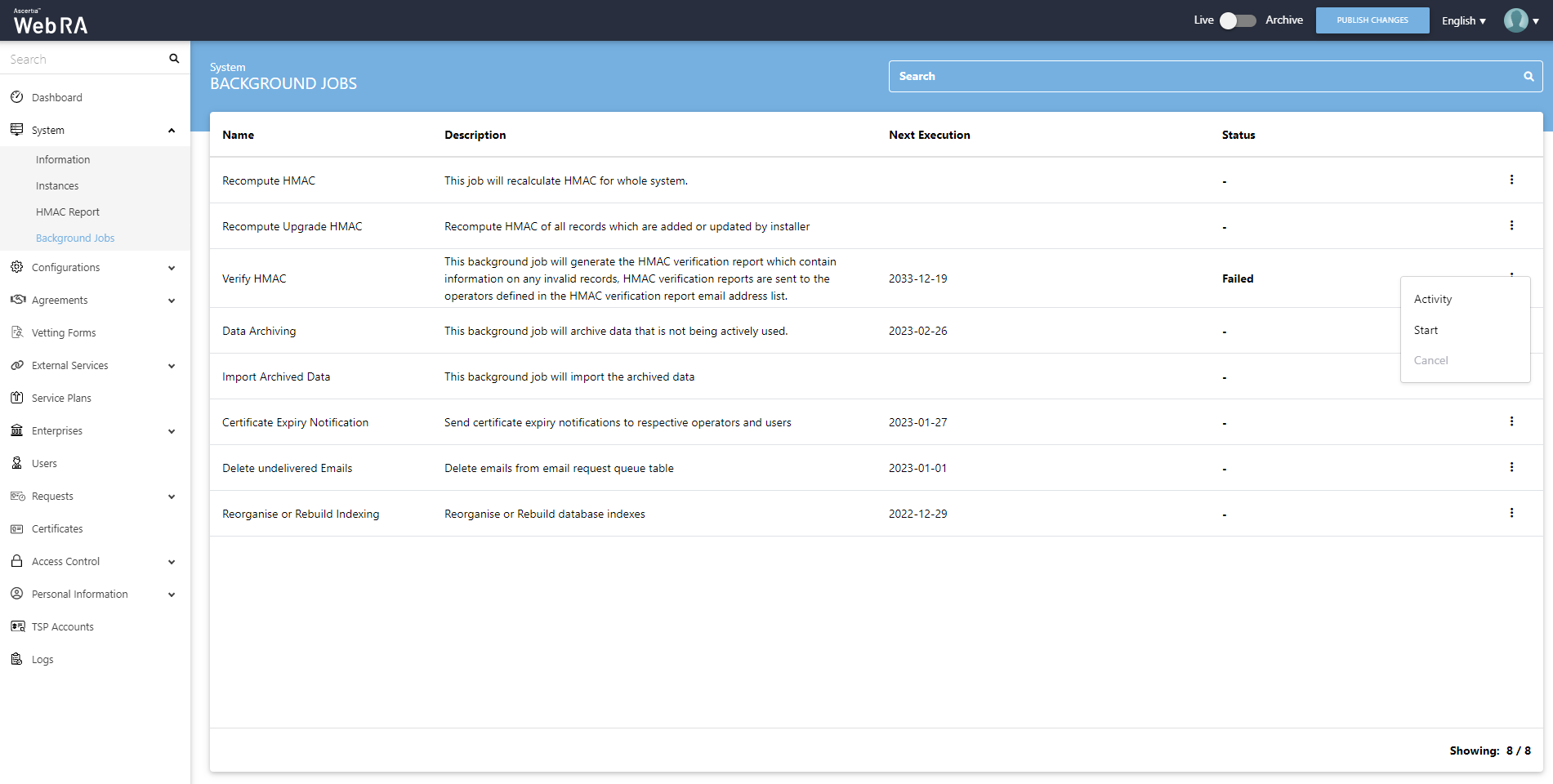
When you click the Start button, a confirmation message will appear. Click Yes to confirm.
Data archiving is the process of moving data that is no longer active and moving it out of the application for long-term retention. An administrator can start an import archived data job simply by clicking on  .
.
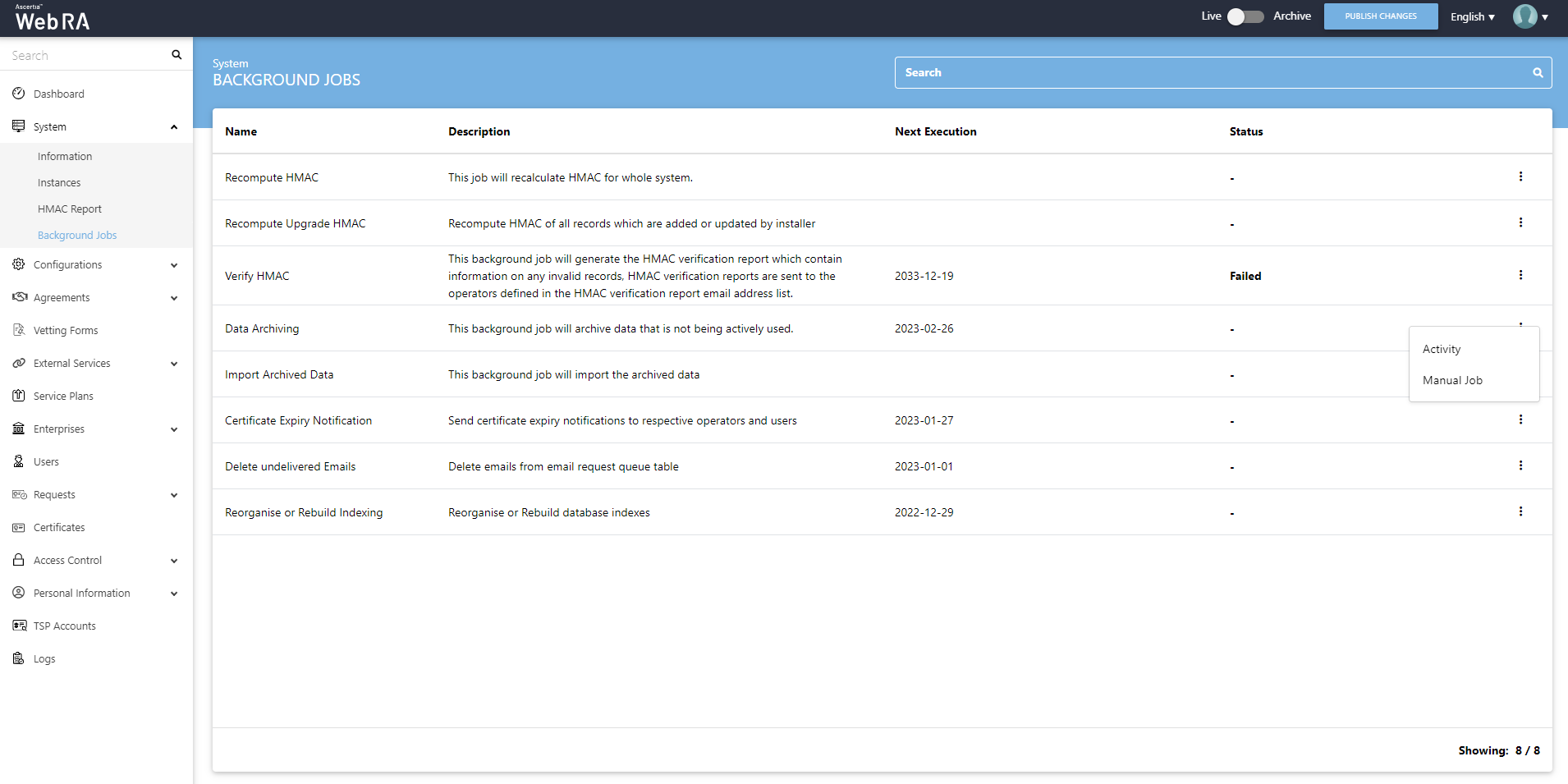
When you click the Manual Job button, a screen will be displayed where a user will be required to enter the following fields:
|
Archive Data |
|
|
Field |
Description |
|
Modules |
Select the modules for which you require to run a background job |
|
File Path |
Enter a file path to archive data |
|
Records Older Than |
This field will be used to archive data older than these number of days |
|
Notification Email Addresses |
Select email addresses of the operators that should be notified when data archiving background job is completed |
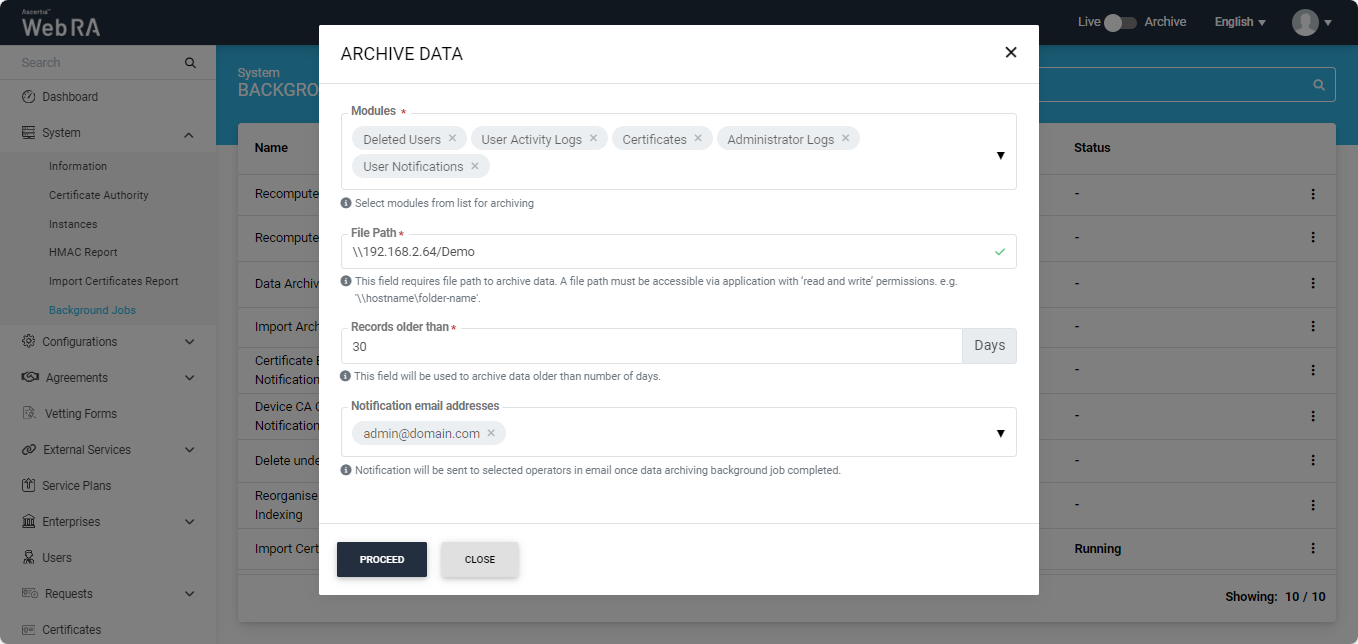
Click Proceed to run the job successfully.
This job automatically imports the archived data. Once imported, can be viewed in the Archive Mode (with the help of the archival toggle button). Click on .
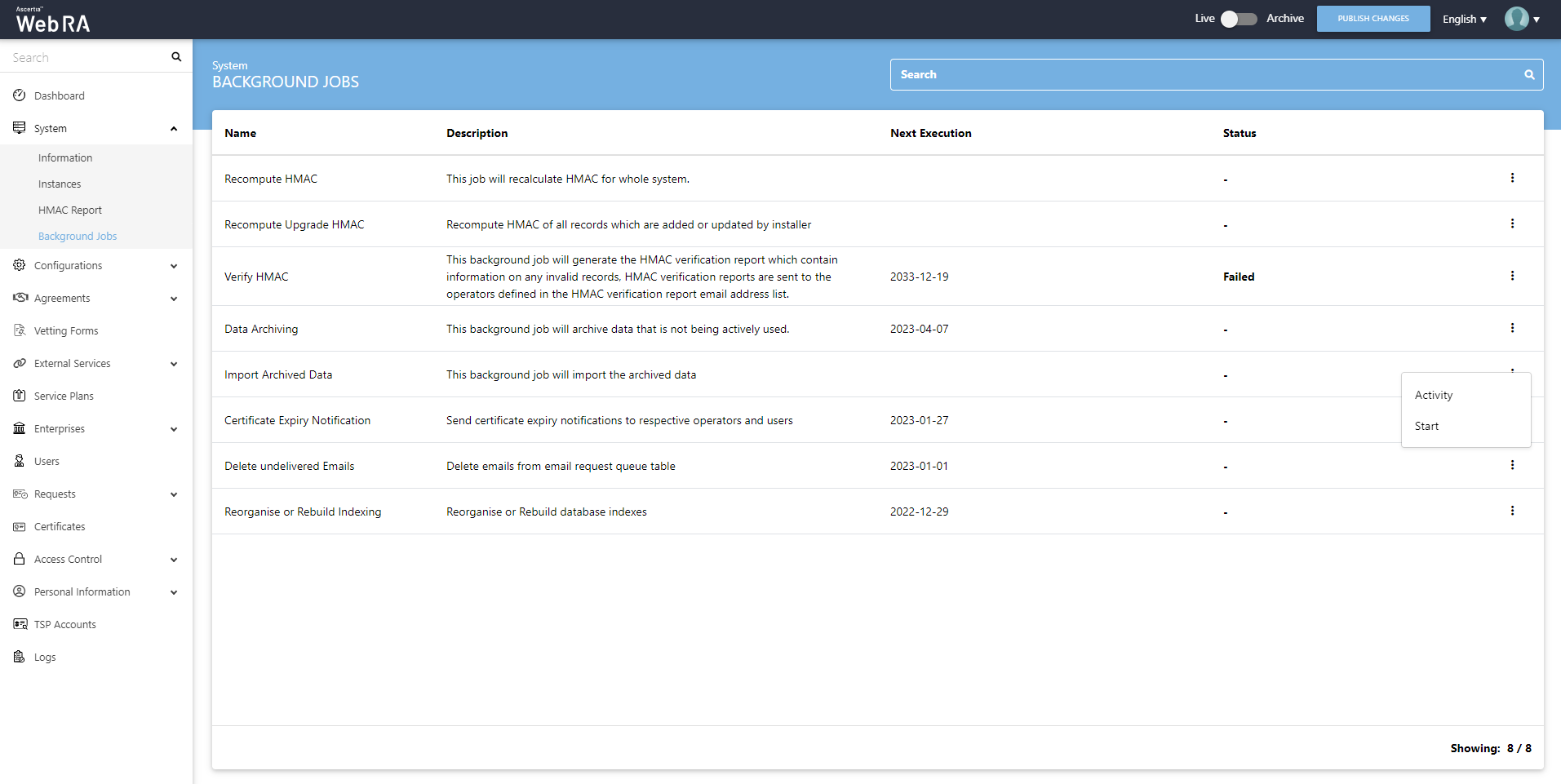
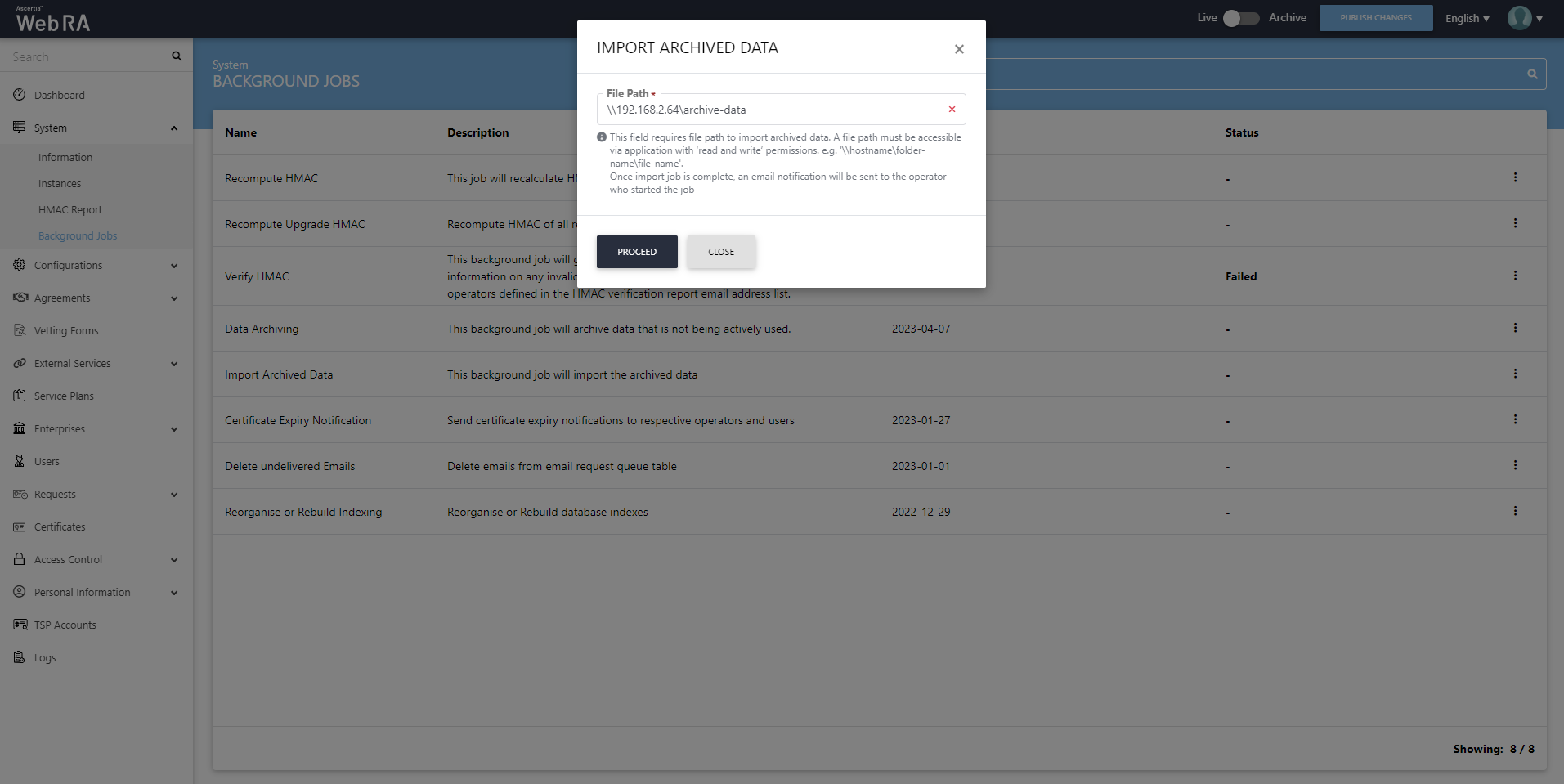
When you click the Start button, a dialog will appear requiring you to enter a valid file path. Enter your file path and click Proceed to confirm.
Certificate Expiry Notification
An administrator can configure settings to send certificate expiry notifications to respective operators and users. Click on .
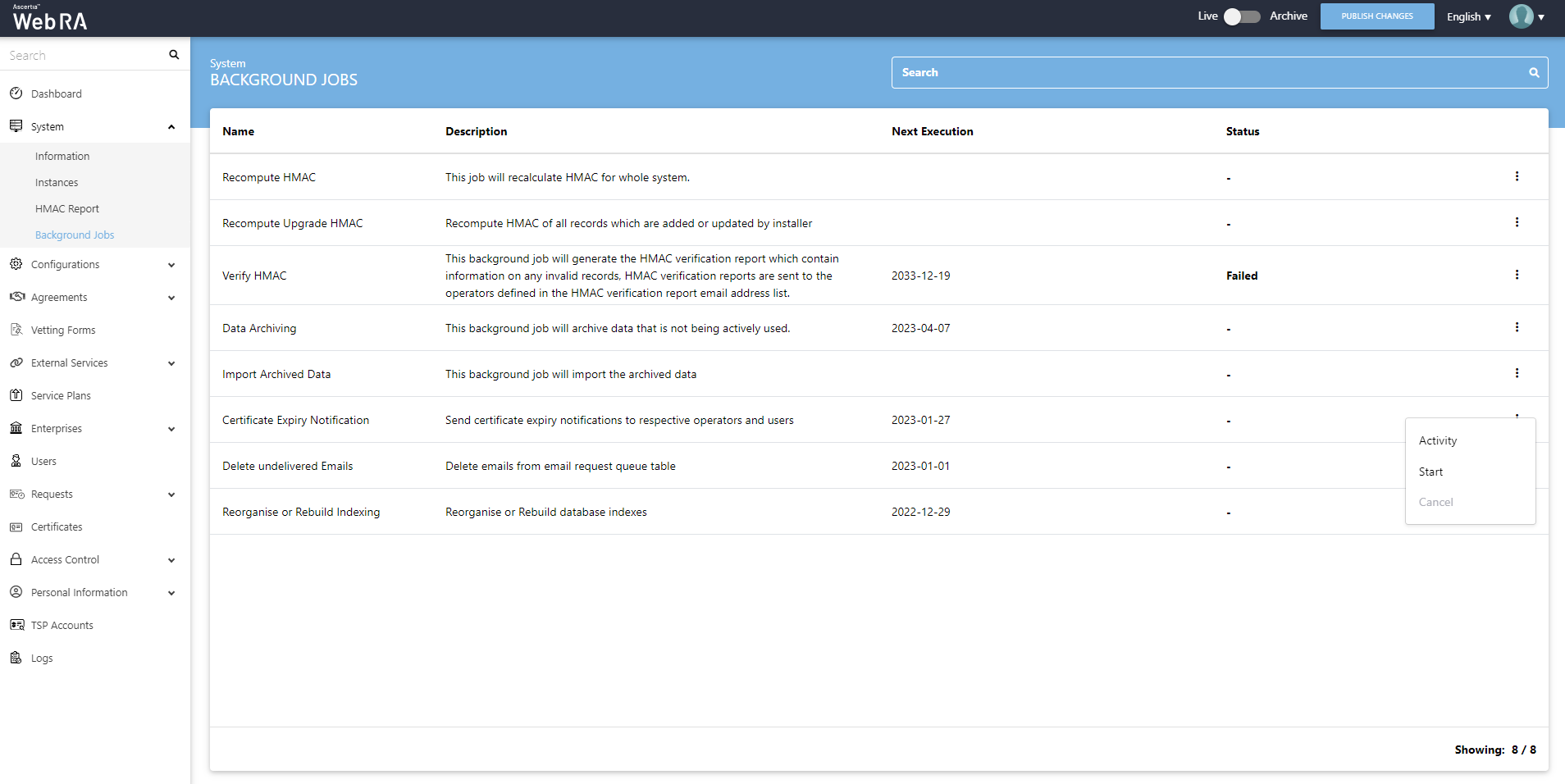
When you click the Start button, a confirmation message will appear. Click Yes.
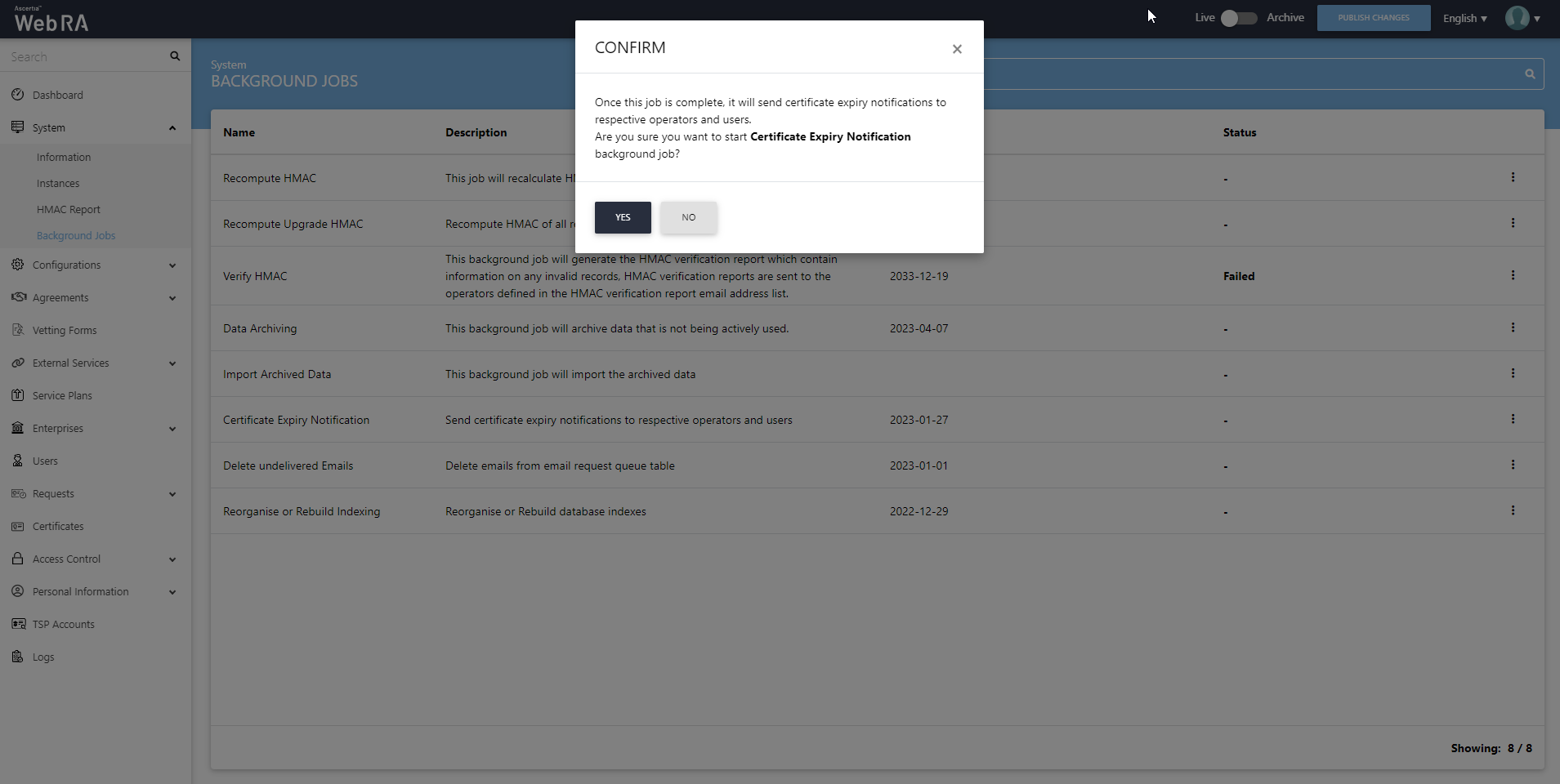
Device CA Certificate Expiry Notification
An administrator can configure settings to send enterprise Device CA certificate expiry notifications to respective operators. Click on the three-dot icon.
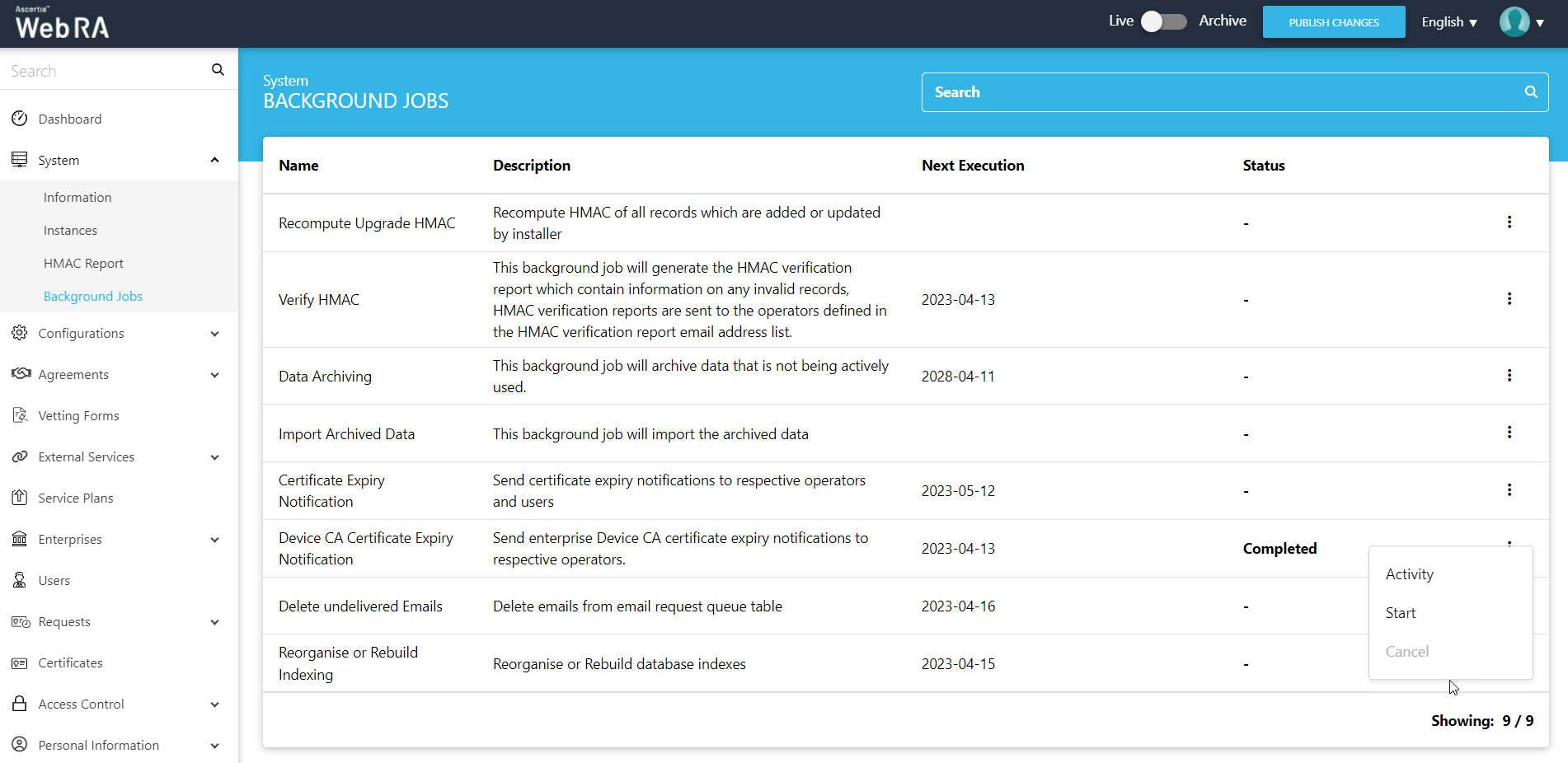
When you click the Start button, a confirmation message will appear. Click Yes.
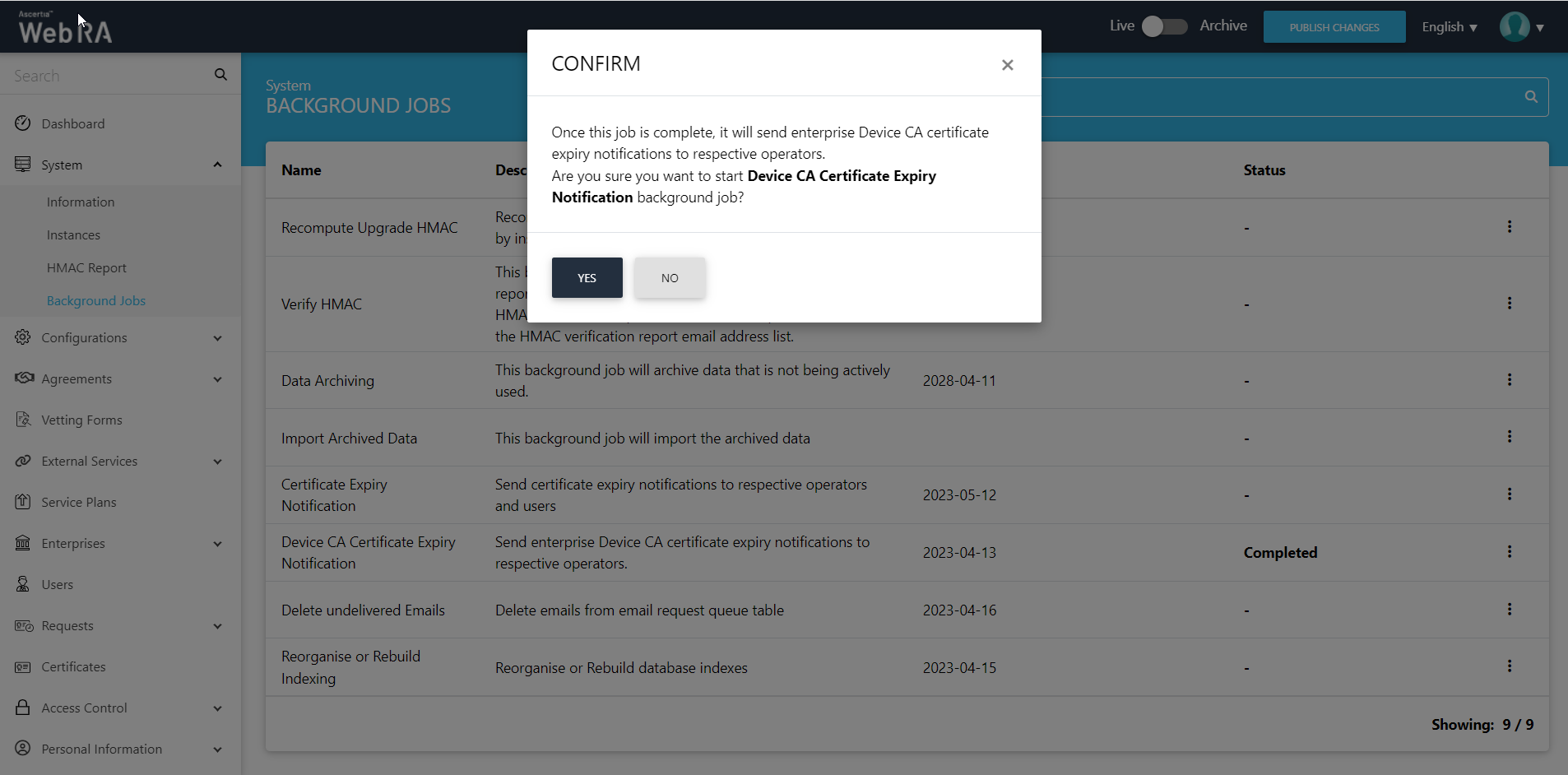
An administrator can configure settings to delete emails from email request queue table. Click on the three-dot icon.
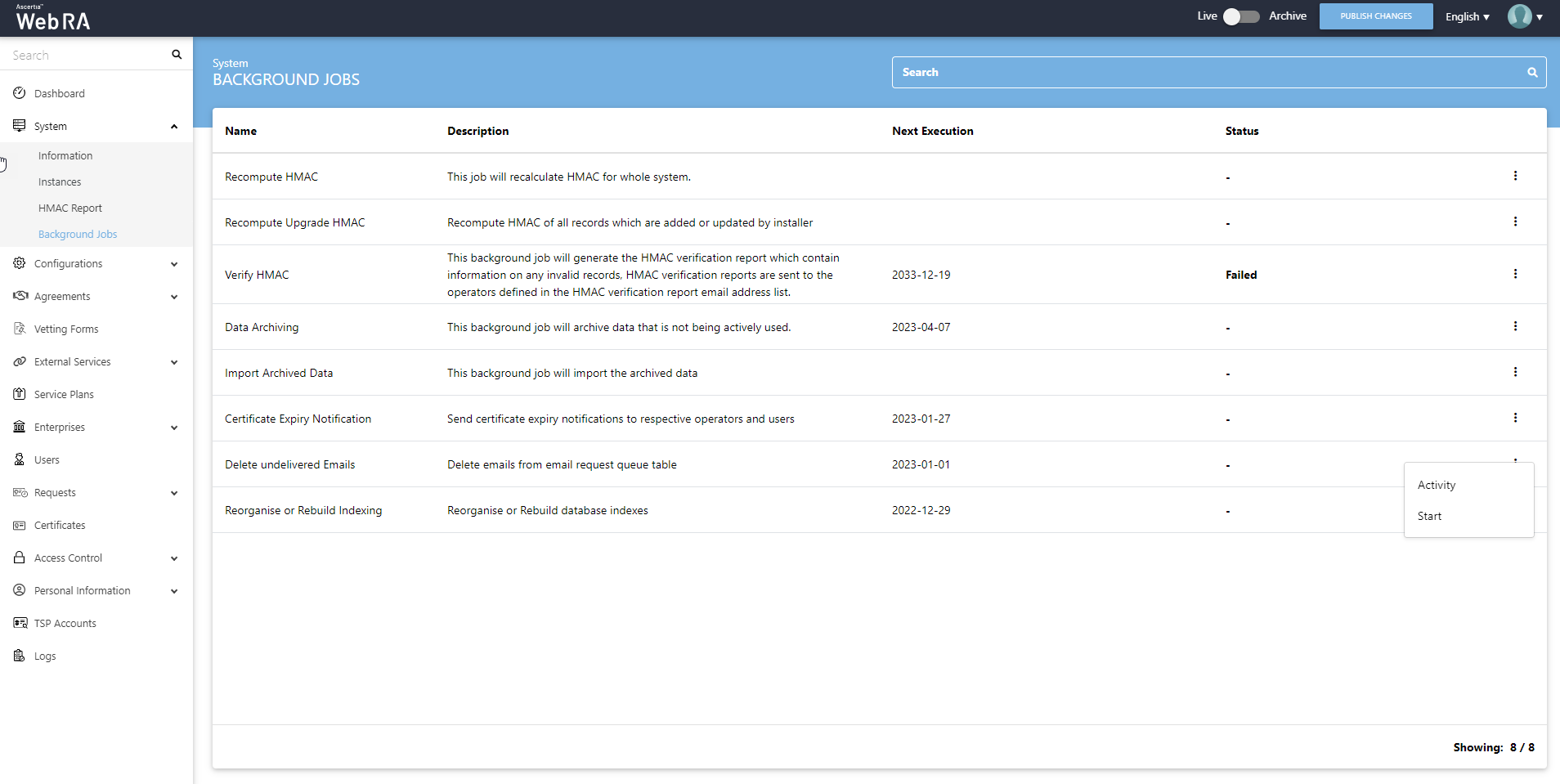
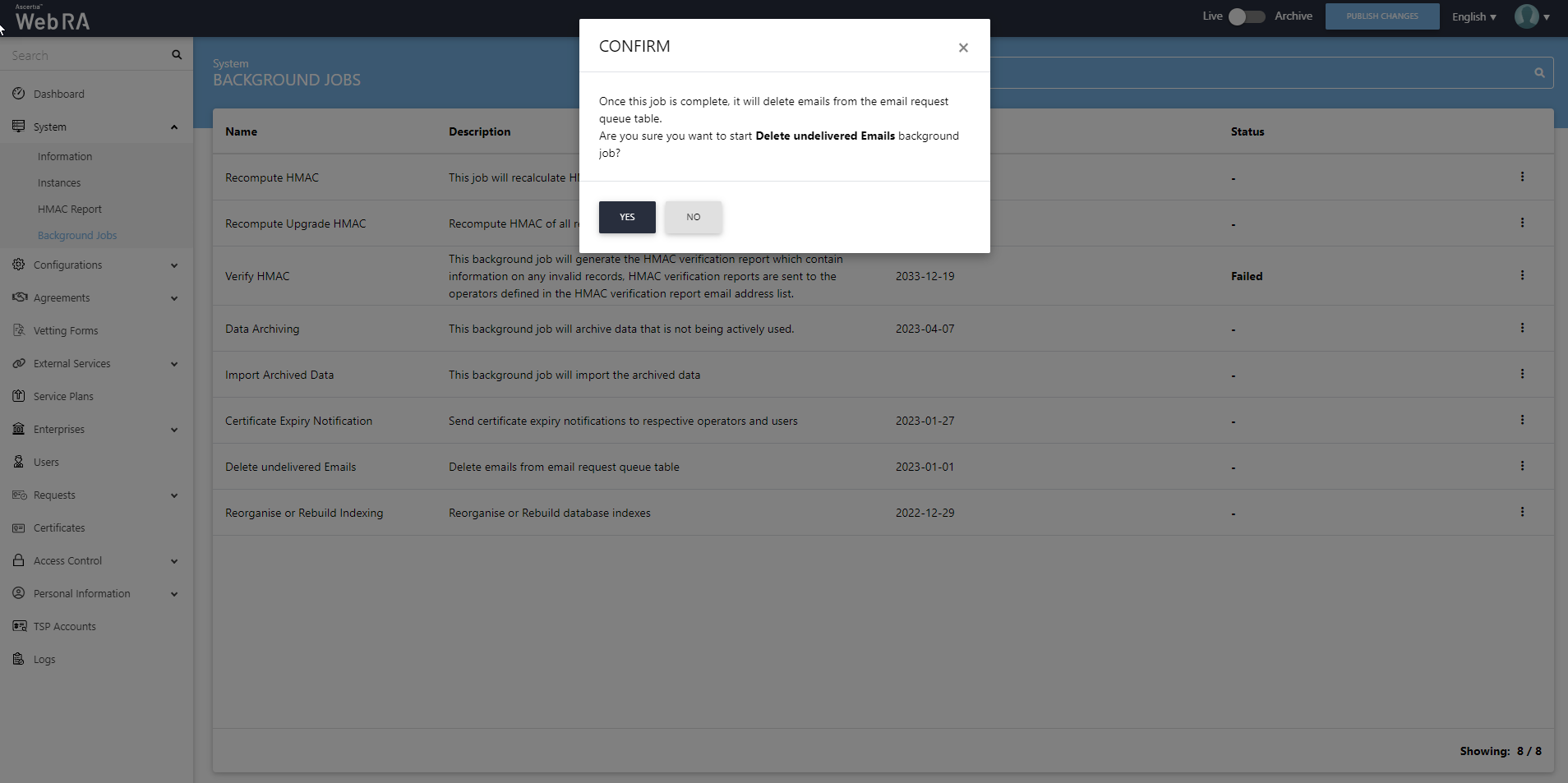
When you click the Start button, a confirmation message will appear. Click Yes.
Reorganise or Rebuild Indexing
An administrator can configure the settings to run this background job by navigating and clicking the three-dot icon against the Reorganise or Rebuild Indexing module.
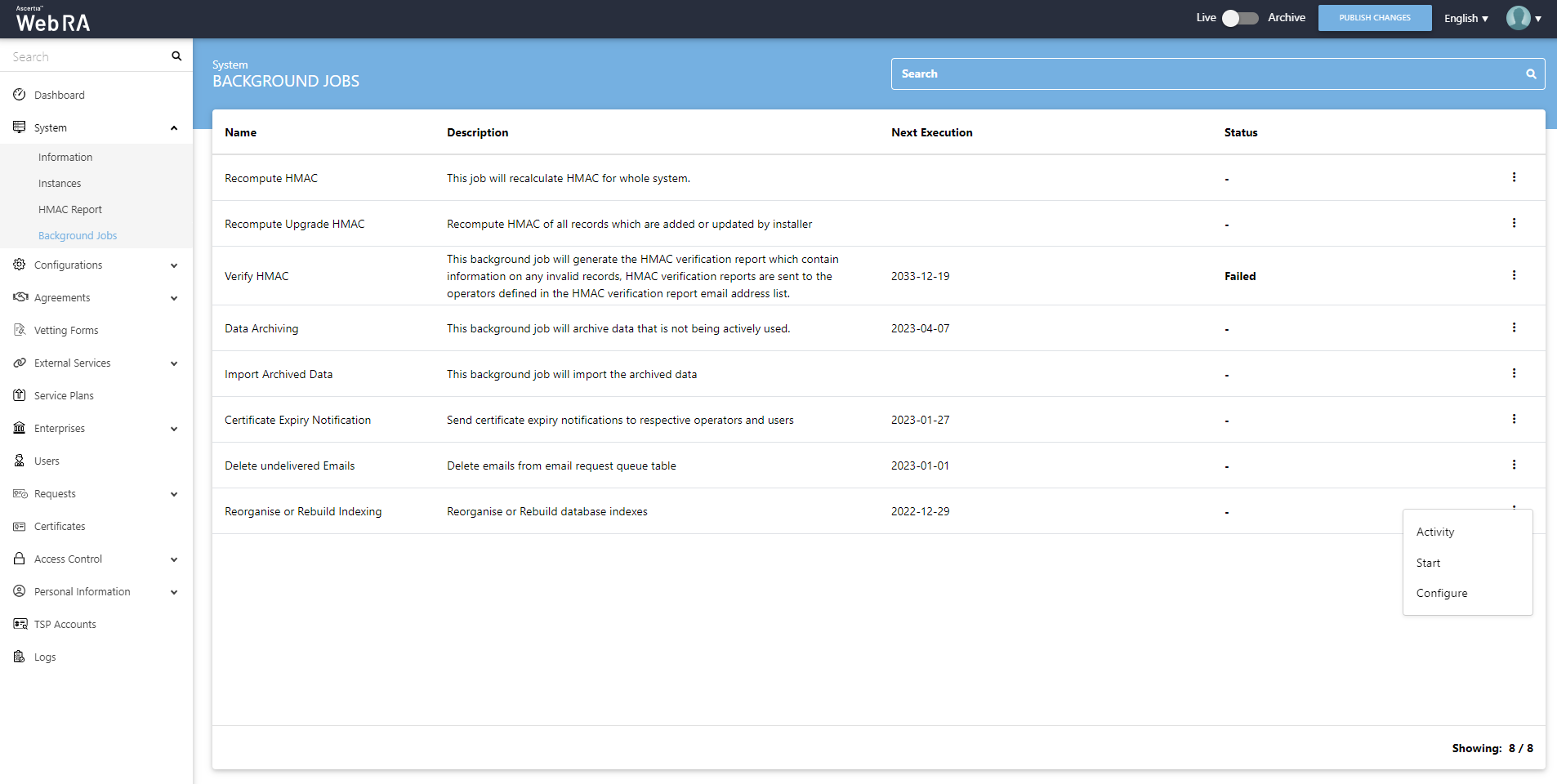
When you click the Start button, a confirmation message will appear. Click Yes.
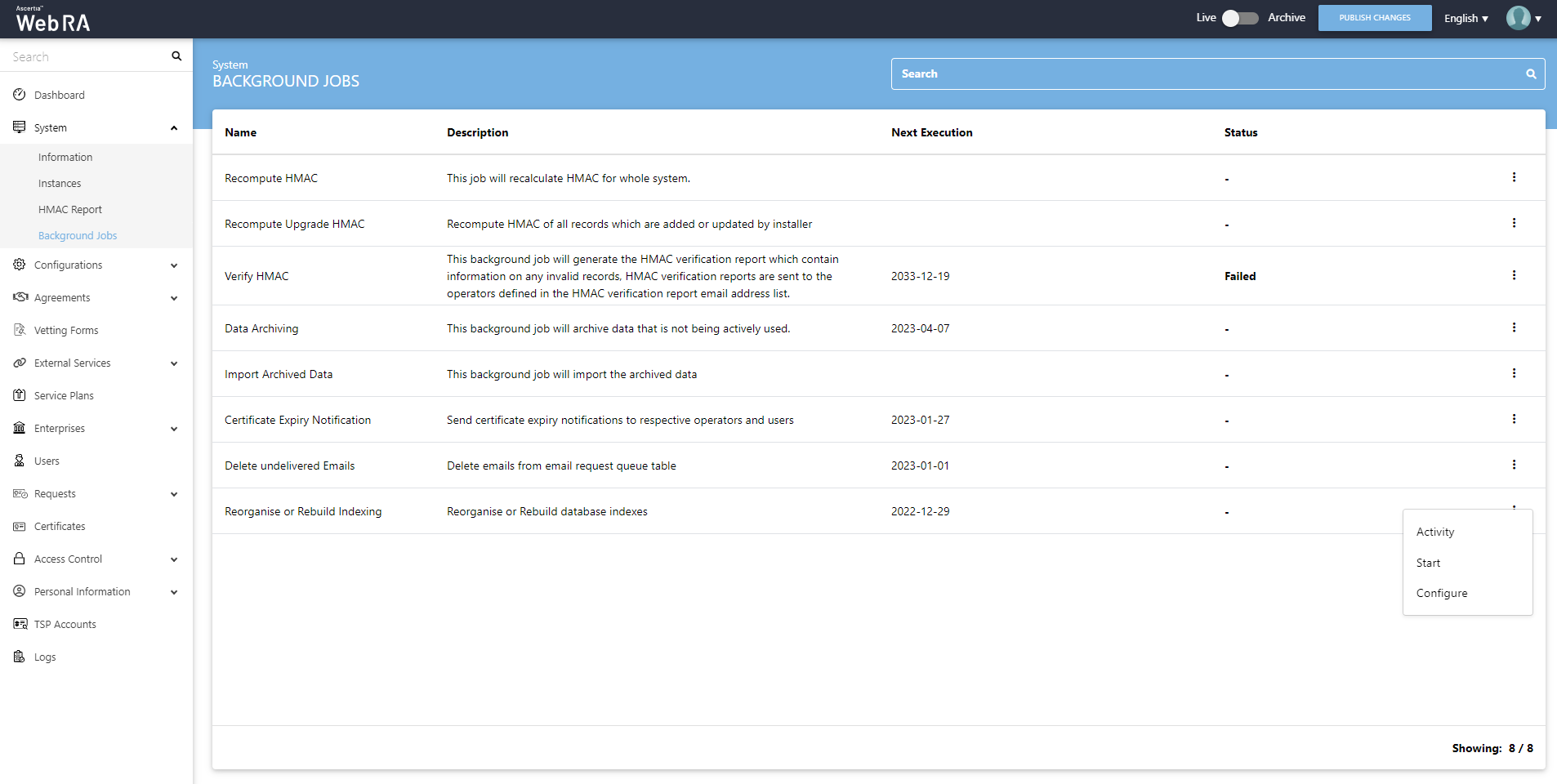
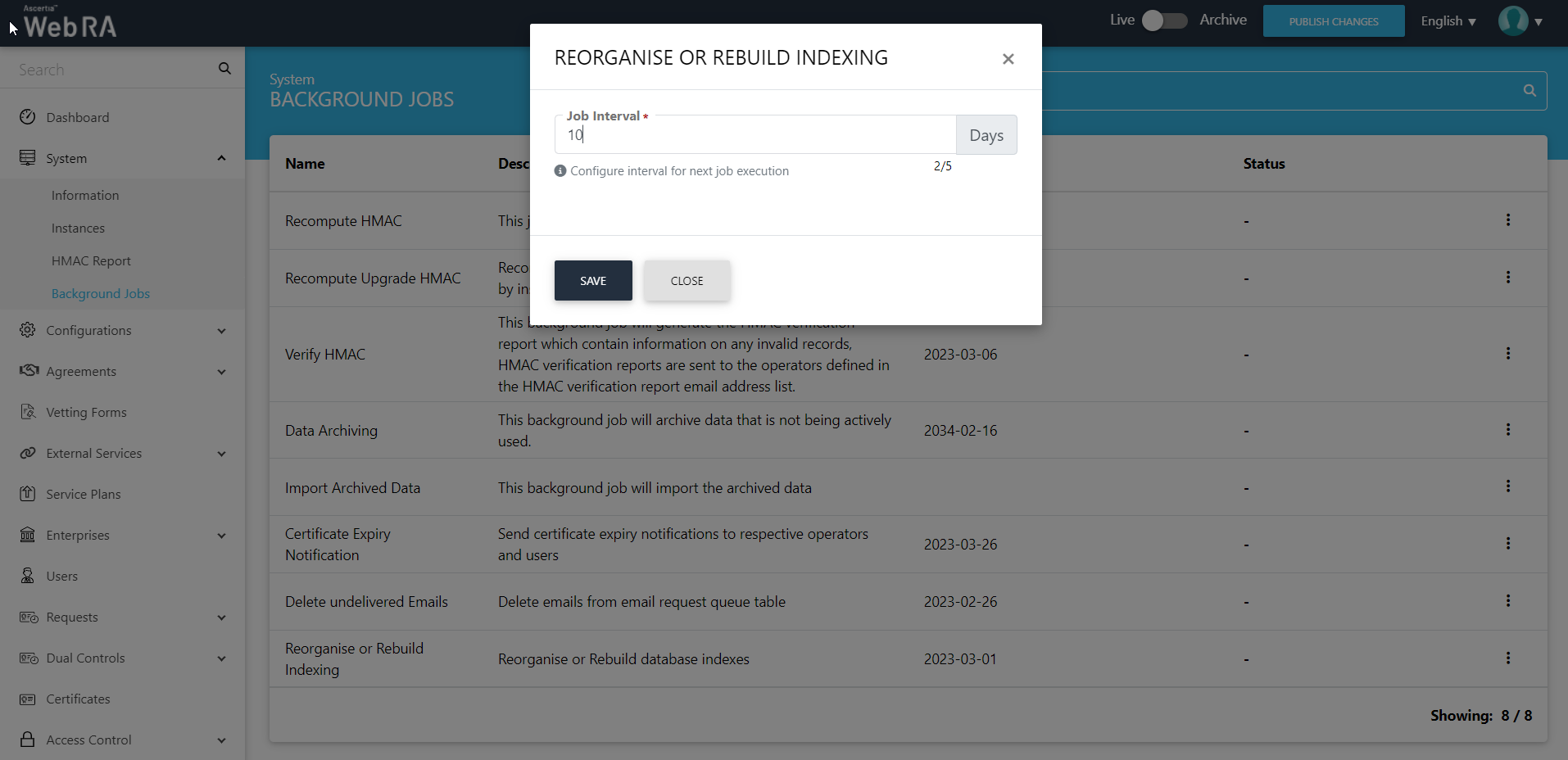
For configurations, click on Configure and then click Save.
|
Reorganise / Rebuild Indexing |
|
|
Field |
Description |
|
Job Interval |
The number of days at interval to execute the next job |
An activity will be added whenever a background job is executed. Click and then click Activity to view all activities related to the background job against each module.
This background job will import the certificates from the ADSS Server and generate an import certificates report. The report will then be shared on the email address(es) specified when scheduling the ‘Import Certificates’ background job.
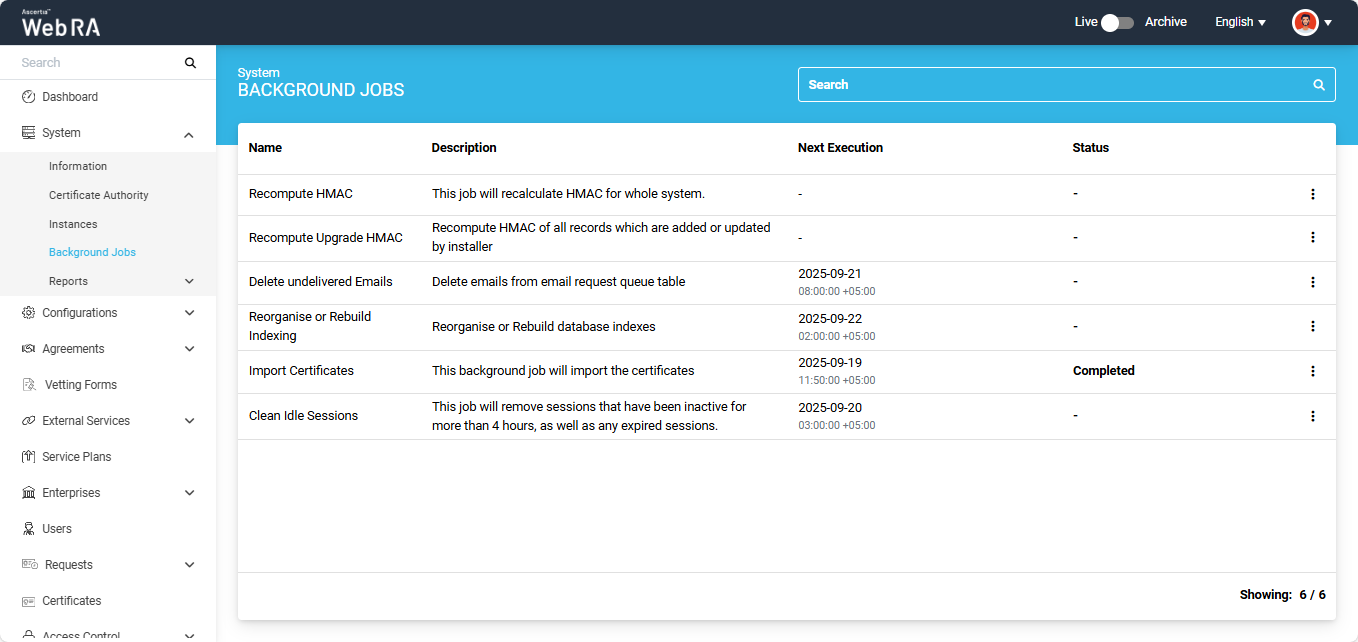
In the ‘Next Execution’ column you can view the time and date when the next scheduled background job will run.
The status column will display the status of the background job. During the time of execution, the status will change to ‘Running’. After the completion of the job the status will appear as ‘Completed.
Once the job has been successfully executed, a report will be generated and will appear in the 'Import Certificates Report' page under the 'Systems > Reports' section.
The administrator has the option to manually start the import certificates job as well.
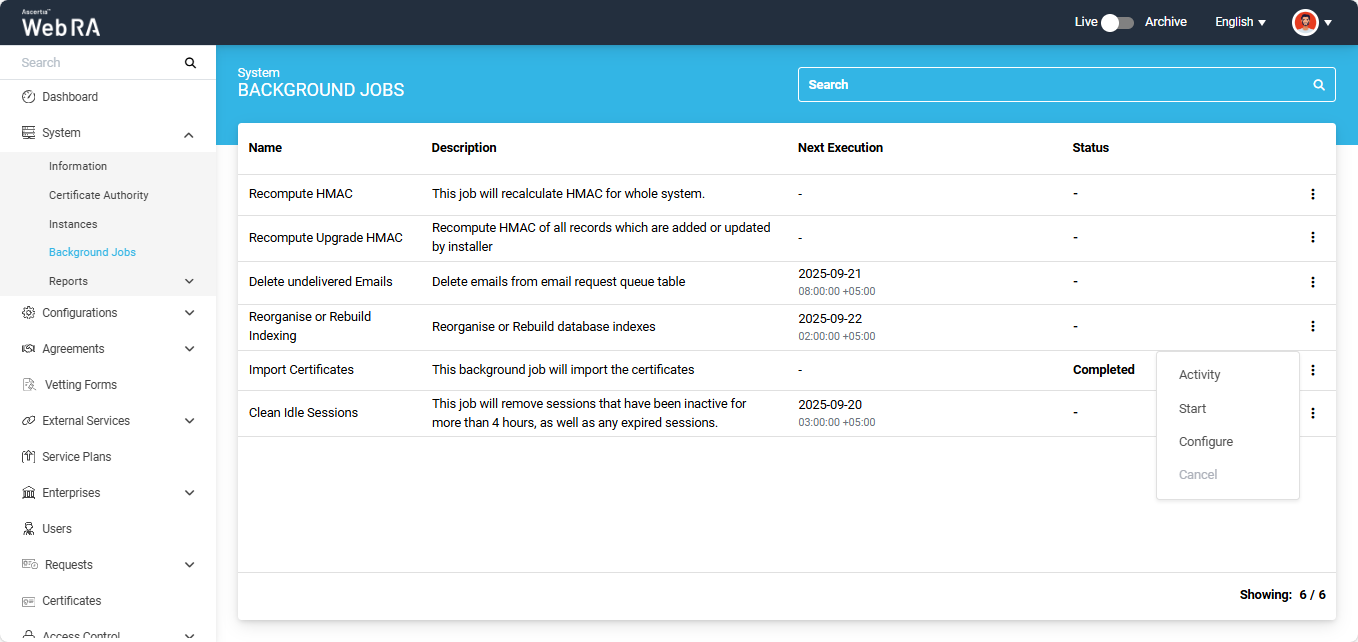
To do this, click the three-dot  icon next to the import certificates entry, and then select the 'Start' option.
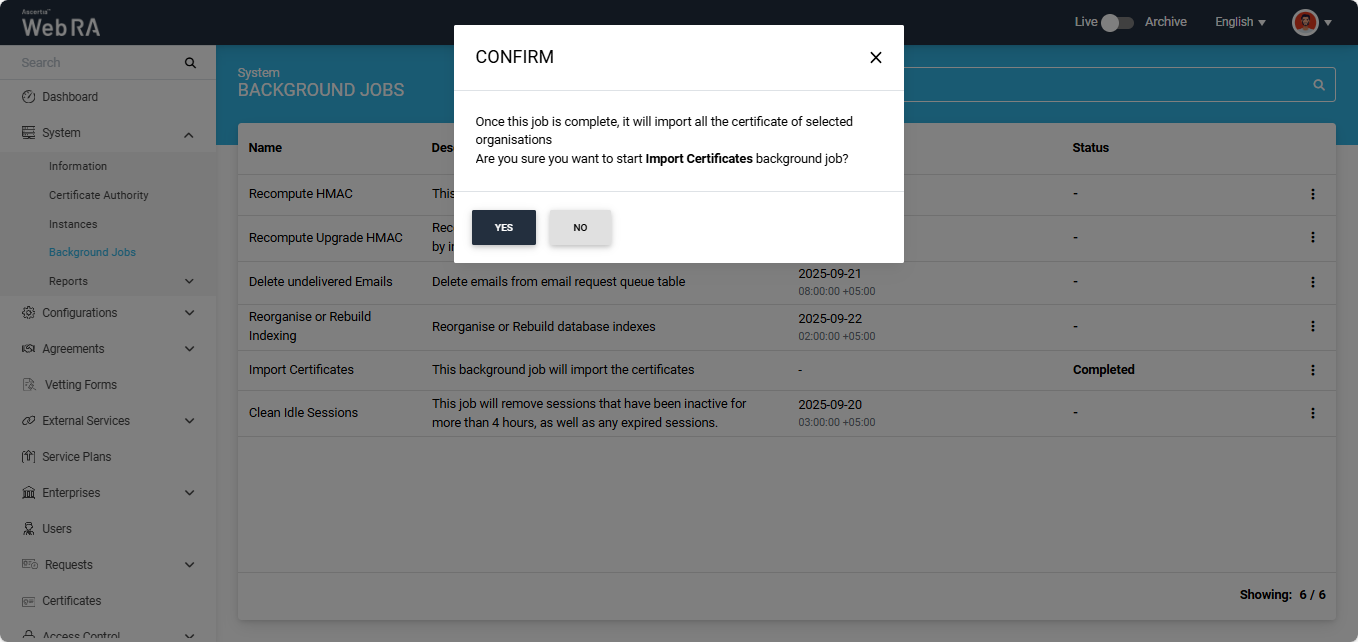
After selecting the start option, the system will display a confirmation dialog. Click ‘Yes’ to proceed.
A success notification will also appear in the bottom-right corner of the screen, stating the job has started.
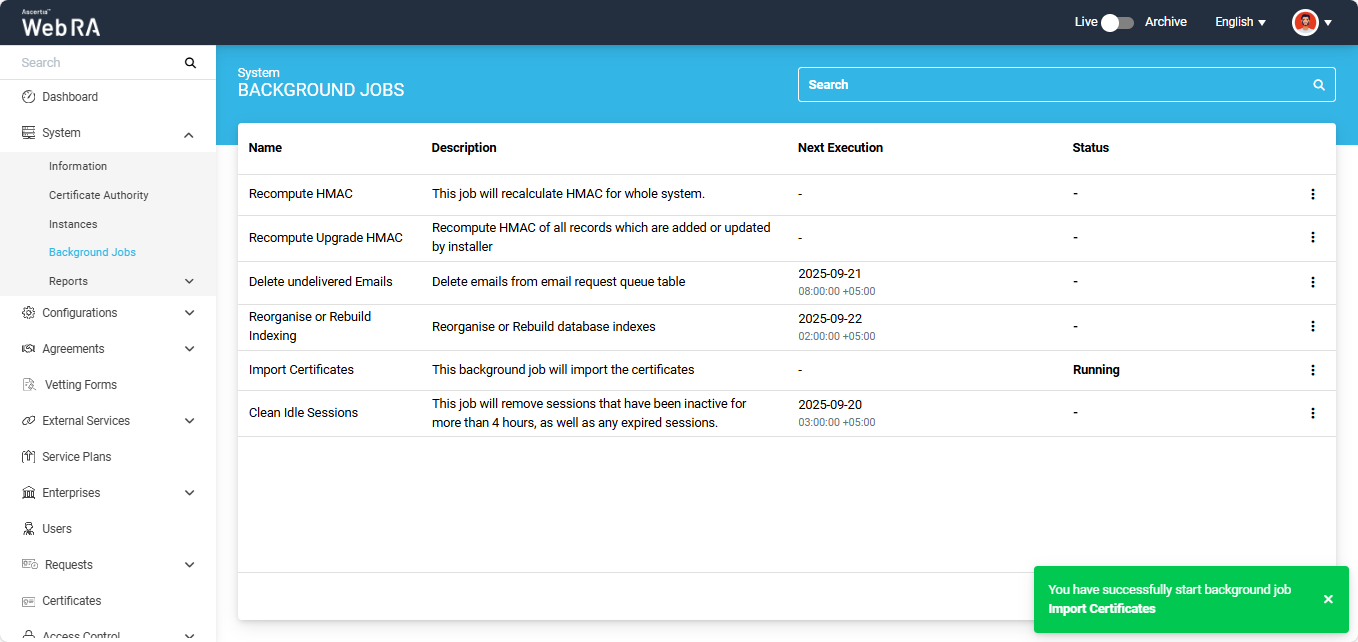
The system will create and save an activity entry whenever a background job is executed. All past activities can be seen from the ‘Activity’ dialog. To access the dialog, click the three-dot  icon and select the ‘Activity’ option.
The system will display the ‘Activity’ dialog on the screen.
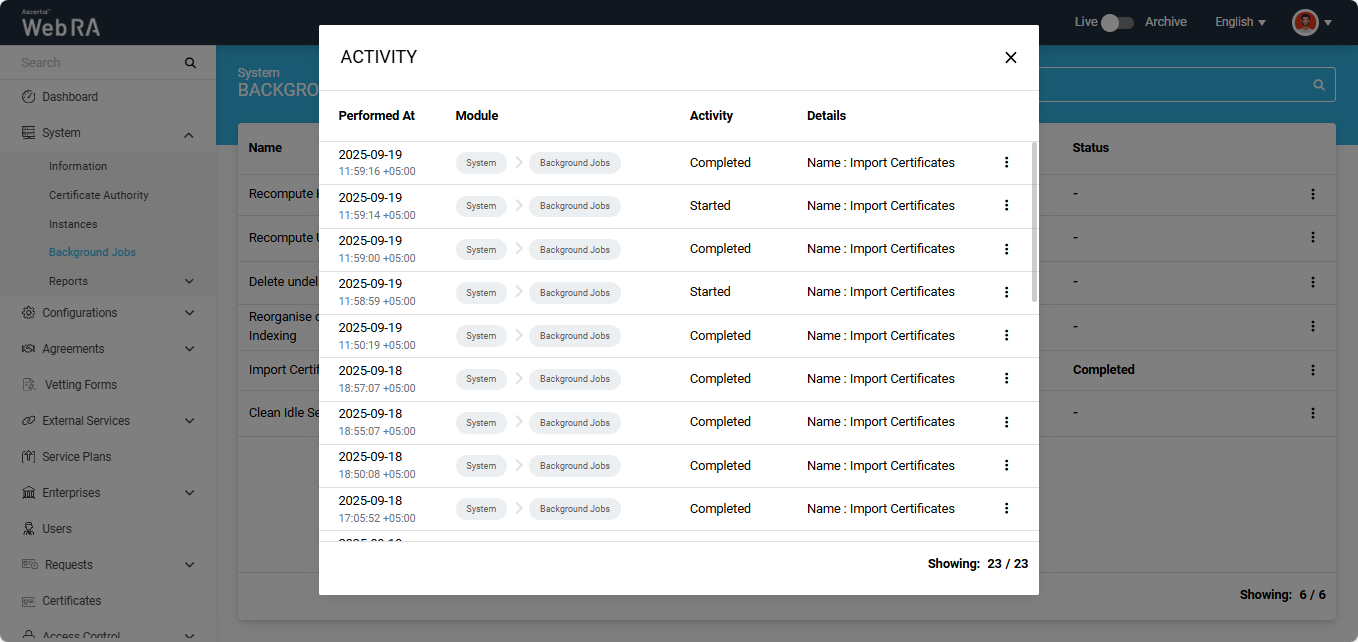
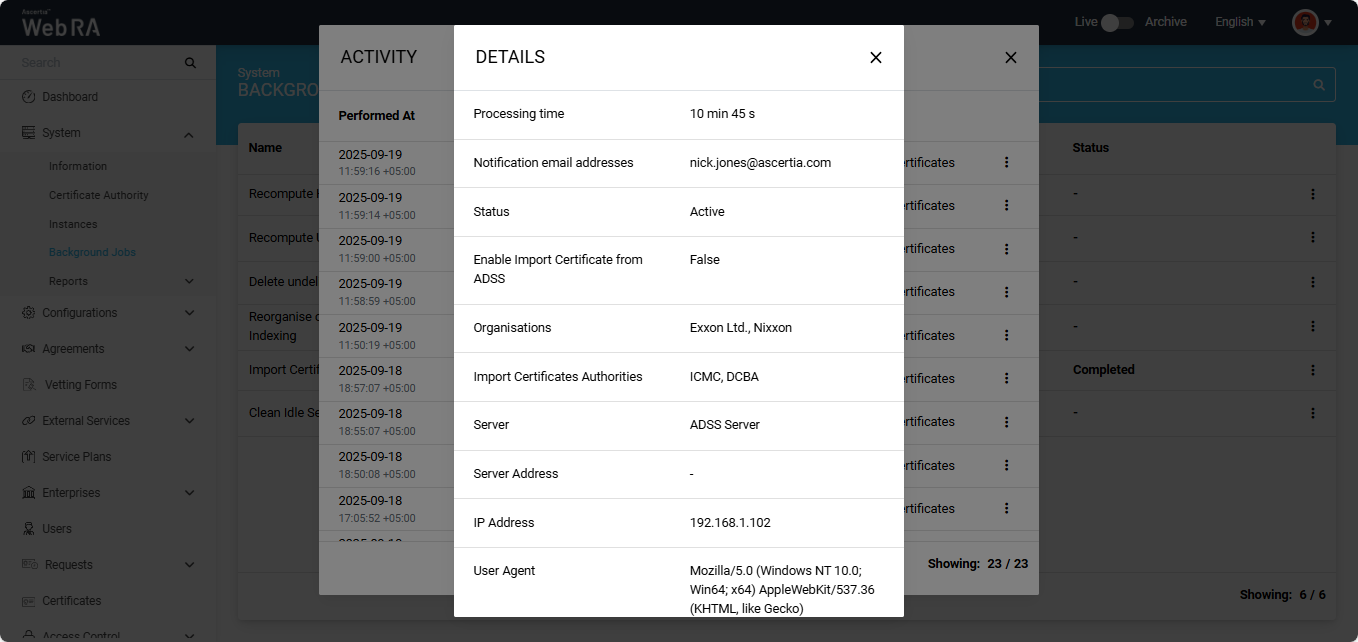
You can view complete details of the background job activity by clicking the three-dot  icon next to each entry and selecting the ‘Details’ option.
The system will display the ‘Details’ dialog containing the information about the activity.
If you want to make any change in the configurations of the background job, click the three-dot  icon and select the ‘Configure’ option.
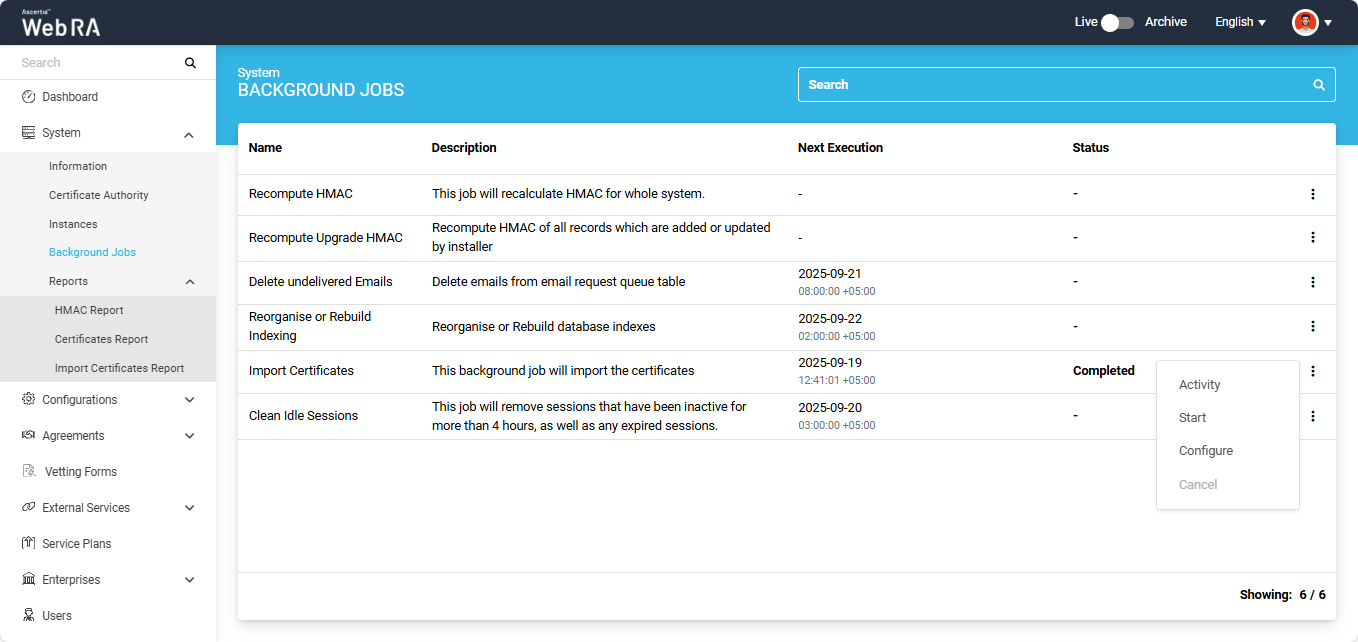
The system will open the import certificates configuration page. Here, you can make the required changes in the configurations and implement them by clicking ‘Save’.
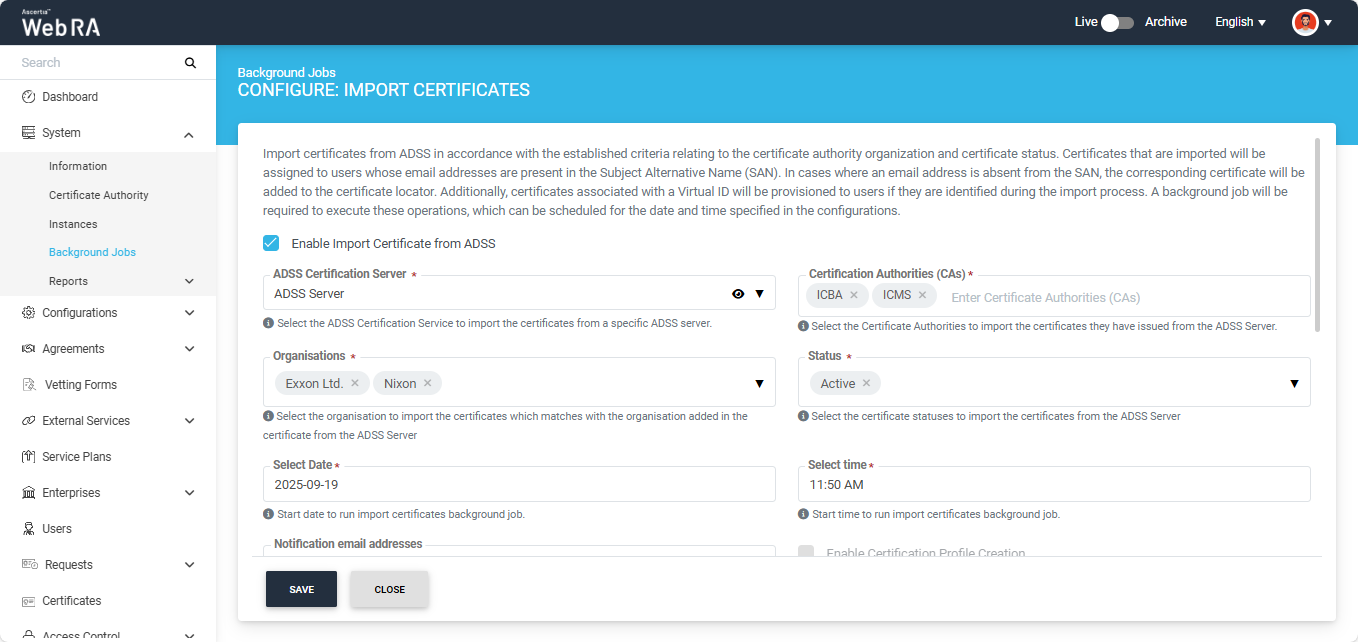
Once the job is successfully executed, a report will be generated and will appear in the 'Import Certificates Report' page under the 'Systems' module.
This job runs automatically at the time configured in the implementation. The ‘Next Execution’ tab in the listing table displays the date and time when the next clean idle job will execute.
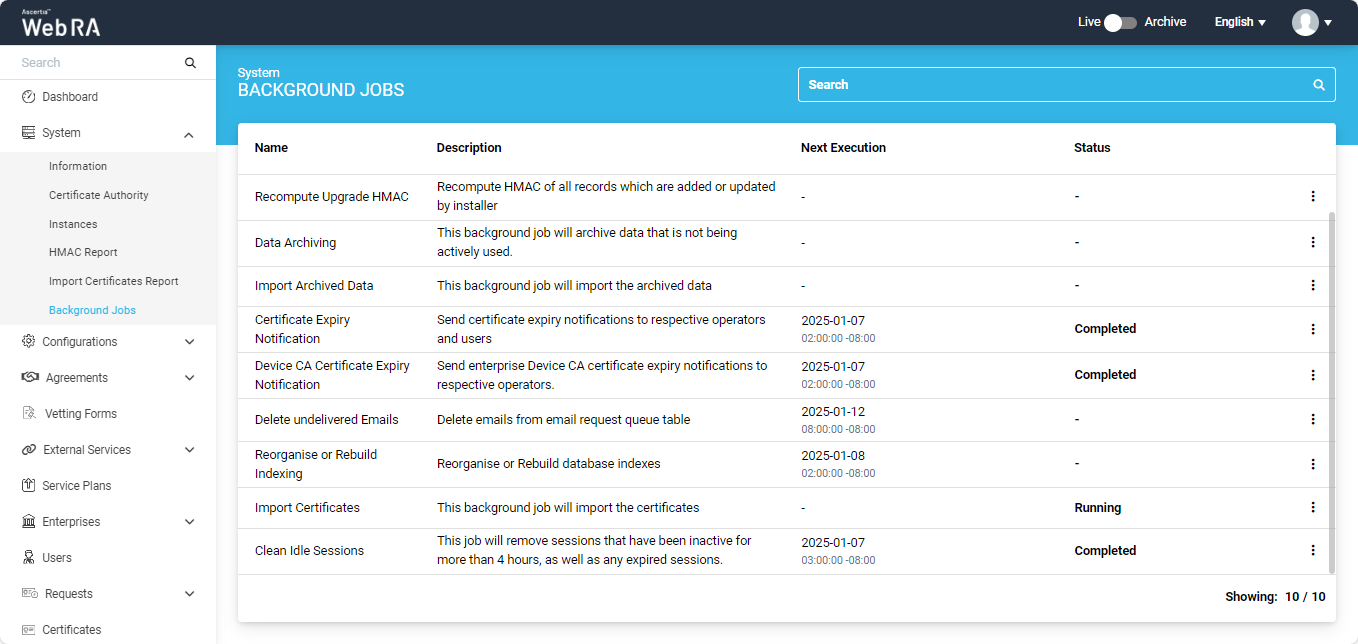
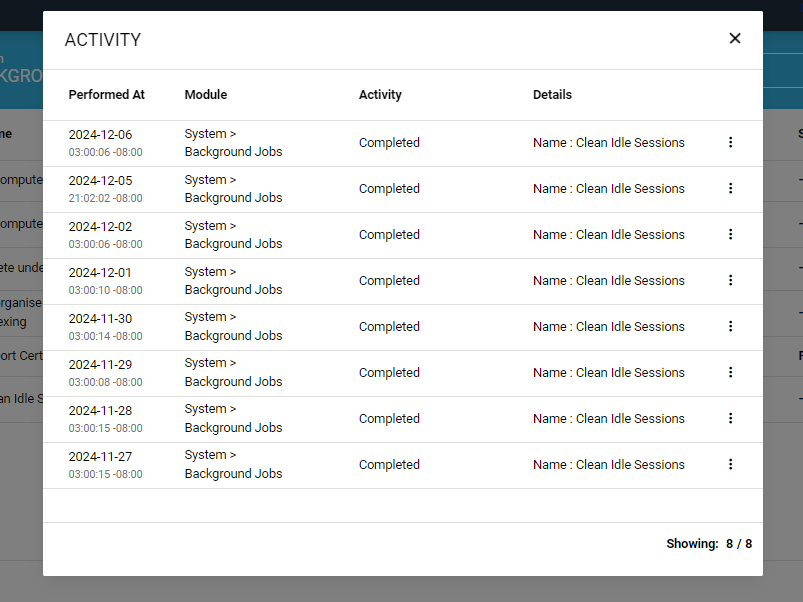
The administrator can also view the details of all previously performed clean idle session jobs.
To do so, click the three-dot icon next to the job listing, and then click the ‘Activity’ tab.
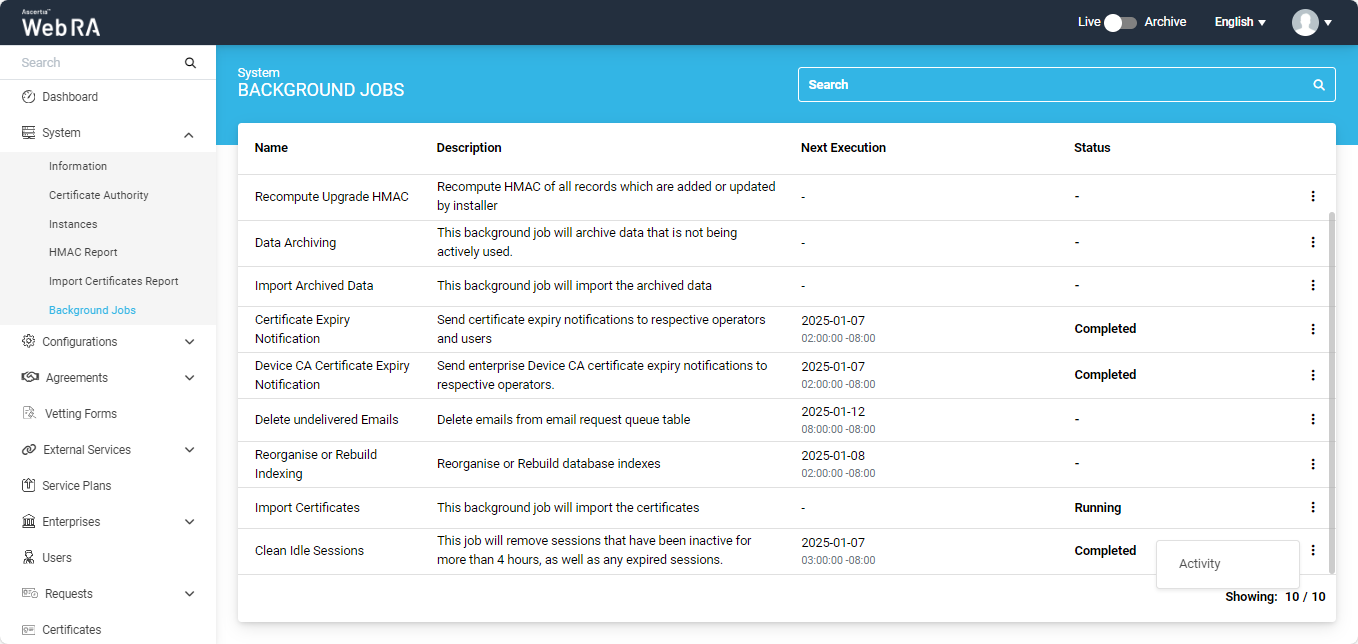
Clicking on the ‘Activity’ tab will display a dialog with details about the previously performed jobs.