Digital Onboarding Requests
Digital Onboarding Requests
- Expand "Enterprises" from the left menu in the Admin portal, and click "Registered" from the dropdown.
- Click the
 icon adjacent to your enterprise entry, and select 'Manage' to navigate to the Enterprise dashboard.
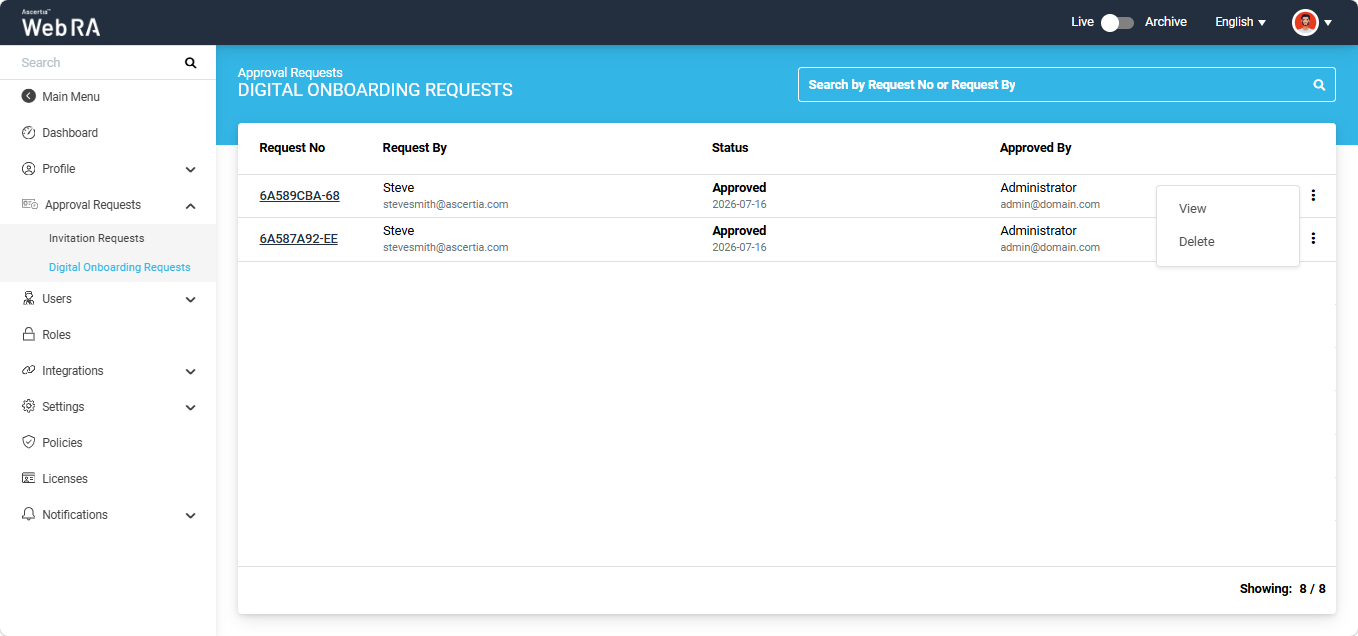
 - From the Enterprise dashboard, expand Approval Requests > Digital Onboarding Requests to view the listing.
The Digital Onboarding Requests section lists all user registration requests submitted through the digital onboarding process. The listing screen displays requests that are currently Pending or have been Approved.
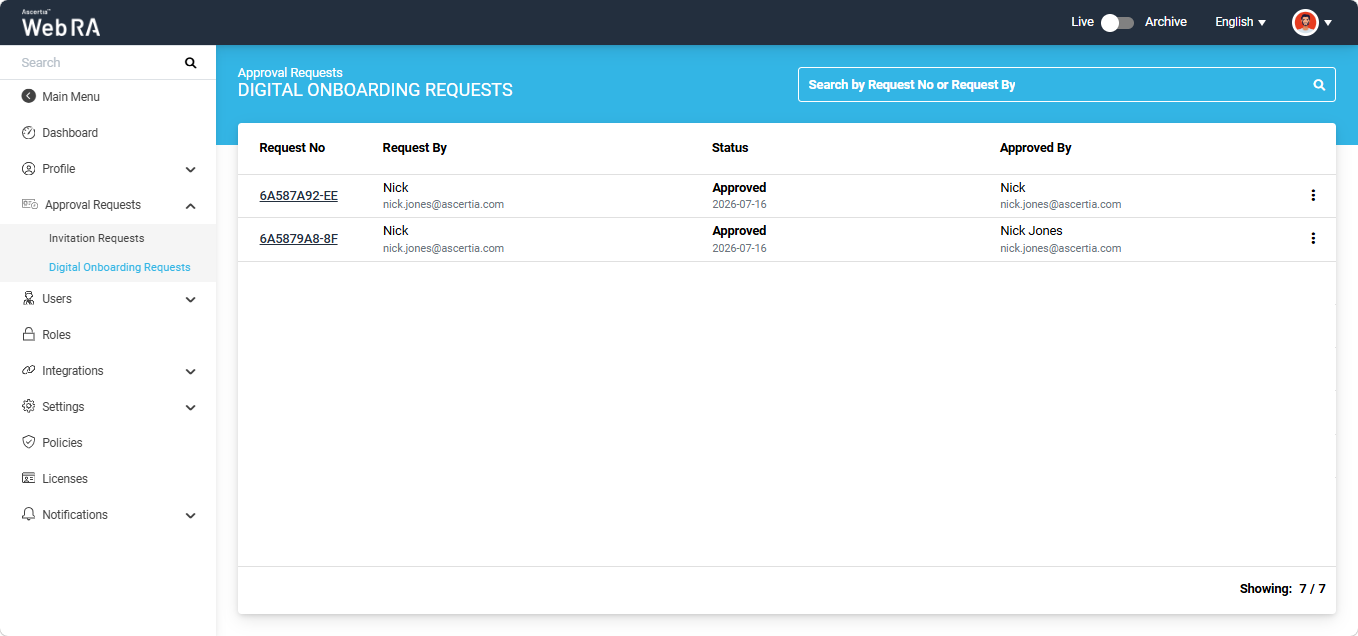
The operator can review the information submitted during the digital onboarding process and approve or reject the registration request accordingly.
The following operations are available for each request on this screen:
- Expand "Enterprises" from the left menu in the Admin portal, and click "Registered" from the dropdown.
- Click the icon adjacent to your enterprise entry, and select 'Manage' to navigate to the Enterprise dashboard.
- From the Enterprise dashboard, expand Approval Requests > Digital Onboarding Requests to view the listing.
To approve a pending request, click the Request No of the required request.
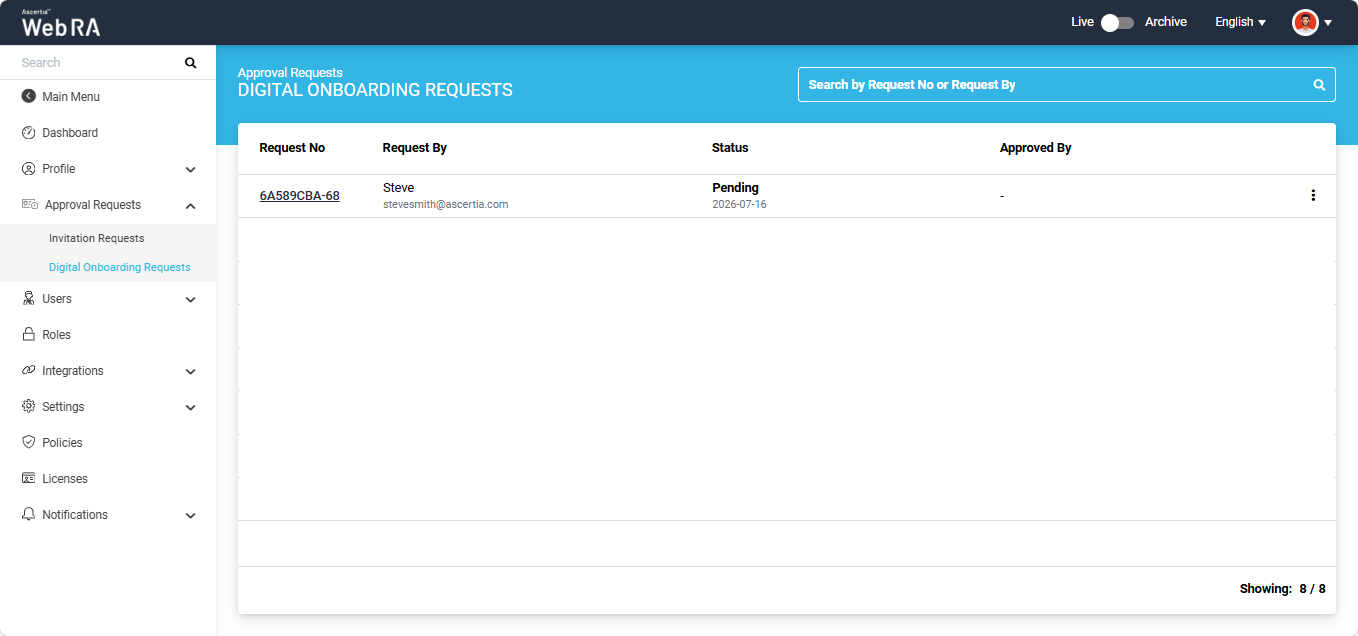
The system displays the user registration request in view mode. Review the information and click the ‘Approve’ button.
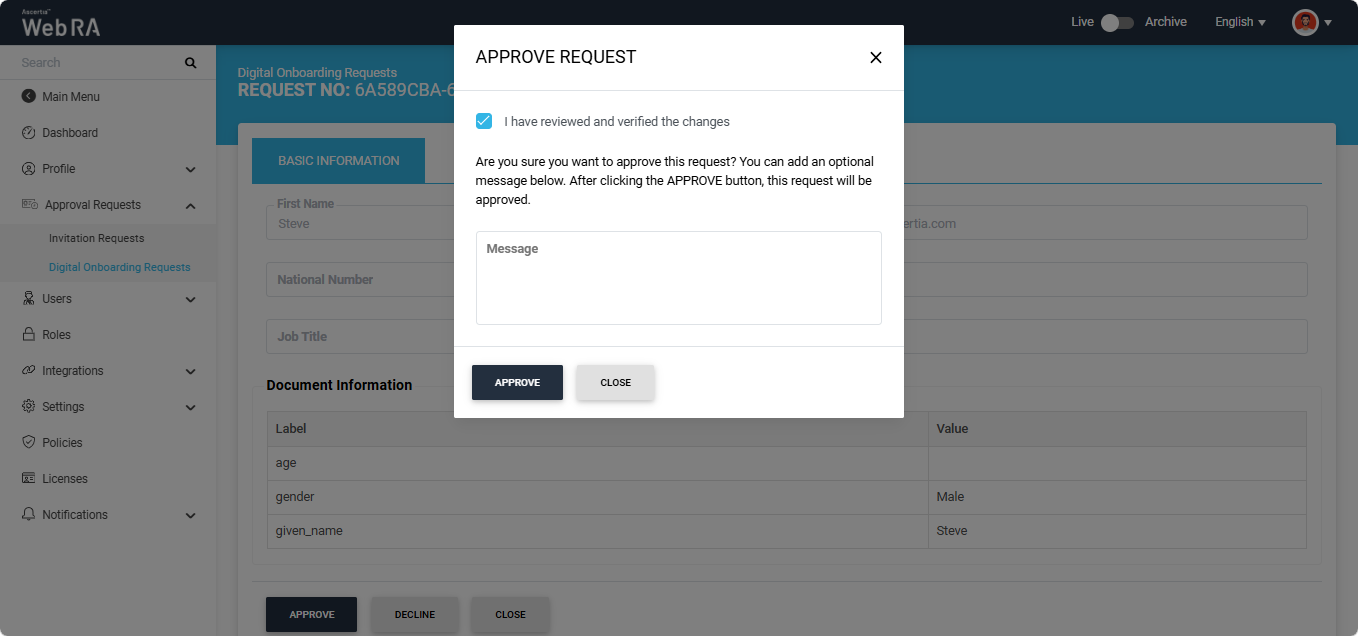
The 'Approve Request' dialog appears. Select the 'I have reviewed and verified the changes' checkbox and click 'Approve'. You can also enter additional information in the Message (Optional) field, if required.
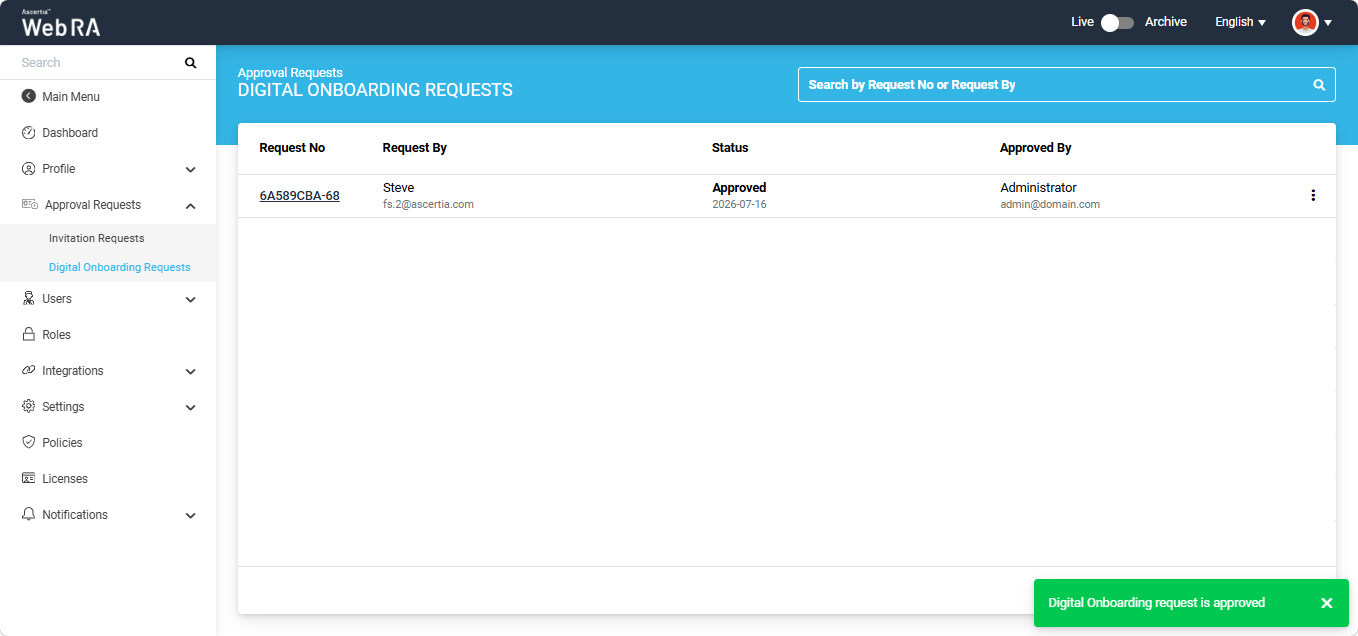
After the request is approved, the system displays a success message, and the request status changes from Pending to Approved.
- Expand "Enterprises" from the left menu in the Admin portal, and click "Registered" from the dropdown.
- Click the icon adjacent to your enterprise entry, and select 'Manage' to navigate to the Enterprise dashboard.
- From the Enterprise dashboard, expand Approval Requests > Digital Onboarding Requests to view the listing.
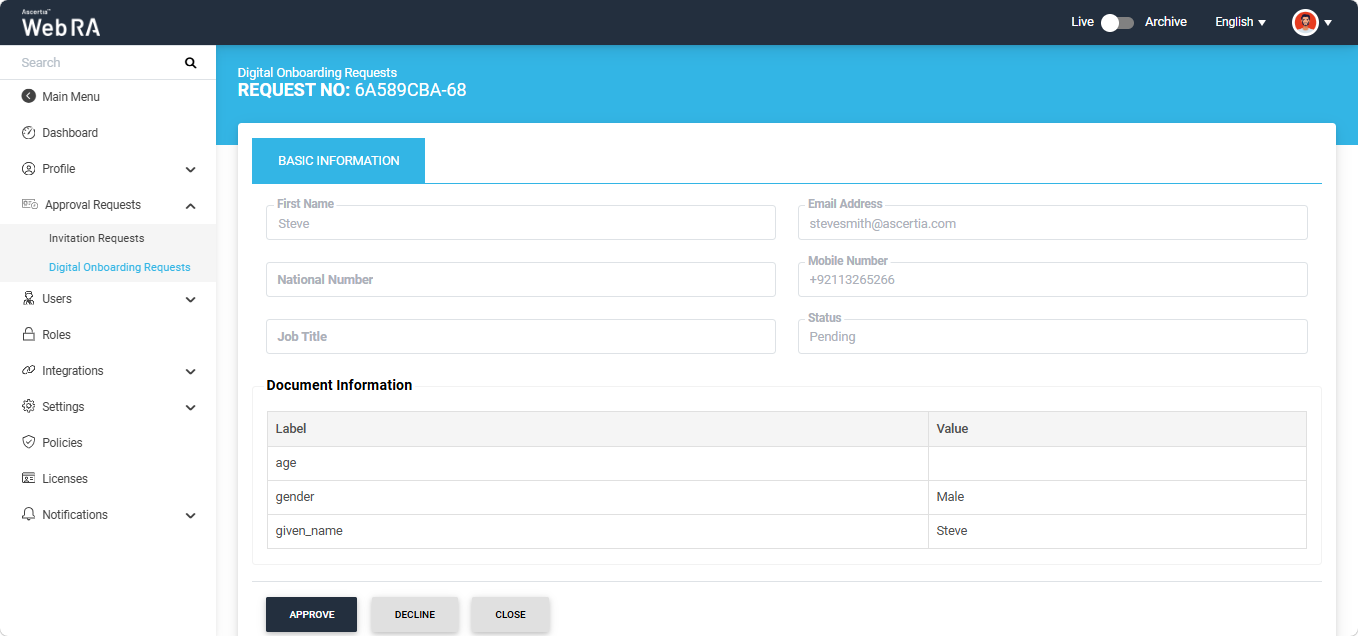
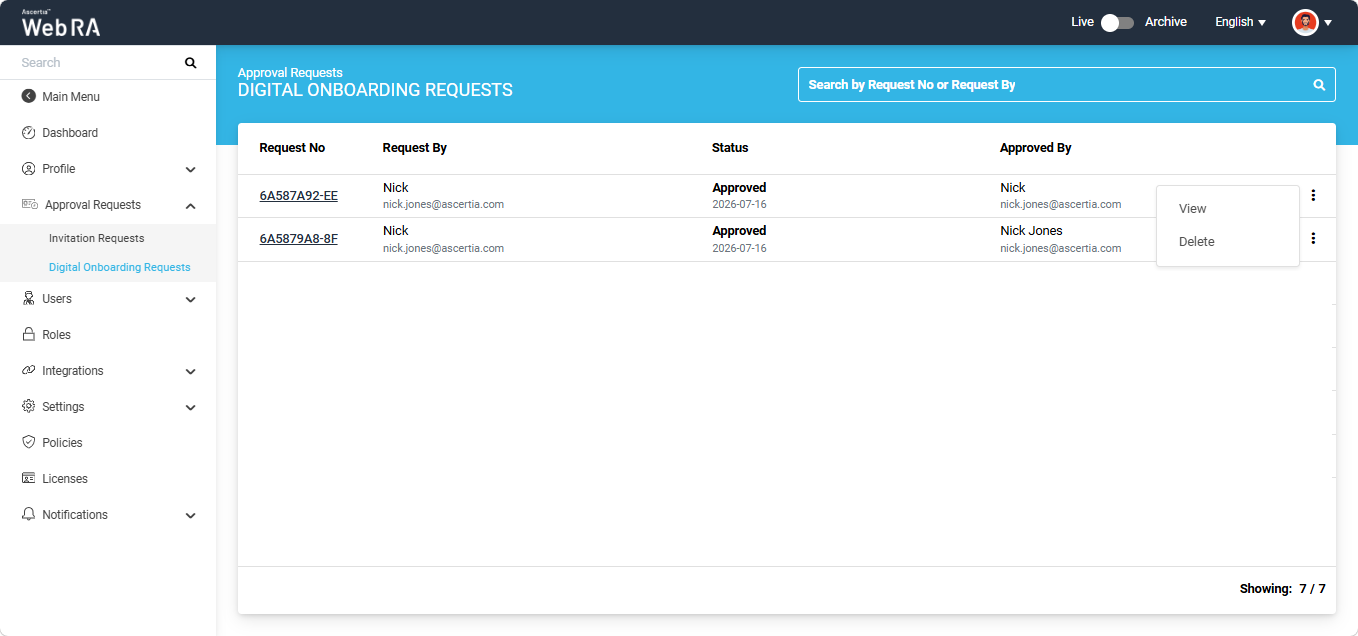
To view the details of a user registration request, either click the Request No of the required request or click the three-dot menu corresponding to the request and select 'View'.
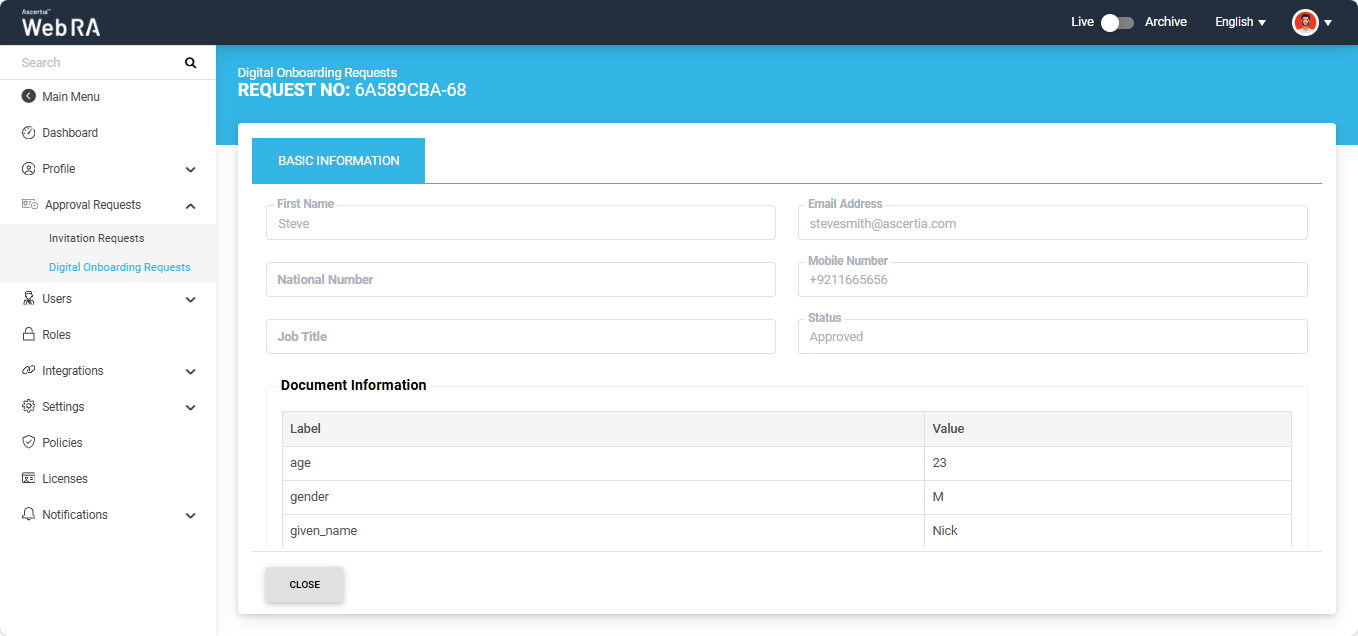
The system displays the request in View mode.
- Expand "Enterprises" from the left menu in the Admin portal, and click "Registered" from the dropdown.
- Click the icon adjacent to your enterprise entry, and select 'Manage' to navigate to the Enterprise dashboard.
- From the Enterprise dashboard, expand Approval Requests > Digital Onboarding Requests to view the listing.
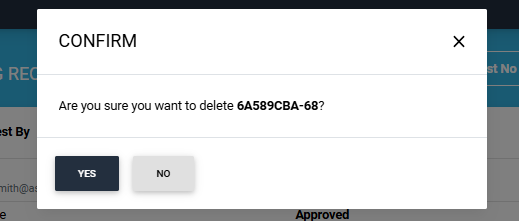
To delete a user registration request, click the three-dot button next to that request and select the ‘Delete’ option.
The system will display a confirmation dialog on the screen. Click ‘Yes’ to confirm the deletion.