
Digital Onboarding
Web RA has been enhanced to support a policy-driven remote ID verification and digital onboarding framework, enabling secure user registration for digital certificate issuance through the Ascertia Mobile Onboarding Application.
Digital Onboarding Policy
A Digital Onboarding policy defines the settings used to onboard users for digital certificate issuance through a mobile application. The mobile application collects the required user information and performs identity verification, while the policy specifies the onboarding process and the configuration applied during the verification and certificate issuance workflow.
To add a Digital Onboarding policy, expand Configurations > Policies > Digital Onboarding from the left-tree menu in the Admin portal. The system displays the listing screen, where all the Digital Onboarding policies configured in the Web RA system are listed.
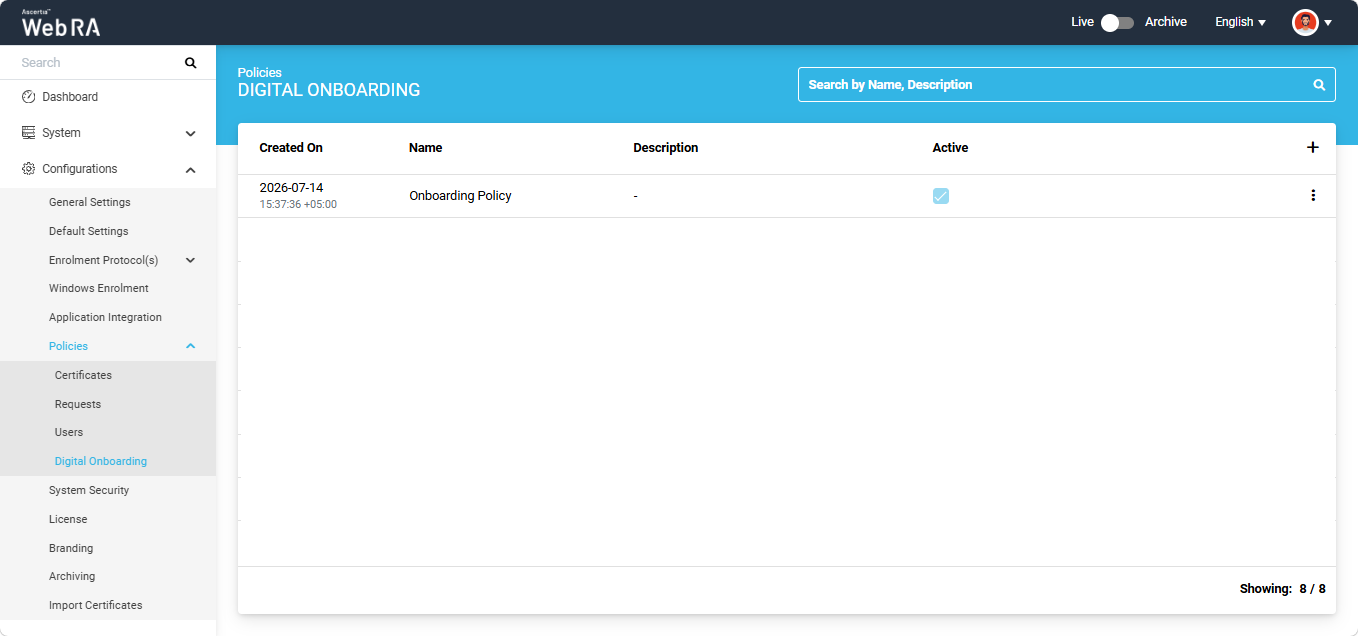
To add a new policy, click the '+' button located at the extreme right of the table header. The 'Add Digital Onboarding' dialog appears on the screen.
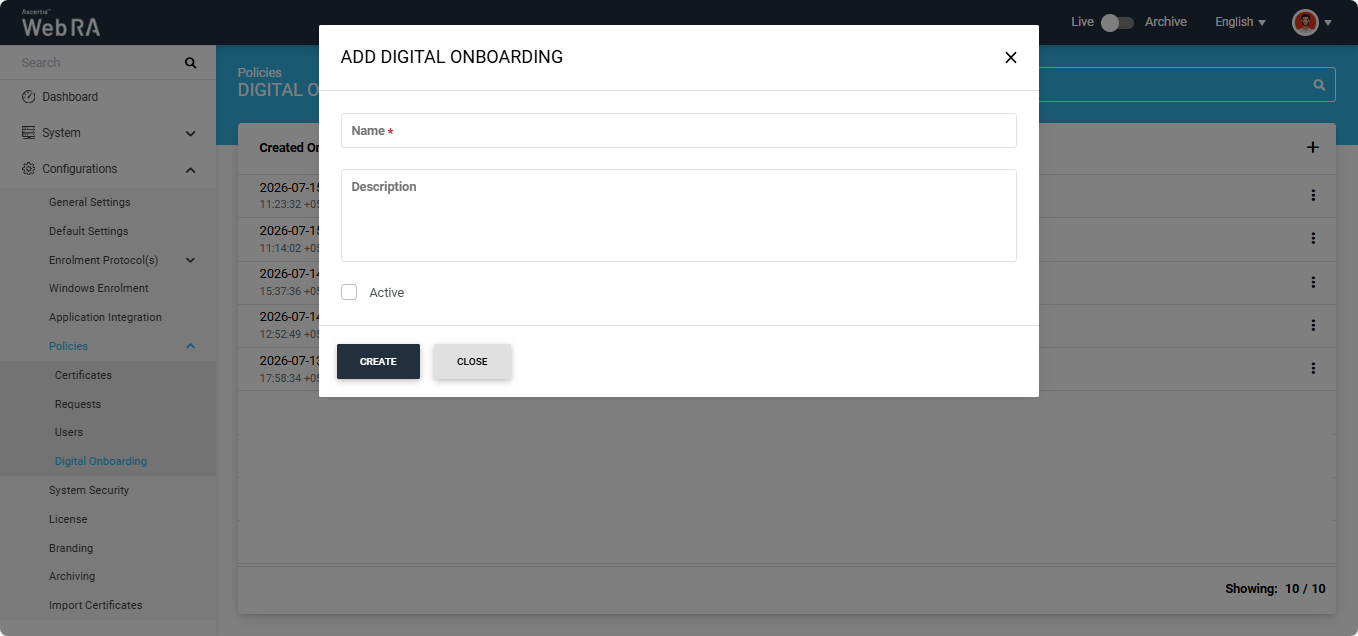
Following fields will appear on the dialog:
|
Field |
Description |
|
Name |
Enter a unique name for the digital onboarding policy. |
|
Description |
Enter a description related to the policy. (Optional) |
|
Active (Checkbox) |
Select this checkbox to mark the policy as active. |
After entering the required information, click the 'Create' button. The Add Digital Onboarding Policy screen appears. The following sections, along with their respective configuration fields, are displayed on the screen.
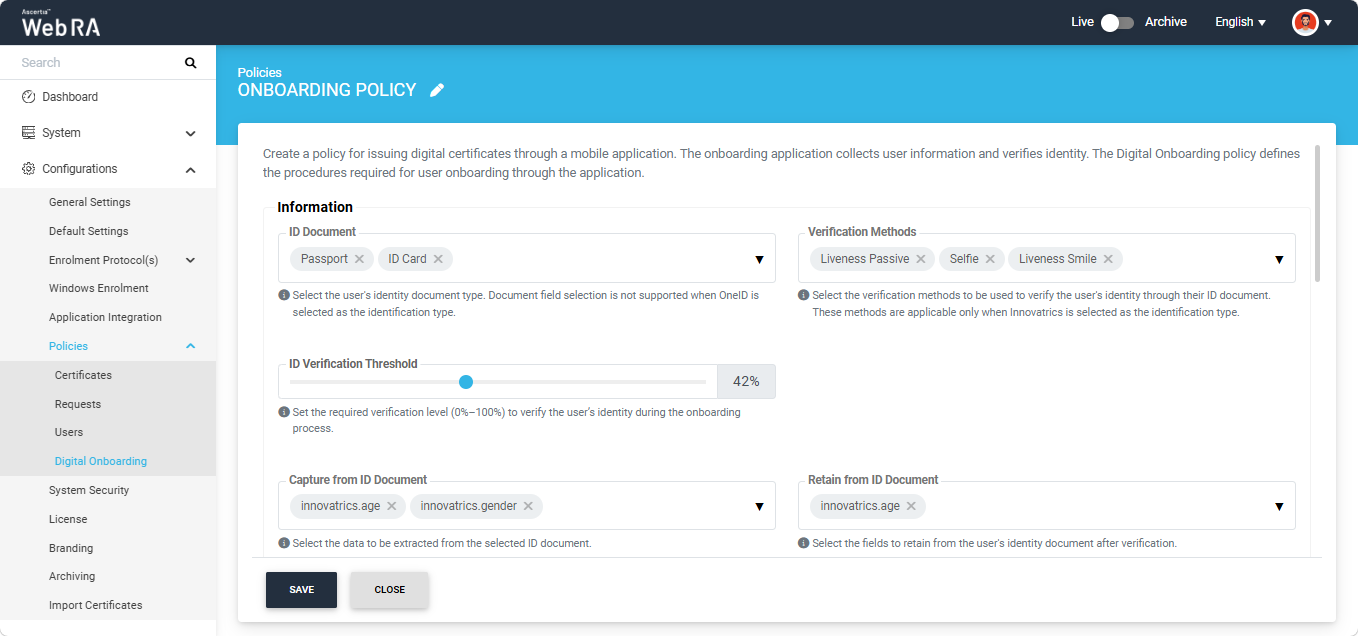
The following fields are displayed under the Information section.
|
Field |
Description |
|
ID Document |
Select the identity document(s) from which the user's identity information will be extracted. Note: Document field selection is not supported when OneID is selected as the identification type. |
|
Verification Methods |
Select the verification methods to be used to verify the user's identity through their ID document. These methods are applicable only when Innovatrics is selected as the identification type. |
|
ID Verification Threshold |
Set the required verification level (0%–100%) to verify the user’s identity during the onboarding process. |
|
Capture from ID Document |
Select the information to be extracted from the ID document for identity verification. |
|
Retain From ID Document |
Select the fields from the user's identity document that will be retained after identity verification is completed. |
|
Map ID Document attributes with Subject Distinguished Name (SDN) |
Enable mapping of the identity information extracted from the user's identity document to the Subject Distinguished Name (SDN) fields during the onboarding process. A mapping table appears below this field. From the 'ID Document Attribute' dropdown, select the identity document attribute that you want to map. Then, from the 'Subject Distinguished Name' dropdown, select the SDN field to which the attribute will be mapped. After selecting the required values, click the '+' button to add the mapping. |
|
|
To process a One ID verification request, at least one Capture ID Document attribute for One ID must be selected in the 'Capture ID Document' field. If no attribute is selected, the system will not process the verification request. |

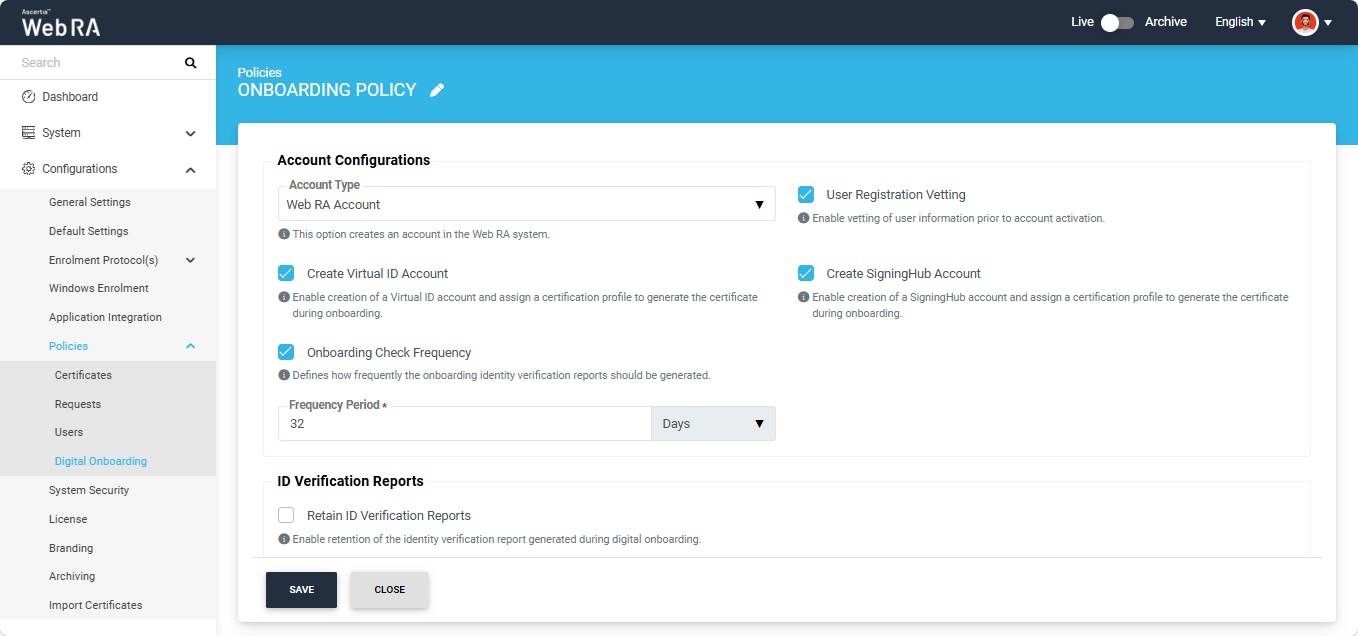
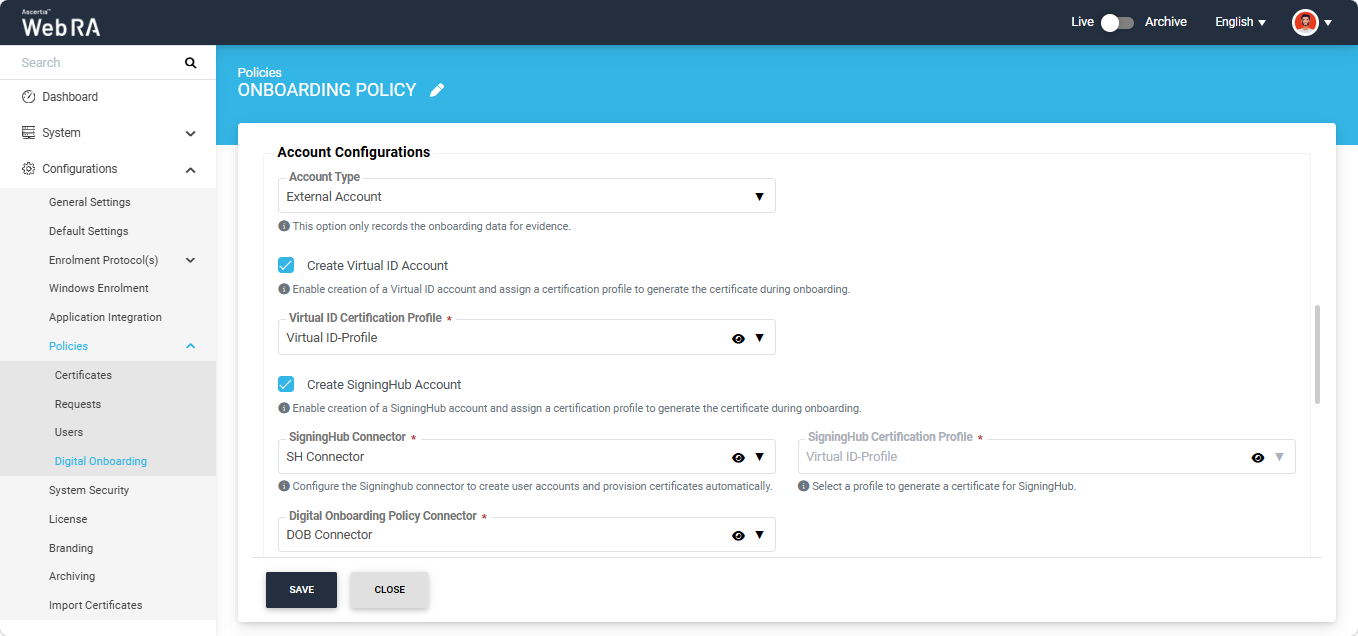
The following fields are displayed under the Account Configurations section.
|
Field |
Description |
|
Account Type |
The following options are available in this dropdown:
|
|
User Registration Vetting |
This checkbox is displayed only when 'Web RA Account' is selected as the account type. Select this checkbox to perform vetting of the user's information before the Web RA account is activated. |
|
Create Virtual ID account |
Enable this option to create a Virtual ID account during onboarding and assign a certification profile for certificate issuance. |
|
Virtual ID Certification Profile |
This dropdown field is displayed only when ‘External Account' is selected as the account type. Select the Virtual ID certification profile configured in the Web RA system. |
|
Create SigningHub account |
Enable this option to create a SigningHub account during onboarding and assign a certification profile for certificate issuance. |
|
SigningHub Connector |
This dropdown field is displayed only when ‘External Account' is selected as the account type. Select the Signinghub connector to automatically create user accounts and provision certificates automatically. |
|
SigningHub Certification Profile |
This dropdown field is displayed only when ‘External Account' is selected as the account type. Select the SigningHub certification profile configured in the Web RA system. |
|
Digital Onboarding Policy Connector |
This checkbox is displayed only when ‘External Account' is selected as the account type. Select the Digital Onboarding policy connector from this dropdown. |
|
Onboarding check Frequency |
Enable this option to require the user to repeat the verification process after a specified period. After enabling this option, specify the re-verification frequency in days, months, or years. |
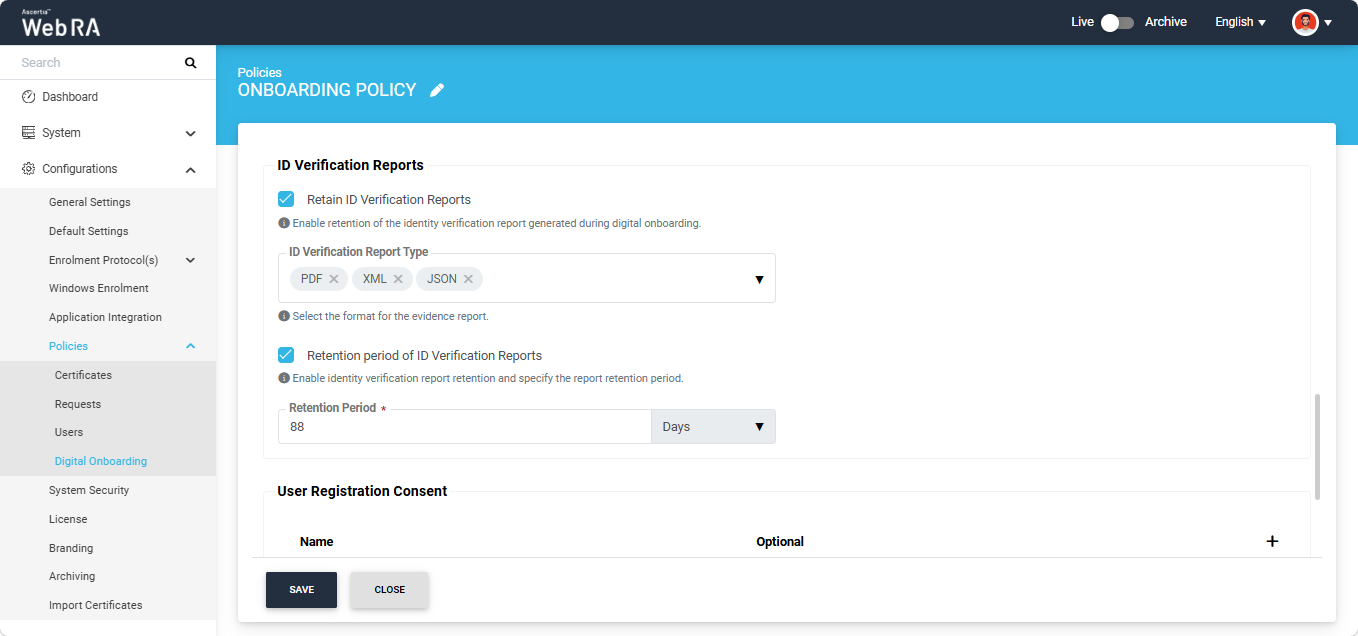
The following fields are displayed under this section.
|
Field |
Description |
|
Retain ID Verification Reports |
Enable this option to retain the identity verification reports generated during the digital onboarding process. |
|
ID Verification Report Type |
This field is displayed only when Retain ID Verification Reports is enabled. Select the format in which the identity verification reports will be retained. |
|
ID verification reports life time |
Enable this option to retain identity verification reports for a specified period after the digital onboarding process. |
|
Lifetime Period |
This field is displayed only when ID Verification Reports Lifetime is enabled. Specify the period for which the identity verification reports will be retained in days, months, or years. |
The User Registration Consent section allows you to configure the consent statements that are displayed to users in the mobile application before they complete the registration process. Multiple consent statements can be added to a single Digital Onboarding policy.
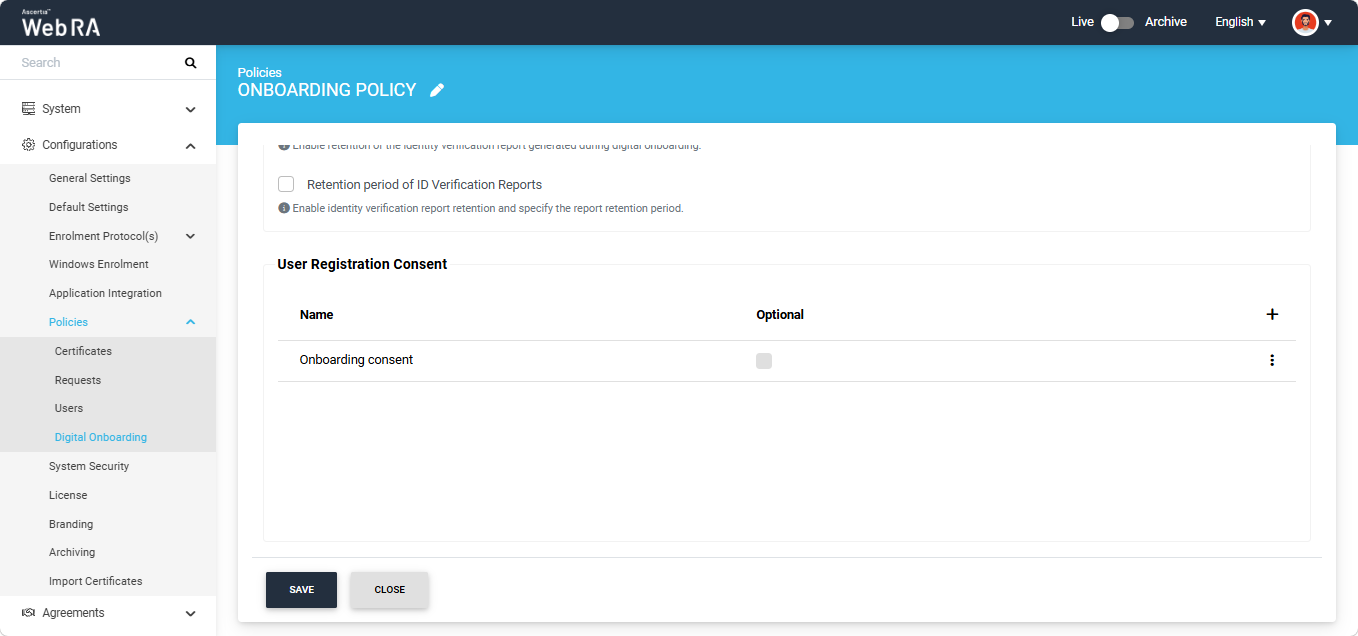
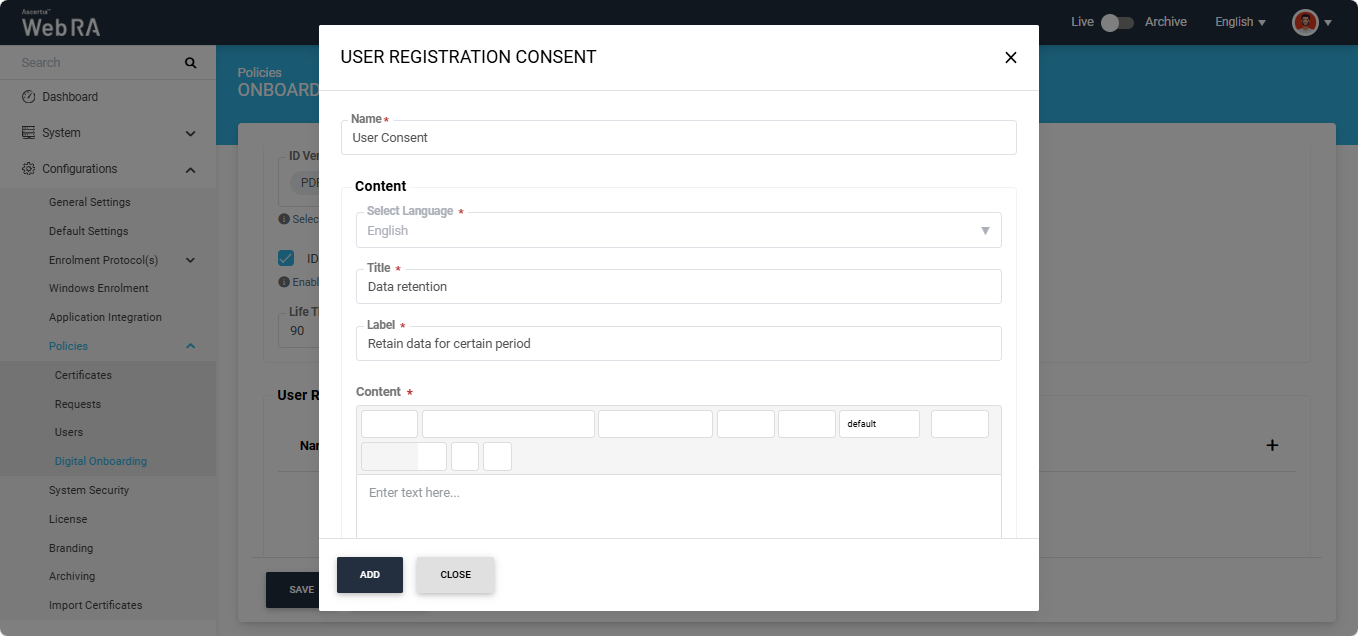
To add a user registration consent statement, click the '+' button. The 'User Registration Consent' dialog appears. Enter the required information and click 'Add' to associate the consent statement with the Digital Onboarding policy.
After making all the required configurations in the policy, click 'Save' to add the digital onboarding policy in the Web RA system.