Token Management
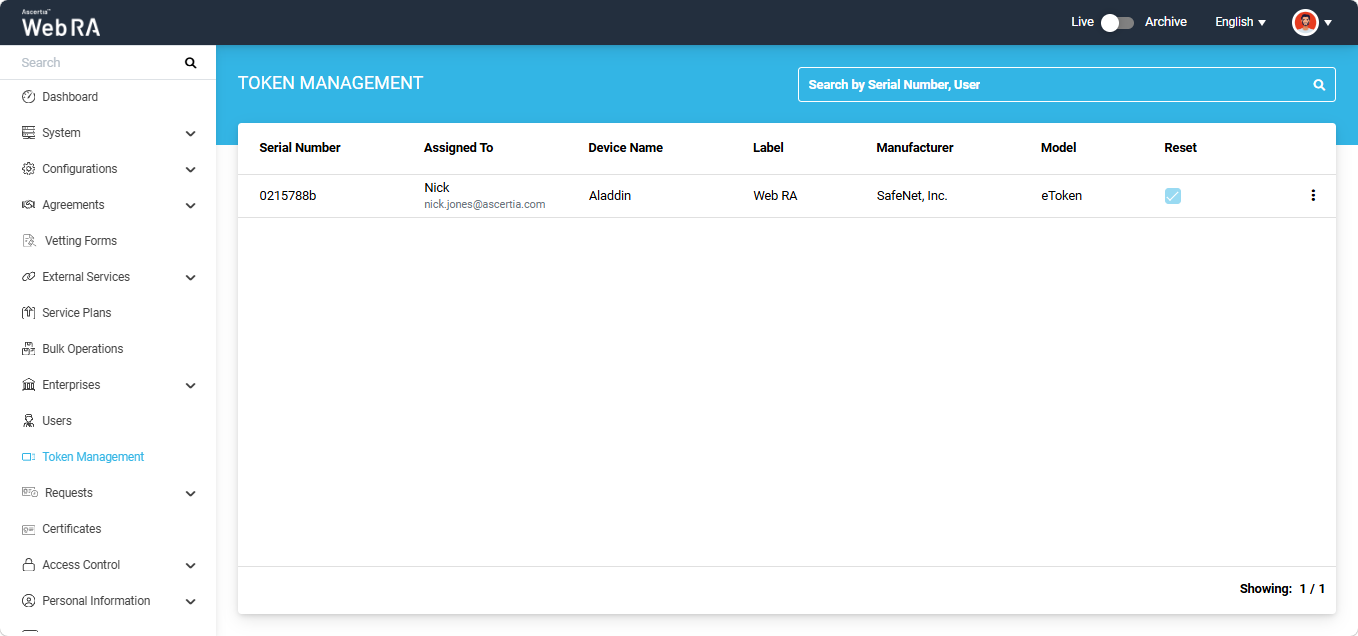
The Token Management section allows you to view and manage the tokens configured in the Web RA system. It provides information about the configured tokens and allows you to view the details associated with each token.
Expand Token Management module from the left-tree menu in the Admin portal. The Token management listing screen appears.
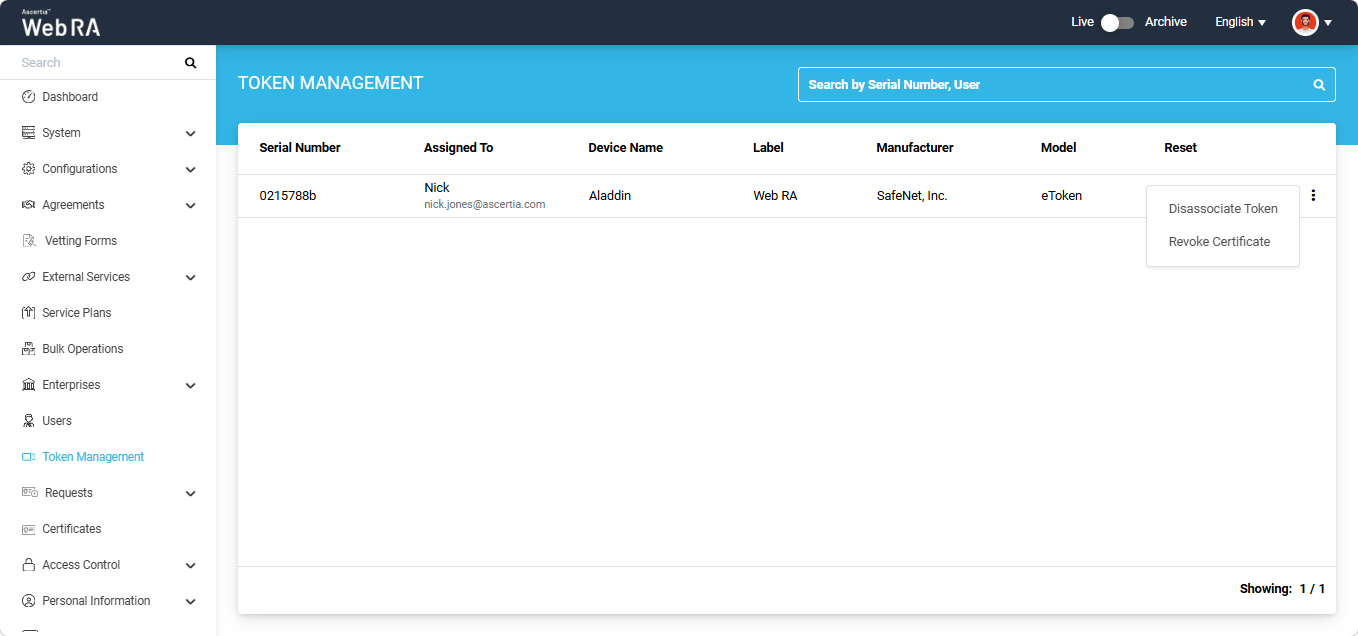
The information about the token is displayed in seven columns, as shown in the image below.
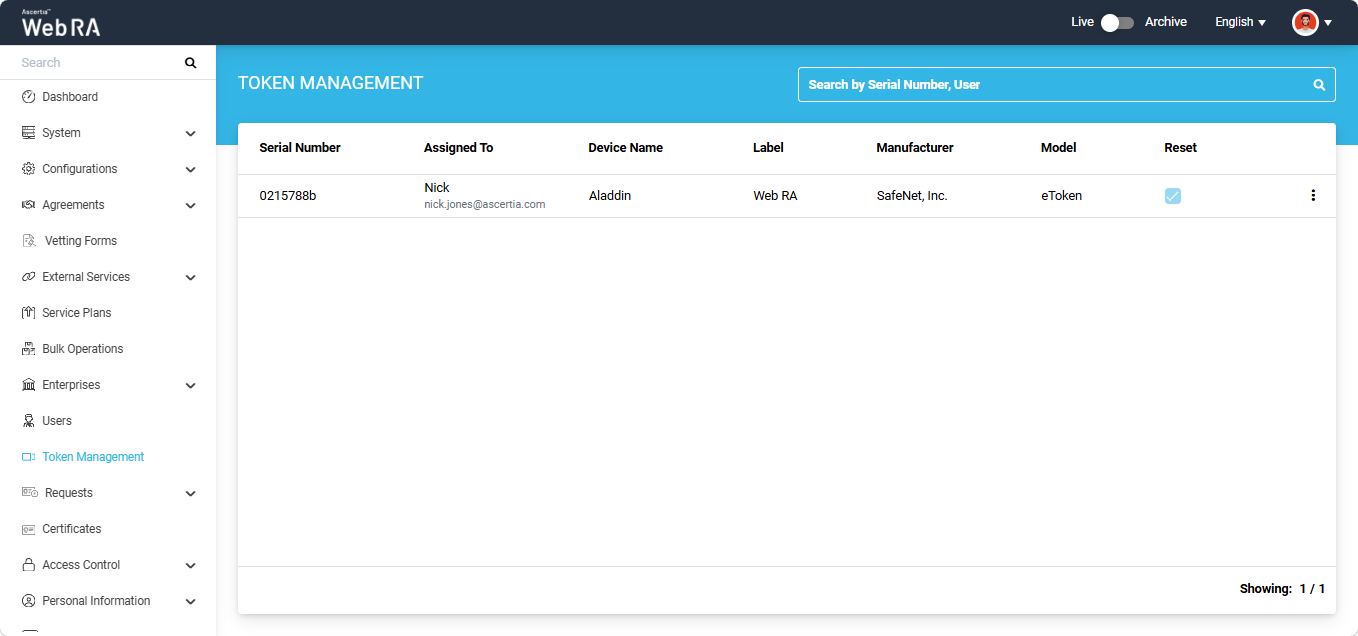
Expand Token Management module from the left-tree menu in the Admin portal. The Token management listing screen appears.
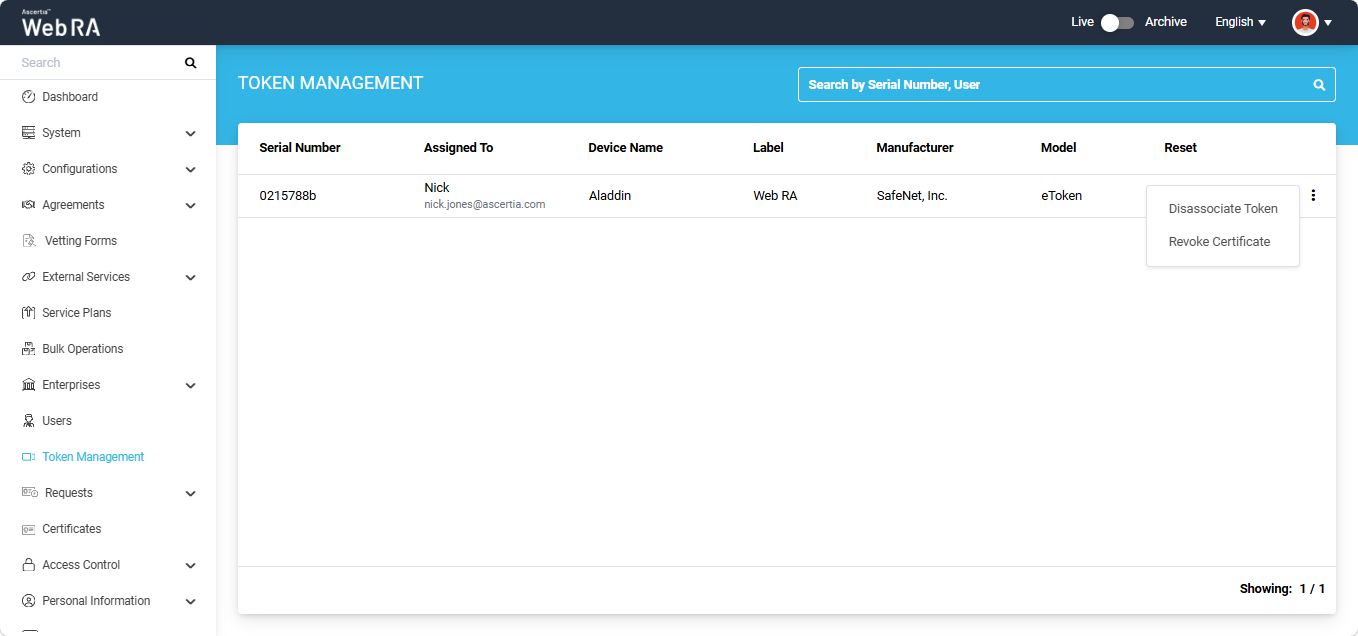
To disassociate a token from the Web RA system, click the three-dot button next to the token that you want to disassociate and select ‘Disassociate Token’.
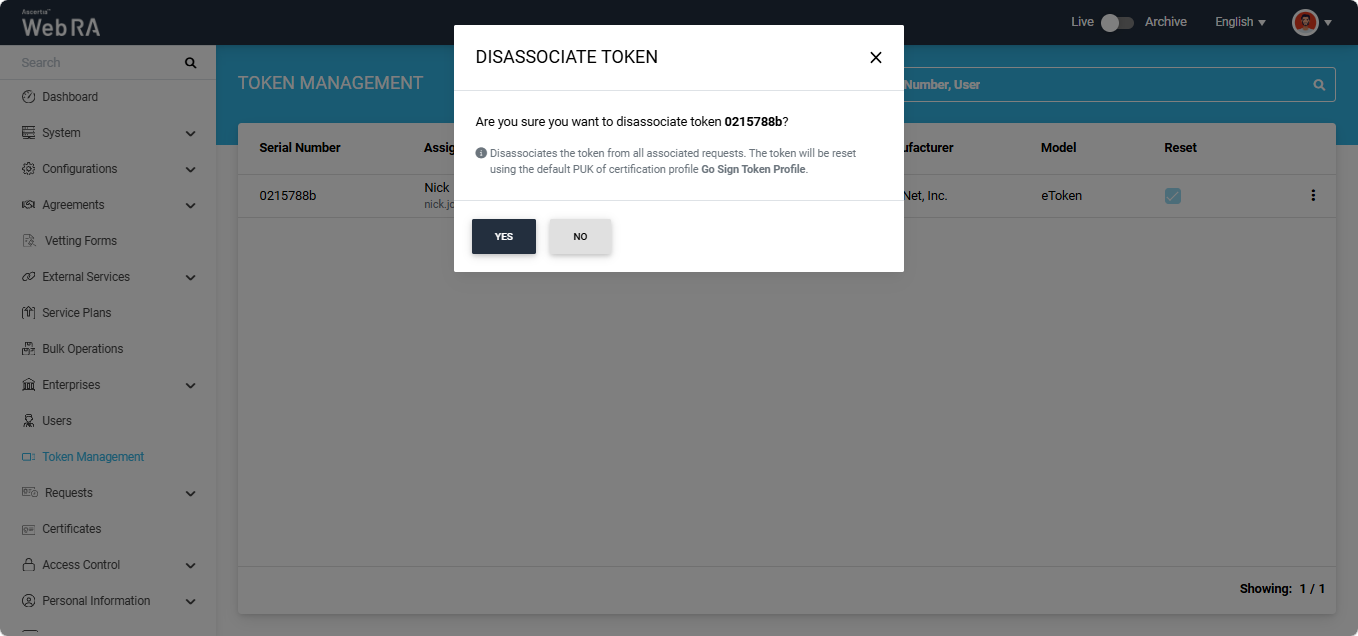
The system displays a confirmation dialog titled ‘Disassociate Token”. Click ‘Yes’ to proceed.
The token is disassociated from all associated requests and reset using the default PUK configured in the certification profile.
Expand Token Management module from the left-tree menu in the Admin portal. The Token management listing screen appears.
To revoke all certificate associated with a token, click the three-dot button next to the token whose certificates you want to revoke and select ‘Revoke Certificate’.
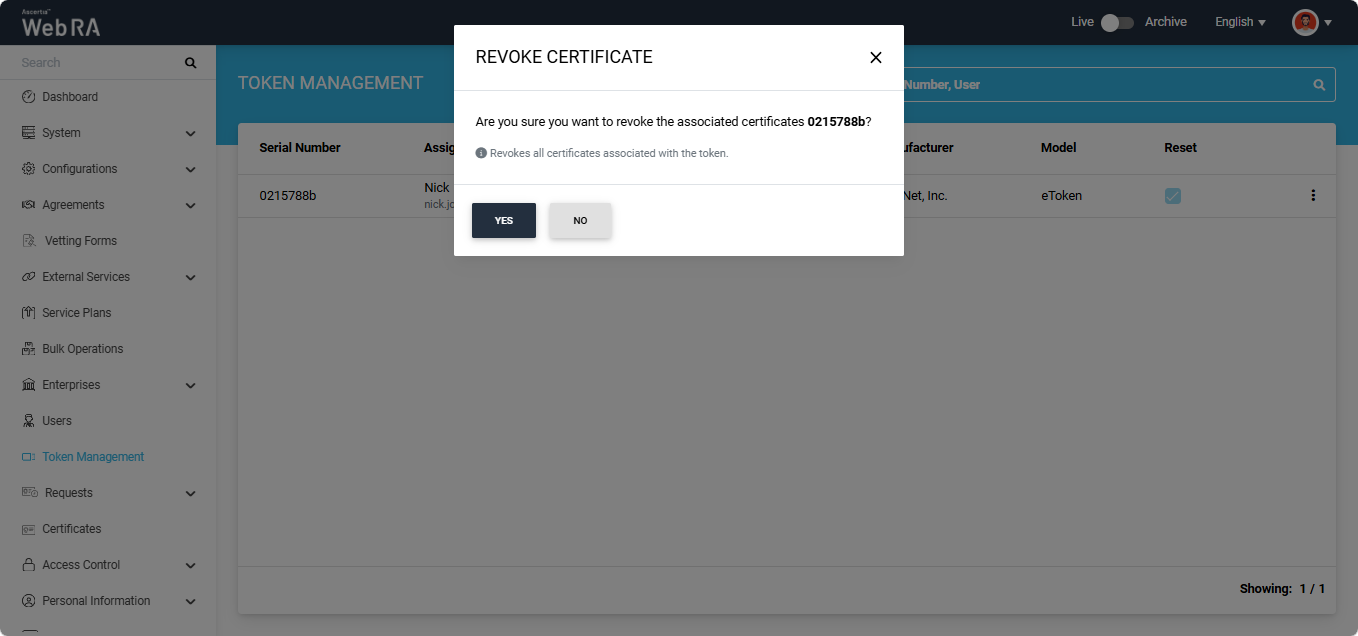
The system displays a confirmation dialog title ‘Revoke Certificate’. Click ‘Yes’ to proceed.
All certificates associated with this token will be revoked.
Expand Token Management module from the left-tree menu in the Admin portal. The Token management listing screen appears.
You can search for a specific token in the Token Management listing by using the ‘Search’ bar at the top of the screen.
You can search for a token by entering its ‘Serial Number’ or the name of the user to whom it is assigned in the ‘Search’ bar.