Requests
The Requests section under the Dual Control module displays all pending certificate requests that have been submitted for approval by the Dual Control operator.
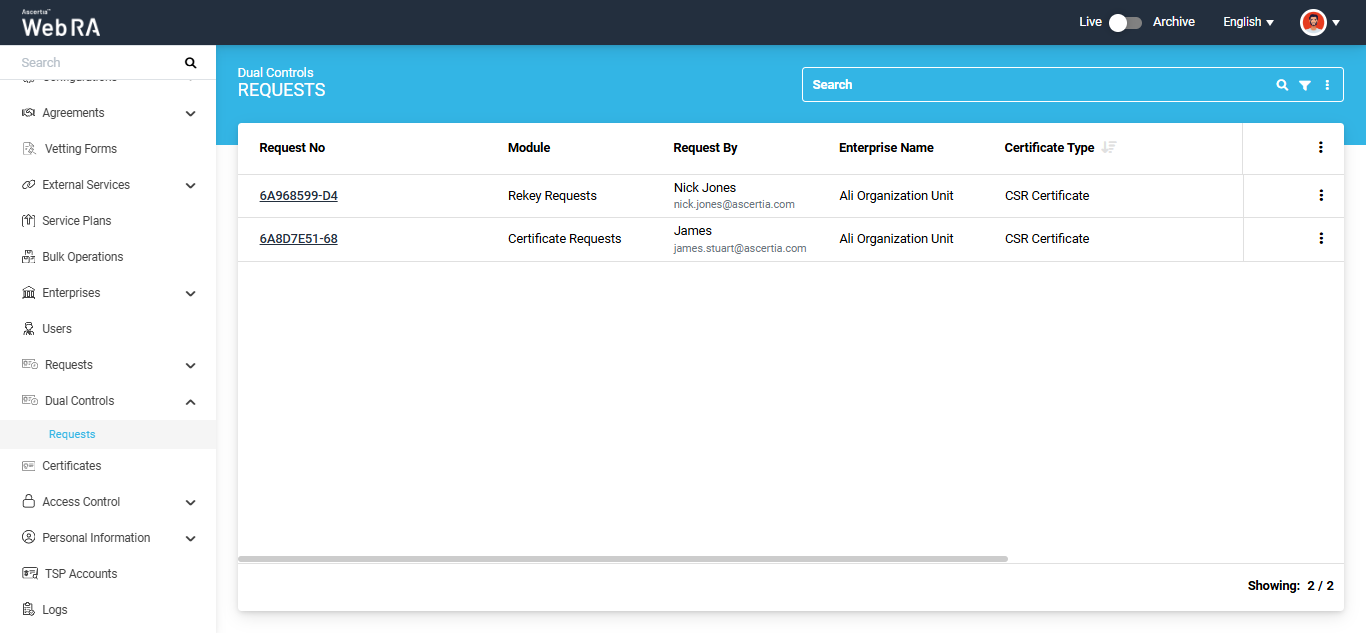
Expand Dual Control > Requests module from the left-tree menu in the Admin portal to view the pending certificate requests.
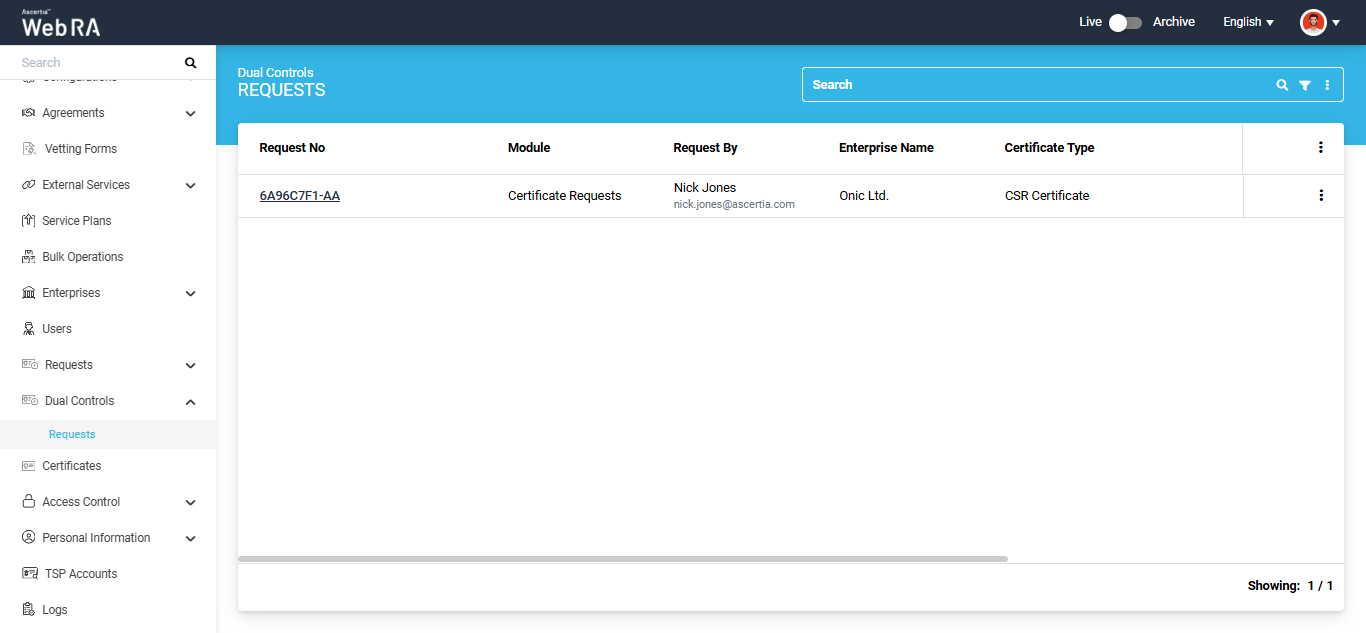
Note: The 'Request By' column will display Citizen ID below the user name if it is enabled in the Configurations > Default Settings.
The following operations can be performed from the Requests screen:
The Advanced Search feature allows users to perform detailed and refined searches. By applying specific filters and criteria, users can quickly locate the information or items they want to view.
To access the advanced search, click on the ‘Advanced Search’ icon next to the search box. This will open the ‘Search’ dialog, which contains more than a dozen filters that allow users to refine their search results based on specific criteria.
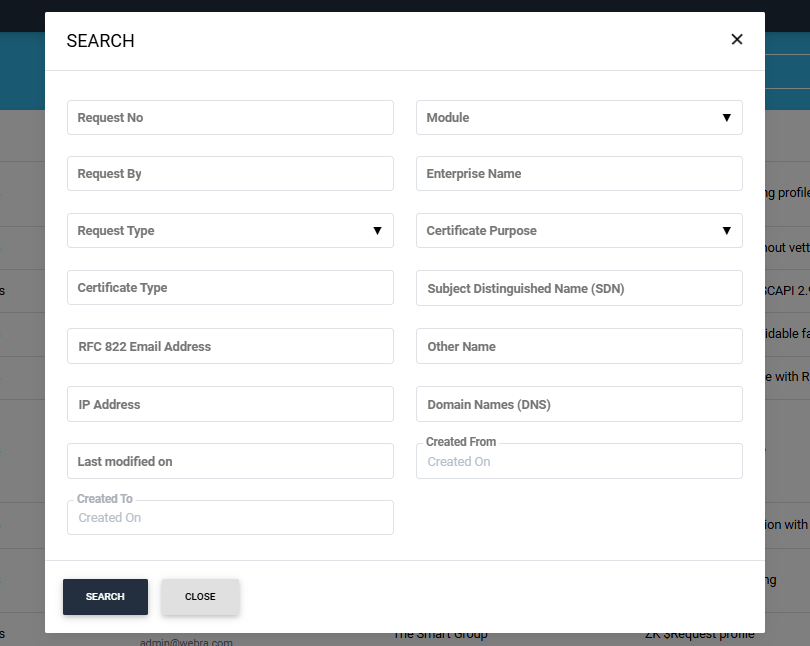
After applying your required filters, click ‘Search’.
The system will display the results in the listing table as per your search criteria.
On this screen, users have the option to save the search criteria, modify it, or clear the criteria to view all certificates in the listing again.
Expand Dual Control > Requests from the left-tree menu in the Admin Portal.
To approve a certificate request submitted for approval, click the three-dot  icon next to that request. Then, select the ‘View Request’ option.
Alternatively, you can click the Request No. of the certificate request to access it.
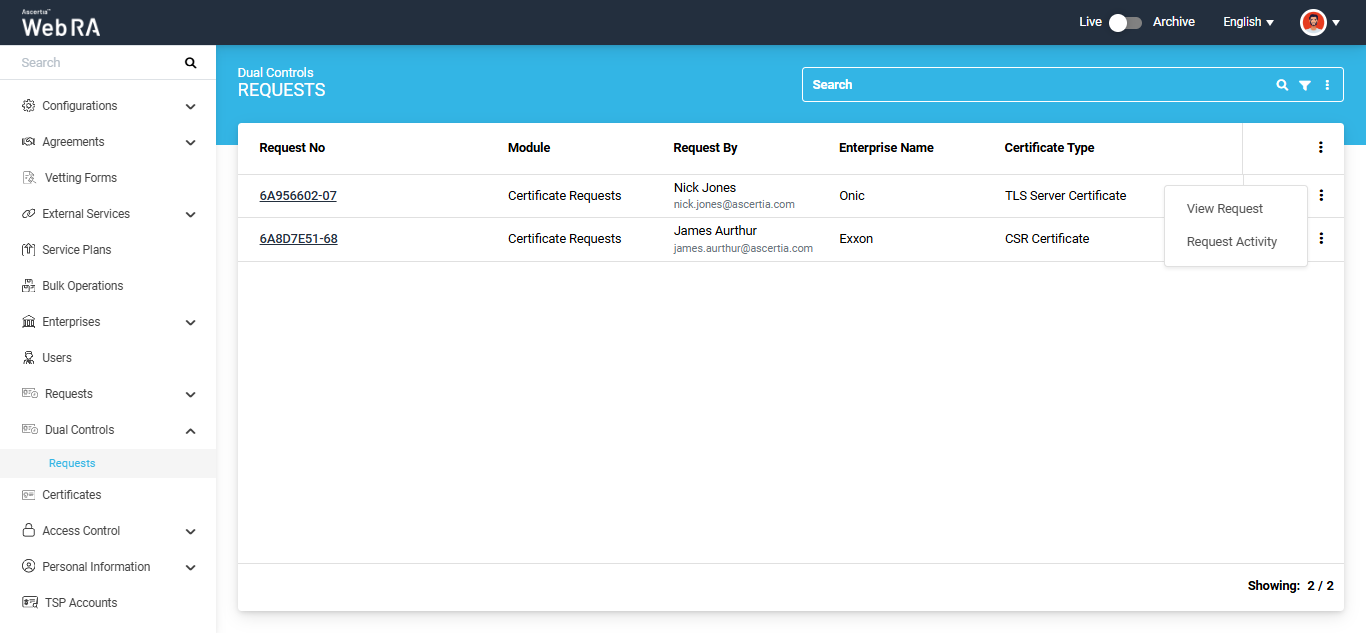
The certificate request will open, and the ‘Certificate Signing Request (CSR) screen will appear.
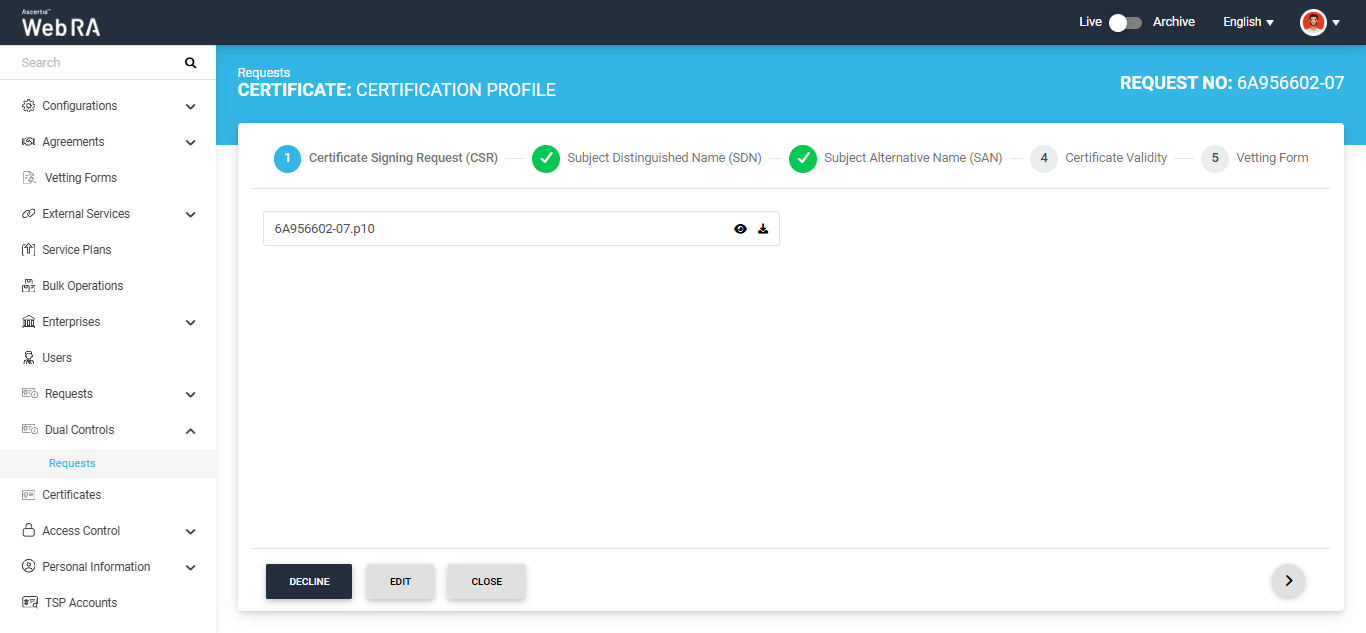
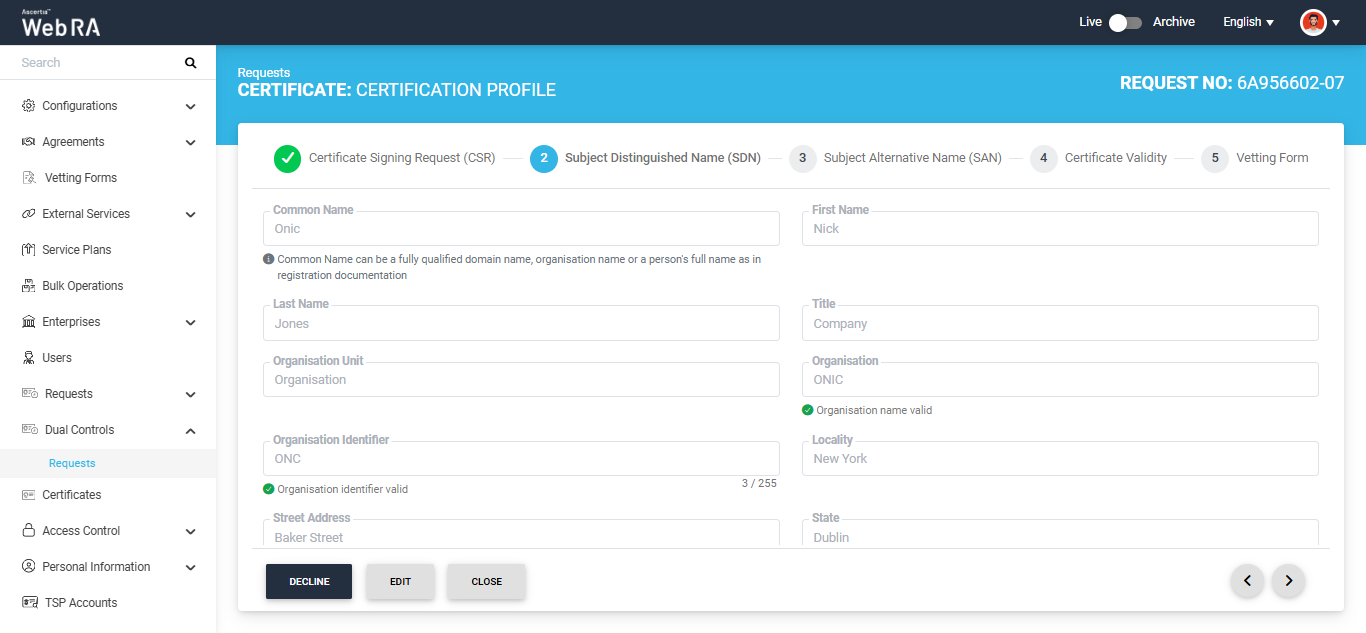
Click the next ‘>’ button to navigate to the Subject Distinguished Name (SDN) screen.
|
|
If the ‘Allow Dual Control Operators to Edit New and Rekey Pending Requests’ setting is enabled in the Configurations > Policies > Requests module, the ‘Edit’ button will appear next to the Decline and Approve buttons. |

If you want to make changes to the information in the certificate request, click the ‘Edit’ button. The system will make the applicable fields editable.
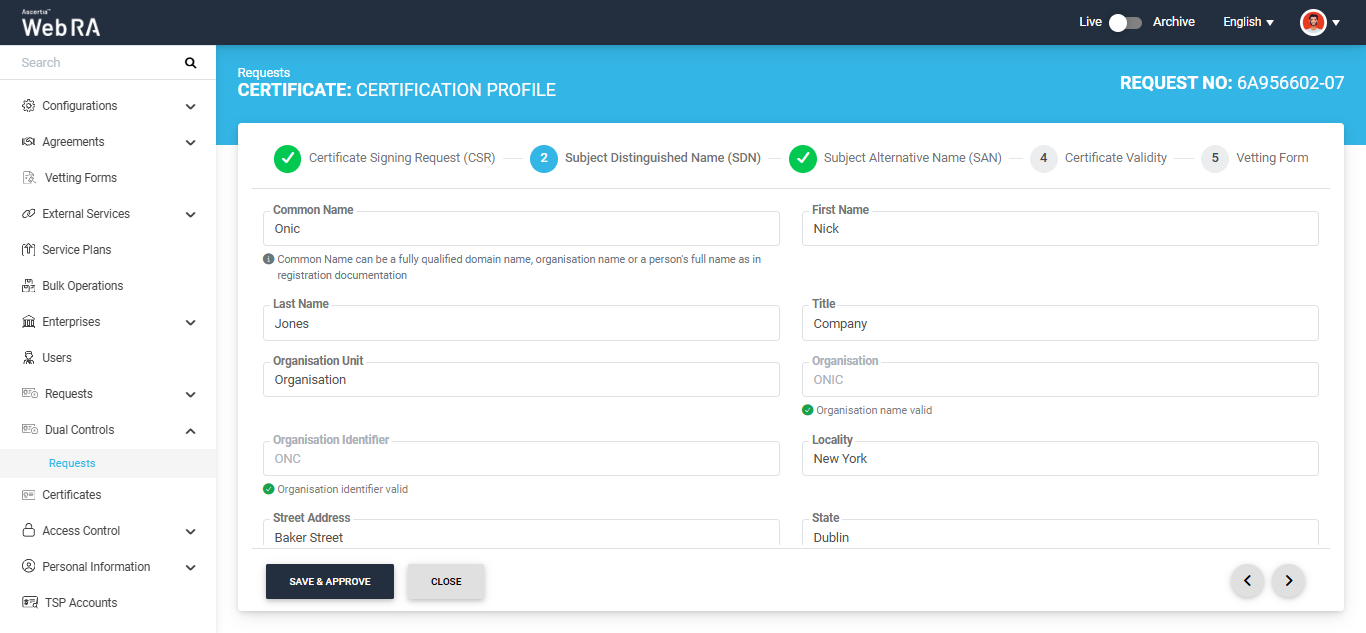
To make changes in different sections of the certificate request, navigate between the sections using the Previous (<) and Next (>) buttons.
A certificate request is submitted for approval by the Dual Control operator only if Dual Control is enabled for the Requests module in Configurations > General Settings.
You can edit the information in the available tabs of the certificate request according to the rules described in the notes below.
|
|
Important Notes:
|
After making the required changes to the certificate request fields, click ‘Save & Approve’.
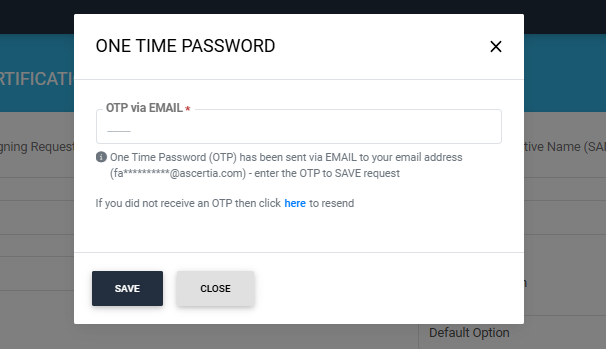
The system will display the secondary authentication dialog.
|
|
The secondary authentication method displayed in the dialog depends on the Secondary Authentication Profile configured in the Pending Requests Settings section under Configurations > Policies > Requests. For example, if Email OTP is selected, the dialog will prompt you to enter the OTP received by email to save the changes. |
Enter the OTP in the dialog and click ‘Save’. The ‘Approve Request’ dialog will appear.
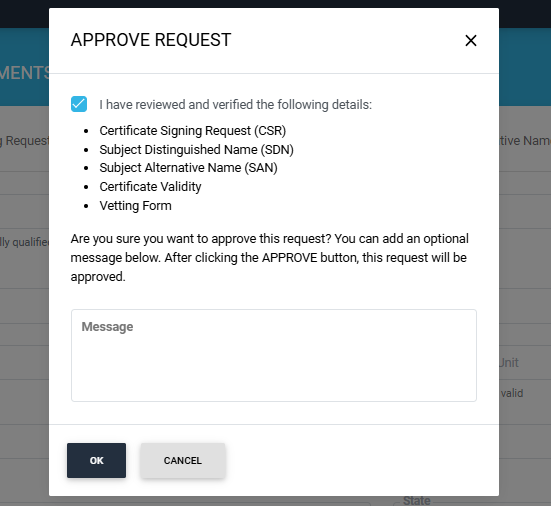
Select the I have reviewed and verified the following details checkbox and click OK to approve the certificate request. You can also add an optional message related to the certificate request in the Message box.
The certificate request will be approved, and a ‘Certificate Generated’ success alert will appear on the screen.
|
|
Note:
|
Decline a Request
If you want to decline the certificate request instead, click the ‘Decline’ button. A 'Decline' dialog will appear. Enter the reason for declining the request in the 'Reason' box and click 'Decline'.
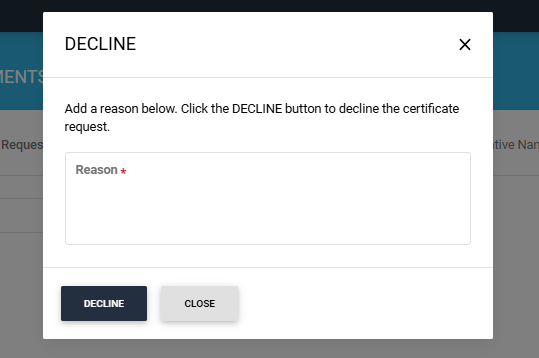
A success alert will appear on the screen indicating that the request has been declined.
Expand Dual Control > Requests from the left-tree menu in the Admin portal.
Click the  button next to the rekey request that you want to approve and select ‘View Request’. The system will open the Rekey Request and the ‘Certificate Signing Request (CSR)’ screen will appear.
Alternatively, you can click the Request No. of the rekey request to access it.
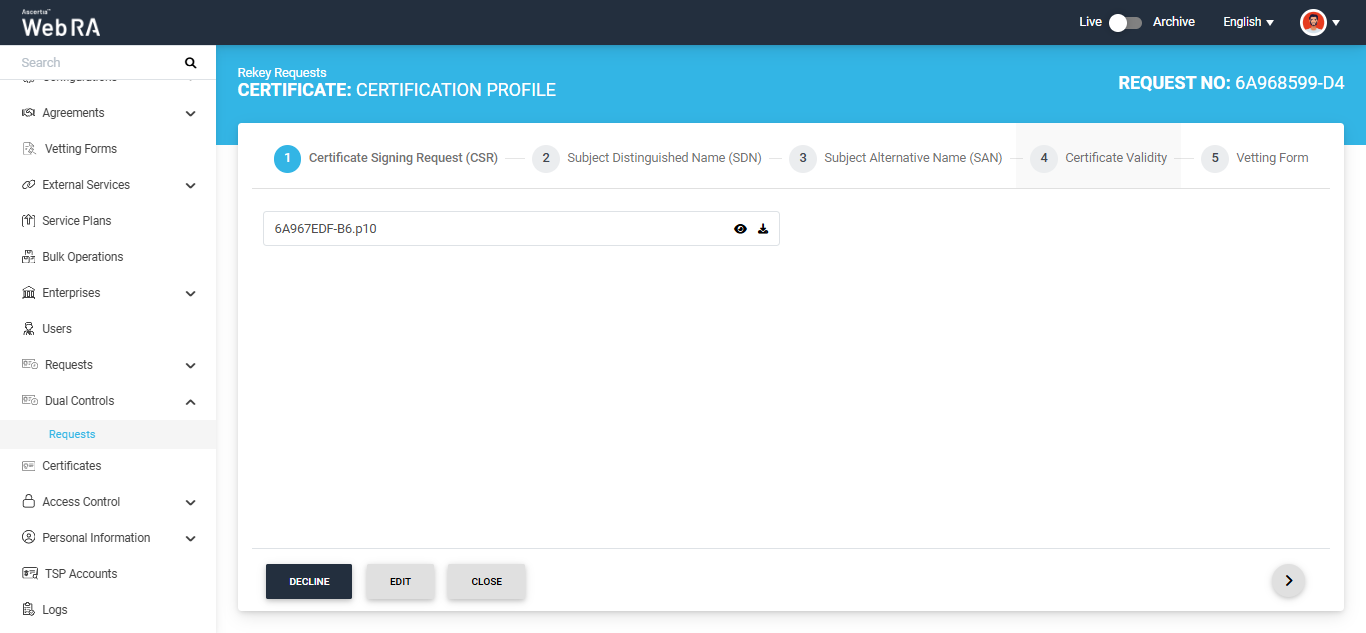
Click the next ‘>’ button to navigate to the ‘Subject Distinguished Name (SDN)’ screen. The fields on this screen will appear in read-only mode.
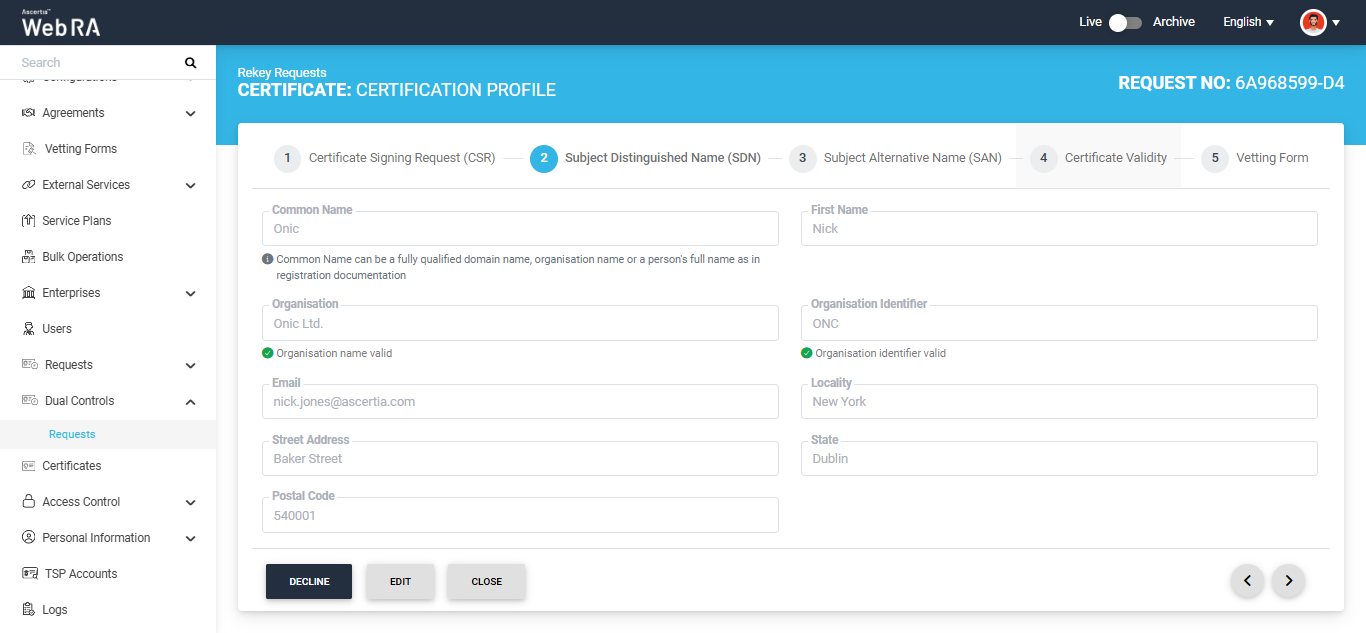
|
|
If the ‘Allow Dual Control Operators to Edit New and Rekey Pending Requests’ setting is enabled in the Configurations > Policies > Requests module, the ‘Edit’ button will appear next to the Decline and Approve buttons. For Rekey Requests approval, the dual control operator can only edit the email address in both the SDN and SAN sections. |
If you want to change the email address, click the ‘Edit’ button. The system will make the email address field editable.
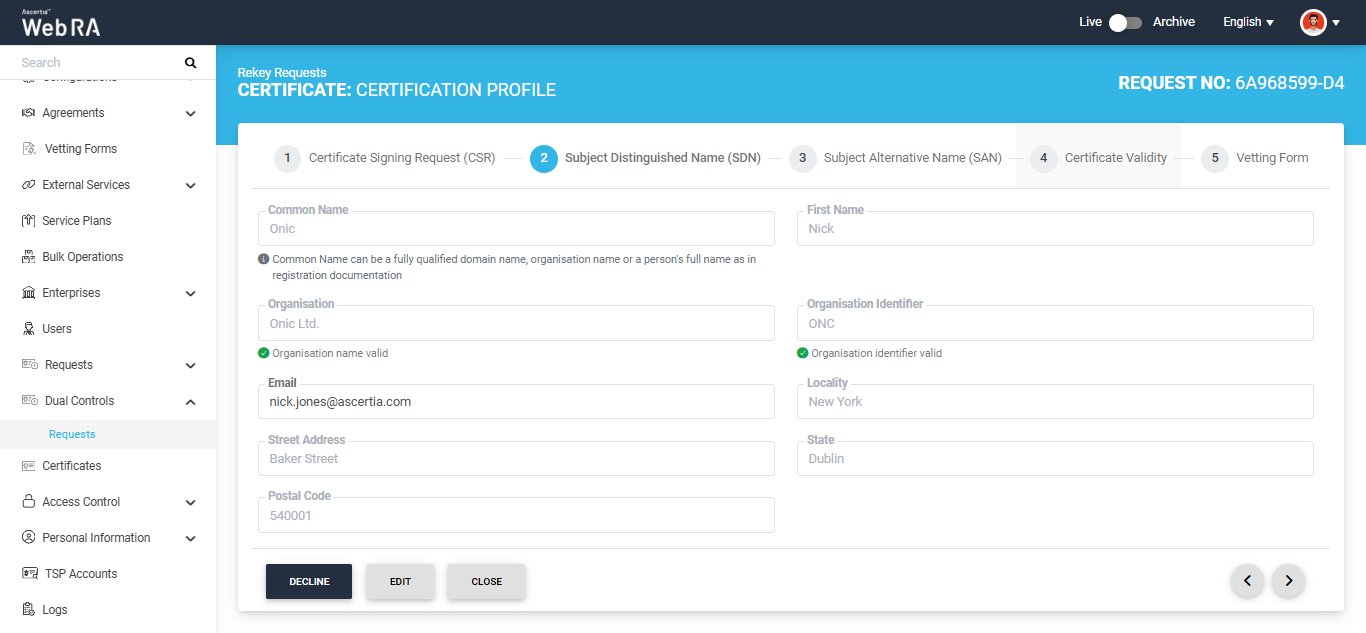
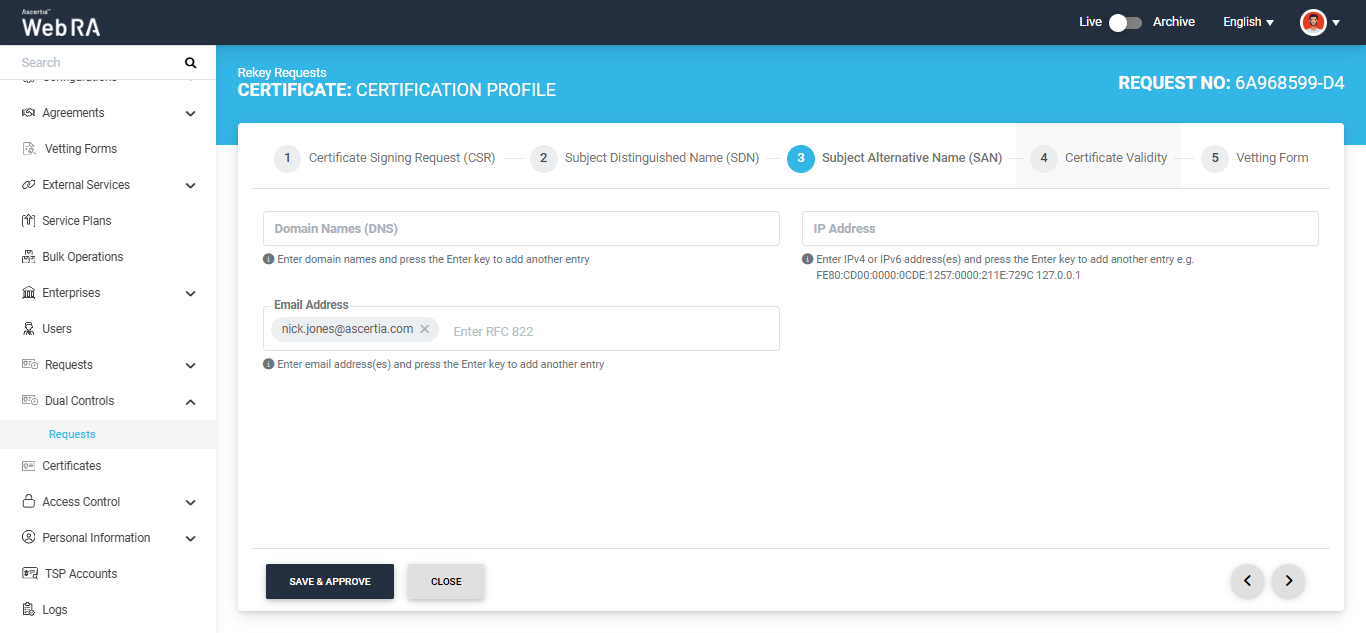
After making the required changes, click ‘Save & Approve’.
The system will display the secondary authentication dialog.
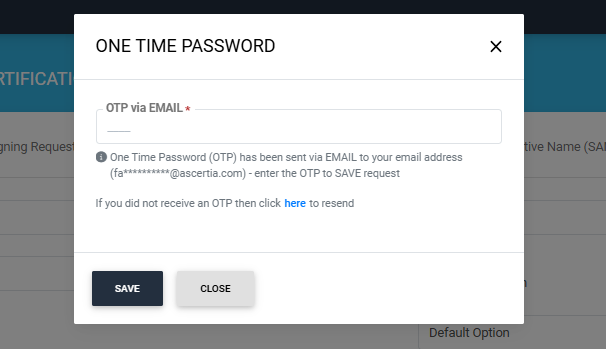
|
|
If the ‘Allow Dual Control Operators to Edit New and Rekey Pending Requests’ setting is enabled in the Configurations > Policies > Requests module, the ‘Edit’ button will appear next to the Decline and Approve buttons. For Rekey Requests approval, the dual control operator can only edit the email address in both the SDN and SAN sections. |
Enter the OTP in the dialog and click ‘Save’. The ‘Certificate Rekey’ dialog will appear.
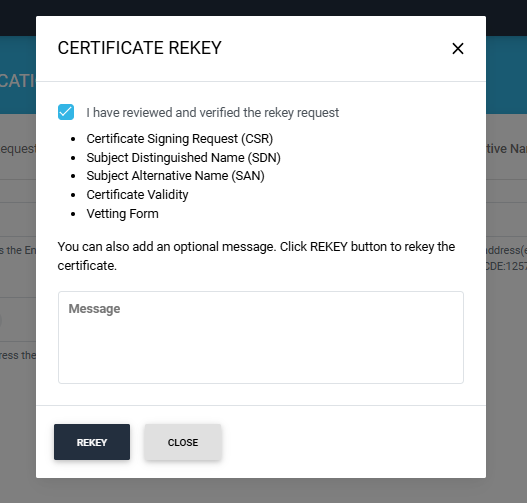
Select the ‘I have reviewed and verified the rekey request’ checkbox and click ‘Rekey’ to rekey the certificate. You can also add an optional message related to the rekey approval in the Message box.
The certificate request will be rekeyed, and a success alert will appear on the screen.
|
|
Note:
|
Decline a Request
If you want to decline the certificate request instead, click the ‘Decline’ button. A 'Decline' dialog will appear. Enter the reason for declining the request in the 'Reason' box and click 'Decline'.
A success alert will appear on the screen indicating that the request has been declined.
Certificate renewal requests submitted by an Enterprise RAO are available to the Admin RAO for review. The Admin RAO can review the requests and then approve or decline them accordingly.
Expand Dual Controls > Requests from the left-tree menu in the Admin portal.
Click the button next to the renewal request that you want to approve and select ‘View Request’.
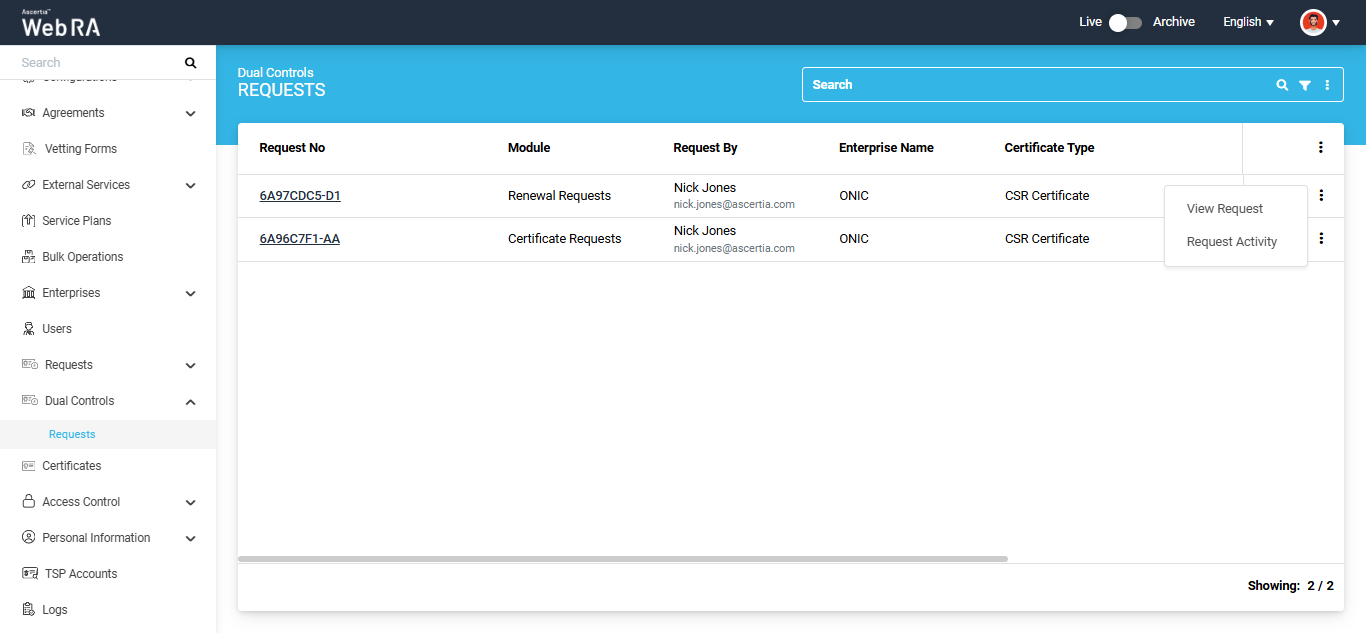
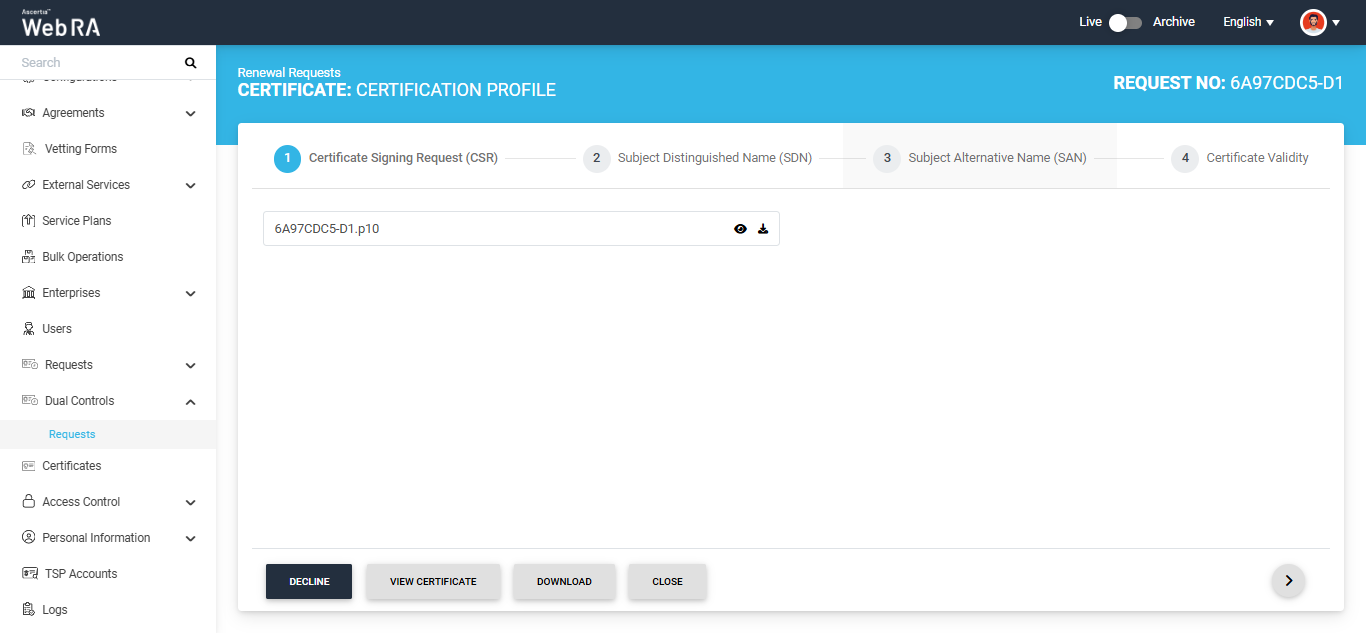
The system will open the Renewal Request and the ‘Certificate Signing Request (CSR)’ screen will appear.
Navigate to the last tab of the renewal request by clicking the next '>' button.
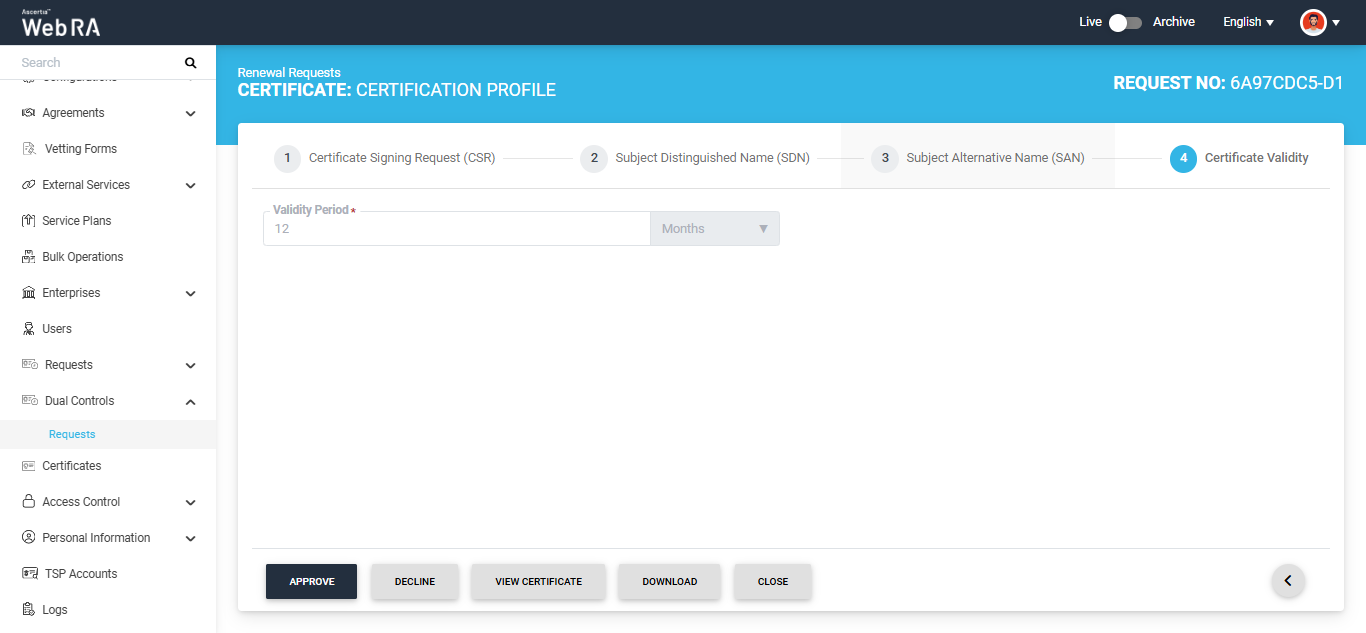
To approve the renewal request, click 'Approve'. A 'Certificate Renew' dialog will appear on the screen.
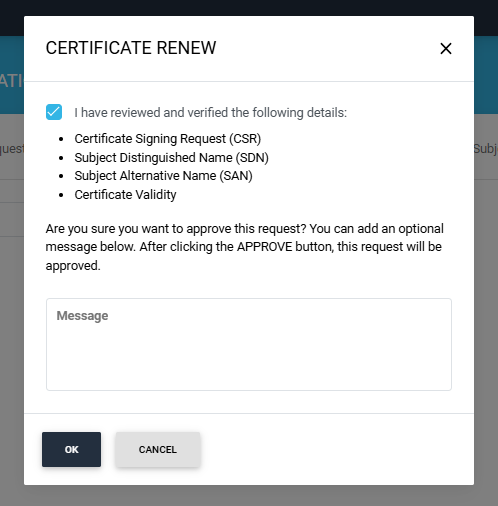
Select the 'I have reviewed and verified the following details' checkbox and click 'Ok' to approve the request. The request will be renewed and a 'Certificate Renewed' success alert will appear on the screen.
Dual Control > Requests >  > Revocation Requests display the certificate revocation requests to the Admin RAO, coming from a Enterprise RAO. Admin RAO can review the requests and then process them (Approve or Decline) accordingly.
Expand Dual Control > Requests from the left-tree menu in the Admin portal.
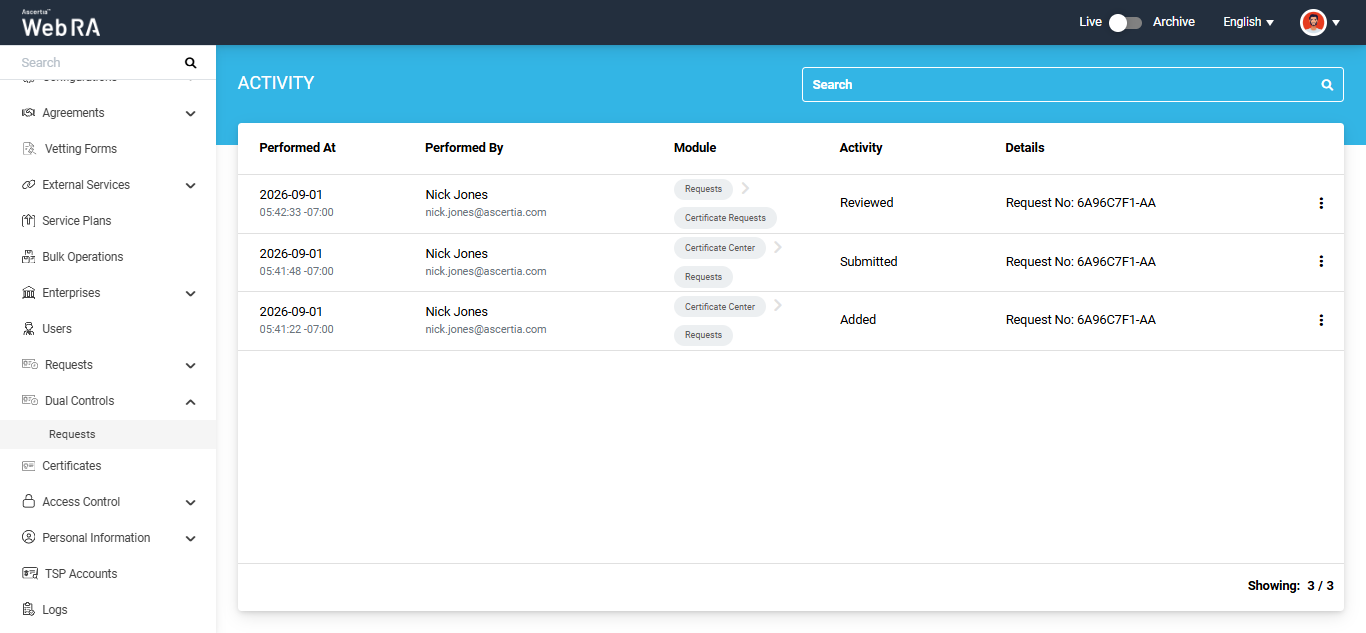
To view the history of activities that have been performed on a request click the three-dot icon next to that request and select 'Request Activity'.
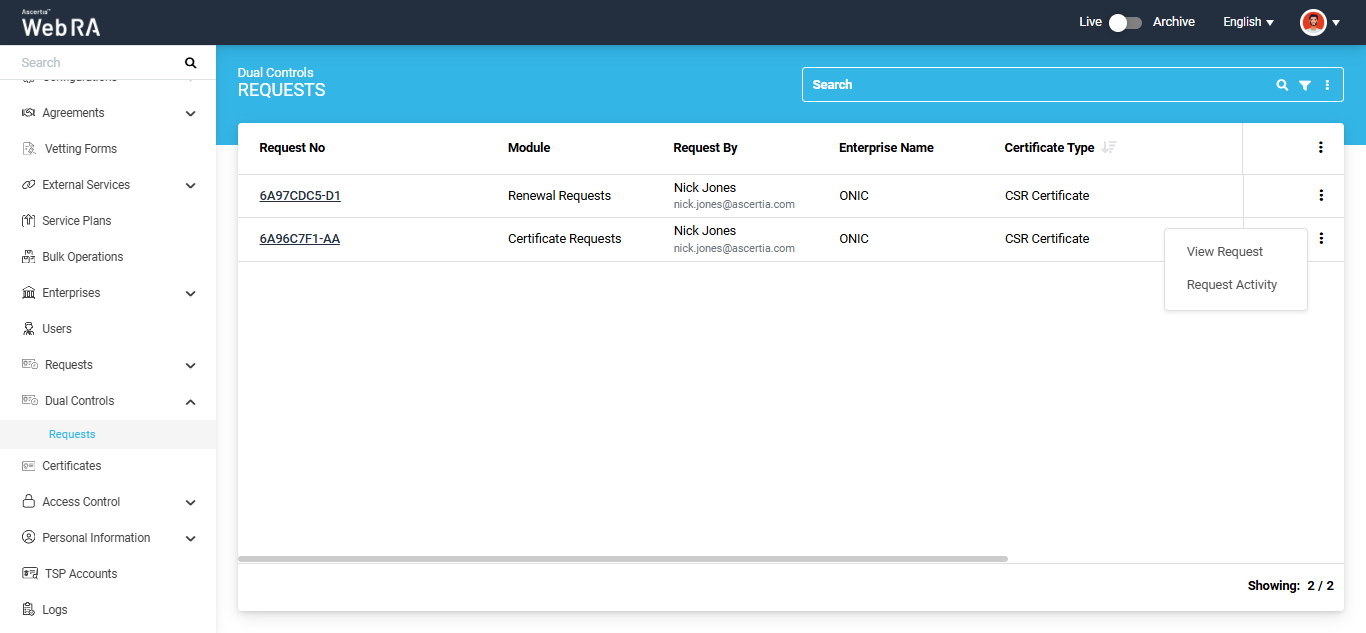
The system will display the 'Activity' screen containing the details of all the details that have been performed on that request.