Digital Onboarding
How to Configure Digital Onboarding Policy
Web RA has been enhanced to support a policy-driven remote ID verification and digital onboarding framework, enabling secure user registration for digital certificate issuance through the Ascertia Mobile Onboarding Application.
This guide provides information about the Digital Onboarding functionality in ADSS Web RA. It covers the configuration and management of Digital Onboarding, along with the related operations and settings available in the system.
- How to Configure Digital Onboarding Policy
- How to Create a Digital Onboarding Connector
- How to Create a Certification Profile
- Configure Digital Onboarding Settings in Service Plan
- Create an Enterprise and Associate the Service Plan
- Create a Role in Enterprise and Configure Digital Onboarding Settings
- Register a User Account via Digital Onboarding
- How to Create a Certificate Request with Digtial Onboarding Verification
- How to Download Evidence Report from User's Profile
- How to View Digital Onboarding Requests for User Registration
- How to View Digital Onboarding User Reports
- How to View Digital Onboarding Reports from Admin Portal
- ‘Digital Onboarding Transactions Auto Delete’ Background Job
Configure Digital Onboarding Policy
A Digital Onboarding policy defines the settings used to onboard users for digital certificate issuance through a mobile application. The mobile application collects the required user information and performs identity verification, while the policy specifies the onboarding process and the configuration applied during the verification and certificate issuance workflow.
To add a Digital Onboarding policy, expand Configurations > Policies > Digital Onboarding from the left-tree menu in the Admin portal. The system displays the listing screen, where all the Digital Onboarding policies configured in the Web RA system are listed.
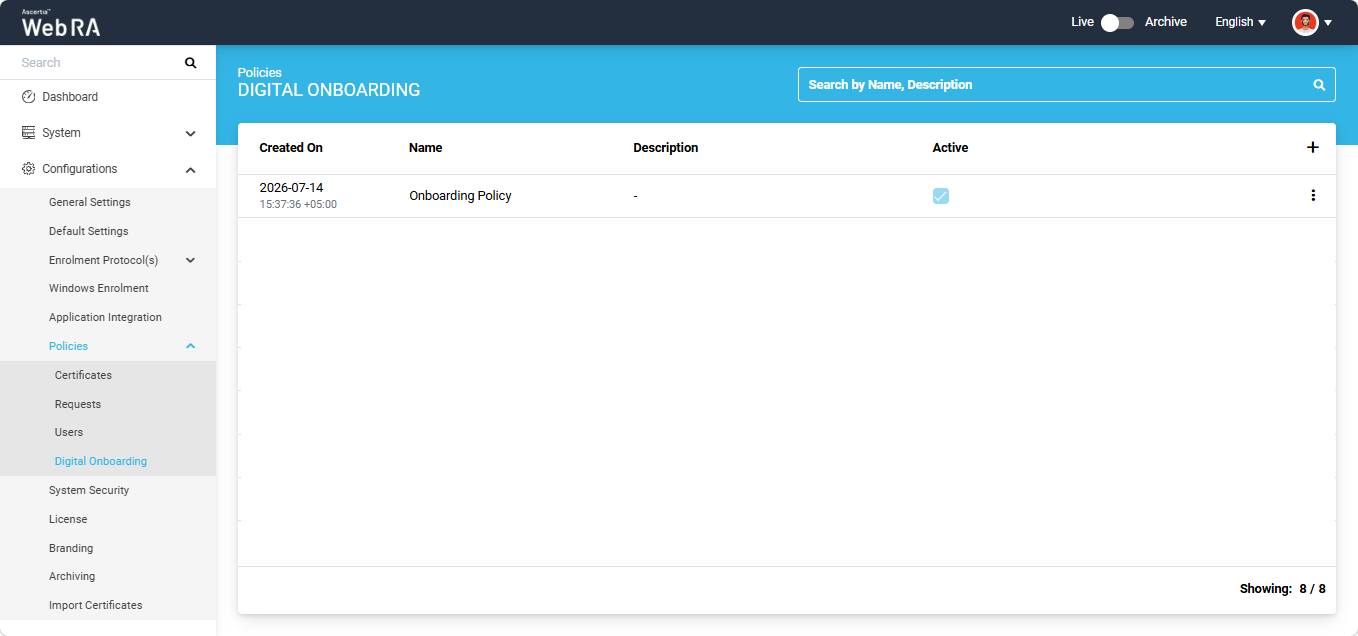
To add a new policy, click the '+' button located at the extreme right of the table header. The 'Add Digital Onboarding' dialog appears on the screen.
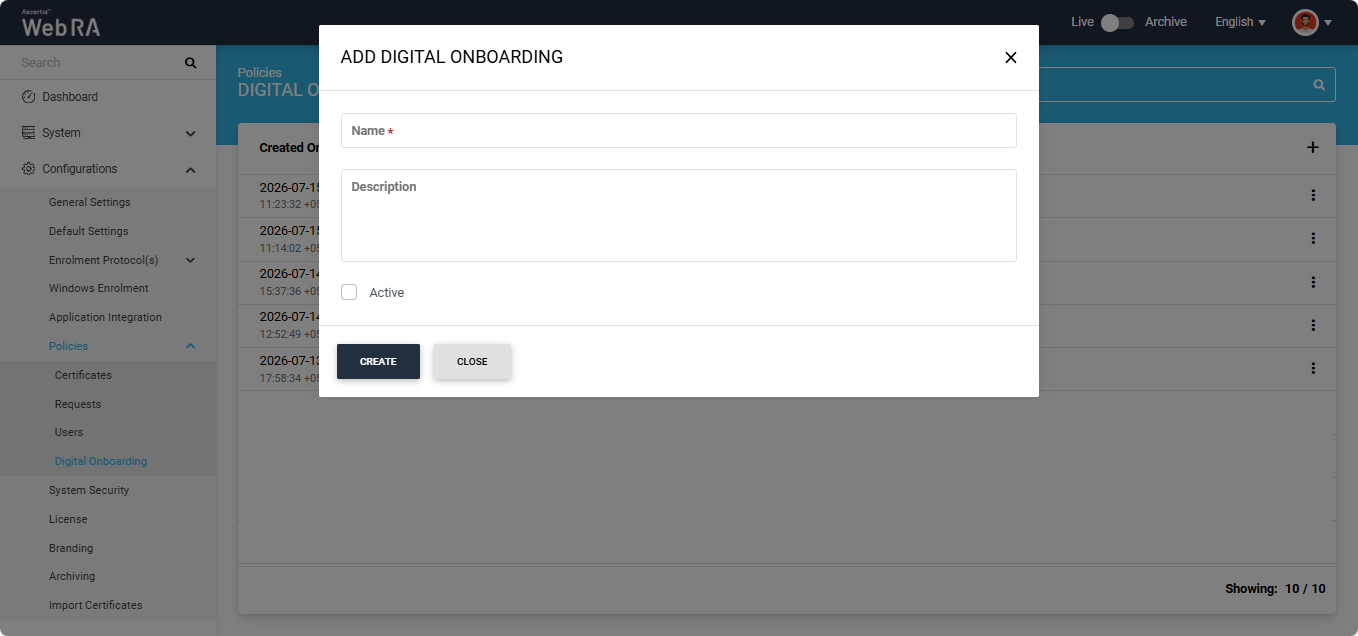
Following fields will appear on the dialog:
|
Field |
Description |
|
Name |
Enter a unique name for the digital onboarding policy. |
|
Description |
Enter a description related to the policy. (Optional) |
|
Active (Checkbox) |
Select this checkbox to mark the policy as active. |
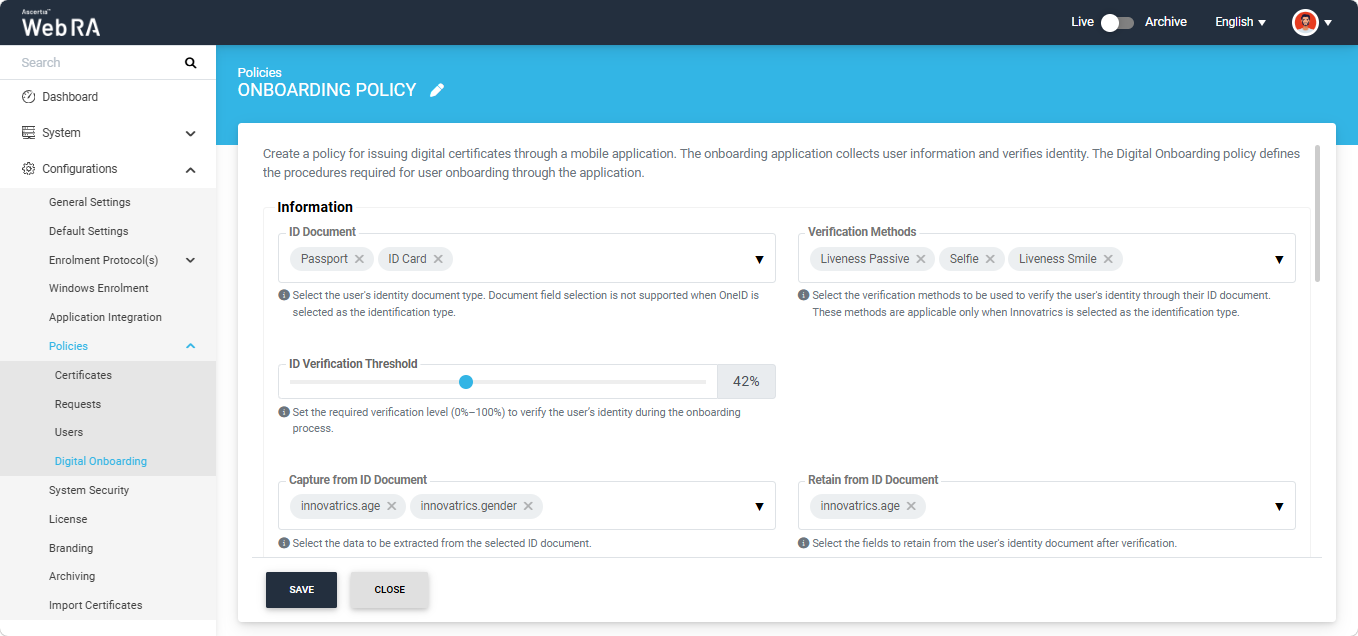
After entering the required information, click the 'Create' button. The Add Digital Onboarding Policy screen appears. The following sections, along with their respective configuration fields, are displayed on the screen.
The following fields are displayed under the Information section.
|
Field |
Description |
|
ID Document |
Select the identity document(s) from which the user's identity information will be extracted. Note: Document field selection is not supported when OneID is selected as the identification type. |
|
Verification Methods |
Select the verification methods to be used to verify the user's identity through their ID document. These methods are applicable only when Innovatrics is selected as the identification type. |
|
ID Verification Threshold |
Set the required verification level (0%–100%) to verify the user’s identity during the onboarding process. |
|
Capture from ID Document |
Select the information to be extracted from the ID document for identity verification. |
|
Retain From ID Document |
Select the fields from the user's identity document that will be retained after identity verification is completed. |
|
Map ID Document attributes with Subject Distinguished Name (SDN) |
Enable mapping of the identity information extracted from the user's identity document to the Subject Distinguished Name (SDN) fields during the onboarding process. A mapping table appears below this field. From the 'ID Document Attribute' dropdown, select the identity document attribute that you want to map. Then, from the 'Subject Distinguished Name' dropdown, select the SDN field to which the attribute will be mapped. After selecting the required values, click the '+' button to add the mapping. |
|
|
Note: To process a One ID verification request, at least one Capture ID Document attribute for One ID must be selected in the 'Capture ID Document' field. If no attribute is selected, the system will not process the verification request. |

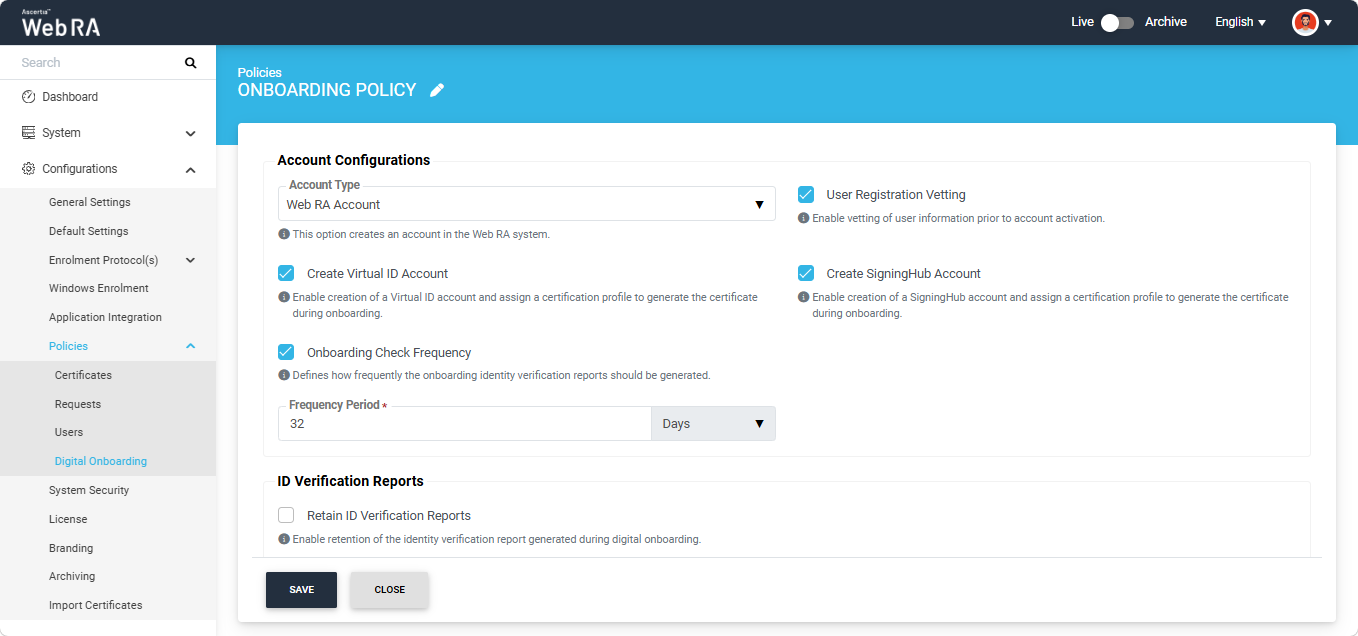
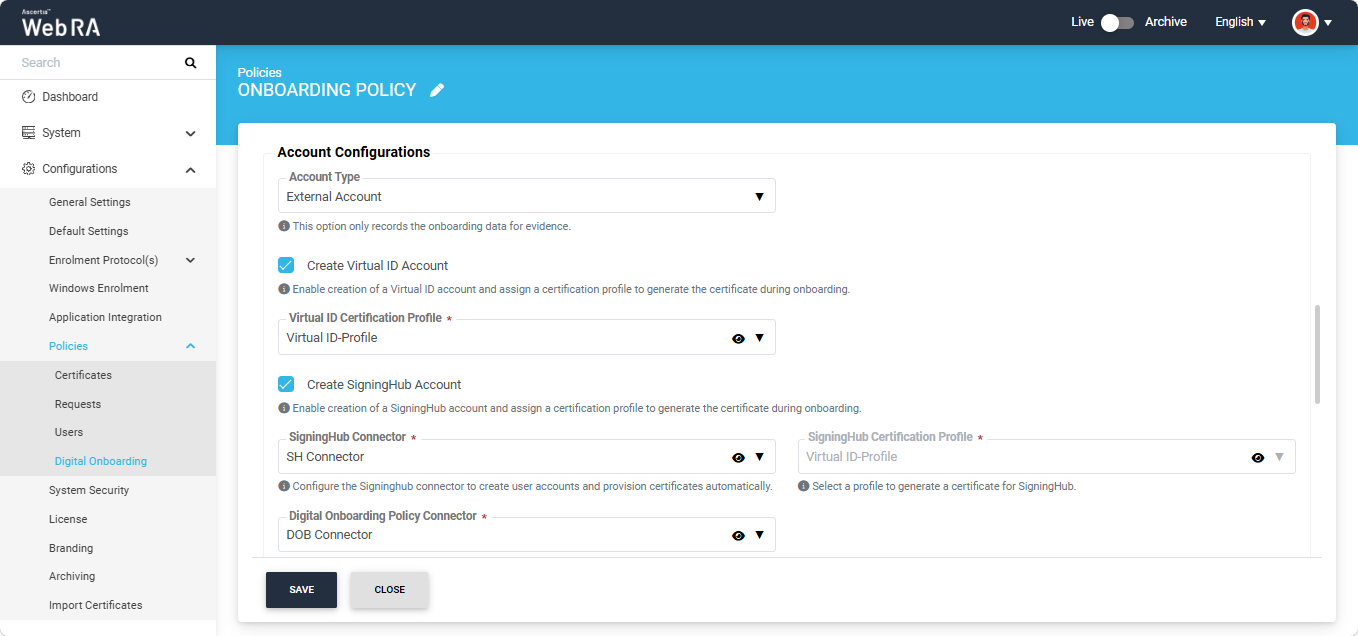
The following fields are displayed under the Account Configurations section.
|
Field |
Description |
|
Account Type |
The following options are available in this dropdown:
|
|
User Registration Vetting |
This checkbox is displayed only when 'Web RA Account' is selected as the account type. Select this checkbox to perform vetting of the user's information before the Web RA account is activated. |
|
Create Virtual ID account |
Enable this option to create a Virtual ID account during onboarding and assign a certification profile for certificate issuance. |
|
Virtual ID Certification Profile |
This dropdown field is displayed only when ‘External Account' is selected as the account type. Select the Virtual ID certification profile configured in the Web RA system. |
|
Create SigningHub account |
Enable this option to create a SigningHub account during onboarding and assign a certification profile for certificate issuance. |
|
SigningHub Connector |
This dropdown field is displayed only when ‘External Account' is selected as the account type. Select the Signinghub connector to automatically create user accounts and provision certificates automatically. |
|
SigningHub Certification Profile |
This dropdown field is displayed only when ‘External Account' is selected as the account type. Select the SigningHub certification profile configured in the Web RA system. |
|
Digital Onboarding Policy Connector |
This checkbox is displayed only when ‘External Account' is selected as the account type. Select the Digital Onboarding policy connector from this dropdown. |
|
Onboarding check Frequency |
Enable this option to require the user to repeat the verification process after a specified period. After enabling this option, specify the re-verification frequency in days, months, or years. |
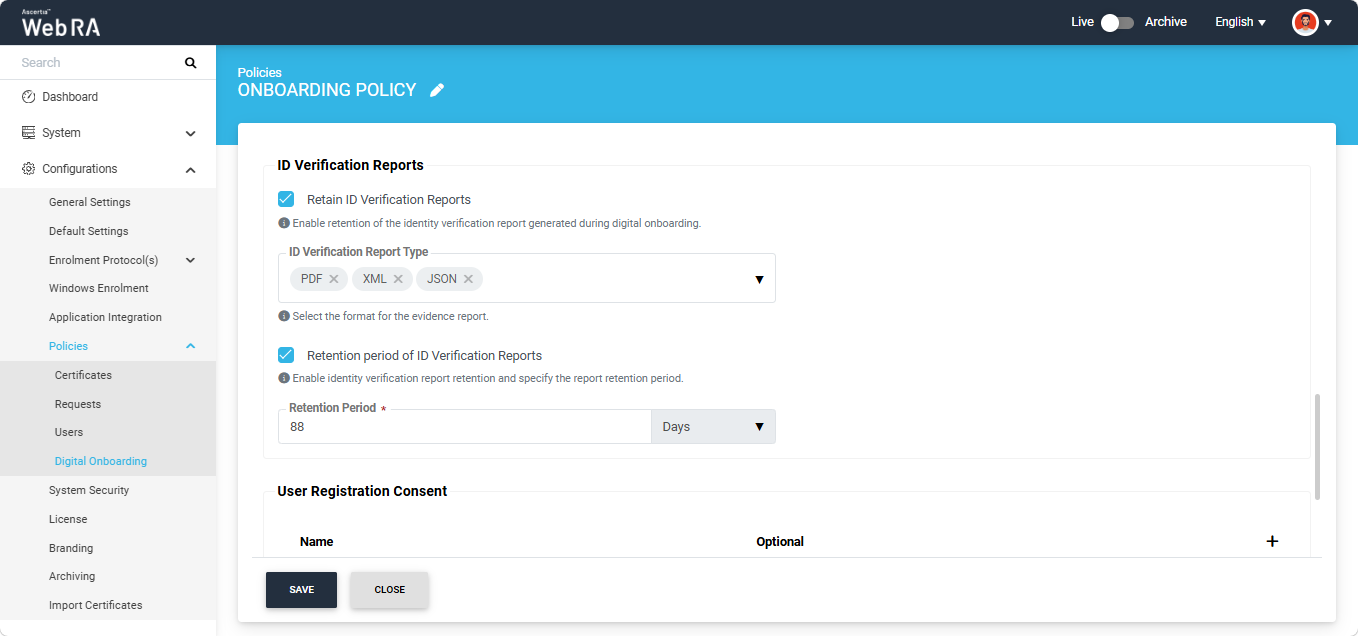
The following fields are displayed under this section.
|
Field |
Description |
|
Retain ID Verification Reports |
Enable this option to retain the identity verification reports generated during the digital onboarding process. |
|
ID Verification Report Type |
This field is displayed only when Retain ID Verification Reports is enabled. Select the format in which the identity verification reports will be retained. |
|
ID verification reports life time |
Enable this option to retain identity verification reports for a specified period after the digital onboarding process. |
|
Lifetime Period |
This field is displayed only when ID Verification Reports Lifetime is enabled. Specify the period for which the identity verification reports will be retained in days, months, or years. |
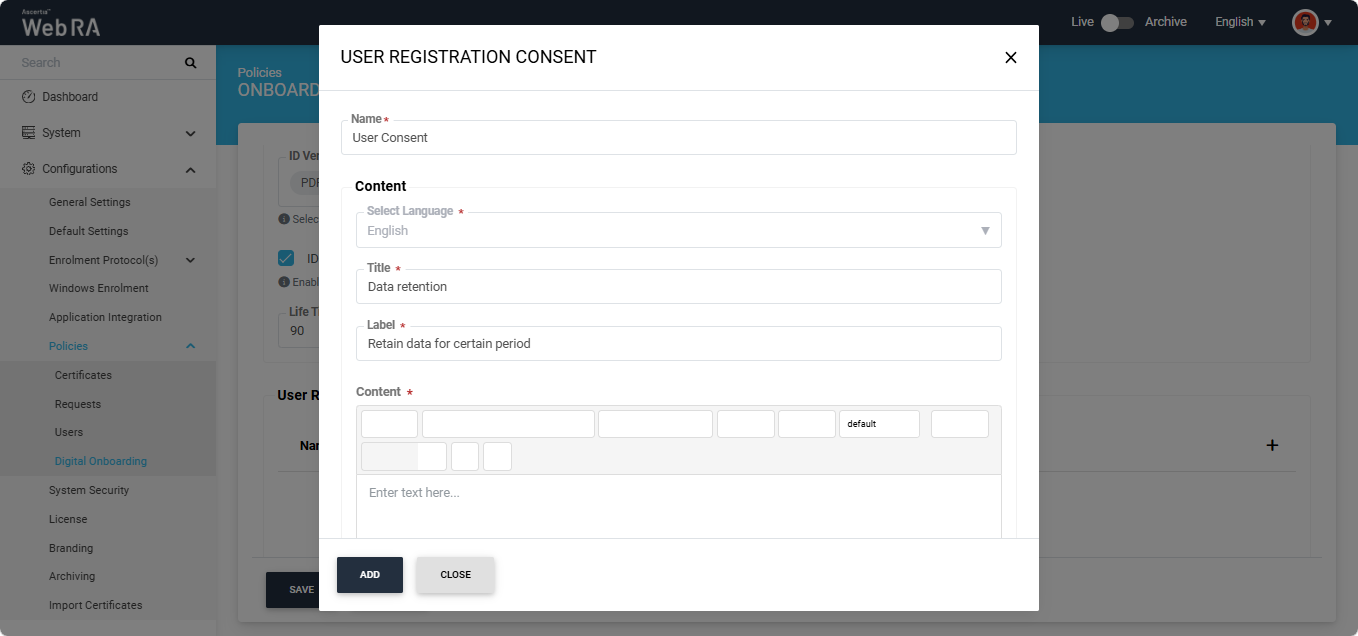
The User Registration Consent section allows you to configure the consent statements that are displayed to users in the mobile application before they complete the registration process. Multiple consent statements can be added to a single Digital Onboarding policy.
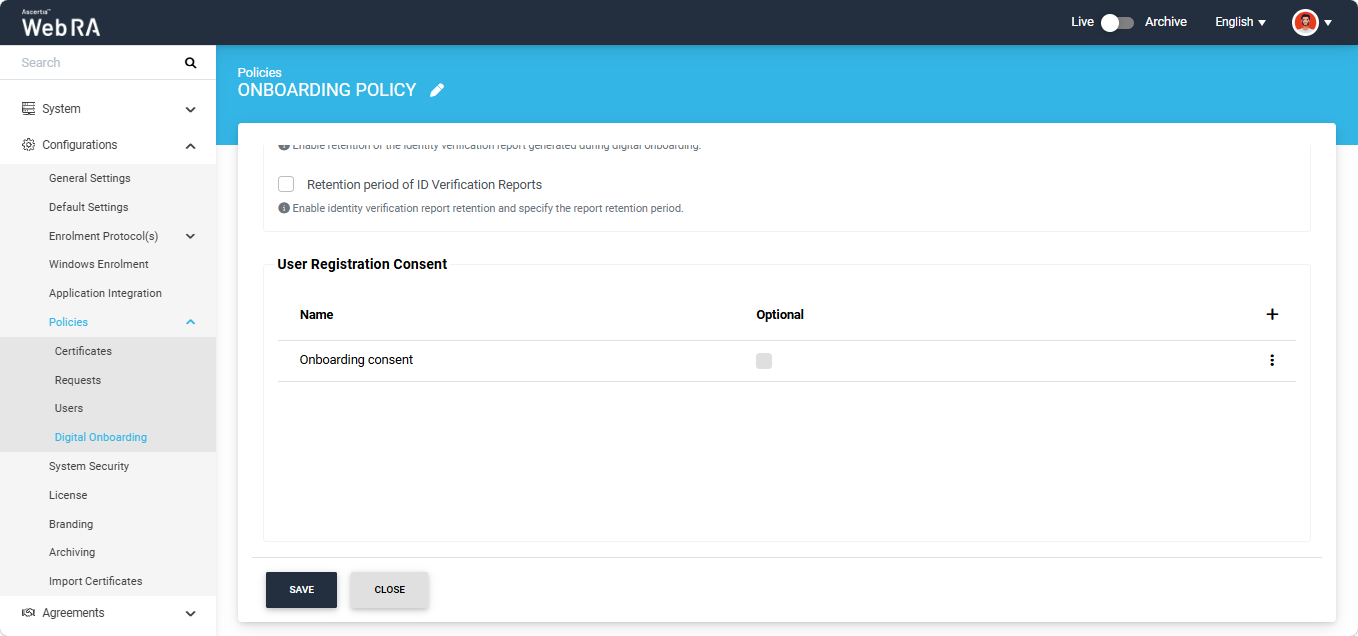
To add a user registration consent statement, click the '+' button. The 'User Registration Consent' dialog appears. Enter the required information and click 'Add' to associate the consent statement with the Digital Onboarding policy.
After making all the required configurations in the policy, click 'Save' to add the digital onboarding policy in the Web RA system.
Create a Digital Onboarding Connector
To create a Digital Onboarding connector, expand External Services > Connectors from the left-tree menu.
Then, click the add ‘+’ icon in the grid header.
The system will display the 'Add Connector' screen, which consists of three sections:
- Basic Information
- Details
- Branding
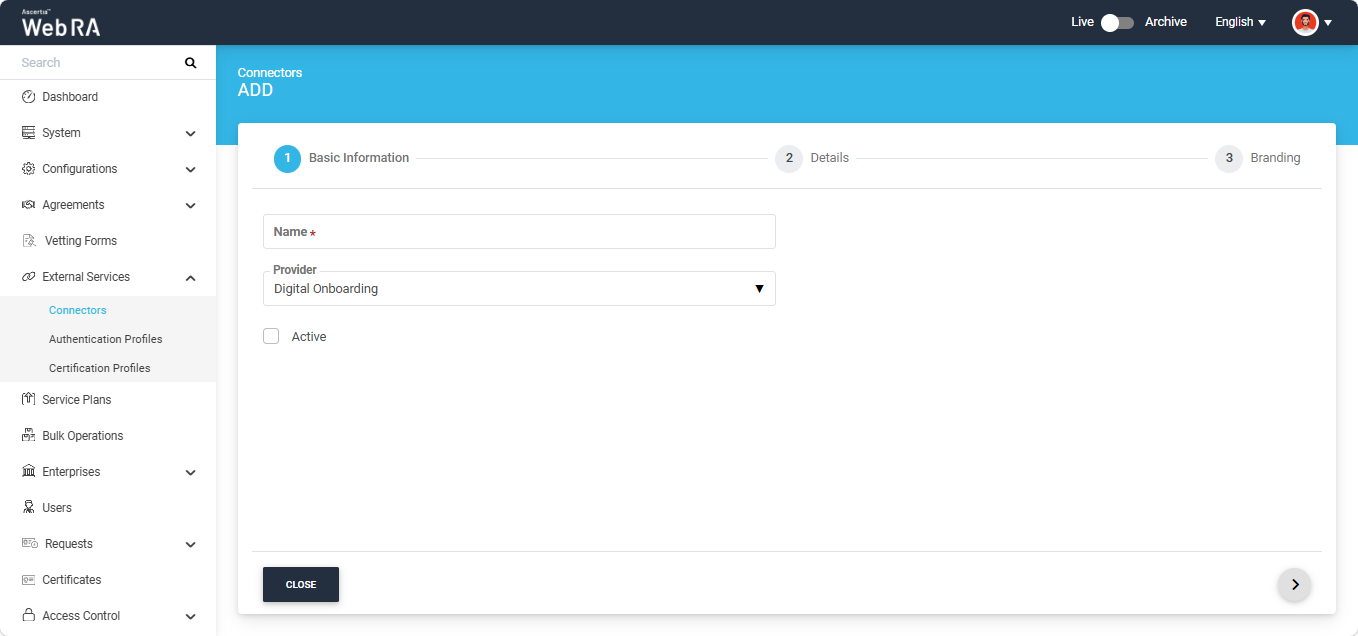
Basic Information
The fields appearing on the Basic Information screen are explained below:
|
Field |
Description |
|
Name |
Specify a unique name for this connector, for example: Digital Onboarding Connector. |
|
Provider |
Select Digital Onboarding as a provider for this connector. |
|
Active |
Select this check box to make this connector active. Inactive connectors cannot be configured in certification profiles. |
After specifying the information in the required fields, click the ‘>’ button to navigate to the ‘Details’ section.
Details
The fields appearing on the Details screen are explained below:
|
Field |
Description |
|
URL |
Specify the base endpoint of the Unity API. For example: https://unity.ascertia.net/unity/v1/. |
|
Client ID |
Specify the Client ID used to authenticate requests to the Unity API. |
|
Client Secret |
Specify the Client Secret associated with the Client ID. |
|
Providers |
Select one or more providers to configure under the connector. Multiple providers can be associated with a single connector. |
Signature Verification
|
Field |
Description |
|
ADSS Certification Server |
Select the ADSS certification server for signature verification. |
|
Verification Profile |
Enter the ADSS verification profile in this field. |
|
PKCS#1 Signing Profile |
Enter the ADSS signing profile in this field for signature verification. |
|
PKCS#1 Signing Certificate Alias |
Enter the signing certificate alias in this field. |
Failure Configuration
|
Field |
Description |
|
Workflow Timeout |
Specify the maximum time, in minutes, that the user has to complete the onboarding workflow. Leave this field empty if no time limit is required. |
|
Default Retry Count |
Specify the default number of retry attempts allowed for each step in the onboarding workflow. This value is overridden by any step-specific retry count. Leave this field empty to allow unlimited retry attempts. |
|
Document Retry Count |
Specify the maximum number of retry attempts allowed for the document verification step. This value overrides the Default Retry Count. Leave this field empty to allow unlimited retry attempts. |
|
Liveness Eye Gaze Retry Count |
Specify the maximum number of retry attempts allowed for the liveness eye gaze verification step. This value overrides the Default Retry Count. Leave this field empty to allow unlimited retry attempts. |
|
Selfie Retry Count |
Specify the maximum number of retry attempts allowed for the selfie capture step. This value overrides the Default Retry Count. Leave this field empty to allow unlimited retry attempts. |
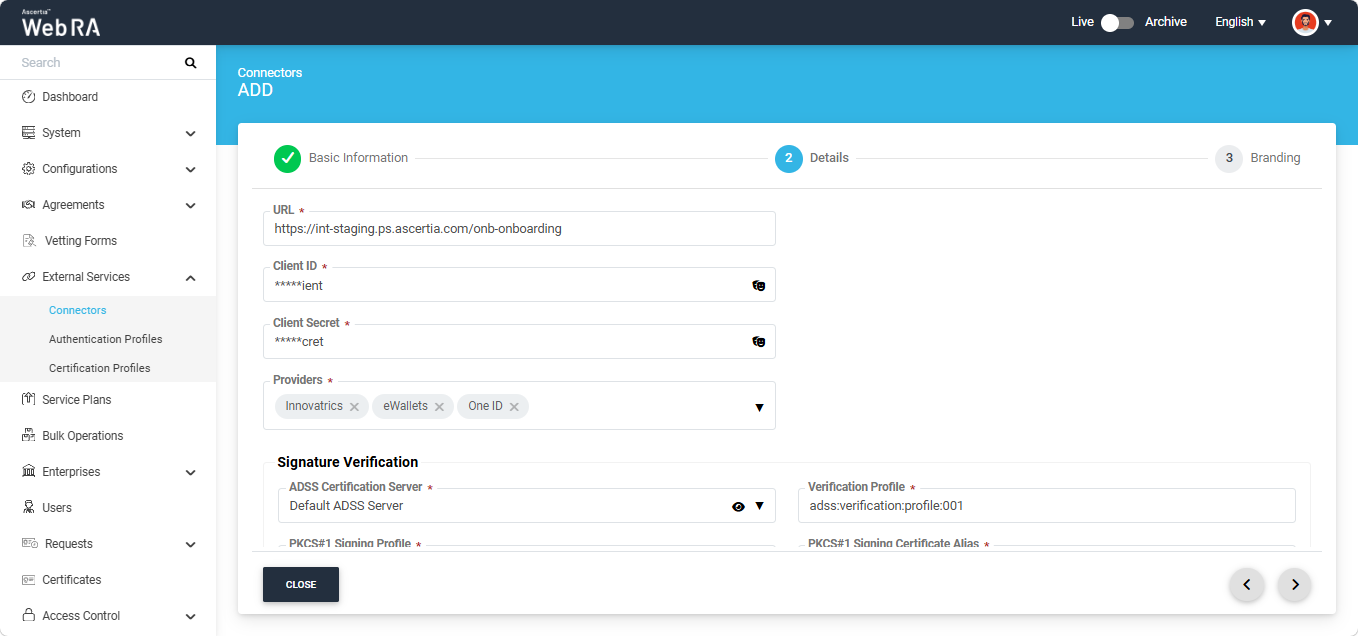
After specifying and selecting the information in the required fields, click the ‘>’ button to navigate to the ‘Branding’ section.
Branding
The Branding section allows you to specify a title and select a logo for each provider selected in the Details section.
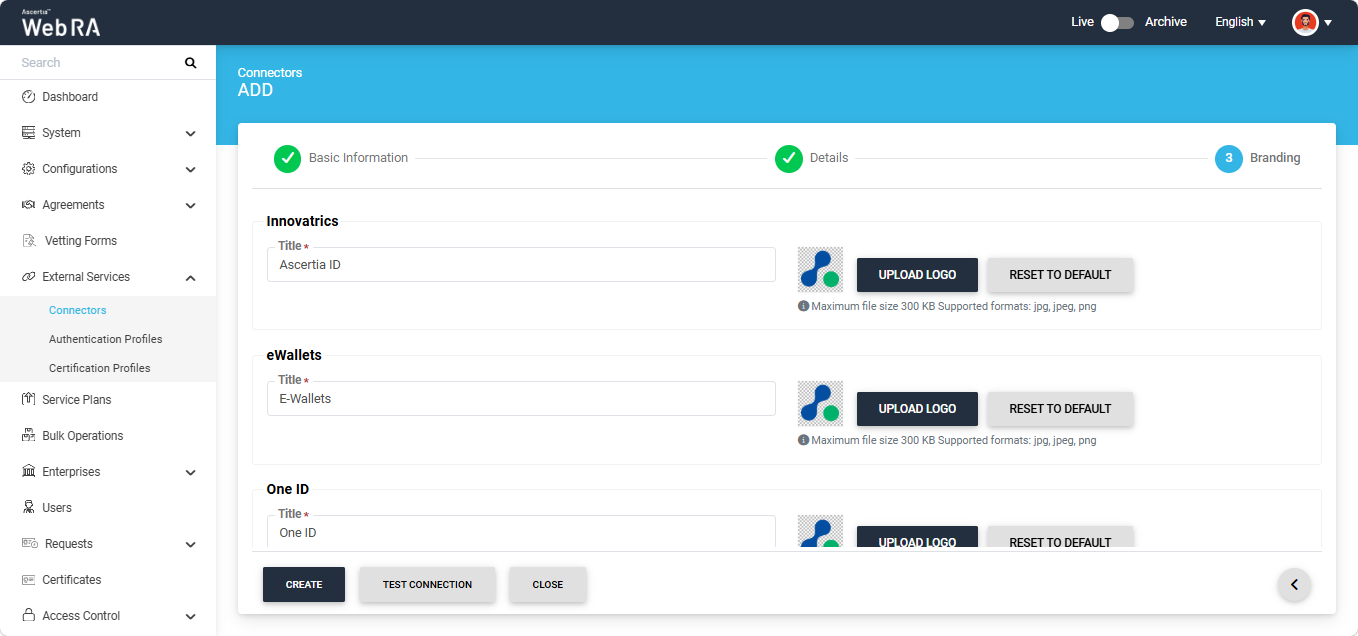
After entering the required information, click the 'Test Connection' button to verify that the connector configuration is correct and that the connection is working.
If the connection is successful, the system displays a success message confirming that the Digital Onboarding connector is connected successfully.
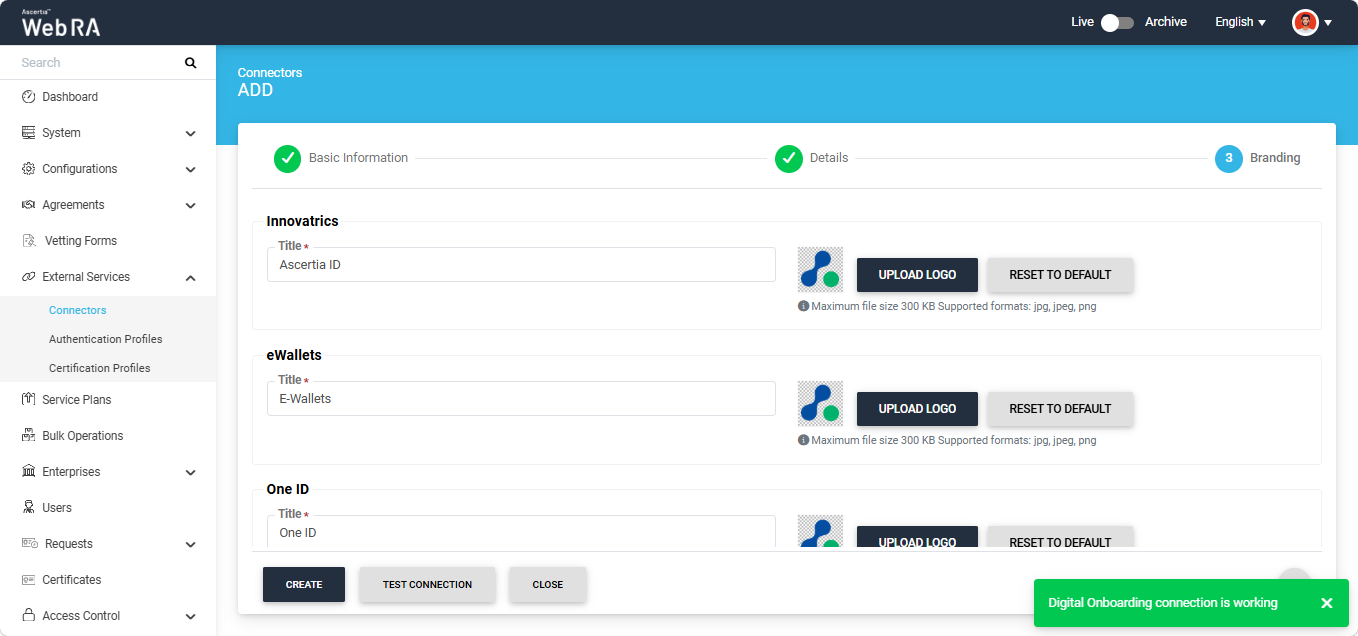
Then, click the ‘Create’ button to add the Digital Onboarding connector in the Web RA system.
Create a Certification Profile for Digital Onboarding
Follow the steps mentioned below to see how the setting for digital onboarding is enabled while creating a certification profile. For this purpose, you have to first create a new certification profile.
To do that, expand External Services > Certification Profiles from the left menu. The system will display the certification profiles listing screen.
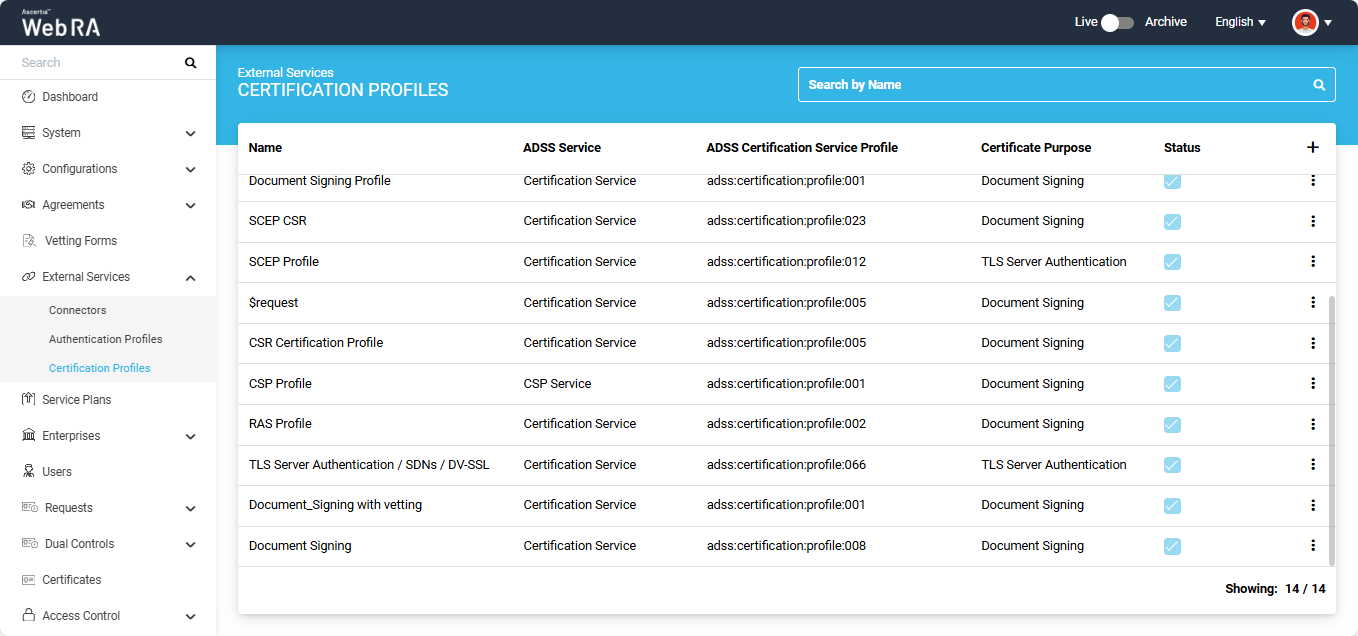
To add a new certification profile, click the ‘+’ button on the left side of the table header. The system displays the ‘Profile’ screen.
The Profile screen consists of the following two sections:
- Basic Information
- Service
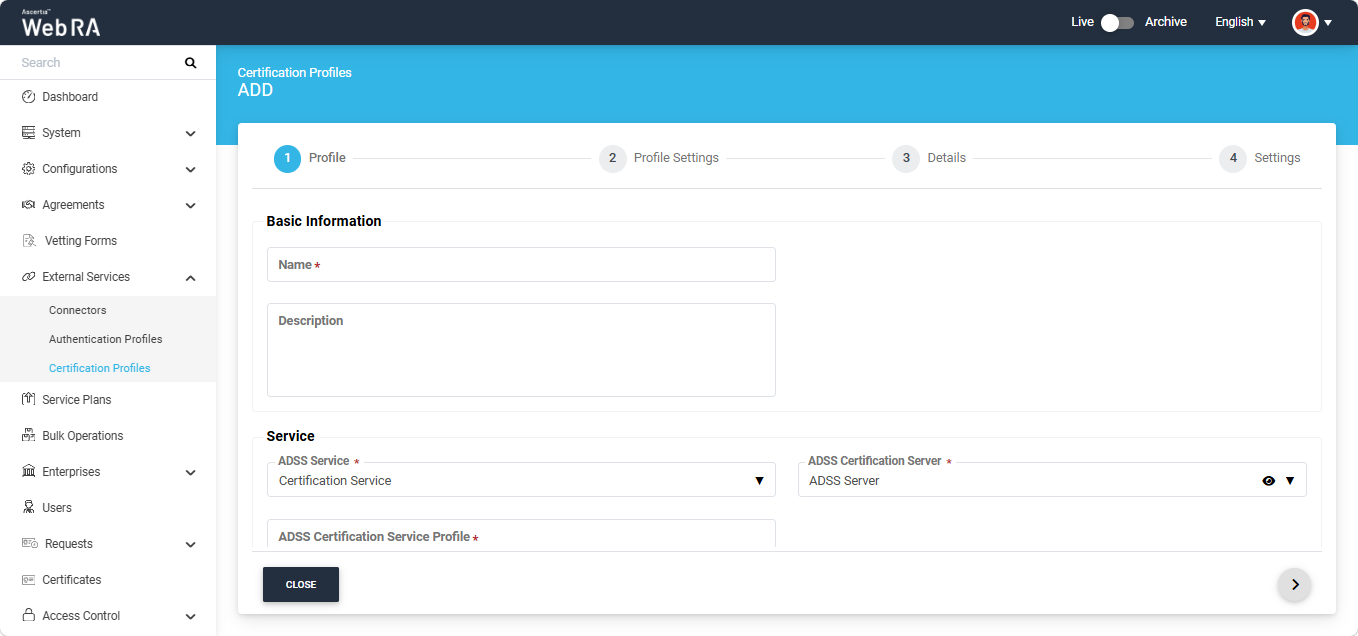
Basic Information
The Basic Information section displays the following fields:
|
Field |
Description |
|
Name |
Specify a unique name for this profile. |
|
Description |
Specify any description related to this certification profile. (Optional) |
Service
In the ‘Service’ section, provide the required details in the ADSS Service, ADSS Certification Server, and ADSS Certification Service Profile fields.
Then, enable the ‘Active’ checkbox present at the end of the screen.
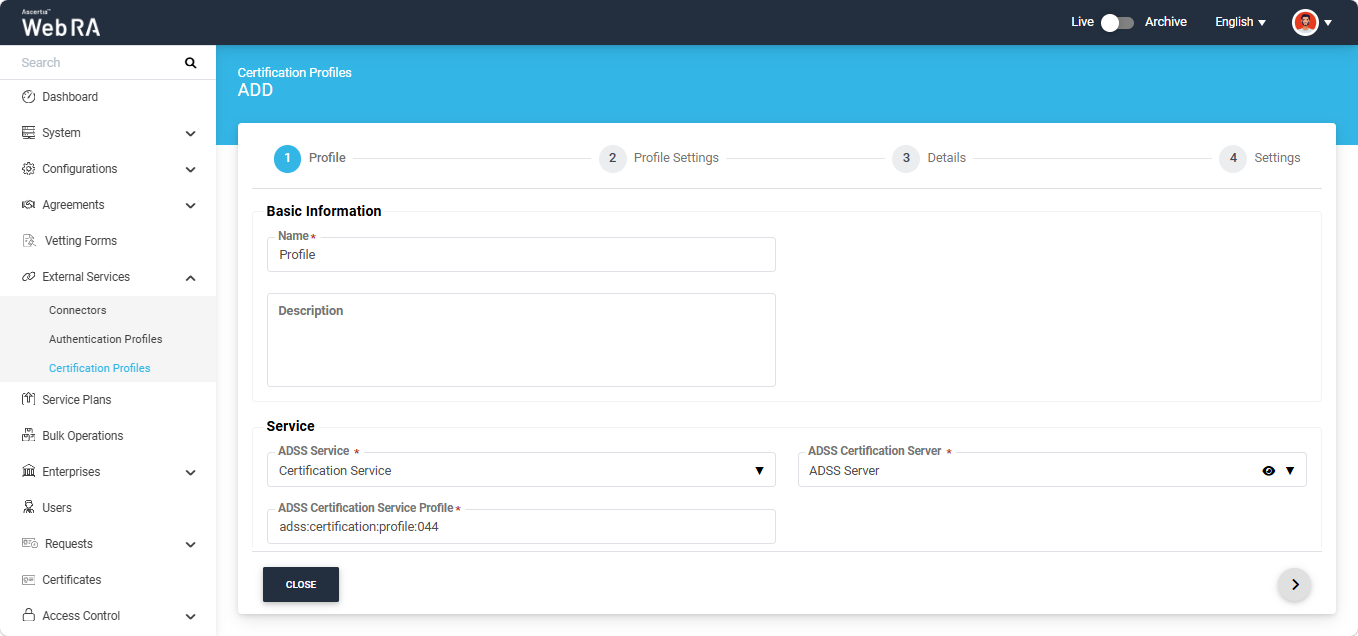
After providing the required information on the 'Profile' screen, click the next ‘>’ button to proceed to the ‘Profile Settings’ screen.
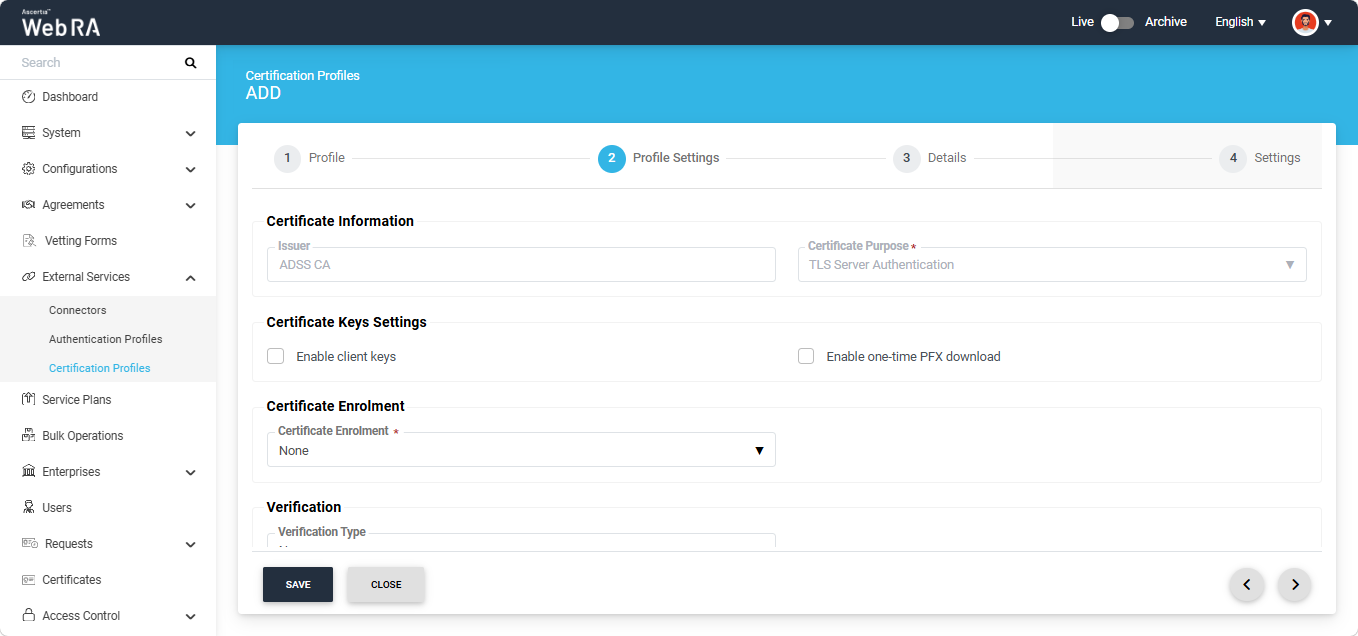
Profile Settings
The Profile Settings screen consists of the following sections:
- Certificate Information
- ADSS Server Client Secret
- Certificate Enrolment
- Verification
- Open MPIC
- Go Sign Token
On this screen, configure the available options according to your requirements to define the settings for the certification profile.
After the configuration is complete on the 'Profile Settings' screen, click the next ‘>’ button to navigate to the ‘Details’ screen.
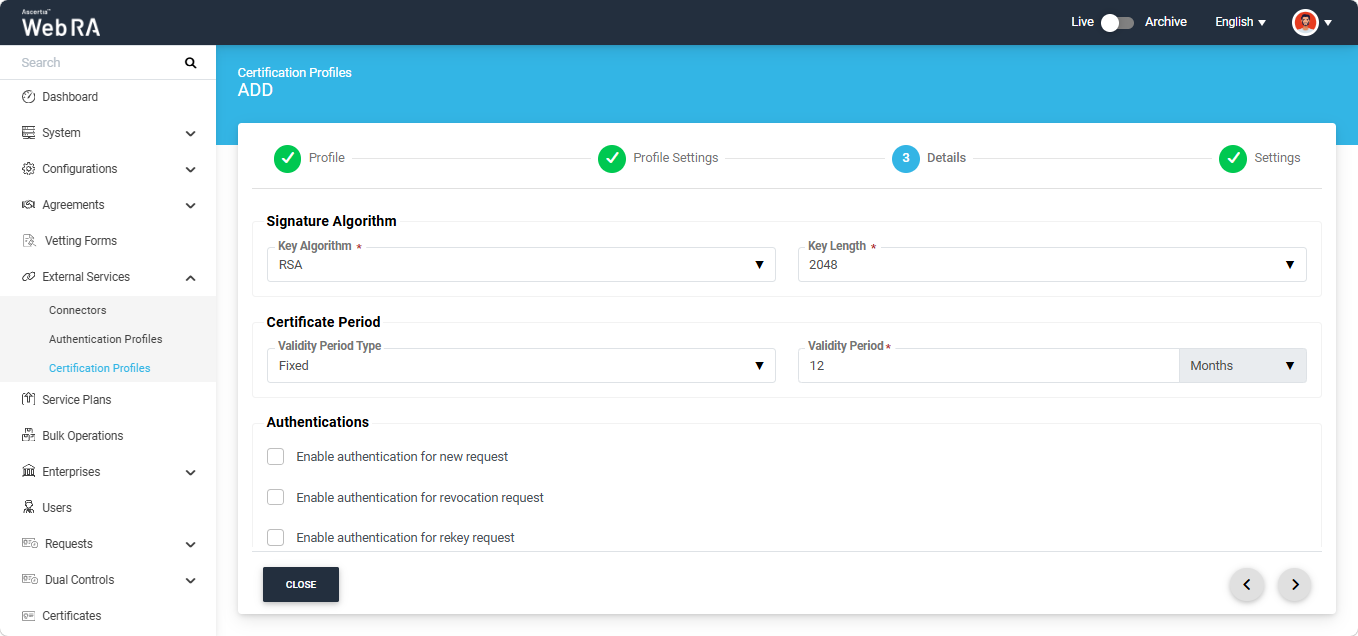
Details
The Details screen consists of the following sections:
- Signature Algorithm
- Certificate Period
- Authentications
On this screen, configure the available options according to your requirements for the certification profile.
After the configuration is complete on the ‘Details' screen, click the next ‘>’ button to navigate to the ‘Settings’ screen.
Settings
The 'Settings' screen consists of the following sections:
- Agreement
- Vetting
- Special Permissions
- Digital Onboarding
- Mandatory Fields
To configure the setting for digital onboarding in the certification profile, scroll down to the Digital Onboarding section and follow the instructions given below.
Digital Onboarding
Select the 'Enable Digital Onboarding' checkbox to ensure that users complete the digital onboarding process before performing certificate-related operations in the Web RA system.
When this option is selected, the following fields appear on the screen:
|
Field |
Description |
|
Connector |
Select the connector to be used for the digital onboarding process. |
|
Policy |
Select the Digital Onboarding policy to be applied during the onboarding process. |
|
Certificate Operations |
Select the certificate operations for which the digital onboarding process is required. Users must complete the digital onboarding process before they can proceed with the selected operation(s). |
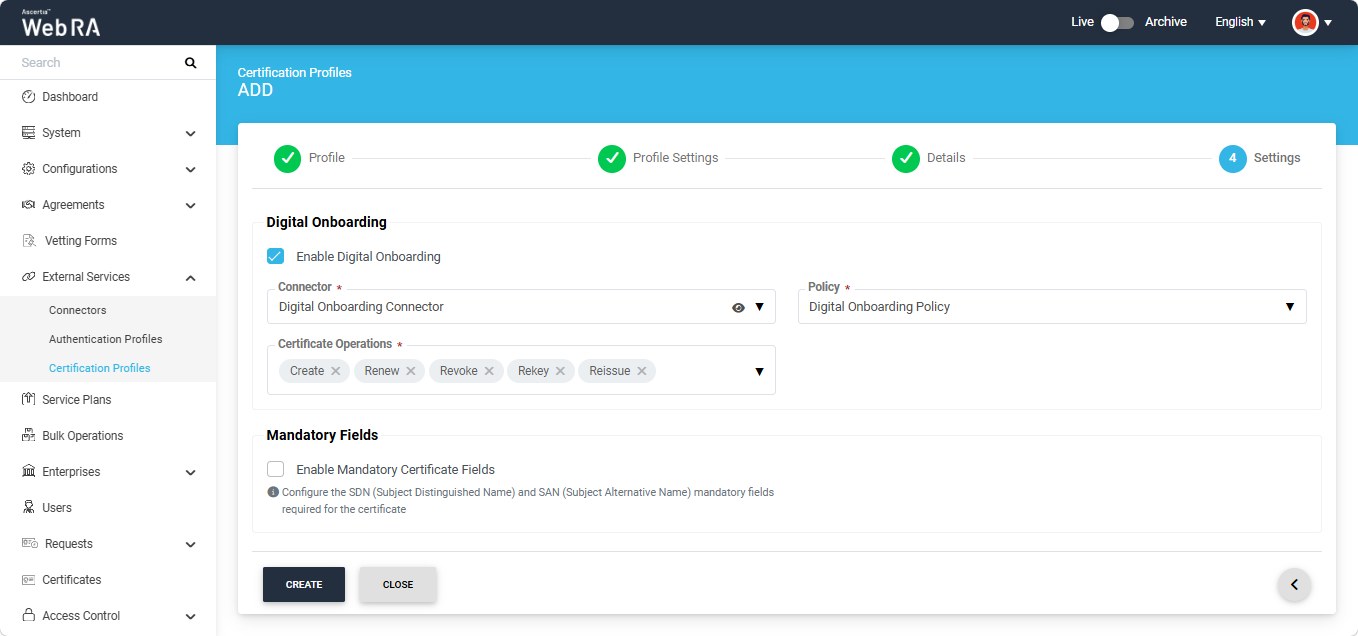
After configuring the required Settings, click the ‘Create’ button to finalize the creation of the certification profile.
Mandatory Fields
This section consists of the following fields:
|
Field |
Description |
|
Enable Mandatory Certificate Fields |
If enabled, this option allows the administrator to define which Subject Distinguished Name (SDN) and Subject Alternative Name (SAN) fields must be mandatory when generating a certificate. Enabling this checkbox will display the SDN and SAN dropdowns, allowing the administrator to select the required mandatory fields while leaving the optional ones unchecked. |
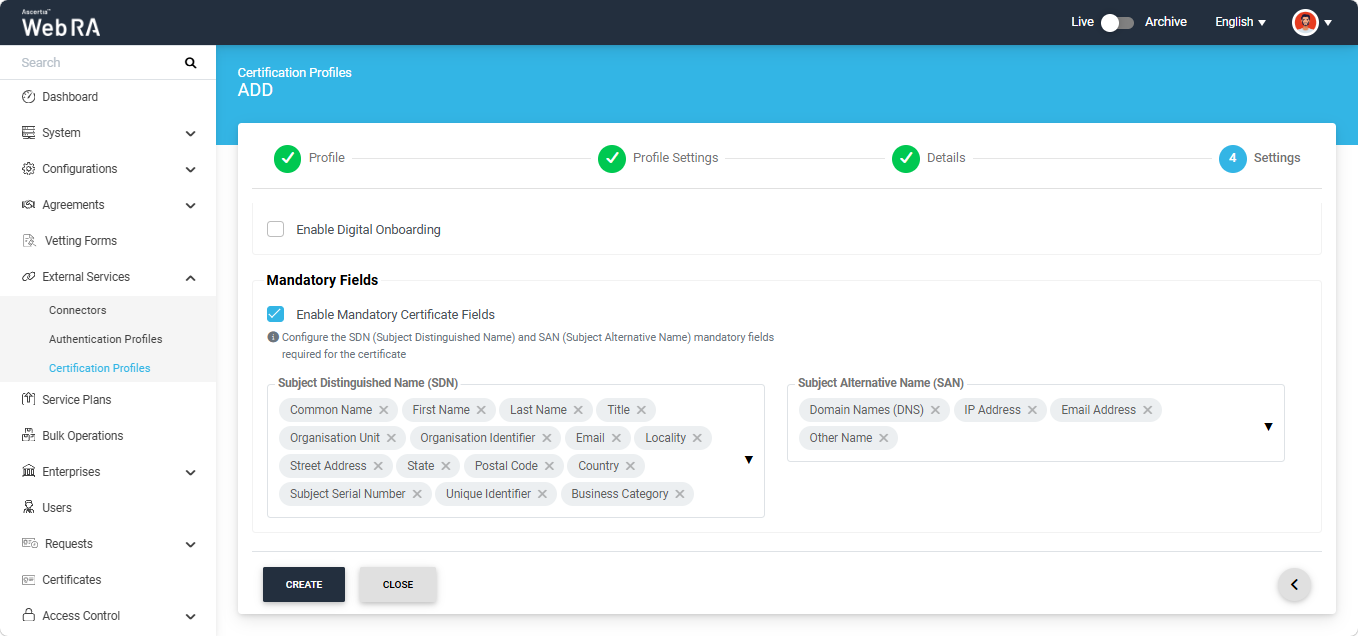
After configuring the required Settings, click the ‘Create’ button to finalize the creation of the certification profile.
Configure Digital Onboarding Profile and its Settings in the Service Plan
You need to now configure the certification profile created above for Digital Onboarding in the Service Plan and enabled the Digital Onboarding settings in the Service Plan as well.
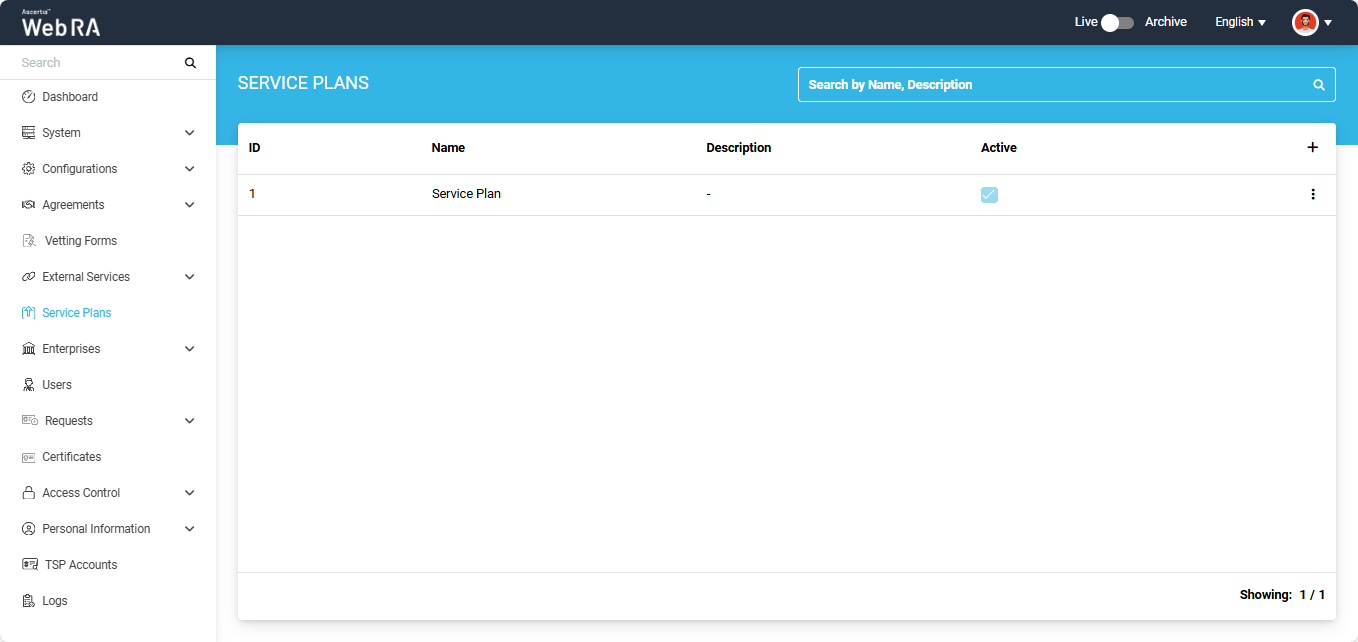
Expand “Service Plan” tab from the left tree menu in the Admin portal and click on the “+” icon to create a new service plan. The system will display the ‘Add’ service plan screen.
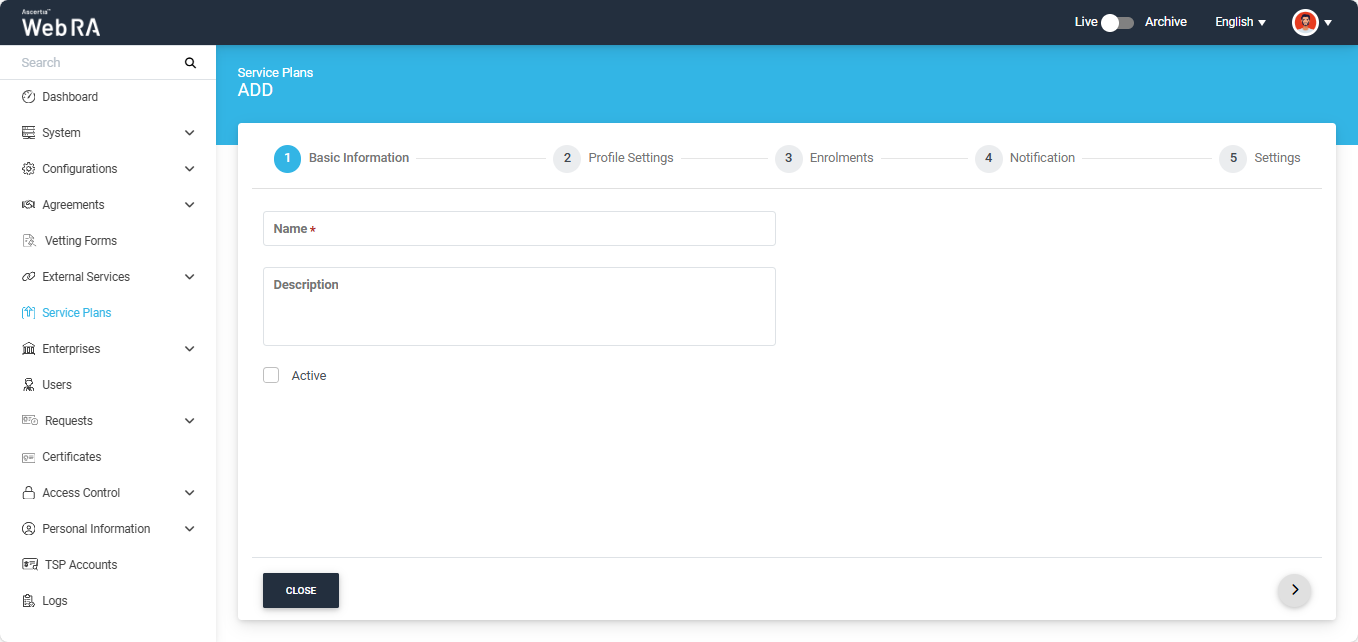
On this screen, enter the name of the service plan and an optional description. Then, enable the ‘Active’ checkbox. Inactive service plans cannot be configured under Enterprise Accounts.
After entering the details, click the next ‘>’ button and navigate to the ‘Profile Settings’ screen.
Profile Settings
Under the Profile Settings screen, configure the digital onboarding profile in the relevant key store.
You can either associate a single profile with the service plan or select multiple profiles, depending on your requirements.
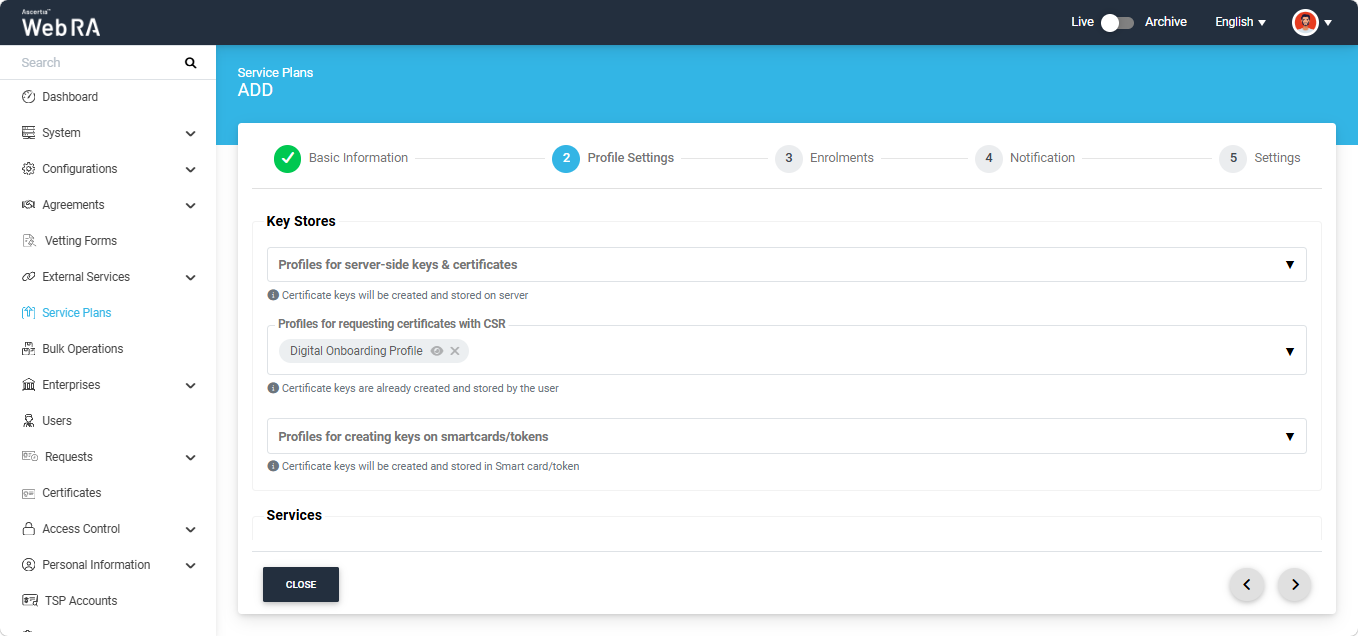
After associating the profile, click the next ‘>’ button to navigate to the ‘Settings’ screen.
Settings
On this screen, you must select the 'Primary Authentication Profile' and 'Default Primary Authentication Profile'. You can configure the remaining fields according to your requirements.
After that, scroll down to the ‘Digital Onboarding’ section. From this section, you can select one or more 'Connectors' and 'Policies' to associate with the service plan. The selected connectors and policies are then available to Enterprise Owners when configuring roles.
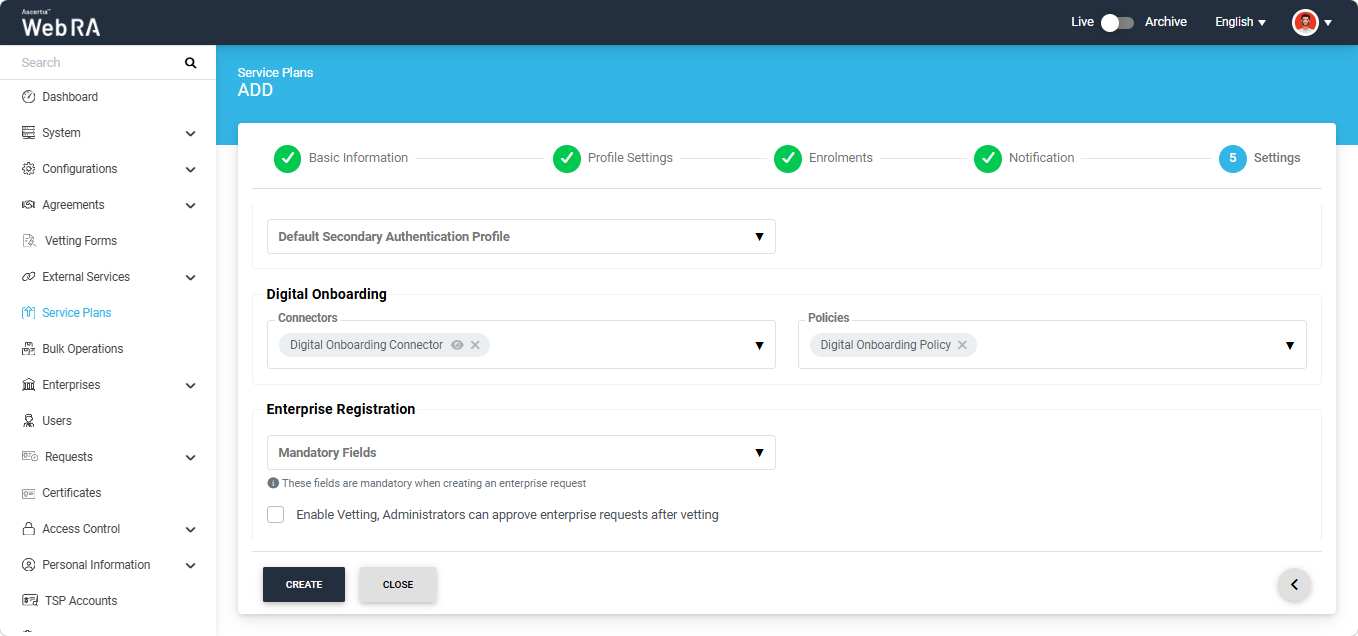
After making the required changes, click the ‘Create’ button to finalise the Service Plan.
Create an Enterprise and Associate the Service Plan
To create a new enterprise and configure the Service plan to it, expand Enterprises > Requests > Add (+) to access the ADD enterprise screen.
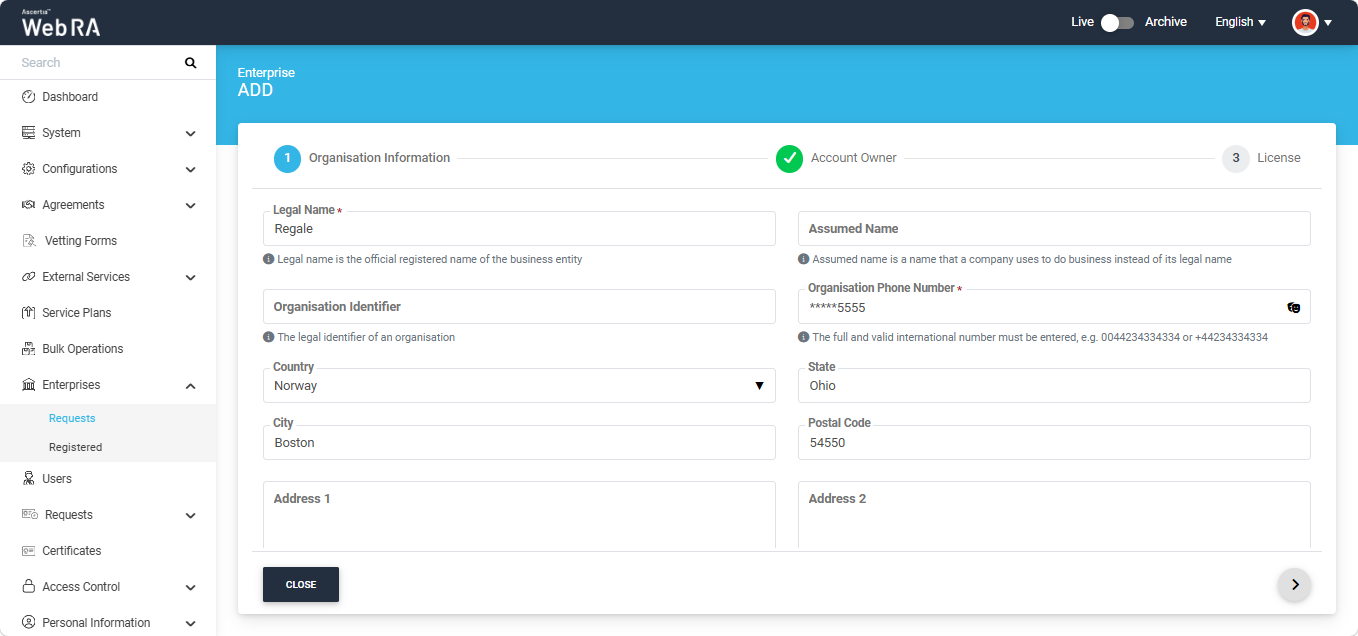
On this screen, enter the required information in their designated fields and assign the service plan to the enterprise from the ‘Service Plan’ dropdown.
Then, click next to navigate to ‘Account Owner’ screen. On this screen, enter the details of the enterprise owner.
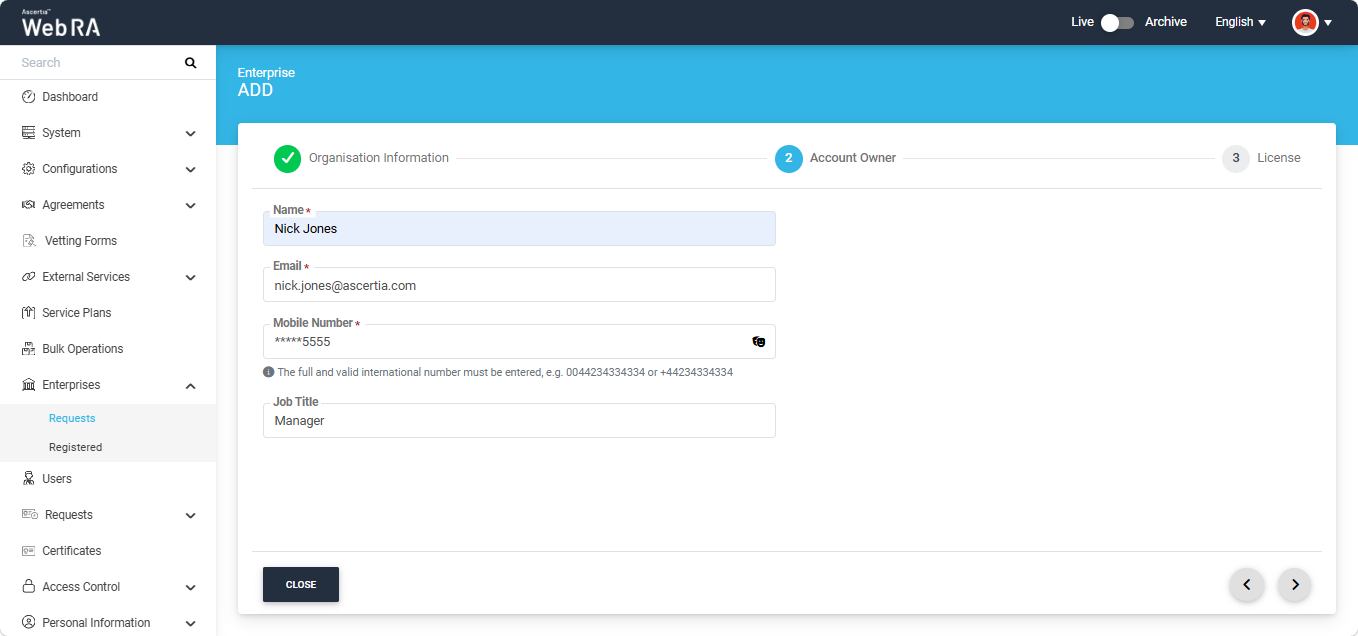
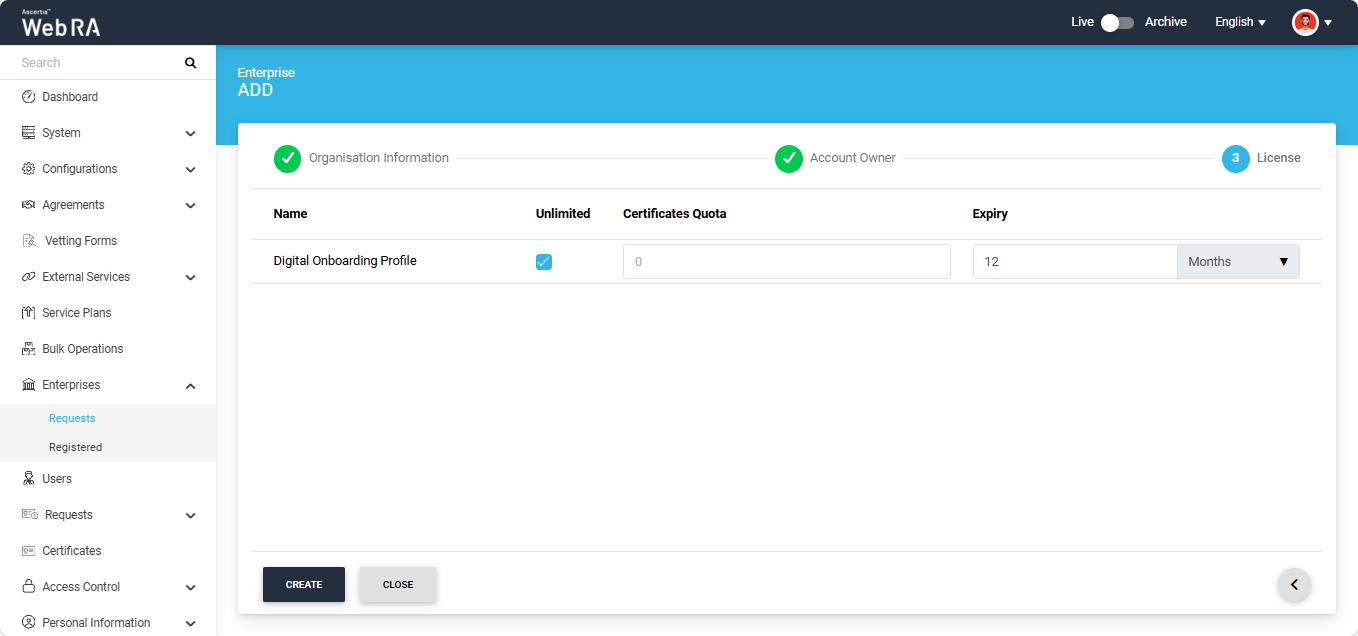
Click the next '>' button to navigate to the 'License' screen. On the 'License' screen, assign a license quota to the certification profile associated with the service plan.
After making the required changes, click ‘Create’ to create the Enterprise.
Create a Role in Enterprise & Configure Digital Onboarding Settings
Navigate to the ‘Roles’ screen by following the path given below:
Enterprises > Registered > Your Enterprise > Roles
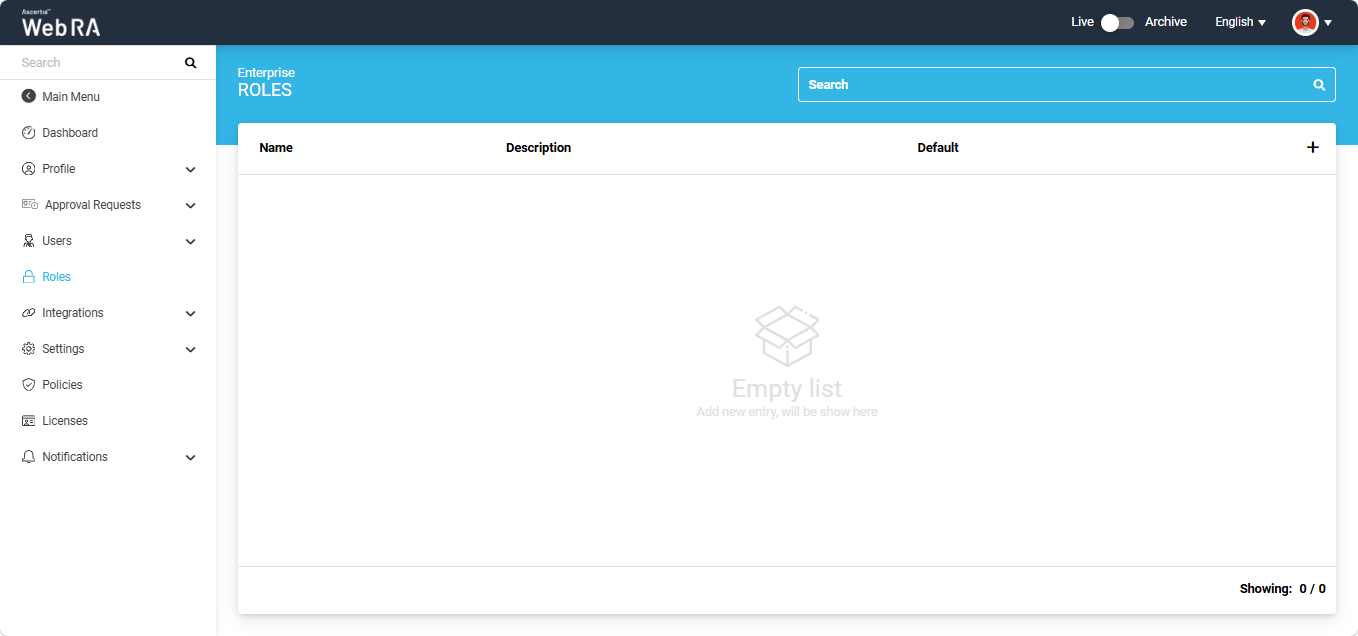
To add a new role, click the ‘+’ button. The system will display the ‘Add Role’ dialog on the screen.
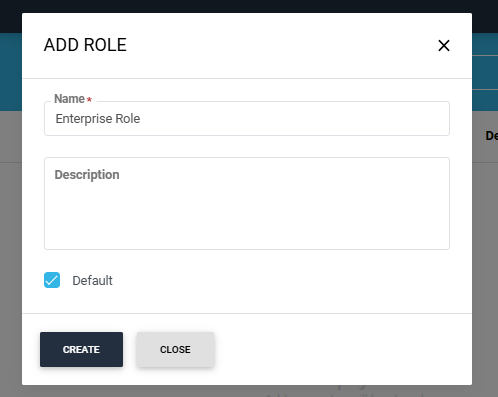
Enter the required name and description (optional) of the role. You can set the role to be used as default by enabling the ‘Default’ checkbox.
Once all the details are entered, click ‘Create’.
Once you create a role, the ‘Module’ screen appears, displaying all the available modules. The operator can choose to allow Read, Add/Edit, and Delete permissions for these modules as required.
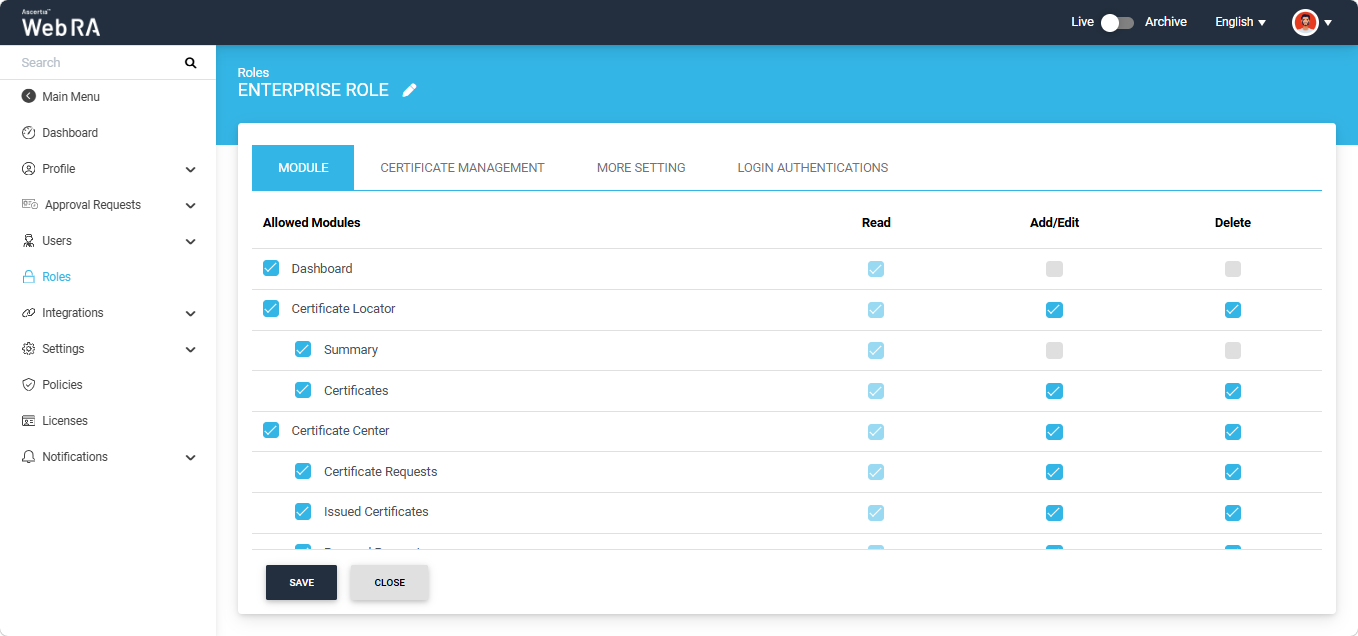
After selecting the required modules, navigate to the ‘Certificate Management’ screen.
Certificate Management
On this screen, you can assign profiles to the role, which will allow the user to create different types of certificates from the user portal.
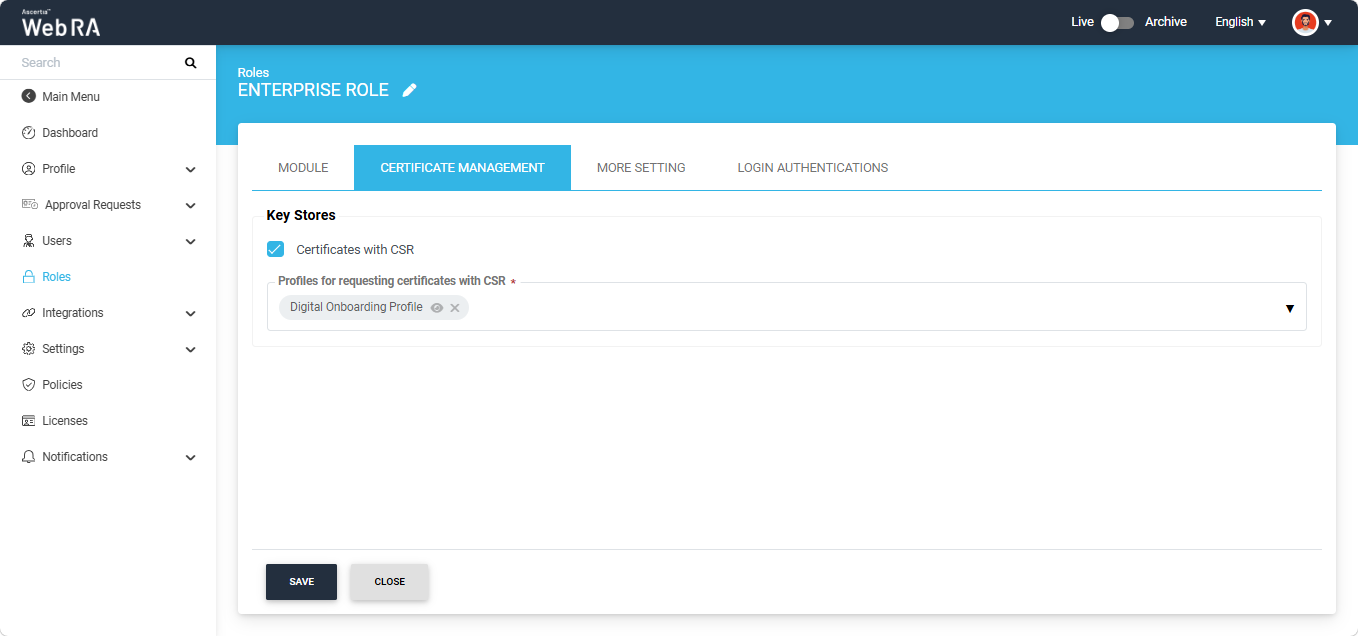
After assigning the profiles, navigate to the ‘More Setting’ screen. Select the required options from this screen as per the requirement of the Role.
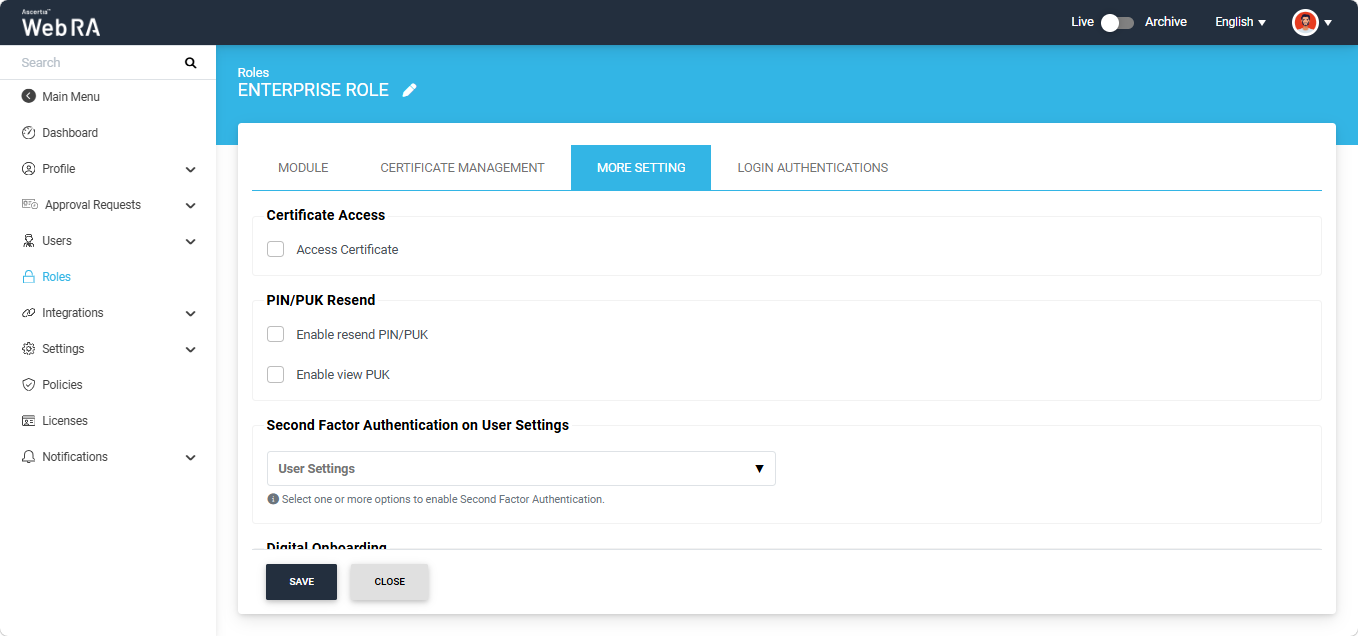
Then, scroll down to the ‘Digital Onboarding’ section.
Digital Onboarding
Enable this option to require users to complete the digital onboarding process when signing up to Web RA.
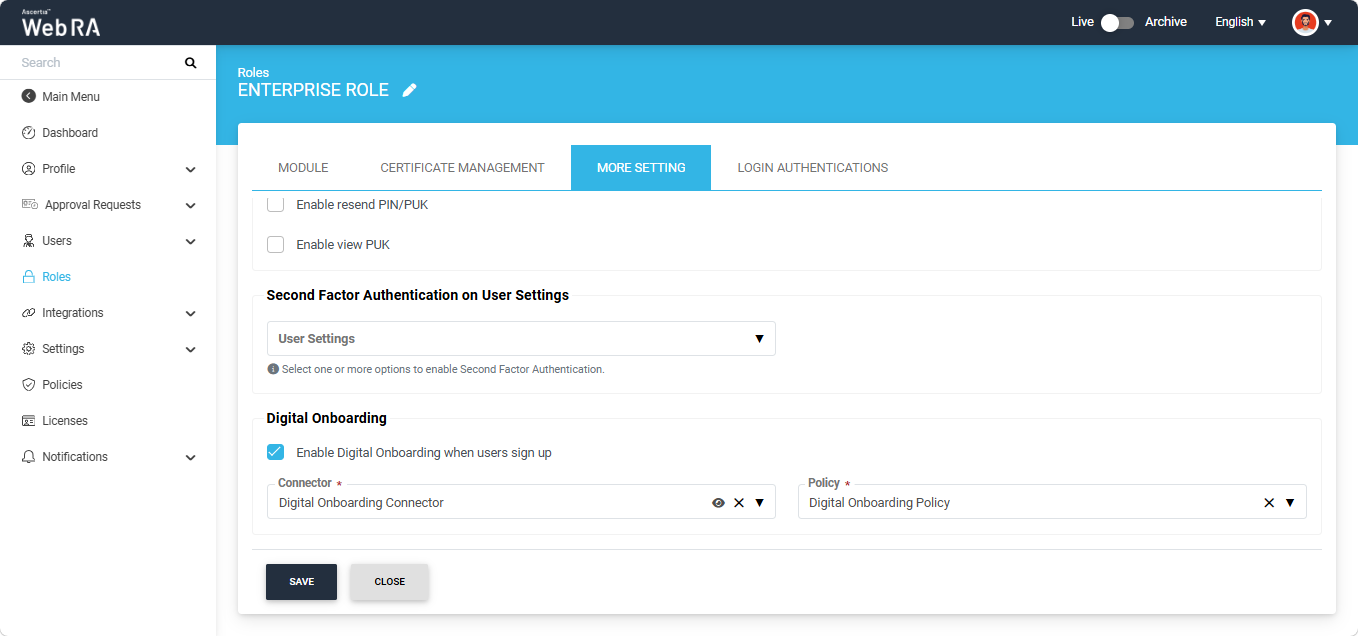
When the ‘Enable digital onboarding when users sign up’ checkbox is selected, the system displays the following two fields.
|
Field |
Description |
|
Connector |
Select the Digital Onboarding connector to be used during the user sign-up process. Only active Digital Onboarding connectors configured in the Web RA system are available for selection. |
|
Policy |
Select the Digital Onboarding policy to be applied during the user sign-up process. Only active Digital Onboarding policies configured in the system are available for selection. |
After making all the required changes on the ‘More Setting’ screen, click the ‘Save’ button to create the new Role.
Register a User Account in the Web RA Web Portal via digital onboarding
There are two ways to register a user in the Web RA Web Portal:
- Create an invitation for the user from the Enterprise
- Create a user account using the Sign-Up option in the Web Portal
Create an invitation for the user from the Enterprise
To create an invitation for a user from the Enterprise, expand Users > User Invitations from the left-tree menu in the Enterprise dashboard.
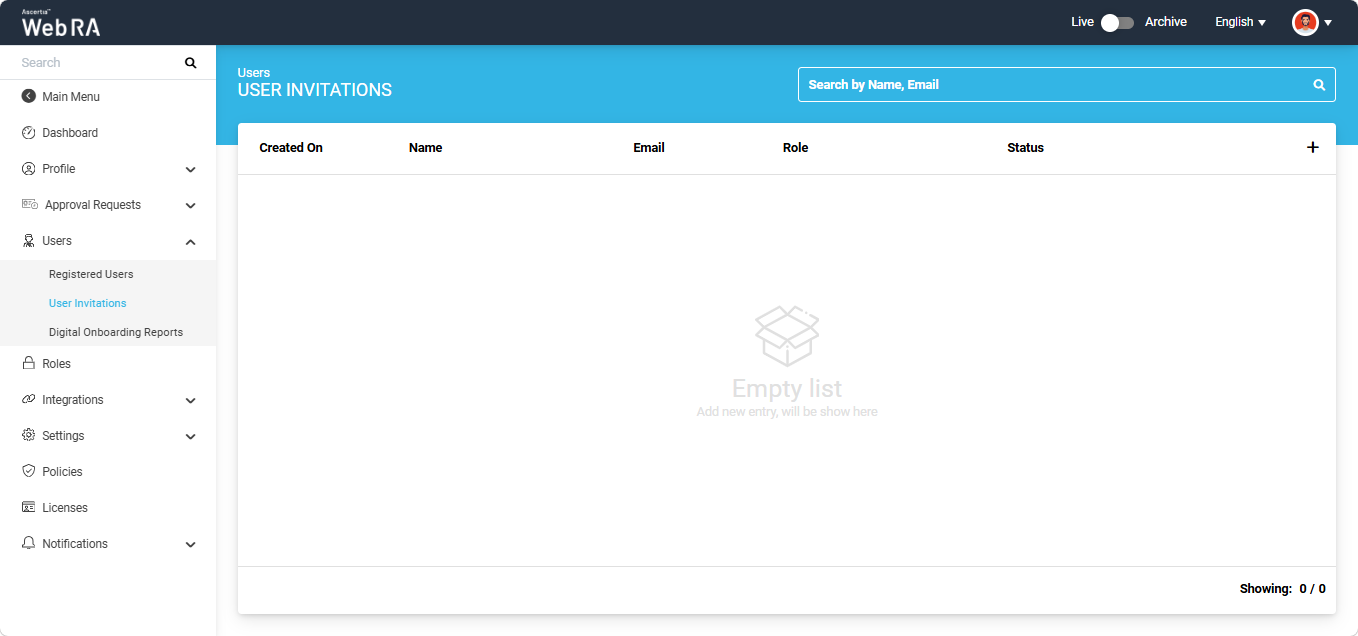
Click the ‘+’ button on the right side of the screen. The system will display the ‘Invite User’ screen.
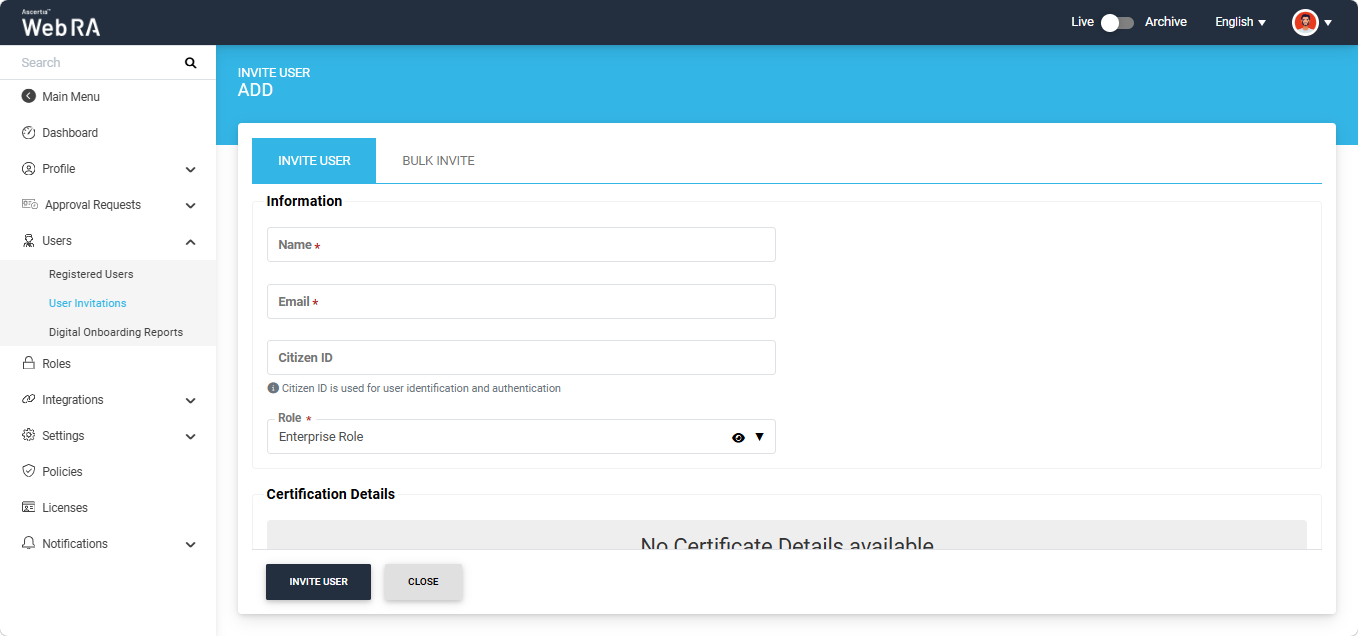
Here, enter the Name and Email of the user being invited. Also, assign a Role to the user from the ‘Role’ dropdown.
After entering the required details, click the ‘Invite User’ button. The system will create an invite and send it to the user’s email address. A success alert will also appear on the screen, indicating that the invitation has been sent.
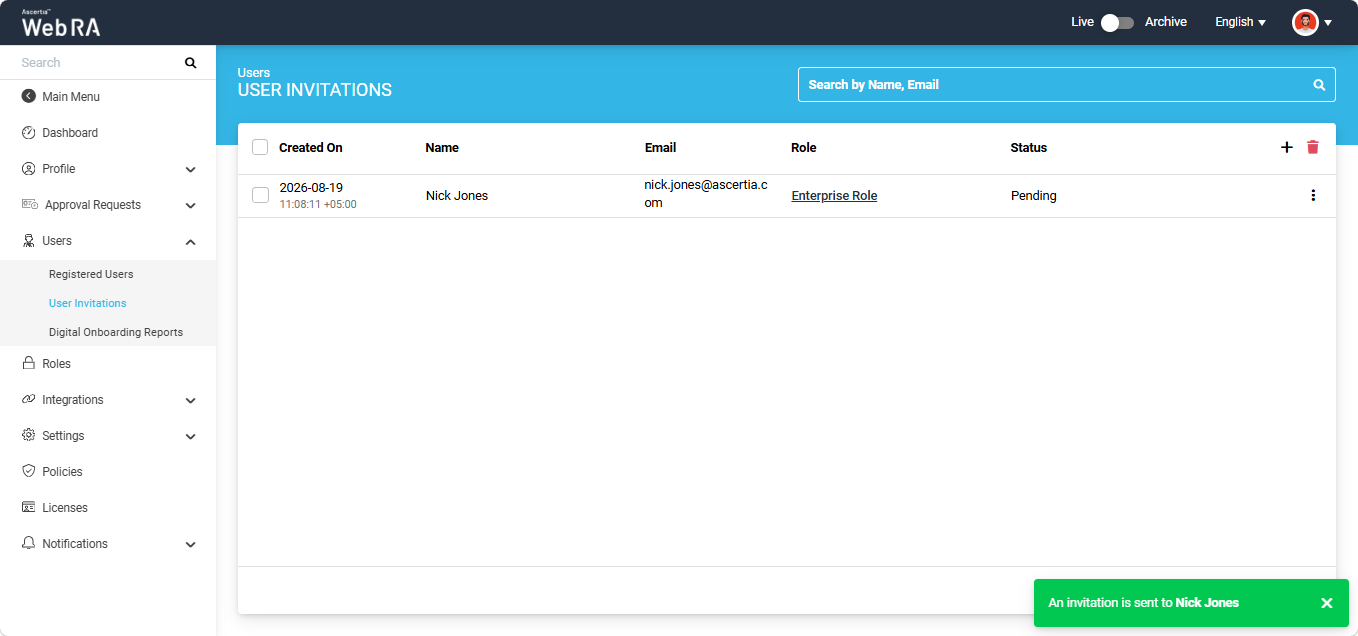
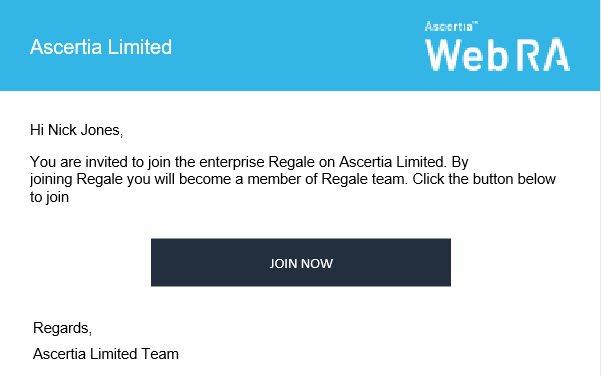
The user will receive the invitation as shown below. To complete the registration process, the user must click the 'Join Now' button.
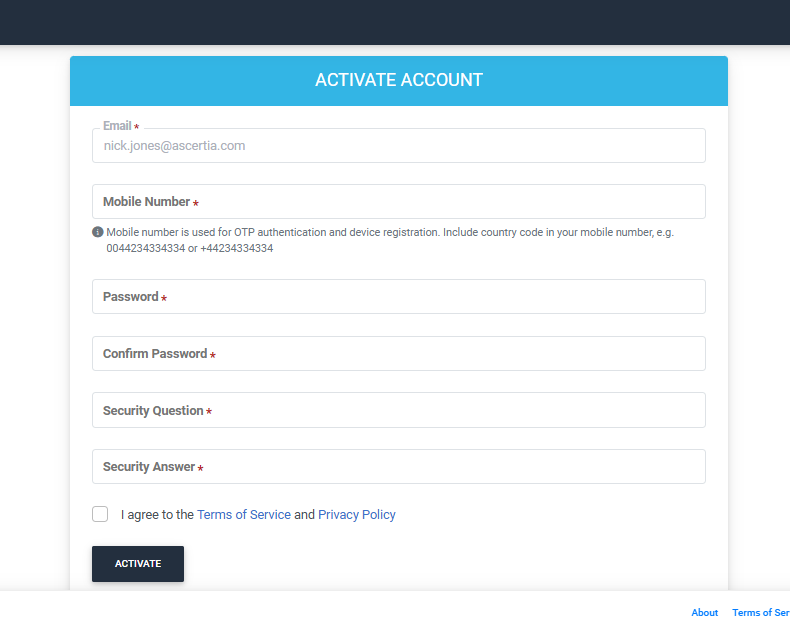
The ‘Join Now’ button takes the user to the ‘Activate Account’ screen. Enter the required details in the mandatory fields and select the ‘I agree to the Terms of Service and Privacy Policy’ checkbox. After that, click the ‘Activate’ button.
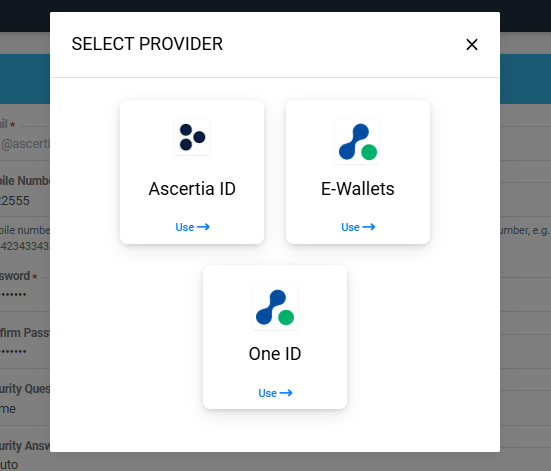
The ‘Select Provider’ dialog will appear on the screen. From this dialog, you have to select the provider that will be used to complete the digital onboarding verification.
Click the required provider to select it. A ‘QR Code’ dialog will appear on the screen.
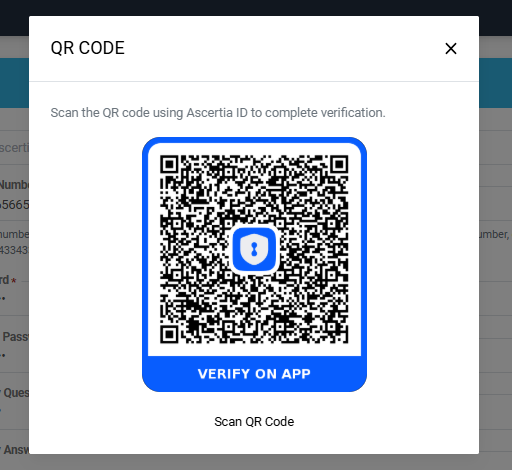
Scan the QR code from the digital onboarding app and complete the verification process. Once the verification is complete the QR code dialog will process the verification response and disappear. After that the user account will be created.
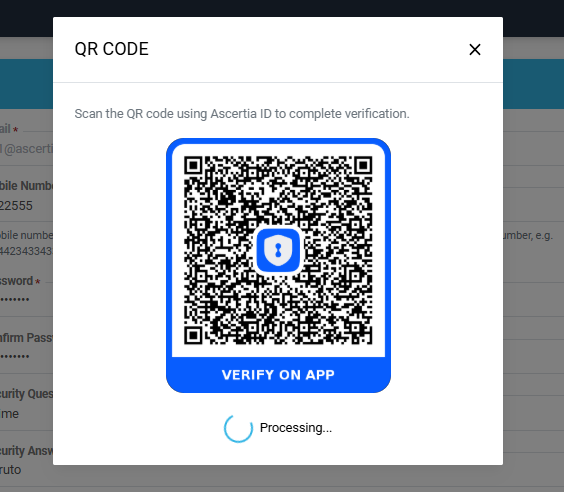
You will be directed to the login screen. From there you can enter the credentials you configured to log in to the Web RA Web portal.
Create a user account using the Sign-Up option in the Web Portal
To register a user account in the ADSS Web RA system, click the ‘Sign Up’ button from the Web RA Web Portal.
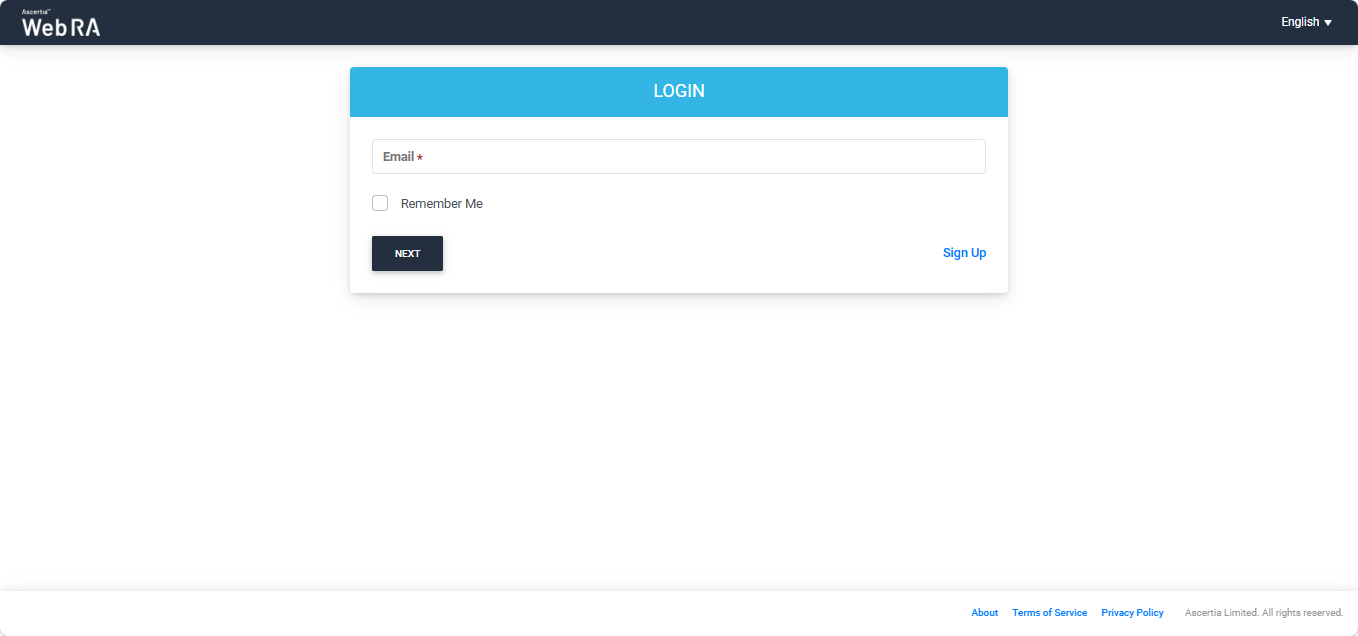
The Sign-Up window will appear on the screen.
Enter the information in the required fields and select the two checkboxes present at the end of the screen.
Then, click the ‘Create Account’ button.
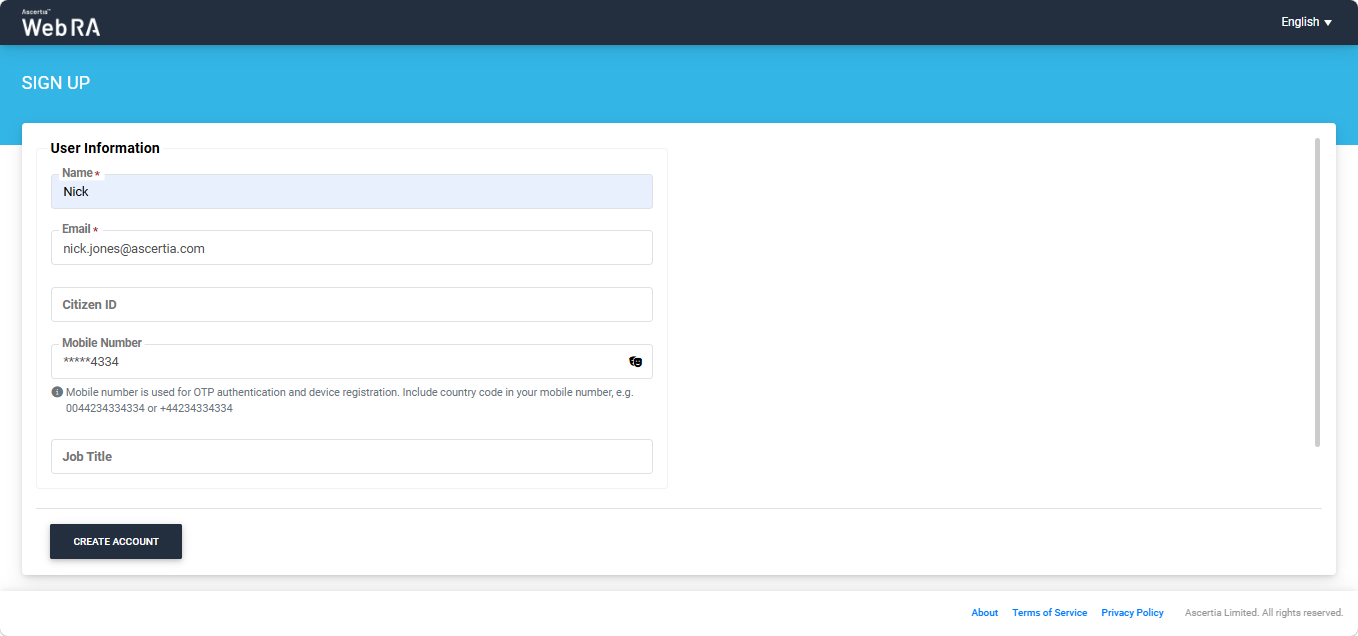
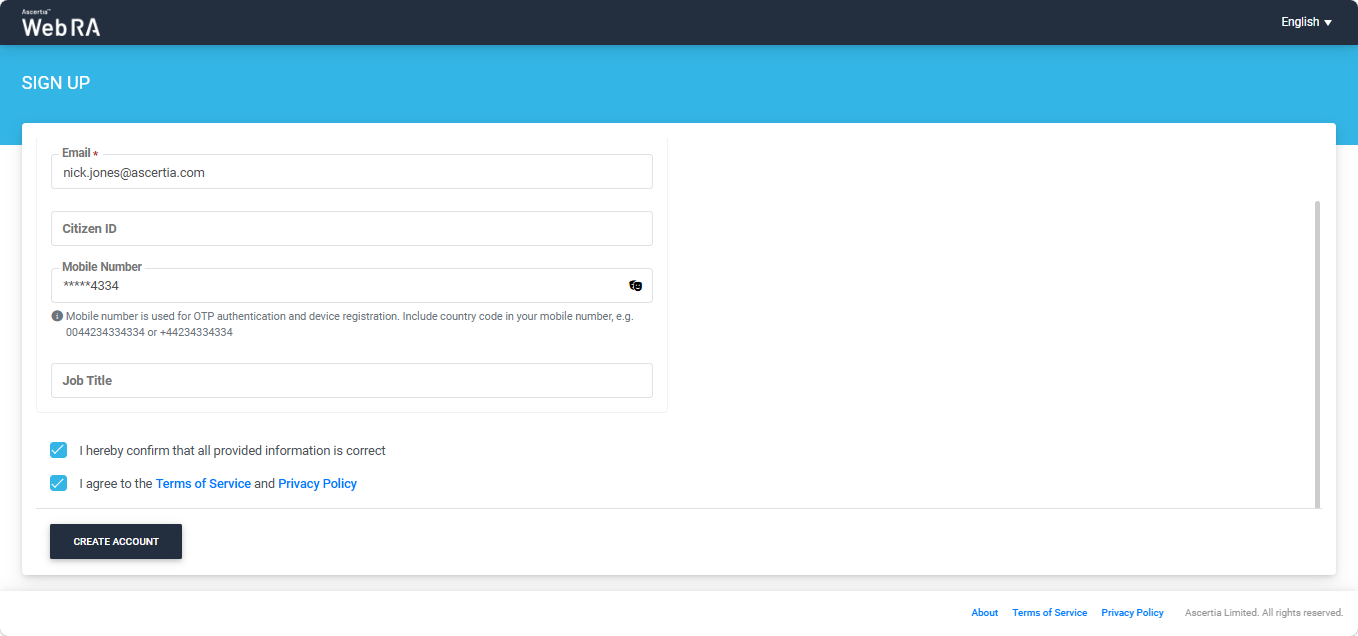
After clicking the create button, the user will receive an invitation at the email address added during the sign-up.
Note: If the operator has enabled the digital onboarding setting in the Enterprise > Roles, then upon clicking the ‘Create Account’ button, the system will display a dialog box containing the providers through which the digital onboarding of the user can be processed.
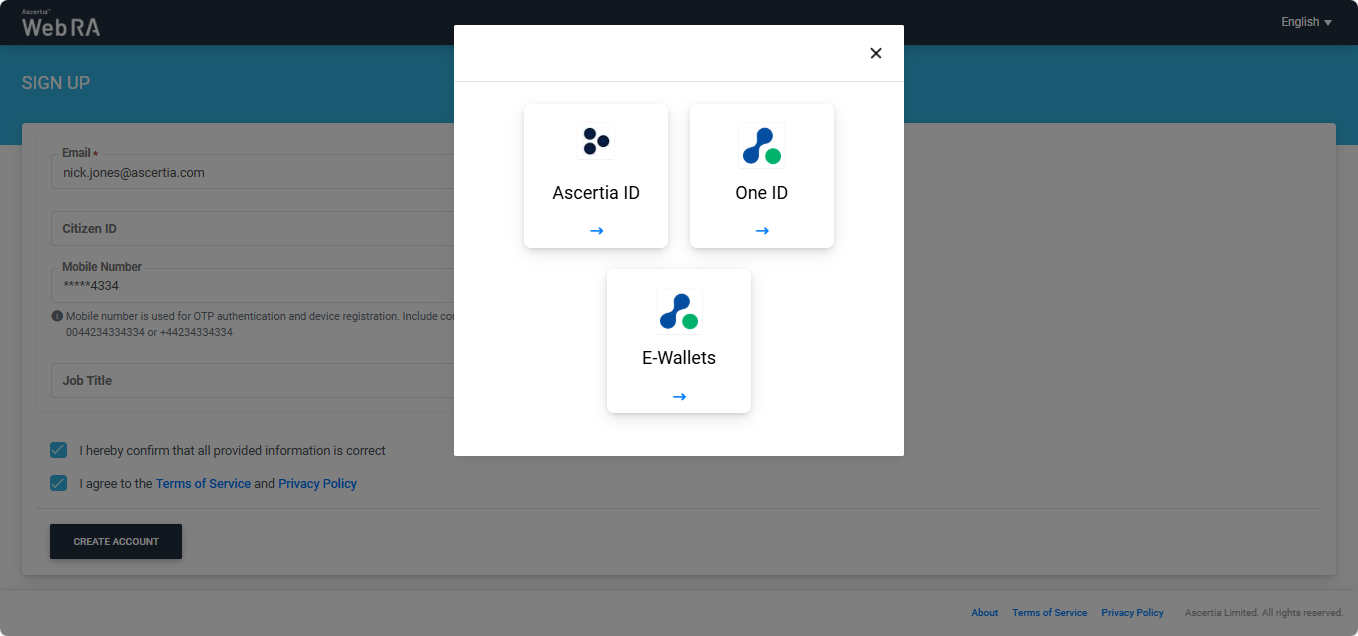
Click on the required provider and the system will display a QR code on the screen.
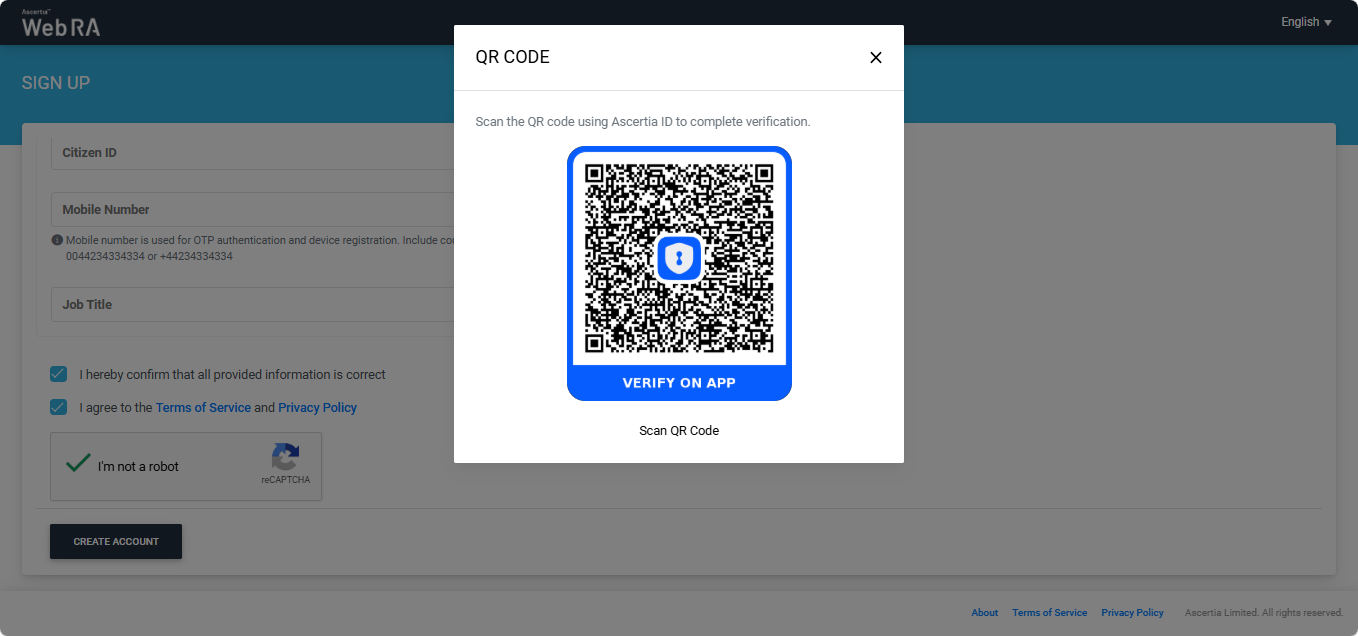
Scan the QA code from the digital onboarding app and complete the verification process. After the verification is complete, the QR code dialog will process the verification response and disappear.
The Web RA system will send an invitation to the user via email.
The invitation received at the email address will prompt the user to confirm the email and activate the account. To do that, click the ‘Activate Your Account’ button.
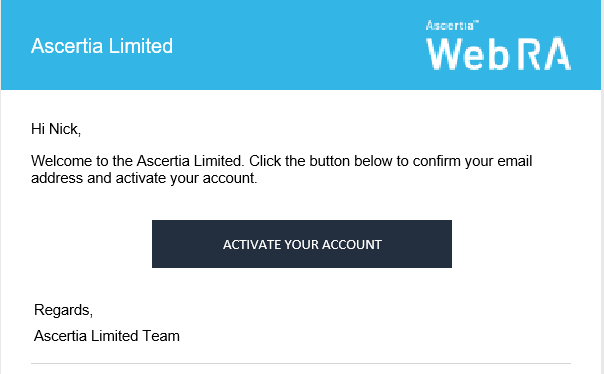
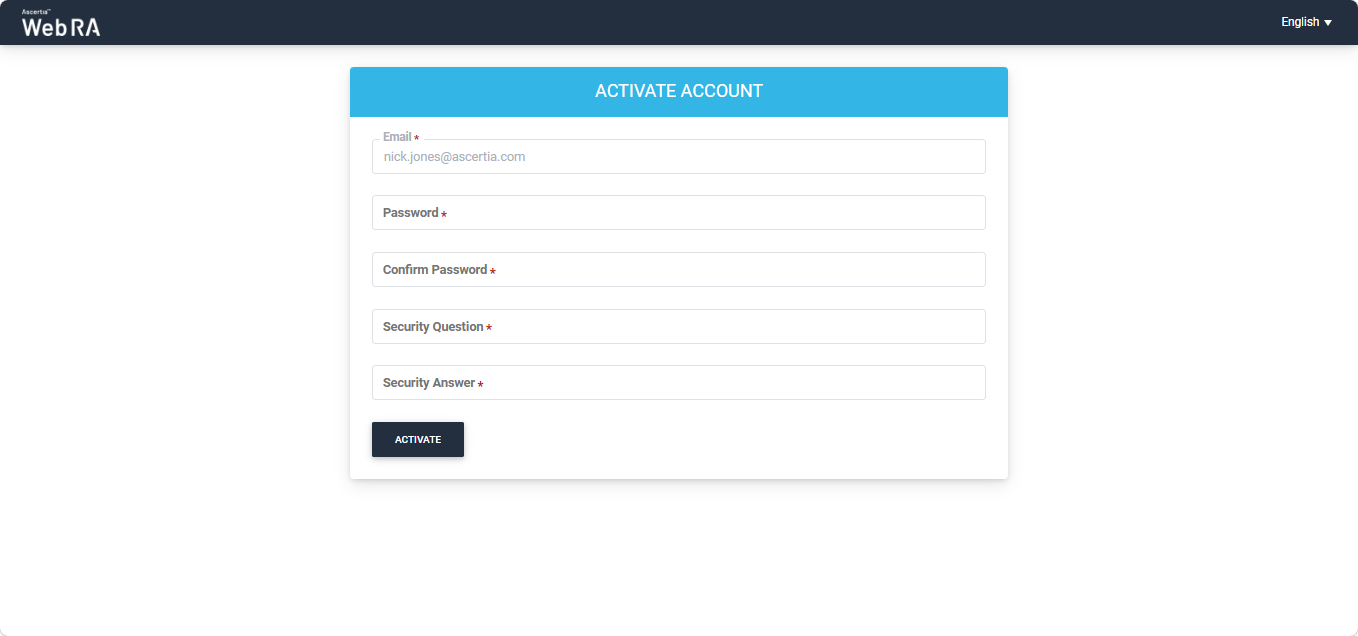
The link will take you to the Activate Account page on your browser. On this page, fill out the password and security question fields and click the ‘Activate’ button to complete the Web RA user account creation process.
After clicking the ‘Activate’ button, you will be taken to the Web RA login screen.
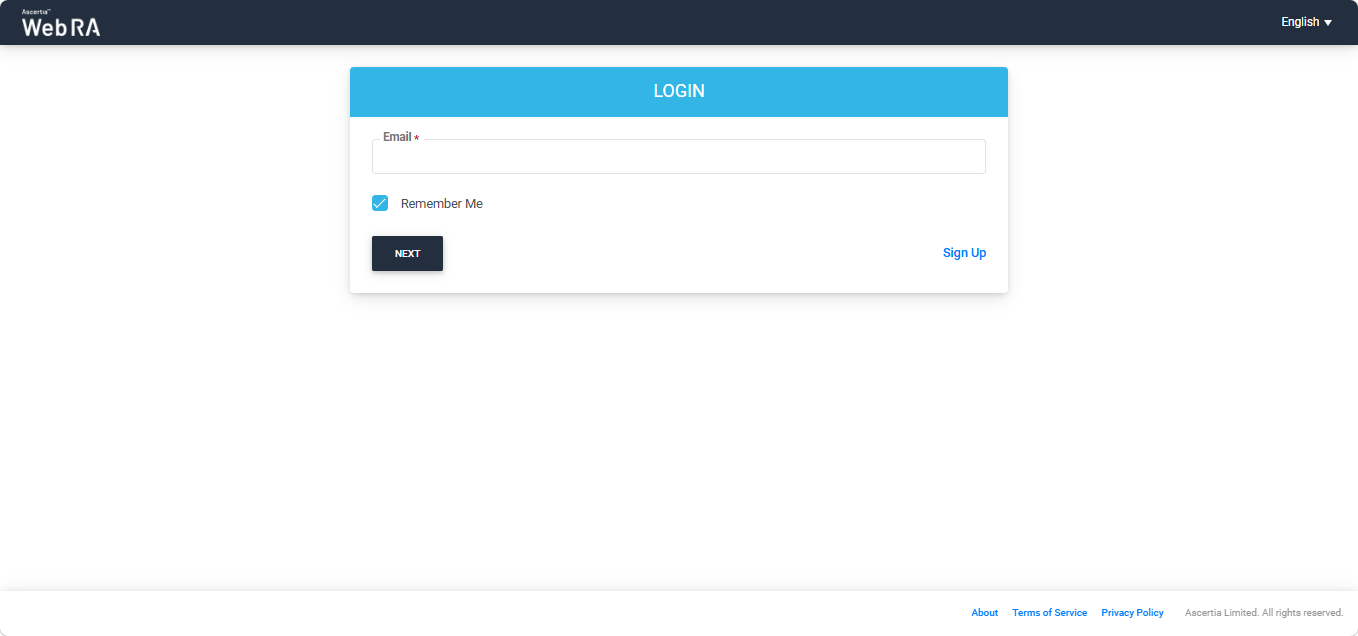
Here, enter your Email and Password to login to the Web RA Web Portal.
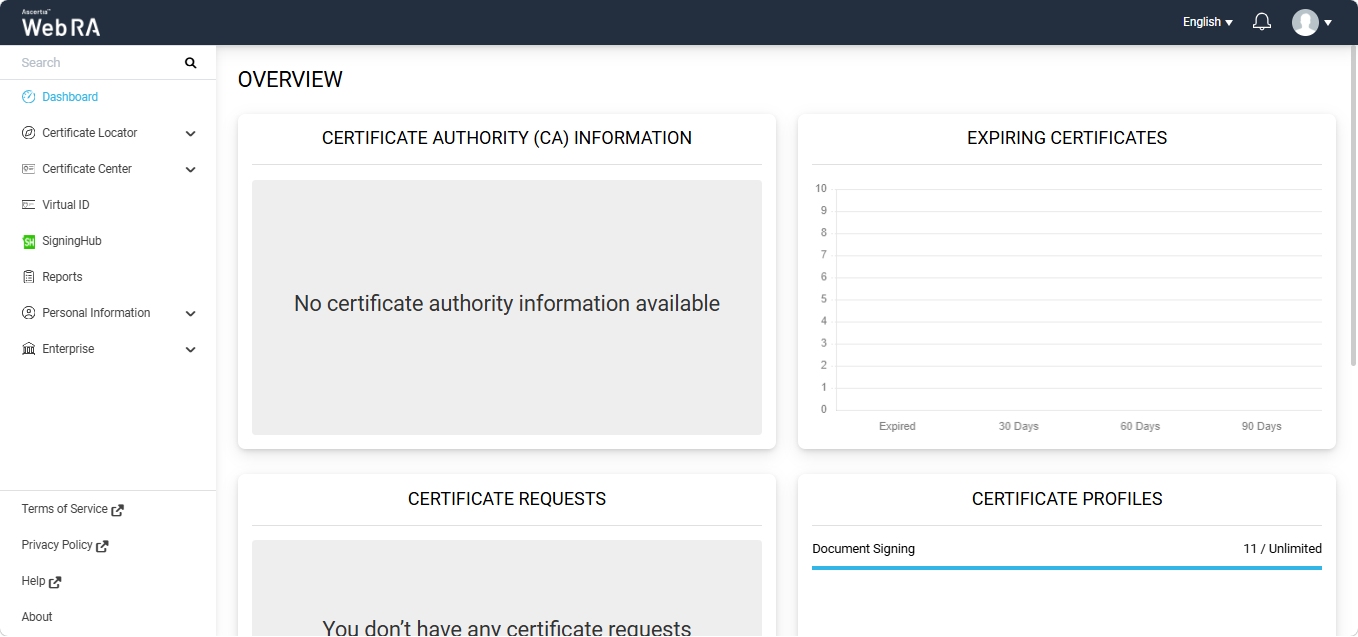
How Certificate Request is Created with Digital Onboarding Verification
The following steps describe how to create a certificate request when Digital Onboarding verification is enabled in the certification profile.
In the web portal, navigate to Certificate Center > Certificate Requests from the left menu tree.
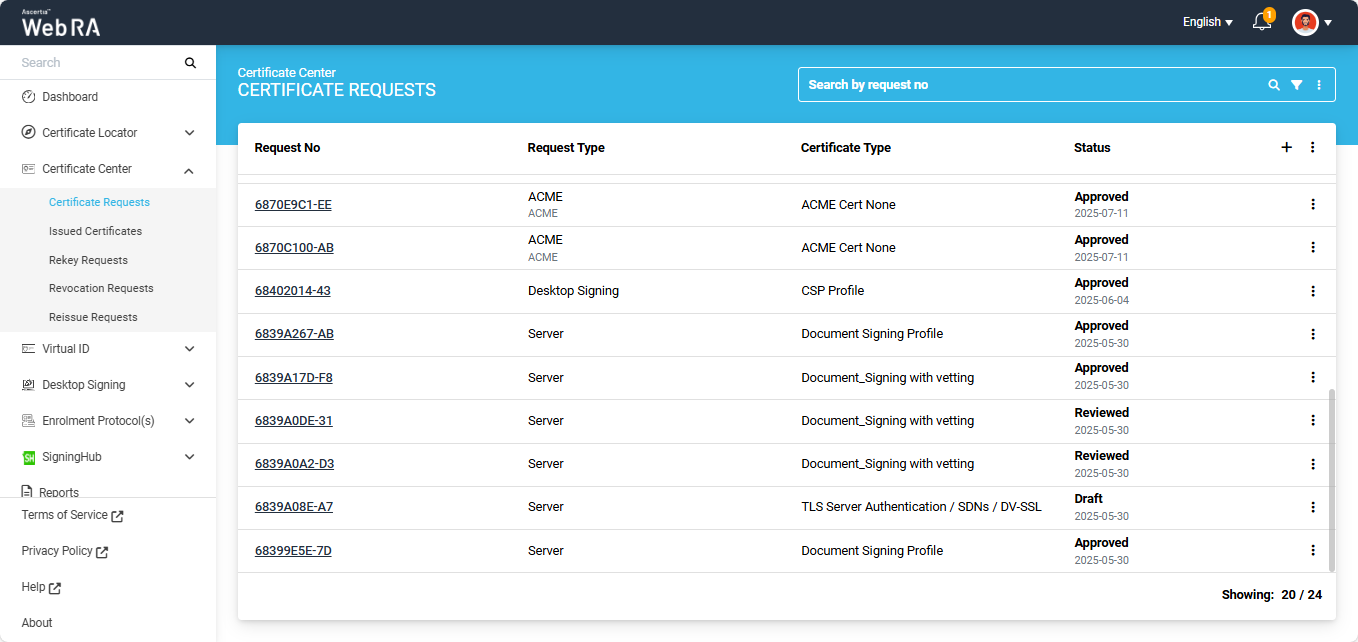
Click on the ‘+’ plus button in the listing header to create a new certificate request. The system will display the ‘Create Request’ screen.
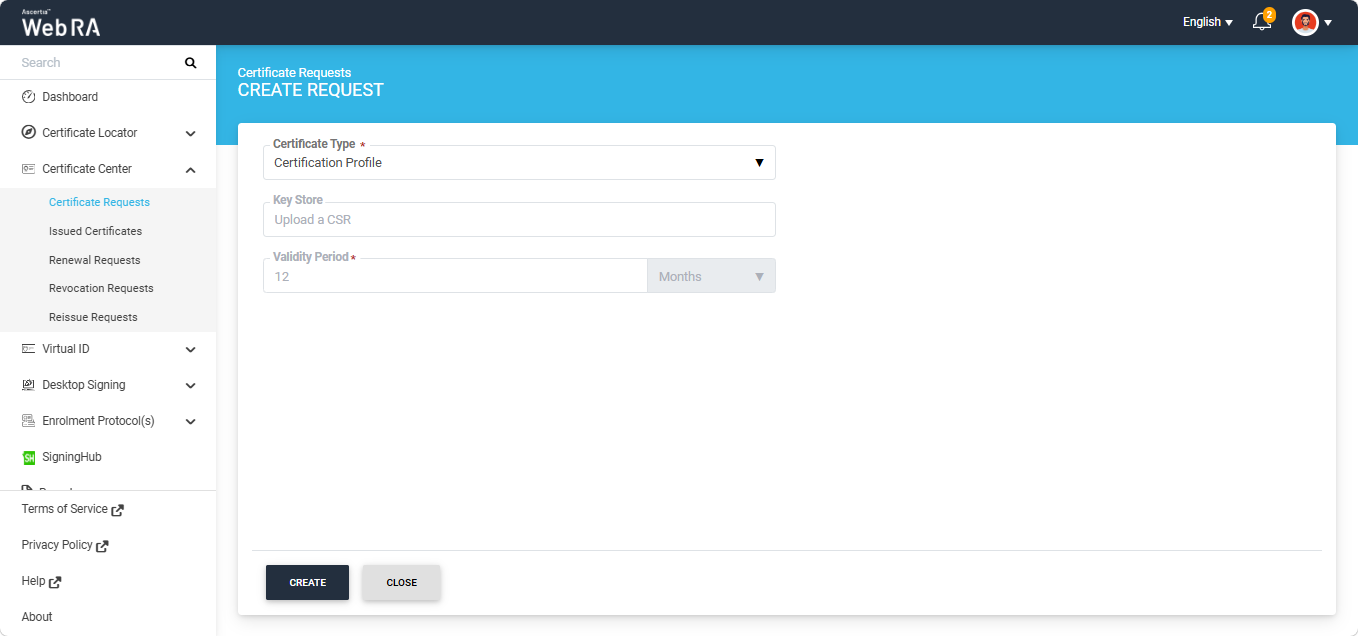
On this screen, select the certification profile from the ‘Certificate Type’ dropdown and click ‘Create’.
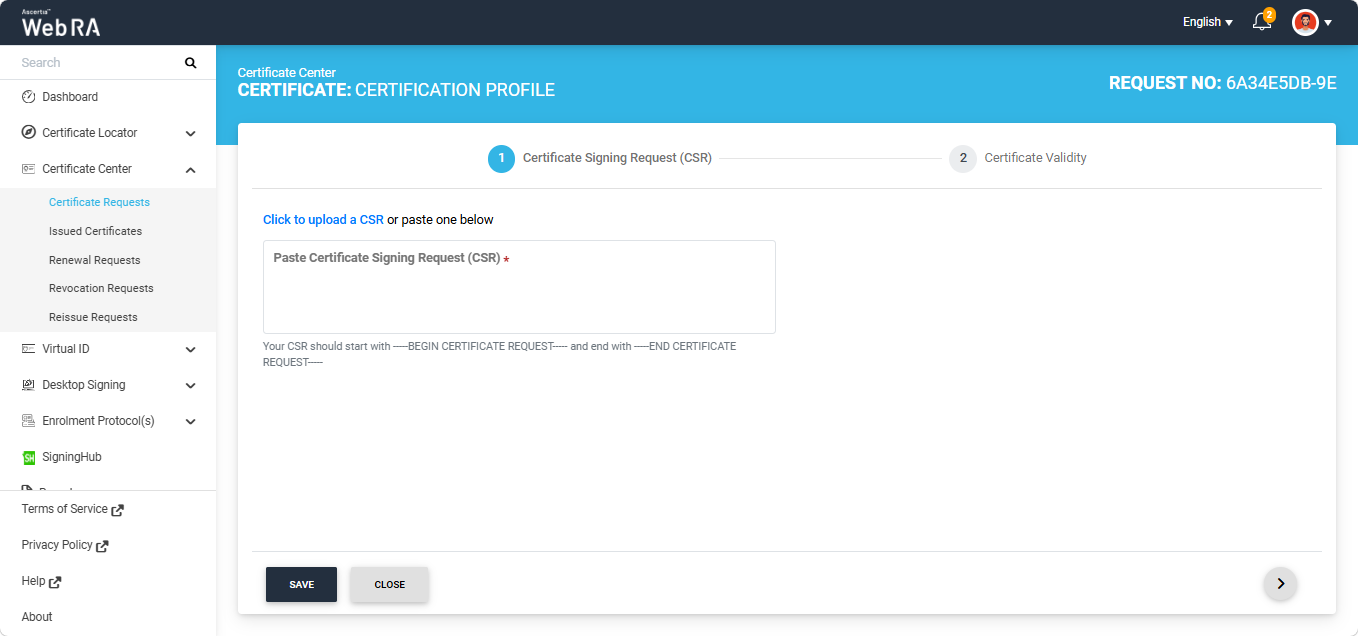
The system will display the ‘Certificate Signing Request (CSR)’ screen. Here, you will be required to either upload a CSR or paste the file in the given box.
After uploading the CSR, the following screen will appear.
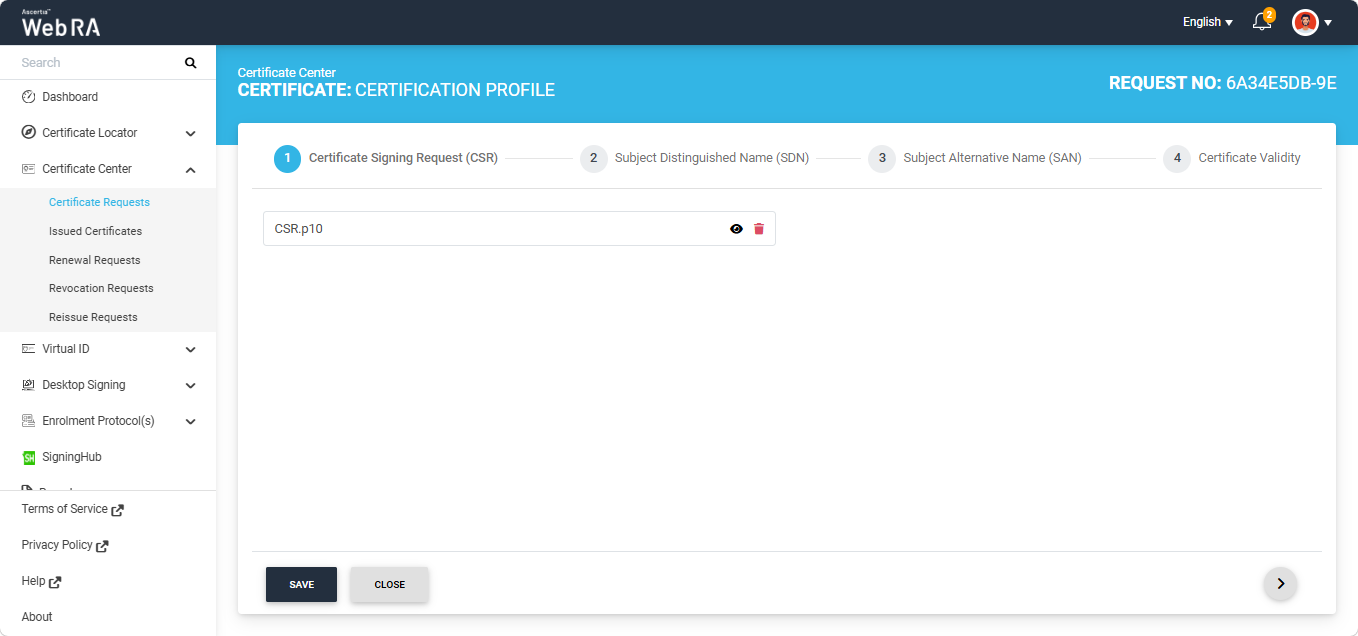
You can click on the eye icon to view the details of the CSR. The details will appear in a dialog as displayed below:
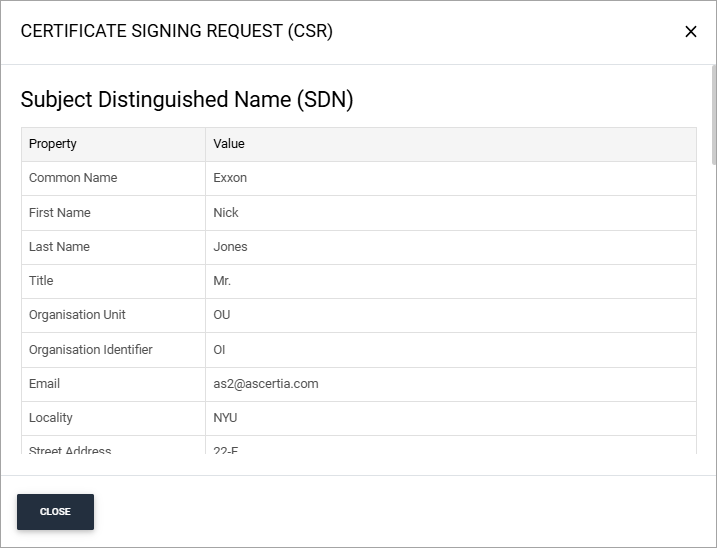
You can scroll down the dialog to view the complete details inside the CSR.
Click ‘Next’ to navigate to the ‘Subject Distinguished Name (SDNs)’ screen. Enter the details in the fields as per your requirement.
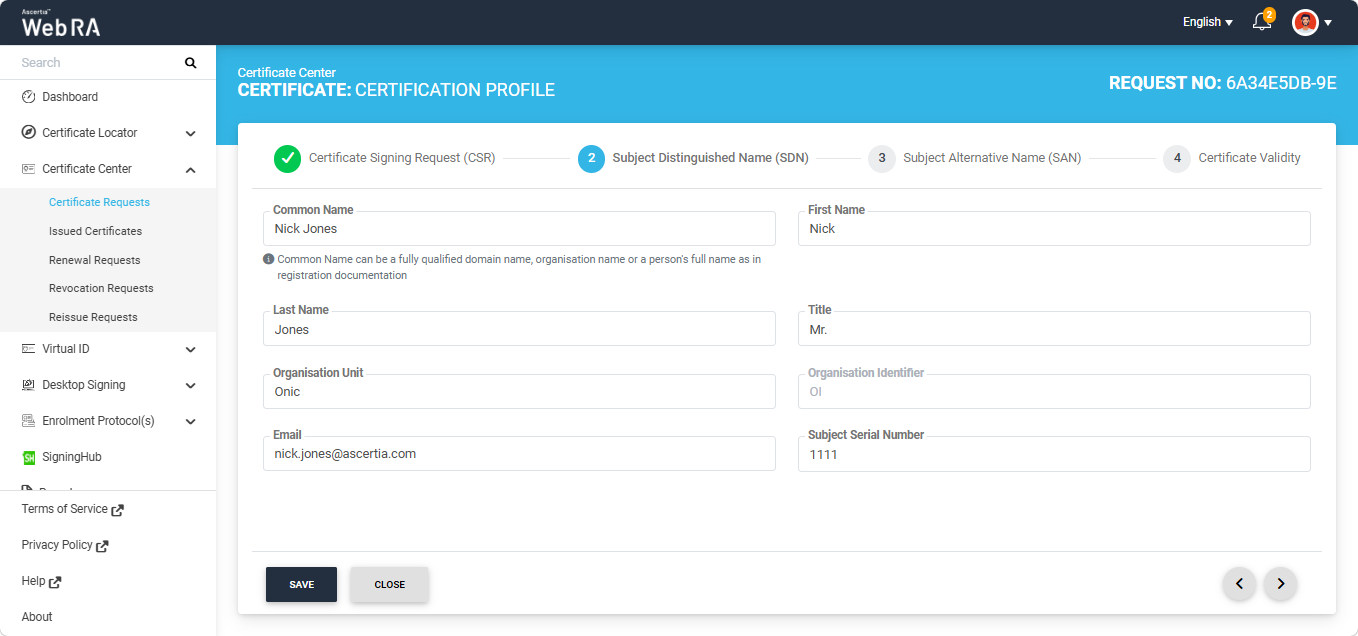
After entering the information in the required fields, click the next '>' button to navigate to the ‘Subject Alternative Name (SANs)’ screen. Enter the details in the fields as per your requirement.
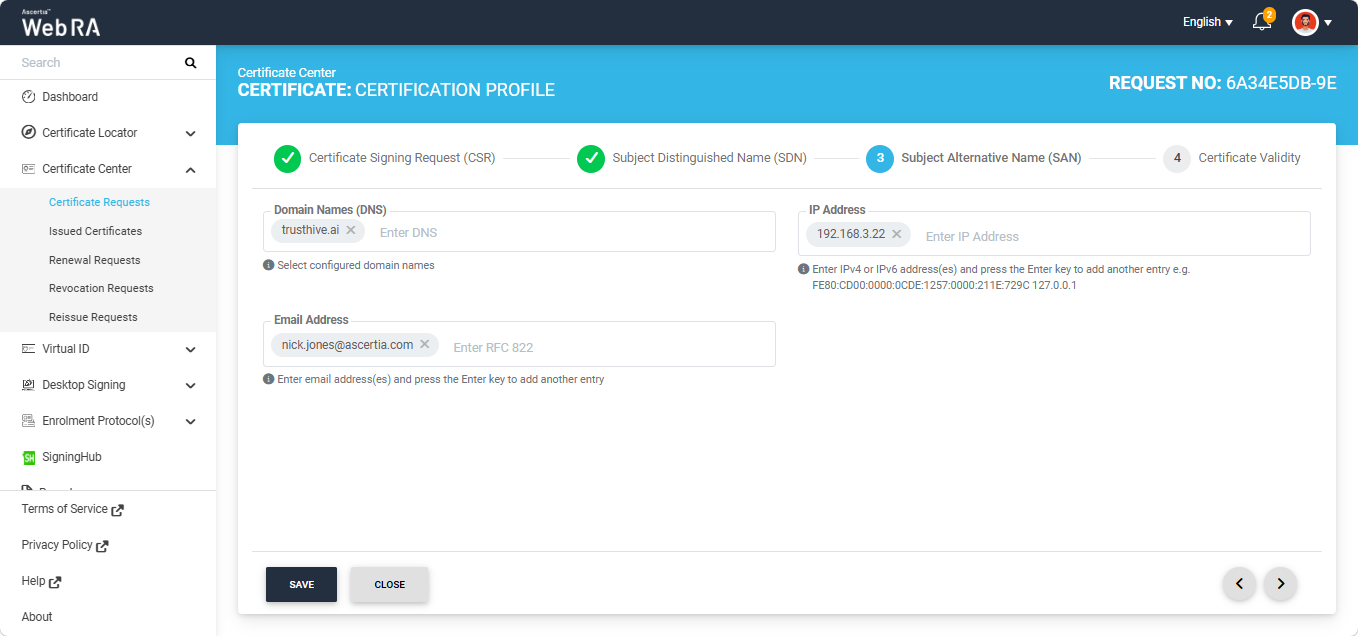
Click ‘Next’ to navigate to the ‘Certificate Validity’ screen.
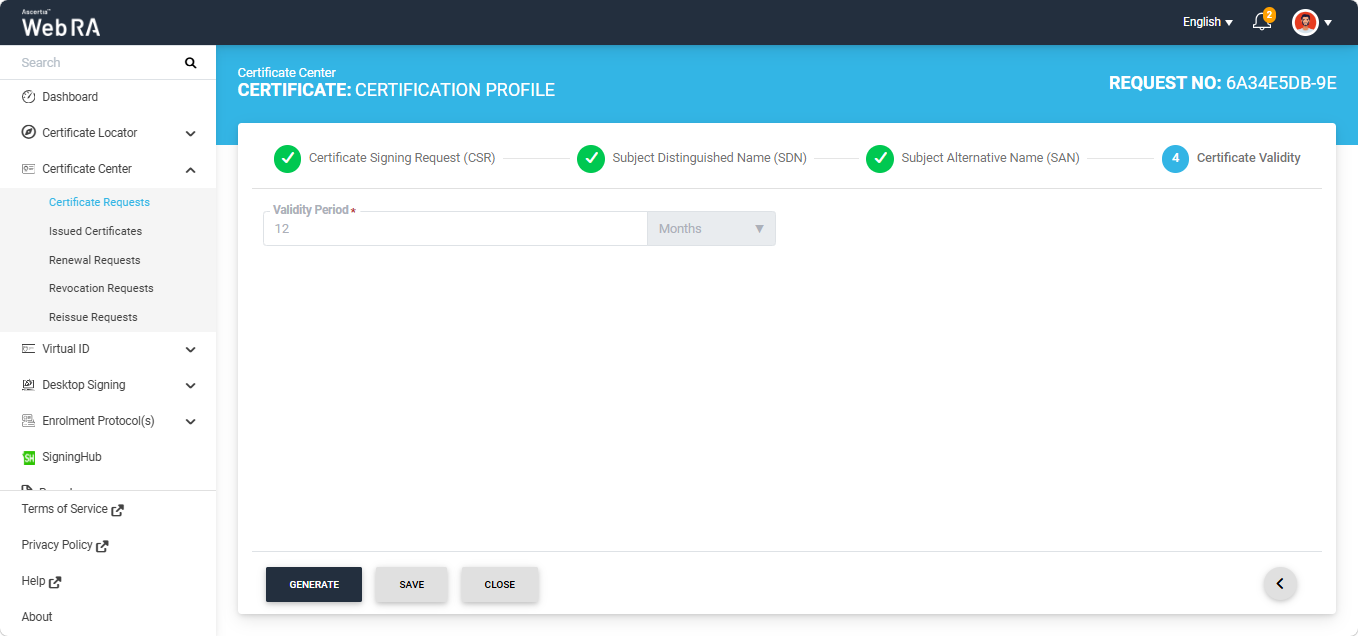
Here, click the 'Generate' button to create the certificate.
The system will display a ‘Select Provider’ dialog on the screen containing the providers configured in the Digital Onboarding connector. Select the required provider from the given options.
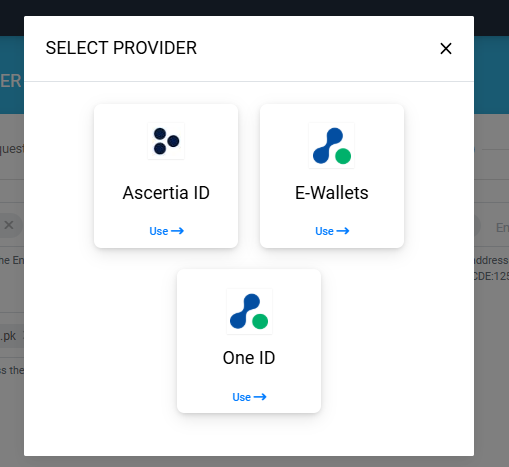
Click the required provider to select it. A 'QR Code' dialog appears on the screen. Scan the QR code using the Digital Onboarding mobile application.
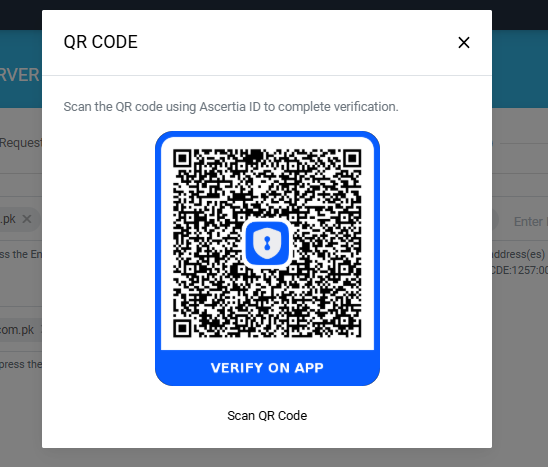
After scanning the QR code, complete the identity verification process in the application by providing the required documents as configured in the Digital Onboarding policy.
Once the identity verification process is completed successfully, the QR code will process the verification response and disappear and the certificate request will be generated.
The system will display the 'Certificate Generated' dialog on the screen.
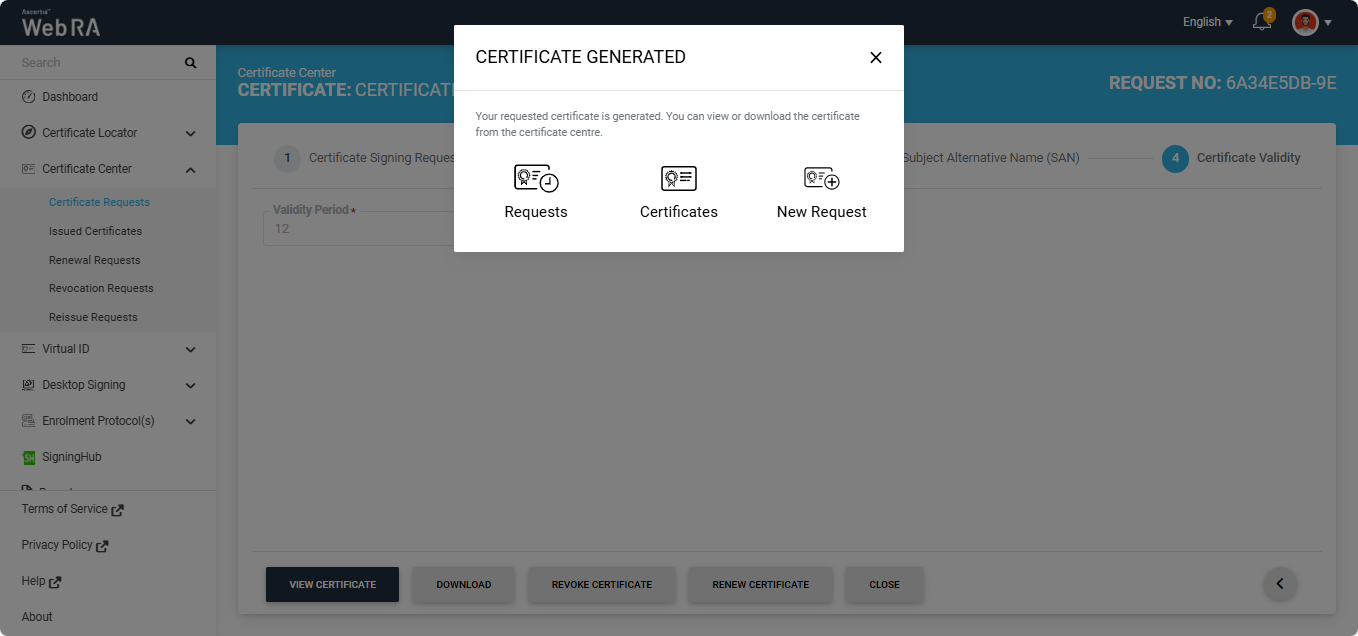
This certificate request will appear in the 'Certificate Requests' and 'Issued Certificates' listing.
How to Renew a Certificate with Digital Onboarding Verification
To renew a certificate before its expiration, you need to first open the certificate request generated from the Web RA system.
To do this, expand Certificate Center > Certificate Requests from the left-tree menu in the Web Portal.
Then, click the request number of the certificate that you want to renew. Alternatively, click the three-dot button next to the certificate request entry and select the 'View Request' option.
The system will then open the certificate request in View mode.
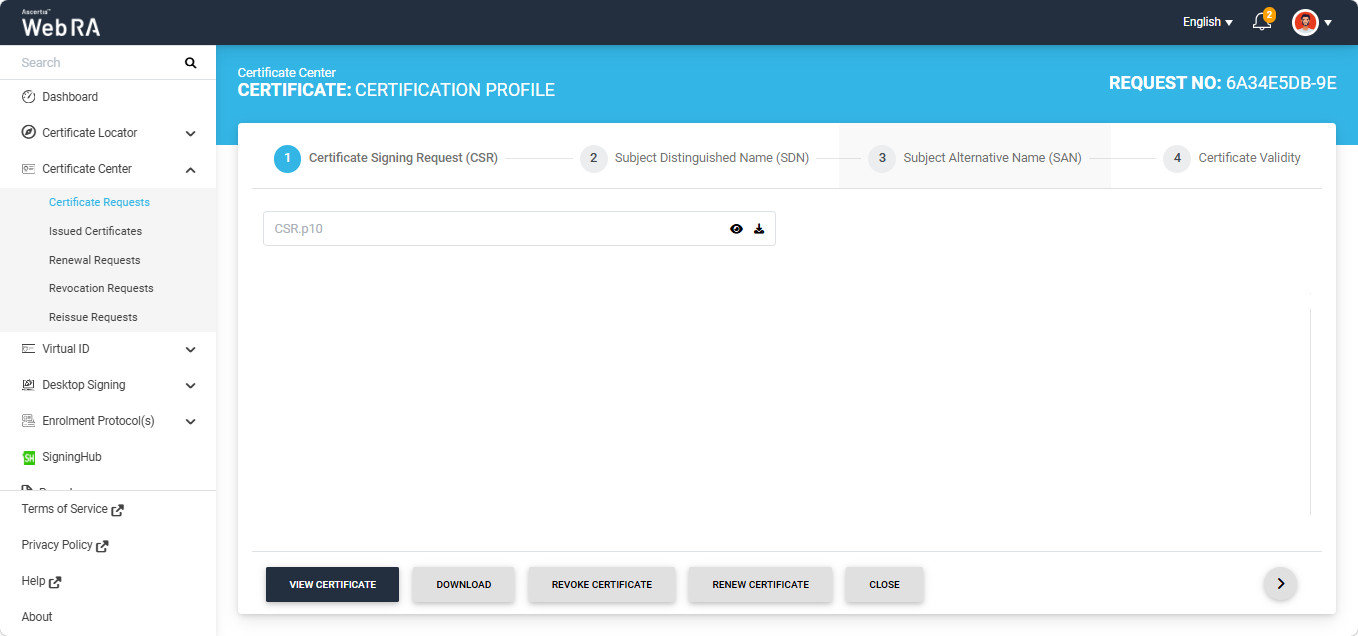
To renew the certificate, click the 'Renew Certificate' button.
Note: The 'Renew Certificate' button appears only if the 'Renew Certificate' policy is selected in Configurations > Policies > Requests section under the certificate renewal settings.
The Certificate Signing Request (CSR) screen will appear again, as displayed in the image below.
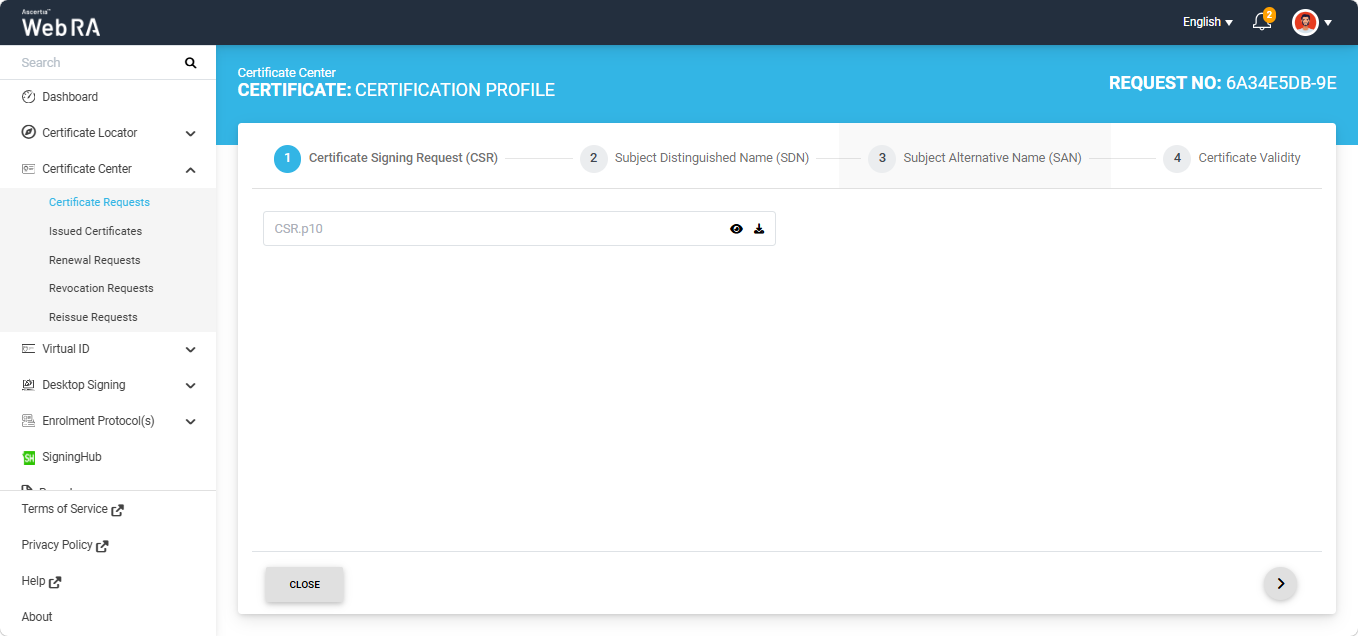
Click the next '>' button to navigate to the 'Certificate Validity' screen. Here, click the 'Renew' button to renew the certificate.
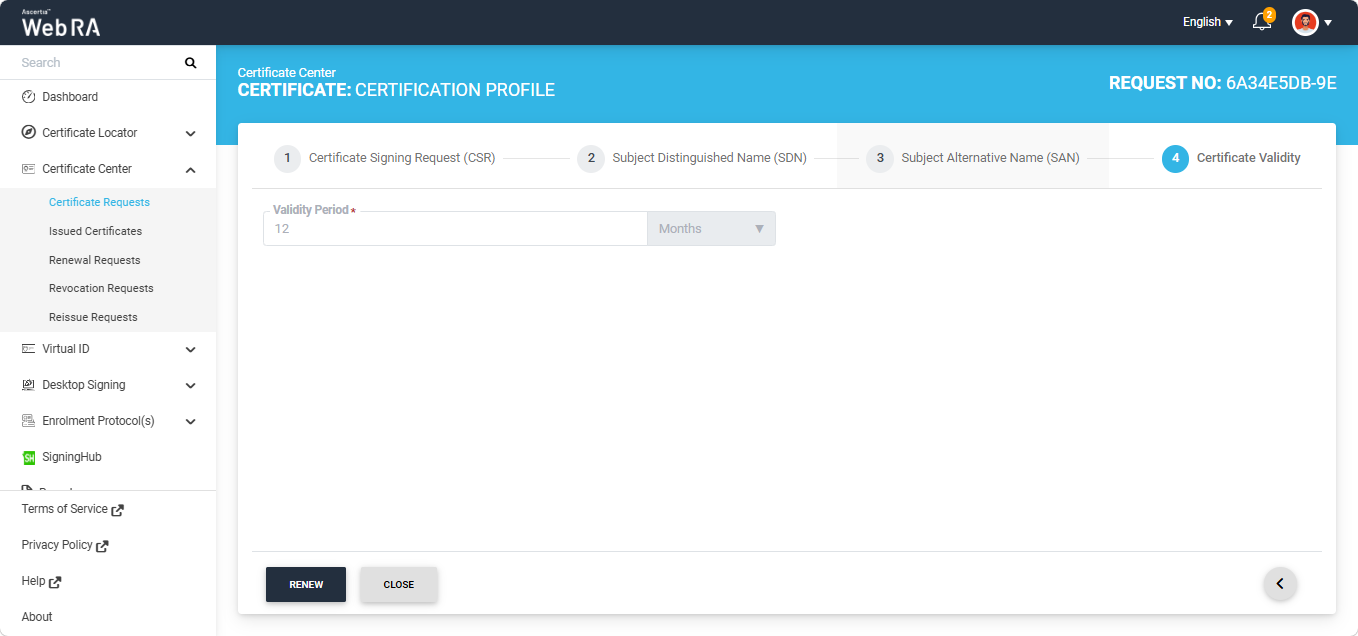
The system will display the Certificate Renew dialog on the screen. Here, you can optionally enter a message in the Message box.
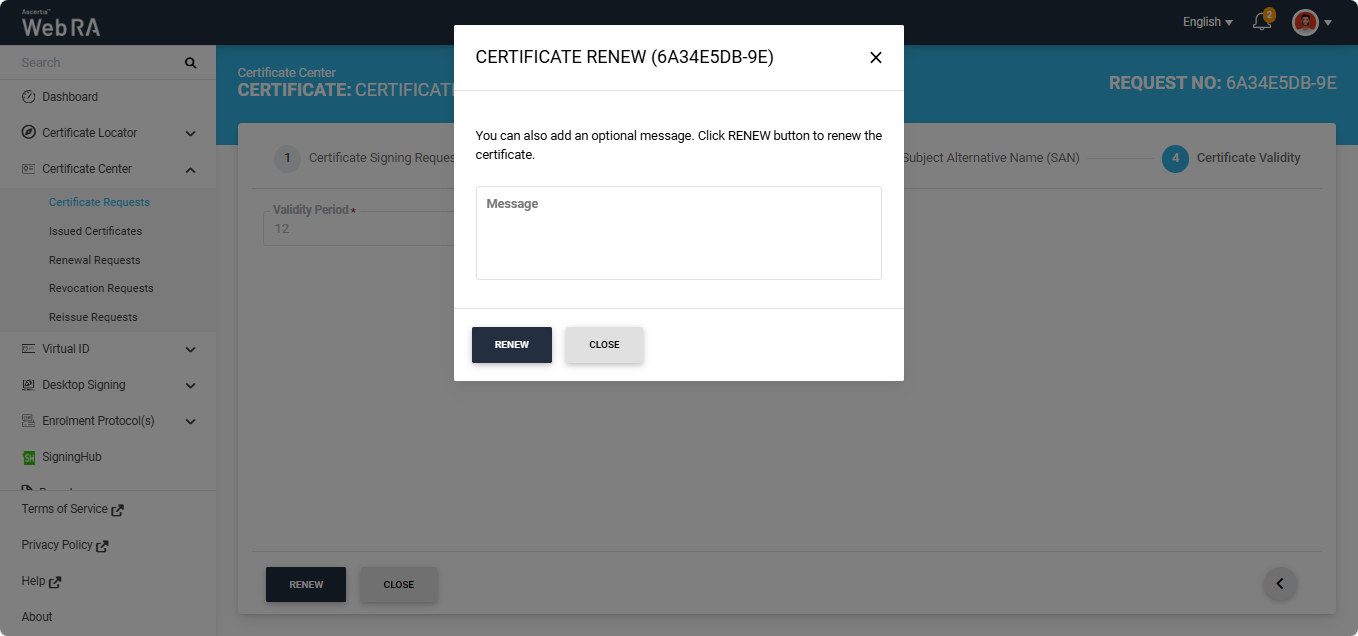
Click the Renew button.
The system will display a ‘Select Provider’ dialog on the screen containing the providers configured in the Digital Onboarding connector. Select the required provider from the given options.
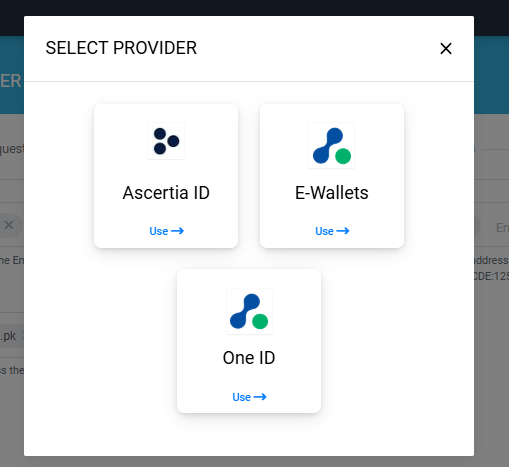
Click the required provider to select it. A 'QR Code' dialog appears on the screen. Scan the QR code using the Digital Onboarding mobile application.
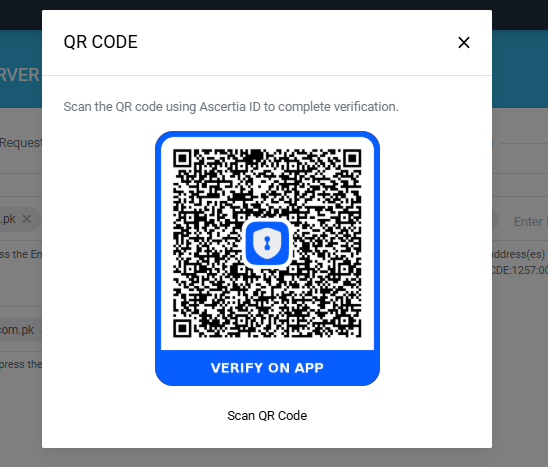
After scanning the QR code, complete the identity verification process in the application by providing the required documents as configured in the Digital Onboarding policy.
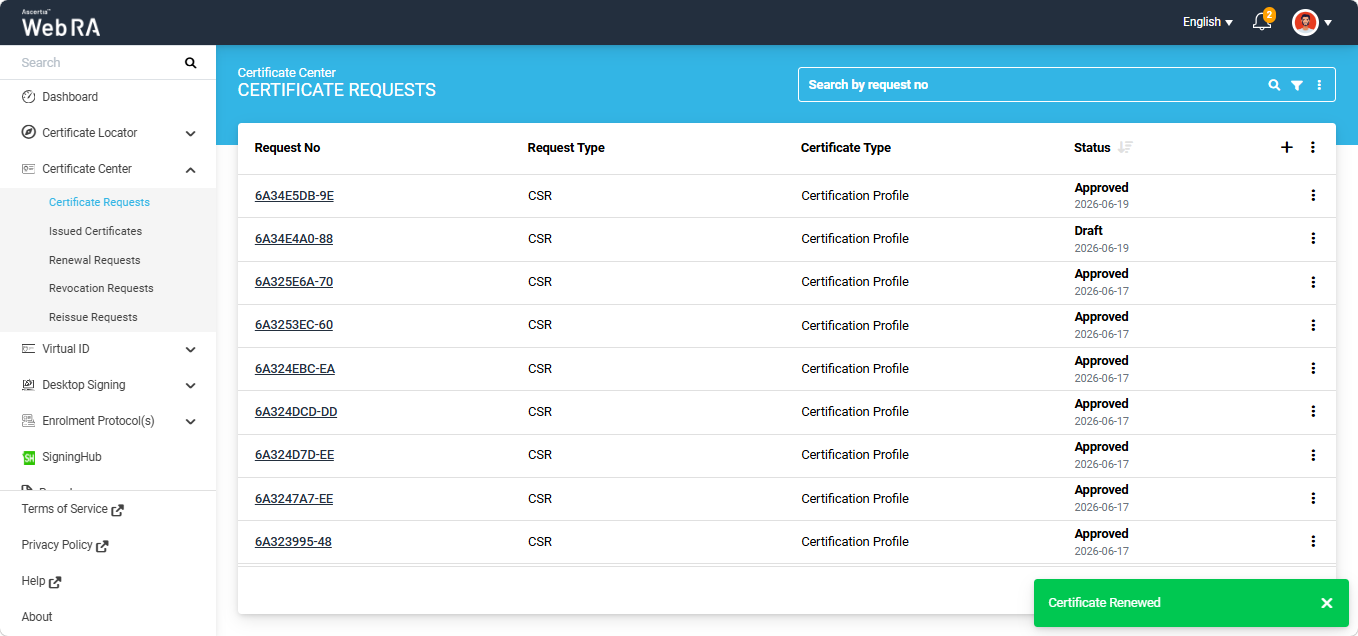
Once the identity verification process is completed successfully, the QR code will process the verification response and disappear and the certificate will be renewed, and a Certificate Renewed alert will appear on the screen.
How to Download the Evidence Report from User’s Profile
To download the ‘Evidence Report’ from the user’s profile, expand Personal Information > Profile from the left-tree menu in the web portal.
The 'Download Evidence Report' button appears on the Profile screen when a user is registered in the Web RA system through the Digital Onboarding process. The evidence report contains the information captured during the onboarding process.
When you click the 'Download Evidence Report' button, the system displays the available formats in which the report can be downloaded. The supported formats include PDF, XML, and JSON.
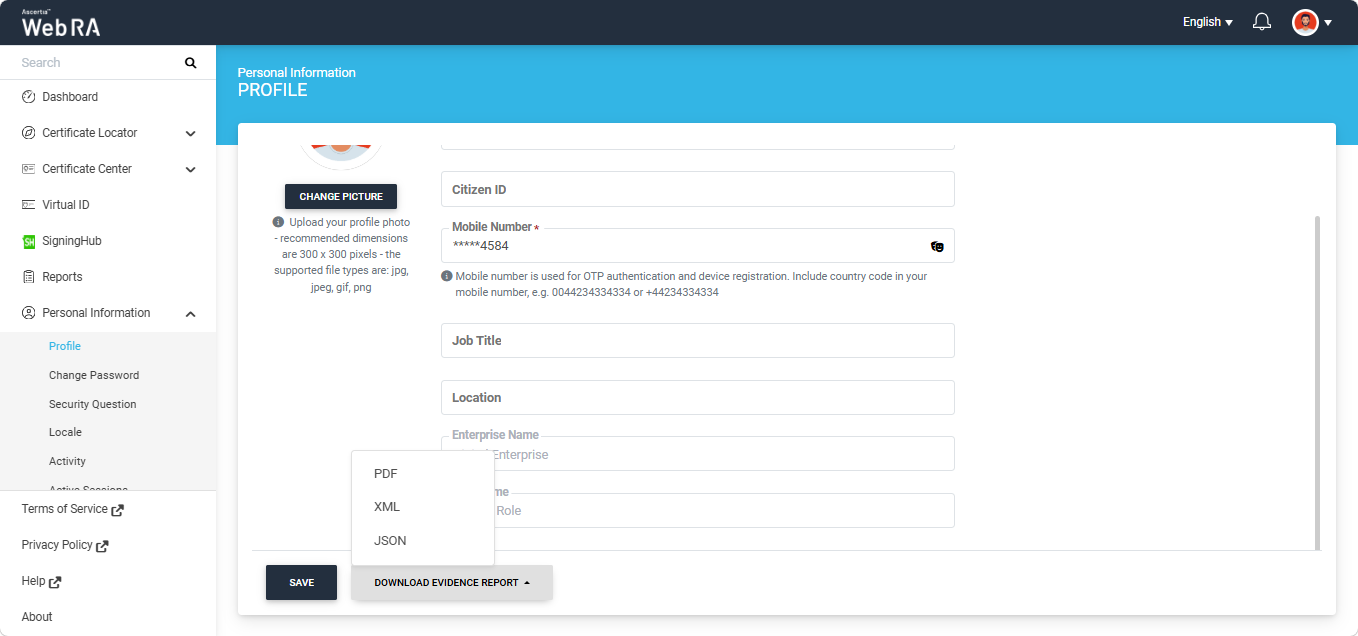
Select the required format from the available options. The report is then downloaded to your system.
How to View Digital Onboarding Requests for User Registration
- Expand "Enterprises" from the left menu in the Admin portal, and click "Registered" from the dropdown.
- Click the
 icon adjacent to your enterprise entry, and select 'Manage' to navigate to the Enterprise dashboard.
 - From the Enterprise dashboard, expand Approval Requests > Digital Onboarding Requests to view the listing.
The Digital Onboarding Requests section lists all user registration requests submitted through the digital onboarding process. The listing screen displays requests that are currently Pending or have been Approved.
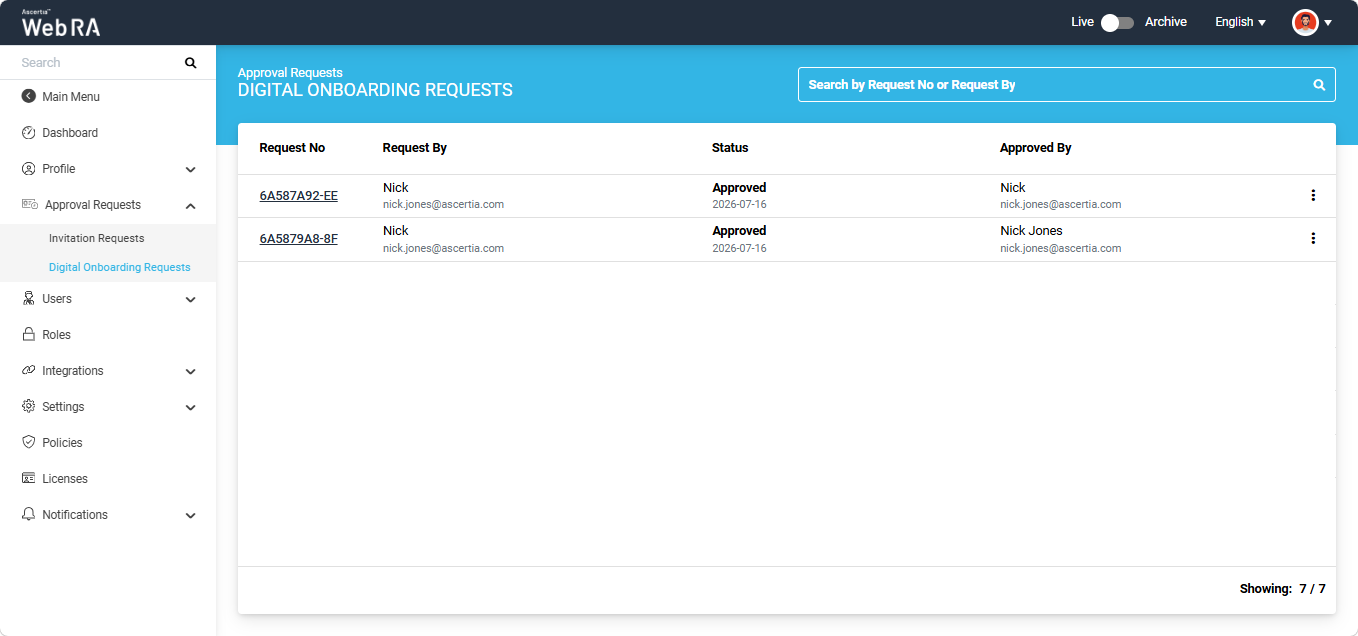
The operator can review the information submitted during the digital onboarding process and approve or reject the registration request accordingly.
The following operations are available for each request on this screen:
- Expand "Enterprises" from the left menu in the Admin portal, and click "Registered" from the dropdown.
- Click the
 icon adjacent to your enterprise entry, and select 'Manage' to navigate to the Enterprise dashboard.
 - From the Enterprise dashboard, expand Approval Requests > Digital Onboarding Requests to view the listing.
To approve a pending request, click the Request No of the required request.
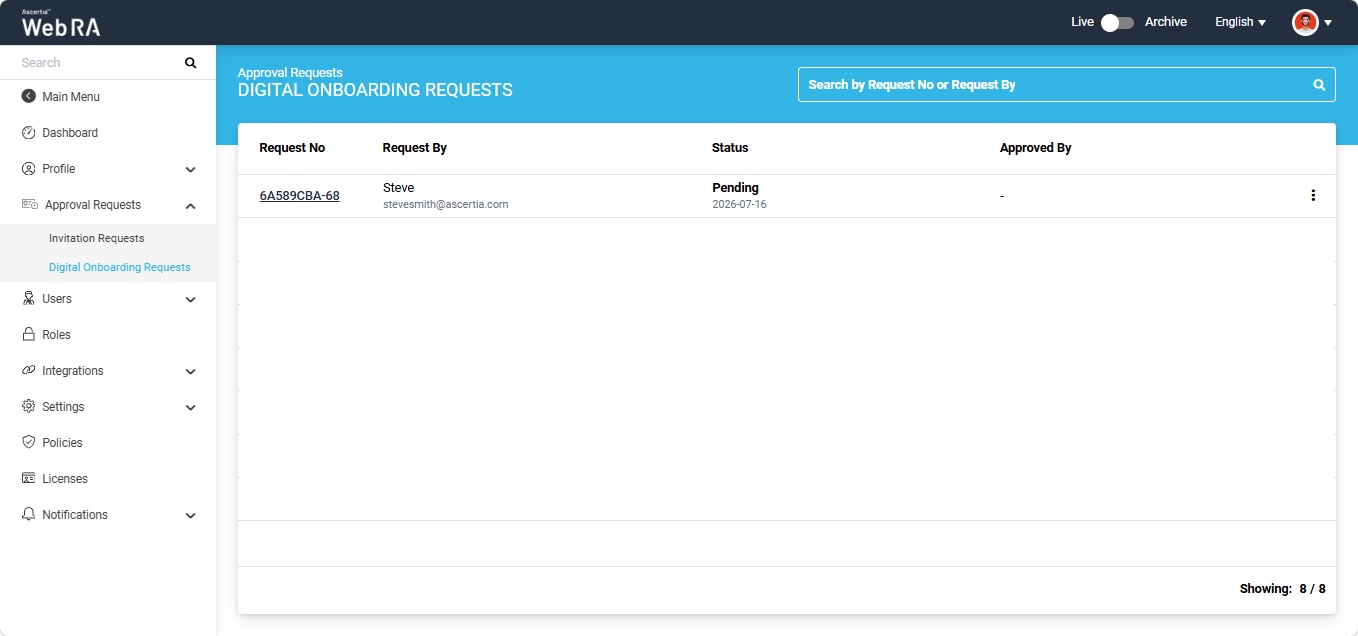
The system displays the user registration request in view mode. Review the information and click the ‘Approve’ button.
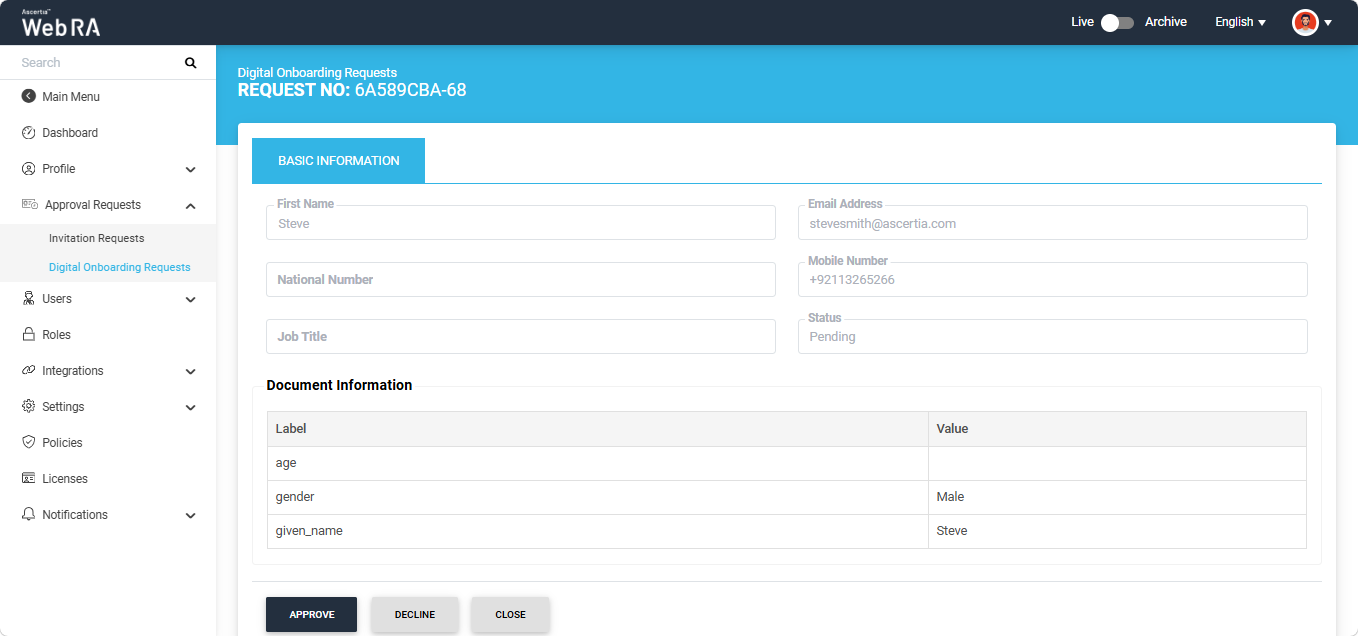
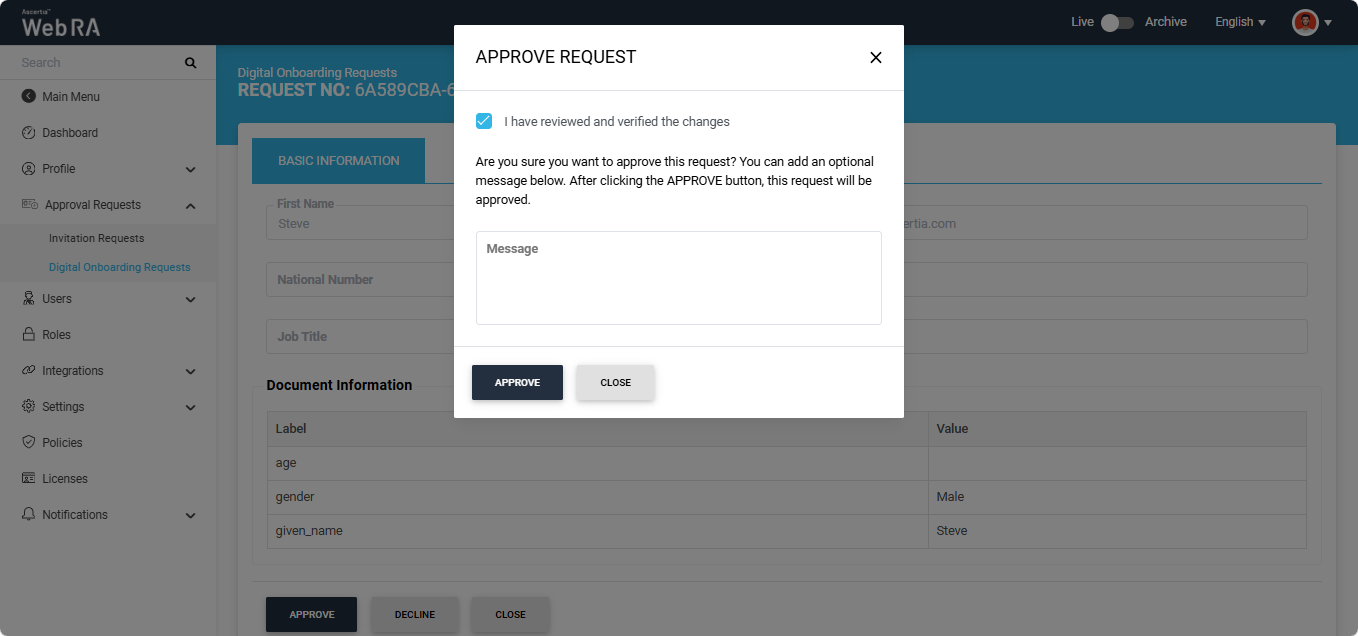
The 'Approve Request' dialog appears. Select the 'I have reviewed and verified the changes' checkbox and click 'Approve'. You can also enter additional information in the Message (Optional) field, if required.
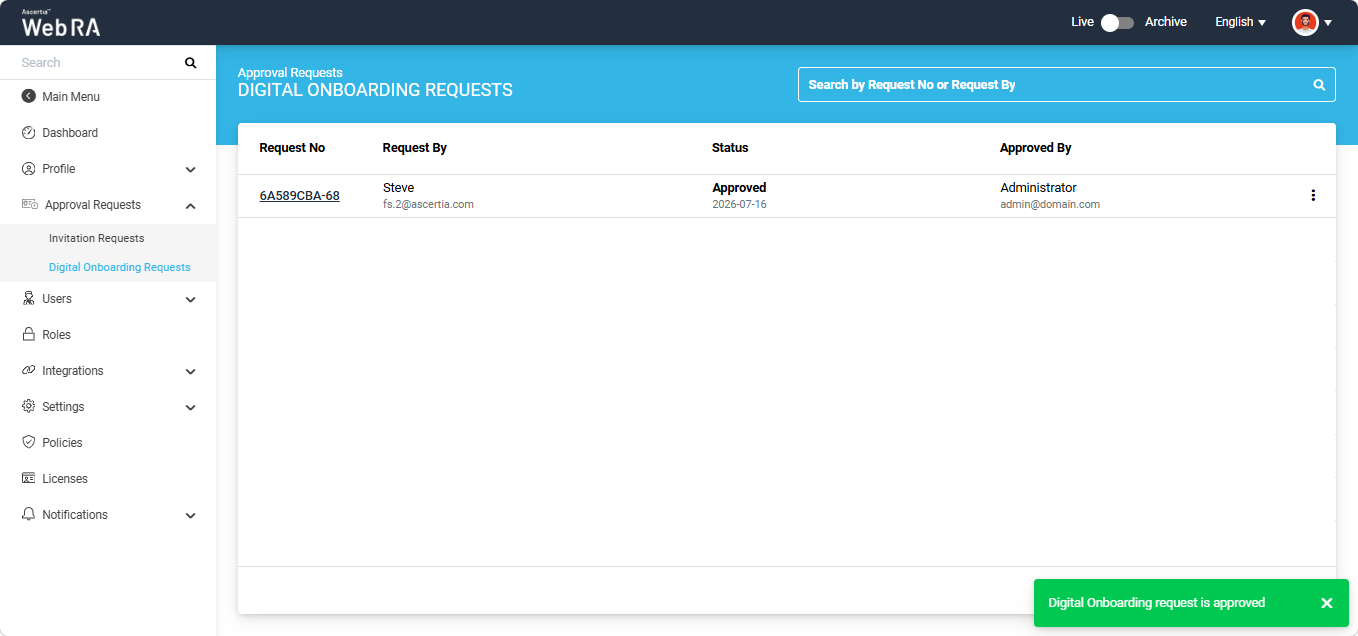
After the request is approved, the system displays a success message, and the request status changes from Pending to Approved.
- Expand "Enterprises" from the left menu in the Admin portal, and click "Registered" from the dropdown.
- Click the
 icon adjacent to your enterprise entry, and select 'Manage' to navigate to the Enterprise dashboard.
 - From the Enterprise dashboard, expand Approval Requests > Digital Onboarding Requests to view the listing.
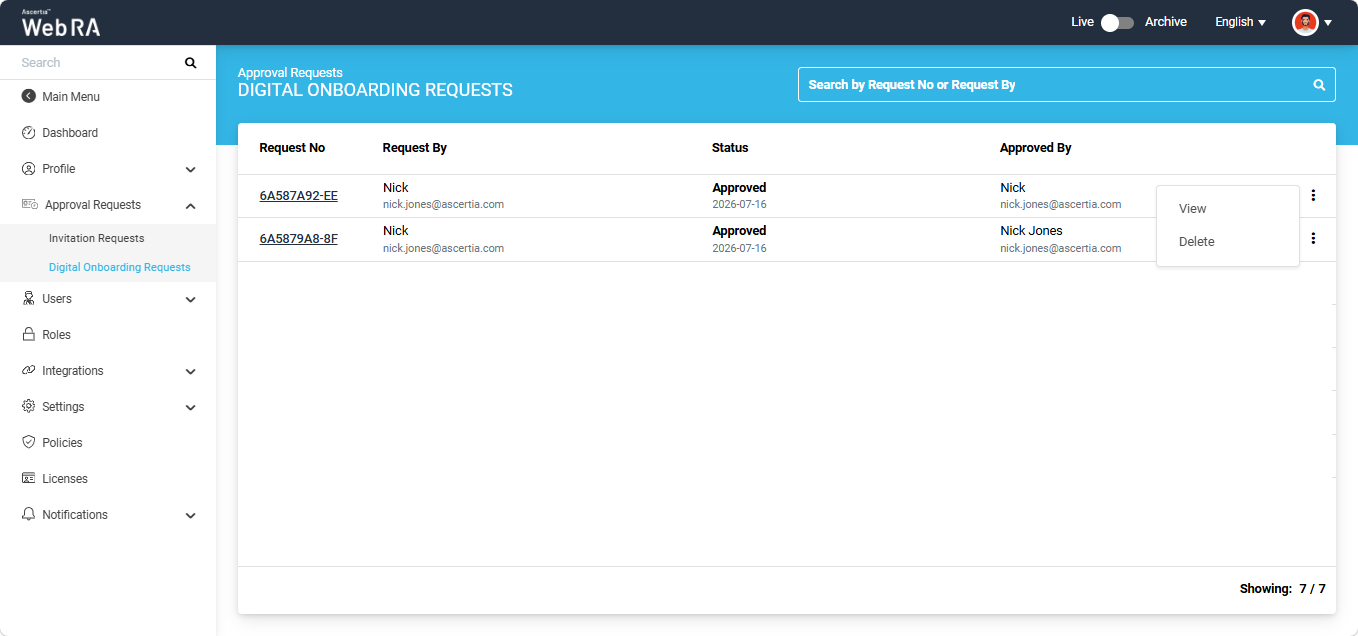
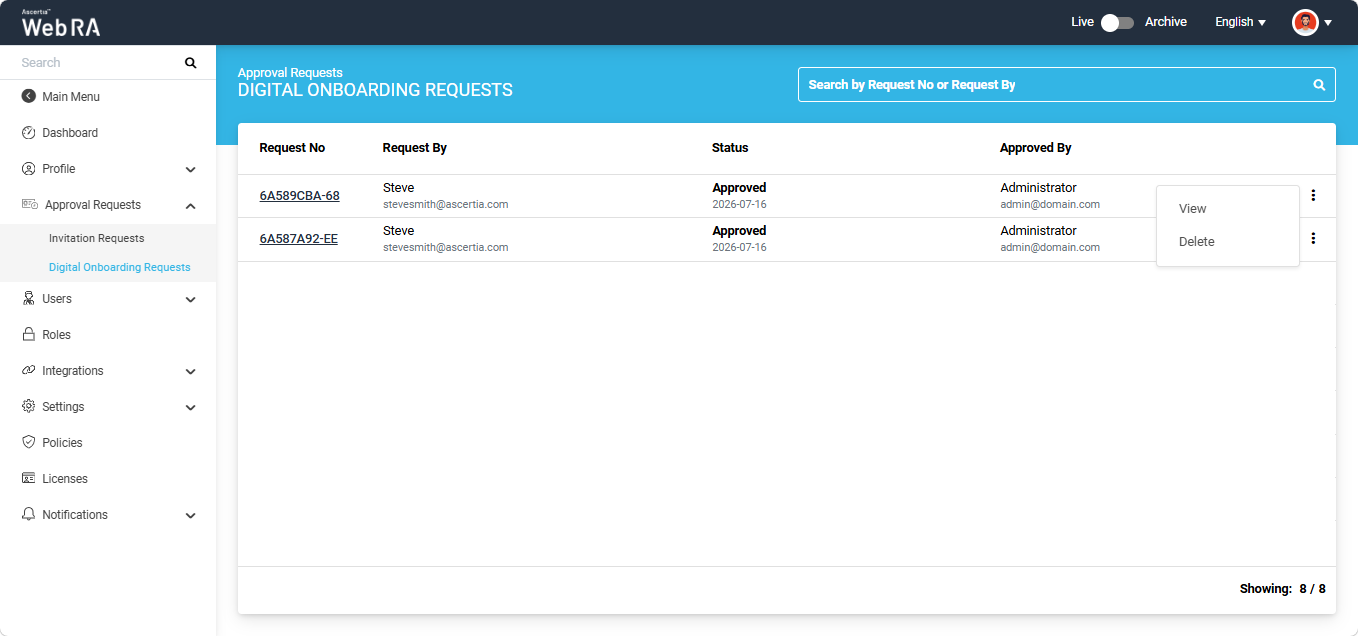
To view the details of a user registration request, either click the Request No of the required request or click the three-dot menu corresponding to the request and select 'View'.
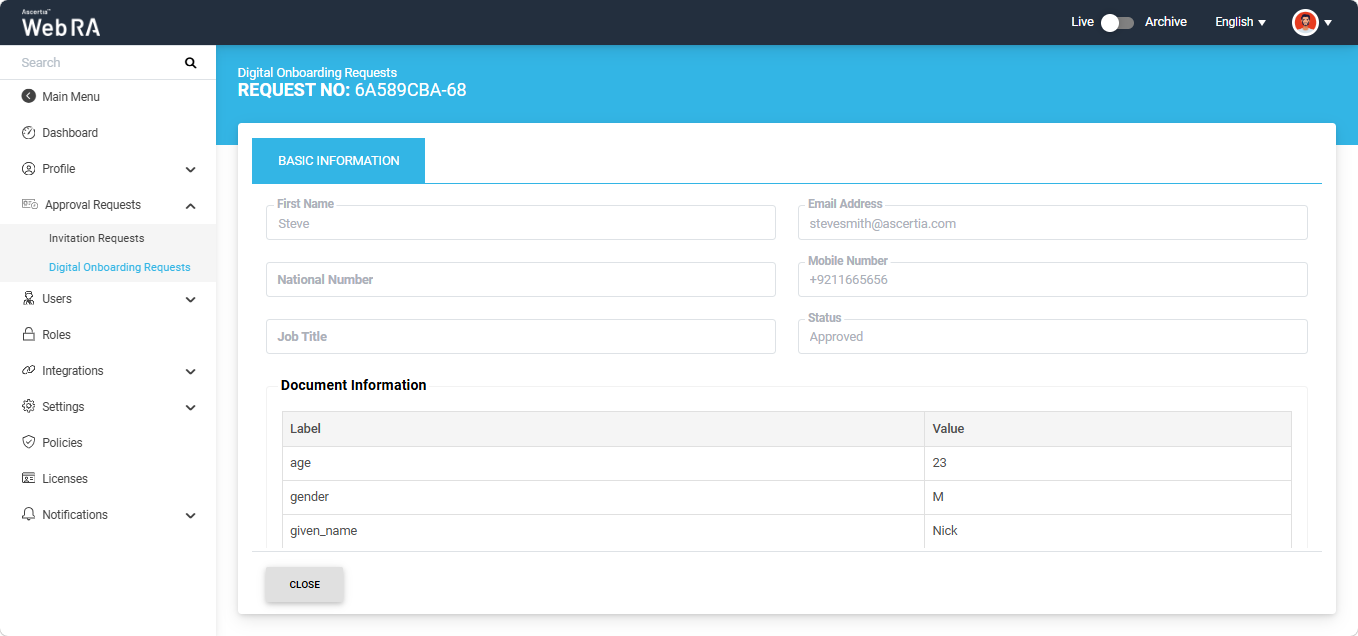
The system displays the request in View mode.
- Expand "Enterprises" from the left menu in the Admin portal, and click "Registered" from the dropdown.
- Click the
 icon adjacent to your enterprise entry, and select 'Manage' to navigate to the Enterprise dashboard.
 - From the Enterprise dashboard, expand Approval Requests > Digital Onboarding Requests to view the listing.
To delete a user registration request, click the three-dot button next to that request and select the ‘Delete’ option.
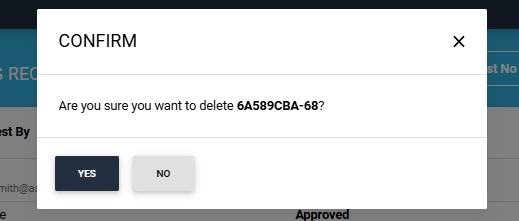
The system will display a confirmation dialog on the screen. Click ‘Yes’ to confirm the deletion.
How to View Digital Onboarding User Reports
The Digital Onboarding Reports section displays the reports generated during the digital onboarding process. These reports contain the information captured during user identity verification and onboarding.
Note: Digital Onboarding reports are retained and displayed in this section only if Retain ID Verification Reports is enabled in the associated Digital Onboarding policy. Report retention is subject to the retention settings configured in the policy.
- Expand "Enterprises" from the left menu in the Admin portal, and click "Registered" from the dropdown.
- Click the
 icon adjacent to your enterprise entry, and select 'Manage' to navigate to the Enterprise dashboard.
 - From the Enterprise dashboard, expand Users > Digital Onboarding Reports to view the listing.
By default, the digital onboarding reports listing displays the following columns:
|
Field |
Description |
|
User |
Name of the onboarded user. |
|
Enterprise |
Name of Enterprise in which the user is onboarded. |
|
Provider |
Provider used during the digital onboarding process. |
|
ID Document |
Identity document used to perform the digital onboarding. |
|
Performed By |
Name of the operator. |
|
Creation On |
Date and time when the report was created. |
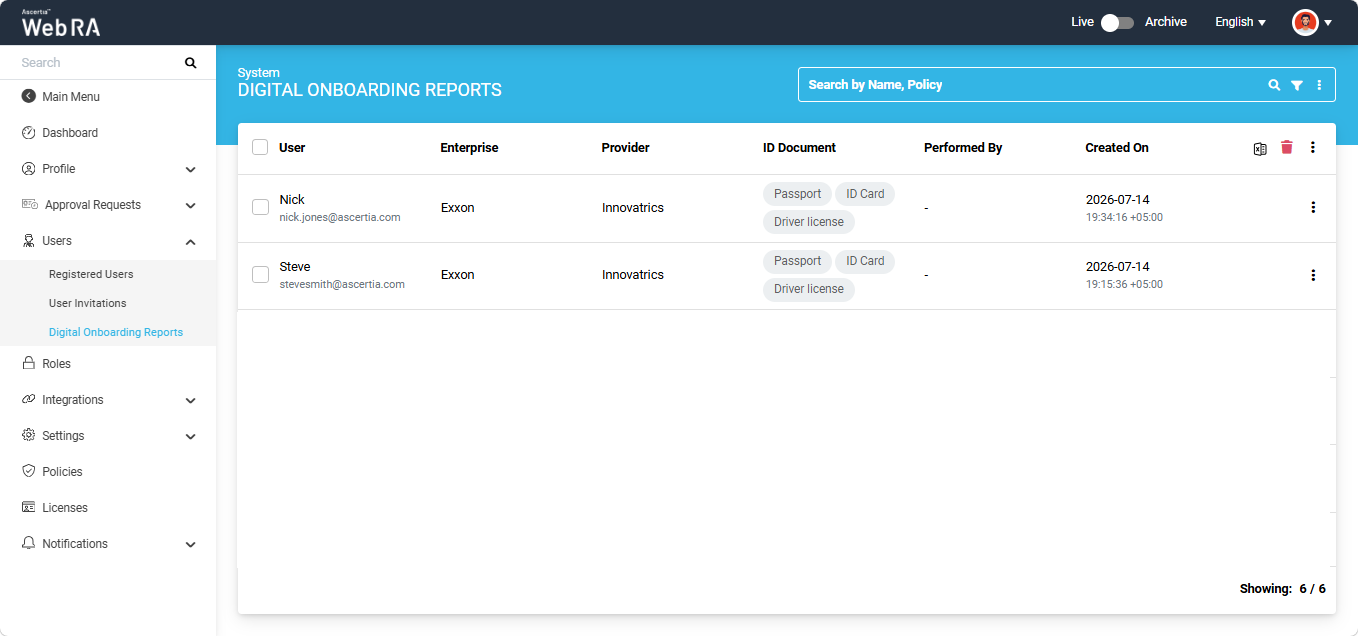
The following actions can be performed from the Digital Onboarding Reports section:
- Modify Columns
- View a Digital Onboarding Report
- Download a Digital Onboarding Report
- Delete a Report
- Download Evidence Report
The operator can customise the columns displayed in the listing table.
- Expand "Enterprises" from the left menu in the Admin portal, and click "Registered" from the dropdown.
- Click the
 icon adjacent to your enterprise entry, and select 'Manage' to navigate to the Enterprise dashboard.
 - From the Enterprise dashboard, expand Users > Digital Onboarding Reports to view the listing screen.
Here, click the three-dot button at the extreme right of the table header and select 'Modify Columns'.
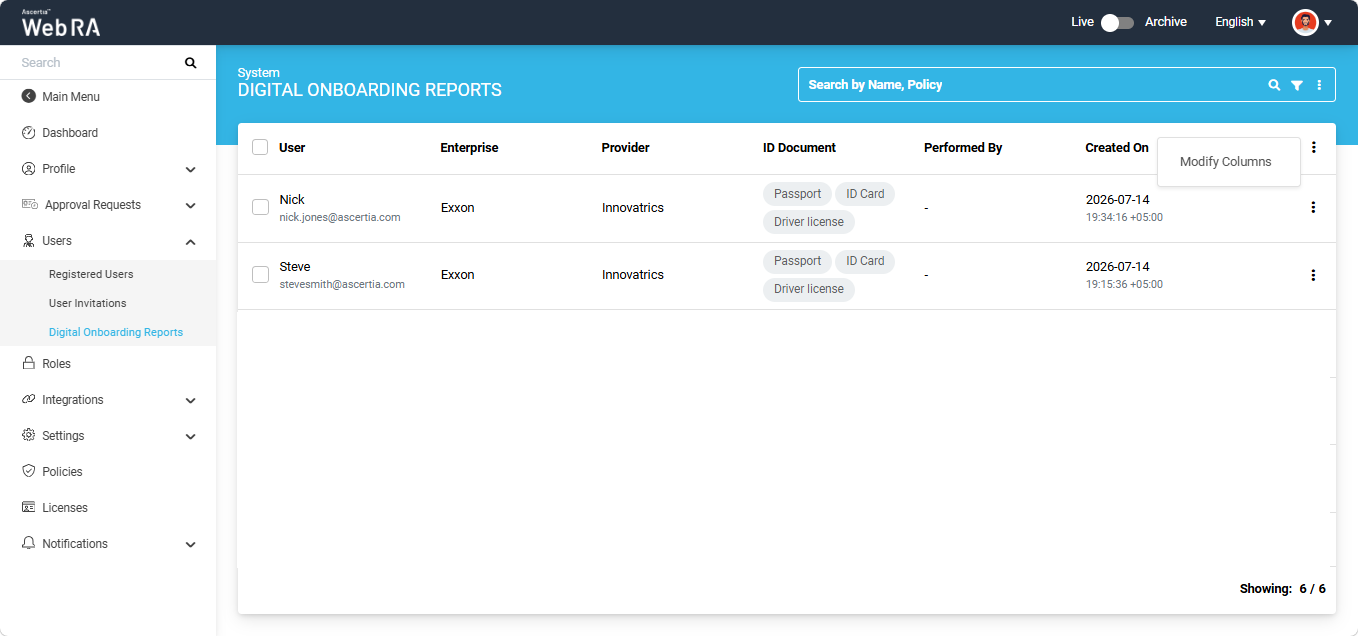
The 'Modify Columns' dialog appears. From the Column dropdown, select the required columns and click 'Apply'.
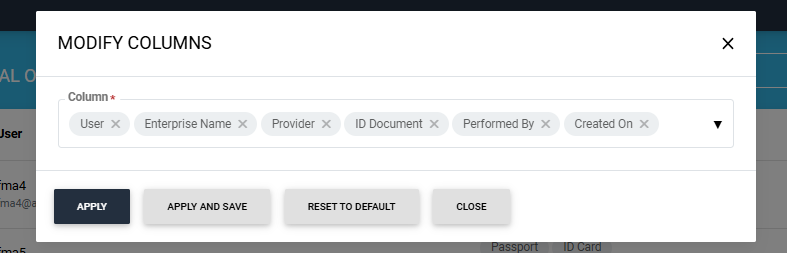
To retain the selected columns for future sessions, click 'Apply and Save'. To restore the default column configuration, click 'Reset to Default'.
- Expand "Enterprises" from the left menu in the Admin portal, and click "Registered" from the dropdown.
- Click the
 icon adjacent to your enterprise entry, and select 'Manage' to navigate to the Enterprise dashboard.
 - From the Enterprise dashboard, expand Users > Digital Onboarding Reports to view the listing screen.
To view a digital onboarding report, click the three-dot button corresponding to the required report and select 'View'.
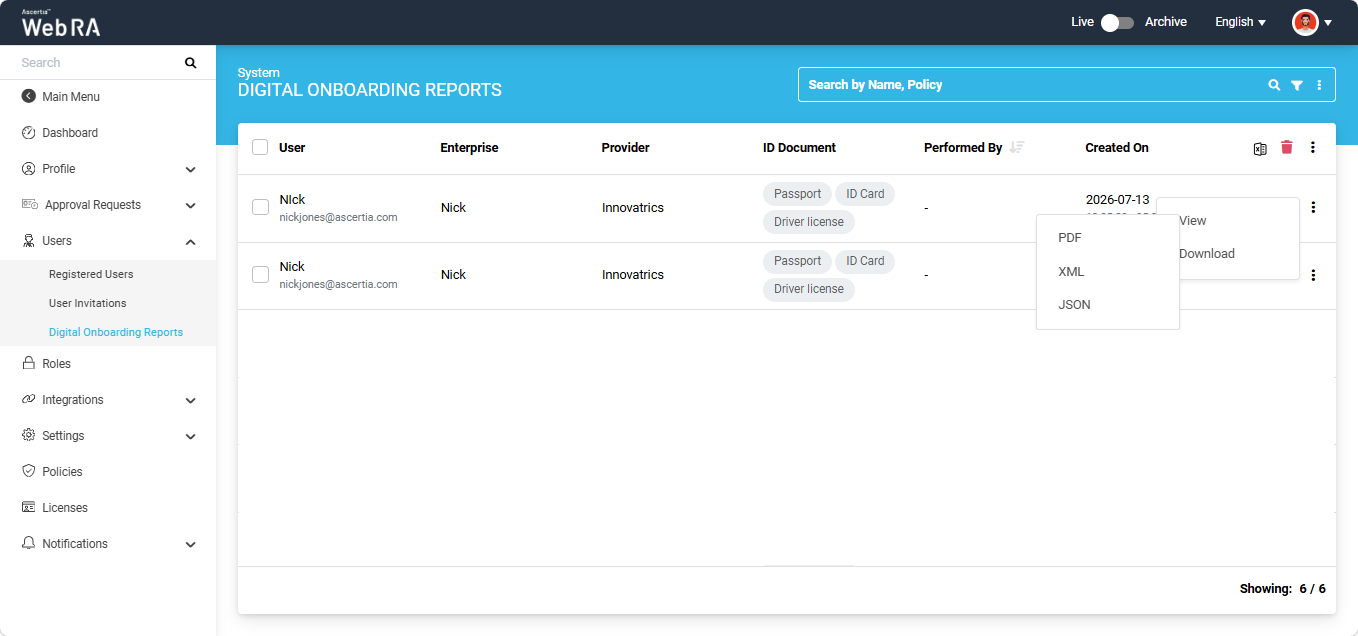
The system displays the available report formats. Select the required format to open the report.
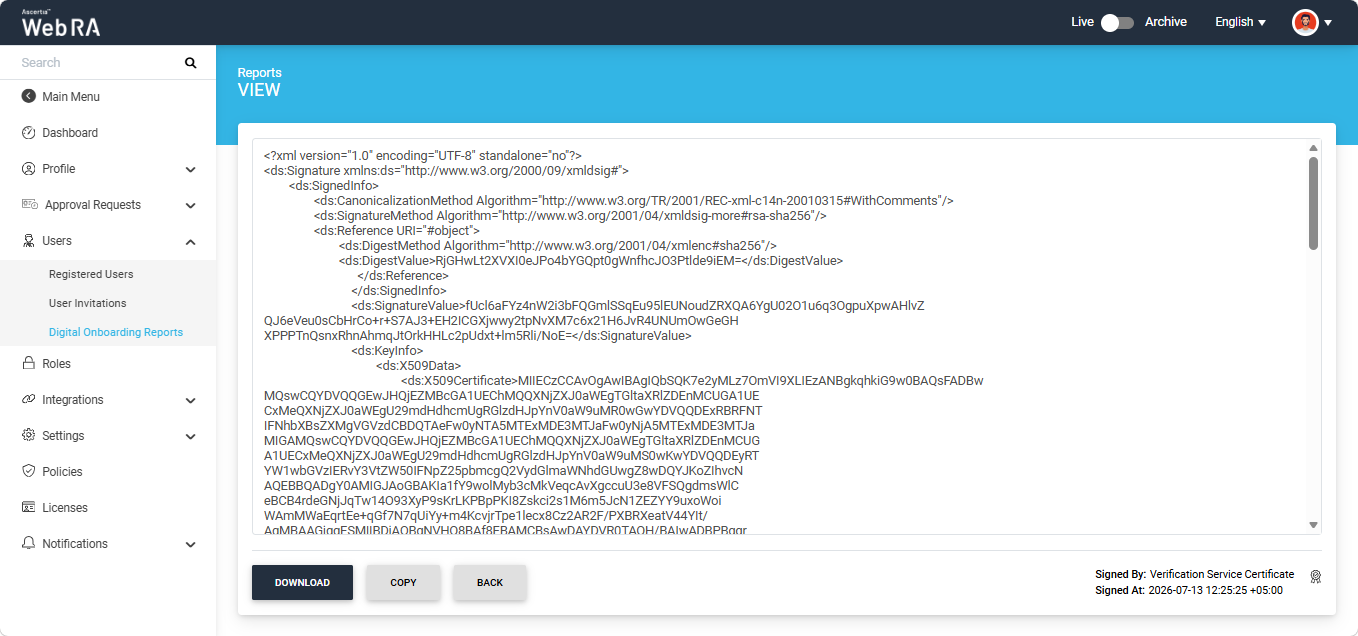
You can also download the report from this screen by clicking the ‘Download’ button. The report will be downloaded in the selected format.
- Expand "Enterprises" from the left menu in the Admin portal, and click "Registered" from the dropdown.
- Click the
 icon adjacent to your enterprise entry, and select 'Manage' to navigate to the Enterprise dashboard.
 - From the Enterprise dashboard, expand Users > Digital Onboarding Reports to view the listing screen.
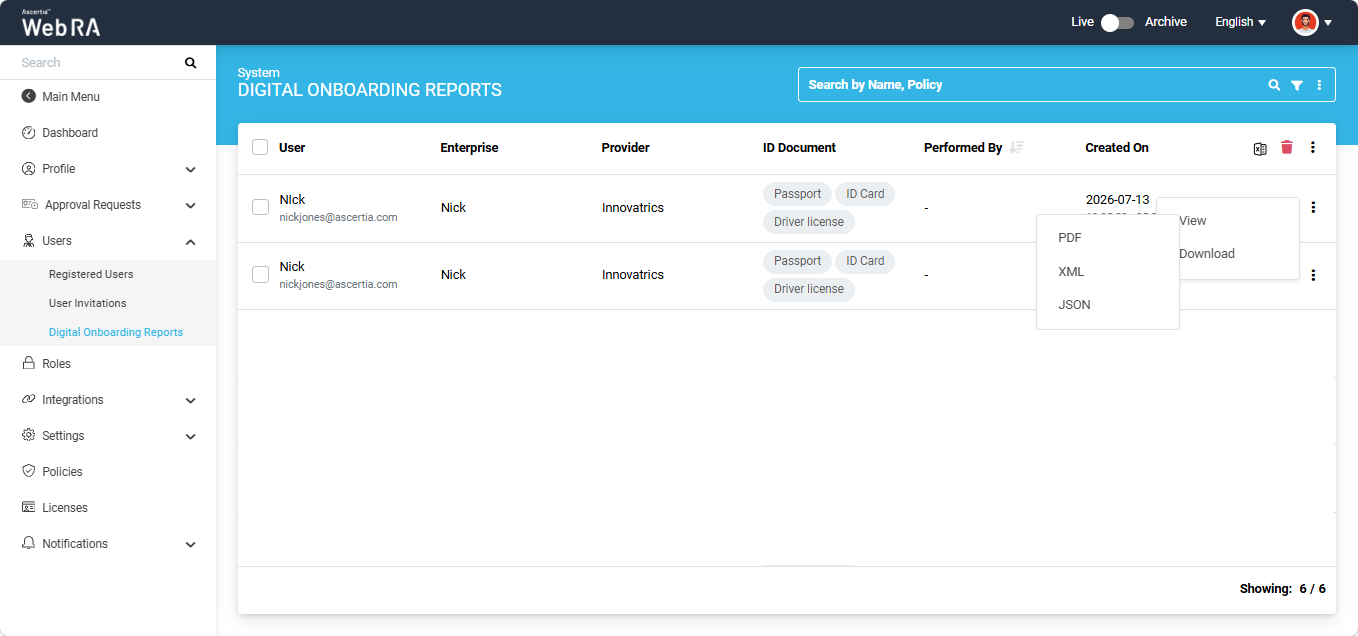
To download a report directly from the listing screen, click the three-dot button corresponding to the required report and select 'Download'.
The system displays the available report formats. Select the required format, and the report is downloaded to your computer.
- Expand "Enterprises" from the left menu in the Admin portal, and click "Registered" from the dropdown.
- Click the
 icon adjacent to your enterprise entry, and select 'Manage' to navigate to the Enterprise dashboard.
 - From the Enterprise dashboard, expand Users > Digital Onboarding Reports to view the listing screen.
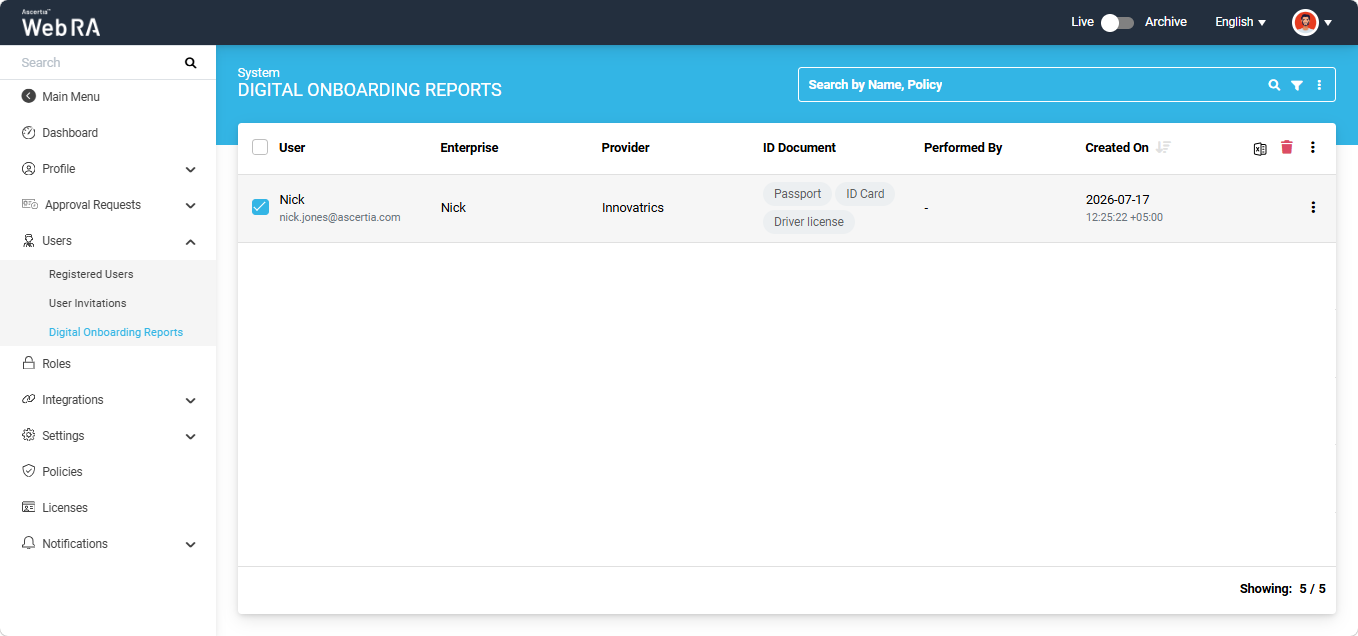
To delete a digital onboarding report(s) from the Web RA system, select the checkbox(es) of the report you want to delete and click the delete bin icon located at the right of the table header.
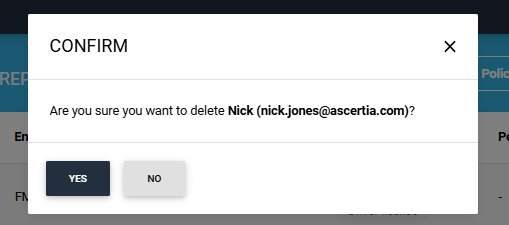
The system will display a confirmation dialog on the screen. Click 'Yes' to confirm the deletion.
- Expand "Enterprises" from the left menu in the Admin portal, and click "Registered" from the dropdown.
- Click the
 icon adjacent to your enterprise entry, and select 'Manage' to navigate to the Enterprise dashboard.
 - From the Enterprise dashboard, expand Users > Digital Onboarding Reports to view the listing screen.
To download the evidence report, click the Excel icon located at the right of the table header. The report will be downloaded to your computer.
How to View the Digital Onboarding Reports from Admin Portal
The Digital Onboarding Reports section displays the reports generated during the digital onboarding process. These reports contain the information captured during user identity verification and onboarding.
Note: Digital Onboarding reports are retained and displayed in this section only if Retain ID Verification Reports is enabled in the associated Digital Onboarding policy. Report retention is subject to the retention settings configured in the policy.
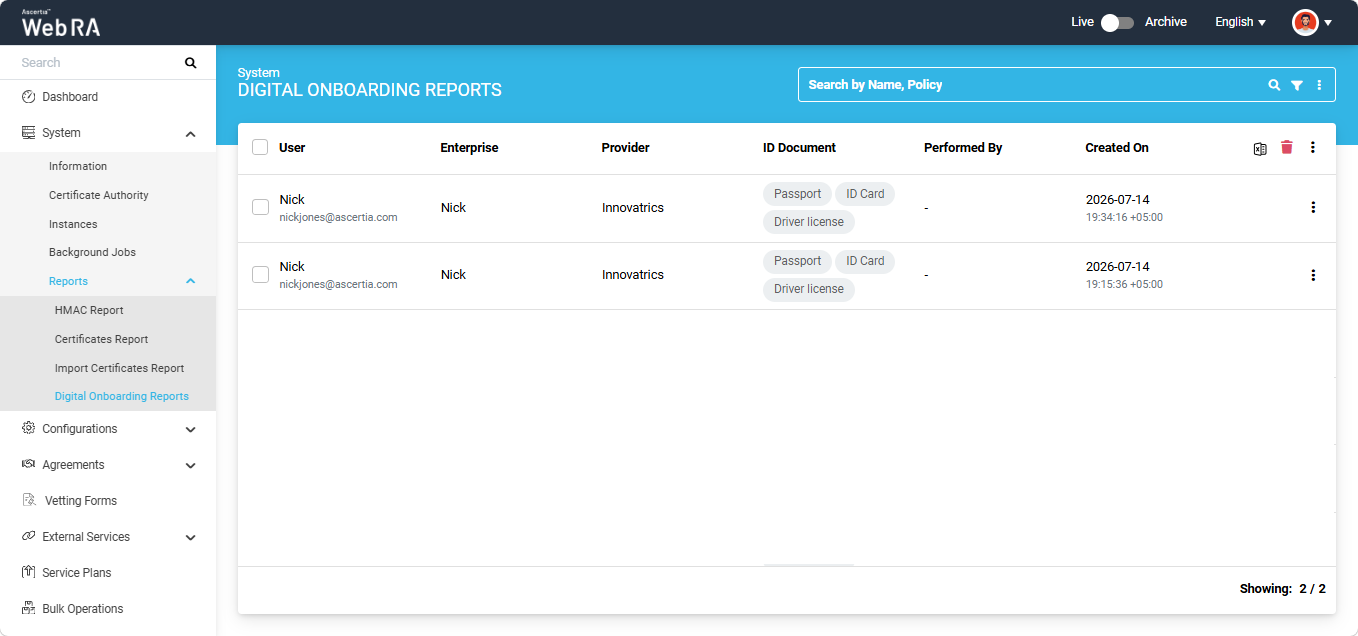
Expand System > Reports > Digital Onboarding Reports from the left-tree menu in the Admin portal to view the listing screen.
By default, the listing table displays the following columns:
|
Field |
Description |
|
User |
Name of the onboarded user. |
|
Enterprise |
Name of Enterprise in which the user is onboarded. |
|
Provider |
Provider used during the digital onboarding process. |
|
ID Document |
Identity document used to perform the digital onboarding. |
|
Performed By |
Name of the operator. |
|
Creation On |
Date and time when the report was created. |
The following actions can be performed from the Digital Onboarding Reports section:
- Modify Columns
- View a Digital Onboarding Report
- Download a Digital Onboarding Report
- Delete a Digital Onboarding Report
- Download Evidence Report
Expand System > Reports > Digital Onboarding Reports from the left-tree menu in the Admin portal to view the listing screen.
The operator can customise the columns displayed in the listing table. To do this, click the three-dot button at the extreme right of the table header and select 'Modify Columns'.
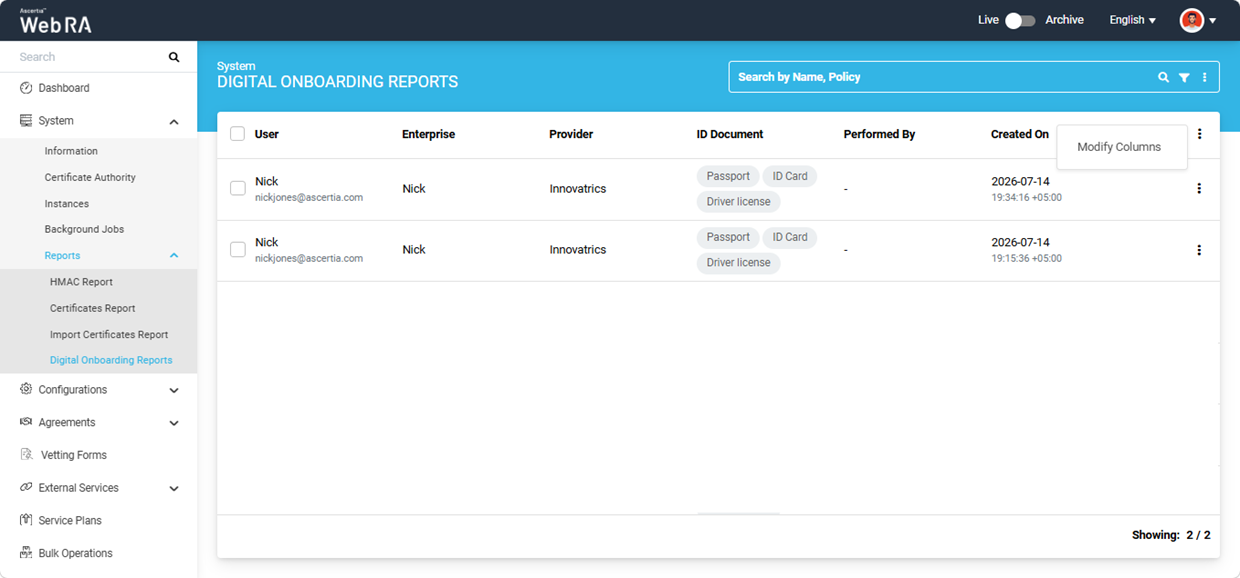
The 'Modify Columns' dialog appears. From the Column dropdown, select the required columns and click 'Apply'.
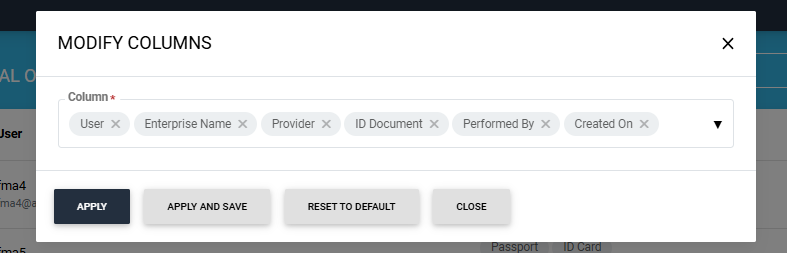
To retain the selected columns for future sessions, click 'Apply and Save'. To restore the default column configuration, click 'Reset to Default'.
Expand System > Reports > Digital Onboarding Reports from the left-tree menu in the Admin portal to view the listing screen.
To view a report, click the three-dot button corresponding to the required report and select 'View'.
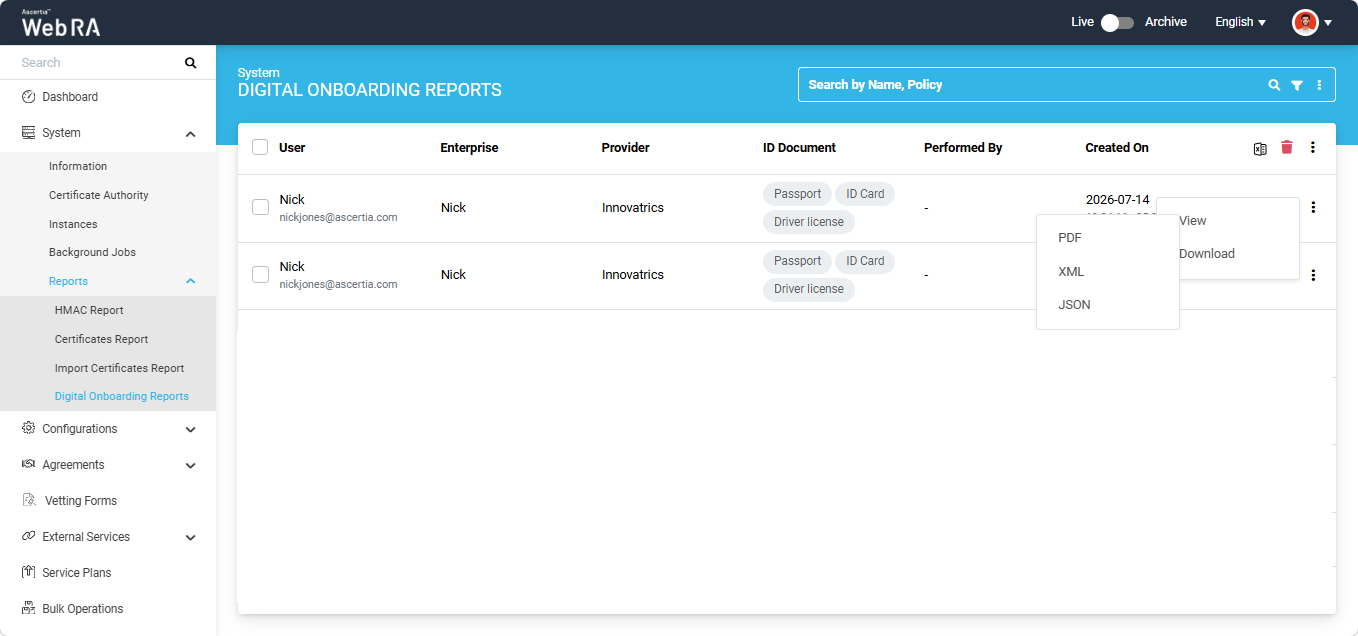
The system displays the available report formats. Select the required format to open the report.
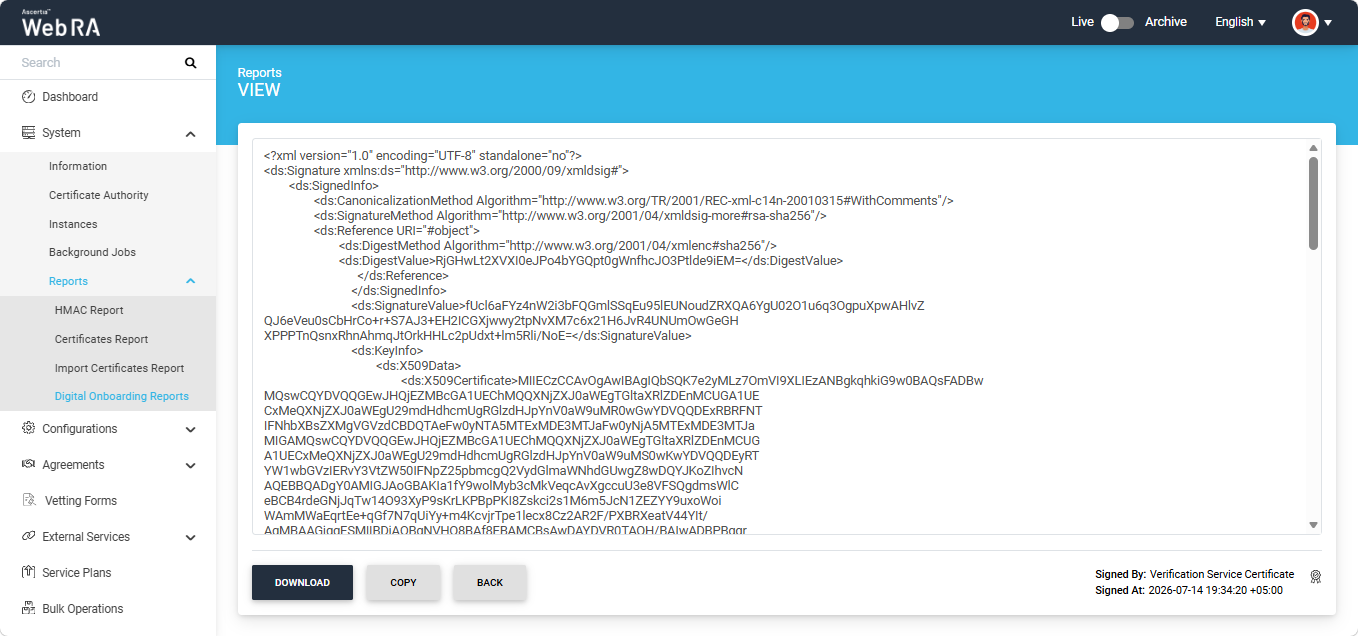
You can also download the report from this screen by clicking the ‘Download’ button. The report will be downloaded in the selected format.
Expand System > Reports > Digital Onboarding Reports from the left-tree menu in the Admin portal to view the listing screen.
To download a report directly from the listing screen, click the three-dot button corresponding to the required report and select 'Download'.
The system displays the available report formats. Select the required format, and the report is downloaded to your computer.
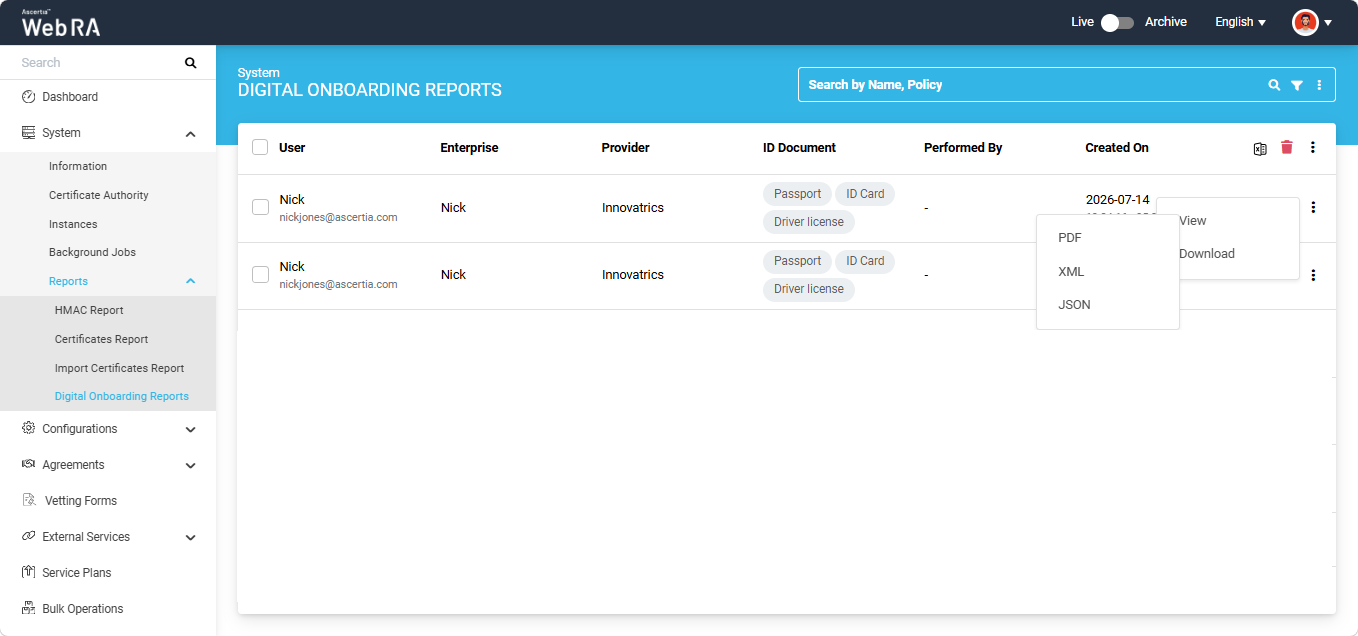
Expand System > Reports > Digital Onboarding Reports from the left-tree menu in the Admin portal to view the listing screen.
To delete a digital onboarding report(s) from the Web RA system, select the checkbox(es) of the report you want to delete and click the delete bin icon located at the right of the table header.
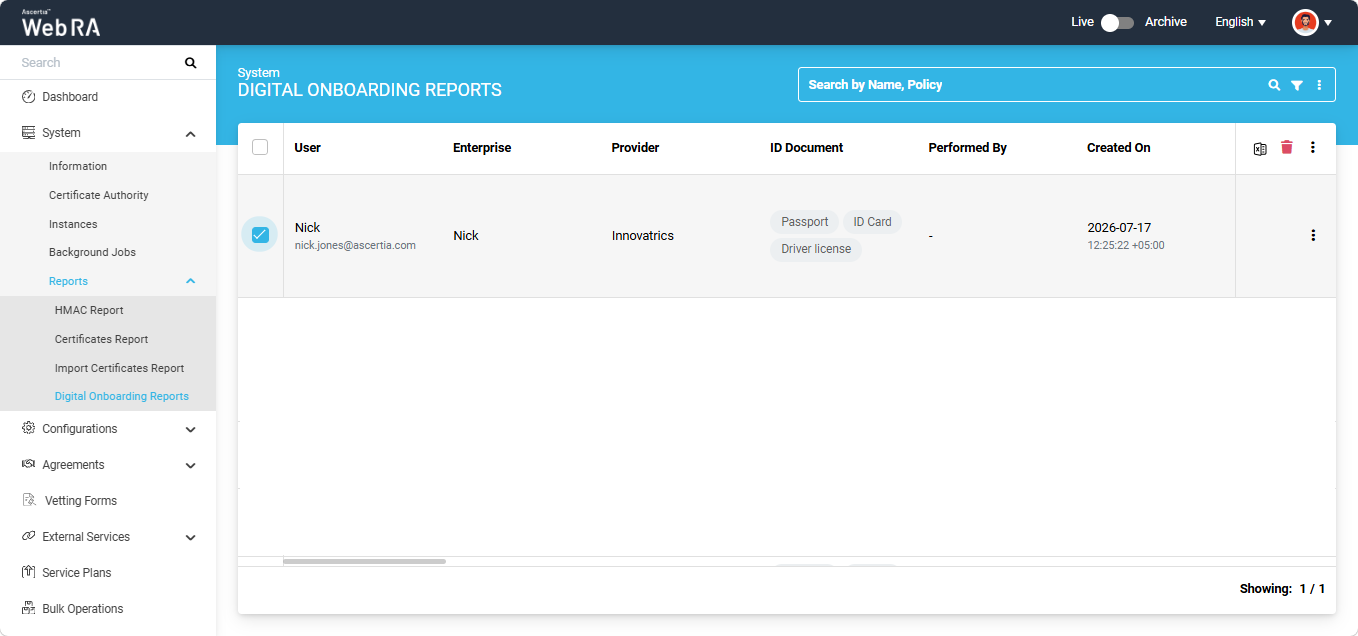
Expand System > Reports > Digital Onboarding Reports from the left-tree menu in the Admin portal to view the listing screen.
To download the evidence report, click the Excel icon located at the right of the table header. The report will be downloaded to your computer.
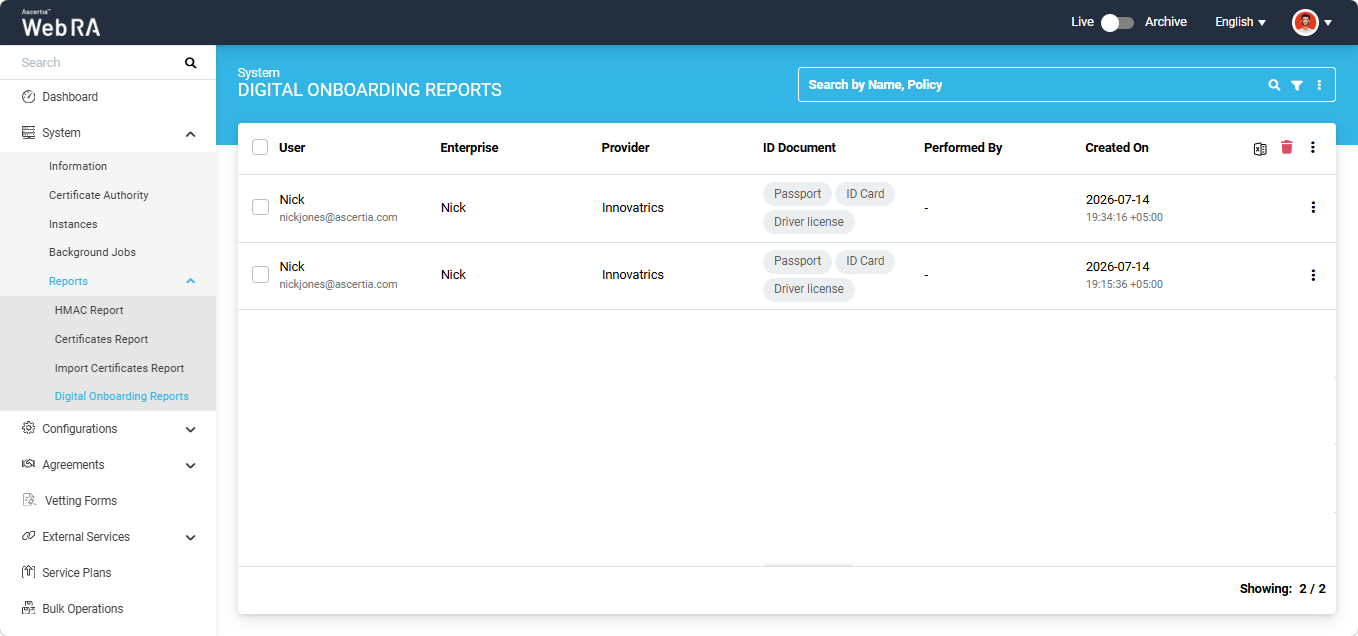
How to Start the ‘Digital Onboarding Transactions Auto Delete’ Background Job
Expand System > Background Jobs from the left-tree menu.
The 'Digital Onboarding Transactions Auto Delete' job will appear at the end of the Name column.
This job automatically deletes user Digital Onboarding transactions from the Digital Onboarding Transactions table.
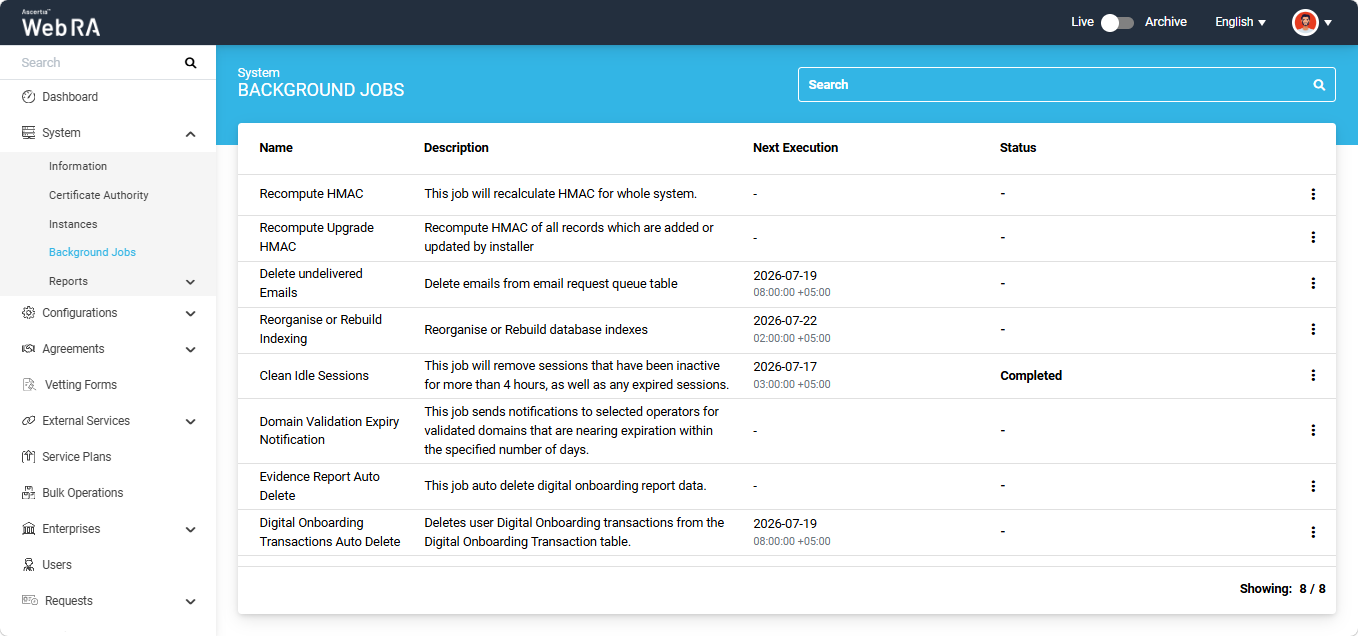
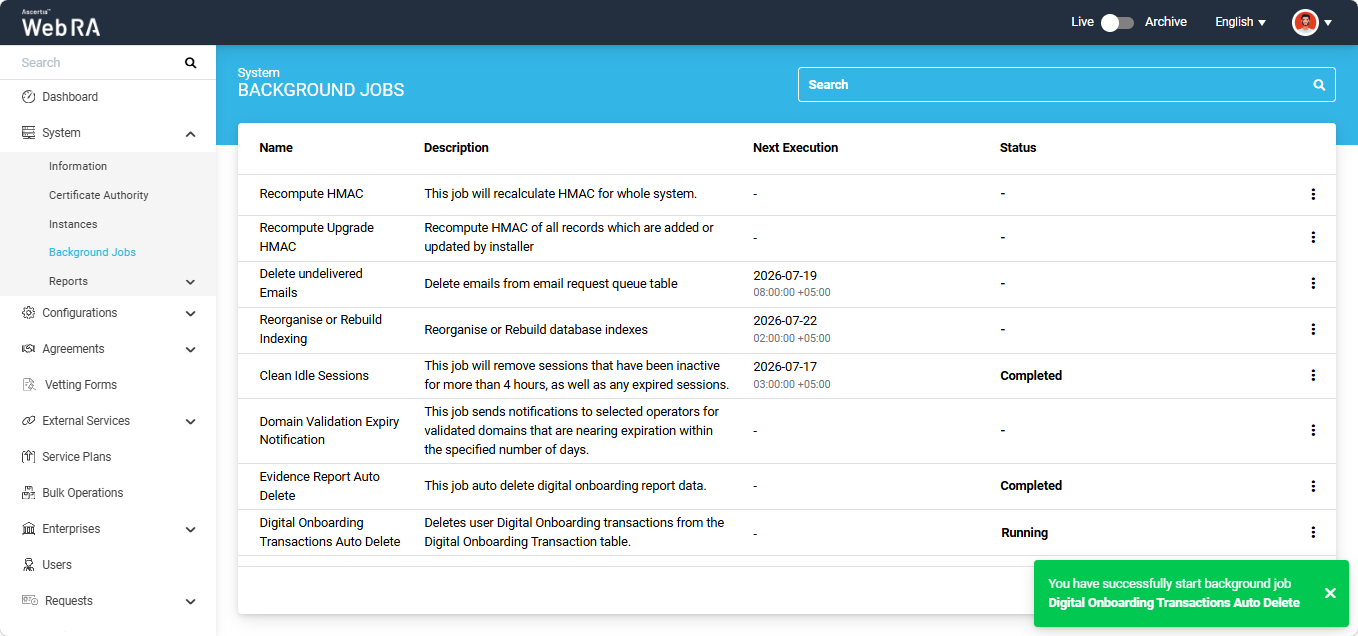
The status column will display the status of the background job. During the time of execution, the status will change to ‘Running’. After the completion of the job the status will appear as ‘Completed.
The administrator can manually start this background job.
To do this, click the three-dot icon next to the Digital Onboarding Transactions Auto Delete entry, and then select the 'Start' option.
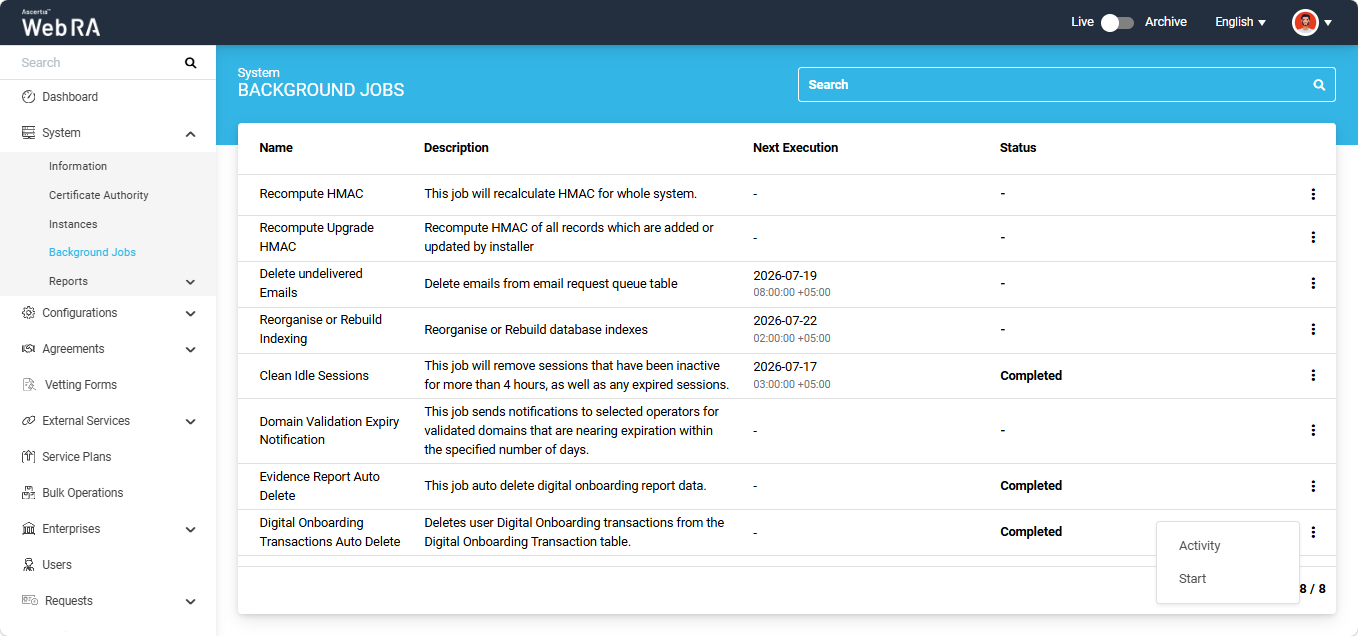
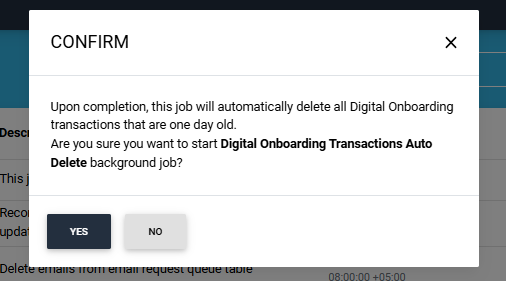
The system will display a confirmation dialog on the screen. Click ‘Yes’ to proceed.
A success message will appear on the screen indicating that the job has started and the status of the job will change to ‘Running’.
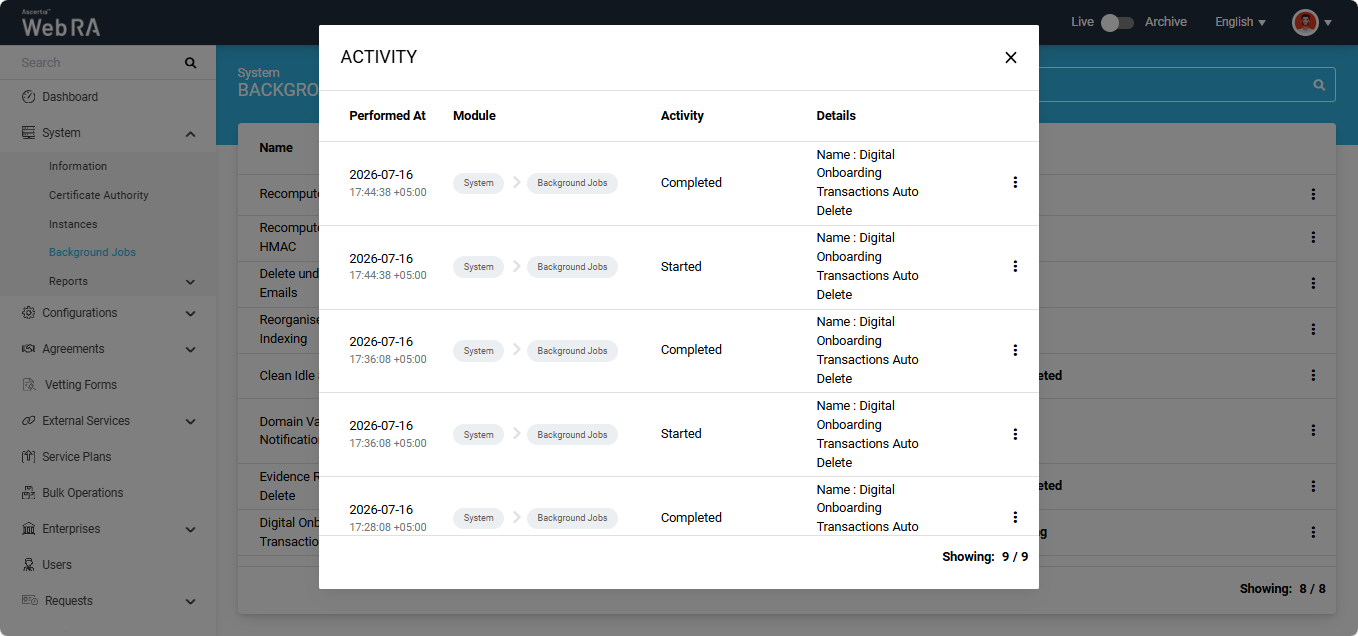
The system will create and save an activity entry whenever a background job is executed. All past activities can be seen from the ‘Activity’ dialog. To access the dialog, click the three-dot  icon and select the ‘Activity’ option.
The system will display the ‘Activity’ dialog on the screen.
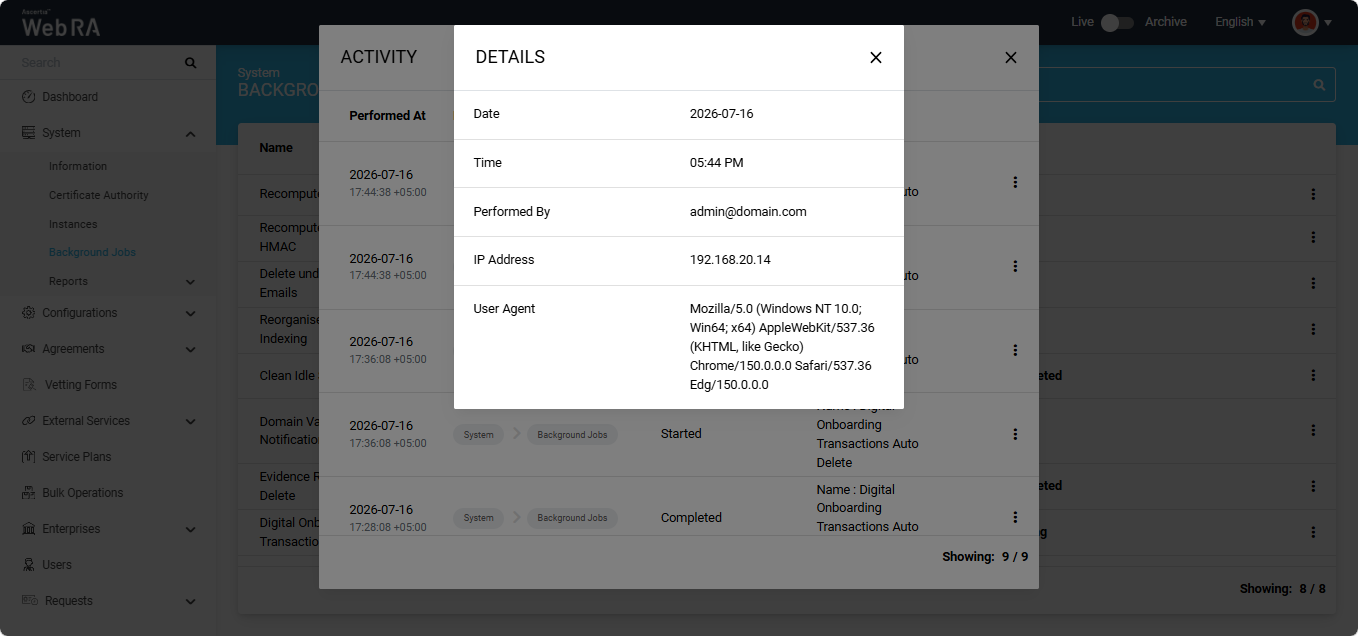
You can view complete details of the background job activity by clicking the three-dot  icon next to any entry and selecting the ‘Details’ option.
The system will display the ‘Details’ dialog containing the information about the activity.