
Transaction Logs
The Verification Service Transaction Logs page provides a record of requests received by the ADSS Verification Service and the corresponding responses returned by the service. These transaction records can be used for auditing, troubleshooting, and reviewing how individual verification or certificate validation transactions were processed
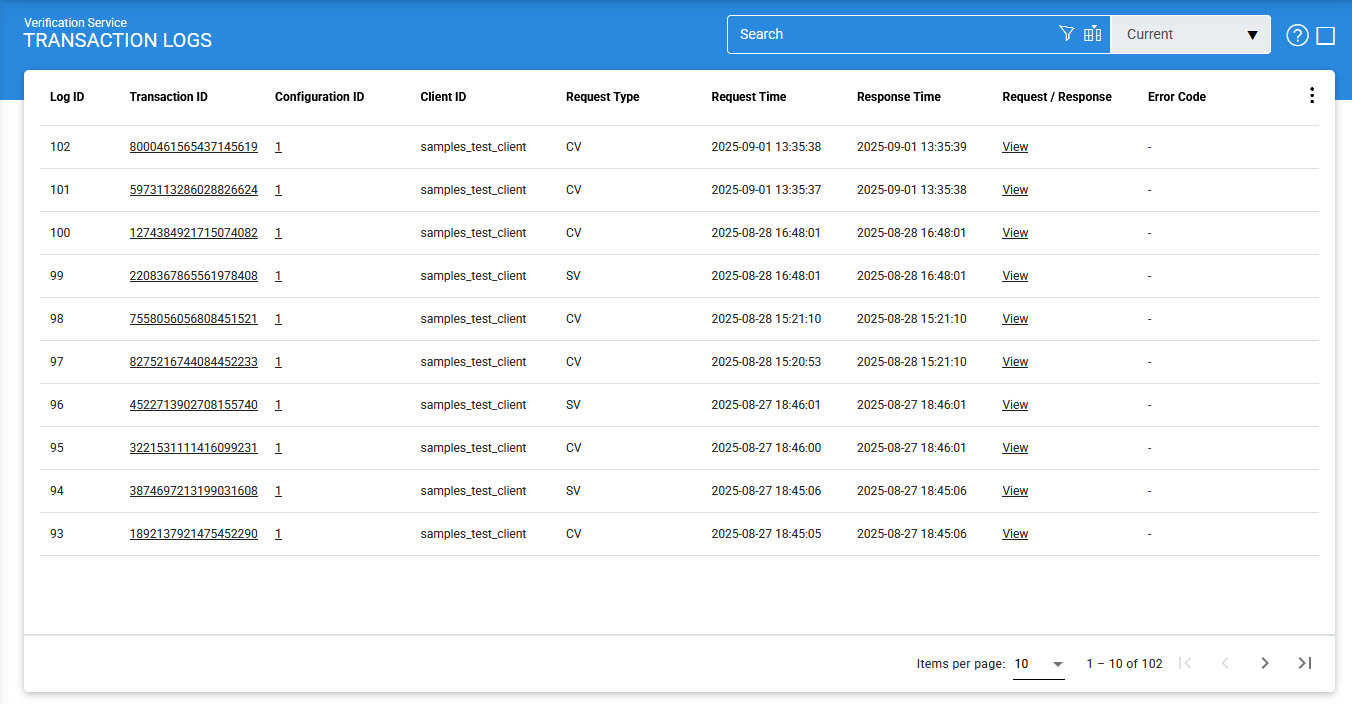
Each item in the screenshot is described below:
|
Items |
Description |
|
Search |
Opens a search window where you can specify search criteria based on the available transaction log columns |
|
Customise Columns |
Opens the column configuration window, where you can select which columns are displayed in the transaction log grid and which columns are hidden. |
|
|< < > >| |
Navigate between the different pages of transaction records. The number of records displayed per page can be configured from Global Settings. |
|
Export Logs |
Exports the transaction logs as a ZIP file containing CSV data. The columns in the CSV file are separated using the literal '~&~' delimiter. The exported file can be opened using Microsoft Excel. To view and analyse archived transactions in ADSS Server, import the archived file using the Import Archived option. |
|
Verify Integrity |
Verifies the integrity of transaction log records. The feature detects tampered and deleted records and generates a report that can be exported to a physical location. When exporting an HMAC verification report, it is recommended to save the file with the '.html' extension so that it can be viewed in a web browser. |
|
Show Archived |
Opens the archived transaction log interface, where previously archived or exported transaction log files can be imported and viewed. |
|
Log ID |
Displays the unique, system-generated serial number assigned to the transaction log record. The Log ID is not part of the request or response message. |
|
Transaction ID |
Displays the unique identifier assigned to the transaction by the client application in the verification request. Each Transaction ID should be unique. If the same Transaction ID is received again in a request, the ADSS Verification Service returns the same response that was previously generated for that Transaction ID. For information about the Transaction ID format, see the ADSS Developer Guide. |
|
Configuration ID |
Displays the unique revision identifier automatically assigned to a profile when it is updated. This identifier is stored with each transaction and allows you to determine which profile configuration was used to process the transaction |
|
Client ID |
Displays the Client ID included in the request. The ADSS Verification Service verifies that the Client ID is registered in the **Client Manager** before granting access to the service. For more information, see Registering Business Applications. |
|
Request Type |
Identifies the type of request received by the Verification Service. Supported request types are:
|
|
Response Time |
Displays the date and time associated with the request. |
|
Request/Response |
Provides a link to view the request and response messages associated with the transaction. The document being verified is not stored in the request/response messages by default. |
|
Remote Server Request/Response |
Displays the request and response information exchanged with a remote Verification Server. This allows the administrator to review the information exchanged with the remote server. |
|
Input Document |
Provides a View link to display the input document associated with the verification transaction. The link is available only when document storage is enabled for transaction logs. This column is hidden by default and can be displayed using Customise Columns. |
|
Output Document |
Provides a View link to display the output document associated with the verification transaction. The link is available only when document storage is enabled for transaction logs. This column is hidden by default and can be displayed using Customise Columns. |
|
TLS Cert |
Provides a View link to display the TLS client authentication certificate used for the transaction. The link is available only when TLS client authentication was used. This column is hidden by default and can be displayed using Customise Columns. |
|
Signing Cert |
Provides a View link to display the certificate used to sign the request. The link is available only when a signed request was sent to the Signing Service. This column is hidden by default and can be displayed using Customise Columns. |
|
Error Code |
Provides a View link for transactions that contain an error. Hover over the link to display the corresponding error message, such as PDF validation disabled or Verification module stopped. |
|
|
Note: The Input Document, Output Document, TLS Cert, and Signing Cert columns are hidden by default. Use Customise Columns to make these columns visible. |

Transaction records can be sorted in ascending or descending order. Select the required column and sort order from the available drop-down options.
Importing Archived
To view previously archived transaction logs:
- Select Import Archived from the drop-down menu.
- Click Go.
- The Import Archived page is displayed.
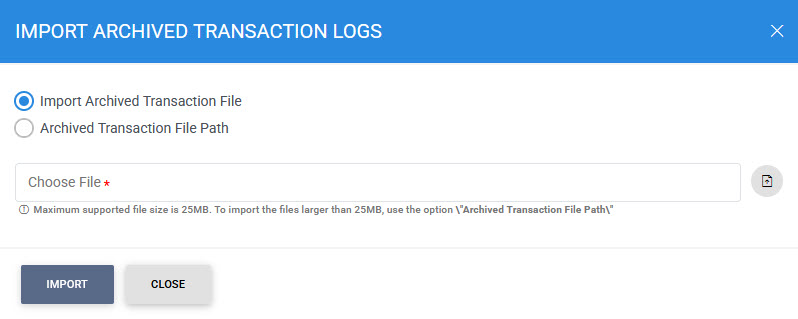
The available options are described below:
|
Items |
Description |
|
Import archived transaction file |
Allows you to browse for an archived transaction log ZIP file on the operator's machine. The selected file is uploaded to ADSS Server before it is imported. Because uploading large files can be resource-intensive, files up to 25 MB can be uploaded using this option. For files larger than 25 MB, use Archived transaction file path. |
|
Archived transaction file path |
Allows you to specify the path of an archived transaction log file larger than 25 MB. The file is not uploaded to ADSS Server. Instead, the server reads the file directly from the specified path before importing it. You can specify either a local file system path or a network path |
|
|
Note: When specifying the archived transaction file path, include the file name in the path. |
Archived File Format
Archived transaction files were stored in CSV format up to ADSS Server v4.7.5. Starting with ADSS Server v4.7.6, archived files are stored as ZIP files to reduce disk-space usage.
|
|
Important: If you are importing an archived file created using an ADSS Server deployment earlier than v4.7.6 into ADSS Server v4.7.6 or later, first compress the archived file into a ZIP file. Otherwise, ADSS Server will not recognise it as a valid archived file. |
Advanced Search
The Advanced Search option allows you to locate specific Verification Service transactions based on one or more search criteria.
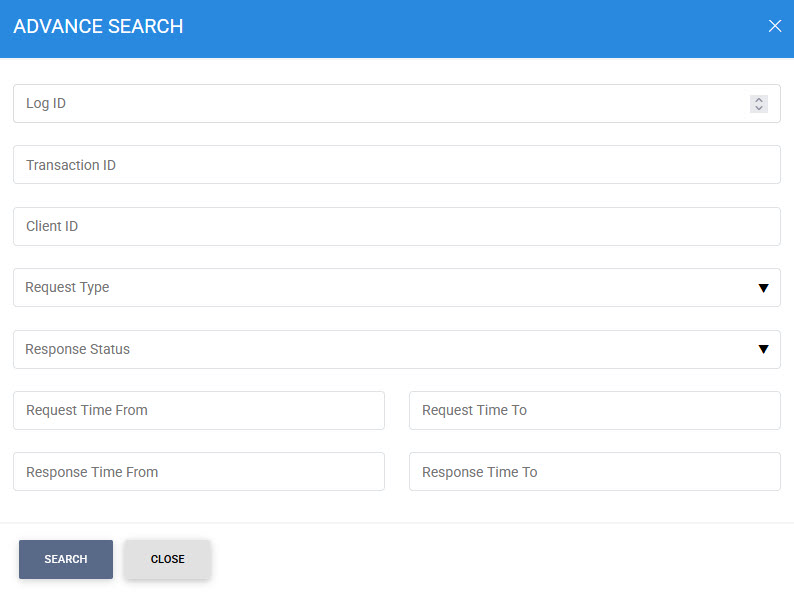
You can search transaction records using the following criteria:
- Transaction ID
- Client ID
- Request Type
- Response Status
- Request Time From
- Request Time To
- Response Time From
- Response Time To
Customise Columns
The Customise Columns option allows you to control which fields are displayed in the transaction log grid.
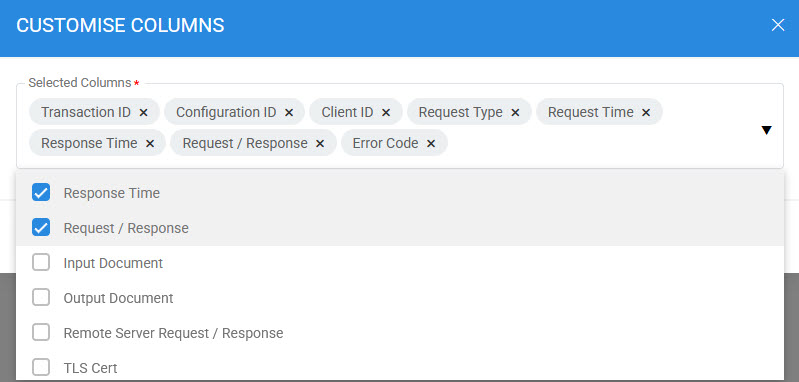
By default, a predefined set of columns is displayed in the Selected Columns list.
To hide a column:
- Open Customise Columns.
- Select the required column from the Selected Columns list.
- Move the column to the Available Columns list.
- Save the column configuration
Similarly, columns can be moved from Available Columns to Selected Columns to display them in the transaction log.
Verify Integrity
Each transaction log record stored in the database is protected using a cryptographic HMAC checksum. The checksum helps detect intentional or accidental modification of transaction records.
To verify the integrity of transaction logs:
- Click the vertical ellipsis (⋮).
- Select Verify Integrity.
- ADSS Server checks the HMAC checksum of the transaction records.
- A verification report is generated.
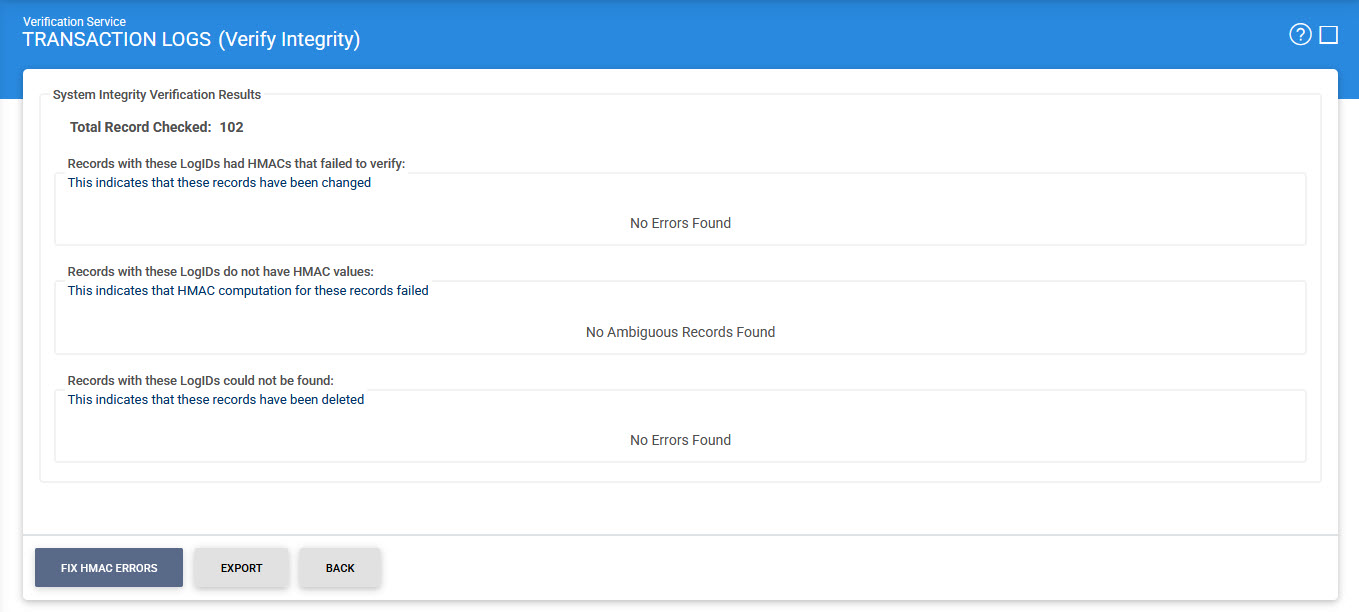
The report can be exported to a physical or network location.
Export Transaction Logs
To export transaction logs:
- Click the vertical ellipsis (⋮).
- Select Export Logs
- Export the transaction logs to the required location.
|
|
Important: Transaction logs are exported as a complete ZIP file. The export operation does not use the currently applied search or filter criteria. Therefore, the exported file contains the complete transaction log set. |
Fix HMAC Errors
The Fix HMAC Errors option recalculates the HMAC value for transaction log records where the HMAC is missing or incorrect.
To fix HMAC errors:
- Click the vertical ellipsis (⋮).
- Select Fix HMAC Errors
- ADSS Server recalculates the HMAC values for the affected records.
|
|
Note: This option does not detect unauthorised deleted records. It only addresses unauthorised modifications and ambiguous records for which the HMAC value is missing or incorrect. |
|
|
Important: The Verify Integrity feature is available for the transaction logs of all services within ADSS Server. |
View Configuration ID
The Configuration ID associated with a transaction identifies the profile configuration that was used to process that transaction.
Click a Configuration ID to view the configuration information associated with the transaction.
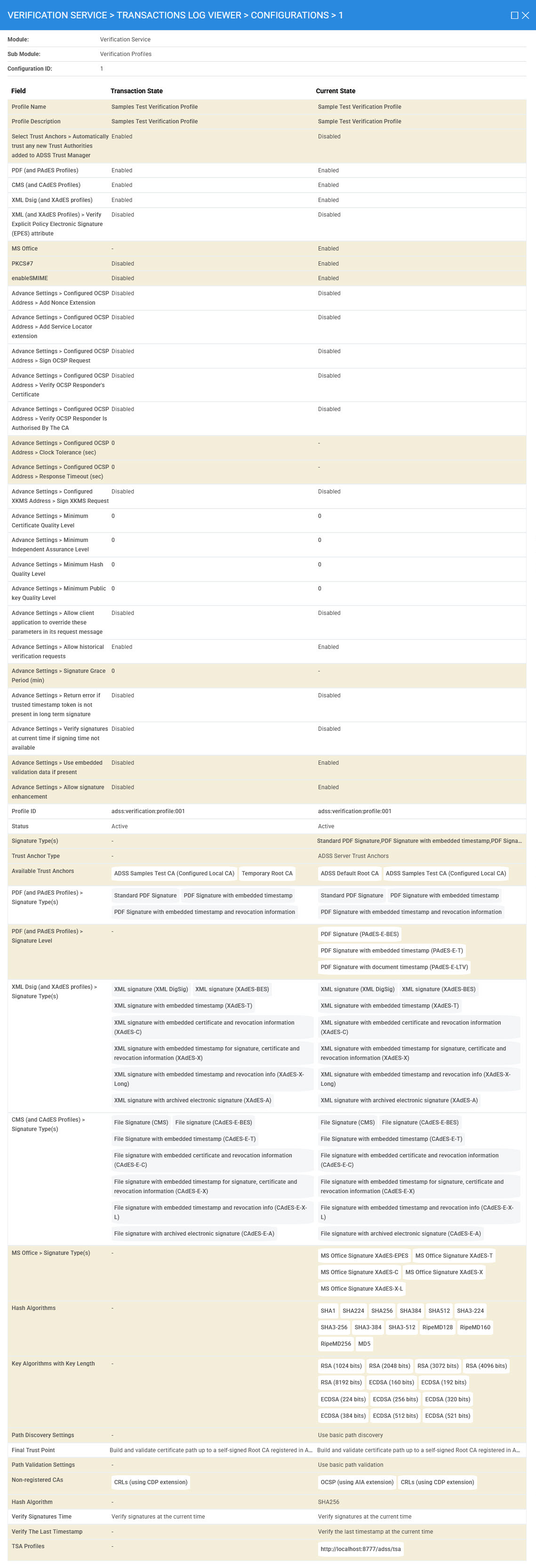
The configuration viewer displays the Transaction State and Current State of the profile.
How Configuration ID Works
Configuration ID works as follows:
- When a profile is updated, the previous profile state is stored in the profile history table with a unique identifier. A new identifier is generated for each subsequent update. When a profile is created, the default identifier is 1 and represents the current profile state.
- The transaction log viewer provides a link to the profile configuration that was used to process the selected transaction. When the link is selected, ADSS Server retrieves the corresponding profile state from the profile history table and displays it in the configuration viewer.
- The Transaction State column displays the value of each field at the time the transaction was processed.
- The Current State column displays the current value of the corresponding profile settings.
- If a profile field has changed between the time the transaction was processed and the current time, the changed field is highlighted. This allows you to identify configuration changes made after the transaction was processed.
View XML Request and Response
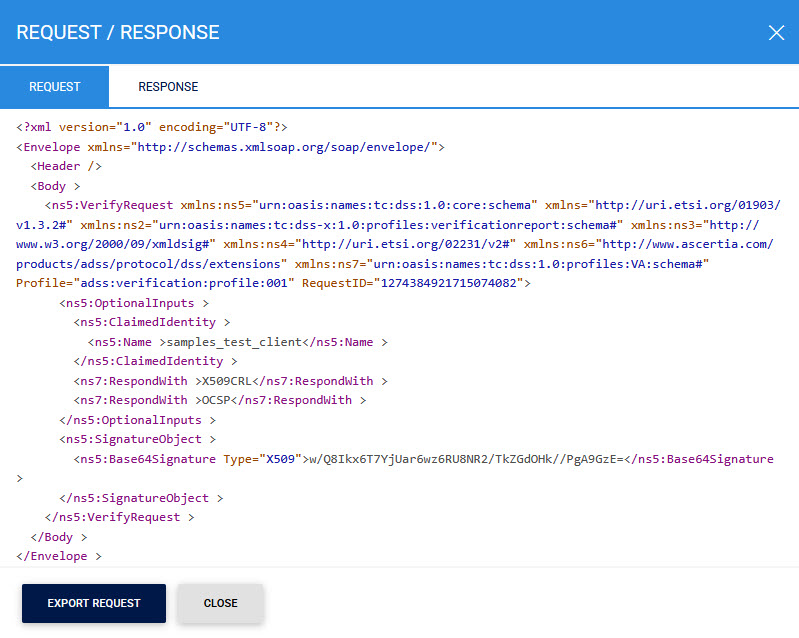
For transactions received through the XML/SOAP interface, click the View link in the Request/Response column to view the XML request and response.
The request and response are displayed in separate tabs.
Select the Response tab to view the corresponding XML response:
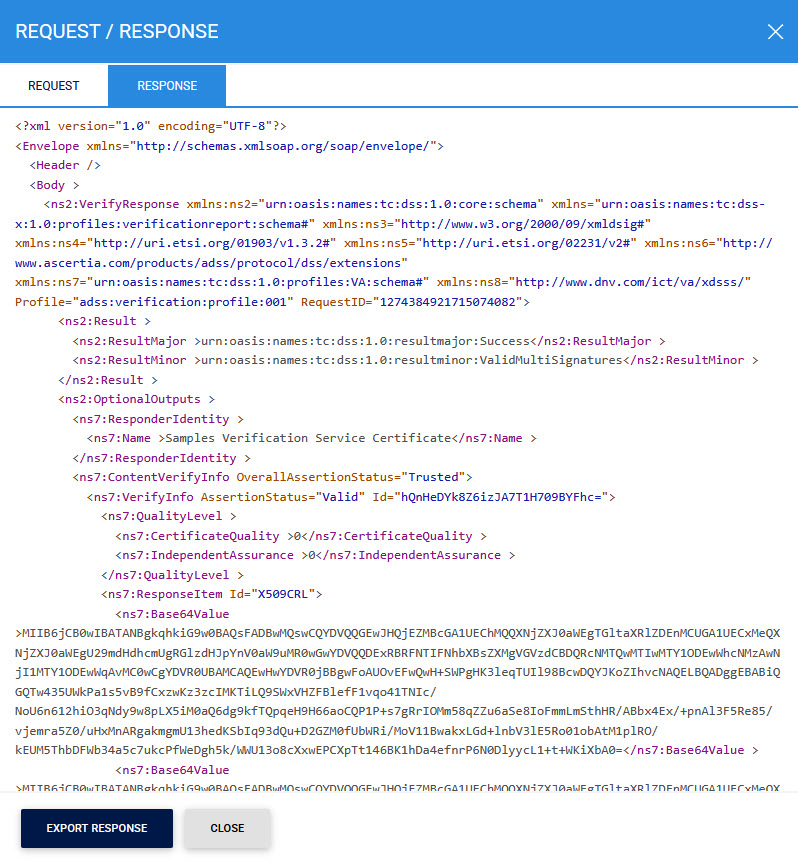
You can export the XML request or response to a physical location by clicking the corresponding Export button.
View HTTP Request and Response
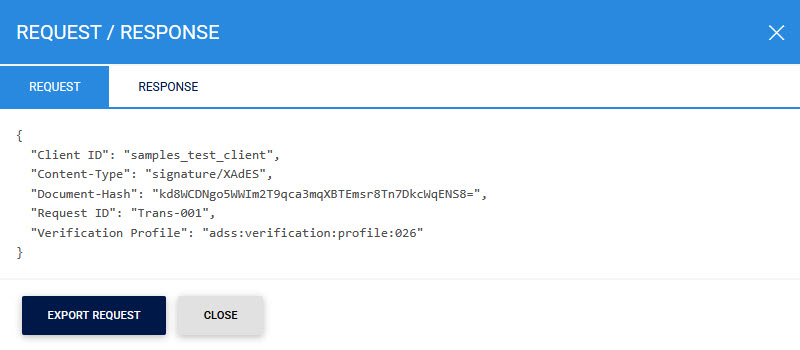
The ADSS Verification Service also provides an optimised HTTP interface. For transactions received through this interface, there is no XML/SOAP encoding to display.
When you click the View link in the Request/Response column for an HTTP transaction, the request information is displayed in an HTTP-specific format.
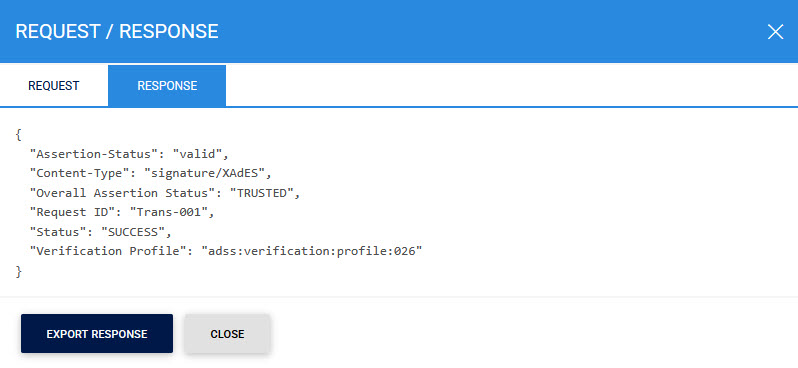
Select the Response tab to view the response returned for the selected HTTP transaction.
View ETSI Validation Report
For applicable signature verification transactions, click the View button to display the signed ETSI validation report. The report is signed using the Verification Response Signing Key.
|
|
Important: The ETSI validation report is generated only when the signatures are verified through TSL. |
View Transaction Details
The View Detail option provides low-level information about how a particular transaction was processed:
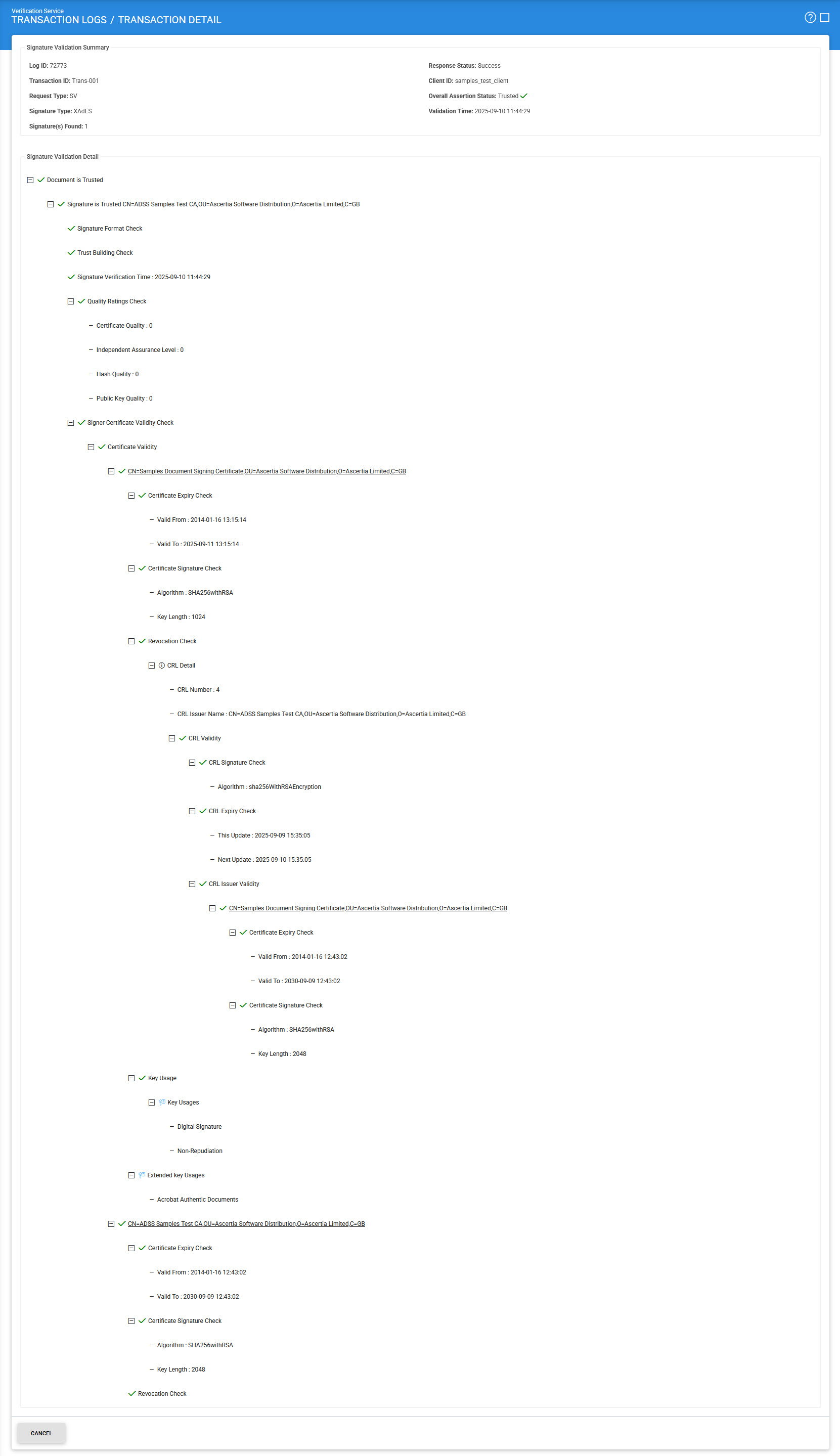
The upper section of the page provides high-level information about the selected Signature Verification or Certificate Validation transaction.
The following table describes the available fields:
|
Items |
Description |
|
Log ID |
Displays the unique, system-generated serial number assigned to the transaction log record. The Log ID is not part of the request or response message. |
|
Transaction ID |
Displays the unique identifier assigned to the transaction by the client application in the verification request. |
|
Request Type |
Identifies the type of request received by the Verification Service. Supported values are SV (Signature Verification) and CV (Certificate Validation). |
|
Signature Type |
Identifies the type of signature verified during the selected verification transaction. |
|
Signature Validation Indication |
Indicates the validity of the signature when the signature is verified through TSL. |
|
Signature Found |
Displays the number of signatures found in the verification request message. |
|
Response Status |
Indicates whether ADSS Server successfully processed the verification request. Possible values are Success and Failed. |
|
Client ID |
Displays the Client ID included in the request. The ADSS Verification Service verifies that the Client ID is registered in the Client Manager before granting access to the service. For more information, see Registering Business Applications |
|
Overall Assertion Status |
Displays the overall trust status returned by the Verification Service. Possible values are:
|
|
Validation Time |
Displays the time at which the signature was verified. This can be the timestamp time, the machine time, or a historical validation time specified in the verification request. |
|
|
The ETSI validation report is generated only when the signatures are verified through TSL. |
See also
Configuring the Verification Service