
Test Cases
An operator can create any number of "Test Cases” unless this is restricted by an evaluation or special purpose licenses. Each test cases defines:
- The target certificate to be checked.
- The expected response from the OCSP responder for this test case (i.e. good, revoked, unknown)
- The OCSP request configuration, including; nonce usage, service locator usage; request signing if so with which key/certificate to use and how to process the OCSP responses received.
The screen displayed is this:
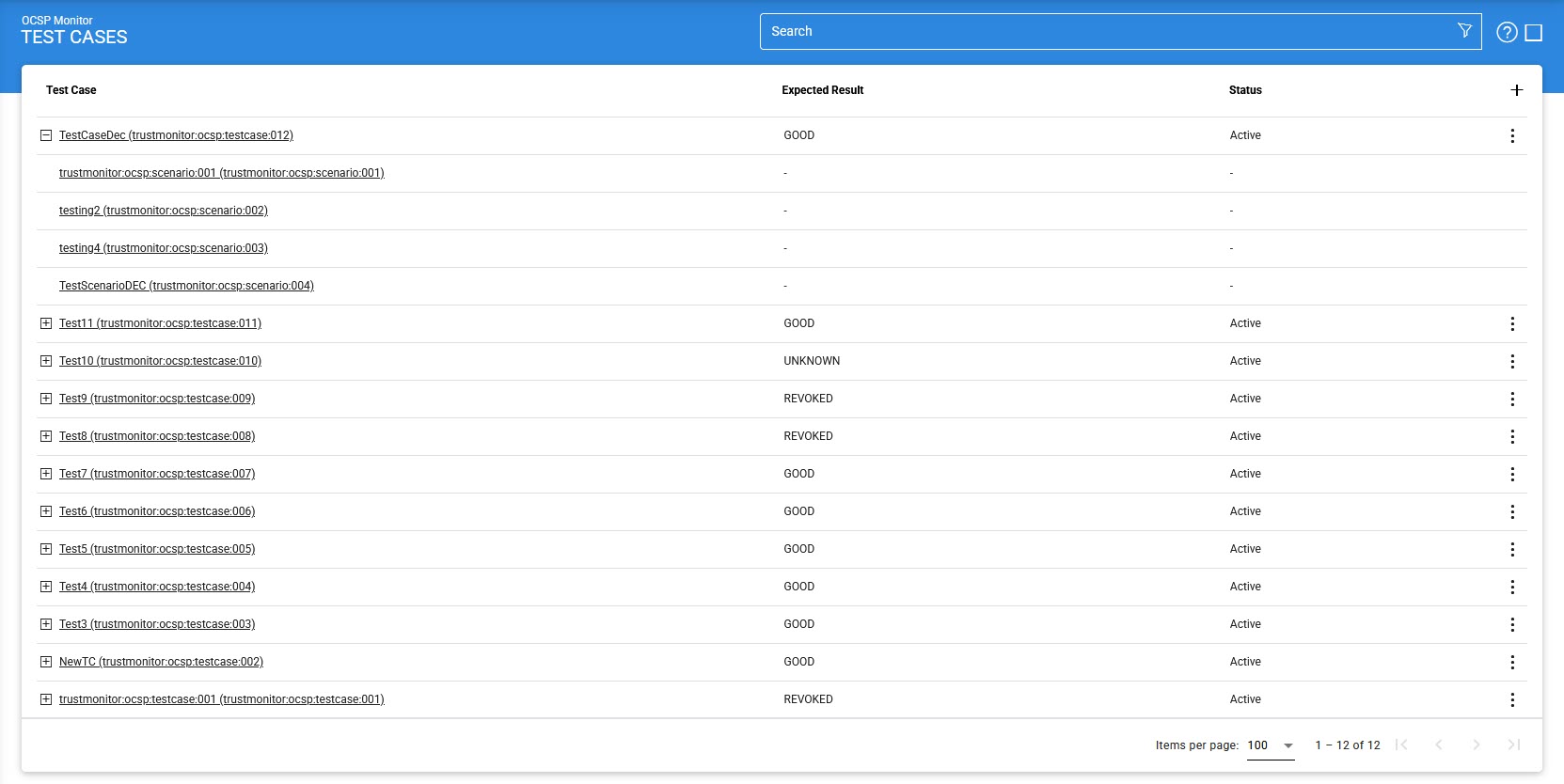
This shows a table of all test cases defined, their expected result and their status. These can be sorted in either Ascending or Descending order according to the criteria: Test Case ID, Test Case Name, Expected Result, Created At and Status.
A new test case is created by selecting the New button from the first screen above. The following configuration screen is then shown:
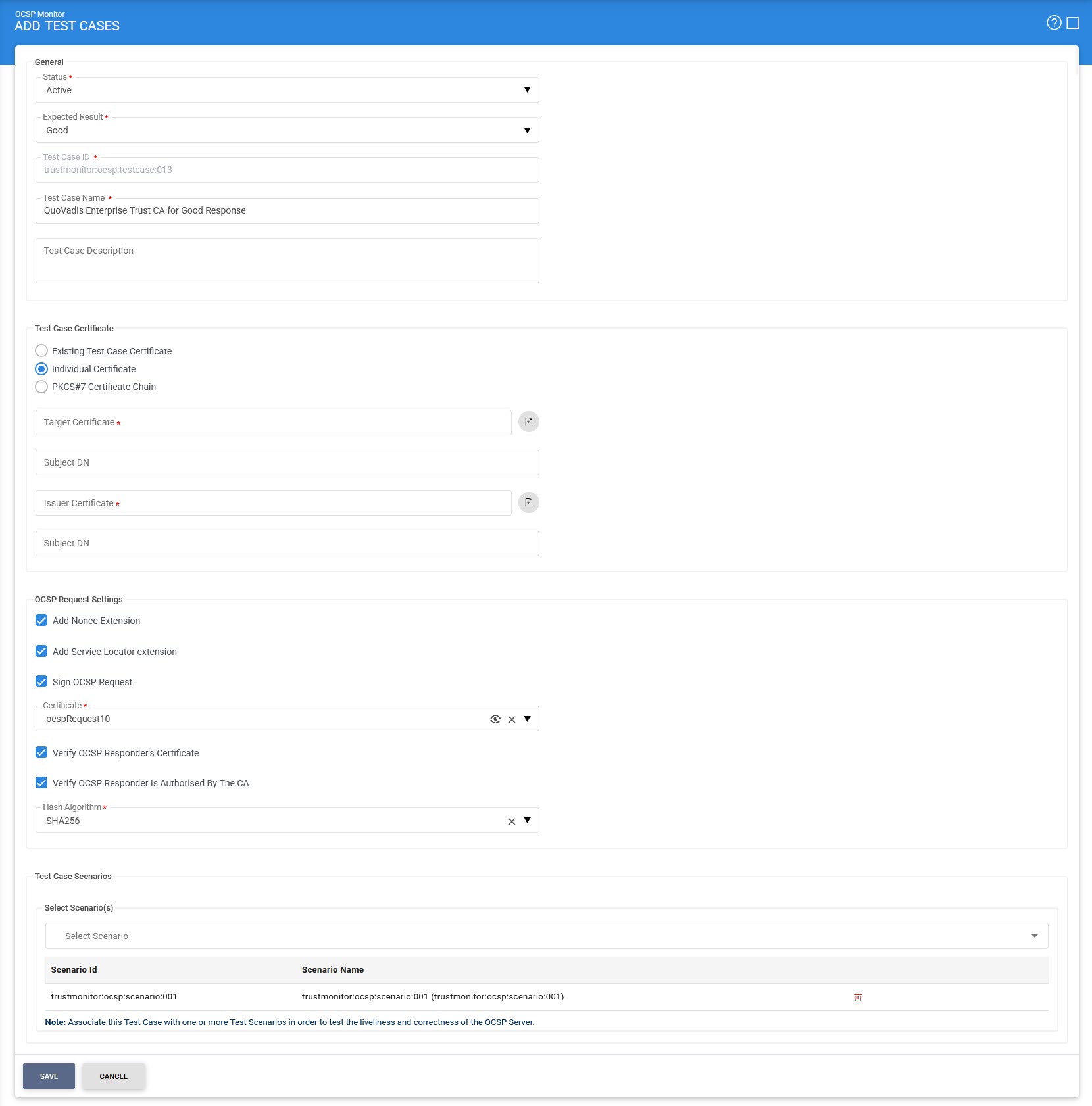
The configuration items are as follows:
|
Items |
Description |
|
Status |
A test case can be set as Active or Inactive. Inactive test cases are not available for processing and are ignored when running a test scenario that includes them. |
|
Expected Result |
Set the Expected Result as Good, Revoked, or Unknown to match what the target OCSP responder is expected to return for this Test Case. |
|
Test Case ID |
A System-defined unique identifier for this Test Case. |
|
Test Case Name |
An operator-defined unique name that should be chosen to make it easy to understand what this test case does when selecting test cases within the Test Scenario screen. |
|
Test Case Description |
Use this field to describe the purpose of this test case and any other useful details to keep other operators informed. |
|
Existing Test Case Certificate |
This drop down list includes all test certificates that have previously been defined. |
|
Individual Certificate |
An operator can browse and select a target test certificate and its issuer certificate and can see their respective distinguished name details. |
|
PKCS#7 Certificate Chain |
An operator can enter a complete certificate chain to be checked by using this input area. |
|
OCSP Request Settings |
This section specify the OCSP request structure and also how to process the OCSP response which is returned. |
|
Add Nonce extension |
If this option is enabled then OCSP Monitor will add a nonce (i.e. a number used once) extension to the OCSP request message. The OCSP response is checked to ensure that it contains the same nonce value to prevent replay attacks. |
|
Add Service Locater extension |
If this option is enabled then OCSP Monitor will add the responder URL from the target certificate’s AIA extension into the OCSP request as a Service Locator extension. This helps the OCSP Responder to relay the OCSP request to other OCSP responders if the request cannot be handled directly. |
|
Sign OCSP Request |
Select this checkbox if the OCSP Responder requires OCSP request messages to be signed. Then select the OCSP Request signing Certificate which pre-exists in the Key Manager. |
|
Verify OCSP Responder's certificate |
Select this checkbox if revocation checking of the OCSP responder certificate is also required. Note: This is considered unusual since OCSP responder certificates are typically configured with a 'NOCHECK' extension. If No Check extension is found in OCSP responder certificate, then, this option will be ignored. |
|
Verify OCSP Responder is authorised by the CA |
If this option is enabled then OCSP Monitor validates that the OCSP Responder that provides the OCSP response message is certified by the same CA that certified the target certificate; and furthermore that the OCSP responder’s certificate was specifically marked by the CA for "OCSP Signing" in the certificates Extended Key Usage field. |
|
Hash Algorithm |
Specify the hash algorithm to be used to generate OCSP request and furthermore to sign the OCSP request. |
|
Test Case Scenarios |
A Test Case needs to be associated with existing test scenario so whenever this test scenario is run the test case will be executed. |
Test Cases can be searched using these options:
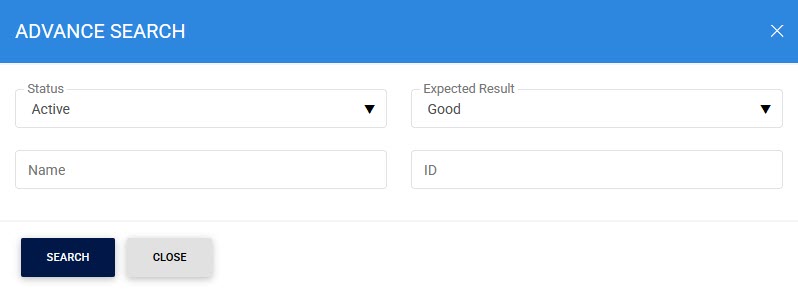
Enter the search criteria based on the Status, Expected Result, Test Case Name, Test Case ID.
See also