Revoked Certificates
The Revoked Certificates section displays all certificates that have been explicitly revoked by the CA before their natural expiry. These certificates are no longer trusted and must NOT be used for authentication, signing, or encryption purposes. The operator can use this section to view revoked certificate records, review revocation details, and confirm that certificates have been correctly added to Certificate Revocation Lists (CRLs). This separation helps improve system performance and allows administrators to efficiently manage and audit revoked certificates.
The Revoked Certificates navigation button within the ADSS Certification Service allows you to view all the revoked certificates as mentioned below:
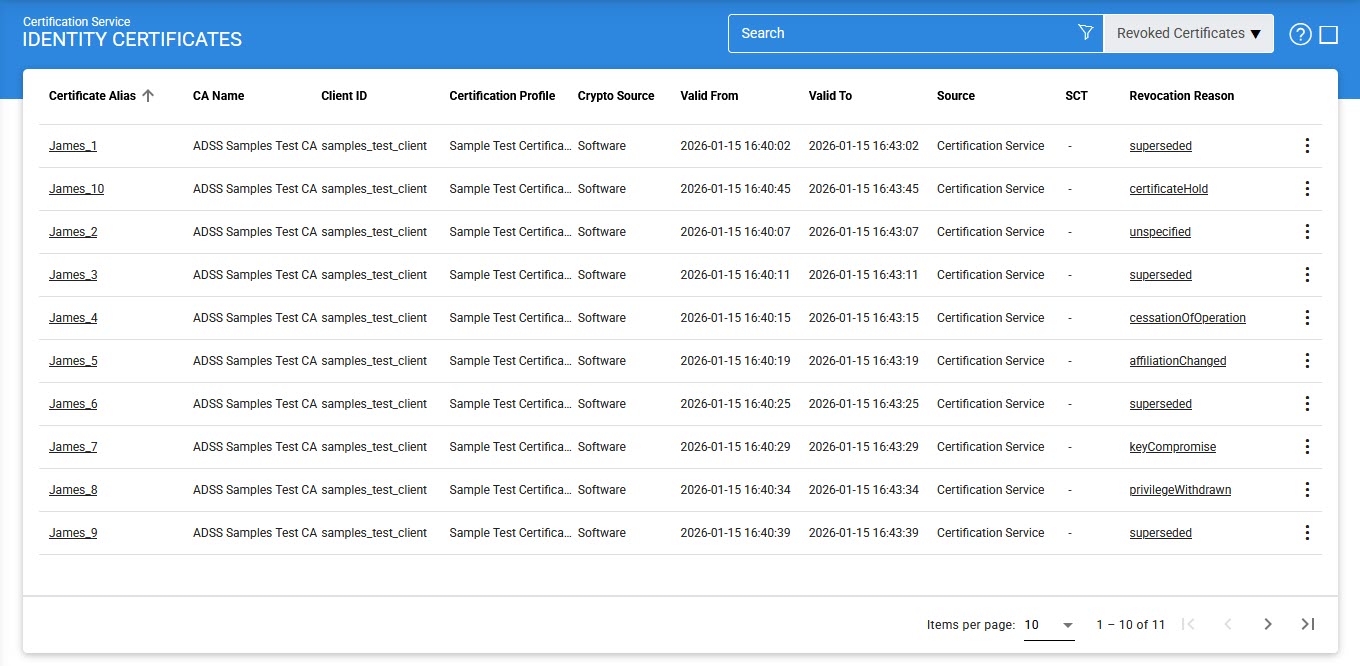
Each item in the screenshot is described below:
|
Items |
Description |
|
Certificate Alias |
A unique identifier for the revoked certificate (as provided by the client application within the request message). |
|
CA Name |
The name (i.e. alias) of the CA that has revoked the certificate. |
|
Client ID |
This is the Client ID as found in the request message of the revoked certificate. |
|
Certificate Profile |
The certification profile used to revoke the certificate. |
|
Crypto Source |
Shows that the mentioned revoked certificate is stored on software or hardware device. |
|
Valid From |
The “valid from” date of the revoked certificate (taken from the certificate itself). |
|
Valid To |
The “valid to” date of the revoked certificate (taken from the certificate itself). |
|
Source |
This is the source module using which the issued certificate was revoked. |
|
SCT |
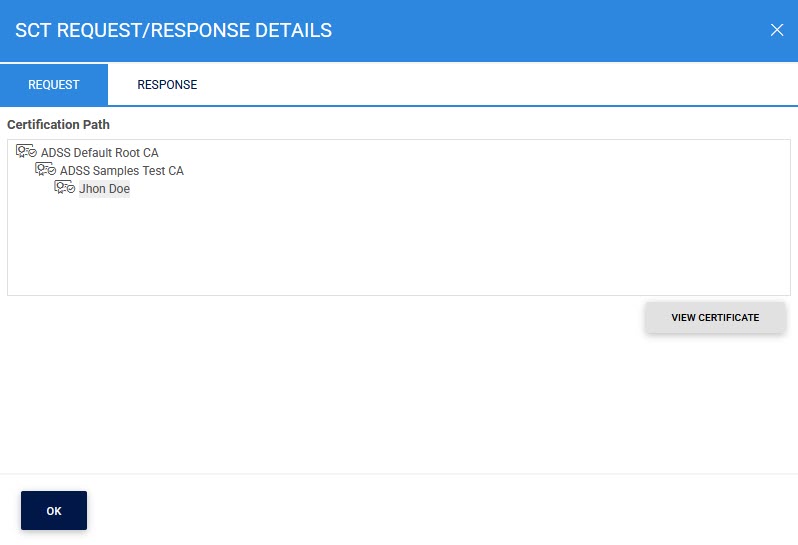
CT column is shown only when certificate transparency module is enabled in license. By clicking the view link SCT request/response viewer is shown. |
|
Revocation Reason |
This indicates the reason selected by the user from the drop-down list when revoking an issued certificate. It explains why the certificate has been revoked and helps in audit and compliance activities. The available revocation reasons are:
|
The operator can select a certificate, and then either View, Reinstate or Delete it.
By clicking on Certificate Alias of the revoked certificate, the following screen is displayed:
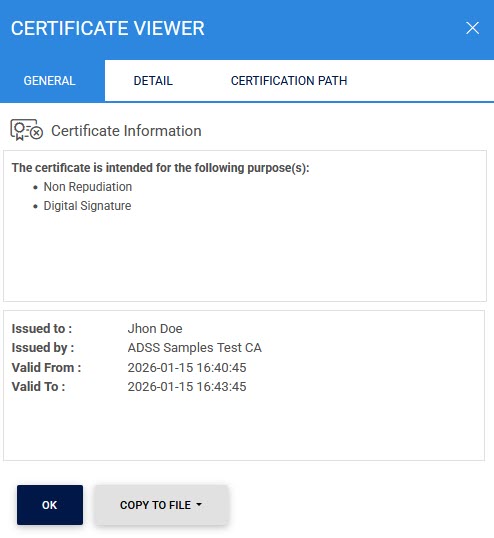
Clicking on the Details Tab displays the following screen:
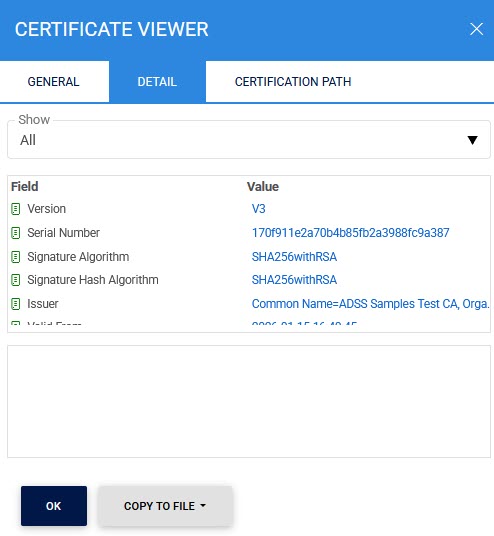
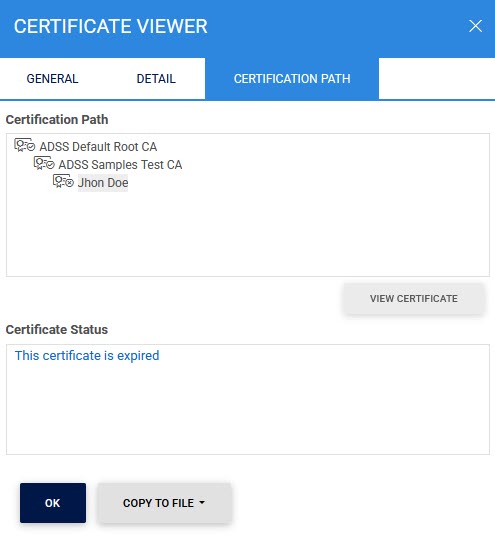
Here the user can view all the configurational details related to the selected revoked certificate. Clicking on the Certification Path displays the following screen:
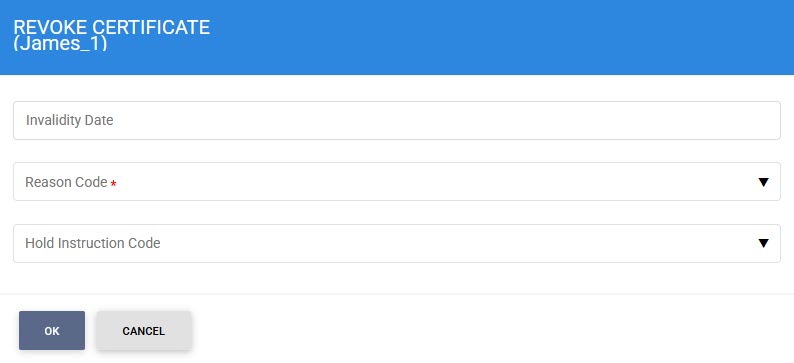
A certificate that has been temporarily revoked using the certificateHold revocation reason can be permanently revoked by clicking the Revoke button under the Revoked Certificates tab. For certificates revoked with any reason other than certificateHold, the Revoke button is disabled.
Clicking on the Revoke button displays the following screen:
Similarly, a certificate that has been revoked with the certificateHold instruction code can be reactivated at a later time by using the Reinstate button. Once reinstated, the certificate is moved back and displayed under the Issued Certificates tab.
Selecting the Delete button permanently removes the chosen certificate from the Revoked Certificates tab, and the certificate record is deleted from the system.
By clicking the view link in the SCT column, the required request/response viewer is shown:
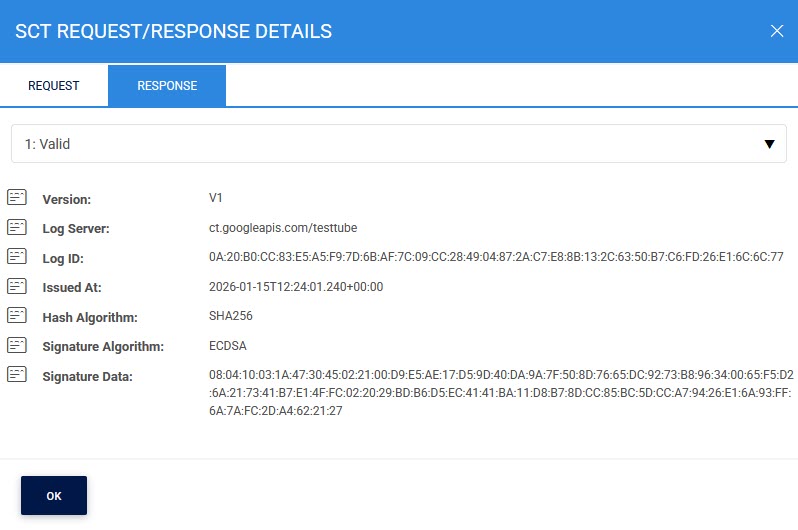
The response viewer of the SCT request is displayed as below:
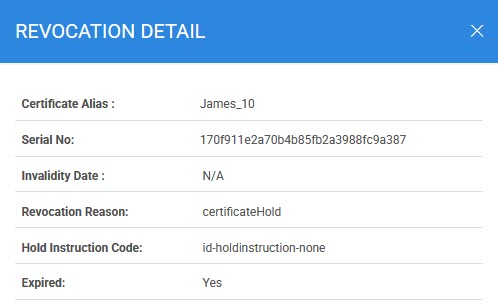
Clicking on the reason code under the Revocation Reason column shows the revocation details of the selected certificate by displaying the following screen:
Clicking on the Advanced Search icon on the Certification Service >> Revoked Certificates main page will display the following screen:
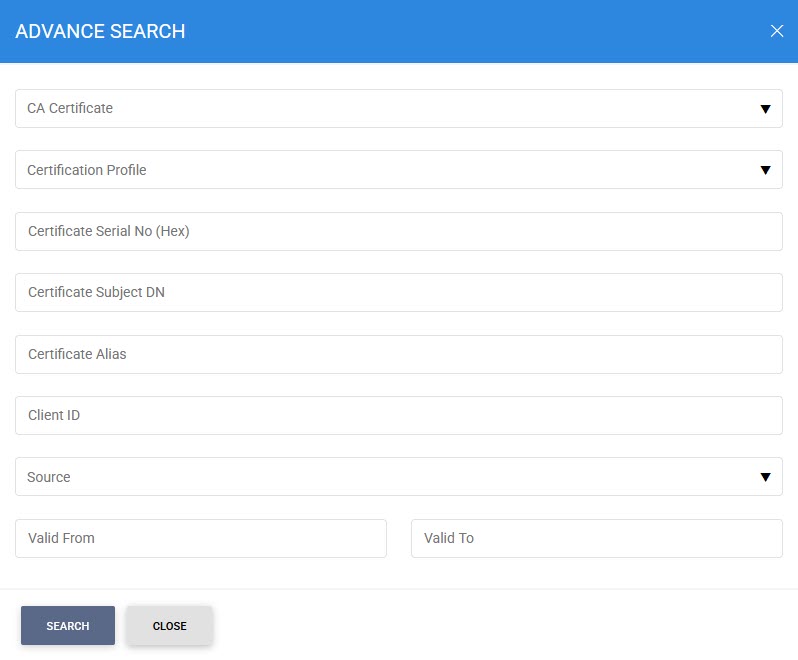
This helps to locate a certificate that the Certification Service may have revoked. Certificates can be searched based on issuer, certificate profile, certificate serial number, certificate subject DN, certificate alias, client ID, source, and validity period.
See also