Permissions
The Permissions module will be used to allow access to data items of a module. It controls the visibility of a data item to different users i.e. if a user has configured a local CA, then, the local CA will be visible to only those users who will have permissions for it. Hence when the other users have the access to CA, only then they will be able to manage, control and issue certificates from CA.
|
|
In order to assign a resource to a specific user, the user’s role must have access to the module of the resource. If the user’s role will not have access to a module, access to any data item of that module would not be granted to that user. |

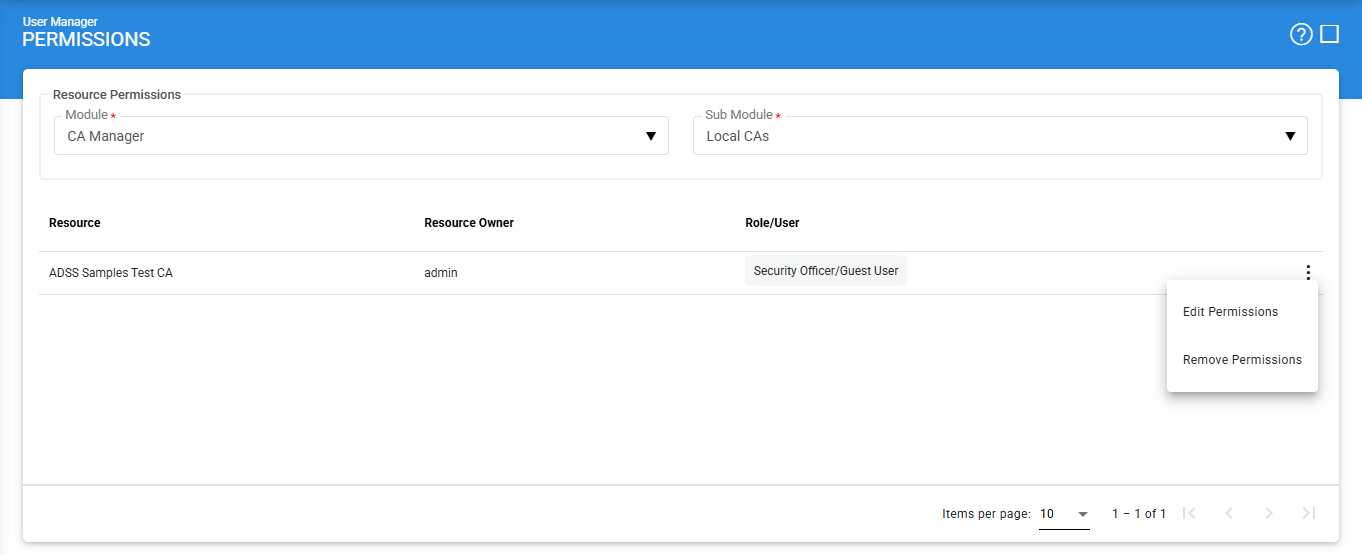
Click the User Manager > Permissions displays the following screen:
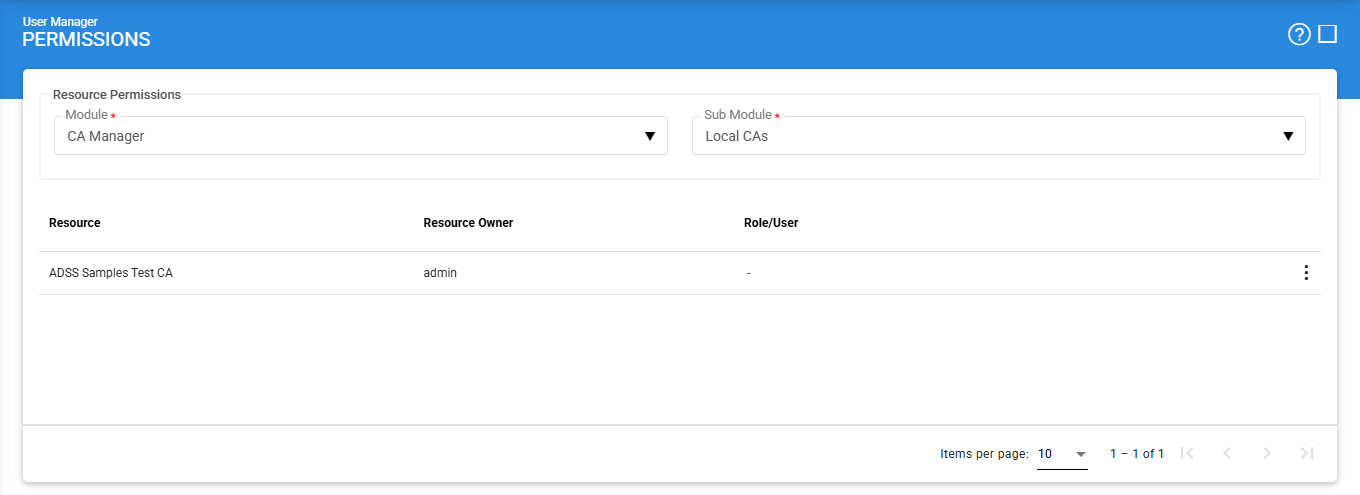
The screen details are as follows:
|
Item |
Description |
|
Module |
Allows the user to select the required Module from the drop-down list. |
|
Sub Module |
Allows the user to select the sub-module of selected module from the down list. |
|
Show Module Data |
Displays the required data in a tabular form for the selected module and sub-module. |
|
Resource |
It will display the Identifier/Name of the resource (configured CA). |
|
Resource Owner |
It will display the name of the resource owner who has created the resource. |
|
Role/User |
It will display the list of user allowed to view that selected single resource. |
|
|
By default, a user who has created the resource has access to it, without explicitly giving himself/herself permission via the Permissions module. |
Inspection System Service
The Inspection System Service module is available in the Permissions section to control access to its resources, mainly the Inspection System Profiles. This allows the administrators to decide which users or roles can view and manage specific profiles. By assigning permissions, only authorised users can access or update the profile settings, helping to keep the system secure and well-controlled. This is useful when multiple profiles are used for different purposes or environments. The permission settings for this module work in the same way as other modules in ADSS Server, ensuring consistent access control across the system.
Selecting Inspection System Service in the module drop-down displays the following screen:
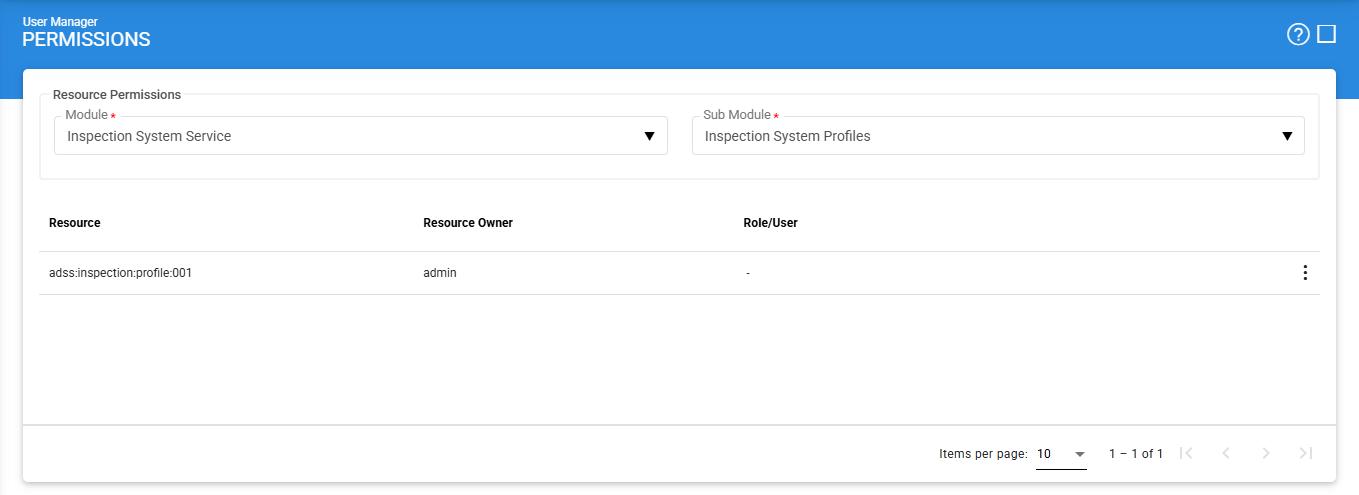
The screen details are as follows:
|
Item |
Description |
|
Module |
Select Inspection System Service from the drop-down to manage permissions for this module |
|
Sub Module |
Select Inspection System Profiles to manage access to profile configurations. |
|
Show Module Data |
Displays the list of Inspection System Profiles based on the selected options. |
|
Resource |
Shows the name or ID of the Inspection System Profile. |
|
Resource Owner |
Shows the name of the user who created the profile. |
|
Role/User |
Shows the users or roles who are allowed to access the selected profile. |
Edit Permissions
To update the permissions assigned to a profile, select the required resource, click the vertical ellipsis (⋮) at the end of the row, and choose Edit Permissions. This will open the following screen:
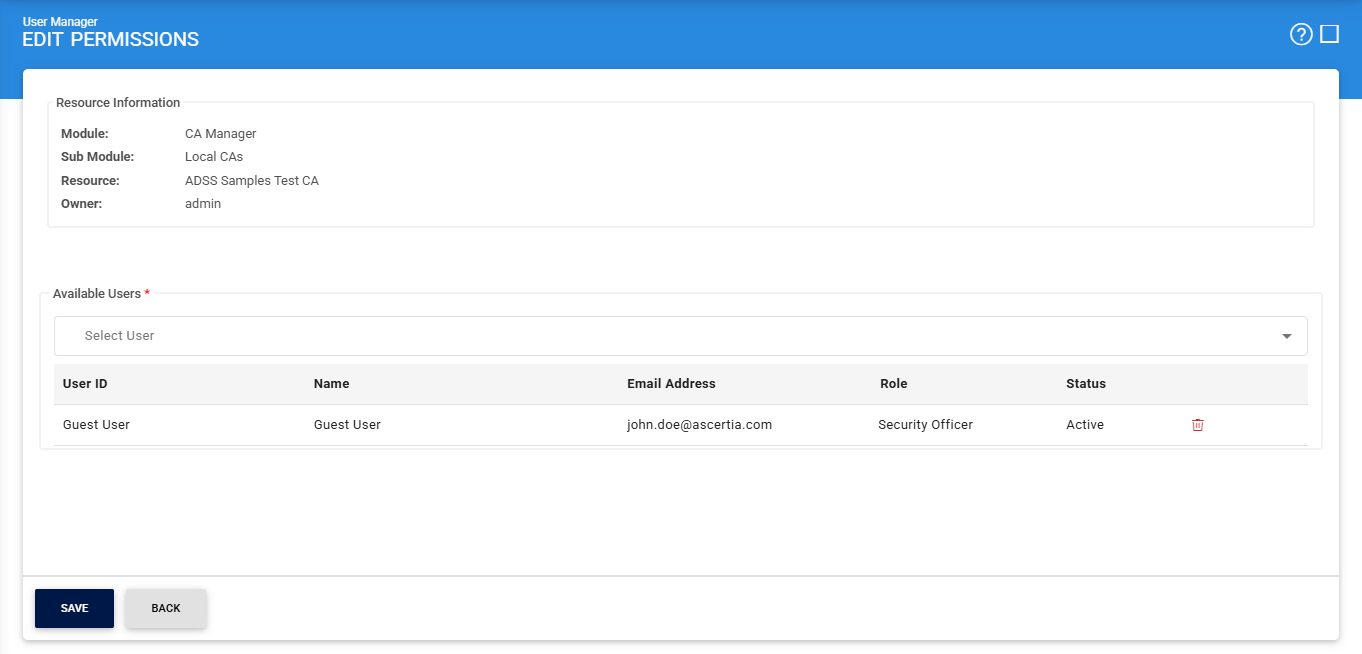
The Edit Permissions screen shows the details of the selected resource and also shows the list of users that can access the resource. It can be noted that one resource can be assigned multiple users. Once the user has been selected, click on the Save button to save the changes.
Remove Permissions
To delete the role of user for the selected resource, select the required resource, click the vertical ellipsis (⋮) at the end of the row, and choose Remove Permissions. This will open the following screen:
|
|
In order to remove all the user’s access to the selected resource, it is recommended to use Remove Permissions button. The Remove Permissions button will ensure that the permissions are completely deleted from all the affected areas. |
See also