Local CVCAs
The Local CVCA sub-module displays all Local CVCAs registered in the ADSS Server. It lists certificates created in the Key Manager with the purpose 'Country Verifying CA (CVCA)', which can then be configured as Local CVCAs. For guidance on creating certificates with a CVCA purpose, refer to the relevant section in the documentation.
Please note that this sub-module is only available if the ePassport CVCA license is enabled.
To view the list of registered Local CVCAs, navigate to the corresponding screen:
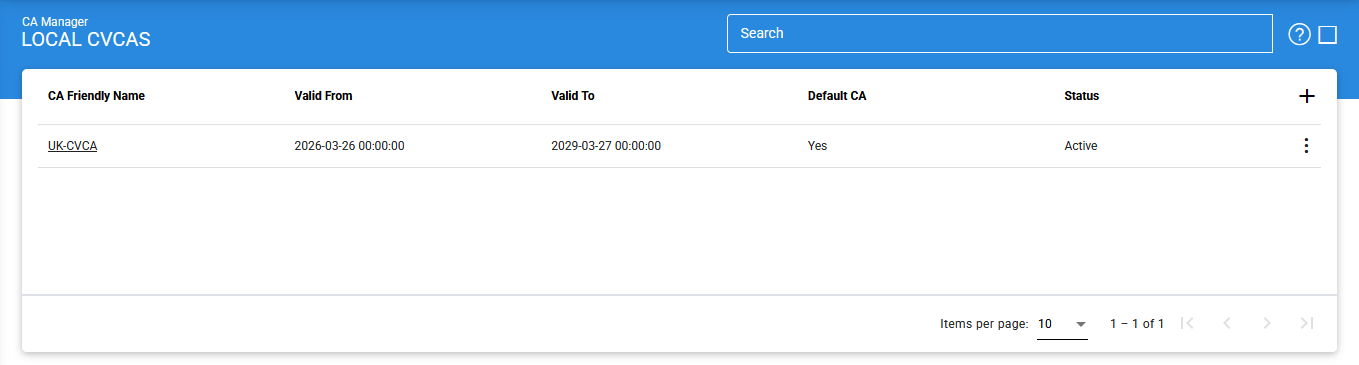
To add a new Local CVCA, click the ‘+’ icon. This opens the CA Certificate Settings screen, where you can configure the required certificate details:
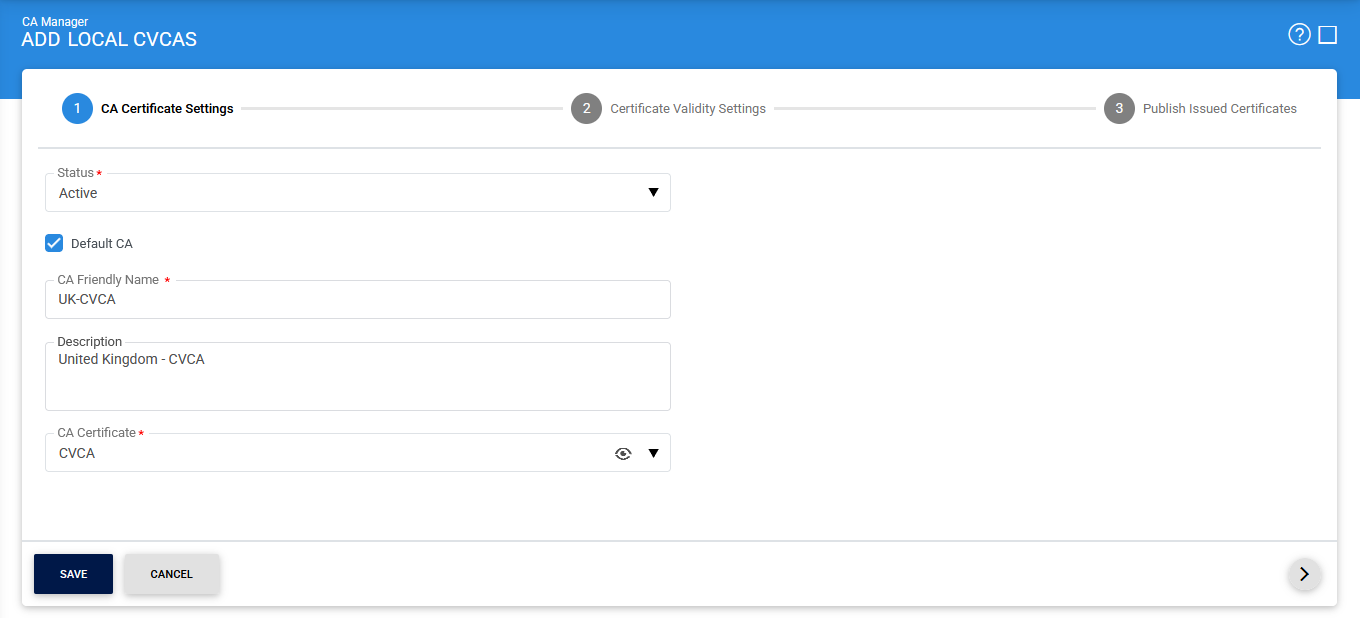
After completing the CA Certificate settings, click the Next (>) icon to proceed to the Certificate Validity Settings page:
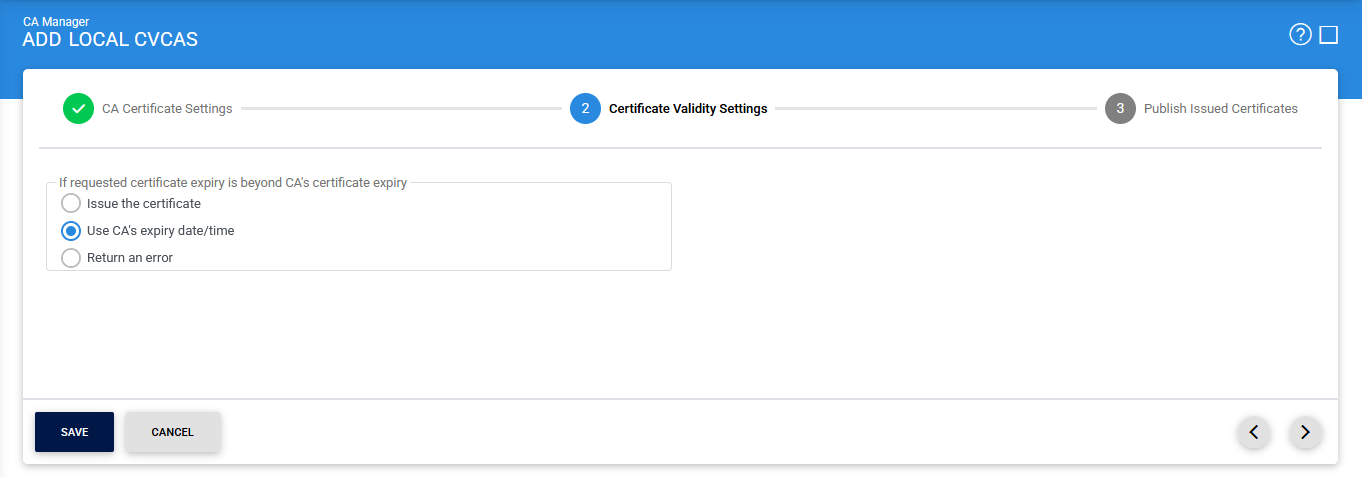
After completing the Certificate Validity Settings, click the Next (>) icon to proceed to the Published Issued Certificate page:
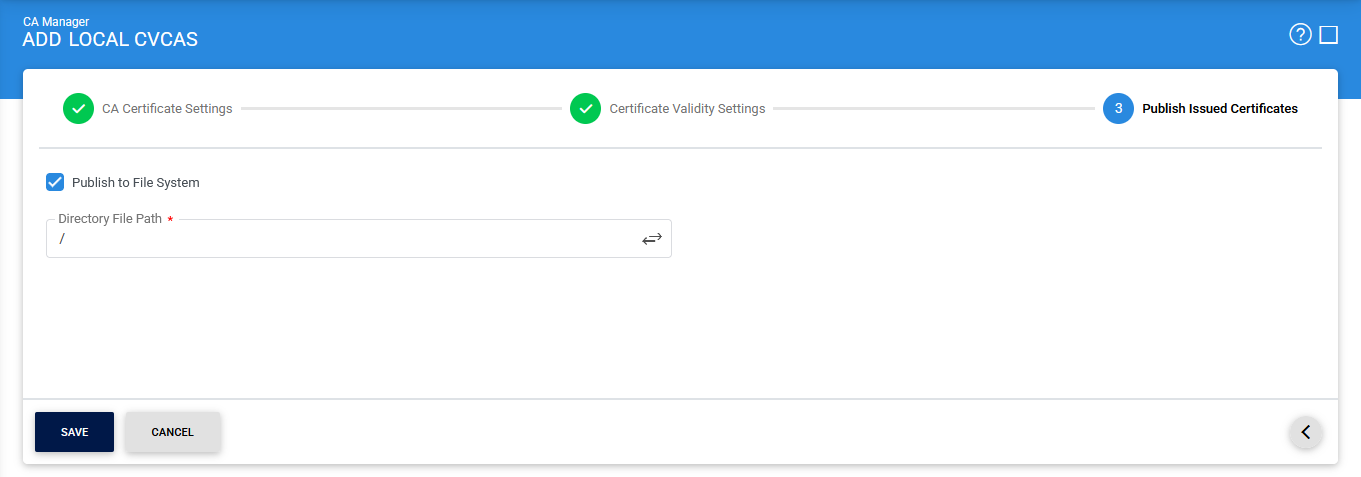
The items in the above screen are described below:
|
Items |
Description |
|
CA Certification Settings: |
Defines the following: |
|
Status |
A CVCA may be marked either Active or Inactive. As suggested by its name, an Inactive CVCA will not be used to issue/rekey certificates until its status is changed to Active. |
|
CA Friendly Name |
An operator-defined unique name for easy management of CVCA within ADSS Server. This is only for human identification purposes and not used within the certification request/response messages. |
|
Description |
This can be used to describe the CVCA in more detail (e.g. in which circumstances will this CVCA will be used). This is for information purposes only. |
|
CA Certificate |
The drop-down menu will only show the certificates within the ADSS Key Manager that were given a purpose of Country Verifying CA (CVCA) when they were created. Select the certificate that you want to configure as a CVCA. This CVCA will be used as the certificate issuer. |
|
Certificate Validity Settings: |
This option is used to define the validity time/date procedure of a certificate according to the issuer's certificate validity date/time. The possible values are:
Note: If the provided time period for a requested certificate is not beyond the CVCA's expiry, then the target certificate will be generated using the provided date/time regardless of which option is selected. |
|
Publish Issued Certificates: |
Defines the following: |
|
Publish to File System |
After issuing a certificate using the configured CA, the certificate can be published to File System by entering the required path in Directory File Path field. |
|
|
Ensure all the configuration are saved by clicking on 'Save' button. |

By clicking the 'View Certificate' button, the following screen will be shown where the contents of the CVCA will be displayed:
Issued Certificates
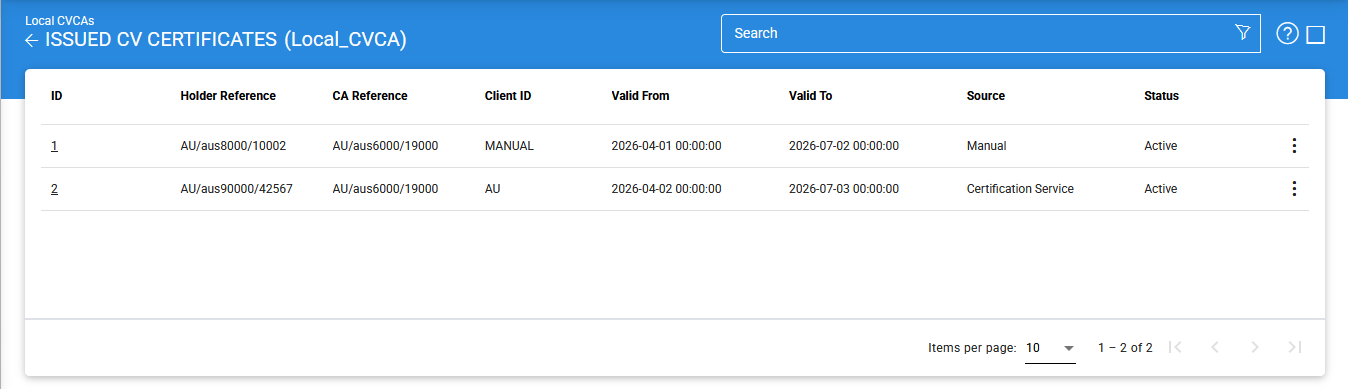
By clicking on the Issued Certificate button after selecting a CVCA, the following screen will be displayed where all the certificates issued by this CVCA are shown:
|
|
This screen shows certificates issued by this CVCA via Key Manager, Certification Service and Manual Certification modules. |
You can select a certificate, and then either View, Suspend, Active or Delete it. A certificate can be suspended by clicking on the 'Suspend' button and can be reactivated later by using the 'Active' button. A selected certificate can be removed from the certificates list by clicking on the vertical ellipsis (⋮) and then clicking on Delete button.
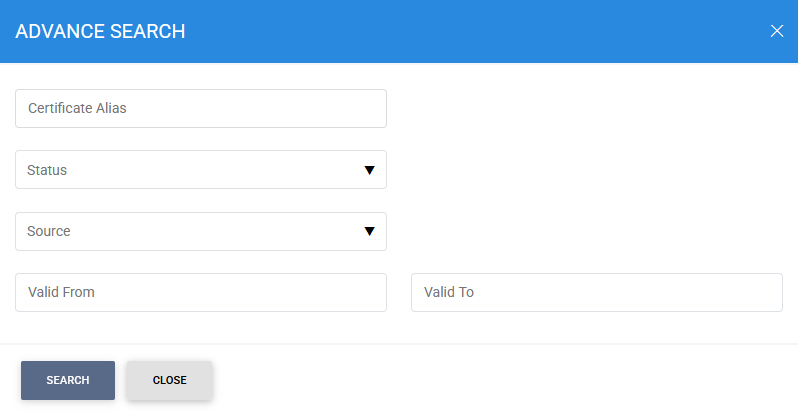
Clicking on the Advanced Search icon on Issued Certificates main page will display following screen:
See also