Certificate Generation Settings
This page is used to configure the Certificate Generation Settings that will be generated in the Go>Sign Desktop.
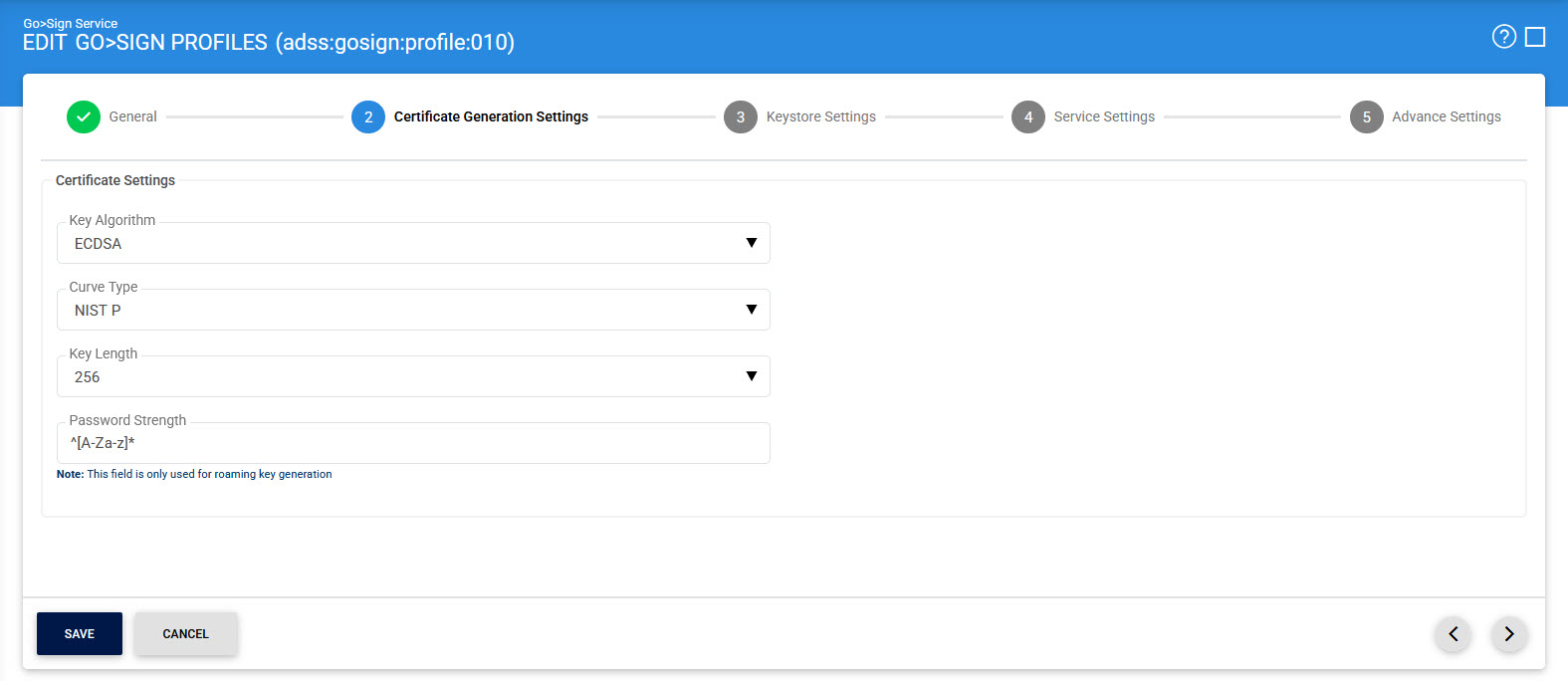
The configuration items are as follows:
|
Items |
Description |
||
|
Key Algorithm |
Specify the Key Algorithm that will be used to generate the key pair from Go>Sign Desktop.
Note: Keep below points in mind while using ML-DSA key algorithm:
|
||
|
Curve Type |
Select the Curve Type that will be used to generate the key pair from Go>Sign Desktop. ADSS Server supports the following Curve Types:
Note: The Curve Type drop-down will be available only when ECDSA algorithm is selected in key algorithm field. |
||
|
Key Length |
Specify the Key Length against the above selected algorithm.
|
||
|
Security Level |
The Security Level drop-down will be available when ML-DSA is selected in the 'Key Algorithm' field. This drop-down allows the user to choose the security level for the selected key algorithm. The security levels for ML-DSA are defined below:
|
||
|
Password Strength |
Specify the strength of password by providing a desired regular expression. |

Clicking the Next icon will display the Key Store Settings page.
See also
Certificate Generation Settings
Key Store Settings
Service Settings