External CAs
External CA could be used which may be operated internally by the organisation operating the ADSS Server or alternatively it may be a CA operated by an external managed certificate service provider.
|
|
Integration of ADSS Server with other External CAs is possible because standard data structures are used by ADSS Server (e.g. PKCS#10 for certificate requests and PKCS#7 for certificate responses). |

When using an external CA to issue certificates for keys generated by the ADSS Certification Services then the workflow is expected to be as follows:
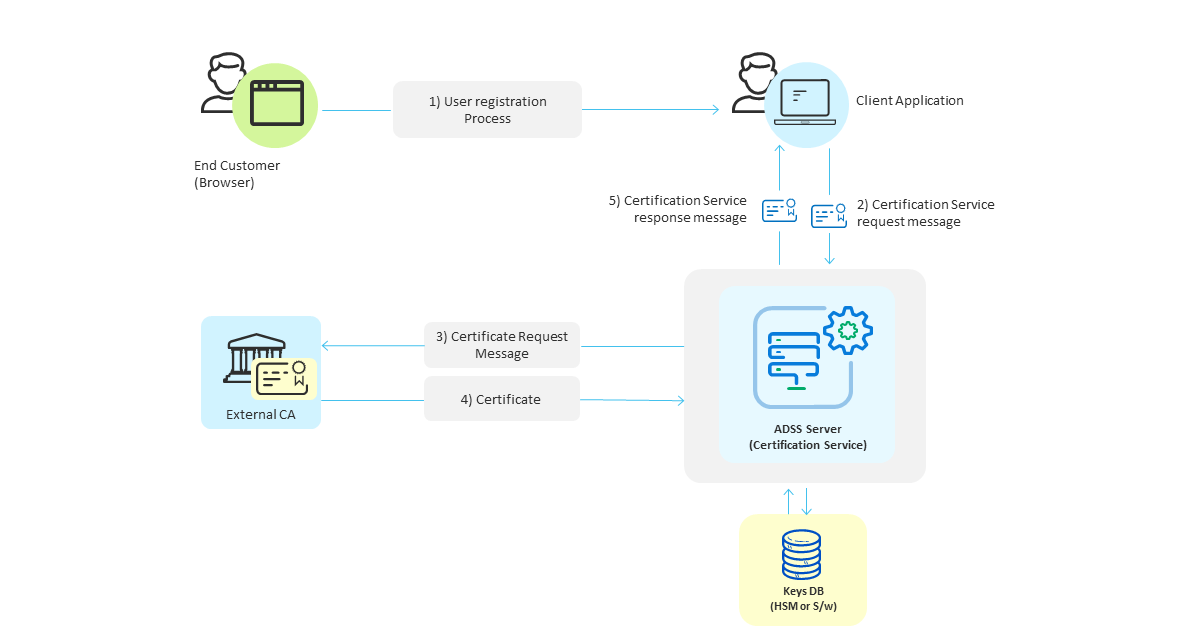
- Initially end-users interact with an online business client application as part of a registration process that is outside the scope of the ADSS Server.
- Once the registration is complete the business application makes a request for key/certificate generation for the user and sends a certification service request message to ADSS Server. This request message identifies the certification profile to be used (configured on ADSS Server) and a unique authorisation code for protecting/accessing this key pair (i.e. a pass-phrase that the user will probably be asked to provide when being asked to confirm signing actions).
- The ADSS Certification Service generates the keys and then sends a certificate request message in PKCS#10 format to the external CA configured in the certification profile.
- The external CA should respond and provide the certificate in PKCS#7 format back to ADSS Server. ADSS Server stores this with the key pair it generated for this user. When keys are being stored within the database, ADSS Server will create a PKCS#12/PFX file which will contain both the private key and this public key certificate. The PKCS#12/PFX file will be encrypted using the authorisation code provided in the original request message. When an optional HSM is used the keys are stored in raw format and an authorisation code is not required, the HSM security features protect the private key in a secure tamper-resistant enclosure. This is the recommended way of protecting private keys in environments which demand stronger security.
- The ADSS certification service sends a response message back to the business application confirming the results of the operation.
The ADSS Developers Guide explains the XML schema used for both the certification service request messages and the certification service response messages.
To configure the settings for external CAs, click the Configure External CAs button in the screenshot below. This shows a list of configured external CAs: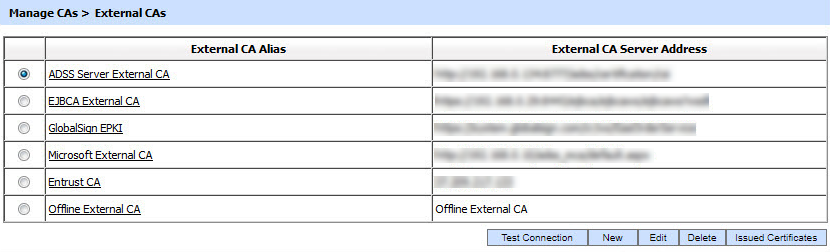
You can configure as many External CAs as your license allows. Clicking on the New button will show the screen to configure the following External CAs:
- ADSS CA Server
- Microsoft CA
- Symantec MPKI
- GlobalSign EPKI
- GlobalSign HVCI
- EJBCA
- QuoVadis CA
- Entrust CA
- Entrust CA Gateway
- Offline External CA
- DigiCert PKI
- DigiCert ONE MPKI
- SPOC Server
Issued Certificates
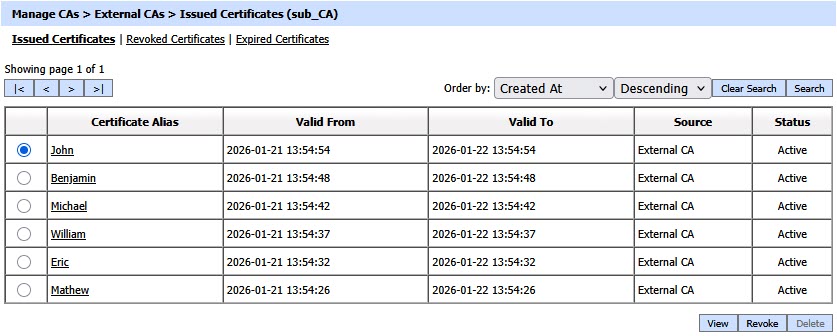
By clicking on the Issued Certificate button after selecting the relevant External CA, the following screen will be displayed where all the certificates issued by this CA are shown:
|
|
This screen shows certificates issued by Key Manager, Certification Service and Manual Certification while the Certification Service's Issued Certificate sub module only shows the certificates issued by the Certification Service. |
You can select a certificate, and then either View, Revoke or Delete it. Clicking on Revoke button will show the following screen where invalidity date, revocation code and hold instruction code can be provided before revoking the certificate:

|
|
A certificate revoked with the certificateHold instruction code can be activated later on by using the Reinstate button. |
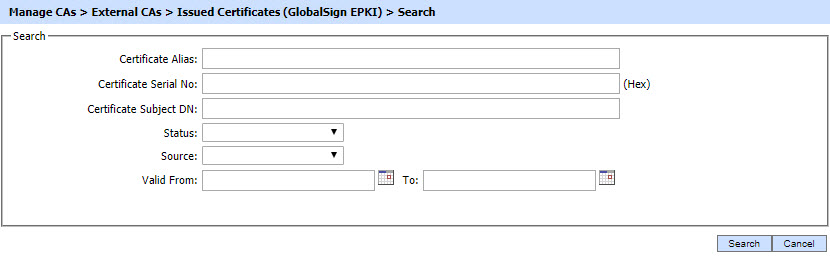
By clicking on the Search button on Issued Certificates main page will display following screen:
|
|
If "_" character is used in the search then it will act as wildcard. |
Revoked Certificates
By clicking on the Revoked Certificate tab after selecting the External CA, the following screen will be displayed where all the certificates revoked by the External CA are shown:
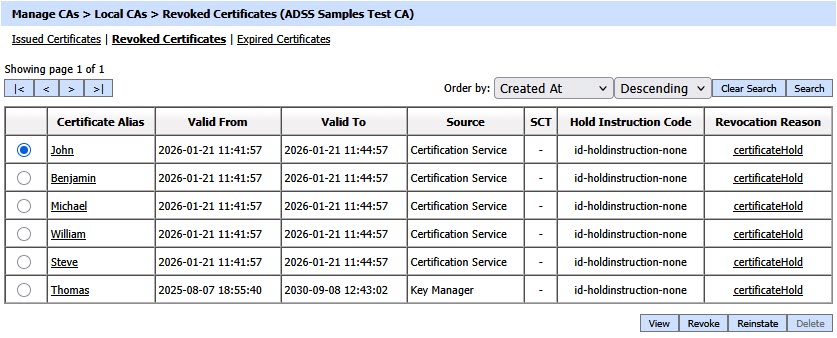
The Revoked Certificates section displays all certificates that have been explicitly revoked by the External CA before their natural expiry. It includes certificates that were revoked while active as well as certificates that were revoked and later reached the end of their validity period. As a result, the tab may contain both currently revoked certificates and revoked certificates that have since expired.
A certificate that has been temporarily revoked using the certificateHold revocation reason can be permanently revoked by clicking the Revoke button under the Revoked Certificates tab. For certificates revoked with any reason other than certificateHold, the Revoke button is disabled.
Clicking on the Revoke button displays the following screen:
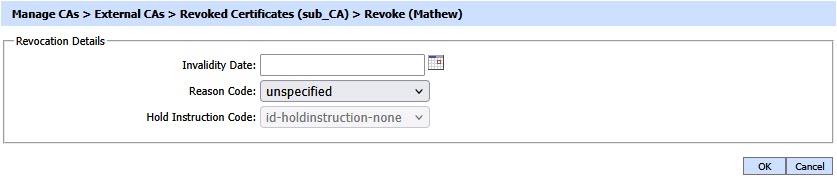
A certificate revoked with the certificateHold instruction code can be activated later on by using the Reinstate button. Once a certificate is revoked, an instant revocation entry will be made in the database instead of issuing an emergency CRL on each revocation.
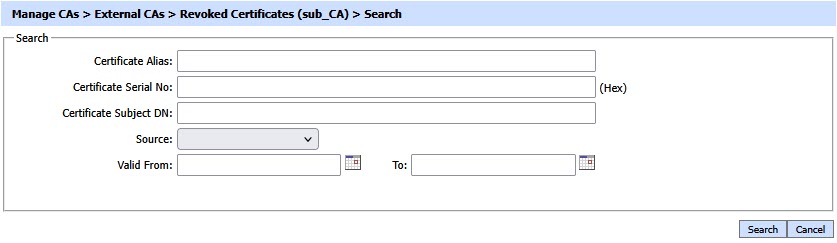
By clicking on the Search button on Revoked Certificates main page will display following screen:
|
|
If "_" character is used in the search then it will act as wildcard. |
Expired Certificates
By clicking on the Expired Certificate tab after selecting the External CA, the following screen will be display all the expired certificates:
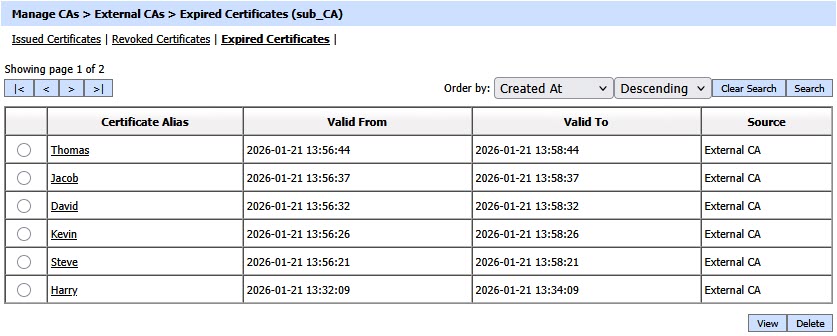
The Expired Certificates section lists certificates that have reached the end of their validity period and are no longer active. These certificates are automatically moved from the issued certificates tab once they expire and are retained for reference, audit, and renewal-related operations.
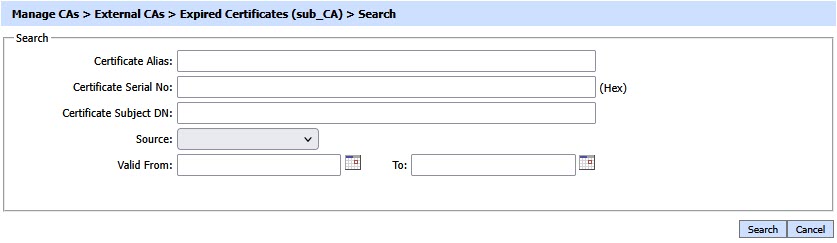
By clicking on the Search button on Expired Certificates main page will display following screen:
|
|
If "_" character is used in the search then it will act as wildcard. |
See also
View CRLs
External CAs
Local AAs
Local CVCAs
Local DVCAs
Manual Certification
Certificate Templates
CV Certificate Template
Alerts