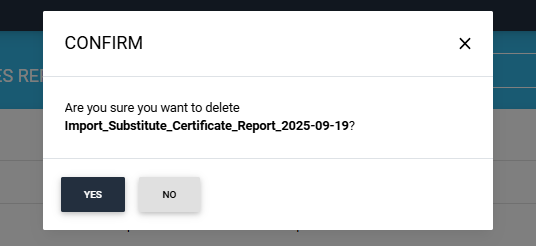
Import Certificates Report
The ‘Import Certificates Report’ section displays all reports generated after the successful completion of import certificates background jobs.
To access this page, expand System > Reports > Import Certificates Report tab from the left menu.
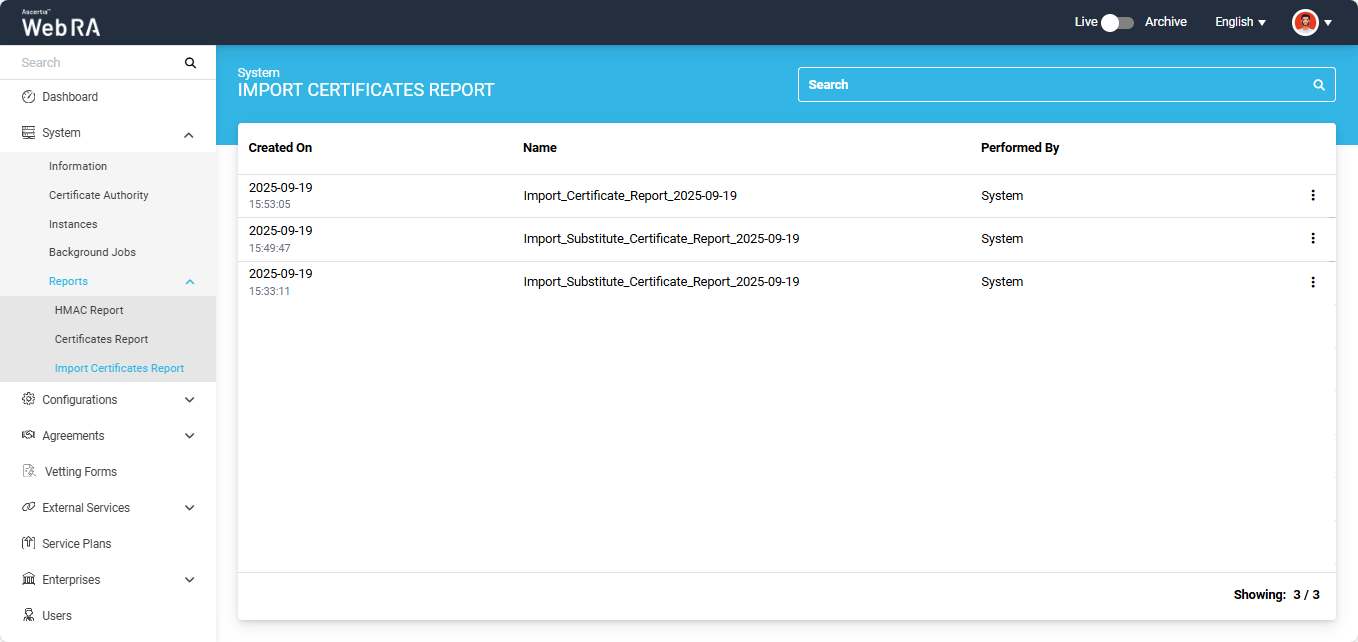
View Import Certificate Report
Expand System > Reports > Import Certificates Report from the left menu.
The import certificates report screen will appear, listing all the generated reports along with their respective details.
Click the three-dot  icon next to a report, then click the 'View' button.
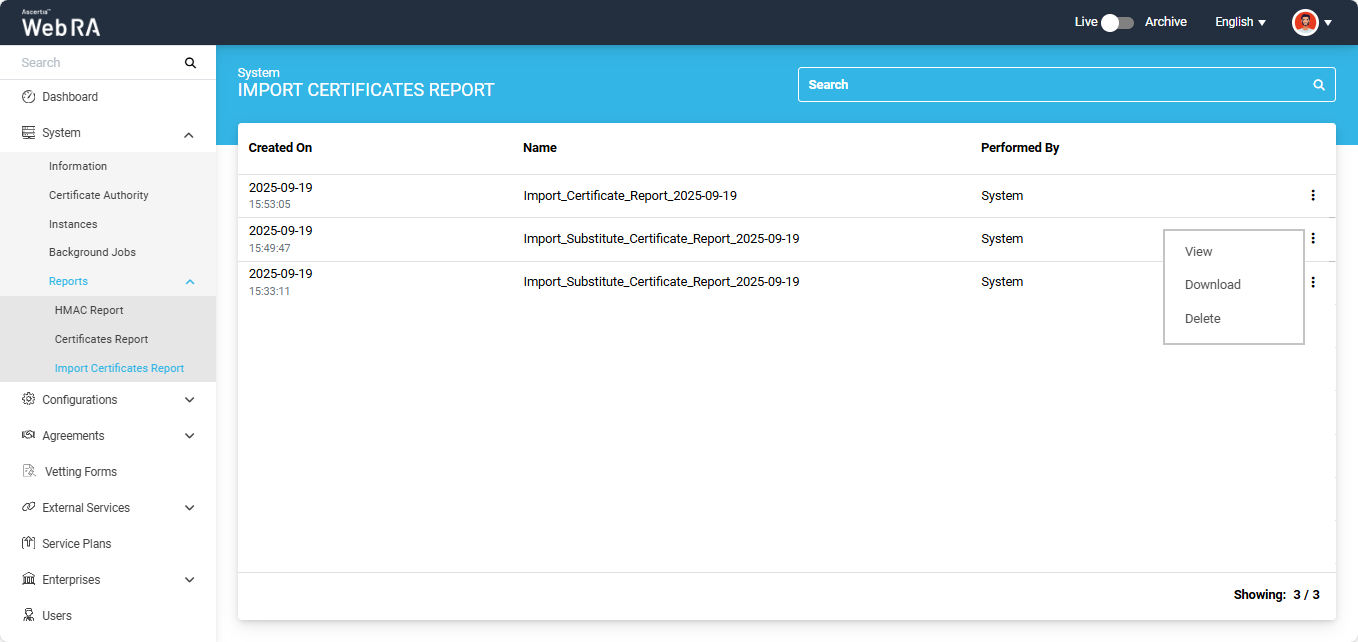
The view screen will appear from where the operator can view the complete details of the report.

The operator can also download the report from the view screen by clicking the 'Download' button.
Click the 'Back' button to return to the Import Certificates report listing section.
Download Import Certificate Report
Expand System > Reports > Import Certificates Report from the left menu.
The import certificates report screen will appear, listing all the generated reports along with their respective details.
Click the three-dot  icon next to the report you want to download and select the 'Download' option. The report will be downloaded in your system.
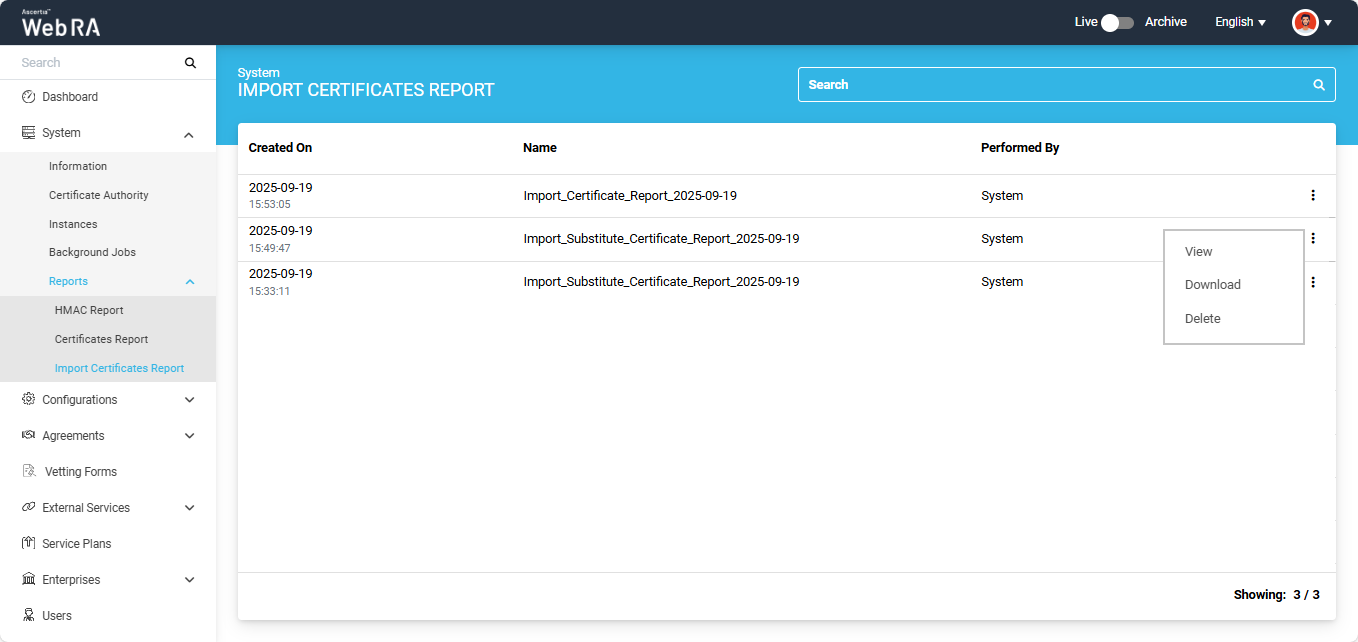
Delete Import Certificate Report
Expand System > Reports > Import Certificates Report from the left menu.
The import certificates report screen will appear, listing all the generated reports along with their respective details.
Click the three-dot  icon next to the report you want to delete and select the Delete' icon.
The system will display a confirmation message, click 'Yes' to proceed with deletion.