
Import Certificates
Import certificates from ADSS according to the established criteria related to the certificate authority organization and certificate status. Imported certificates will be assigned to users whose email addresses are present in the Subject Alternative Name (SAN). If an email address is absent from the SAN, the corresponding certificate will be added to the certificate locator. Additionally, certificates associated with a Virtual ID will be provisioned to users if identified during the import process. A background job will be required to execute these operations, which can be scheduled for the specified date and time in the configurations.
Expand Configurations > Import Certificates from the left menu.
Here, the system displays the ‘Enable Import Certificate from ADSS’ checkbox. By default, the checkbox will appear disabled.
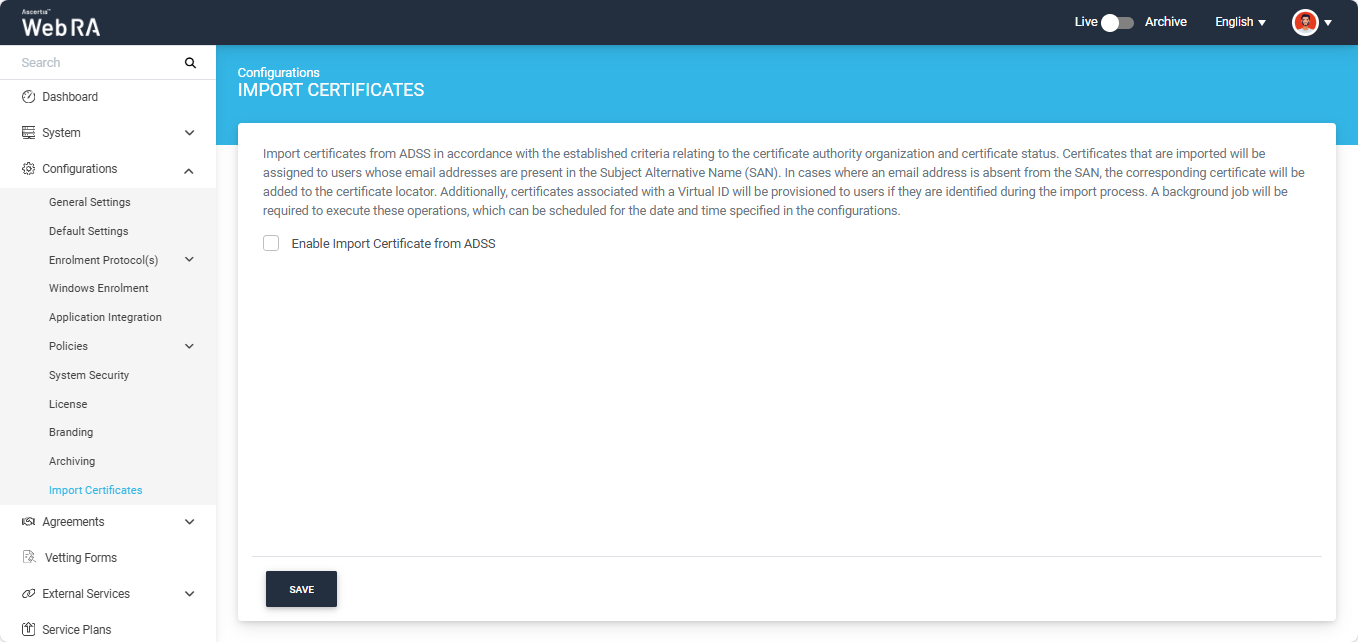
To configure the 'Import Certificates' setting in the system, select the 'Enable Import Certificate from ADSS' checkbox.
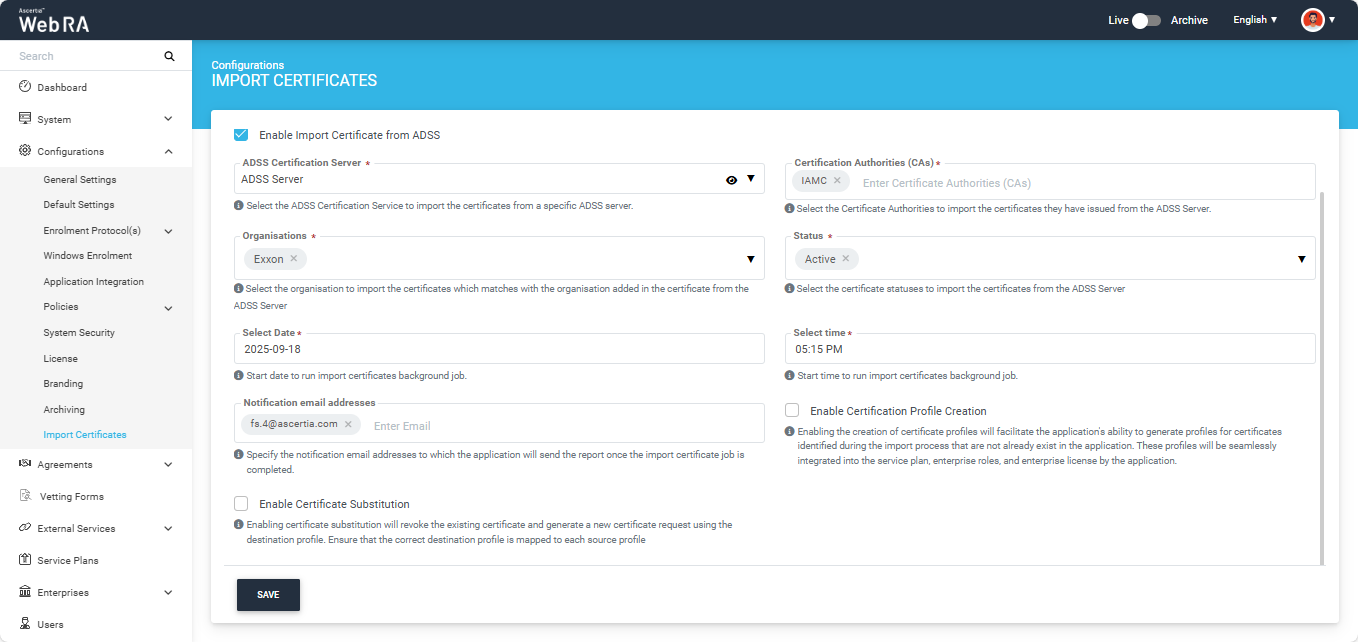
Once the checkbox is enabled, the system will display the following fields on the screen.
|
Field |
Description |
|
ADSS Certification Server |
From this dropdown, you will be required to select the related connector of ADSS Server from the connector list. |
|
Certification Authorities (CAs) |
Enter certification authorities (CAs) in this field. You can type and enter multiple CAs to import the certificates they have issued. |
|
Organisations |
Select one or more organisations from this dropdown to import certificates. Ensure the selected organisations match the organisation specified in the certificate from the ADSS Server. |
|
Status |
Select the certificate statuses (such as active, suspended, or revoked) that you want to use for importing the corresponding certificates from the ADSS Server. |
|
Select Date |
Select the date on which you want to schedule the import certificates background job. |
|
Select Time |
Select the time at which you want to run the import certificates background job. |
|
Notification Email Addresses |
Specify the email address(es) to which the application will send the report after the import certificate job is complete. |
|
Enable Certification Profile Creation |
Enabling this checkbox will allow the application to generate profiles for certificates identified during the import process that do not already exist in the application. These profiles will then be automatically integrated into the service plan, enterprise roles, and enterprise license by the application. |
|
Enable Certificate Substitution |
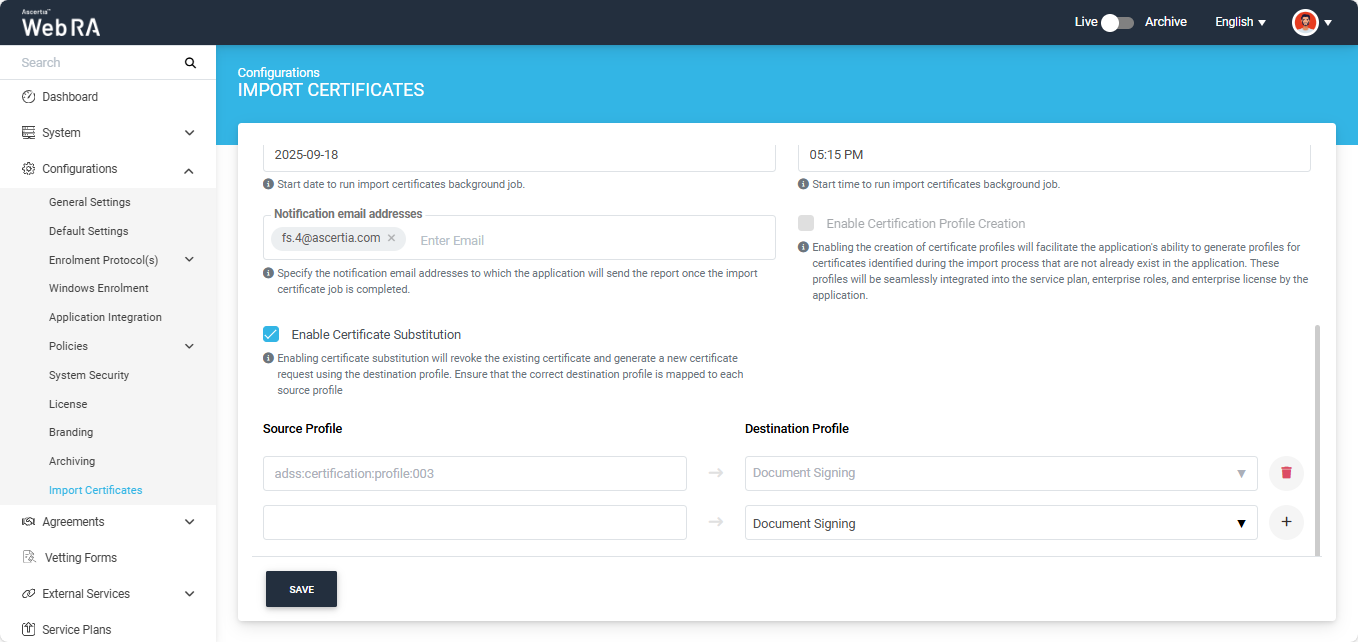
Enabling this checkbox will revoke the existing certificate that is being imported from ADSS Server against the provided source profile and generate a new certificate request using the selected destination profile. You have to make sure the correct destination profile is mapped to each source profile. |
Note: The system does not allow you to use the ‘Enable Certification Profile Creation’ option simultaneously with the ‘Enable Certificate Substitution’ option. If you want to create certification profiles for the certificates being imported, the substitution feature must be disabled.
When you select the ‘Enable Certificate Substitution’ checkbox, the system will display the ‘Source Profile’ and ‘Destination Profile’ sections.
Source Profile
The source profile is an ADSS Server profile that will be used to revoke the certificate(s) being imported.
Destination Profile
This is the certification profile created in ADSS Web RA system that will be used to generate a new certificate request for the certificate(s) being imported.
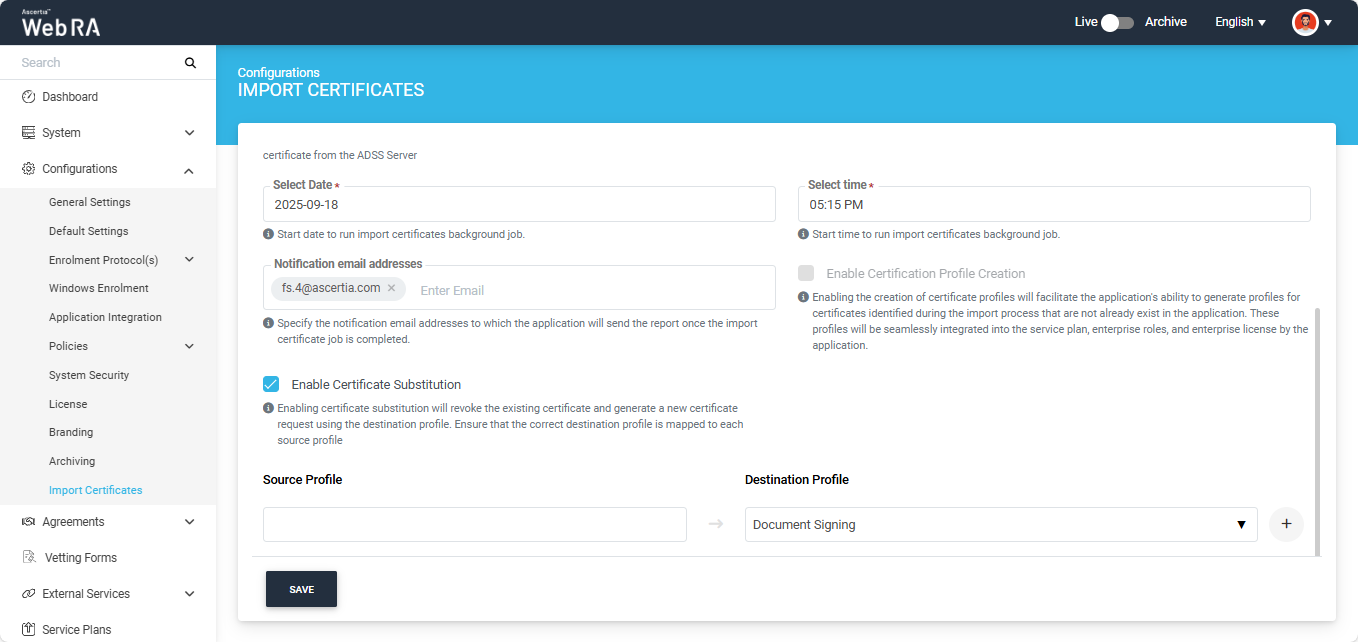
The ‘Source Profile’ box will be empty. Here, enter the ADSS certification profile against which you want the system to revoke the certificate(s) being imported from the ADSS Server. e.g. certification:profile:001.
The ‘Destination Profile’ dropdown will display the certification profile(s) configured in the organisation you have selected in the ‘Organisation’ dropdown above. By default, the first certification profile in the list will be displayed in the dropdown field.
Click the dropdown field to select the required profile from the list.
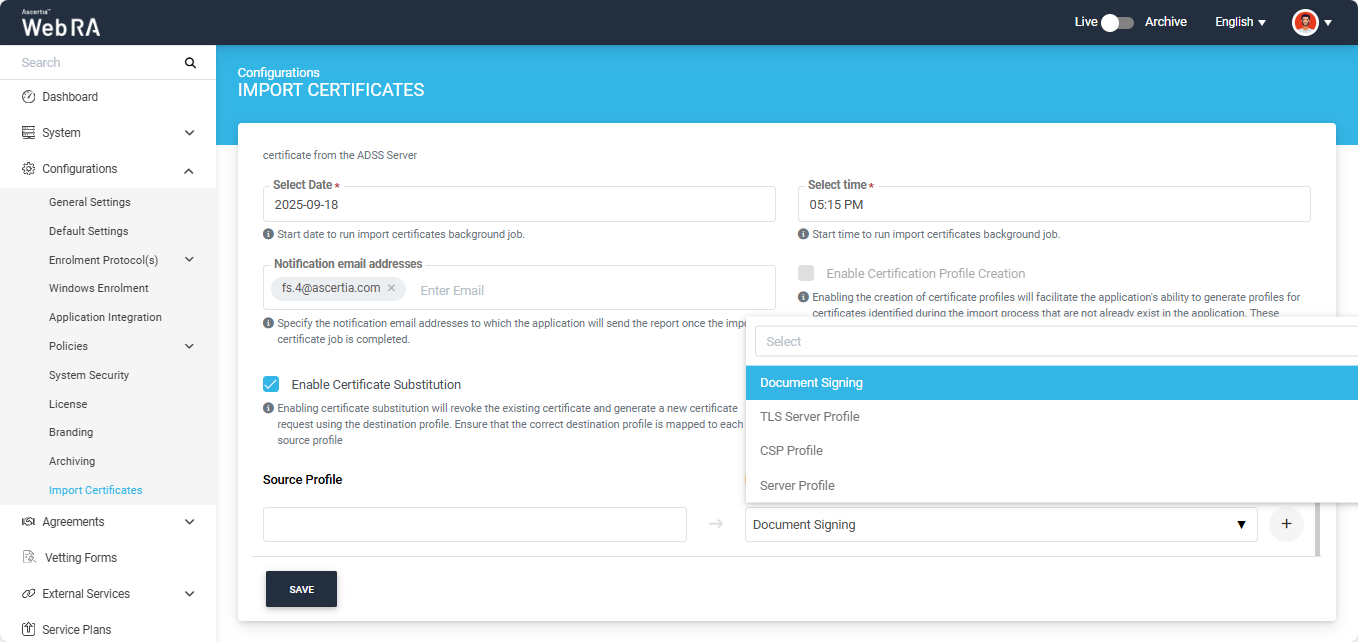
After making the required selection, click the ‘+’ button to map the source profile with the destination profile.
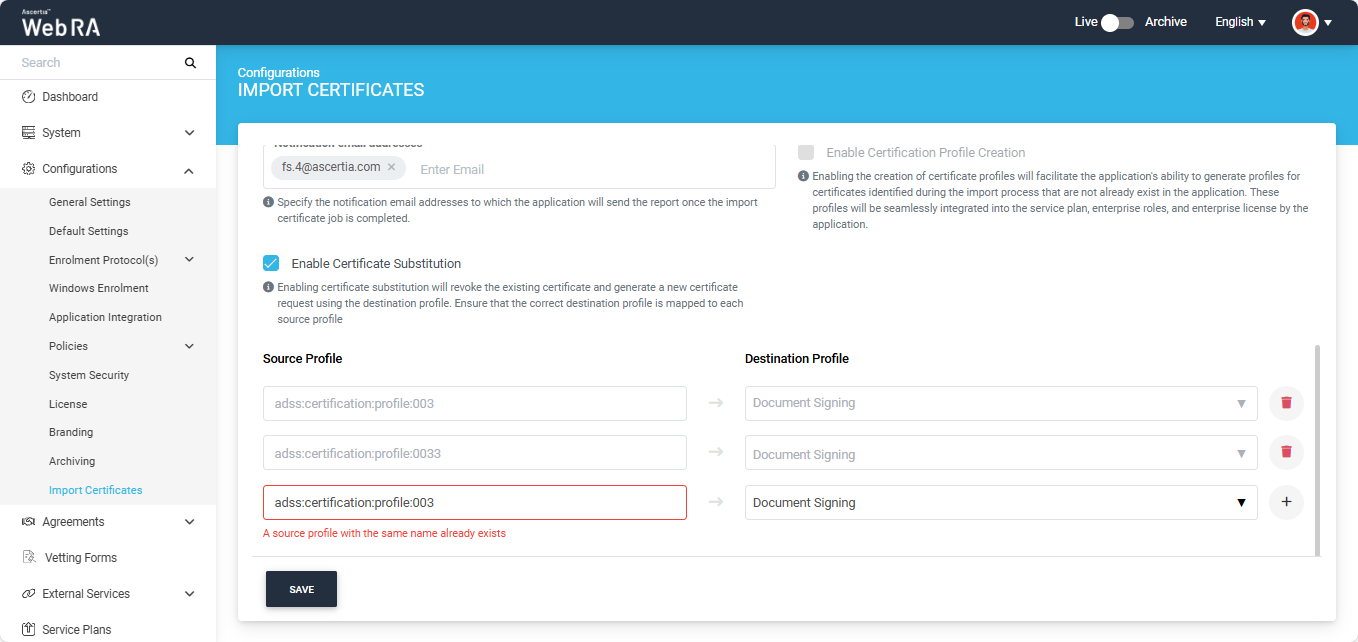
The mapped entry will appear in disabled form. You can delete the entry by clicking the ‘Delete  ’ icon.
Multiple source profiles can be mapped to a single destination profile; however, the same source profile cannot be used more than once. The system will display an error message if you attempt to enter the same profile again.
Once all the settings are configured, click the ‘Save’ button.
Note: After the Import Certificates background job is completed, all certificates that contain an email address in their SAN will be automatically substituted, and their draft requests will be created in the 'Certificate Requests' section of the Web Portal. Meanwhile, certificates that do not include an email address in their SAN will appear in the 'Certificates' listing of the Web Portal.
This scheduled background job will appear in the ‘Background Jobs’ listing under the ‘System’ module.