
Open MPIC
The Open MPIC Connector is responsible for establishing a secure communication with the MPIC service to perform required validation checks during the creation of certificate request.
To create an Open MPIC Connector, expand External Services > Connectors from the left-tree menu.
Then, click the add ‘+’ icon in the grid header.
The system will display the Add Connector screen, which consists of two sections: Basic Information and Details.
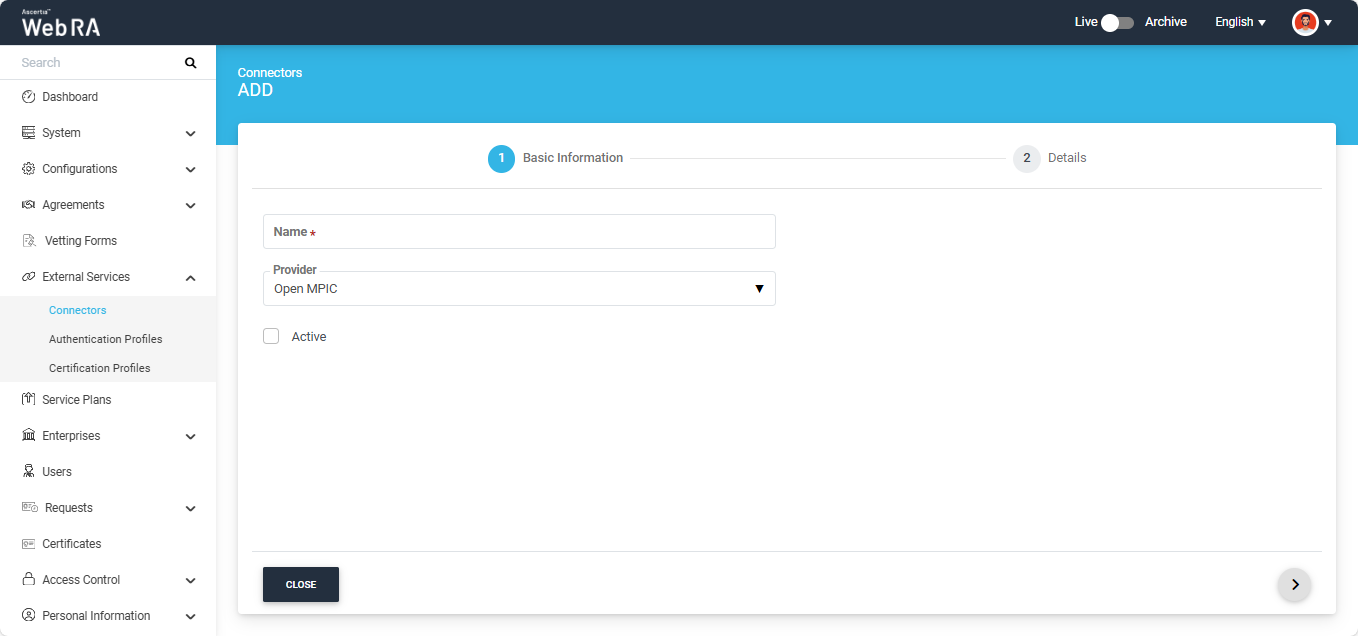
Basic Information
The fields appearing on the Basic Information screen are explained below:
|
Field |
Description |
|
Name |
Specify a unique name for this connector, for example: Open MPIC. |
|
Provider |
Select Open MPIC as a provider for this connector. |
|
Active |
Select this check box to make this connector active. Inactive connectors cannot be configured in certification profiles. |
After specifying the information in the required fields, click the ‘>’ button to navigate to the ‘Details’ section.
Details
The fields appearing on the Details screen are explained below:
|
Field |
Description |
|
URL |
Specify the service endpoint URL that will be used to establish connectivity with the Open MPIC service. |
|
Timeout (seconds) |
Specify the maximum time (in seconds) to wait for a response from the Open MPIC service before the connection attempt is terminated. |
|
Open MPIC Service Perspective |
Specify the number of Open MPIC perspectives required for domain validation. The perspective count must be at least 2. |
|
Quorum |
Specify the minimum number of successful responses required from Open MPIC to process the certificate request. The quorum count must not exceed the configured Service Perspective count. |
|
Maximum Retry Count |
Specify the maximum number of retries allowed for Open MPIC operation. |
|
Enable Mutual Authentication |
Select this checkbox if you require mutual TLS authentication for this connector. If this checkbox is enabled, the following two fields will appear on the screen:
|
|
TLS Mutual Auth Key (PFX / PKCS#12) |
Upload the PFX that will be used for mutual TLS authentication. |
|
TLS Mutual Auth Key password |
Specify the password for the PFX being used for mutual TLS authentication. |
After entering all the required details, click the ‘Test Connection’ button to check if the Open MPIC is working.
If the connection is successful, the system will display a success alert on the screen.
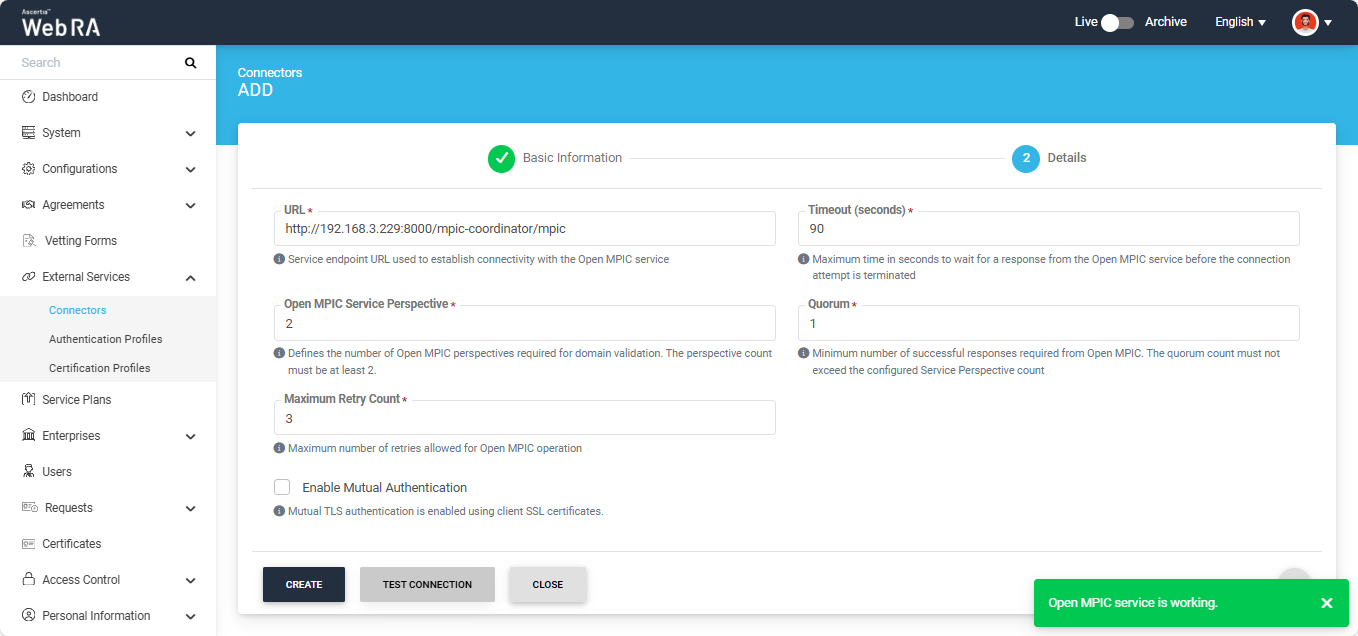
Once all the details are finalized, click ‘Create’ to complete the creation of Open MPIC connector. The connector will be saved in the system and will appear in the Connector listing.