
Device Enrolment - ACME
Certification Profile for Device Enrolment – ACME
Expand External Services > Certification Profiles from the left menu. The system will display the certification profiles listing screen.
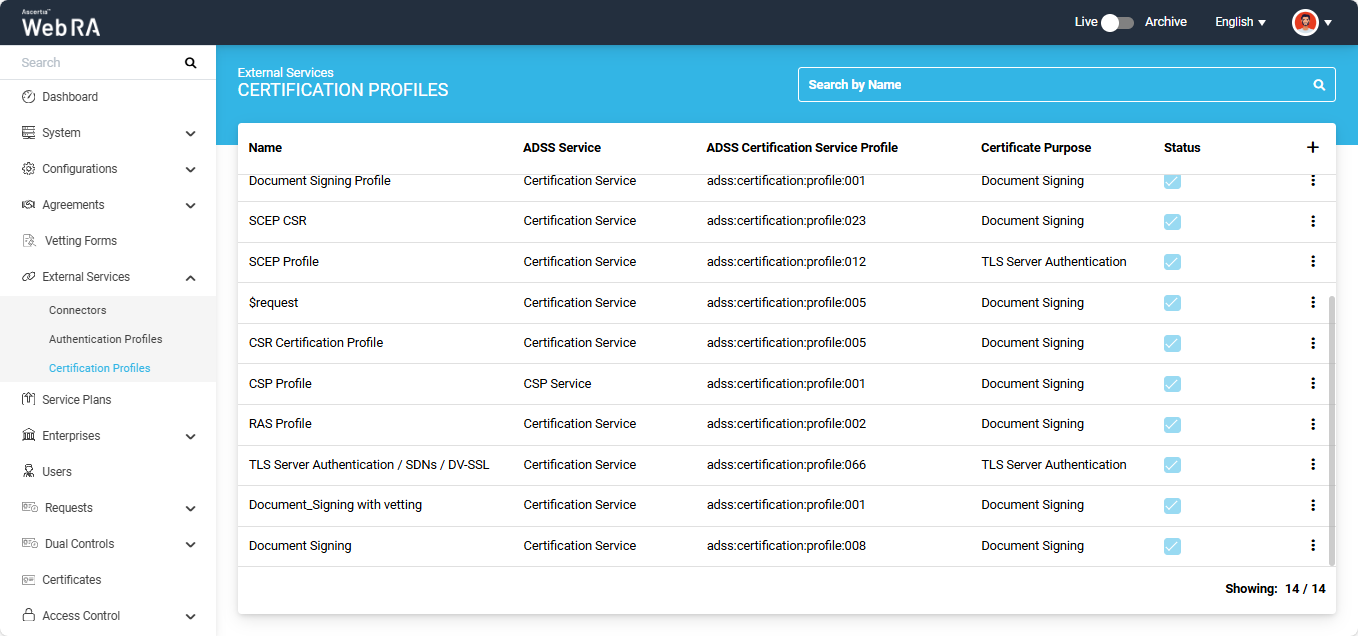
To add a new certification profile, click the ‘+’ button on the right side of the table header. The system will display the ‘Basic Information’ screen.
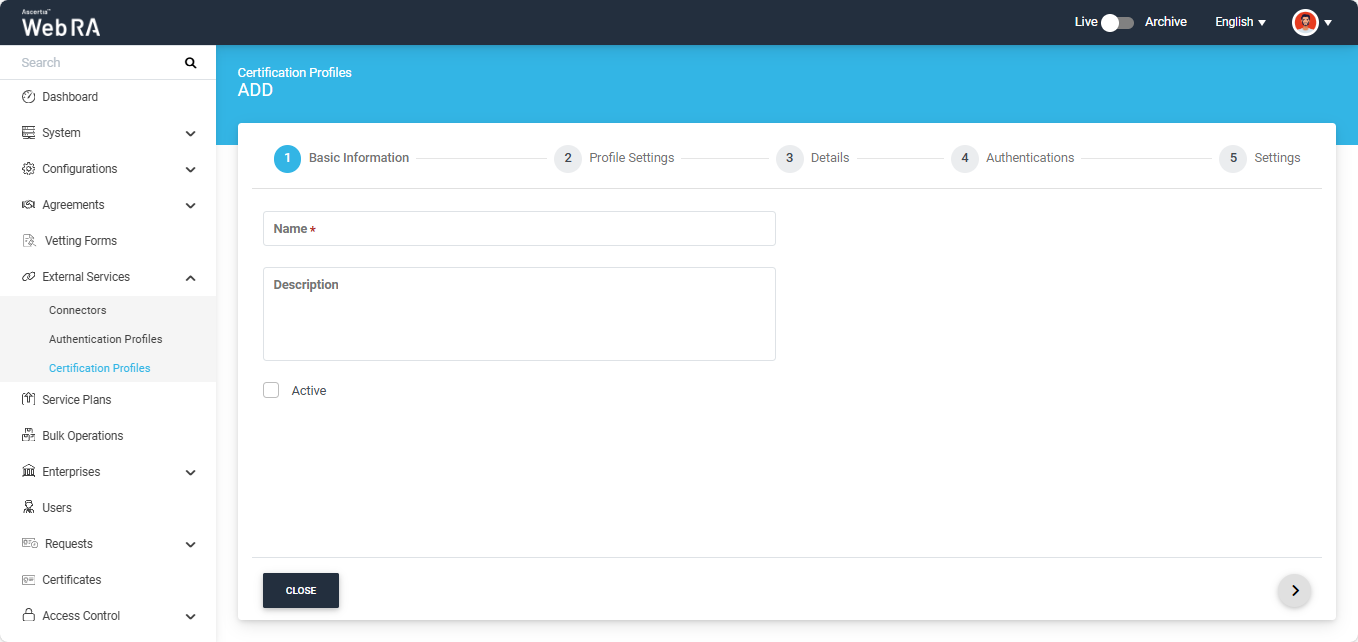
Basic Information
The basic information screen will display the following fields:
|
Field |
Description |
|
Name |
Specify a unique name for this profile. |
|
Description |
Specify any description related to this certification profile. (Optional) |
|
Active |
Select this checkbox to make the profile active. |
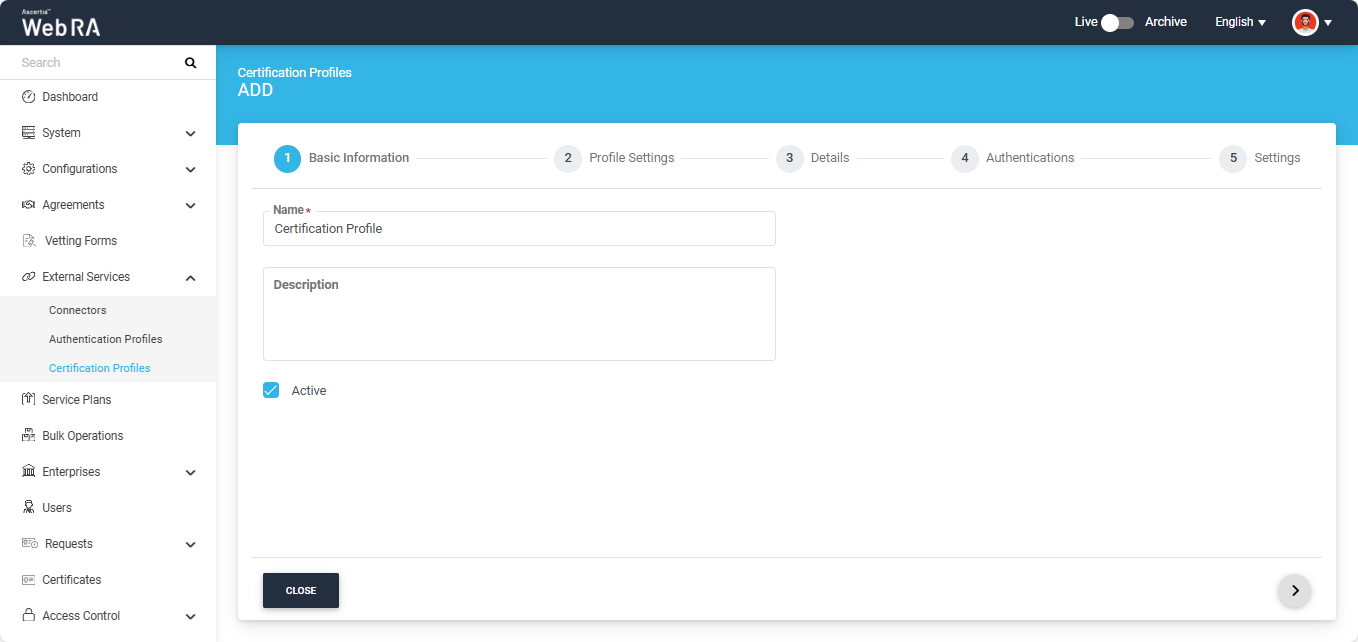
After entering the required details, click the next ‘>’ icon to proceed to the ‘Profile Settings’ screen.
Profile Settings
The fields on the Profile Settings screen are explained in the table below:
|
Field |
Description |
|
ADSS Service |
This field will display the ADSS Services (i.e. Certification Service and CSP Service) that are available for ADSS Web RA. Select Certification Service. |
|
ADSS Certification Server |
This field will display the list of active ADSS connectors in ADSS Web RA. Select the one to use for this certification service profile, for example: ADSS. |
|
ADSS Certification Service Profile |
In this field, enter the certification profile that you created on the ADSS Sever, for example: adss:certification:profile:001. |
|
Issuer Name |
This field will display issuer CA name. This information is fetched from ADSS Server and is displayed in read-only format. |
|
Certificate Purpose |
This field will appear in a disabled form. It contains a list of standard certificate purposes which actually comes from ADSS, based on selected certification profile. A certificate will be generated based on provided certification profile ID, and it will be in a disabled form as it is configured under that ADSS Certification Service Profile. Possible certificate purposes could be Document Signing, TLS Server Authentication, Code Signing etc. ADSS Web RA supports the following types of TLS certificates:
In case of external CA this field will be enabled and operator can select certificate purpose. |
|
Certificate Enrolment |
From this dropdown you can select the following options:
|
|
Enable Open MPIC Validation |
If this checkbox is enabled, Open MPIC will perform domain validation and CAA verification. Note: This option will only appear if the “Open MPIC Connector” is selected in the Configurations > Policies > Requests section. To learn more about this, navigate to the “Requests” section. Furthermore, the Open MPIC Validation option is only available when the certificate purpose is ‘TLS Server Authentication’ or ‘Email Signing’. |
|
Enable one-time PFX download |
If enabled, users can download the PFX file only once. After that, the PFX download option will not be available. Additionally, when this option is enabled, the operator will not be able to download the PFX from the admin portal. |
|
Enable Client Keys |
Enable this option if you want to generate the ACME certificate using custom DNs. Enabling the client keys option will require public key to generate the certificate. The Subject Distinguished Names (SDNs) in the certificate request will be populated based on what is configured in the ADSS certification profile and the data provided in the CSR (Certificate Signing Request). |
To create a certification profile for ACME, you need to select ‘Enrolment Protocols’ option from the ‘Certificate Enrolment’ dropdown.
Then you have to select ‘ACME’ protocol from the ‘Select Enrolment Protocol(s)’ dropdown.
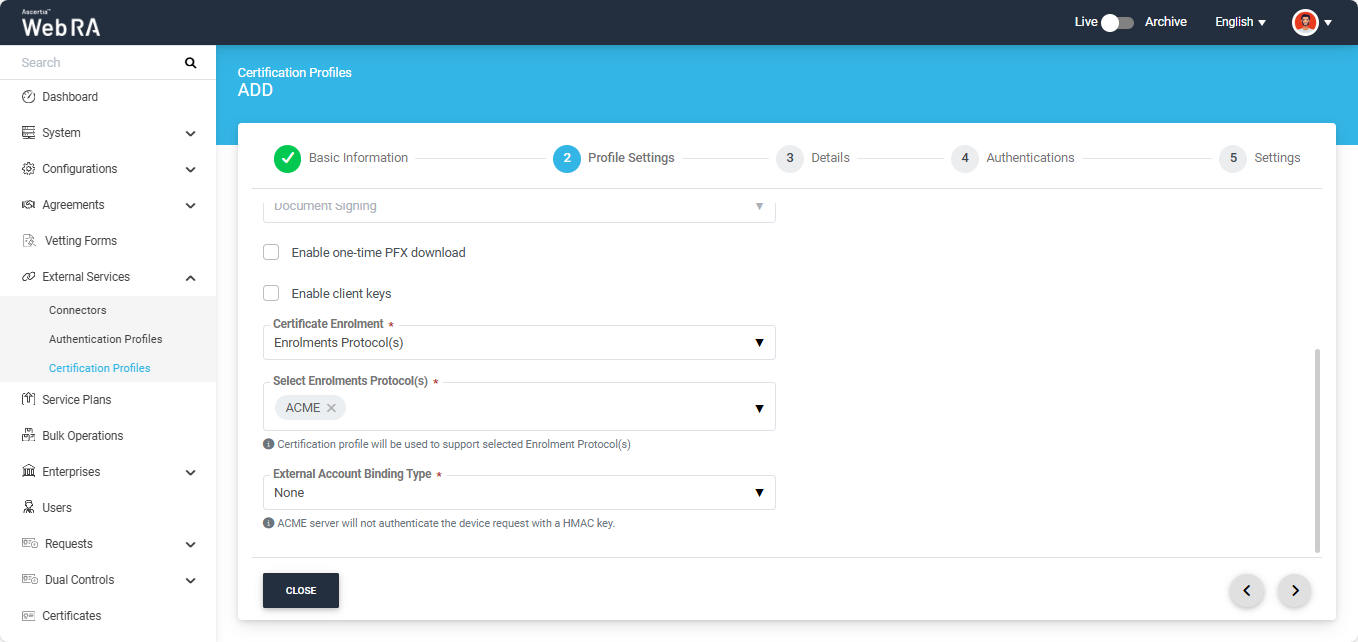
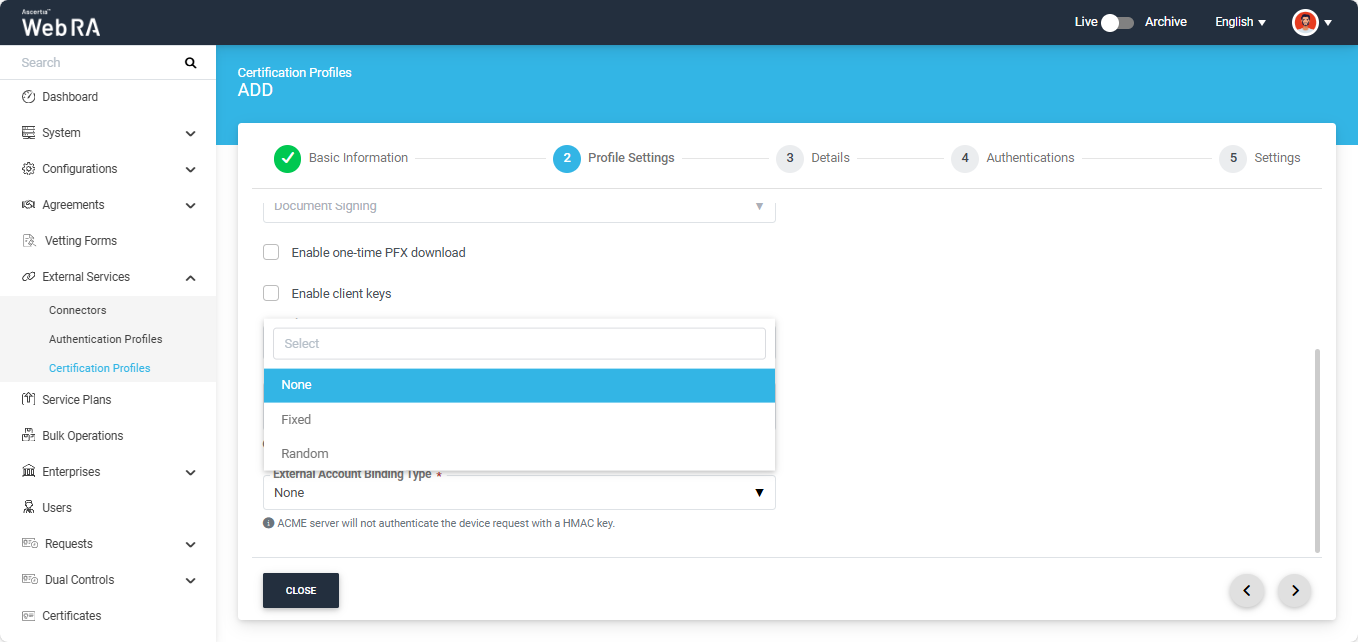
After selecting ‘ACME’ as the enrolment protocol, the system will display the ‘External Account Binding Type’ dropdown. This dropdown will display three options.
- None
- Fixed
- Random
External account bindings are used to associate an ACME account with an external account such as a CA custom database.
Choose an external account binding type from the drop down:
None: No binding is required. ADSS Web RA will process ACME requests using the default certificate profile settings defined here.
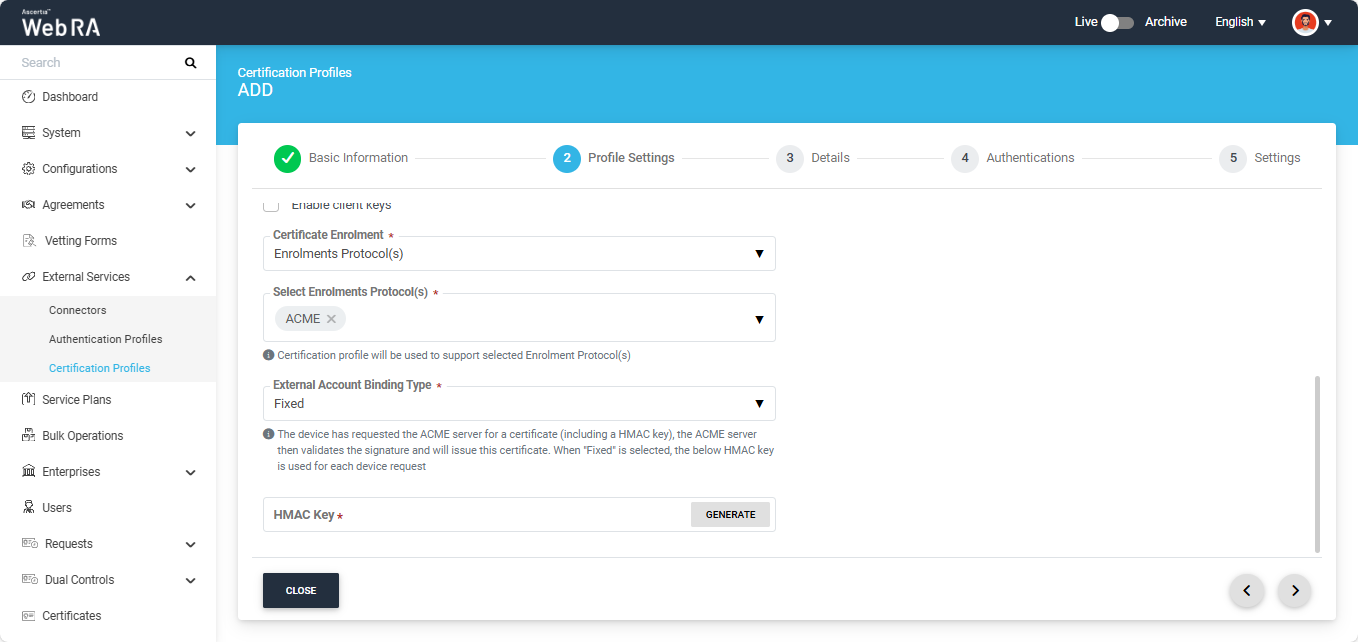
Fixed: A fixed HMAC key is generated and associated with the user’s existing ADSS Web RA account. This same key is used to authenticate each ACME request.
Random: A random HMAC key is generated for every ACME request. This key is linked to the user’s existing ADSS Web RA account and used to authenticate that specific request.
If you have selected the ‘Fixed’ binding option, the system will display the ‘HMAC Key’ field.
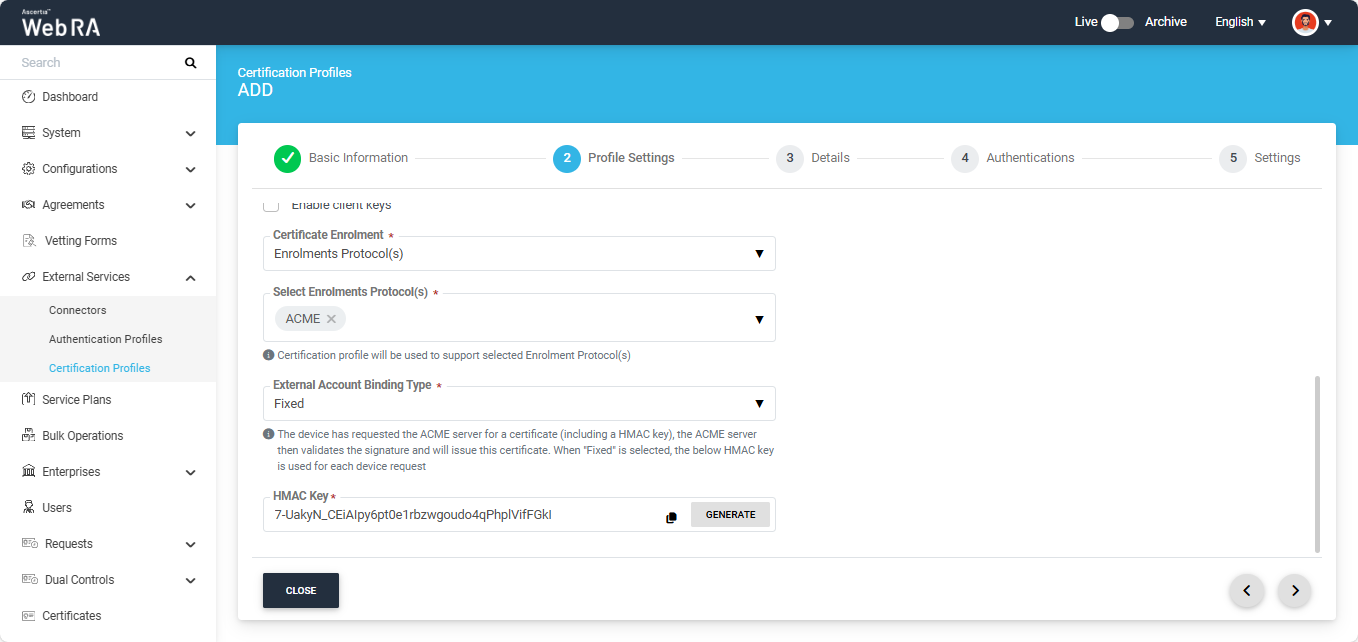
You can generate the HMAC key by clicking the ‘Generate’ button, and copy the key by clicking the folder icon next to the Generate button.
After making all the required selections, click the next ‘>’ button to navigate to the ‘Details’ screen.
Set the options in the Details, Authentications, and Advanced Settings tabs to their default values. The admin can modify these configurations as needed; however, they are not specifically related to device enrolment.
While creating the certification profile for device enrolment, keep Vetting disabled in the Settings tab.
After completing the configuration in the Settings tab, click Create to set up the certification profile.