
Renewal Requests
ADSS Web RA supports certificate renewal before a certificate expires. It is the process by which you can renew a certificate for the same public key used in an expiring certificate.
All certificate renewal requests submitted from the Web Portal appear in the Renewal Requests listing.
To view the renewal request listing, expand Certificate Center > Renewal Requests from the left-tree menu in the Admin portal.
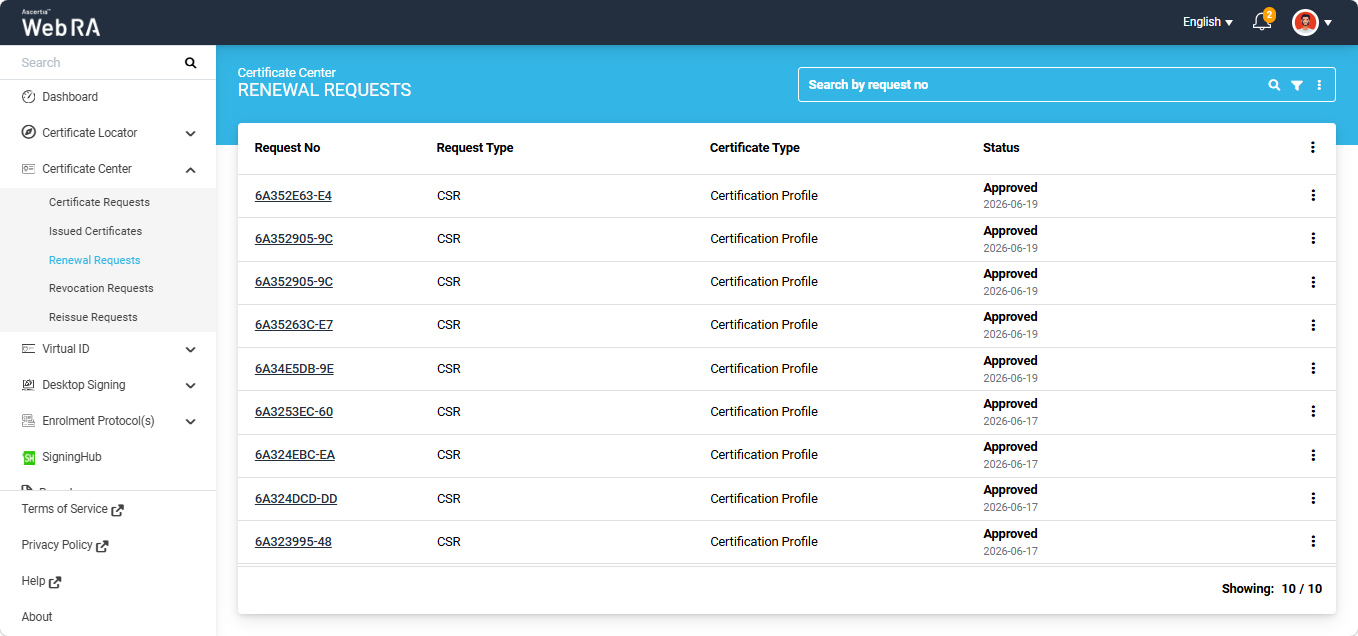
The following section describes how to renew a certificate that is nearing its expiration.
How to Renew a Certificate
To renew a certificate before its expiration, you need to first open the certificate request generated from the Web RA system.
To do this, expand Certificate Center > Certificate Requests from the left-tree menu in the Web Portal.
Then, click the request number of the certificate that you want to renew. Alternatively, click the three-dot button next to the certificate request entry and select the 'View Request' option.
The system will then open the certificate request in View mode.
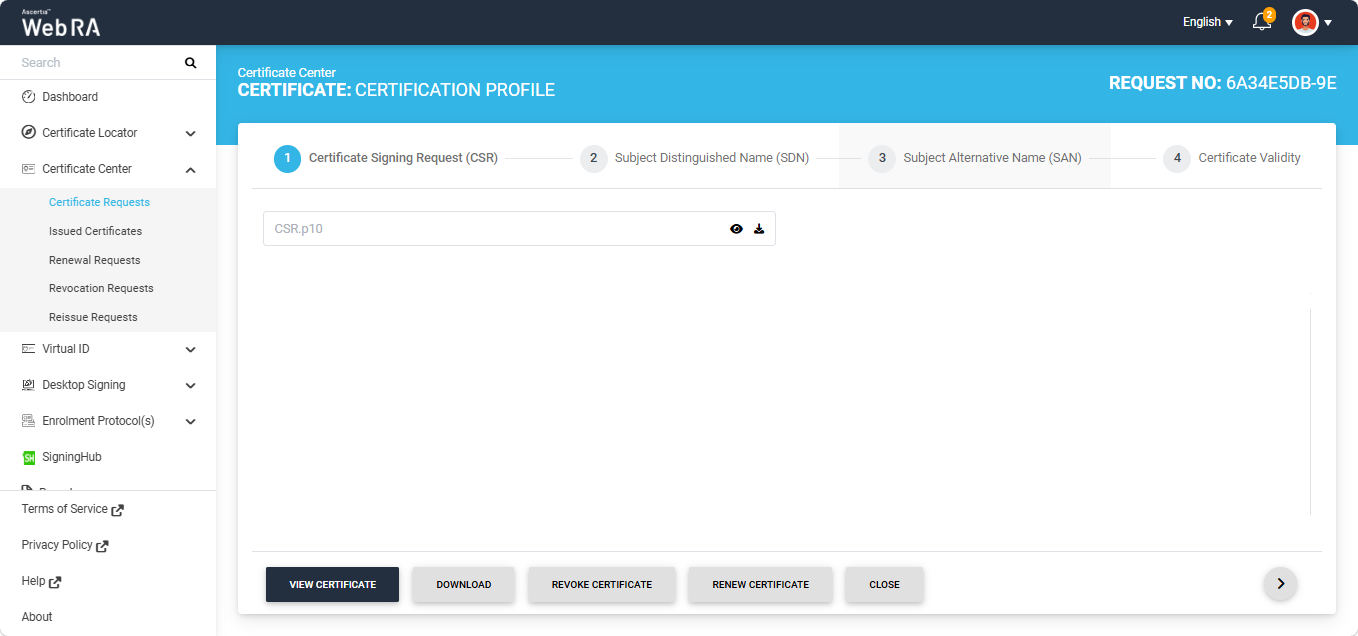
To renew the certificate, click the 'Renew Certificate' button.
Note: The 'Renew Certificate' button appears only if the 'Renew Certificate' policy is selected in Configurations > Policies > Requests section under the certificate renewal settings.
The Certificate Signing Request (CSR) screen will appear again, as displayed in the image below.
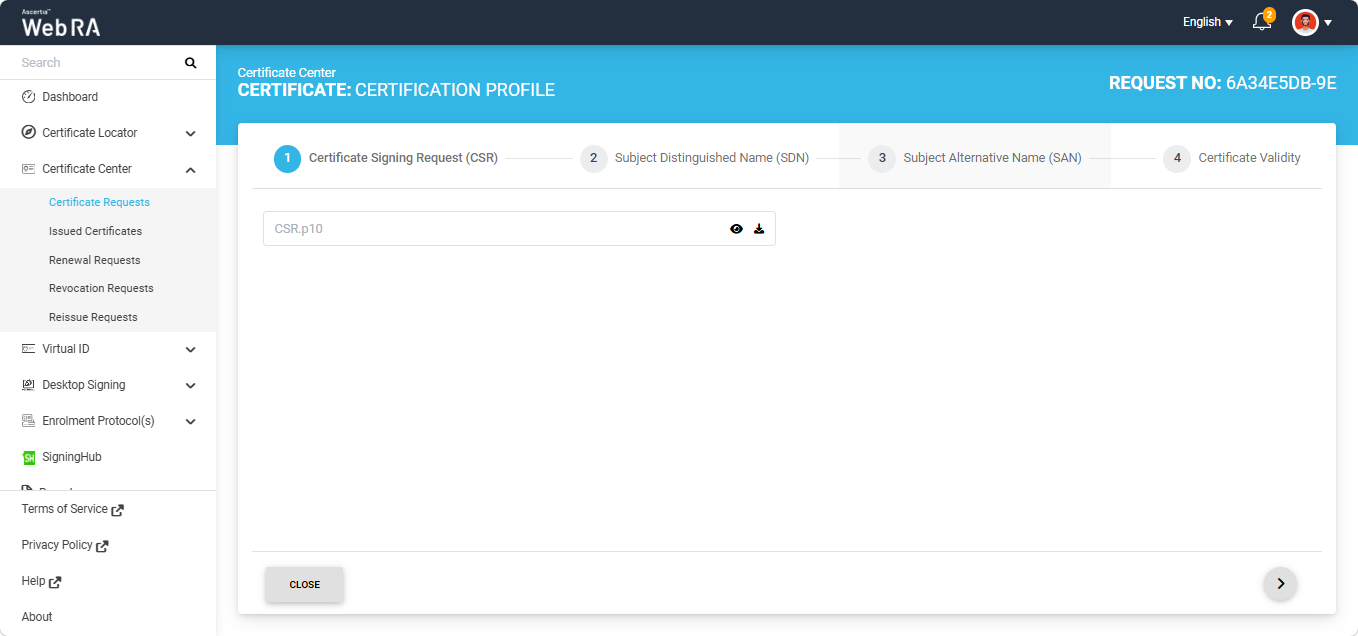
Click the next '>' button to navigate to the 'Certificate Validity' screen. Here, click the 'Renew' button to renew the certificate.
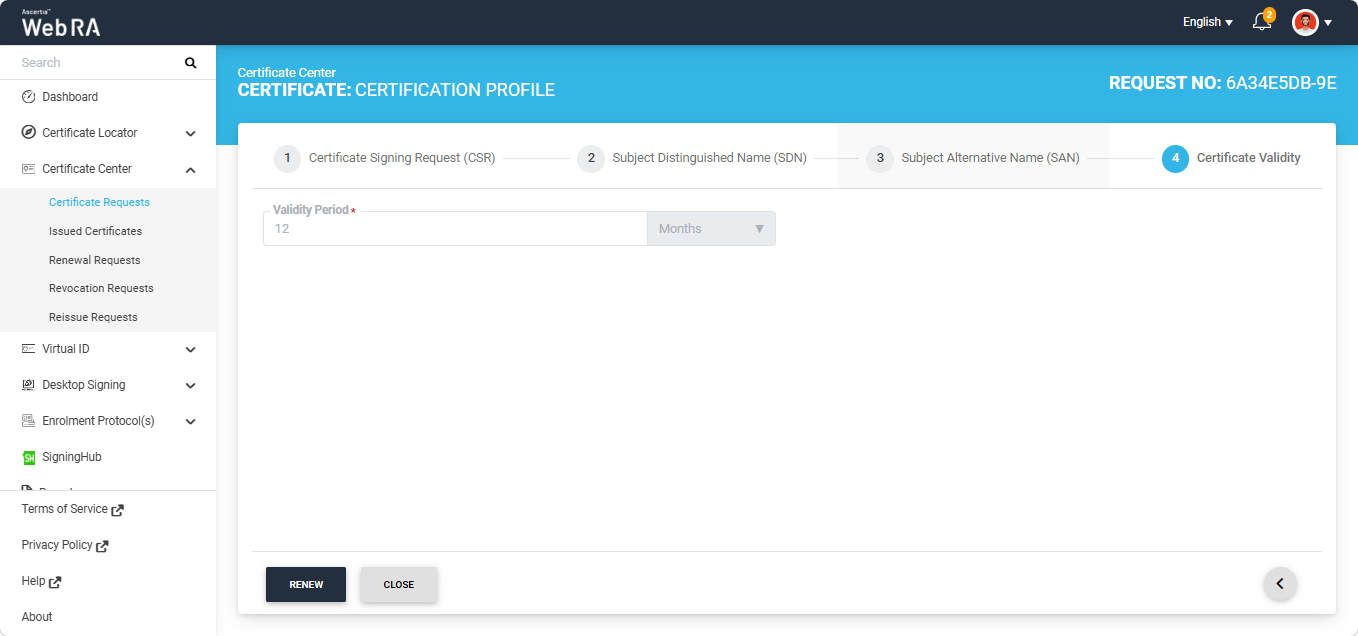
The system will display the Certificate Renew dialog on the screen. Here, you can optionally enter a message in the Message box.
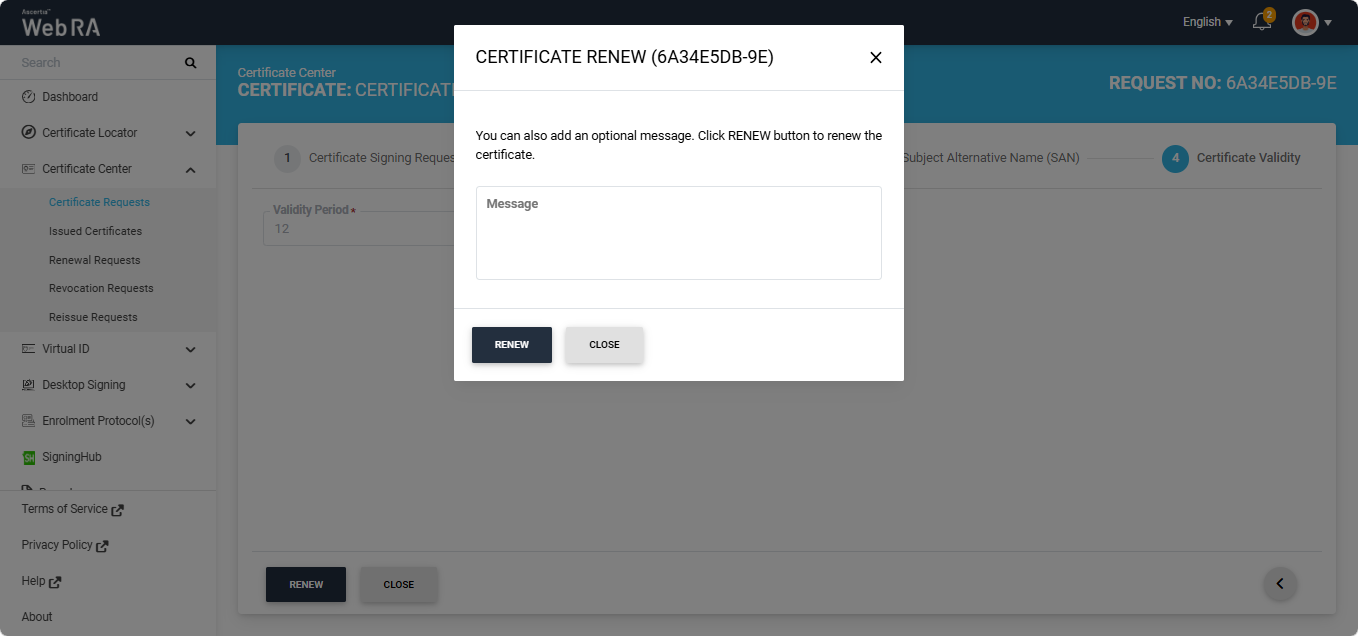
Click the Renew button. The certificate will be renewed, and a Certificate Renewed alert will appear on the screen.
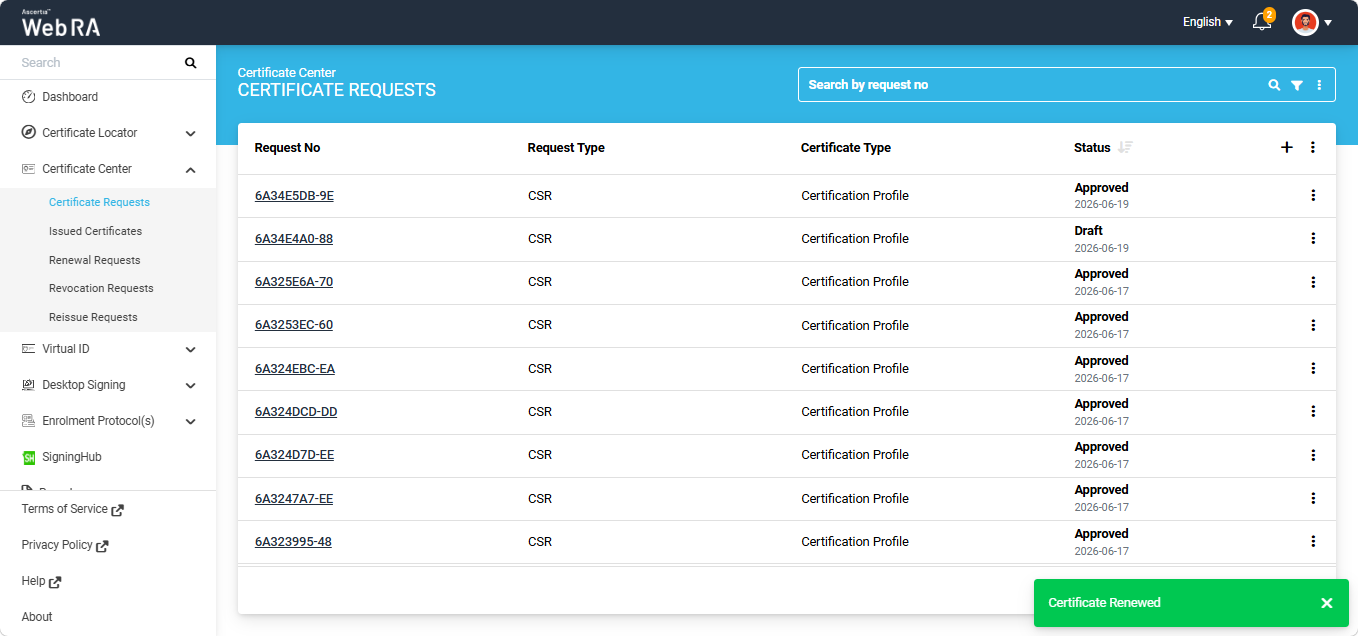
Each certificate can be renewed only up to the renewal limit configured in the certification profile. For example, if a renewal limit of 1 is configured in the certification profile, a certificate can only be renewed once. Any subsequent attempt to renew the same certificate will result in an error being displayed by the system.
The following error will appear on the screen if you attempt to renew a certificate after the renewal limit has been reached.
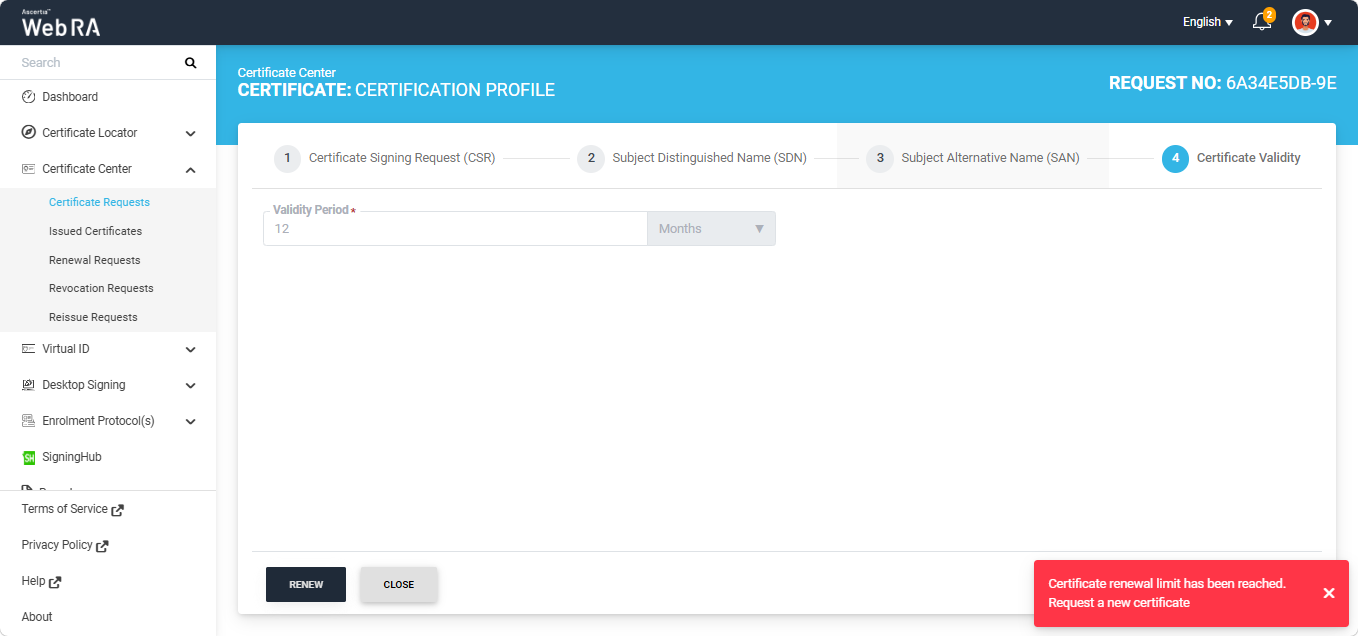
Note: If the renewal limit is set to zero in the certification profile, certificates generated under that certification profile cannot be renewed.
Second Factor Authentication
If second factor authentication is enabled on renewal requests, the configured authentication mechanism will function accordingly. When a user clicks on the Renew button, the authentication window will appear, and once it accepts the selected method, it will generate a certificate.
The authentication mechanism can be one of the following:
- SMS OTP Authentication
- Email OTP Authentication
- Email & SMS Authentication
- SAML Authentication
- Active Directory Authentication
- Azure Active Directory Authentication
- OIDC Authentication