
Rekey Requests
Rekeying a certificate generates a new key and certificate with the same name and expiration date as the existing certificate. Rekeying is used when an existing key is lost or compromised. This section lists all rekey certificate requests.
As a pre-requisite, the 'Rekey Certificate' option must be enabled in the Configurations > Policies > Certificate section of the admin portal.
Rekey a Certificate
To rekey a certificate, expand Certificate Center > Issued Certificates from the left-tree menu in the Web portal.
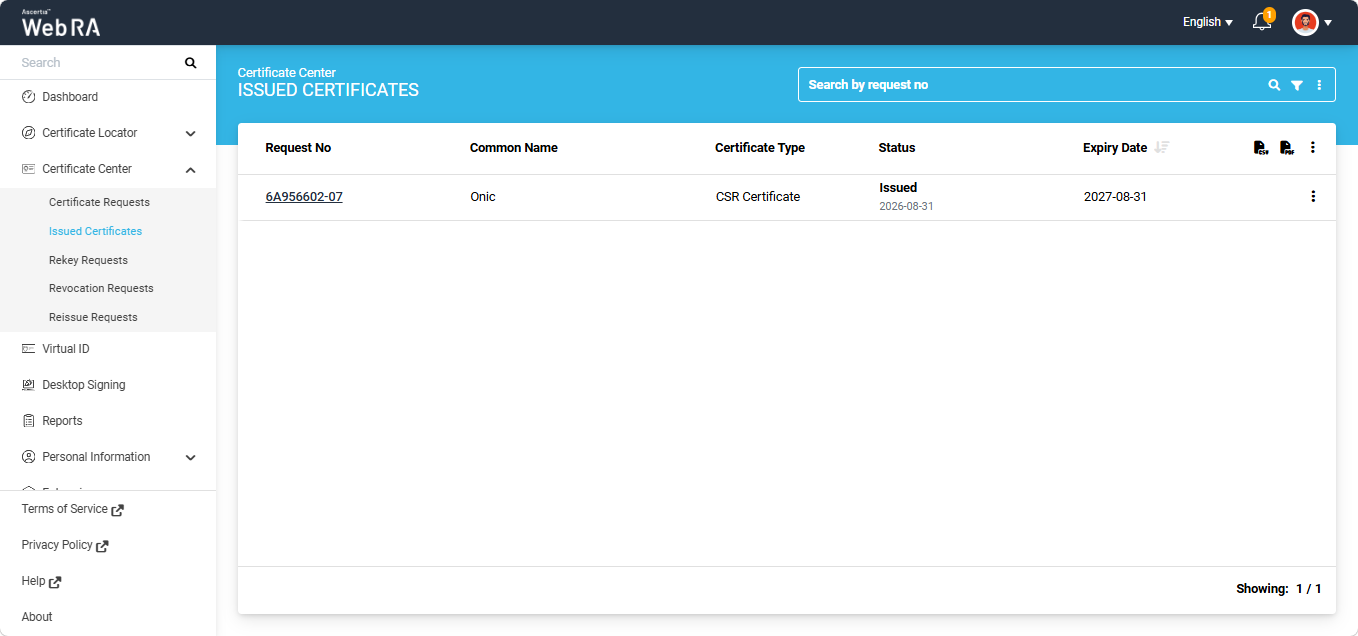
Click the three-dot  icon next to the certificate that you want to rekey and select ‘More Actions’.
A ‘Certificate Action’ dialog will appear on the screen.
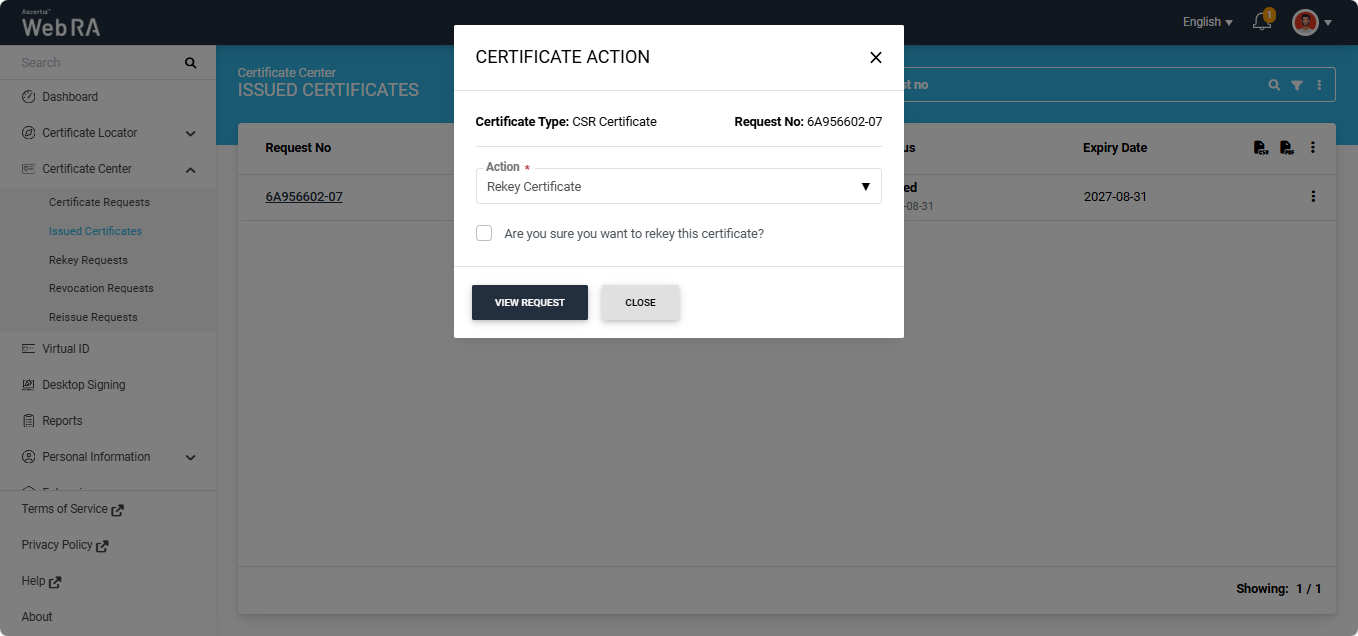
Select the confirmation checkbox on the dialog and click ‘View Request’. The system will open the certificate request and the ‘Certificate Signing Request (CSR) screen will appear.
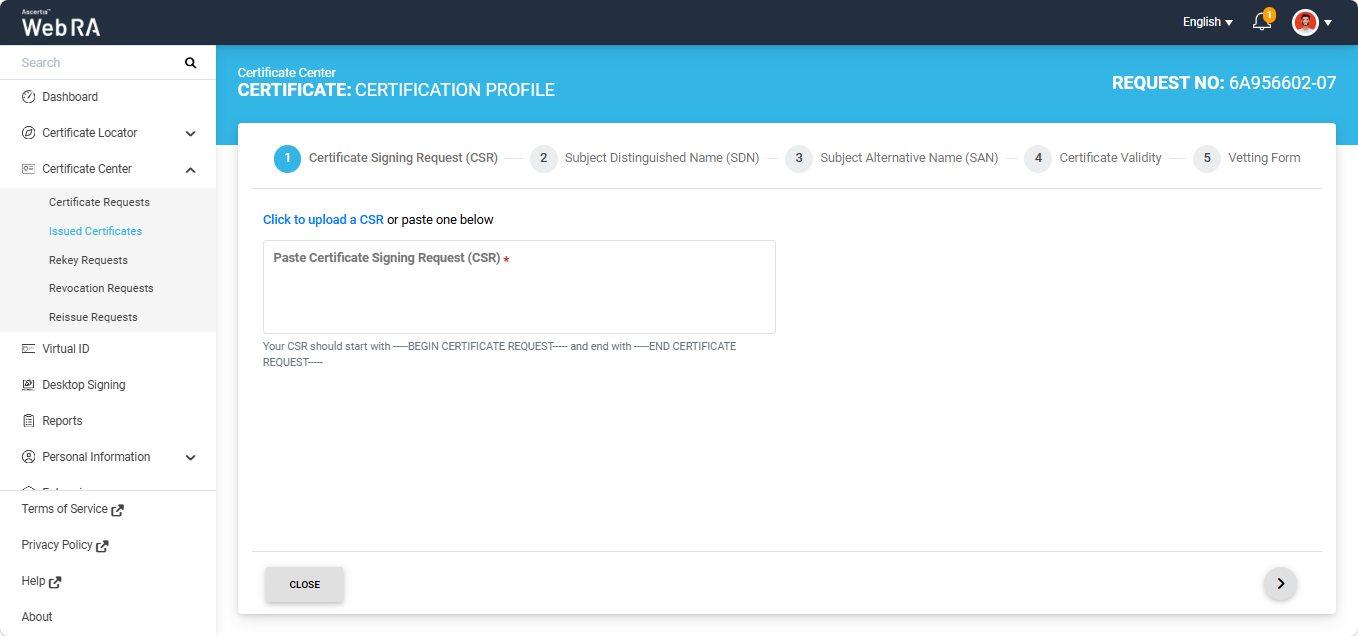
Here, upload the CSR in the CSR box and click the next ‘>’ button. The system will process the CSR and display the following screen.
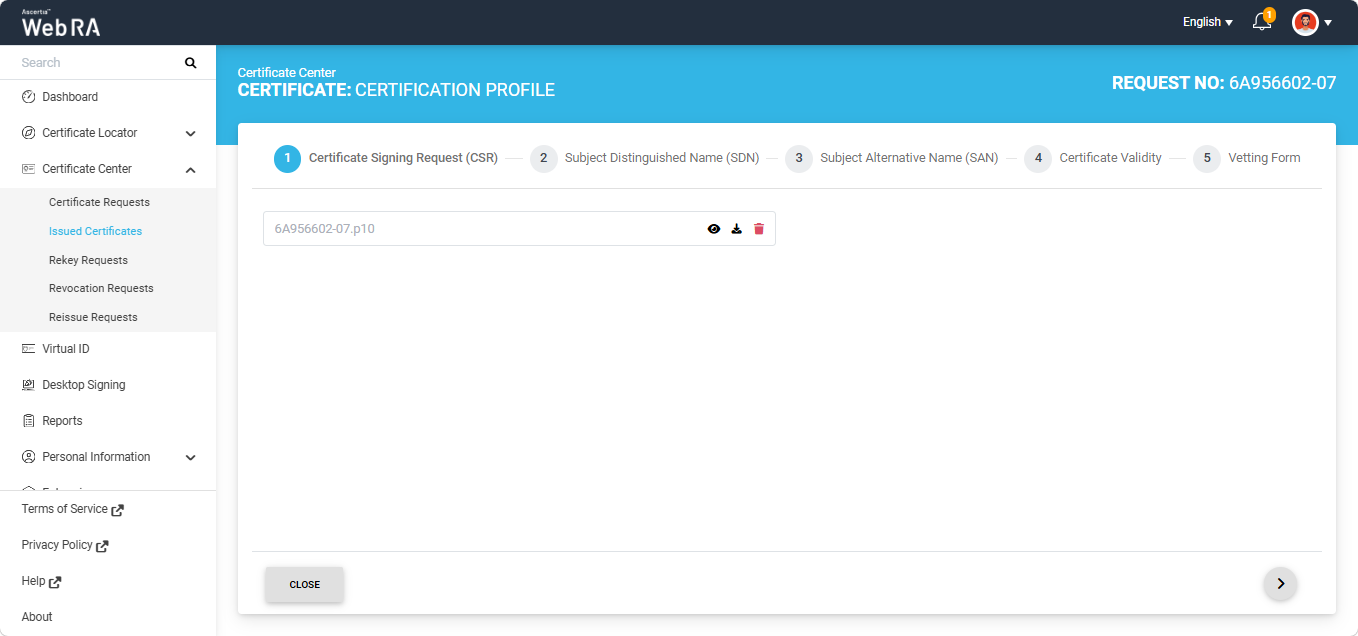
Click the next ‘>’ button to navigate to the ‘Subject Distinguished Name (SDN) screen. All fields on this screen will appear disabled.
|
|
Note:
|

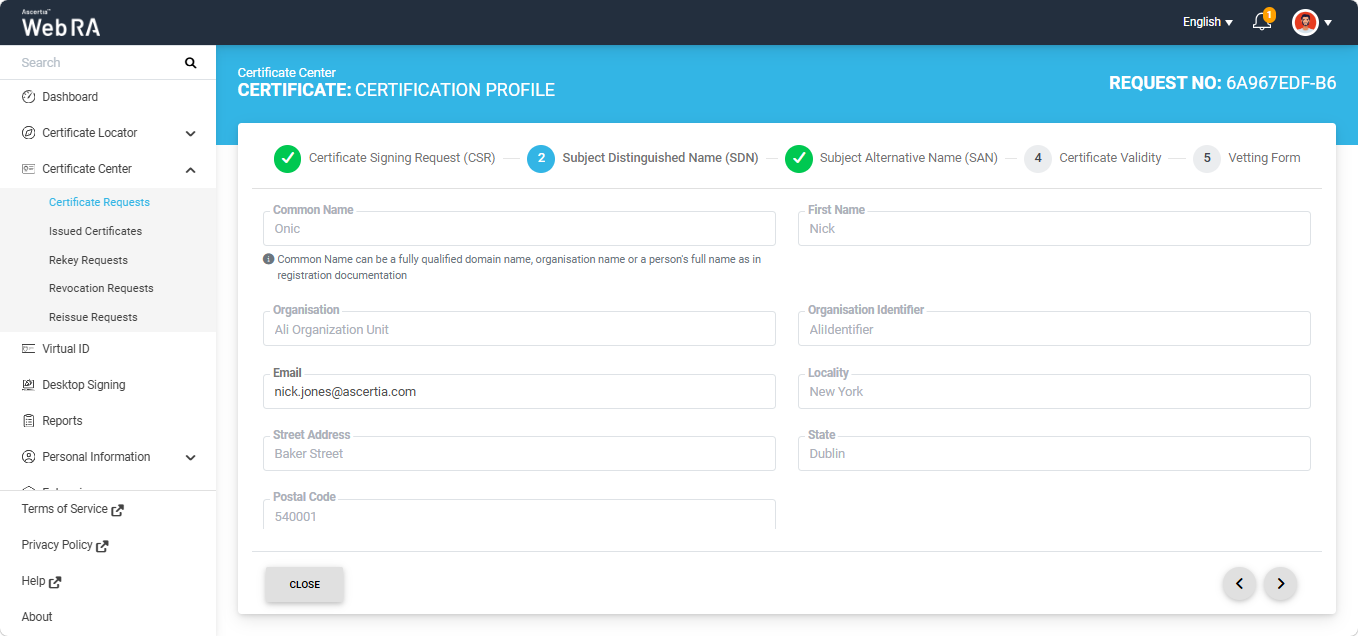
Click the next ‘>’ button to navigate to the ‘Subject Alternative Name (SAN) screen. All fields appearing on this screen will be disabled.
|
|
Note:
|
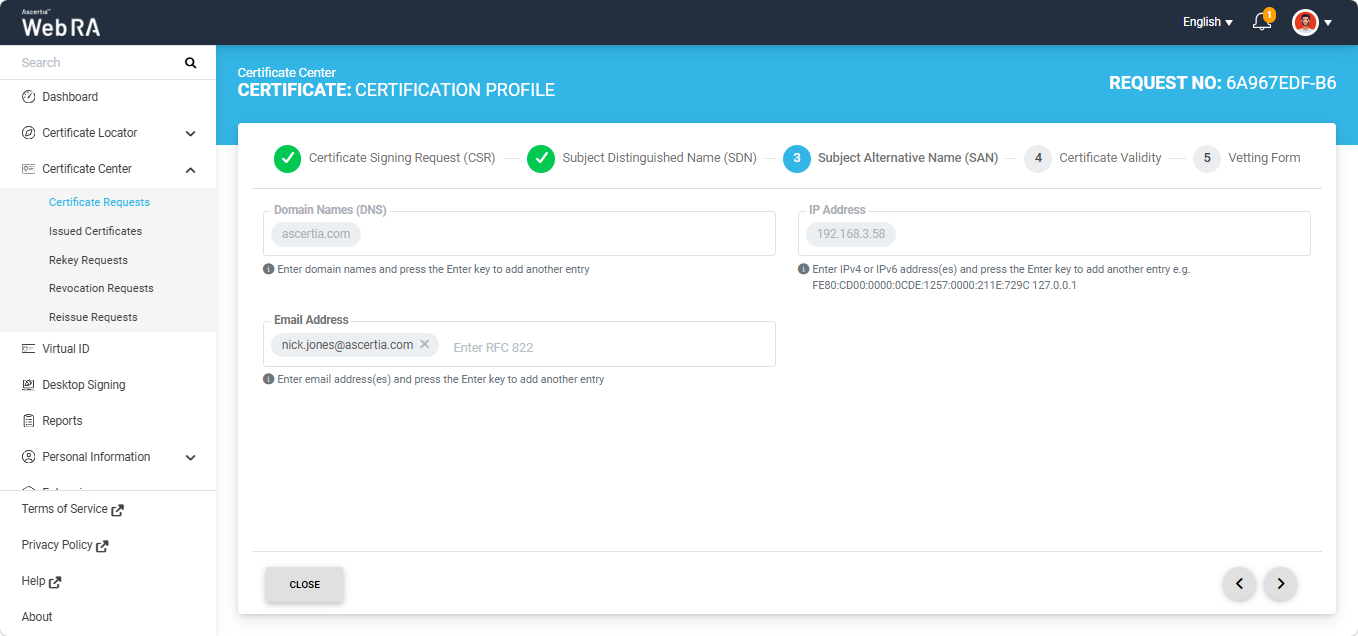
Click the next ‘>’ button to navigate to the ‘Certificate Validity’ screen. The validity period will appear disabled.
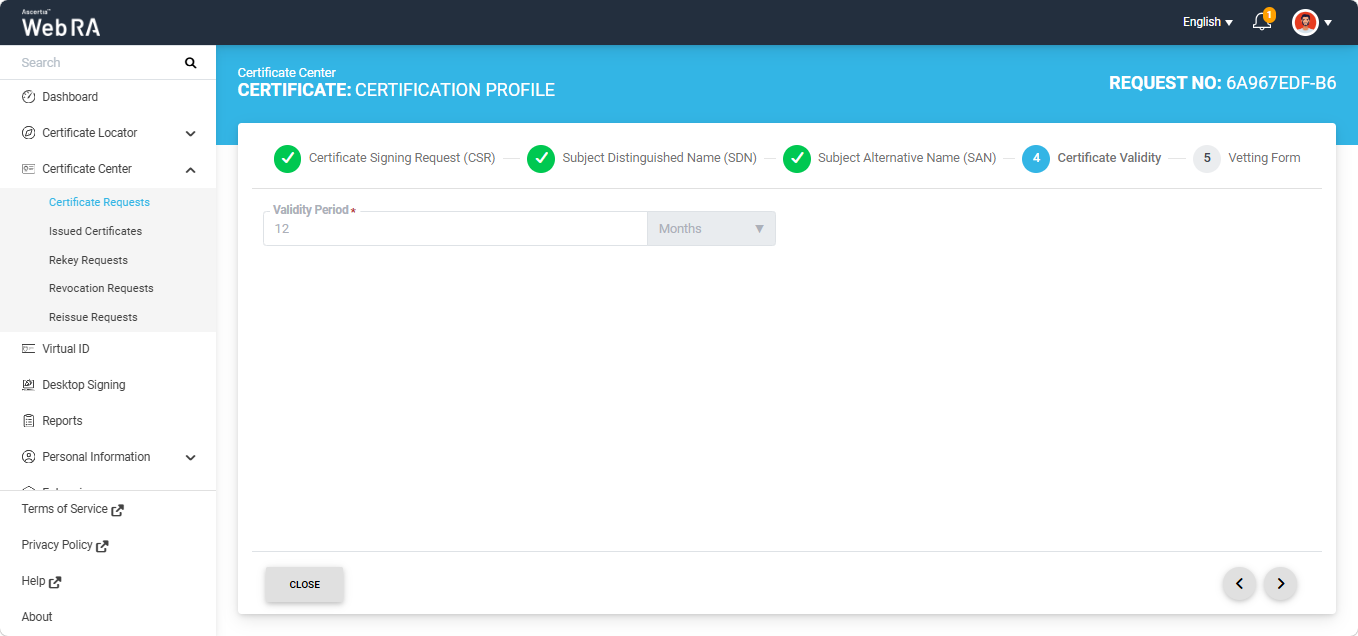
Click the next ‘>’ button to navigate to the ‘Vetting Form’ screen. The fields on this screen will also appear disabled.
Note: The Vetting Form tab will only appear if ‘Manual Vetting’ option is enabled in the certification profile.
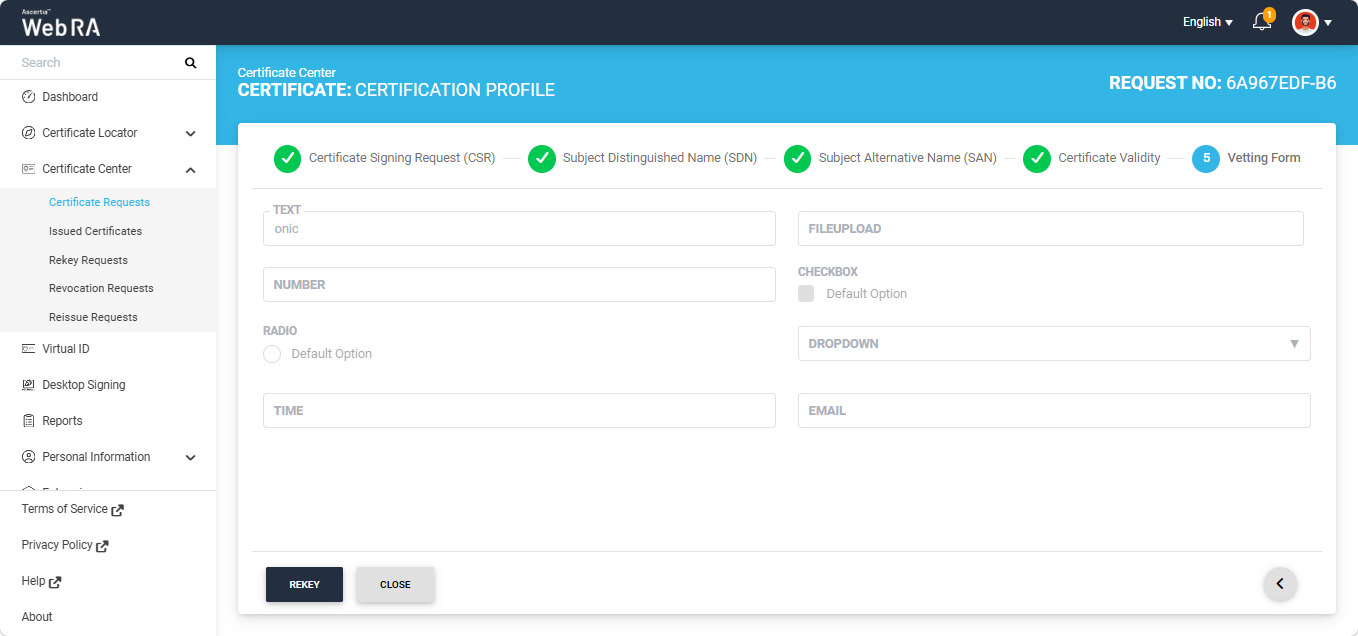
Click the ‘Rekey’ button on this screen. A ‘Certificate Rekey’ confirmation dialog will appear. Add an optional message in the ‘Message’ box, if required. Then click ‘Rekey’.
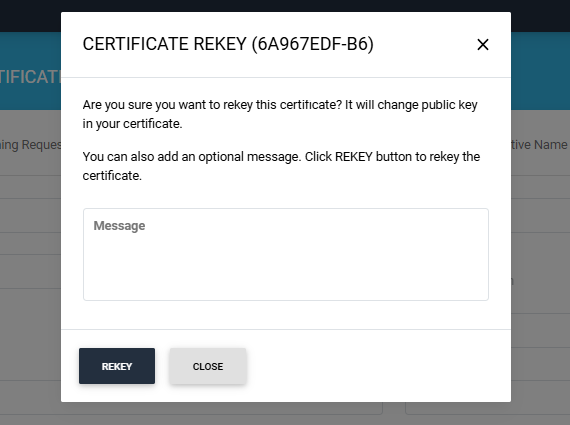
The certificate rekey request will be complete.
If 'Manual Vetting' is enabled in the Certification Profile, the rekey request will be submitted for approval by the Enterprise RAO. Once the Enterprise RAO approves the request, the certificate will be rekeyed.
Second Factor Authentication
If second factor authentication is enabled on rekey requests, the configured authentication mechanism will function accordingly. When a user clicks on the Rekey button, the authentication window will appear. Once it accepts the selected method, and you enter the verification details, it will rekey a certificate.
The authentication mechanism can be one of the following:
- SMS OTP Authentication
- Email OTP Authentication
- Email & SMS Authentication
- SAML Authentication
- Active Directory Authentication
- Azure Active Directory Authentication
- OIDC Authentication