
OpenID Connect
An OpenID Connect (OIDC)-based Identity Provider (IdP) can be configured as a connector in ADSS Server. The configured IdP can then be used by the ADSS Server services, such as the RAS Service, to authenticate users. For example, when an OIDC connector is configured in an RAS Service profile, the RAS Service redirects the user to the configured IdP for authentication during credential authorization.
While configuring an OpenID Connect based IdP, the following screen will be displayed:
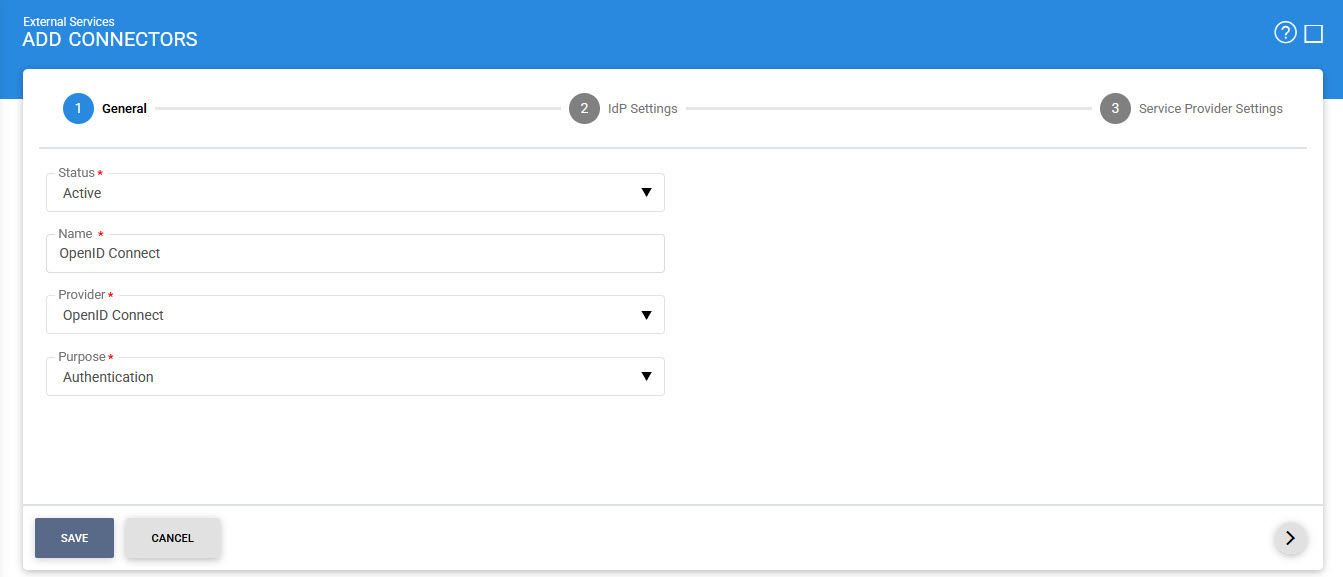
The configuration items are as follows:
|
Items |
Description |
|
Status |
This specifies the status of the Connector i.e. Active or Inactive. Only active profiles can be used within ADSS Service modules. |
|
Name |
A user friendly name assigned to each Connector for internal identification. |
|
Provider |
This drop-down field specifies the type of IdP used for the Connector. Select OpenID Connect to configure an OpenID Connect based IdP. |
|
Purpose |
This specifies the purpose of Connector e.g. Authentication etc. |
Fill in the required fields and click on the Next (>) button to view next screen:
IdP Settings
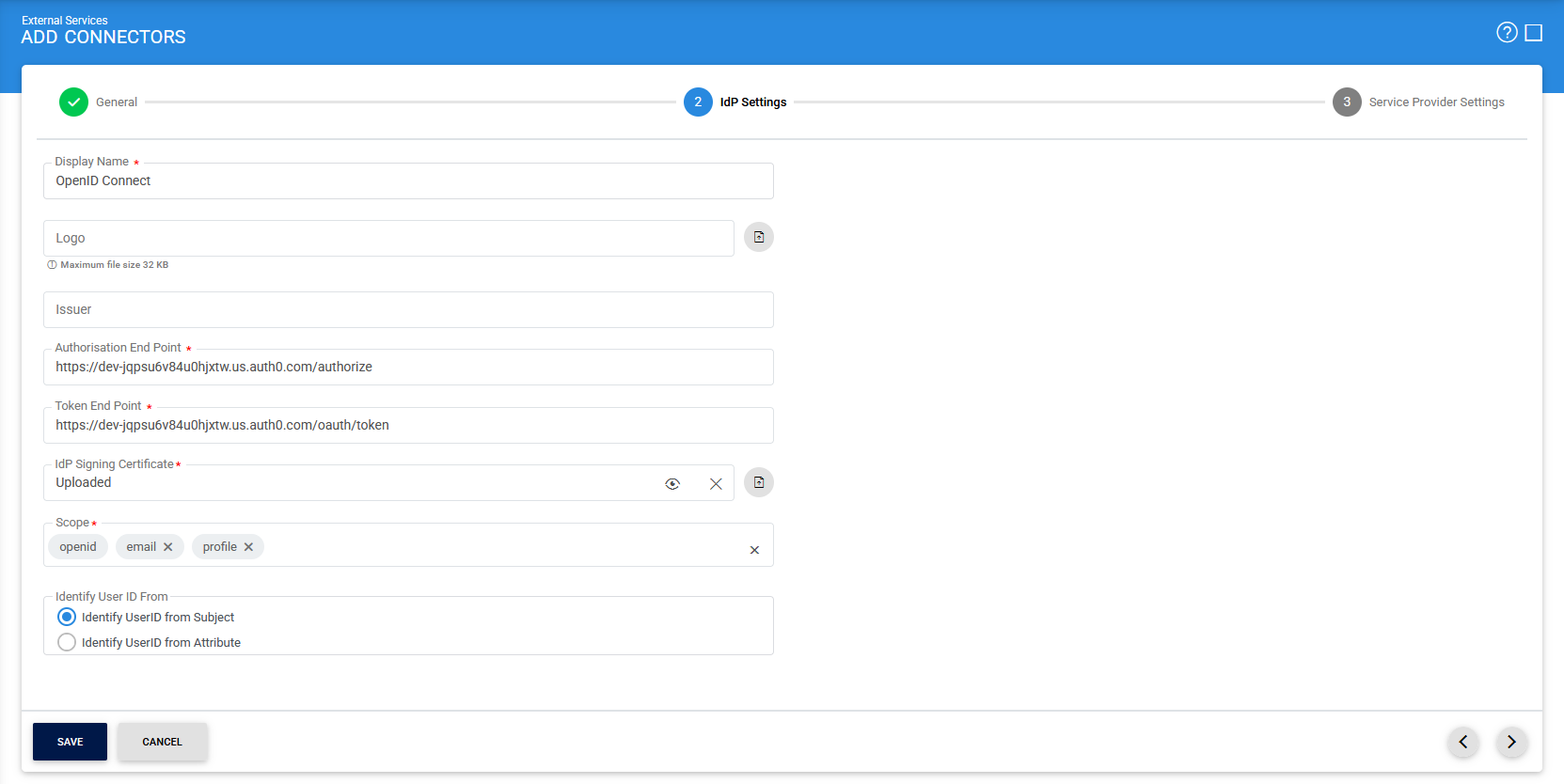
The configuration items are as follows:
|
Items |
Description |
||
|
IdP Settings |
This section defines configurations required to establish connection between IdP and ADSS Server. |
||
|
Display Name |
This field defines the name of the IdP that will be displayed to the user. For example, during credentials authorisation, RAS Service will display a page to user displaying the transaction detail and asking for authentication with IdP. The name of the IdP configured in this field will be displayed to user. |
||
|
Logo |
This field is used to upload the logo image of external IdP from the file system that will be displayed to the user e.g. while authorising the credentials by RAS Service. The logo will be displayed along with the "Display Name" of IdP.
|
||
|
Issuer |
This field shows the URI which acts as a unique identifier for OpenID Connect IdP. |
||
|
Authorization End Point |
This field shows the URL of IdP Authorization End Point, where ADSS will redirect the user for authentication. |
||
|
Token End Point |
This field shows the URL of the IdP’s token end point which will be used by ADSS in order to get the access token and ID token by providing it the authorization code. |
||
|
IdP Signing Certificate |
By using this field, an IdP Signing Certificate can be uploaded from the file system that will be used by ADSS to verify the signature created over ID Token. |
||
|
Scope |
Specifies the OpenID Connect (OIDC) scopes to be requested from the Identity Provider (IdP) during the authorization process. Multiple scopes can be configured as a single space-separated list. The configured scopes are included in the authorization request sent by the RAS Service and Unity Service to the IdP. For example: openid profile email
The scopes that can be configured depend on the capabilities and configuration of the Identity Provider.
|
||
|
Identify UserID from Subject |
Select this option to identify the user's ADSS User ID from the Subject (sub) claim in the ID Token received from the Identity Provider (IdP). The value of the sub claim is used as the User ID for identifying the user in ADSS Server. |
||
|
Identify UserID from Attribute |
Select this option to identify the user's ADSS User ID from a specific attribute (claim) returned by the Identity Provider (IdP). When this option is selected, the Attribute Name field is displayed, allowing you to specify the name of the attribute whose value will be used as the User ID. |
||
|
Attribute Name |
Specifies the name of the attribute (claim) in the ID Token from which the user's ADSS User ID will be obtained. This field is available only when Identify UserID from Attribute is selected. The specified attribute must be available in the response received from the Identity Provider. |

Fill in the required fields and click on the Next (>) button to view next screen:
Service Provider Settings
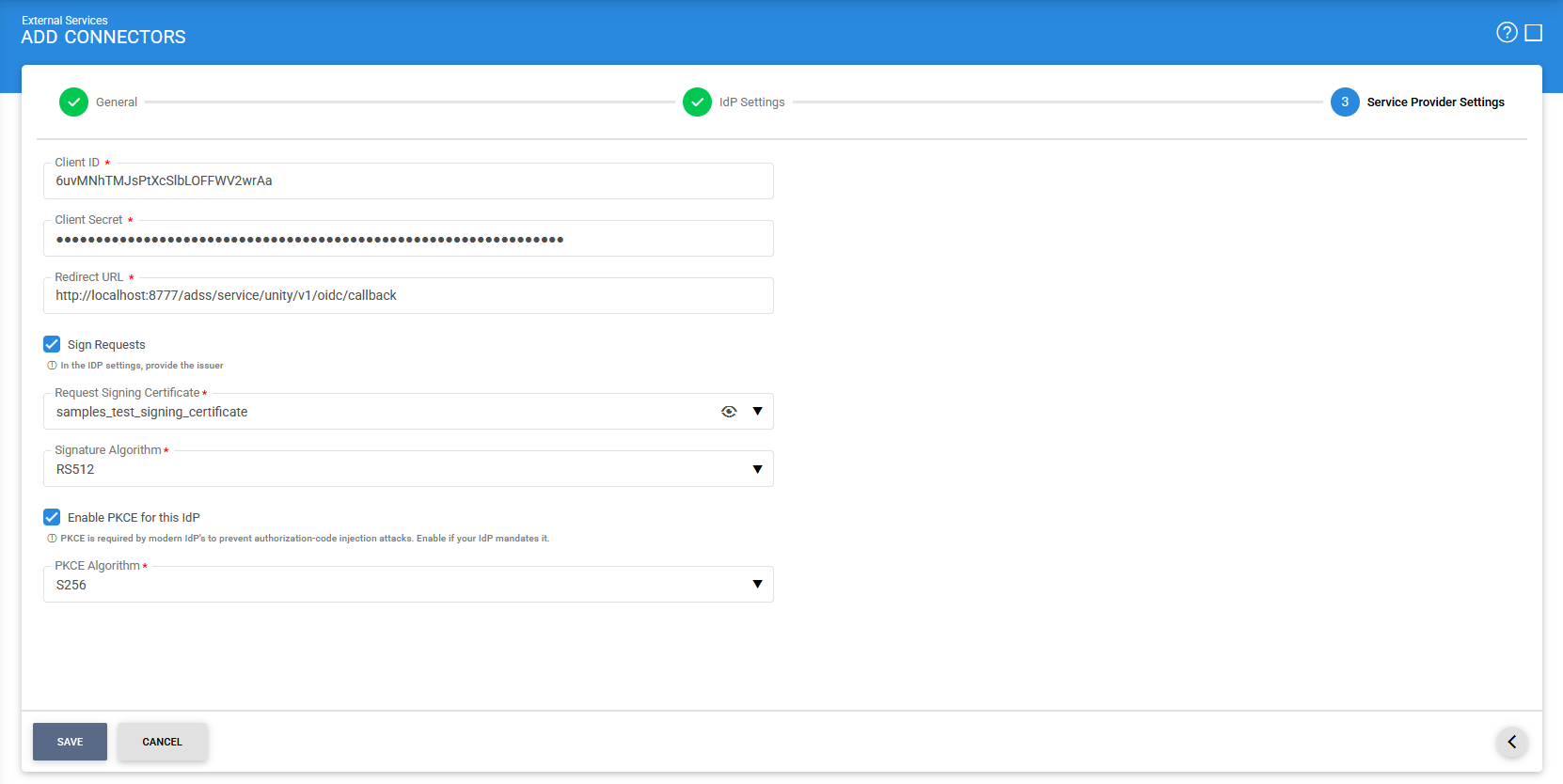
Clicking on Export Service Provider Metadata button will export the service provider metadata on the file system. This metadata file will contain the service provider configurations.
The configuration items are as follows:
|
Items |
Description |
||||
|
Service Provider Settings |
This section defines configurations related to the Service Provider i.e. ADSS Server. |
||||
|
Client ID |
This field shows the client ID registered with OpenID Connect IdP. The client ID is provided in each request sent to IdP so that the IdP can recognize the client. |
||||
|
Client Secret |
The client secret is registered with the client at OpenID Connect IdP. The IdP generates the secret and provides to the service provider i.e. ADSS Server. |
||||
|
Redirect URL |
This field shows the URL of ADSS on which the OpenID Connect IdP will send the authorization code after authenticating the user. For example if this connector will be configured in RAS Service profile, the Redirect URL should be of RAS Service end-point that will receive the authorization code e.g. RAS URI: https://server:port/adss/service/ras/oidc/callback Redirect URI: http://localhost:8777/adss/service/unity/v1/oidc/callback |
||||
|
Sign Request |
If this checkbox is enabled, ADSS will send a signed request to OpenID Connect IdP. |
||||
|
Request Signing Certificate |
This drop-down will list all certificates created in Key Manager with Document Signing purpose. The selected certificate will be used to sign the request. The certificate will also be registered at OpenID Connect IdP to verify the signatures computed over the request as well. |
||||
|
Signature Algorithm |
This drop-down allows the user to select the signature algorithm that will be used to sign the request. |
||||
|
Enable PKCE for this IdP |
Enables Proof Key for Code Exchange (PKCE) for this OpenID Connect identity provider (IdP). When selected, the RAS/Unity Service includes the required PKCE parameters during the OAuth authorization flow when communicating with the configured IdP. Enable this option only if the external IdP requires PKCE for OAuth authorization requests. If this option is not selected, the RAS/Unity Service performs the authorization flow without PKCE.
|
||||
|
PKCE Algorithm |
Specifies the PKCE algorithm to use when PKCE is enabled for this identity provider. The selected algorithm determines how the PKCE challenge is generated and validated during the OAuth authorization flow. The following options are available:
|
|
|
ADSS Server does not support encrypted ID tokens for OpenID Connect based IdP. |
|
|
Currently an OpenID Connect based IdP's can only be configured in RAS Profile of ADSS RAS Service. |
Clicking on Save button will save the applied configurations.
See also