Configuring Linting Tools
ADSS Server supports integration with external certificate linting tools to validate certificates, CRLs, and OCSP responses against industry standards such as RFC5280 and CA/B Forum requirements.
The following linting tools can be integrated with ADSS Server:
- PKILint
- ZLint
After installing these tools on the system, they can be configured in the ADSS Server Console using the External Script Linter feature.
Installation of PKILint (v0.13.1)
PKILint is a certificate linting tool used to validate certificates and PKI artifacts against various standards. This section explains how to install PKILint and its dependencies before integrating it with ADSS Server.
- Install Python
- PKILint requires Python to be installed on the system.
- Download and install the latest Python version from:
https://www.python.org/downloads/ - Complete the installation by following the on-screen instructions.
- Configure Environment Variables (if not configured automatically)
- Open System Environment Variables from the Windows Start menu.
- Click Environment Variable.
- Under User Variables, select Path and click Edit.
- Add the Python installation directory, for example:
C:\Users\{username}\AppData\Local\Programs\Python\Python312 - Under System Variables, update the Path variable and add:
- C:\Users\{username}\AppData\Local\Programs\Python\Python312.
- C:\Users\{username}\AppData\Local\Programs\Python\Python312\Scripts
- Click OK to save the changes.
- Install pipx
- The pipx is required to install PKILint in an isolated environment.
- Linux
Run the following commands:
sudo apt update
sudo apt install pipx
pipx ensurepath
sudo pipx ensurepath --global - Windows
- Install Scoop by running the following commands in PowerShell:
Set-ExecutionPolicy -ExecutionPolicy RemoteSigned -Scope CurrentUser
Invoke-RestMethod -Uri https://get.scoop.sh | Invoke-Expression - Install pipx:
scoop install pipx
pipx ensurepath
- Install PKILint
- Run the following command in PowerShell or Command Prompt
pipx install pkilint
- Verify PKILint Installation:
- After installation, run a PKILint command to verify that the tool is functioning correctly.
- Example command:
lint_pkix_cert lint -f JSON --document-format DETECT [Certificate-Path] - The option --document-format DETECT automatically detects the certificate format (PEM, DER, or BASE64).
- Additional Information
- For more details about PKILint, refer to:
https://github.com/digicert/pkilint
Installation of ZLint (v0.11.3)
ZLint is another certificate linting tool used to validate certificates against standards such as CA/B Forum Baseline Requirements and RFC5280. This section explains how to install ZLint and its dependency.
- Install Go
- ZLint requires Go to be installed on the system.
- Download Go from:
https://go.dev/doc/install
- Install Go on Windows
- Open the downloaded MSI installer.
- Follow the installation prompts.
- After installation, verify the installation by running the following command in Command Prompt:
go version - Confirm that the installed Go version is displayed.
- Install Go on Linux
- Remove any previous Go installation:
rm -rf /usr/local/go - Extract the downloaded archive:
tar -C /usr/local -xzf go1.23.0.linux-amd64.tar.gz - Add Go to the PATH environment variable by adding the following line to $HOME/.profile or /etc/profile:
export PATH=$PATH:/usr/local/go/bin - Verify installation:
go version
- Install ZLint
- Run the following command to install ZLint:
go install github.com/zmap/zlint/v3/cmd/zlint@latest
- Verify ZLint Installation
- Run the zlint command in the command prompt to ensure the tool is available and properly installed.
- Additional Information
- For more details about ZLint, refer to:
https://github.com/zmap/zlint
Configuration on ADSS Server Console
This section explains how to configure PKILint and ZLint in the ADSS Server Console after installation:
- Navigate to Global Settings → External Script Linter
- Click the Add (+) icon to create a new linting tool profile.
- Enter the required configuration details on the configuration screen:
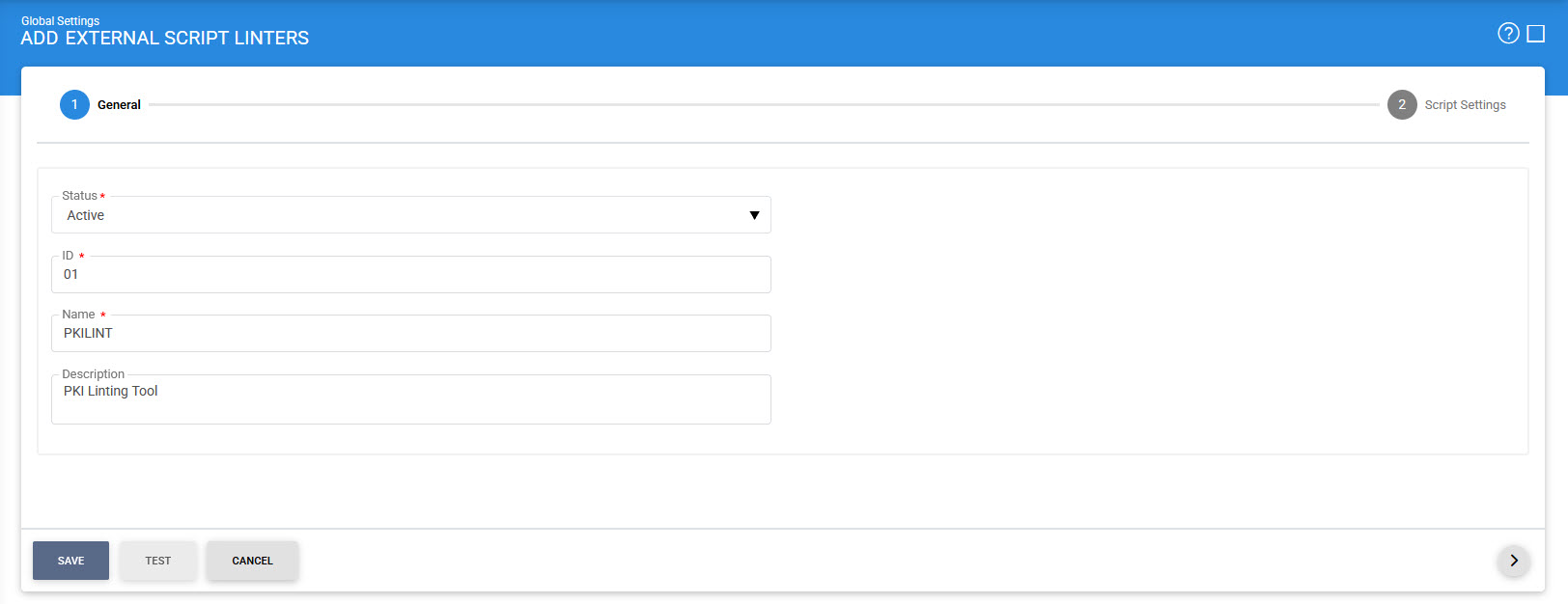
- Configure the Script Command field by specifying the command used to execute the linting tool. Different commands may be required depending on whether the validation is performed for certificates, CRLs, or OCSP responses.
- For ZLINT, the user can set multiple script commands to validate Certificates and CRLs. These include:
- PEM
- DER
- BASE64
- When configuring ZLint, ensure that the encoding format specified in the command using the -format parameter matches the encoding selected in the Input Encoding drop-down.
- For ZLINT, the user can set multiple script commands to validate Certificates and CRLs. These include:
- Certificates:
- For CA/B Forum Baseline Requirement for TLS and Code Signing:
zlint -format pem -includeSources CABF_BR %INPUT% - For CA/B Forum EV Certificates:
zlint -format pem -includeSources CABF_EV %INPUT% - For CA/B Forum SMIME:
zlint -format pem -includeSources CABF_SMIME_BR %INPUT% - For validating against RFC5280 (All Certificates):
zlint -format pem -includeSources RFC5280 %INPUT% - For CRLs, use below command:
zlint -format pem -includeSources RFC5280 %INPUT%
Note:The '-format' can be 'pem', 'der' or 'base64'
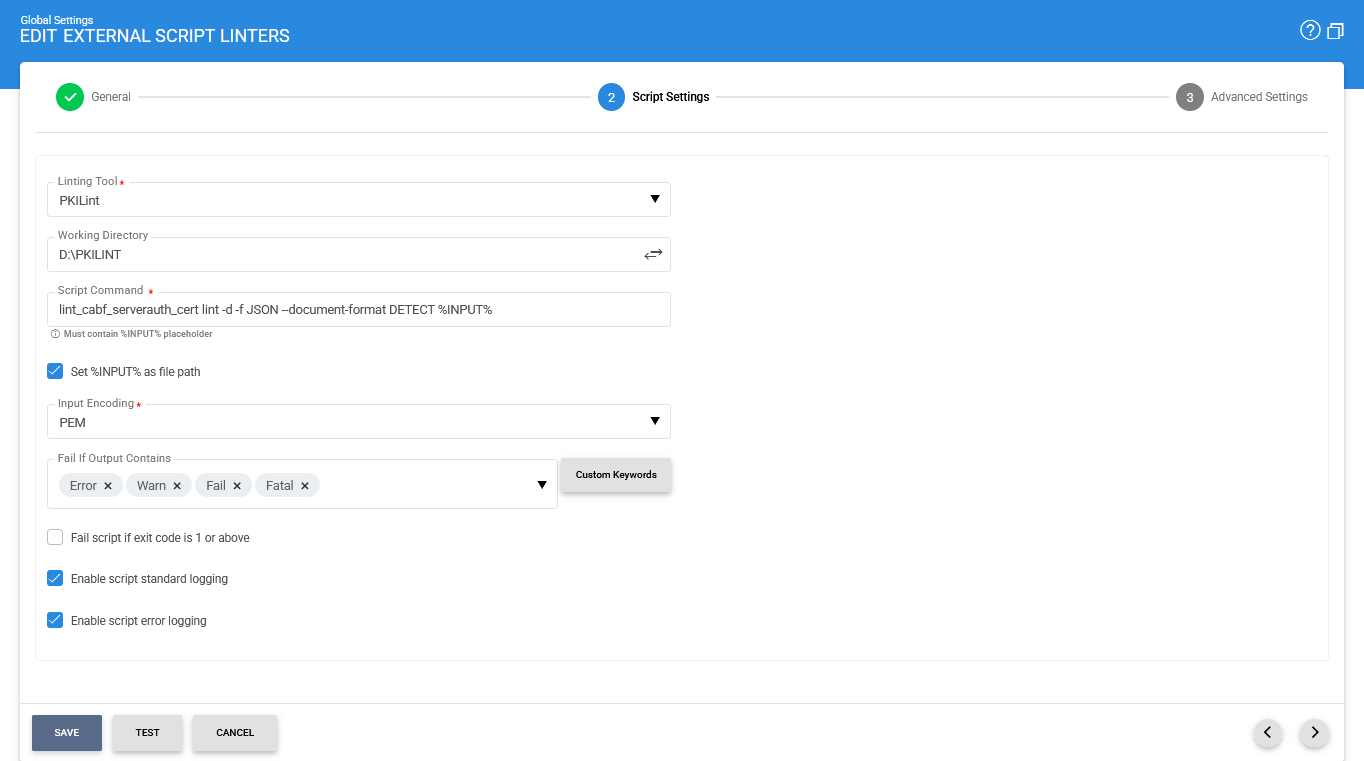
- When configuring PKILint, the tool can automatically detect the encoding format using the --document-format DETECT parameter.
- For PKILINT, the user can set multiple script commands to validate Certificates and CRLs. These include:
- Certificates:
- For EV and Non-TLS Server CA/B Forum:
lint_cabf_serverauth_cert lint -d -f JSON --document-format DETECT %INPUT% - For SMIME according to CA/B Forum:
lint_cabf_smime_cert lint -d -f JSON --document-format DETECT %INPUT% - For all other certificates:
lint_pkix_cert lint -f JSON --document-format DETECT %INPUT% - For CRLs according to:
- RFC5280:
lint_crl lint -t CRL -f JSON --document-format DETECT %INPUT% - CA/B Forum:
lint_crl lint -t CRL -f JSON --profile BR --document-format DETECT %INPUT% - OCSP Response Lint according to RFC6960, use below command:
lint_ocsp_response lint -f JSON --document-format DETECT %INPUT%
- Configure the Working Directory field by specifying the directory from which the script command will be executed.
This field is particularly important if the linting tool executables are not available in the system PATH.
Example working directories may include:
- The Go binary directory where ZLint is installed.
- The pipx binary directory where PKILint is installed.
- Configure the appropriate Script Command for the required validation type (certificate, CRL, or OCSP response) using the commands listed in the documentation.
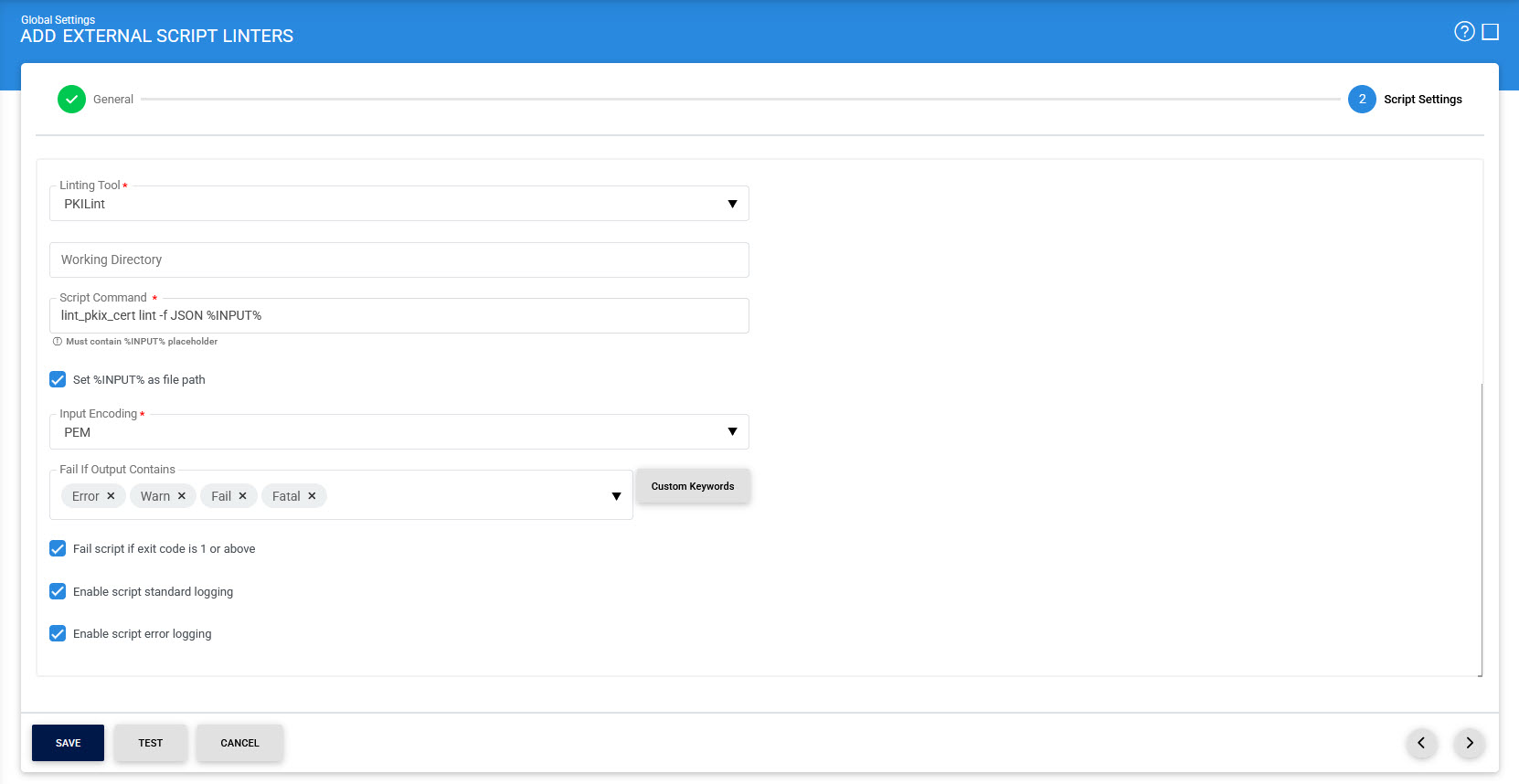
- Save the configuration to complete the integration of the linting tool with ADSS Server.
Known Limitations
The following limitations should be considered when using linting tools with ADSS Server.
- Both ZLint and PKILint accept input only in file format and do not support plain text input.
- ZLint requires the certificate format to be explicitly specified in the command using the -format parameter.
- ZLint can lint CRLs only when the input encoding is PEM. It returns an error if the CRL is provided in DER or BASE64 format.
- ZLint supports linting only for ECDSA keys using NIST_P curves and does not support:
- SEC2_K
- BRAINPOOL_R
- BRAINPOOL_T
- ZLint does not support linting OCSP responses.
- PKILint returns exit code 1 even when linting is successful.
- When configuring PKILint in ADSS Server, ensure that the option "Fail script if exit code is 1 or above" remains disabled.
Enabling this option may cause ADSS Server to incorrectly treat successful lint operations as failures.
Legacy PKI LINT Commands
Below are the legacy PKI Lint commands that have been used for the previous version i.e. v0.11.1:
- Certificates:
- For EV and Non-TLS Server CA/B Forum:
lint_cabf_serverauth_cert lint -f JSON -d %INPUT% - For SMIME according to CA/B Forum:
lint_cabf_smime_cert lint -f JSON -d %INPUT% - For all other certificates:
lint_pkix_cert lint -f JSON %INPUT%
- For CRLs according to.
- RFC5280:
lint_crl lint -t CRL -p PKIX -f JSON %INPUT% - CA/B Forum:
lint_crl lint -t CRL -p BR -f JSON %INPUT
- OCSP Response Lint according to RFC6960, use below command:
lint_ocsp_response lint -f JSON %INPUT